How workflows work
Start a ready-made AI workflow for a logo, a manga chapter, a story or product video, a 3D model or a website: say your idea, and Generate all makes it.
A workflow is a canvas already set up for one kind of work: a logo and brand guide, a manga chapter, a product shoot, a story or product video, a 3D model, a website. It comes with briefs, prompts in every step, places for your pictures and a skill that holds the craft, every step wired to the next.
You say what you want in a sentence and Claude asks a few quick questions. It fills in the canvas, then Generate all makes it step by step while the canvas chat follows the run. There are 38 workflows, each with a page of its own.
What's in a workflow
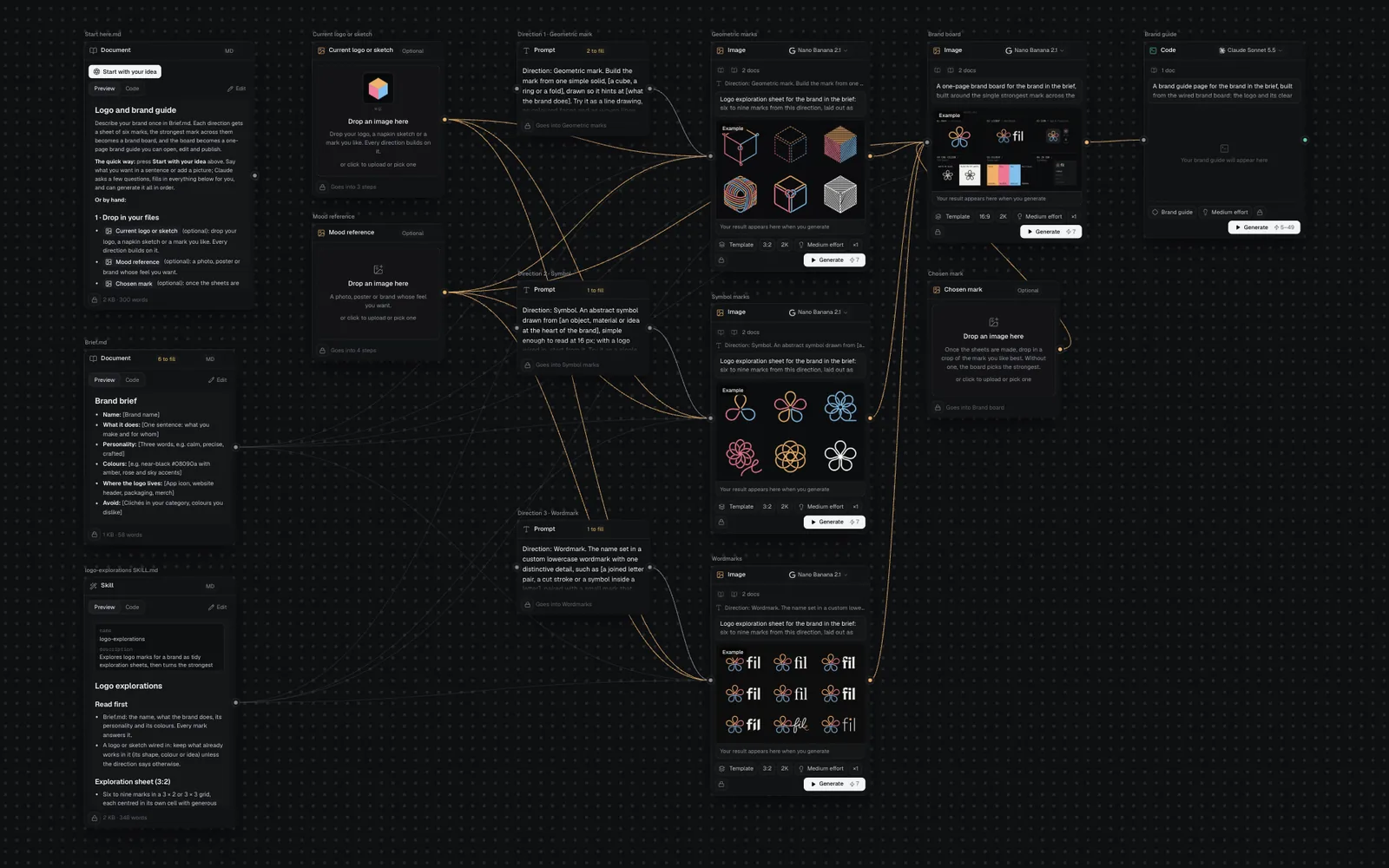
Every workflow opens as a new canvas with these kinds of node, laid out left to right:
- Start here.md: a guide to this workflow, with a Start with your idea button.
- Places for your pictures: empty file nodes tagged Needed or Optional. Drop a picture on one, or click it to upload or pick one from your library.
- Briefs: Markdown documents, such as Brief.md or Story.md, whose [brackets] hold the specifics. A brief with brackets left shows a tag such as "6 to fill". Every workflow has one but 3D asset, which keeps them in a prompt node.
- A skill: a SKILL.md wired into the steps that follow it, with the rules of the craft (how a manga page flows, what makes a mark read at 16 px).
- Steps: generation nodes, each with its own prompt and on the model its examples were made with. Steps that have an example show it, tagged Example, until they run. Logo and brand guide also has a prompt node for each direction it explores.
Nothing runs until you press Generate all or Generate on a node, and you see the price first. A canvas from a workflow is an ordinary canvas: see Canvas basics and Prompts, documents and skills.
Find a workflow
Click Workflows in the sidebar. The gallery shows each workflow as a card: its picture, what it makes, where its price starts ("from 35") and how many minutes it takes. A wide card also says how many things it makes.
- Type in the search box ("Search workflows") to find them by name, by what they make or by a step's name ("logo", "turnaround", "thumbnail").
- The filters narrow them by what they make: All (38), Image (17), Video (8), 3D (5) and Web (8).
- Sort them by Popular (most started first), Quickest or Fewest credits.
- In ⌘K, type a workflow's name to jump to its page.
Click a card to open the workflow's page. Start on a card skips the page and opens the canvas at once.
A workflow's page
A workflow's page says what it makes and needs before you start, with Start this workflow beside it (under the title in a narrow window).
- What it makes: an example of most steps; the others are listed under Also makes. Click an example to open it full size with its step's prompt, the [brackets] Claude fills in, what it reads and its recipe. Clips play when you hover them.
- How it starts: say what you want, pick from a few choices, and Generate all, with what Claude will ask about.
- What you put in: each place for a picture, tagged Needed or Optional, the briefs and the prompts. Where a workflow offers styles, pick one here and the canvas opens with it in place.
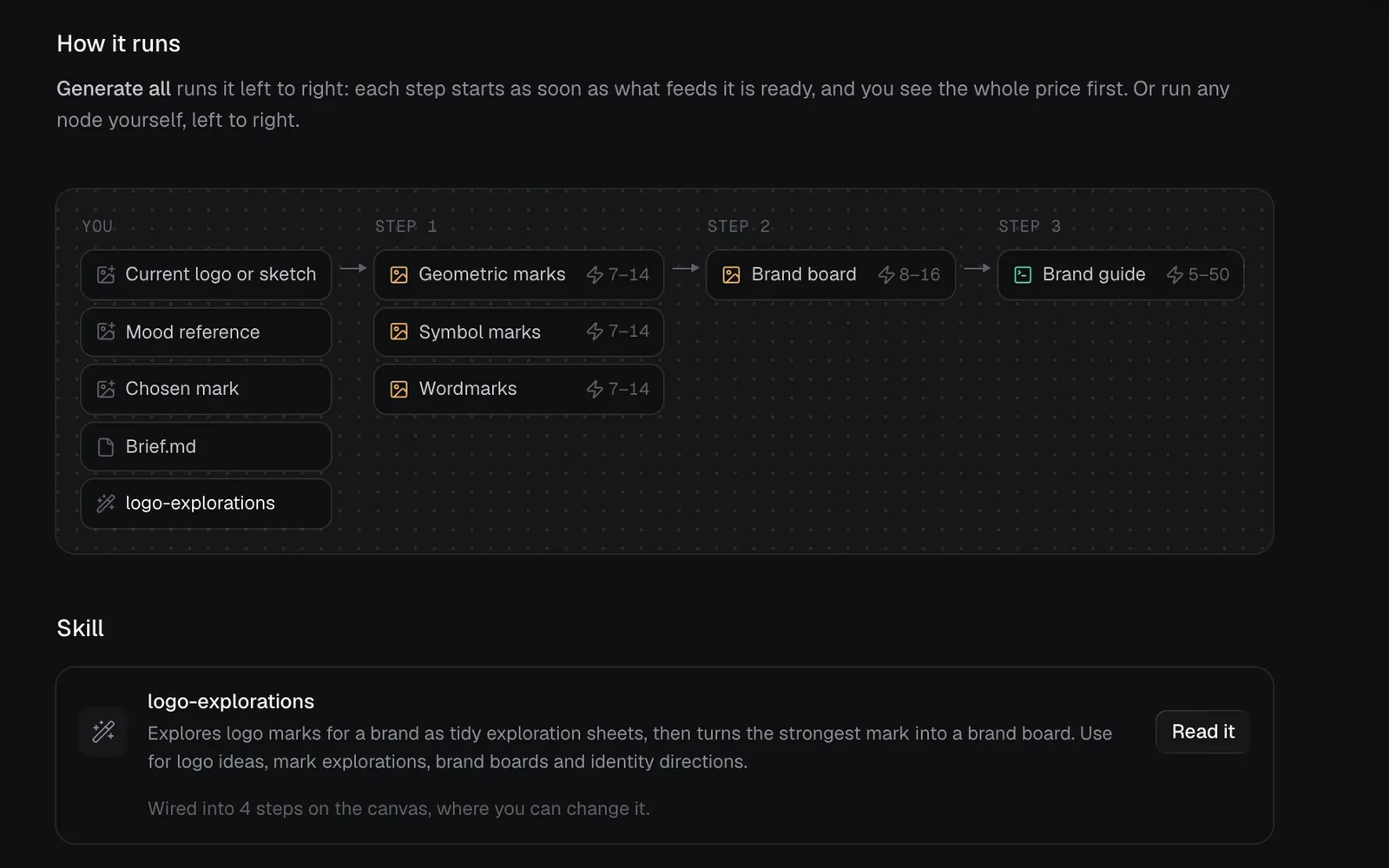
- How it runs: every step in order, with its credits.
- Skill: the skill's description, and Read it for the whole SKILL.md.
- Some pages have more: Motion film shows A film in each style (hover one to play it), and Long-form product video lists its Footage places once, "One for each chapter, there whenever you have one".
Start a workflow
- On the workflow's page, click Start this workflow. The new canvas opens at once, named after the workflow, and the start card comes up over it, headed "Let's make your logo and brand guide".
- Say what you want in a sentence or two where it asks ("Describe the logo and brand guide you want."), or click the Try idea under the box. As you type, or after a few seconds, the canvas builds itself beside the card and its examples come into focus. If the box is still empty by then, it shows Your turn.
- Drop your own pictures on the tiles below the box, or pick a look under Or start from a style where there is one. Press Continue (or Enter). A picture alone is enough to start; words are optional.
- Answer Claude's quick choices. Claude reads your idea and asks up to three questions about what changes the result most, such as the mood, the lead or the colours. The card's heading says how many ("3 quick choices"); an idea that already says it all gets none: the card says "Your idea says it all", and you go on to Fill in my canvas.
- The first option of each is Claude's pick, tagged Suggested. Say it your way, under the options, opens a box for your own answer; left empty, Claude chooses for you.
- Some questions come from the workflow, unless your idea answers them ("for Reels", "5 pages"): Where will it be seen? where it comes in more than one shape (see Shapes), and How long should it be? in Manga chapter, Illustrated book, Instagram carousel, Children’s book and Talk slides. With a style picked, Claude doesn't ask how it should look.
- If a picture would help, Claude asks for it under the questions, such as "Add current logo or sketch?". If another workflow fits your idea better, it says so, with Use it to switch.
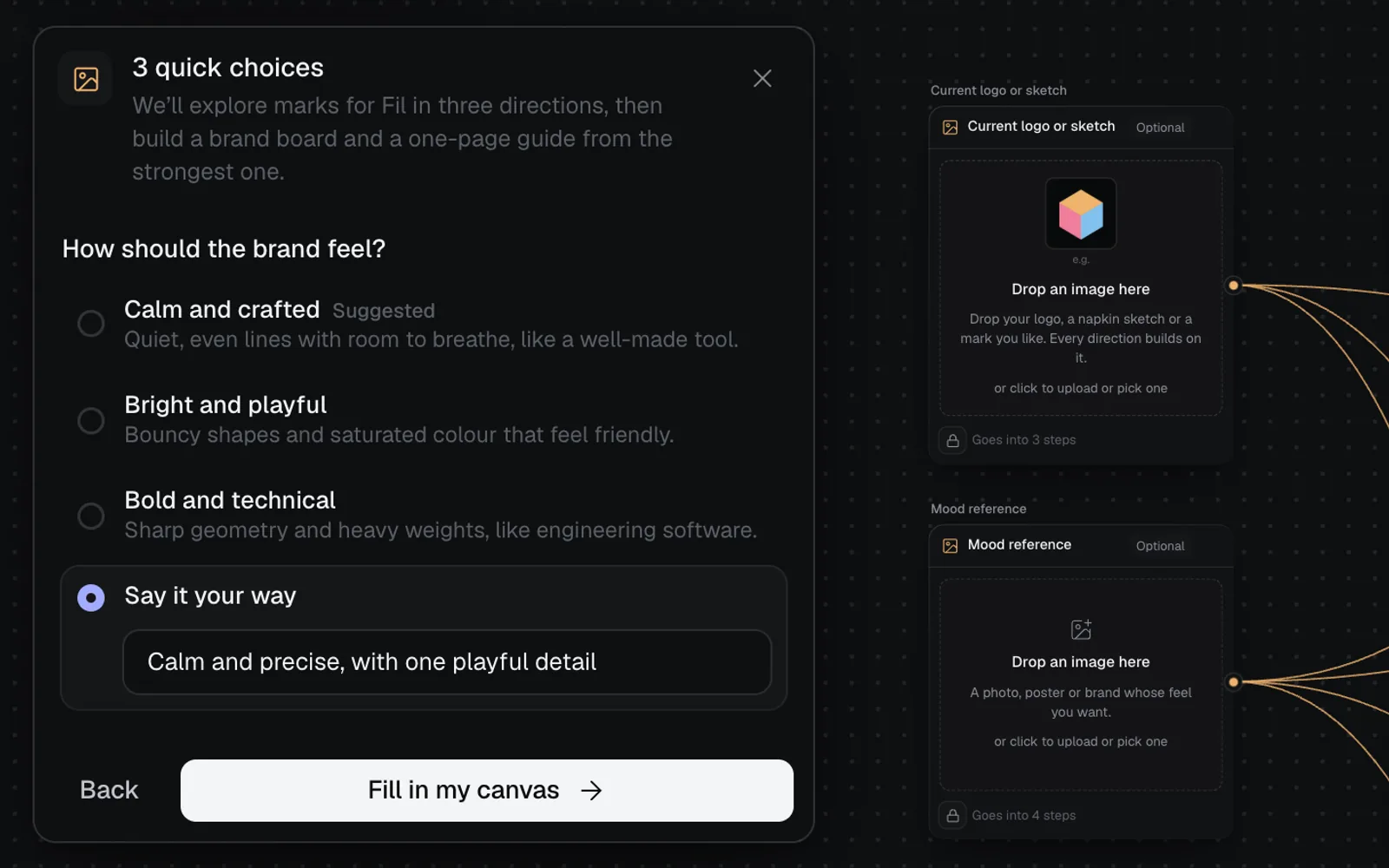
- Press Fill in my canvas. Claude writes every brief, fills every [bracket] from your answers, names the canvas after your project, and sets every picture and clip to the shape you chose.
- Check the price on Ready to make it. It lists each step, ticked, with what it can cost (7–14 for a picture: the top is the most), and how many credits you'll have left after.
- Untick a step to leave it out. The steps that need it go too, and Generate all 5 becomes Generate 4 (or however many are left).
- The lock beside Not now (a globe when it's public) says whether what it makes is private or public in Community; click it to switch. On Free, work is always public; on Starter, Pro and Max it starts private.
- If any [brackets] are left, it names the nodes that have them: they reach the model as written.
- If you're short of credits, it says how many the run needs and how many you have, and the button stays off.
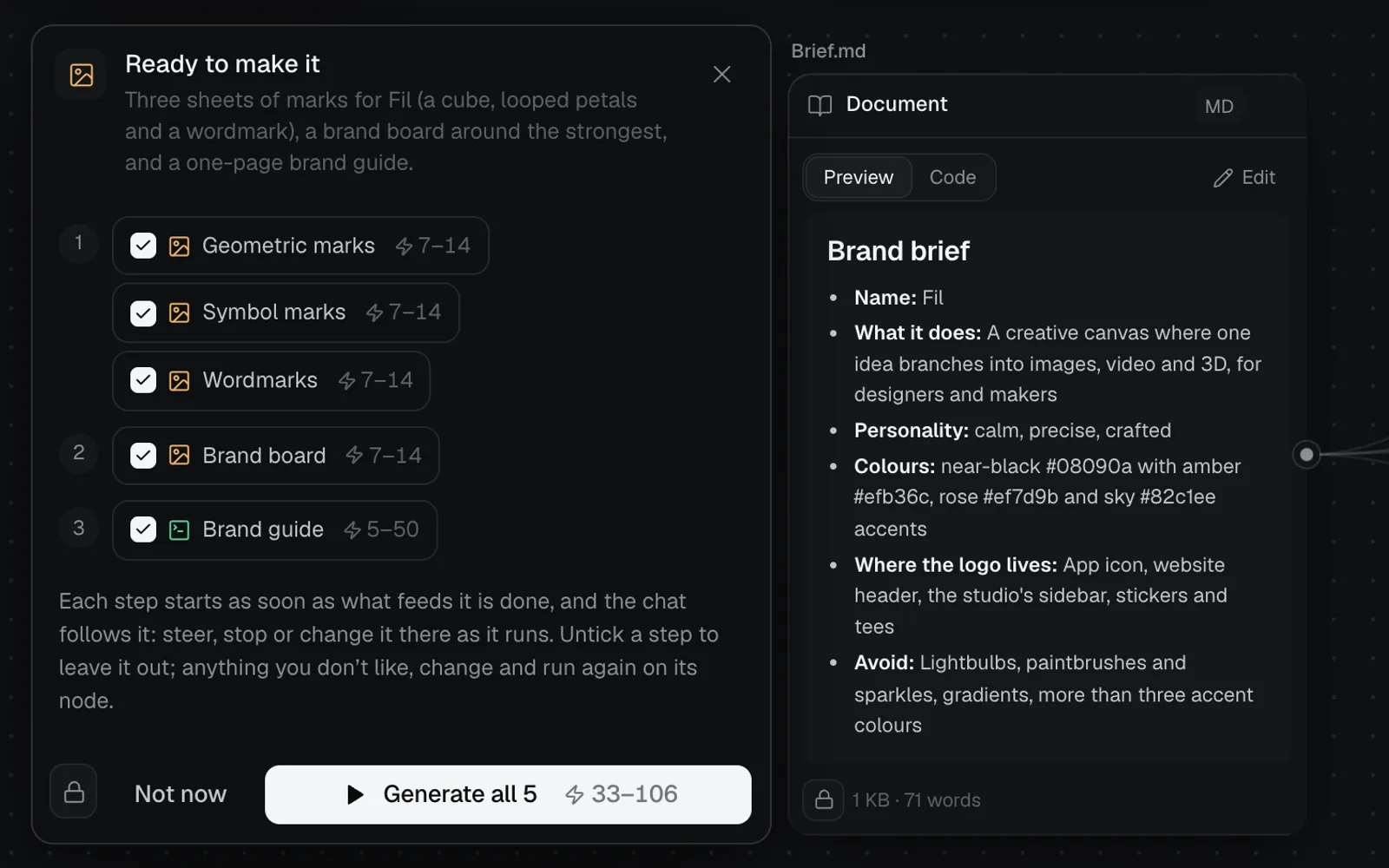
- Press Generate all. The canvas chat opens and follows the run, as below. Generate all is only on this step: after Not now, run the steps from their nodes, or press Start with your idea on Start here.md to go through the card again (it fills the canvas in again, over your changes).
Prefer to write it all yourself? I’ll fill it in myself closes the start card: fill in the [brackets] and press Generate on each node.
When a workflow asks for more
A few workflows add to these steps:
- Product launch video shows its scenes after Fill in my canvas ("9 scenes, 45 seconds"), each with its message and style: change any and press Looks good, or Skip.
- Workflows with voiceovers, such as Long-form product video, pick the voice on the Ready step ("Every voiceover is read in").
- A workflow that needs a picture, such as Product photoshoot (a product photo), asks for it on the Ready step: the main button reads Add and the place's name, such as Add product photo, and Generate without it makes one up from the brief instead.
Generate all, or step by step
Generate all runs every ticked step that hasn't made anything yet. Each starts as soon as what feeds it is made, so steps that don't wait on each other run side by side. The canvas chat opens on the left and follows the run:
- Every step is listed live: what it waits for, then what's being made. A picture step then shows "Checking it against the briefs and what feeds it", and once it's made, its picture and what Claude's check said. Code steps, such as a page or a guide, show once they're made; a film's scenes are checked from their frames.
- If a picture breaks the story or the look, Claude mends it or makes it once more, and the new take replaces the first.
- Click a step to show it on the canvas.
- The run ends with "Made 5 of 5", how long it took and what it cost.
- Long-form product video, Product launch video and Motion film end with a Video edit: Generate all puts the film together at the end of the run, for free (it reads Free on the Ready step).
While it runs:
- Stop, beside the chat's box, ends the run: what's being made finishes, and the rest won't start. The run then offers Carry on to make the rest, or Try again when a step didn't finish.
- Write in the box ("Steer it as it runs: the story, a step, the look") to change what's still to come. Claude rewrites the briefs and the prompts of steps not made yet, and lists them under Changed. This is free.
- Making a step again or adding pages costs credits, so Claude shows a card with the price first: press Make again or Add them, or Not now.
Once the run is done, the box reads "Ask for a change, a step made again, or more" and works the same way. See Follow and steer a workflow run, and the Manga chapter guide for an example.
Run steps yourself
Generate on a node runs that step, and Add on a finished node makes another take. To run several at once, select them and press Run selected nodes in the panel on the right, then Run 3 generations (or however many you selected) in the menu that shows their price. They start together, so pick steps whose inputs are already made.
Styles and shapes
Styles
19 workflows have a style picker with 5 to 17 looks that suit them, such as manga inking styles for Manga chapter, film looks for Story video and video styles for Long-form product video. Pick one on the workflow's page or on the start card, or drop any picture into its place on the canvas. Product launch video asks its own way: a style, light or dark, and the type, on the start card.
Shapes (aspect ratios)
Seven workflows come in more than one shape. If your idea doesn't say where it will be seen ("for Reels"), the start card asks Where will it be seen? (in Long-form product video, What shape is the video?). Claude's pick is suggested; if it has none, the first shape in the table is. Your answer sets every picture and clip:
| Workflow | Shapes |
|---|---|
| Story video | 16:9, 9:16 |
| Product promo video | 16:9, 9:16 |
| Long-form product video | 16:9, 9:16, 1:1 |
| Motion film | 16:9, 9:16, 1:1 |
| YouTube thumbnails | 16:9, 9:16 |
| UGC video ad | 9:16, 16:9 |
| Social campaign | 3:4, 9:16 |
Change any node's shape on the canvas afterwards.
Add more pages, scenes or slides
Ten workflows can be longer than they come. A tile after the last part adds more: say what happens next (or leave it to Claude), pick how many (1 to 4), and Claude writes them (into the brief, where the workflow has one) and wires a node for each. Generate them makes them, and the run shows in the chat. You can also ask for more in the run's chat.
| Workflow | Tile |
|---|---|
| Manga chapter | Add pages |
| Long-form product video | Add chapters |
| Product launch video | Add scenes |
| Motion film | Add scenes |
| Illustration set | Add scenes |
| Illustrated book | Add plates |
| Landing page | Add sections |
| Instagram carousel | Add slides |
| Children’s book | Add spreads |
| Talk slides | Add slides |
Long-form product video, Motion film and Landing page size themselves to your idea when they fill in. Manga chapter, Illustrated book, Instagram carousel, Children’s book and Talk slides start at the length you pick on the start card.
What workflows cost
You see a workflow's price in four places, and each means something different:
| Where you see it | What it means | For Logo and brand guide |
|---|---|---|
| A gallery card | Where the price starts | from 35 |
| The workflow's page | The range to make it all, rounded up; it allows for reference pictures you might drop in | About 35–110 |
| Ready to make it | What each step and the whole run can cost; the top allows for one mend or one more take after Claude's check | 33–106 for all five steps (7–14 a sheet) |
| A node's Generate | One run of that step | 7 |
- Code steps (pages, slides, scenes) are charged for what they use, so their range is wide: 5–50 for the brand guide.
- React website and Website with a CMS can add up to 6 pictures for the page's sections, made before the page; their price allows for them.
- Claude's questions, the fill-in, steering a run and writing new pages are free. A step that fails is refunded.
- Once it's made, click an empty spot on the canvas: its panel adds up what everything on it cost.
Edit or save your own
Everything a workflow puts on the canvas is yours to change: rewrite a brief or a prompt, swap a step's model, add or delete nodes, or edit the skill so every step wired to it works differently.
To use a workflow you've tuned again, right-click its canvas in the sidebar's list of canvases and choose Duplicate. Inside the canvas, the same is Duplicate canvas in the menu under the canvas's name at the top of its left panel.
To keep the method rather than the canvas, select a finished node and press Turn into skill in the panel on the right: it writes a new SKILL.md from the whole flow that made the result. For a smaller starting point than a whole workflow, add a canvas template to any canvas.
Which workflow for what
- A brand: Logo and brand guide, Business card, Icon set, T-shirt design
- Products: Product photoshoot, Packaging design, Product promo video, Product launch video, UGC video ad
- People: Headshots, Team photo
- Stories and books: Manga chapter, Children’s book, Illustrated book, Book cover, Illustration set
- Films: Story video, Motion film, Product promo video
- Explainers and demos: Long-form product video, YouTube video plan, Visual explainer
- 3D: 3D asset, Game character, Character gear, Material maps to Three.js, Holographic card
- Websites and code: Landing page, React website, Website with a CMS, Website hero, Three.js landing page, HTML component
- Social: Social campaign, Instagram carousel, YouTube thumbnails, Reel planner
- Talks and teaching: Talk slides, Workshop day, Visual explainer
Every workflow
All 38, in the catalog's order. A workflow with a guide here opens it; the others open their own page on fil.design, such as fil.design/workflows/headshots.
 Logo and brand guideThree directions of marks, then a brand board and a brand guide page.Image · 4 min · from 35 credits
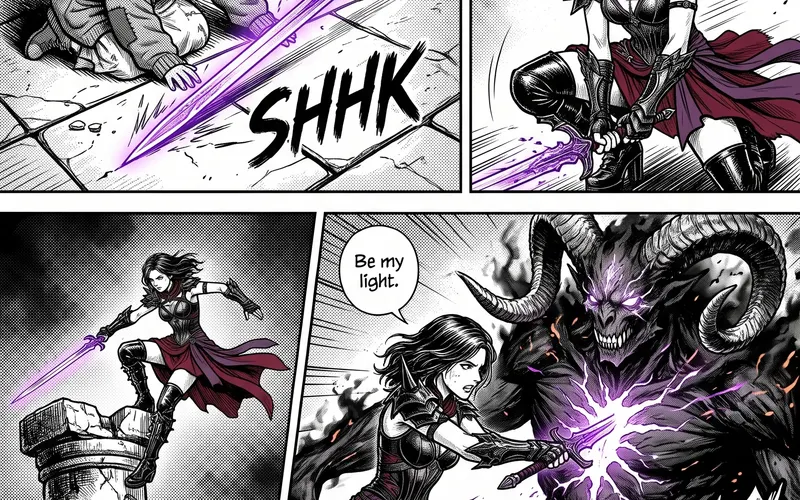 Manga chapterA cast sheet, a places sheet, a cover and inked pages that tell one short story.Image · 5 min · from 50 credits
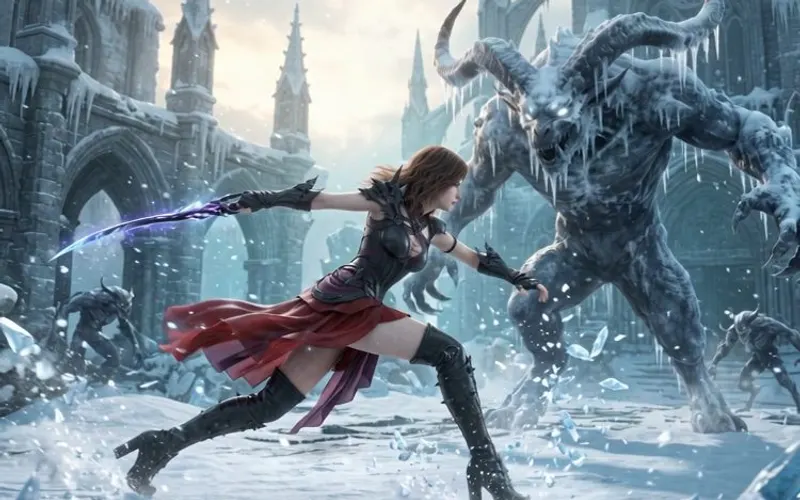 Story videoA character sheet, keyframes, shots and a score, ready to cut together.Video · 10 min · from 250 credits
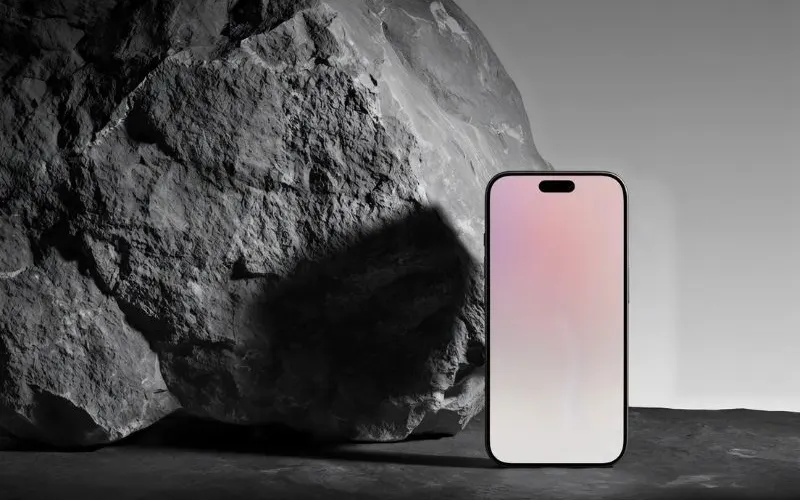 Product promo videoYour product photo becomes stills, clips, an end card and music to cut together.Video · 8 min · from 180 credits
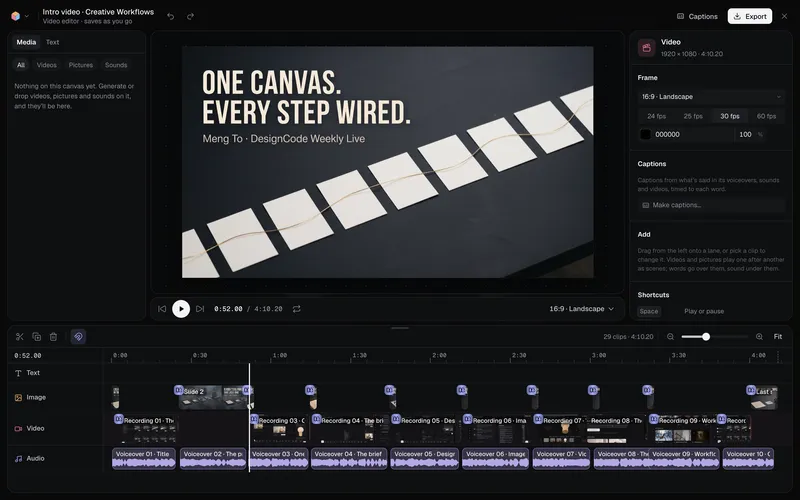 Long-form product videoA product demo, explainer or webinar intro planned chapter by chapter, with a picture and a voiceover for each, put together in the video editor.Video · 6 min · from 50 credits
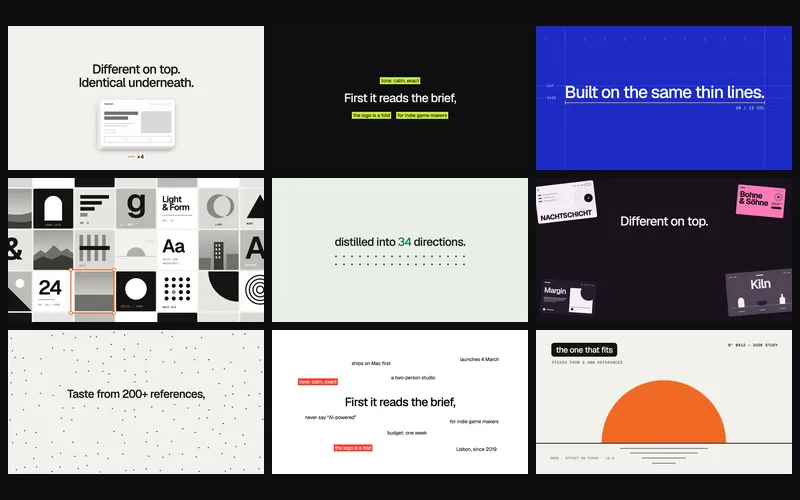 Product launch videoA 45-second launch film in nine five-second motion design scenes, each in its own style, in your brand, made as code and put together in the video editor with music and sound effects.Video · 5 min · from 60 credits
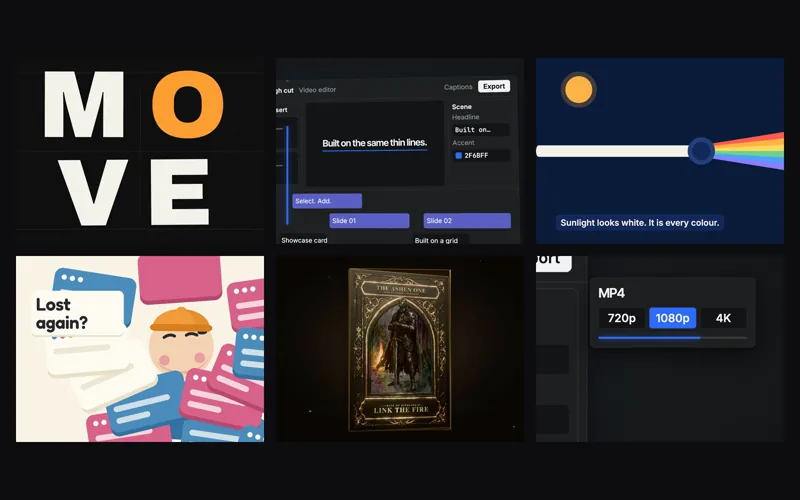 Motion filmA finished short film made entirely in code, as a motion director would: facts, a storyboard and a style bible, style frames, music on a beat grid, then every scene built to hand on to the next, in one of five popular styles.Video · 12 min · from 40 credits
 Product photoshootYour product in a studio shot, a second angle, a close-up and a colourway.Image · 3 min · from 30 credits
 3D assetA clean concept, a turnaround to check it, then a textured 3D model.3D · 4 min · from 75 credits
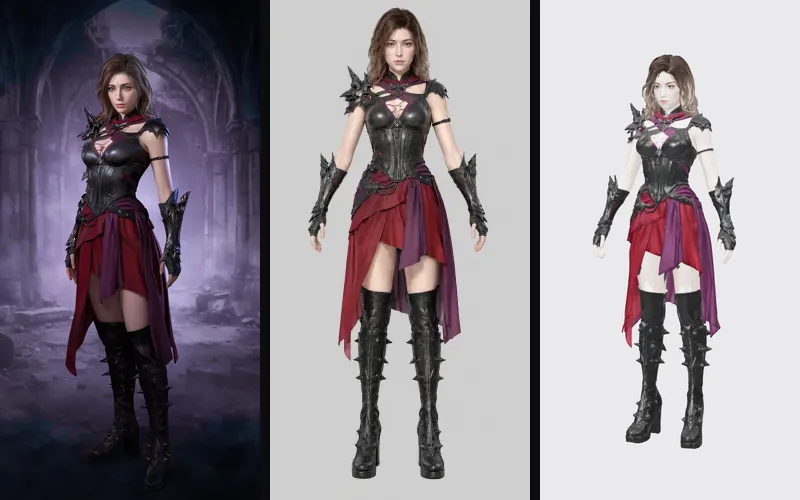 Game characterA concept, a clean A-pose turnaround and a 3D model ready to rig and animate.3D · 5 min · from 75 credits
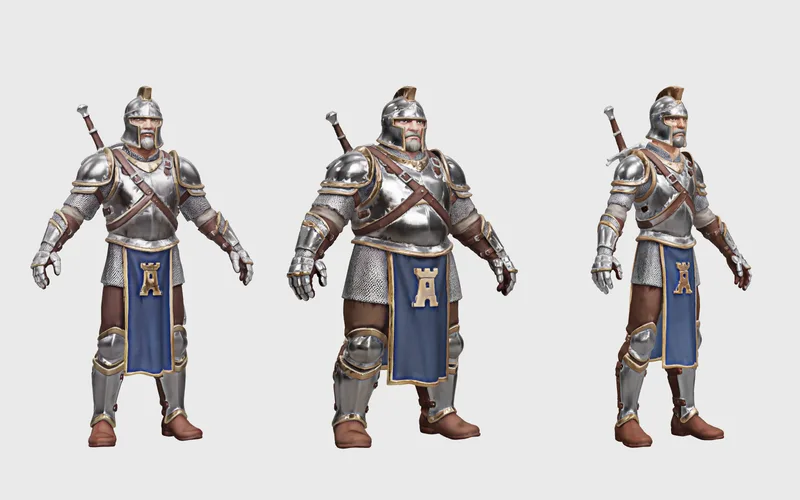 Character gearA gear set drawn once and fitted to three body types, each a 3D model ready to animate.3D · 10 min · from 290 credits
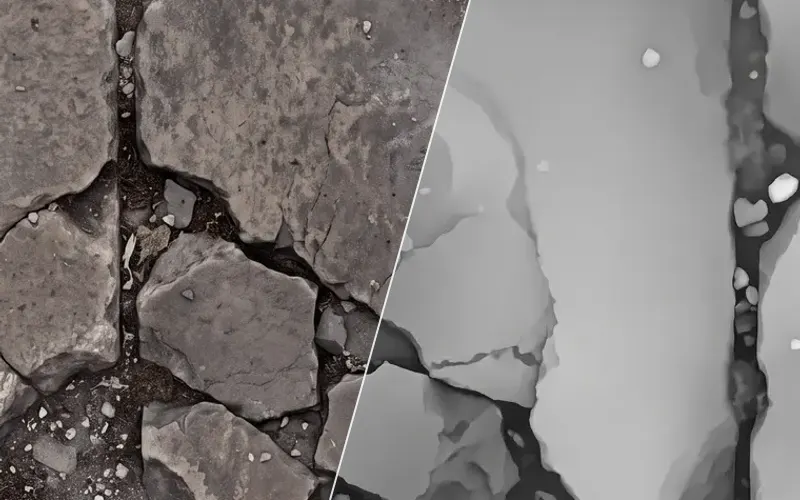 Material maps to Three.jsA seamless surface and its maps, lit in a Three.js scene you can turn and publish.3D · 4 min · from 30 credits
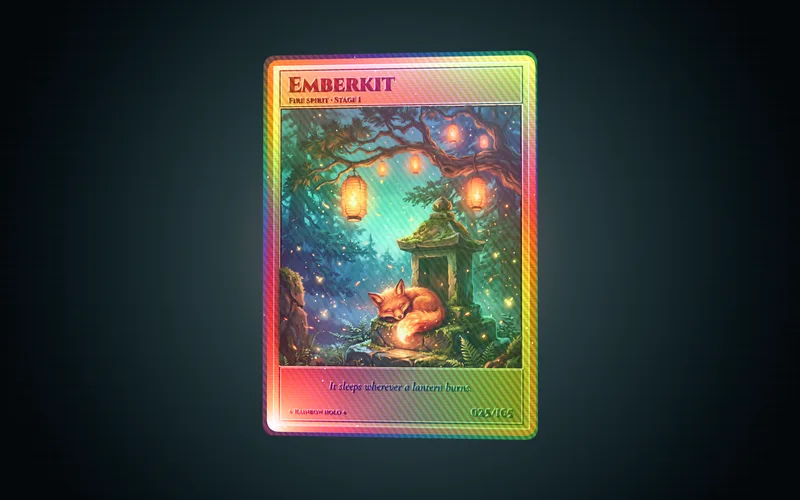 Holographic cardA foil card in 3D with real depth: the hero steps out of an ornate frame, foil-stamped lettering, and a card you can tilt, spin and flip.3D · 4 min · from 45 credits
 Illustration setThree illustrations in one consistent style, and a vector SVG of your favourite.Image · 3 min · from 30 credits
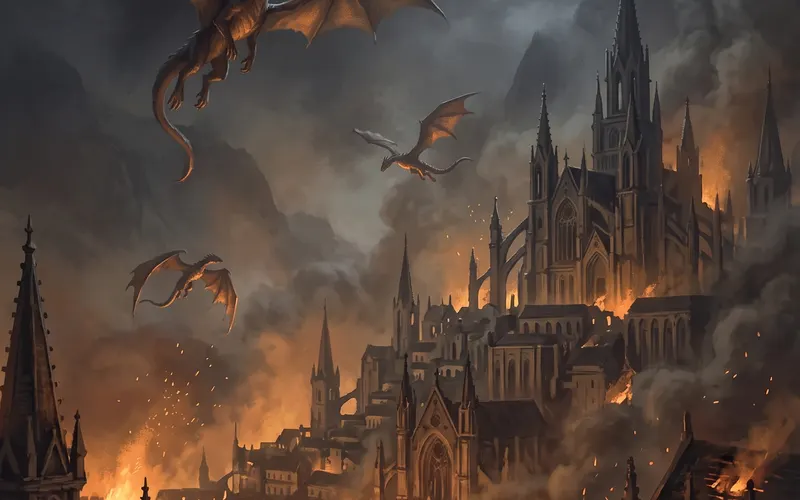 Illustrated bookPainted plates, an endpaper, a map and a portrait in one painting’s style.Image · 6 min · from 45 credits
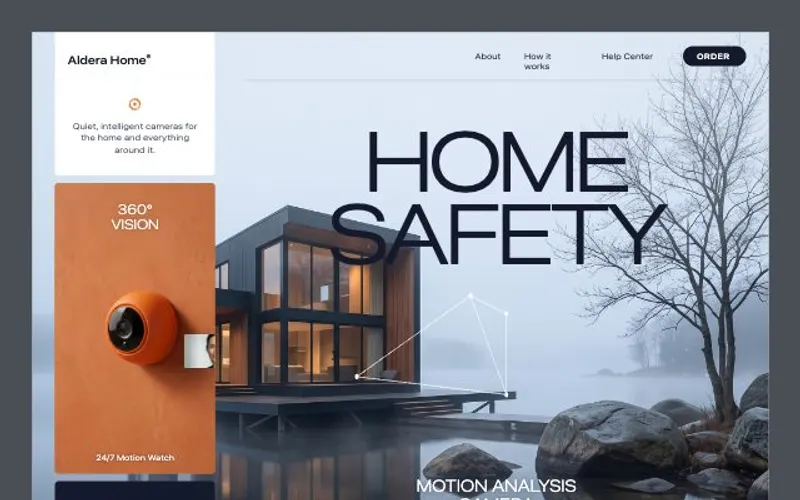 React websiteA React site from your brief, with a hero image and section pictures made for it.Web · 4 min · from 15 credits
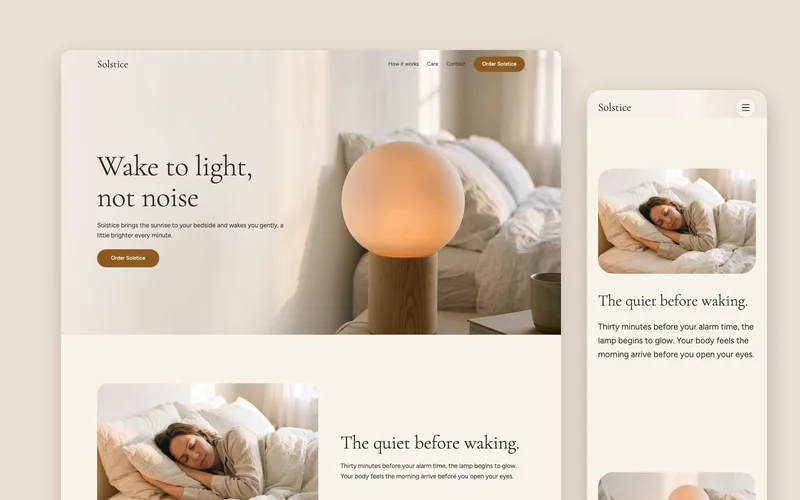 Landing pageA landing page planned for your kind of site, with a picture made for every section from the hero to the footer.Web · 5 min · from 45 credits
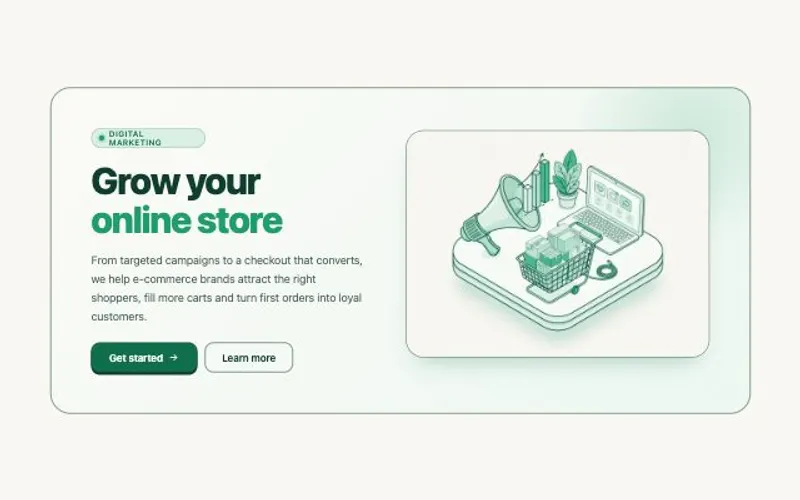 HTML componentOne self-contained UI component from your spec, with an illustration made for it.Web · 2 min · from 10 credits
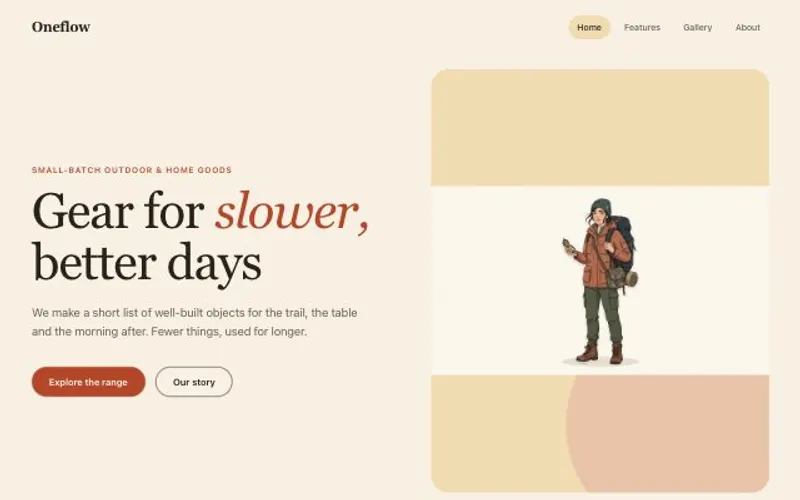 Website with a CMSPages that read from content you can edit, with one shared design system.Web · 5 min · from 15 credits
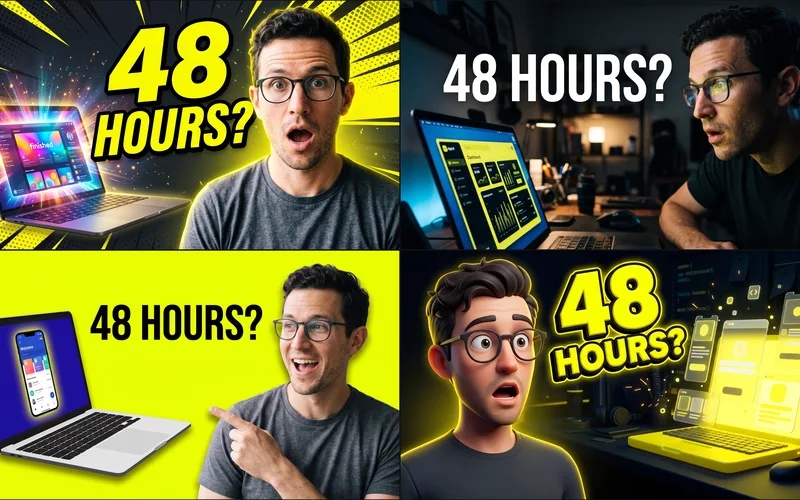 YouTube thumbnailsYour photo in four thumbnail styles for one video, to pick from or A/B test.Image · 2 min · from 30 credits
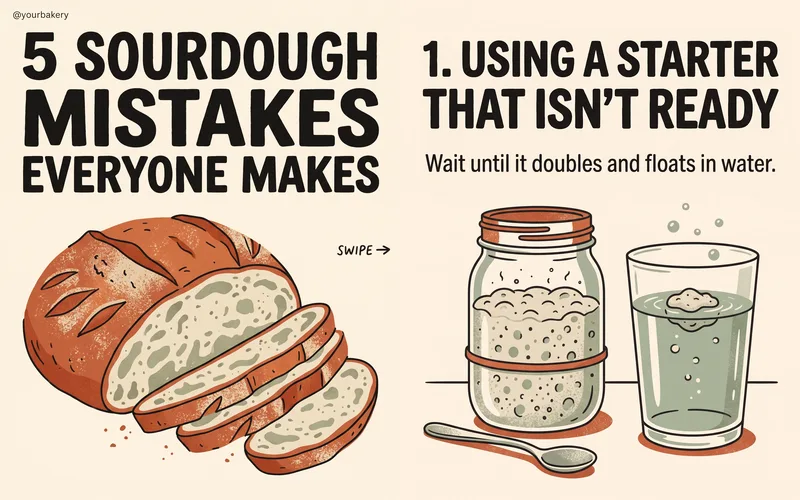 Instagram carouselSeven slides that read as one post, a hook, five points and a call to action, and more up to ten.Image · 3 min · from 50 credits
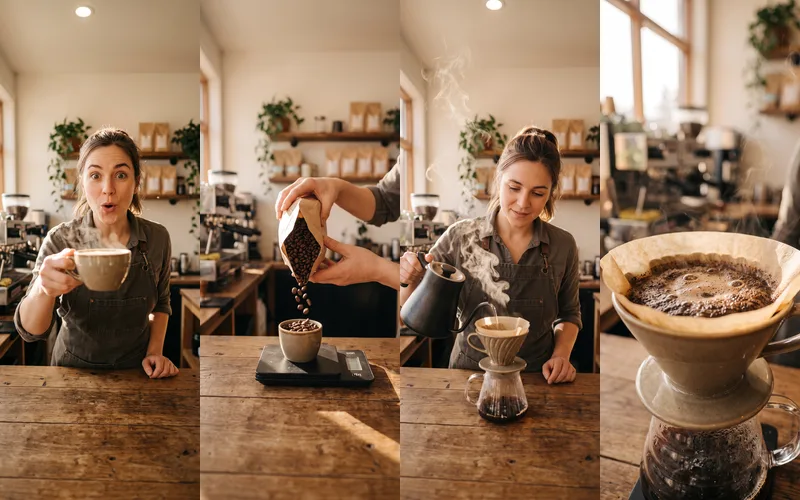 Reel plannerA 30-second Reel planned scene by scene: pictures, what to say, a voiceover and a storyboard.Video · 4 min · from 130 credits
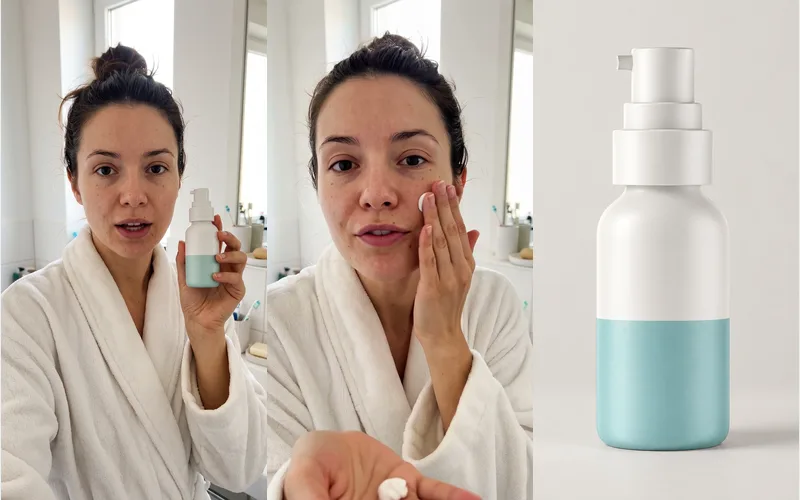 UGC video adA creator with your product, talking to the camera like a real review: a hook, a demo and a verdict.Video · 8 min · from 360 credits
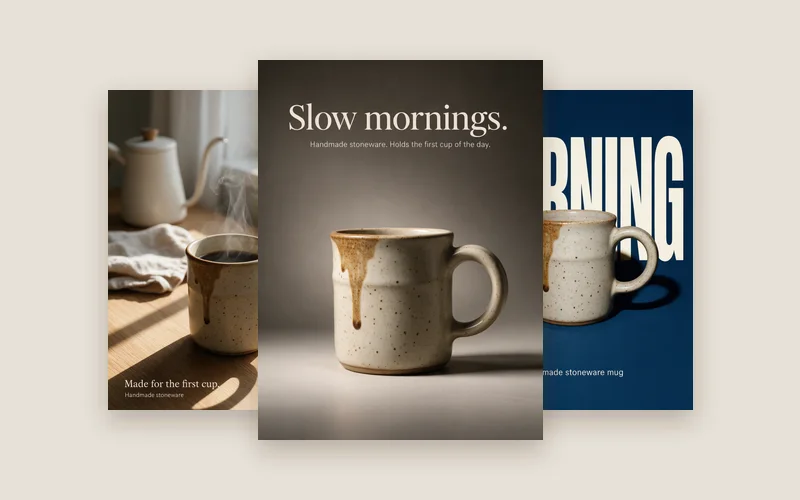 Social campaignOne product photo becomes three posters, a product shot and each platform’s post, shared with one link.Image · 6 min · from 120 credits
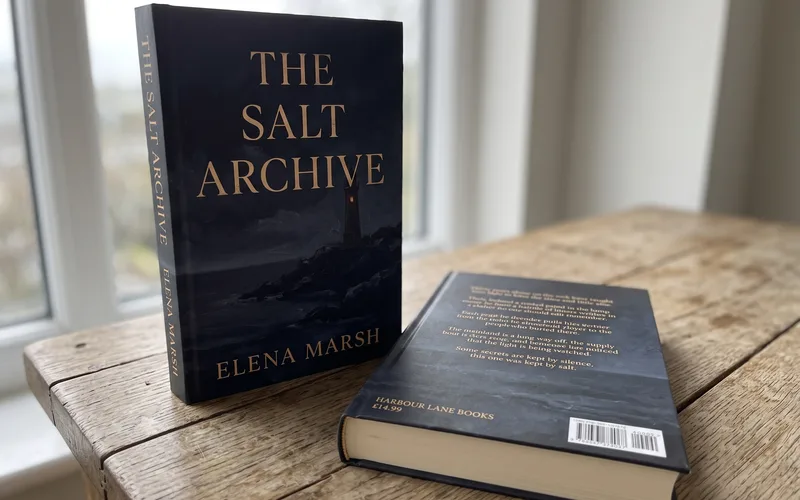 Book coverA front and a back cover that are one piece of art, and the printed book.Image · 2 min · from 25 credits
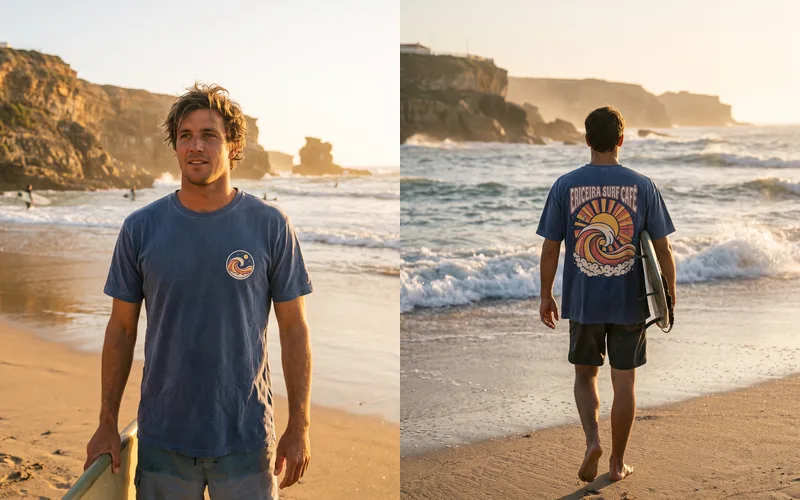 T-shirt designA front and a back print ready for screen printing, and the shirt wearing them.Image · 3 min · from 30 credits
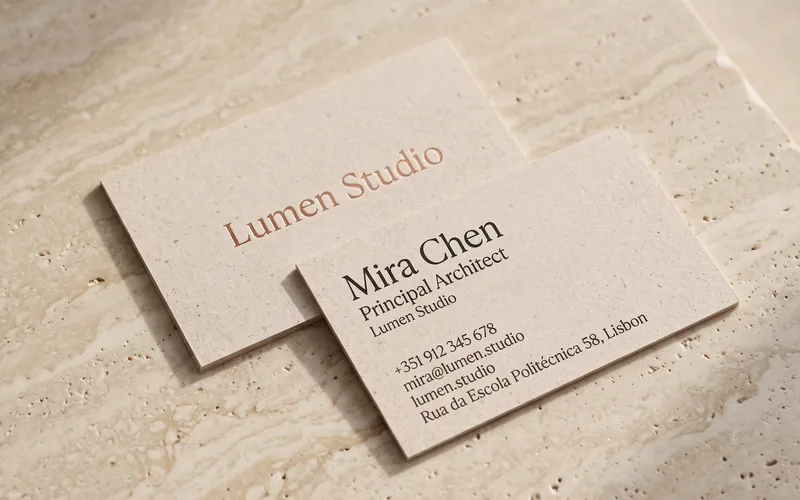 Business cardBoth sides of your card as print-ready artwork, and the printed cards on a desk.Image · 2 min · from 25 credits
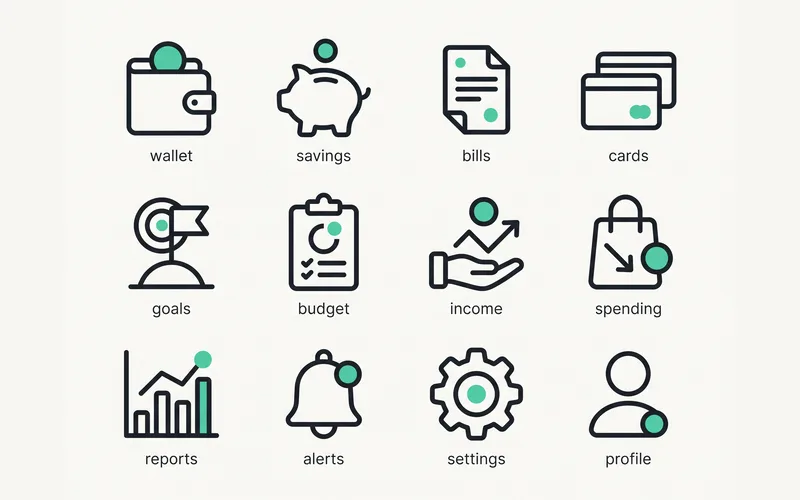 Icon setA consistent set of icons on one sheet, and the same set redrawn as clean SVG.Image · 3 min · from 15 credits
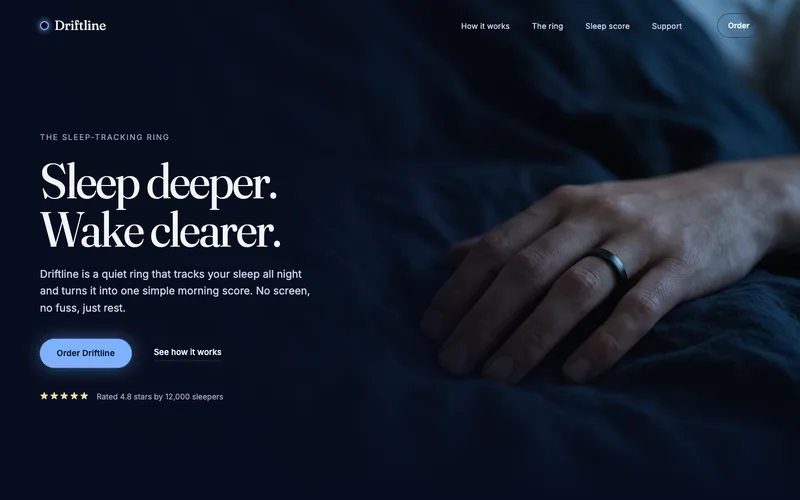 Website heroA hero image made for the layout, and the responsive hero section built around it.Web · 2 min · from 10 credits
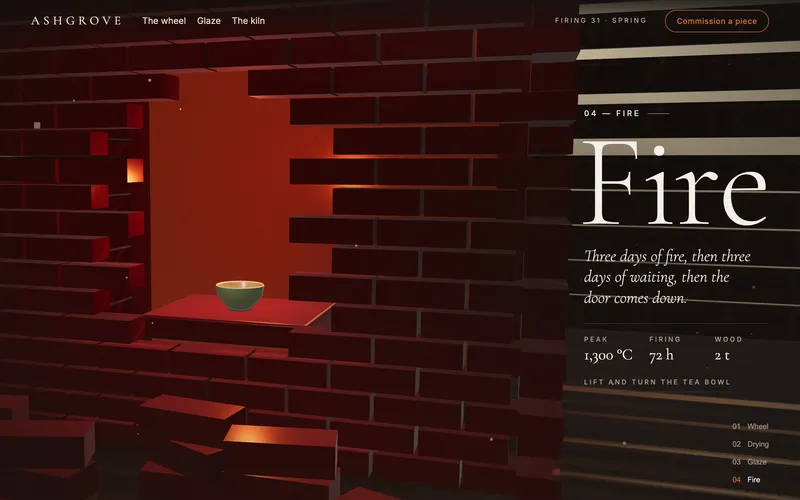 Three.js landing pageOne 3D place your page scrolls through, a piece made at each stop, and a piece you can lift out and turn.Web · 10 min · from 35 credits
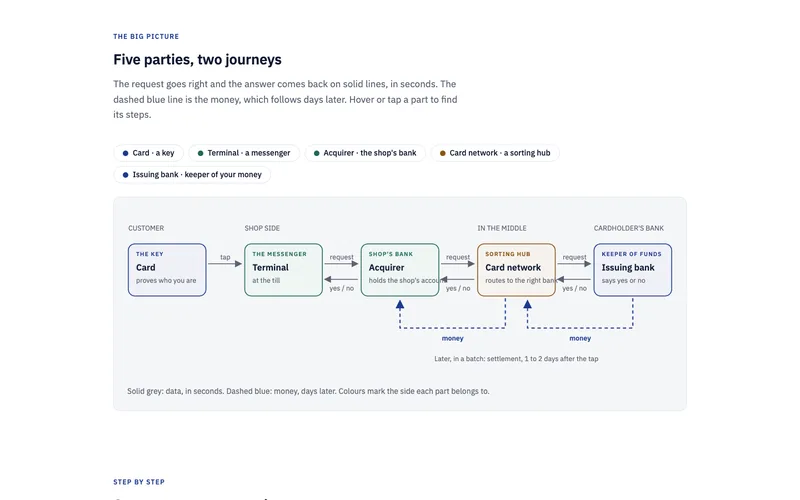 Visual explainerA topic or a document as one rich page: the answer first, then a diagram, the steps and the numbers.Web · 3 min · from 20 credits
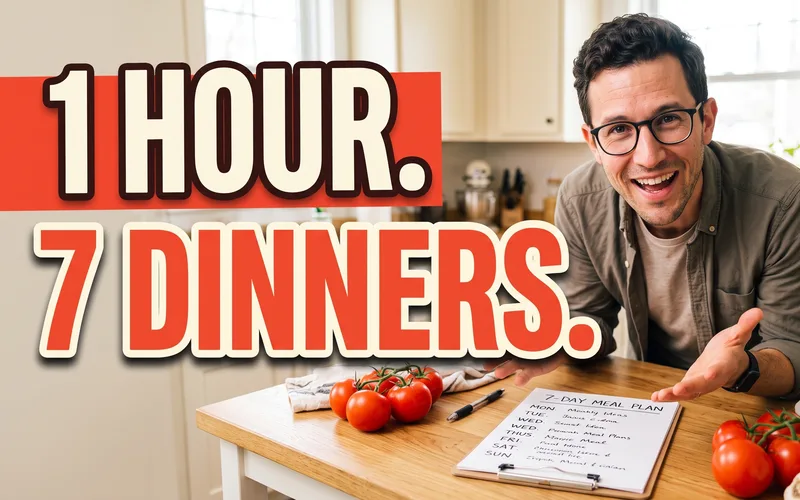 YouTube video planA video planned and scripted like the best channels: title, thumbnail, hook, story, intro and outro.Video · 4 min · from 30 credits
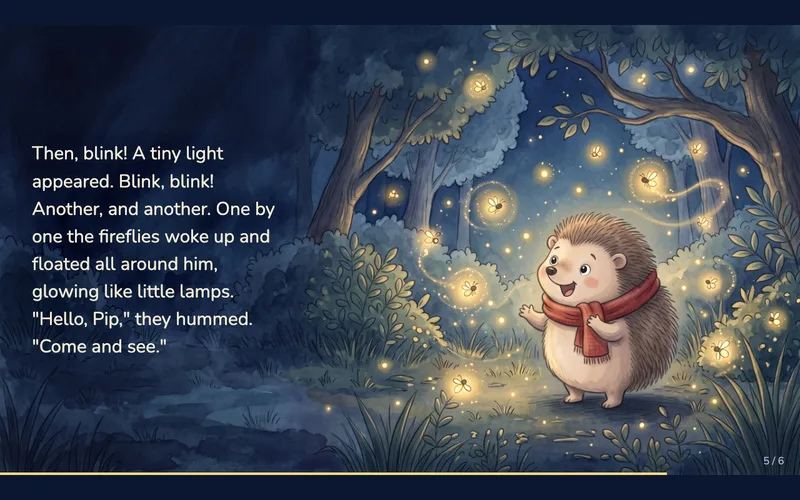 Children’s bookA picture book: the hero, a cover, five illustrated spreads, the book to page through and a read-aloud.Image · 5 min · from 65 credits
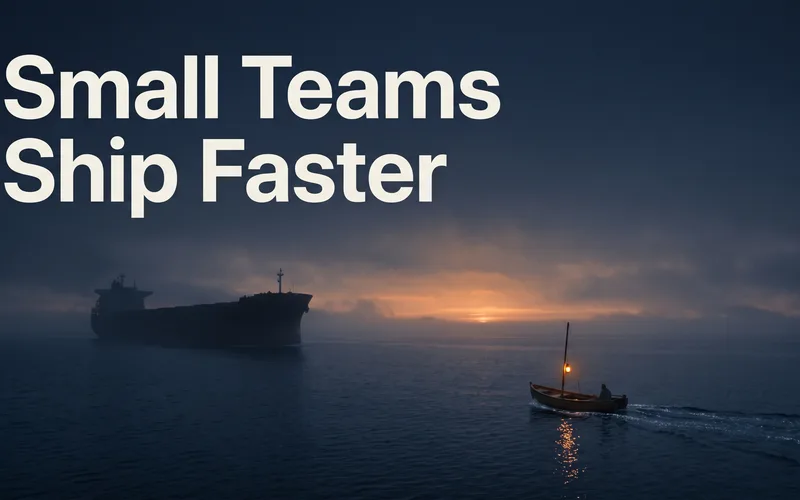 Talk slidesYour talk’s slides made as pictures, one big idea each in one look, and a deck with speaker notes.Image · 4 min · from 50 credits
 HeadshotsYour photo as headshots in six styles, from a corporate studio to black and white, always clearly you.Image · 2 min · from 45 credits
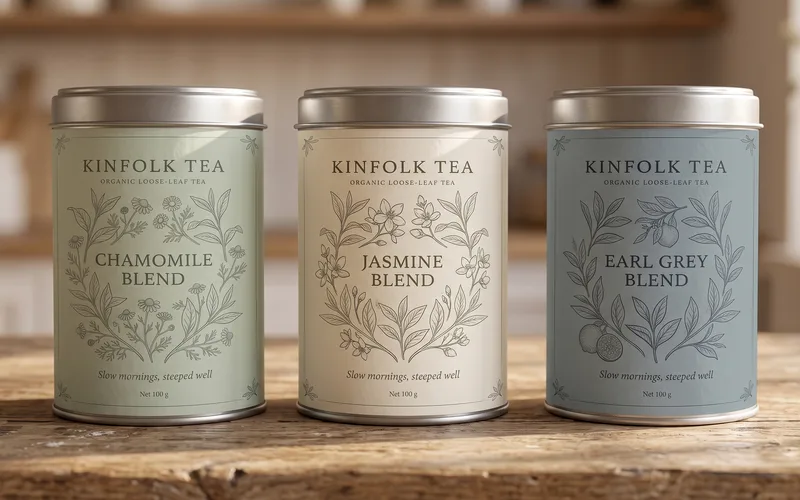 Packaging designYour pack’s front and back as print artwork, then the pack, the range and a lifestyle shot.Image · 3 min · from 35 credits
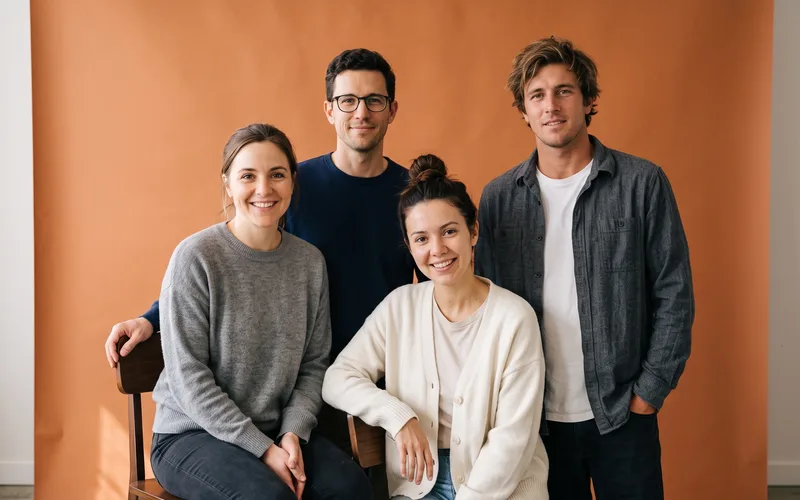 Team photoEveryone’s own photo in, one team picture out, in four settings: studio, at work, outdoor and candid.Image · 2 min · from 35 credits
 Workshop dayA 9-to-5 hands-on workshop planned to the minute, with the slides and visuals to teach it.Web · 5 min · from 30 credits
What's next
- Logo and brand guide: a full walk-through of one workflow, from idea to logo files and a published guide.
- Chat with Claude: the canvas chat that follows and steers every run.
- Canvas basics: nodes, links and runs, where every workflow happens.
- Video editor: open the Video edit that Long-form product video, Product launch video and Motion film put together, or cut Story video's clips into one film.