Manga chapter
Make a manga chapter with AI: plan the story once, then get a cast sheet, a places sheet, a cover and inked pages with panels and lettering, and add more pages.
The Manga chapter workflow turns a story idea into a short inked chapter: a cast sheet, a places sheet, a chapter cover and pages of panels with speech balloons and sound effects. It's for comic artists sketching out a story, writers who want to see a scene drawn, and anyone making a webcomic. Its skill holds the craft of a manga: the whole story planned before a panel is written, about five panels a page with one large panel for the key moment, the script's words lettered exactly, and every face and place drawn as its sheet does.
- Makes
- 6 things in 4 steps: image
- Takes
- About 5 minutes
- Files to drop in
- 2, all optional: Style reference, Main character
- To make it all
- About 50–100 credits
What you'll make
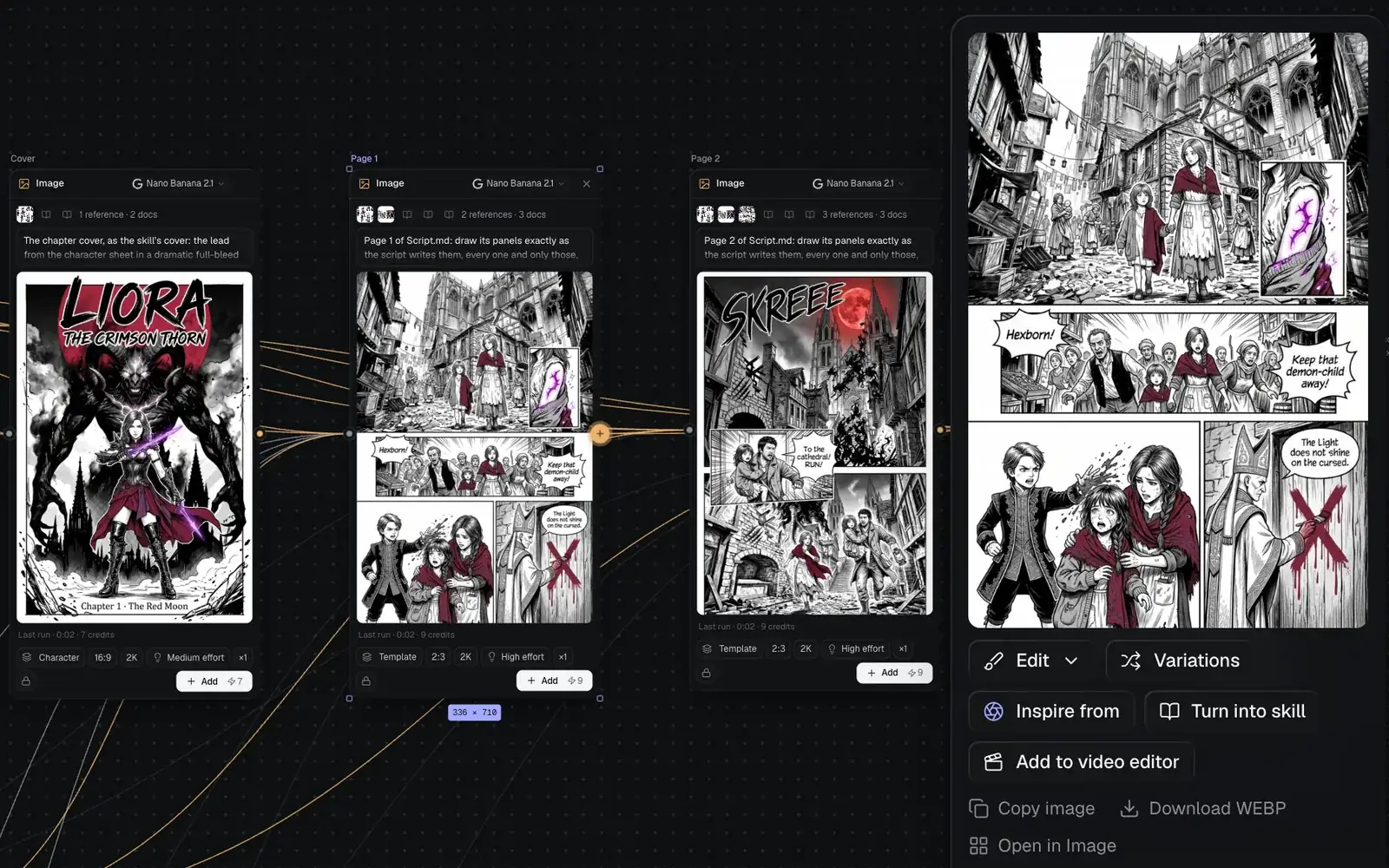
A cast sheet, a places sheet, a cover and five pages unless you pick another length. The canvas comes with three pages, which the facts above count, and the friendly start adds the rest. These were made in Fil with this workflow:
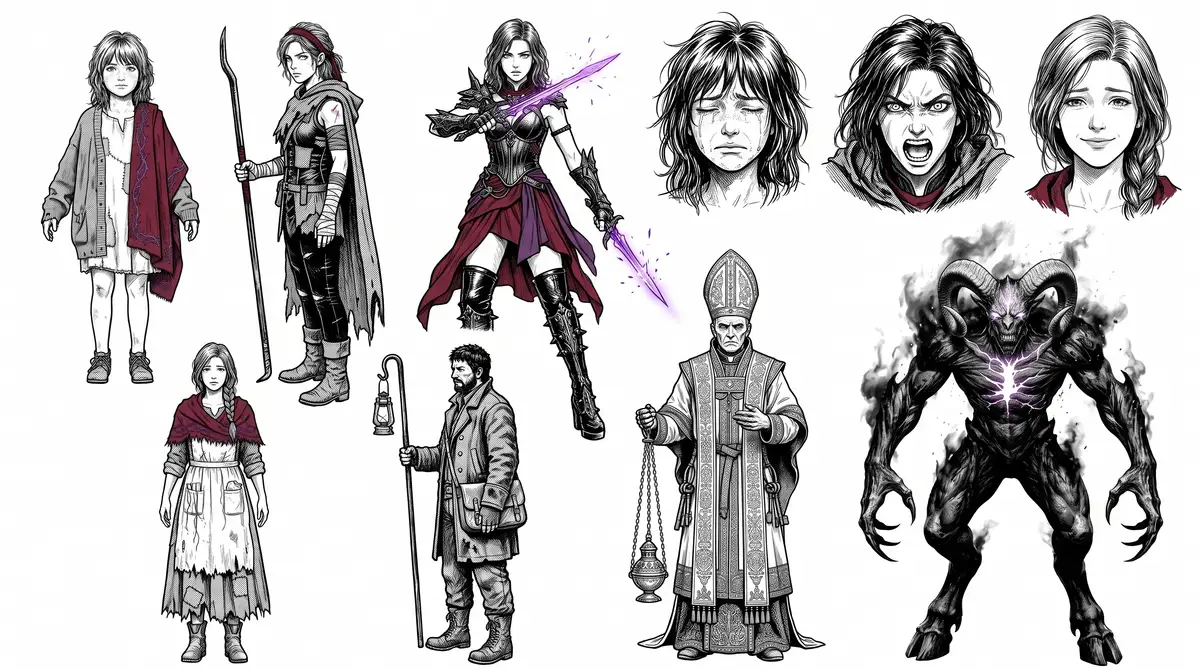
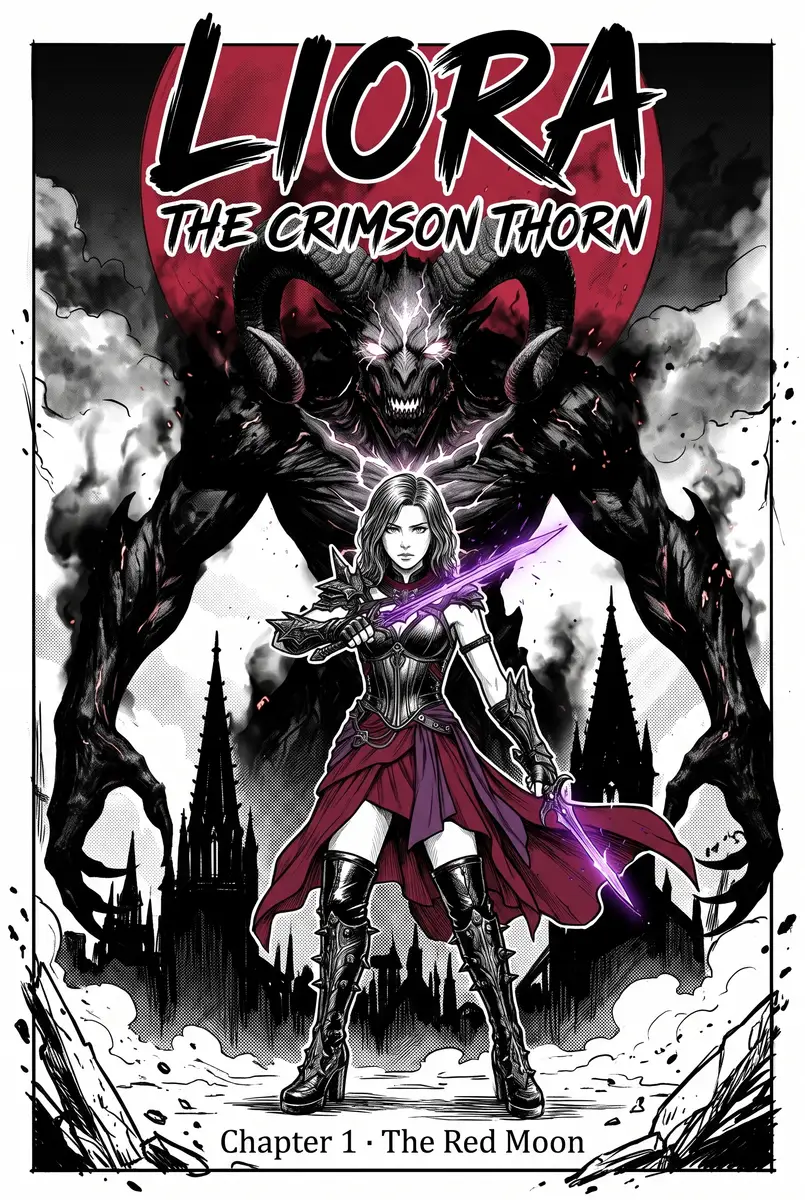
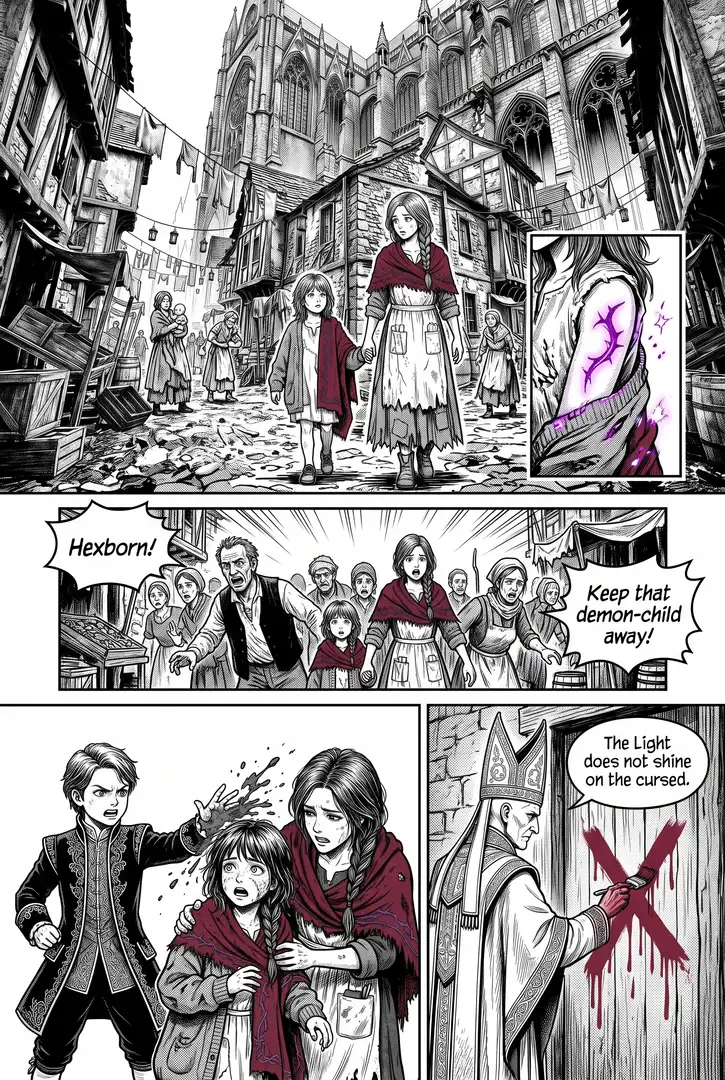
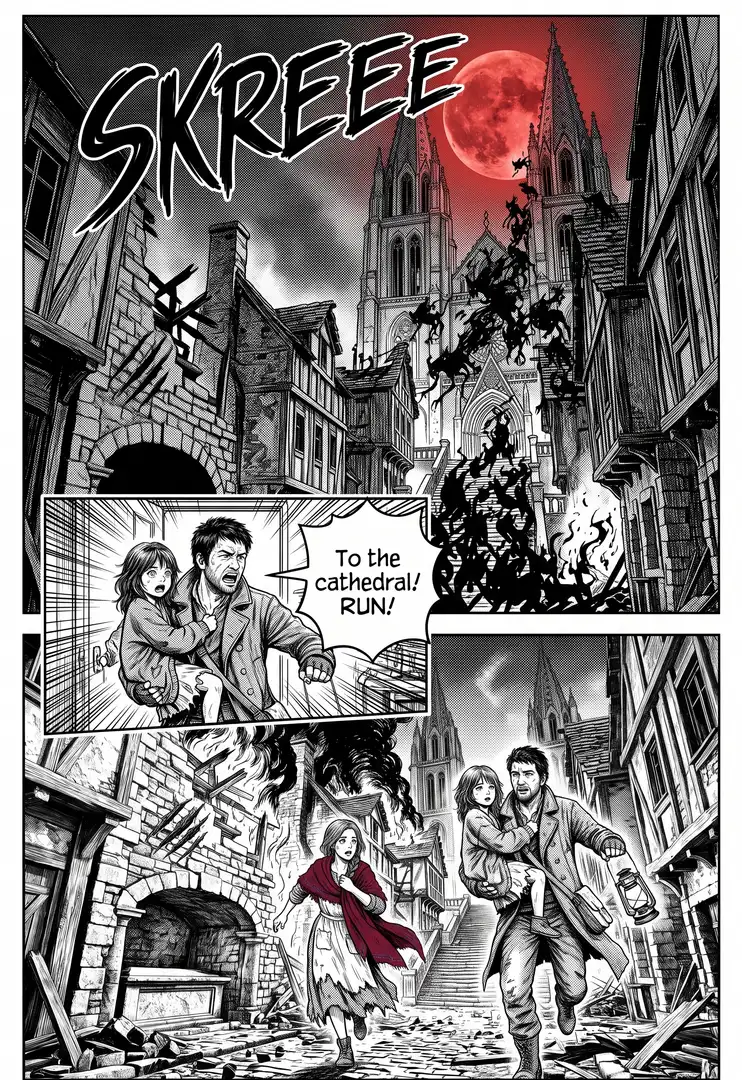
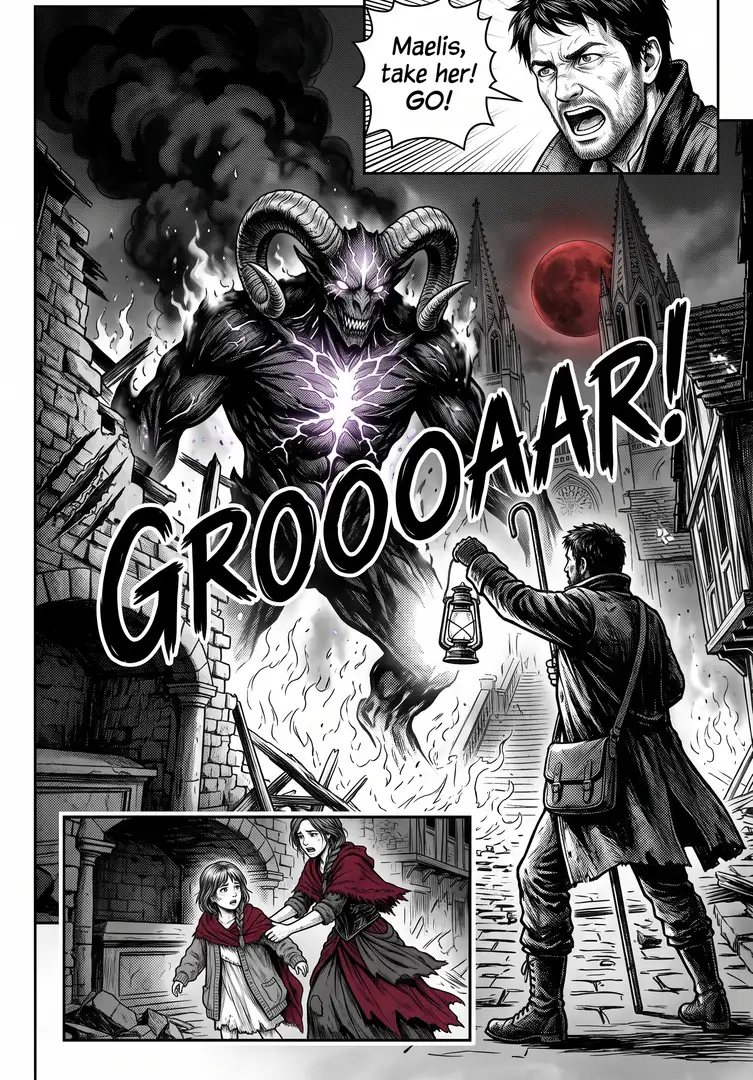
Also made when you run it: Places sheet.
Before you start
Two briefs hold everything the pages draw, and the friendly start writes both from your idea:
- Story.md plans the whole story once: the title, the world, each place (described once, with a landmark, so it's drawn the same every time), one look for every page, the lead and the others, the tone, the whole story from start to end, the part this chapter tells and the scenes it tells it in.
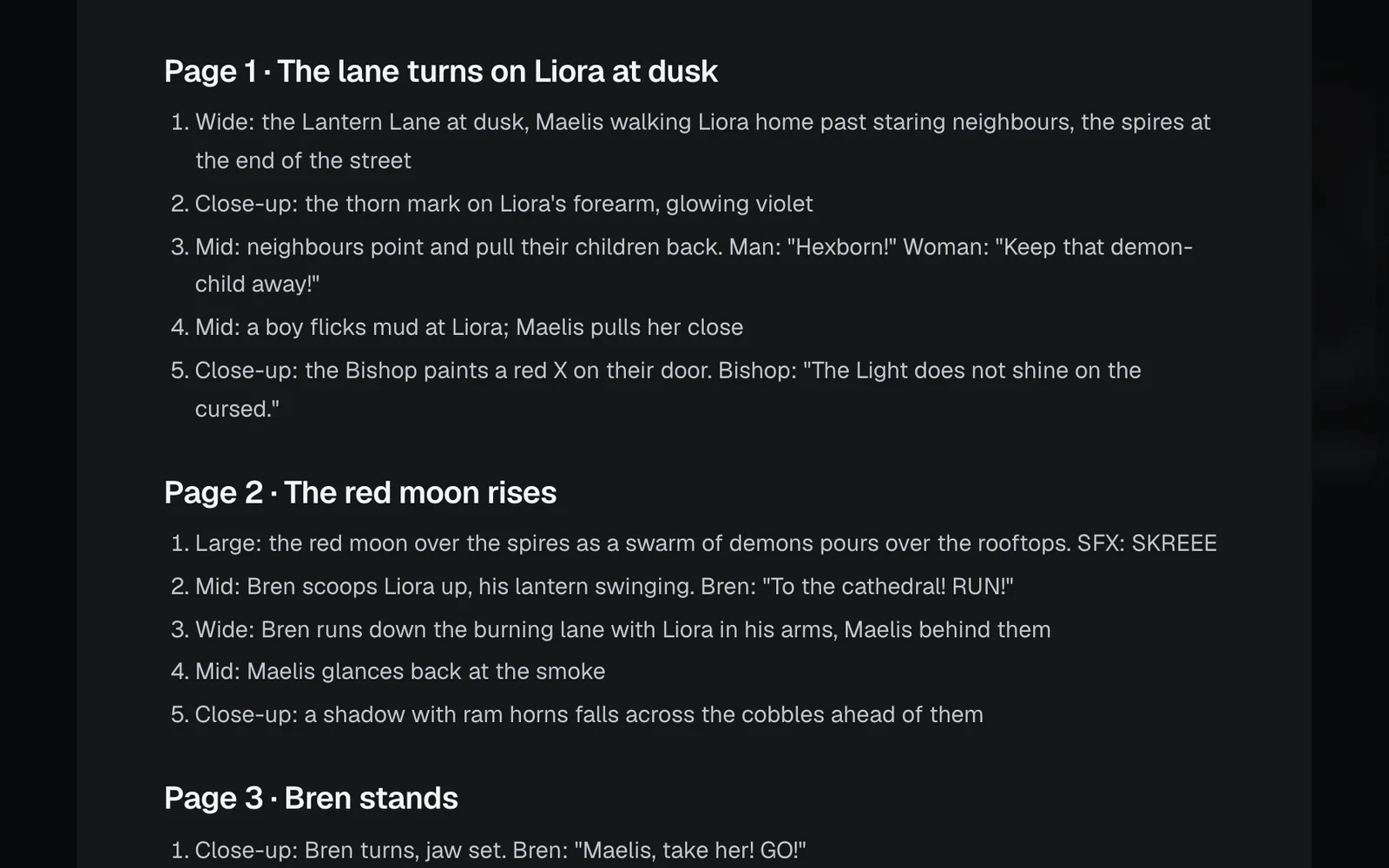
- Script.md is written from it: every page's panels in reading order, one line a panel, with the shot, who, what happens and the words.
A chapter tells only what fits at a real manga's pace, so a long story stops on a hook and the pages you add later tell the rest.
Two places for pictures help it, both optional:
- Style reference: a manga page whose inking you like. Or pick one of five styles to start from: Gritty brush, Woodblock, Shōjo, Sepia ink or Chibi.
- Main character: a drawing or photo of your lead, so the cast sheet draws them as you see them.
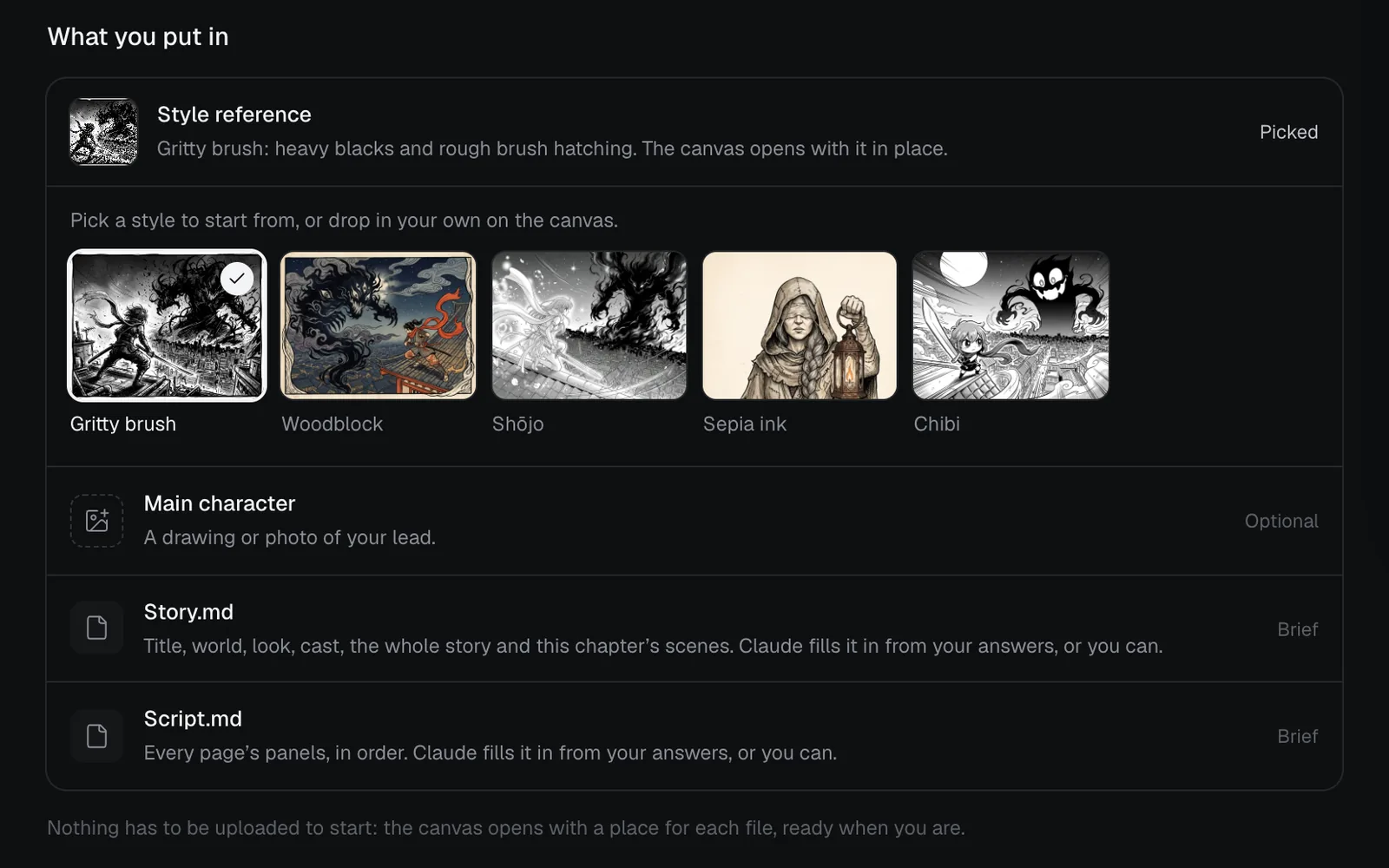
Make a manga chapter, step by step
Start it from your idea
- Click Workflows in the sidebar. Manga chapter is the first large card at the top of All, and it's under the Image filter. Click it to open its page.
- To start from an inking style, pick it under Style reference on the page. Then click Start this workflow. A new canvas opens, blurred, with the start card glowing over it and asking you to describe the manga chapter you want.
- Click the box and say who it's about and what happens, such as "A lamplighter holds back a demon with his lantern so his marked daughter can escape". As you type, the canvas builds itself beside the card and the examples come into focus. You can also add a picture of your lead, or pick a style under Or start from a style. Press Continue.
- Claude asks a question or two about the look and the lead, then How long should it be?: 3 pages (one scene, told tight), 5 pages (a short chapter ending on a hook), 8 pages (a full chapter, with quiet moments between the big ones) or 12 pages (a long chapter, every scene given room). The first option is tagged Suggested: Claude's pick for your idea, or 5 pages when it doesn't pick one. Pick your answers and press Fill in my canvas.
- Claude writes Story.md, then Script.md from it ("Writing Script.md…", about half a minute), and the Ready to make it step opens.
Read the story and the script
The canvas comes with three pages and adds a node for each page past the third, each reading its own part of Script.md. To read a brief whole, point at it and click its expand icon (Edit full screen). Change any panel before you generate: the pages draw exactly what the script says.
The canvas lays it all out left to right: the places for your pictures, the two briefs and the skill, then the two sheets, the cover and each page.
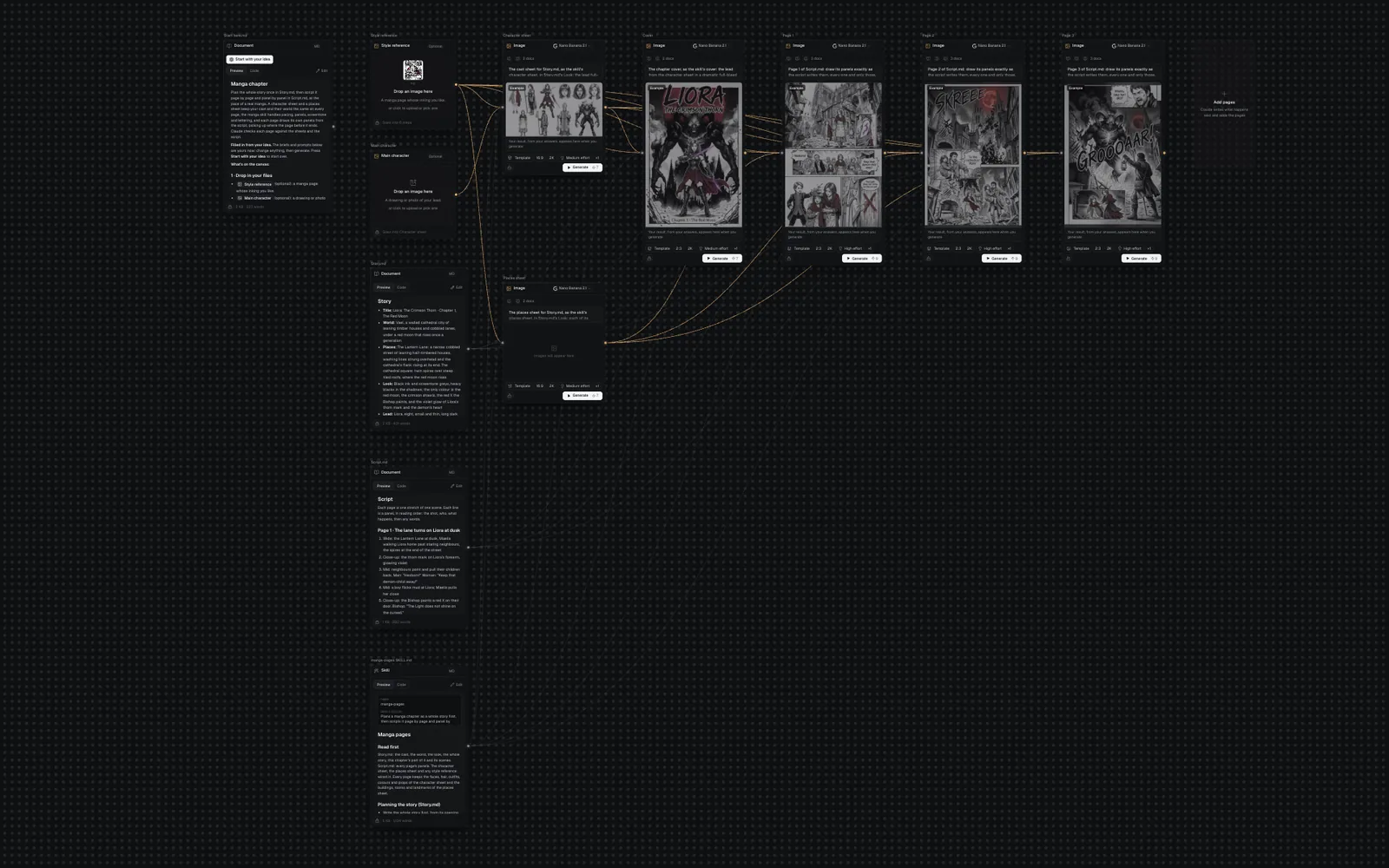
Generate all and follow it in the chat
- The Ready to make it step lists every step with its credits, in rows: for the 5 pages it suggests, eight steps (Generate all 8). Press it.
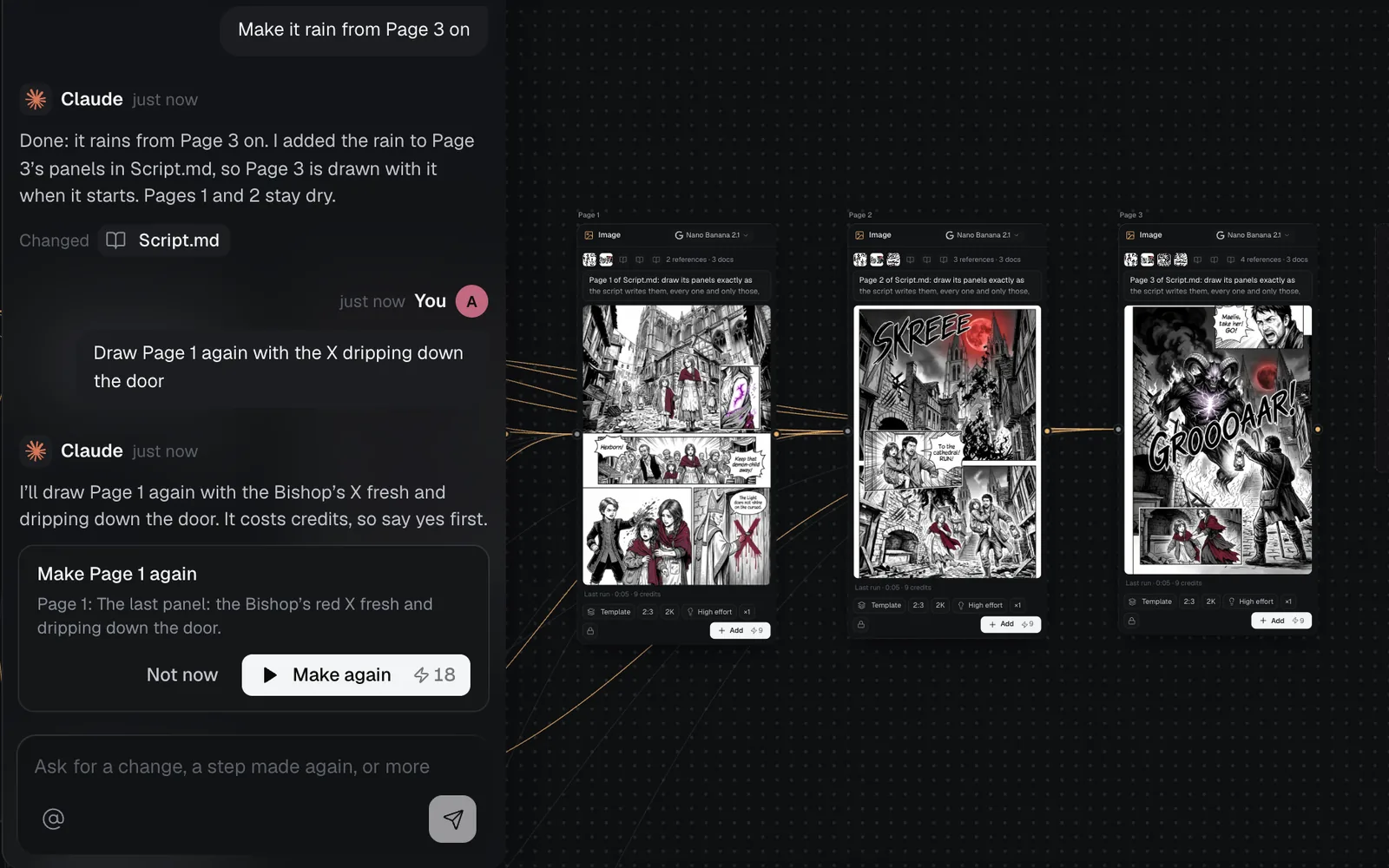
- The canvas chat opens on the left and follows the run: the Character sheet and Places sheet first, so every page draws the same cast in the same places, then the Cover and Page 1, then each page after the one before it.
- Each step shows live: what's being made, then "Checking it against the briefs and what feeds it", then its picture with what Claude's check said. If a face, a place or a panel is wrong, Claude mends the page or draws it once more, and the new take replaces the first, so every step shows one picture.
- The run ends with "Made 8 of 8", how long it took and what it cost. Click a step in the chat to show it on the canvas; double-click a page there to read it full size, and the arrows step through the rest.
Steer the run as it goes
While it runs, the chat's box reads "Steer it as it runs: the story, a step, the look". Write what you want changed in your own words:
- A change to the story or the look ("make it rain from Page 3 on") rewrites Script.md or Story.md at once. The pages still to come read it when they start, and the reply lists what changed under Changed. This is free.
- A page made again ("draw Page 1 again with the X dripping") or more pages ("add two pages where they reach the chapel") costs credits, so Claude shows a card with the price first. Press Make again or Add them, or Not now.
Once the run is done, the box reads "Ask for a change, a step made again, or more" and works the same way. See Chat with Claude for more.
Add more pages
- Click the Add pages tile after the last page.
- Type what happens next in the box (its hint reads "e.g. the rival reaches the gate first, and he has to choose"), or leave it empty and Claude carries on from the story's plan. Claude also looks at the last page as it was drawn.
- Pick How many (1 to 4) and press Add 2 pages (or however many you picked).
- Claude scripts the new pages into Script.md, panel by panel, and wires a node for each after the last page. Press Generate them to draw them (the run shows in the chat), or Done to change their prompts first.
Download or share the chapter
- Click a page on the canvas to select it. In the panel on the right, click the download link under the picture, named for its format, such as Download PNG. Each page, the cover and the sheets download one at a time: there's no download for the whole chapter at once.
- To let someone read it in Fil, or work on it with you, click Share at the top right of the canvas. See Sharing and teams.
- To post a page, see Social posts.
The steps it runs
| Step | What it makes | Model and settings | Reads |
|---|---|---|---|
| Character sheet | The lead full-length, up to three others and three head close-ups of the lead | Nano Banana 2.1, 16:9, 2K | Story.md, skill, Style reference, Main character |
| Places sheet | Each place in Story.md once, with no people or words | Nano Banana 2.1, 16:9, 2K | Story.md, skill, Style reference |
| Cover | The lead in a full-bleed pose, with the title lettered | Nano Banana 2.1, 2:3, 2K | Character sheet, Story.md, skill, Style reference |
| Page 1 | Page 1's panels from Script.md, ending on a hook | Nano Banana 2.1, 2:3, 2K, High effort | Both sheets, Story.md, Script.md, skill, Style reference |
| Page 2 and on | Its own panels, picking up where the page before ends | Same as Page 1 | What Page 1 reads, and the page before |
Pages plan longer before they draw (High effort), which keeps each panel's cast, words and places as the script has them. Page 3 also reads Page 1, to see how the chapter opened.
Make it yours
- Inking style: five styles suit manga, Gritty brush, Woodblock, Shōjo, Sepia ink and Chibi. Pick one on the workflow's page or in the friendly start, or drop any manga page into Style reference.
- Colour: the Look line in Story.md sets it. Pages are black ink and screentone unless it names a colour, and then the colour shows only where it says, the same on every page.
- Length: pick 3, 5, 8 or 12 pages in the friendly start, or grow it later with Add pages, up to 4 at a time, or by asking in the run's chat.
- Right to left: pages read left to right unless Story.md asks for right to left; say so in its Look line.
- The skill: manga-pages SKILL.md holds the rules of the story, the pacing, the panels, the lettering and both sheets. Edit it and every node wired to it follows. See Prompts, documents and skills.
Manga chapter time and cost
A 5-page chapter, the length the friendly start suggests when it doesn't pick another, takes about 5 minutes and costs about 66–132 credits. Each page adds about a minute and 9–18 credits; the Ready step shows the price for your chapter before anything runs.
| Length | Steps | Credits |
|---|---|---|
| 3 pages | 6 | 48–96 |
| 5 pages | 8 | 66–132 |
| 8 pages | 11 | 93–186 |
| 12 pages | 15 | 129–258 |
The sheets and the cover cost 7–14 each and every page 9–18: a page costs a little more because it plans at High effort. The top of each range allows for one mend or one more take, if Claude's check finds a page that breaks the story or a face that changed. A page made again from the chat, or added later, costs the same as a page: Add pages showed 18–36 for two.
Tips
- Name your lead and give them one prop and one colour they always wear (a crimson shawl, a lantern). Sheets and pages hold on to details like that.
- Keep each panel to one moment and two short lines of words at most. Long speeches get cut or crammed.
- Describe each place once in Story.md's Places with one landmark, then check the places sheet shows every landmark before the pages draw on it.
- Read Script.md before you generate: deleting a panel you don't want there is free, and redrawing a page isn't.
- When you add pages, say the turn you want ("the rival reaches the gate first"). Left empty, Claude carries on as the story's plan goes.
Related
- Children’s book: a picture book with spreads and a read-aloud, for younger readers.
- Illustrated book: painted plates, a map and a portrait in one style.
- Story video: the same kind of story as a short film, from keyframes to shots.
- How workflows work: the gallery, the friendly start, the run in the chat and Add pages for every workflow.
- Image editing: fix a panel by hand with inpainting.