Upscale and remove the background
Upscale an image 2× with Magnific, or remove its background with Ideogram, Magnific or GPT Image 2.5 Cutout, on a canvas or from your Library, priced up front.
Two finishing tools for any picture in Fil. Remove background cuts the subject out onto transparency, for a product page, a sticker or a layer. Upscale ×2 doubles a picture's width and height with Magnific, sharpening and adding fine detail as it goes, for print or a large screen. Each makes a new picture and leaves the original as it was.
Remove the background
On a canvas:
- Point at the picture and click the brush at its top right (Edit), then Remove background.
- A new Image node named Cutout 2 (or another number) appears beside it, wired from the picture, on Ideogram Cutout. Its chip says Transparent PNG. Nothing runs, and nothing's spent, until you start it.
- To use another remover, click Ideogram Cutout at the top of the node. That menu lists kinds of media: point at Image generation to open the image models, and pick GPT Image 2.5 Cutout or Magnific Cutout among them.
- Click Generate (1 credit on Ideogram Cutout). A cutout takes 5 to 30 seconds.
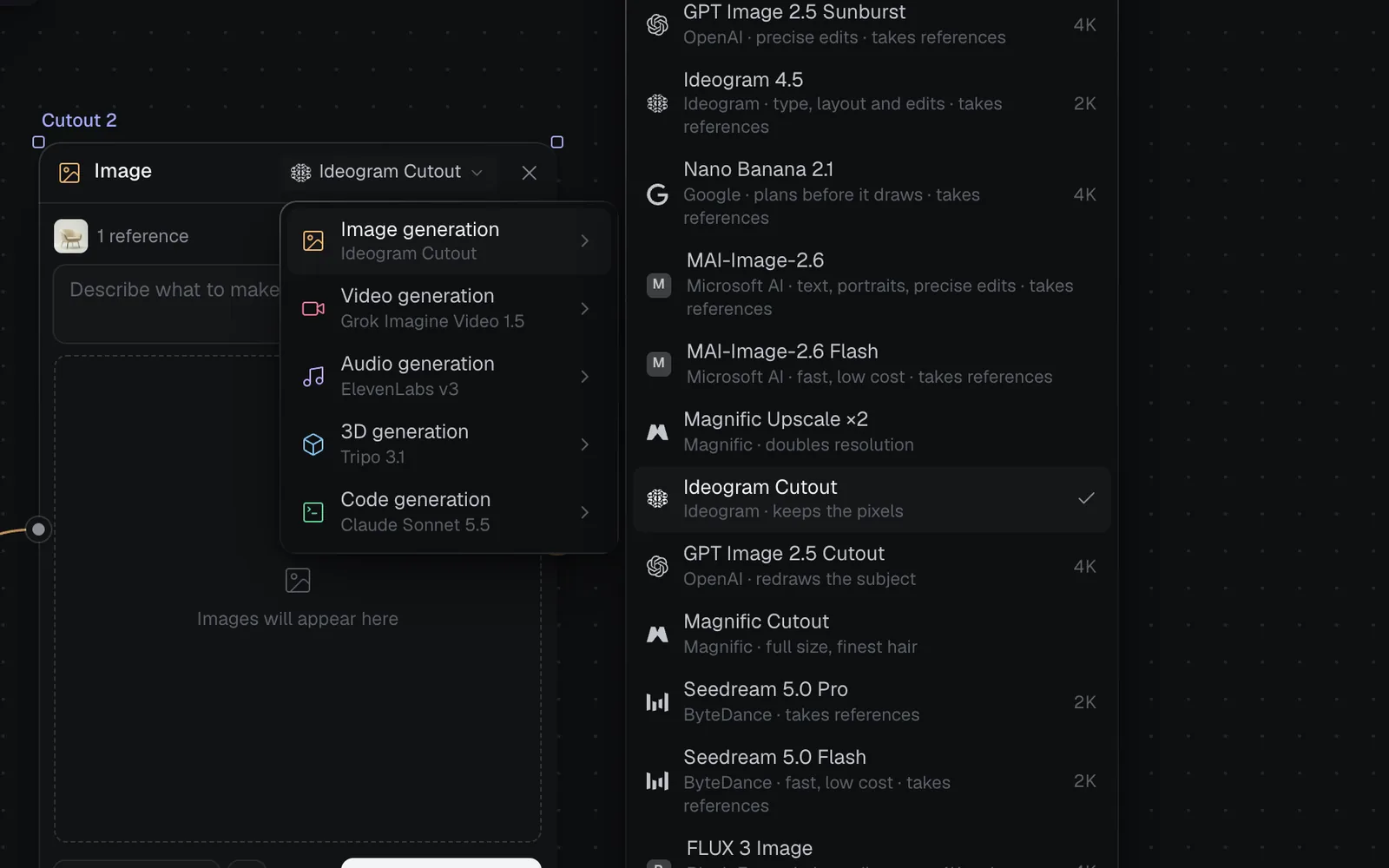
The cutout shows on a checkerboard, on its node and full size, so you can see what's transparent. Download PNG in the node's panel, or Download in the full view, saves it with its transparency.
Which remover to pick:
- Ideogram Cutout for most pictures: it keeps the subject's pixels exactly as they were.
- GPT Image 2.5 Cutout when the others leave rough edges: it redraws the subject cleanly on transparency, so small details can change.
- Magnific Cutout for hair, fur and fine edges, at full size.
| Remover | Credits | How it cuts |
|---|---|---|
| Ideogram Cutout | 1 | Keeps the pixels |
| GPT Image 2.5 Cutout | About 10 | Redraws the subject |
| Magnific Cutout | About 2 | Full size, finest hair |
GPT Image 2.5 Cutout has Resolution and Quality chips on its node: about 10 credits is 2K and Medium, 3 at Low and 31 at High. It holds that much and settles at what it used. Magnific's prices follow the euro, so they can differ by a credit. Every cutout is a PNG at the picture's own shape.
Upscale an image ×2
- Point at the picture and click Edit, then Upscale ×2. Its line in the menu says the size it'll make, such as "Twice the size with Magnific · 4096 × 4096".
- A node named Upscale 2 appears beside it, wired from the picture, on Magnific Upscale ×2. Its chip says 2× size, and Generate shows the price.
- Click Generate. Magnific doubles the width and height, guided by the picture's own prompt, or by what you write in the node's text box.
- Select the new node: its panel's Details say the size it made, such as Resolution 4096 × 4096.
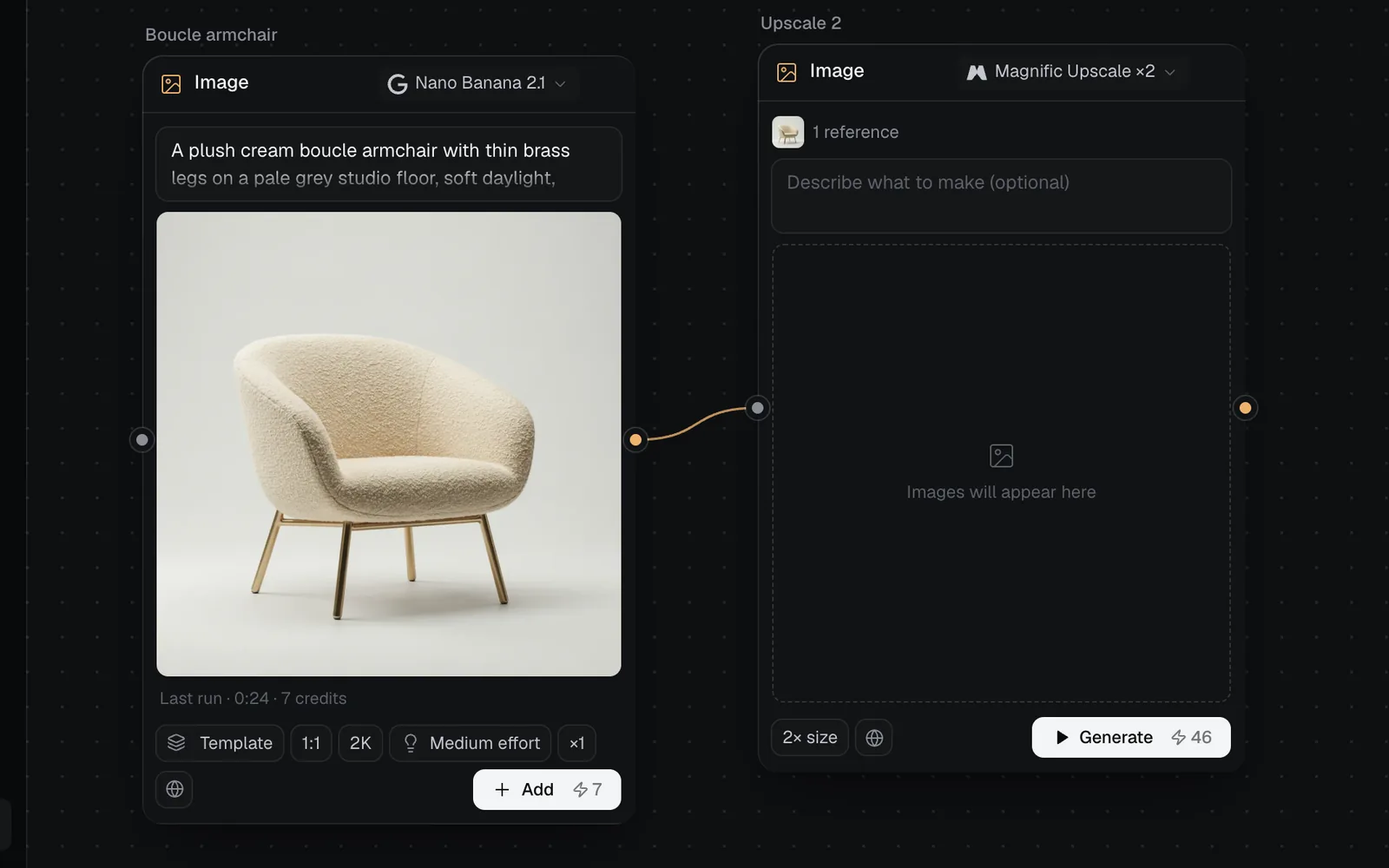
Magnific charges by the size it makes, in euros at the day's rate, so the price grows with the picture and can move by a credit:
| Picture | Upscaled to | About |
|---|---|---|
| 1024 × 1024 | 2048 × 2048 | 12 |
| 1920 × 1080 | 3840 × 2160 | 23 |
| 2048 × 1152 | 4096 × 2304 | 34 |
| 2048 × 2048 | 4096 × 4096 | 46 |
Upscale ×2 is offered while a picture is under 3840 px on its long side and the doubled picture stays within 25.3 megapixels, the most Magnific makes. It keeps the picture's shape. For more than twice the size, upscale the result again while it's under 3840 px: 1024 → 2048 → 4096.
Upscale or remove backgrounds in the Library and Image view
Outside a canvas, both ask first and then run straight away. Start from any of these:
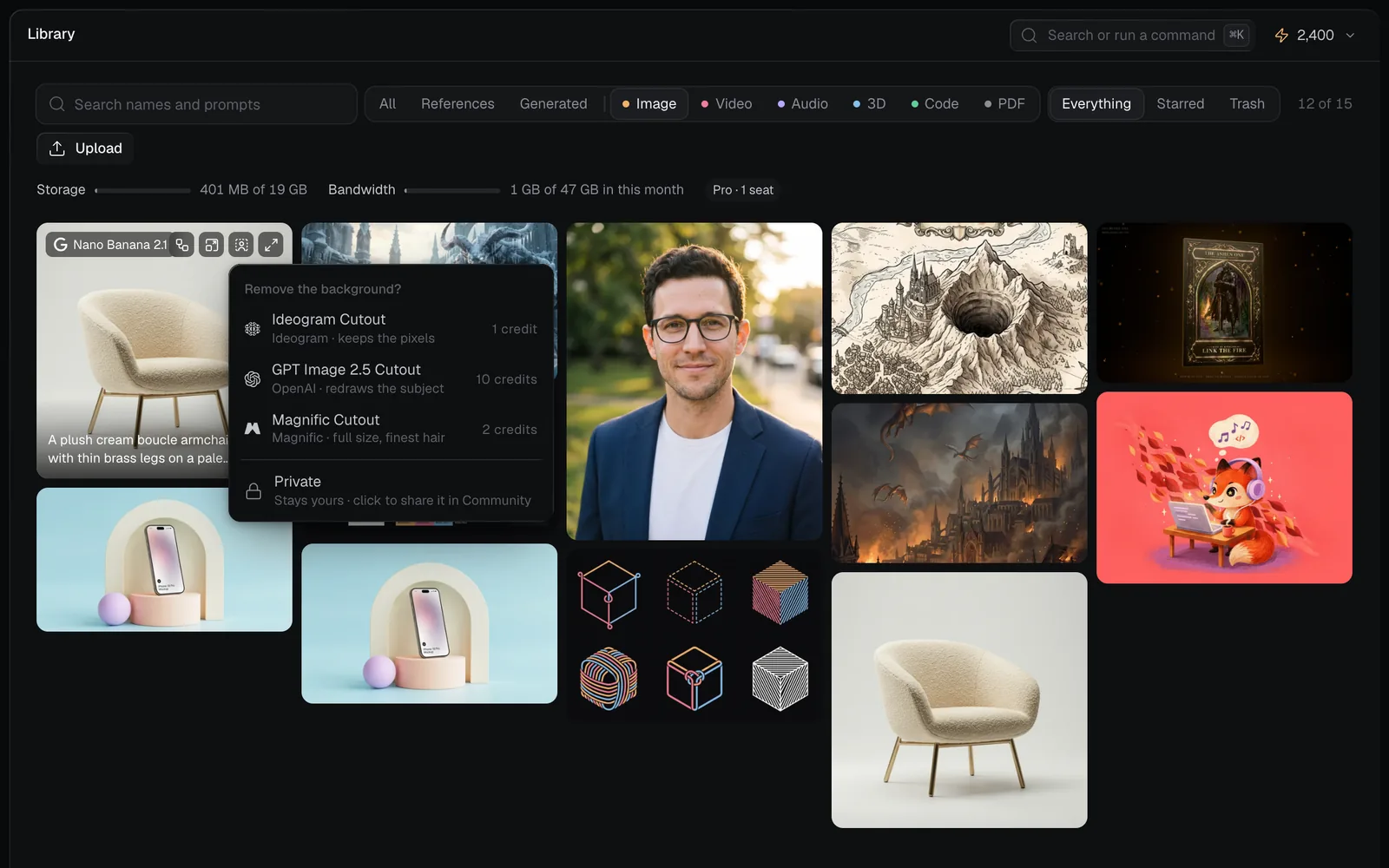
- In the Library or the Image view, point at a picture: the icons at its top right include Remove background and the upscale icon (its tooltip reads Upscale ×2 and the size).
- In the Image view, select a picture: its panel has Upscale ×2 and Remove BG buttons.
- In the full view, the bar has Upscale and Remove background.
Then:
- A menu asks Remove the background? or Upscale this image?, with each option's price.
- To switch the result between Private and Public, click the last row first. The menu closes when you do, so open it again.
- Click an option. The run starts at once, and its picture arrives at the top of the Image view, where its Recipe says the model, the cost and the size.
On a canvas, the full view's Upscale and Remove background close the full view and add the node instead, so you can check it before Generate.
Tips and limits
- Remove background isn't offered on a picture that's already a cutout.
- An Upscale or Cutout node takes exactly one picture. Wire in a second, and it says "Connect one image to upscale." or "Connect one image to remove its background."
- A cutout, an upscale and the picture they come from stay linked on a canvas: the new node's Inputs shows the original. Feed the cutout on to a layer, a page or a video.
- On a canvas, the new picture is public or private as the original's node is. See Image editing.
- These runs can't be stopped once they start. A run that fails, or that's blocked, gives its credits back.
- To cut out a subject that isn't in a picture yet, ask GPT Image 2.5 for it on a transparent background instead: see Make a transparent PNG.
What's next
- Split an image into layers: every element on its own layer, not just the subject.
- Crop an image: trim the cutout or the upscale to the shape you need.
- Image editing: every tool, where it works and what it costs.