Edit videos with AI
Edit videos with AI in Fil. Ask the video editor's agent for titles, cuts and new shots, or use the canvas chat, ⌘K, Claude Code and Codex.
The video editor has an agent: say what should change, such as "title the first shot and dissolve every cut", and Claude makes it on the timeline as one step you can undo, or has new shots made for your clips after showing their price. Outside the editor, the canvas chat, ⌘K and agents such as Claude Code and Codex change the same Video edit, which you can always fine-tune by hand.
Edit a video with the agent
- On a canvas, click Edit video on the Video edit node to open the editor. No edit yet? See Make a video edit.
- In the panel on the right, click Agent, beside Inspector. A new thread reads Ask the agent to edit this video, with a few suggestions to start from, such as Tighten every scene to its voiceover. Click one to put it in the box.
- Type what should change in the box at the bottom, for example "Title the first shot The Frozen Cathedral, dissolve every cut, fade the music out".
- Press ↵ or click Send. ⇧↵ starts a new line.
- The reply reads Reading the video…, then Editing…, then says what it did. The change is made at once, and the card under the reply says how many changes: Changed the video · 3 changes, with a short summary.
- Press Space to play it. To take it back, click Undo on the card or press ⌘Z; Redo puts it back.
The agent sees every clip, the captions word by word, where the playhead is and what you've picked. Name clips as they're named on the timeline (Shot 1, Soundtrack), or pick them and say "this".
Point at a clip or a moment
The chip above the box says what "this" and "here" mean in your message:
- With nothing picked, it's the playhead: At 0:04.50. "Add a whoosh here" puts it at that moment.
- With clips picked on the timeline or the frame, it shows their name (Keyframe 3) or how many (2 clips), and the box asks What should change in it? (or in them?). Click the × on the chip to let go of them.
- With captions picked, it reads The captions.
What you can ask the agent
It edits with the same commands as the editor, so it can:
- tighten every scene to its voiceover, or cut a line someone says once the video has captions;
- move, reorder, trim, split, delete and duplicate scenes. A deleted or moved scene takes its voiceover, sounds and words along, as it does by hand (Scenes stay together);
- add words in any text style, and Insert's graphics, B-roll, shapes, blur boxes, sound effects and Fil's motion design scenes;
- set a transition on one cut or the same one on every cut, speed, keyframes, the slow move a clip makes while it shows (Motion), volume and fades (Transitions, speed and keyframes);
- make, style and fix captions, and change the edit's shape, frame rate or background;
- export the MP4 onto the node, at 1080p.
It can't make voiceovers, music or sounds beyond Insert's sound effects. Ask the canvas chat for them, then add them from Media.
It leaves locked lanes alone. To let it change a lane's clips, unlock the lane first: click the padlock beside its name (its tooltip reads Unlock).
Captions cost a few credits by the length of sound, so the agent asks first: a Make captions? card with Make captions · ⚡1 (its price) and Not now.
If part of a request can't be done, the rest is still made, and a line under the card says why: One change couldn’t be made: (or 2 changes couldn’t be made:) and the first reason.
Make new shots with the agent
Ask for a new picture, video or motion design for a clip, or for B-roll that isn't in the video yet. The agent writes the prompt from what's said there, shows the model and the price, and makes nothing until you say so.
- Pick the clip on the timeline or on the frame, or name it, and ask, for example "Make this a video, the water bursting up around her".
- The reply comes with a card, Make a video?: what it makes (Video for Keyframe 3), the model, the shot's shape and length (16:9 · 5 s · from the picture there), what the model is asked, and the price. Click the prompt to read all of it.
- To use another model, click the model's name and pick one. The price follows.
- Click Make video · ⚡71. When a reply asks for several shots (up to four at once), the button reads Make them with their total. Not now leaves the video as it is.
- The thread follows the run (Grok Imagine Video 1.5 is making it). Once made, the new video goes in the clip's place, keeping its place, length and look: the row reads In Keyframe 3, and the clip's tag on the frame shows a video's icon instead of a picture's.
The run is also a node on the canvas, wired into the edit, so you can run it again there. Undo puts the old picture or video back.
| Ask for | What you get |
|---|---|
| A video | A video for a picture or video clip. It can start on the picture there, so a still comes to life as it was |
| A picture | A new picture for the clip, or the one there redrawn |
| Motion design | A picture rebuilt as animated type and shapes in code, as long as its clip |
| B-roll | A stand-in from Fil's B-roll at once, replaced by the new shot once it's made |
Make a shot without the agent
The same runs are in the editor's own menus. Pick a picture or video clip, and in the inspector click Generate… to describe a new picture or video, or Replace… to swap in a file from your library. Right-click a picture, on the frame or the timeline, and choose Turn into motion design… for an HTML scene built from it (see Motion design scenes).
How the Agent tab works
- The Agent tab is the canvas's chat, in a thread of this video's own, named after the video edit. It's the same Claude, history and credits, and the thread is in the canvas's Chat too. See Chat with Claude.
- If a reply lands while the Inspector shows, a note says what changed, with Undo. A reply that asks to make something says where its price is, with Show.
- When the agent proposes new nodes rather than a change to the video, its card says New nodes to make, with Open chat to confirm them in the canvas's chat.
- A reply that couldn't be finished says so, with Try again. While a reply is being written, the box waits for it before you send the next.
Cut a video with AI in the canvas chat
The chat beside the canvas can cut nodes into a new video edit, without opening the editor first.
- Open the canvas with your clips, pictures, sounds and prompts, and click the speech bubble on its name chip at the top left (its tooltip reads Chat). The arrows at the chat's top right (Open the big chat) give it more room, as in the pictures here; the pencil beside them starts a New chat.
- Ask for the cut, naming what goes in and in what order, such as "Cut the two shots and Keyframe 3 into a trailer, with the title and the soundtrack". Claude sees the canvas, so node names work.
- Claude answers with what the cut will be, and a card under its reply with a short summary and Make video.
- Click Make video. A Video edit node appears beside those nodes, wired from them, and the editor opens with the cut.
- The card now reads Done: and the edit's name ("Video edit" unless you rename it), with Open to open it again.
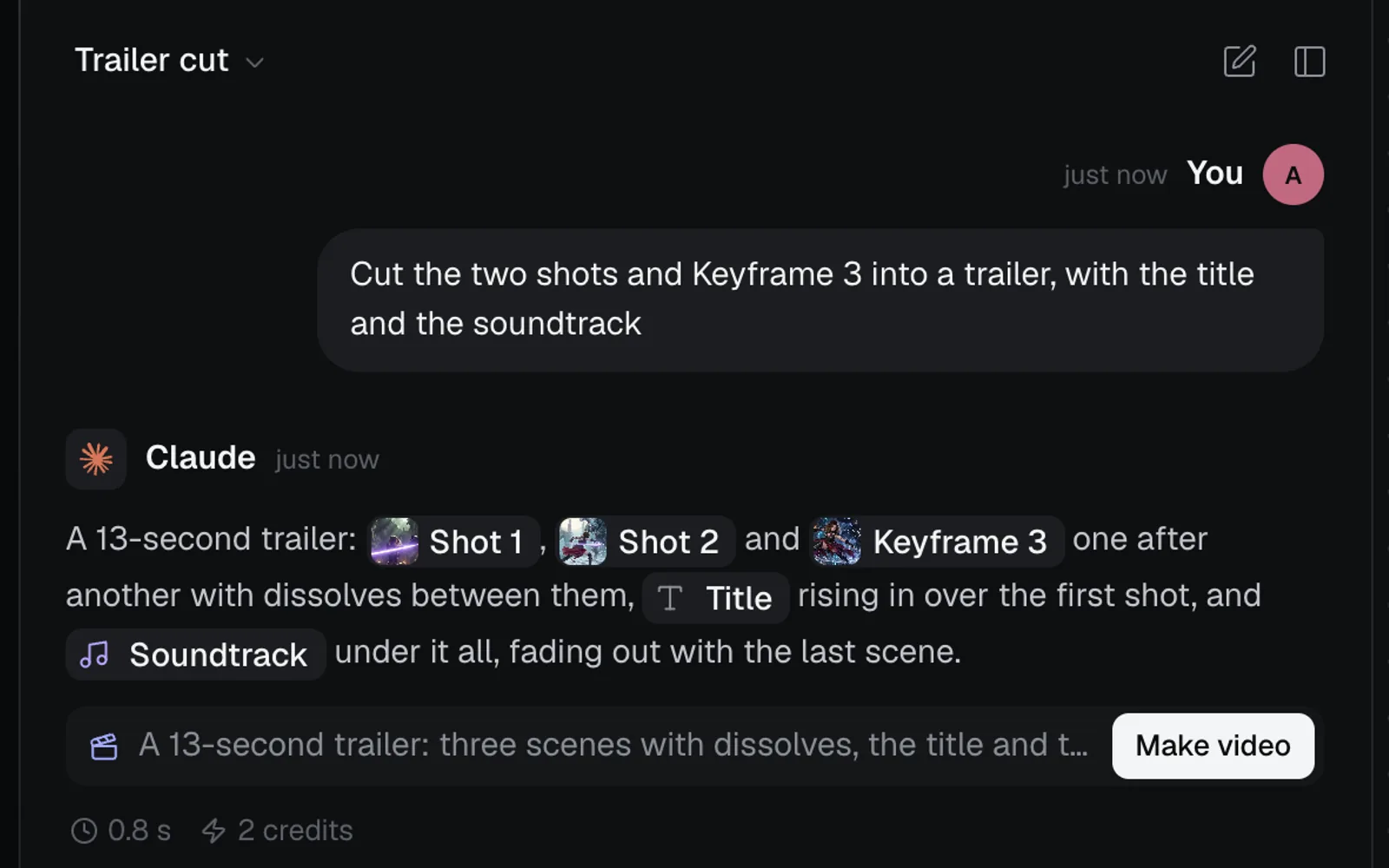
Ask it to export as well and the button reads Make video and export: the editor doesn't open, and the MP4 is made at 1080p (lower if that's what fits your plan's file size) and lands on the node. See Export from the canvas.
To use clips that aren't made yet, ask for them first: Claude plans them as nodes with their price, and you start them from the plan's button. Ask for the cut once they're done.
Change a video edit from the chat
With a video edit on the canvas, ask for changes to it, and name it when there are several, such as "In Trailer, put dissolves between the scenes, fade the soundtrack in over a second, and export it". The card's button then reads Apply, or Apply and export when you asked for the MP4 too.
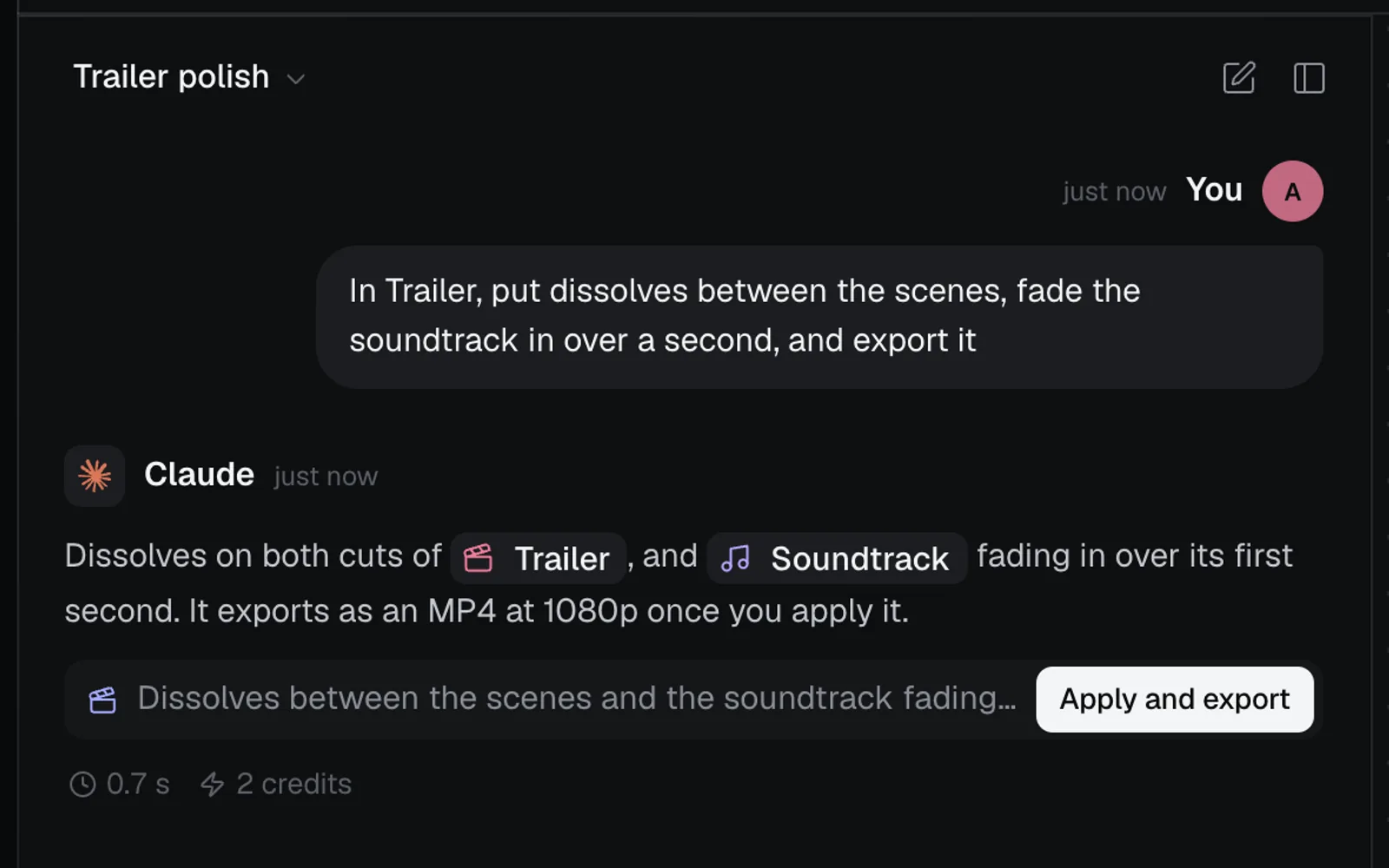
- Apply opens the editor with the change made; Apply and export doesn't, and the MP4 lands on the node.
- Once applied, the card reads Done: “Trailer”, its MP4 on the way (or without the MP4 part), with Open.
- To take a chat change back, close the editor and press ⌘Z on the canvas.
- Captions asked for in the chat aren't made there: the editor opens with Make captions and its price, so you agree to the cost first.
- A change that can't be made is skipped with its reason, and the rest are made.
- People who can only view the canvas see the card as Proposed: and its summary, with no button.
Video commands in ⌘K
On a canvas, select the clips, pictures or sounds you want, press ⌘K and type "video edit". The Video group comes last, after any workflows and docs pages that match. Without a selection, you see only New video edit and each edit's commands to open and export it.
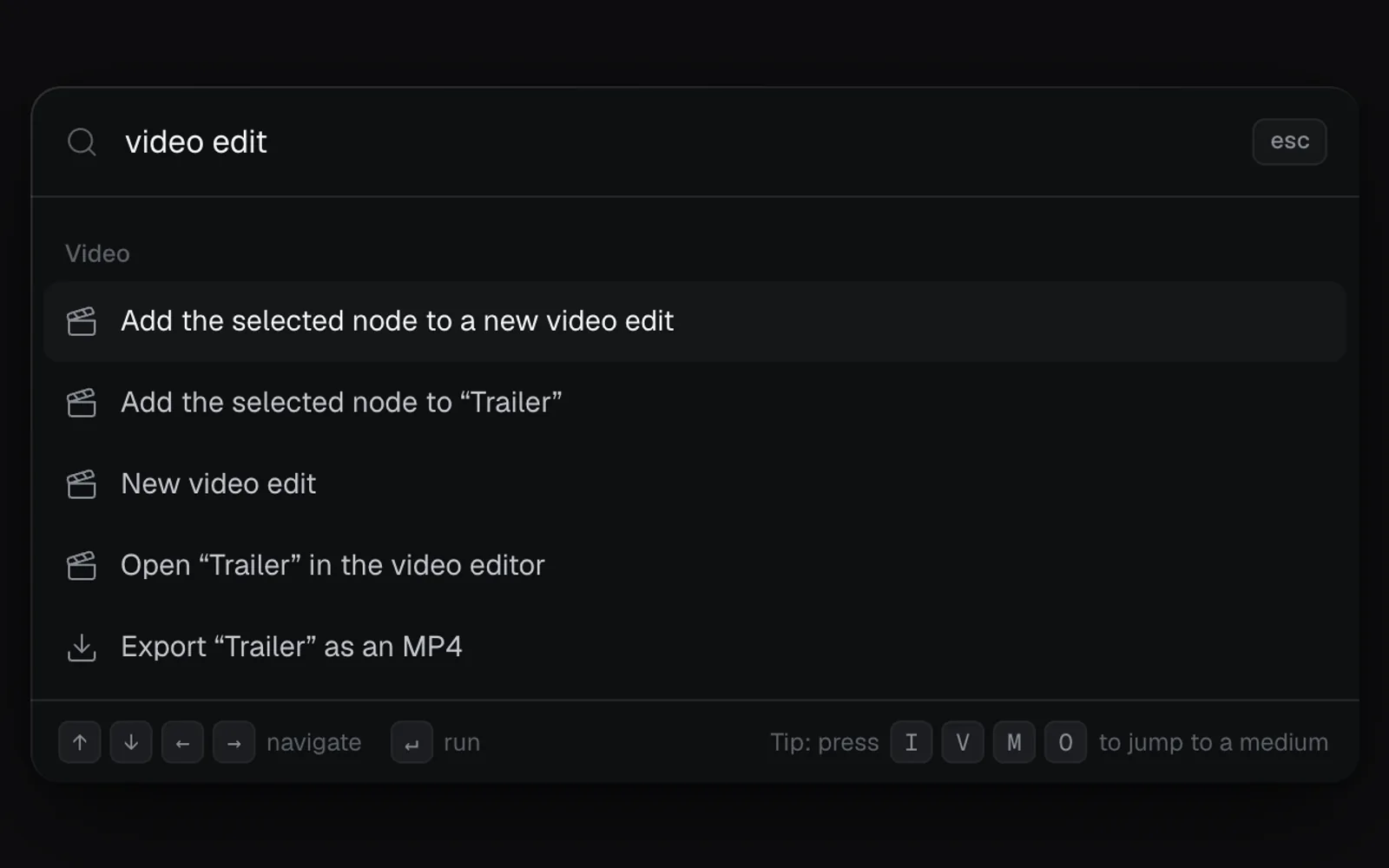
| Command | What it does |
|---|---|
| Add the selected node to a new video edit | Makes an edit of what you selected (Add 3 selected nodes… for several) and opens it |
| Add the selected node to “Trailer” | Adds it after what's in that edit and opens it |
| New video edit | Makes an empty edit and opens it |
| Open “Trailer” in the video editor | Opens that edit |
| Export “Trailer” as an MP4 | Makes the MP4 at 1080p, onto the node |
In the editor, ⌘K lists the editor's own commands under Video editor. Many have no key of their own, so this is the quick way to them:
- Add words: Title, one for each text style
- Insert graphic: Subscribe, one for each insert
- Dissolve between every scene, one for each transition, and Cuts between every scene
- Shape: 9:16 Vertical, one for each shape
- Make captions… and Export…
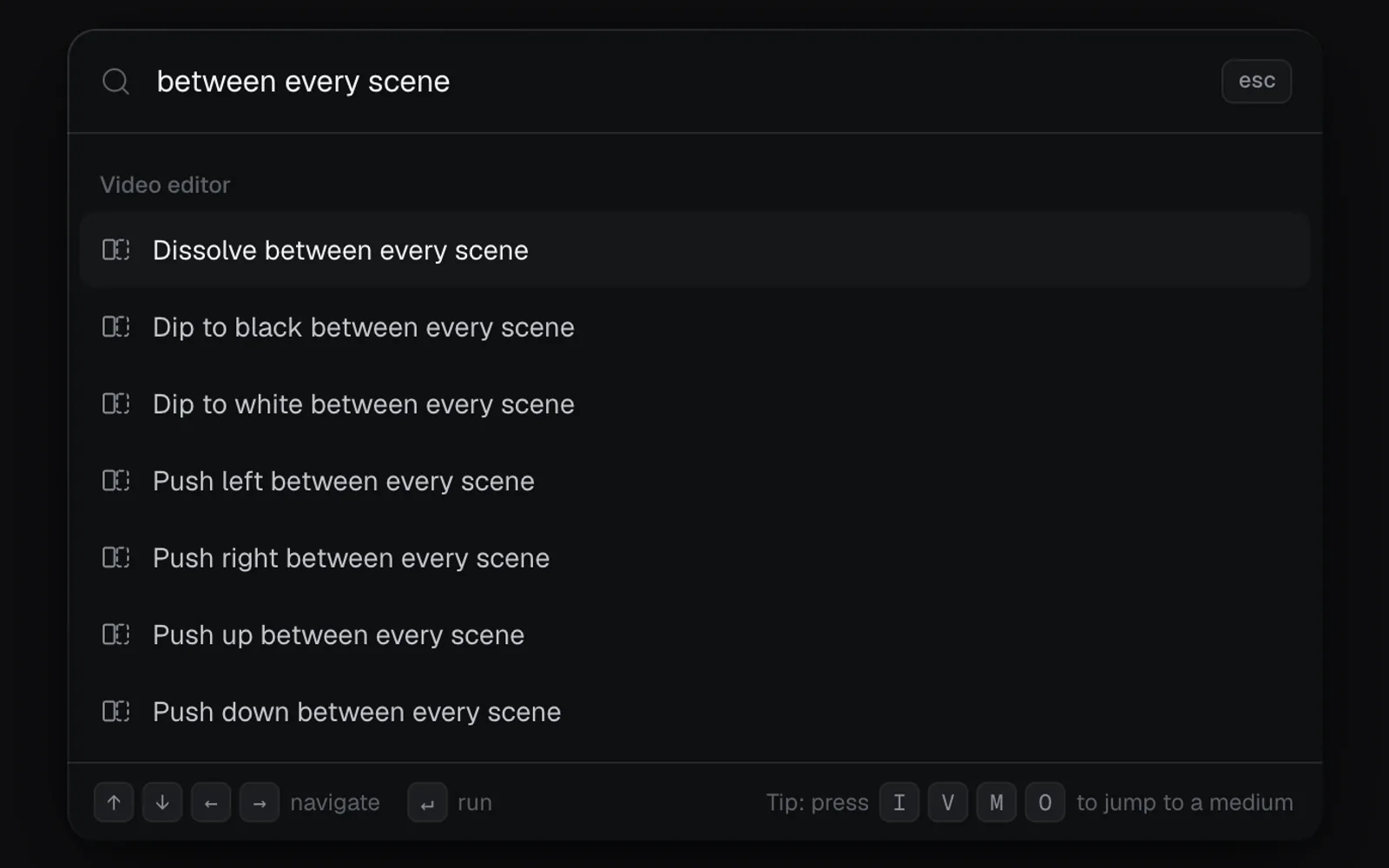
Commands with a key show it, such as Split at the playhead S. See Keyboard shortcuts in the video editor for every key, and The same transition between every scene.
Edit videos with Claude Code, Codex or Cursor (MCP)
Agents connected to Fil, such as Claude Code, Codex and Cursor, get four video tools:
| Tool | What it does |
|---|---|
make_video | Makes a Video edit node from canvas nodes, as Add to video editor does |
get_video | Reads an edit: its shape, length, lanes, scenes, every clip, its captions and its MP4 |
edit_video | Changes it with commands: add, move, reorder, trim, split, remove, transitions, keyframes, captions, cuts and Fil's inserts |
export_video | Asks for the MP4 at 720p, 1080p or 4K |
To have an agent cut a video:
- Connect the agent to Fil. In the sidebar, click Agents (open Agents), then Connect an agent, and pick Claude Code, Codex, Cursor or another app. Follow its steps: Add the server (a one-click button where the app has one, or a few lines to paste), then Allow it in your browser when the app asks, and pick a daily cap on the credits it can spend.
- Ask it, for example: "On my Frozen cathedral trailer canvas, cut Shot 1, Shot 2 and Keyframe 3 into a trailer with the title and the soundtrack, and export it at 1080p."
- The Video edit node appears on the canvas, wired from the nodes, with the agent's name on it (Claude Code). The agent's log on the canvas, Claude Code log.md, notes each step, such as "Made video edit “Trailer”: 3 scenes · 13.1 s · 16:9".
- The MP4 renders in your browser, in a Fil tab where the canvas is open. If it isn't open anywhere, the node reads Export queued until you, or a teammate who can edit, opens it.
- A command that can't be done is skipped with the reason; the rest still apply.
- If you have the edit open while an agent (or a teammate) changes it, the change comes in as a step you can undo with ⌘Z, and what you changed meanwhile is kept.
- Agents can set keyframes that move linearly, ease in or out only, or hold until the next one, which the editor doesn't offer.
- Every tool and its inputs are listed under MCP tools on the Agents page.
The video tools are free. Making captions with edit_video costs credits by the length of sound, up to the most the agent is allowed.
Tips
- Give your nodes and clips clear names (Shot 1, Title, Soundtrack), so you and Claude can name them.
- Ask for several changes in one message: they're made together as one step, and one Undo takes them all back.
- Everything the agent, the chat or an MCP agent makes is on the timeline, where you can change it by hand.
- Only people who can edit the canvas can change its video edits, from the Agent tab, the chat, ⌘K or an agent. People who can only view it can read the Agent tab's thread.
- On a narrow window, Agent in the editor's top bar opens the agent over the frame.
What's next
- Edit the timeline: fine-tune what the agent made, by hand.
- Add text, graphics and B-roll: everything in the Insert tab.
- Chat with Claude: everything else the canvas chat does.
- Export and render videos: resolutions, file sizes and exports from the canvas.