Make a video edit
Select your clips, pictures, music and prompts on a canvas and click Add to video editor. Fil lays them out on a timeline as scenes, with sound and titles.
A video edit starts on a canvas. Select the shots, pictures, music and prompts you want in it, click Add to video editor, and Fil lays them out on a timeline: the videos and pictures one after another as scenes, the sound under them and the prompts' words over them. The editor opens, ready to play, trim and export.
Add clips to the video editor
- On a canvas, select what you want in the video. Click the first node's header, then hold ⇧ and click the others, or drag across them on an empty part of the canvas.
- In the panel on the right, click Add to video editor. Its number is how many of the selected nodes can go in. (If the panel is closed, click Show properties at the top right.)
- A Video edit node appears to the right of what you selected, wired from each node, and the editor opens with them on the timeline.
- Press Space to play it.
With one node selected, its panel has Add to video editor under its result. You can also right-click any node, or a selection, and choose Add to video editor.
What each kind of node adds:
| Node | Goes in as |
|---|---|
| A Video node, or a video file | A scene, as long as the clip |
| An Image node, or a picture | A 3-second scene that slowly closes in |
| An Audio node, or a sound file | Sound, under the scenes |
| A Prompt node | Its words, over a scene |
A Video, Image or Audio node adds the result it shows, so pick the take you want first. Nodes with nothing made yet, and other kinds (documents, 3D, code), are left out, and Fil says so: "Left out 2 nodes: nothing to add from them yet."
Scenes go in reading order
The scenes play in the order the canvas reads, not the order you clicked: rows from top to bottom, each from left to right. Nodes whose tops are close together count as one row. To change the order before you add, line the nodes up from left to right; afterwards, drag scenes on the timeline (see Edit the timeline).
How the clips are laid out
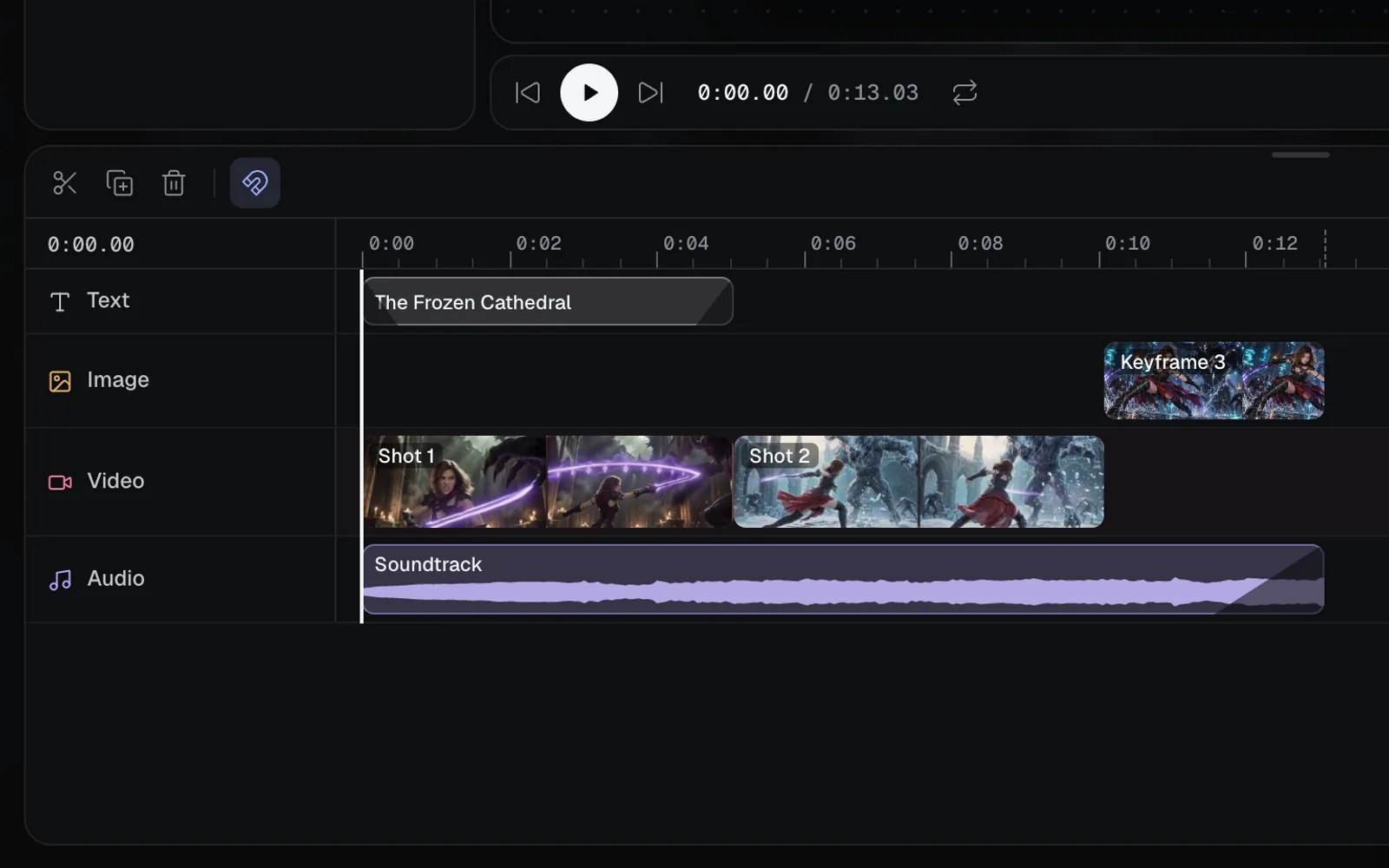
- Scenes: videos and pictures play one after another from the start, videos on the Video lane and pictures on the Image lane. A video lasts as long as its file (one whose length Fil doesn't know yet gets 5 seconds: drag its end out for the rest). A picture lasts 3 seconds and gets a slow Close in move, so it isn't still.
- Sound: sounds start at the beginning on the Audio lane, one after another. Music that runs past the last scene stops with it and fades out, over up to a second and a half.
- Words: each prompt's words go over a scene added with them, the first over the first scene, the second over the second, for as long as that scene shows. With more prompts than scenes, the rest follow one after another, 3 seconds each.
The words come in as a Title: large and bold, rising in and fading out. To change how they look, see Add text and titles.
The shape of a new edit
A new edit takes the shape of its first scene's node, such as a Video node set to 16:9. A file without a shape setting gives the closest of the six shapes once the editor has read it. Change it any time: see Shape, frame rate and background.
Add to an edit you already have
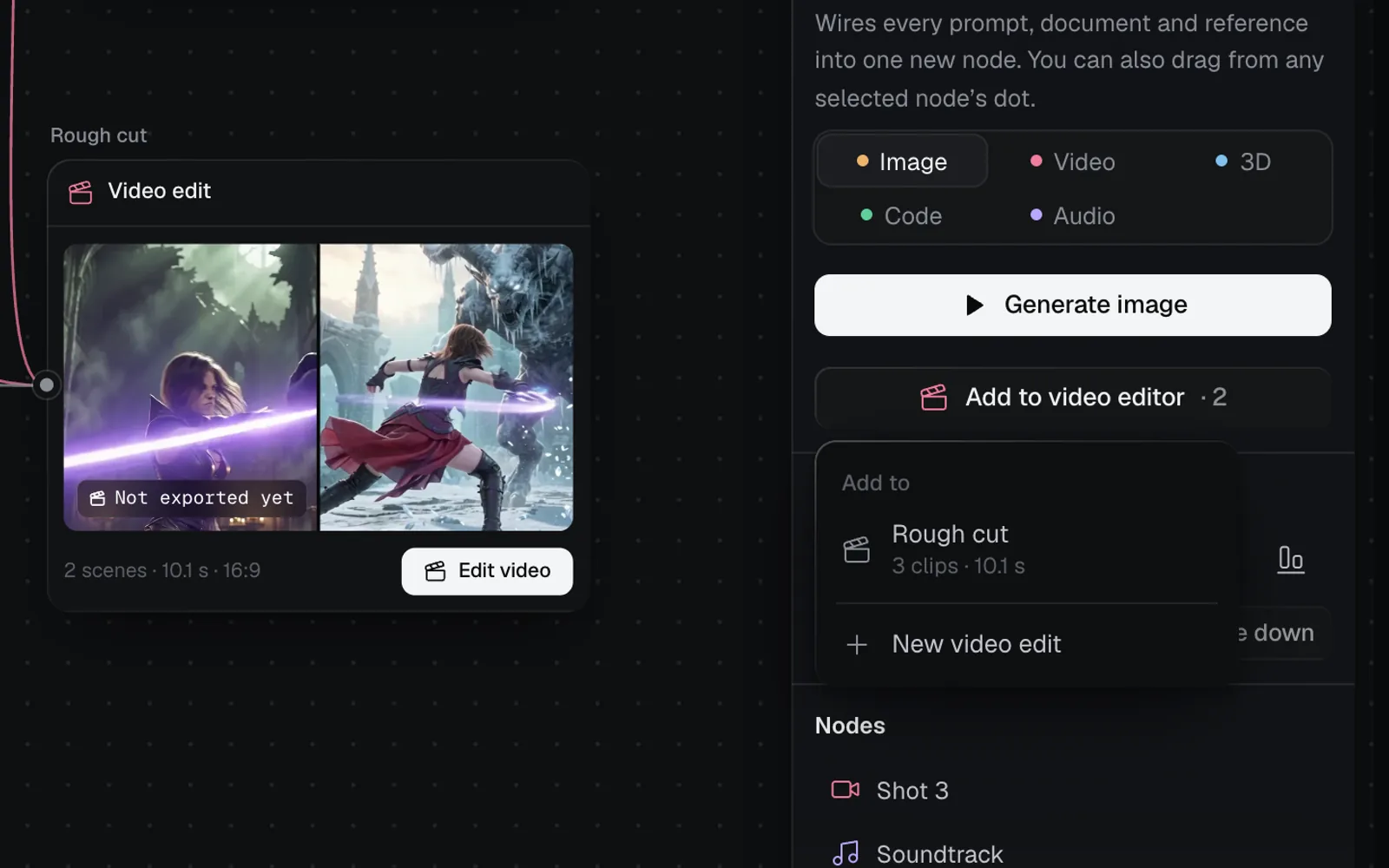
- Select the Video edit node too, and Add to video editor puts the rest into it.
- Without it, on a canvas that already has video edits, a menu headed Add to lists each one with its clips and length (or Empty), and New video edit.
What you add goes after the edit's last scene, and sound after its last sound. The nodes are wired into the edit, and it opens.
Add more from the Media panel
Inside the editor, the Media tab on the left has every video, picture and sound on the canvas, named after its node.
- Click Videos, Pictures or Sounds to see one kind, or All. Videos and sounds show their length, and a dot marks what's already in the edit (In the edit).
- Drag a tile onto the timeline. A scene dropped over another goes in at the nearest cut, and the scenes after it make room. Dropped on an empty stretch, it stays where you drop it.
- Or double-click a tile, or point at it and click its + (Add at the playhead), to add it where the playhead is.
The edit's own exported video isn't in the list. To add a file from your computer, close the editor, drop the file on the canvas, and open the editor again. For words, open the Text tab: see Add text and titles.
Start an empty video edit
Press ⌘K on a canvas and choose New video edit. A Video edit node appears in the middle of your view and the editor opens on an empty stage: Your video starts here. Drag videos, pictures, sounds and words onto the timeline from the left.
Other ways to make a video edit
- ⌘K: with nodes selected, Add 5 selected nodes to a new video edit, or Add 5 selected nodes to “Trailer” for an edit the canvas has.
- Workflows: Story video, Product promo video, UGC video ad and Reel planner make the shots, pictures and sound for a video. Select them when they're done and click Add to video editor. See Story video for an example.
- The chat: ask the canvas chat to "cut these four shots into a trailer with the score and a title". It answers with a card, and Make video makes the edit.
- Agents: Claude Code, Codex and other agents connected to Fil can make, change and export video edits.
For the chat and agents, see Edit videos with chat, ⌘K and agents.
Tips
- Making and editing a video edit is free. Only the clips, pictures and sound you generate for it cost credits.
- A prompt node with no words, or a node that hasn't run, can't go in: "Title has no words." or "Shot 4 has nothing made yet."
- One edit holds about 80 clips. For a longer film, make a second edit.
- Only people who can edit the canvas can add to its edits.
What's next
- Edit the timeline: trim, split and reorder the scenes.
- Add text and titles: style the words, or add captions and lower thirds.
- Add music, voice and sound: set the music's volume and fades.
- The video editor: the layout, saving and limits.