Export and render videos
Export a video edit as an MP4 at 720p, 1080p or 4K, rendered free in your browser. Download it, or save it to the canvas, where it plays on its node.
When your edit is ready, Export turns it into an MP4 file. Fil renders it in your browser, frame by frame, exactly as the stage plays it, with the sound mixed in, so exporting costs no credits. Download the file, or save it to the canvas, where it plays on the edit's Video edit node and sits in your library.
Export a video as an MP4
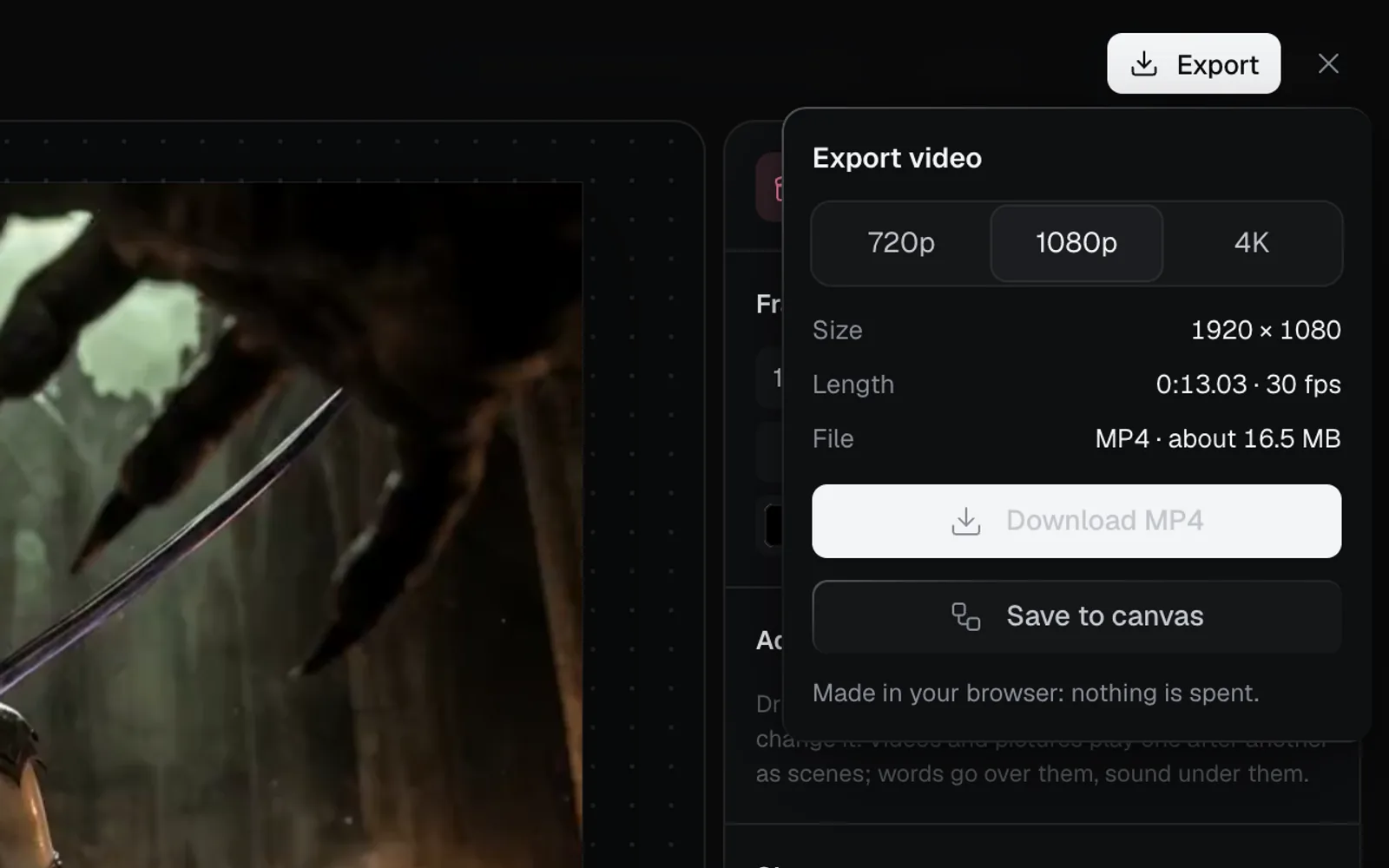
- In the video editor, click Export at the top right. A menu headed Export video opens.
- Pick a resolution: 720p, 1080p (the default) or 4K. The menu shows the video's Size in pixels, its Length and frame rate, and about how big the File will be.
- Click Download MP4 to save the file to your computer, or Save to canvas to keep it on the Video edit node.
- While it renders, the Export button becomes a progress bar: Starting, Getting files, Mixing sound, Making frames, then Finishing, each with how far it's got. A saved video ends with Saving to the canvas, and one over your plan's file size renders again as Making it smaller. Click the stop button at its end (Stop) to give up on it.
- When it's done, a download is named after the edit (Trailer.mp4). A saved video says Saved to the canvas. It plays on the video edit’s node.
Leave the tab open until it's done: the video is made in it, and longer edits and 4K take longer.
Resolutions and file sizes
The resolution sets the video's short side. Its shape comes from the edit (see Shape, frame rate and background):
| Resolution | 16:9 | 9:16 |
|---|---|---|
| 720p | 1280 × 720 | 720 × 1280 |
| 1080p | 1920 × 1080 | 1080 × 1920 |
| 4K | 3840 × 2160 | 2160 × 3840 |
A square (1:1) video is 720, 1080 or 2160 pixels each side. The file grows with the resolution and the length: the 13-second trailer here is about 7.5 MB at 720p, 16.5 MB at 1080p and 65 MB at 4K.
Which to pick:
- 1080p for almost everything: social posts, YouTube, a website.
- 4K for a big screen, when your clips and pictures are sharp enough to fill it.
- 720p for a quick preview, or a small file to send.
Save the video to the canvas
Save to canvas puts the MP4 on the edit's Video edit node and in your library:
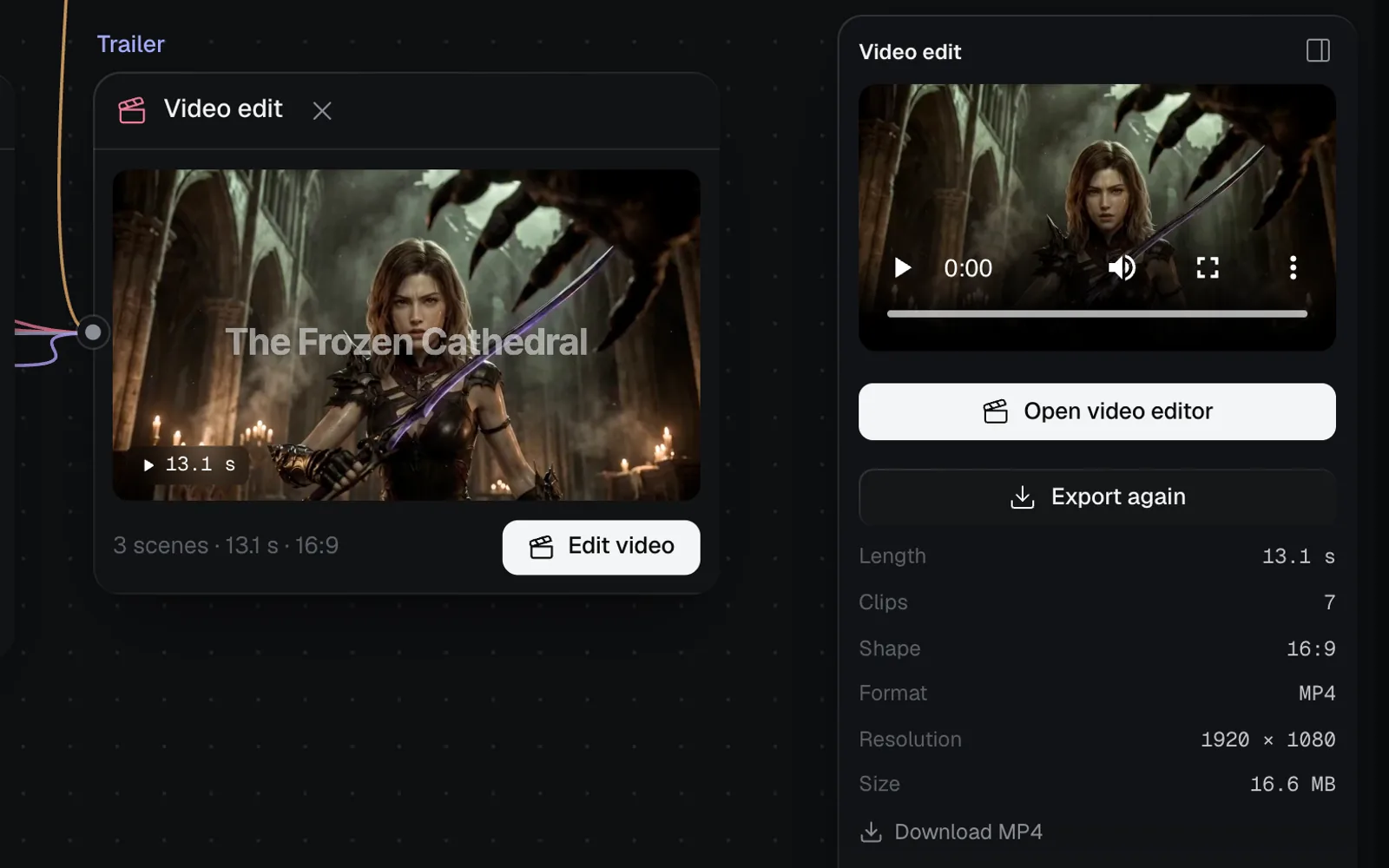
- The node plays the video instead of its strip of scenes, with its length on the picture (13.1 s). Its View full size button opens it large.
- The panel on the right has the video, Export again, its Format, Resolution and Size, and Download MP4.
- Each new export replaces the one on the node. The earlier file stays in your library.
When a saved video would be bigger than that, Fil saves it at a lower resolution or bitrate, and the menu says so before you click. On Starter, 4K reads Saved to the canvas at 1080p, to fit your plan’s 10.5 MB files. Downloads keep 4K. (the menu counts a megabyte as a million bytes, so 10 MB shows as 10.5 MB). On Free, the 13-second trailer saves at 360p. Download MP4 always keeps what you picked.
Export from the canvas, without opening the editor
You can ask for the MP4 without opening the editor:
- Select the Video edit node and click Export MP4 in its panel (Export again once it has one).
- Press ⌘K on the canvas and choose Export “Trailer” as an MP4 (your edit's name).
- Ask the canvas chat to export it, or let an agent call its export tool: see Edit videos with chat, ⌘K and agents.
These export at 1080p (agents can ask for 720p or 4K). The MP4 is still made in a browser: in your tab if the canvas is open, otherwise the next time you or a teammate who can edit opens it. The node shows where it stands:
| Badge on the node | What it means |
|---|---|
| Export queued | Asked for, waiting for a tab with the canvas open |
| Exporting · 40% | Being made in this tab |
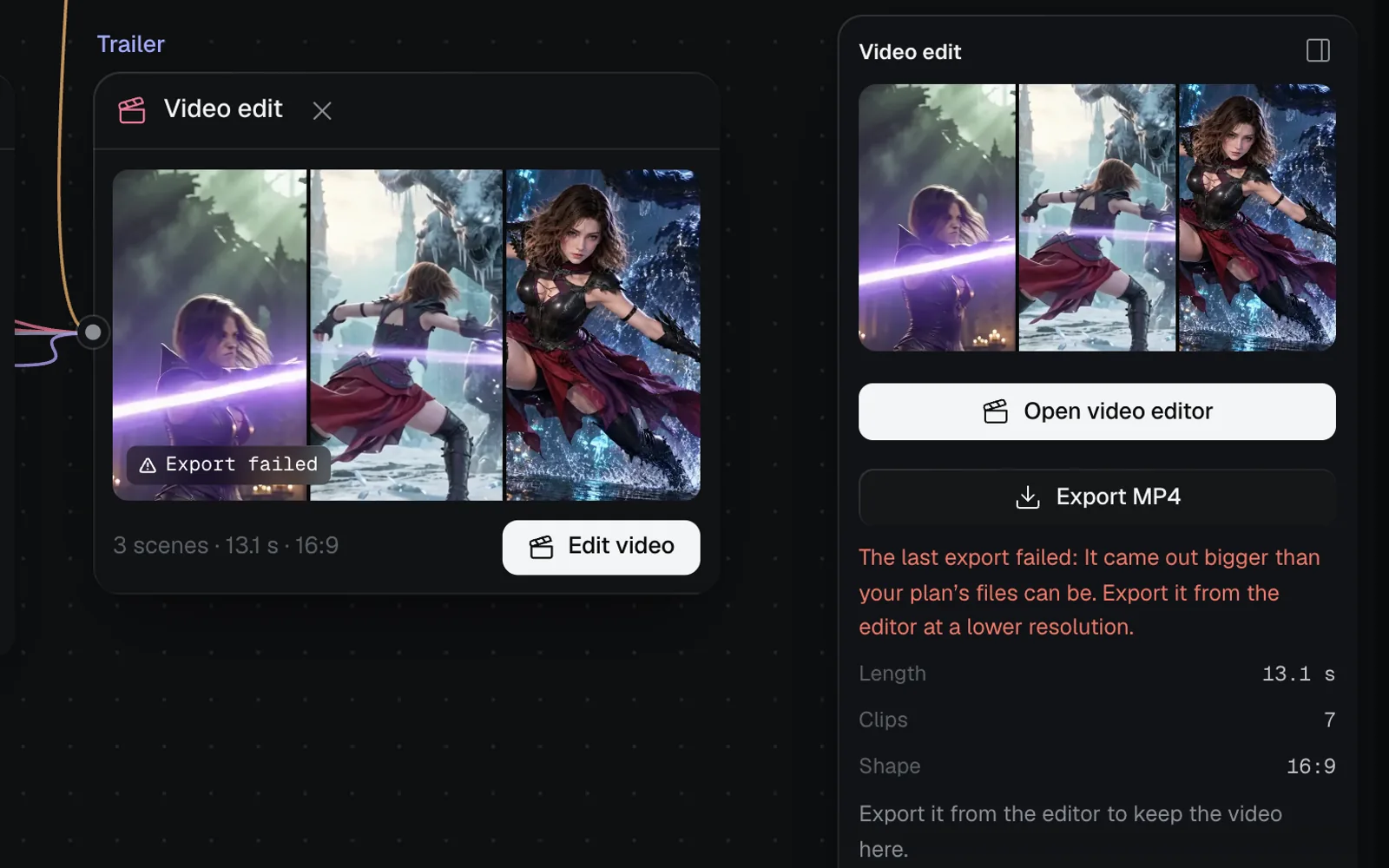
| Export failed | It couldn't be made; point at it for the reason |
| 13.1 s | Done: the video's length |
| Not exported yet | No MP4 has been made |
While the MP4 is made, the button in the panel keeps reading Export queued until the video is on the node; the badge on the node shows how far it's got.
When an export fails
A failed export leaves the node's last video as it was. An export asked for from the canvas shows Export failed on the node, and its panel says why, under Export MP4: for example, The last export failed: It came out bigger than your plan’s files can be. Export it from the editor at a lower resolution. In the editor, a message at the top of the window says why.
| What it says | What to do |
|---|---|
| It came out bigger than your plan’s files can be | Open the editor and export at a lower resolution, or download it |
| This video is too long for your plan’s 10.5 MB files (your plan's size) | Download it instead, or make the edit shorter |
| This browser can’t make videos. Try Chrome, Edge or Safari. | Export in a browser that can make video |
What's in the MP4
- Every frame drawn as the stage draws it: the scenes, words, transitions, motion and keyframes. Hidden lanes are left out.
- The sound mixed as the editor plays it, in stereo: see Add music, voice and sound.
- H.264 video where your browser can make it (otherwise HEVC, VP9 or AV1), at the edit's frame rate, with AAC sound (Opus where the browser can't make AAC).
Tips
- Exporting is free, in the editor or from the canvas. A video saved to the canvas counts toward your storage.
- Play the edit through with Space before exporting: what you see on the stage is what the MP4 shows.
- Only people who can edit the canvas can export its video edits. Anyone who can see the canvas can play and download a video already on the node.
- An agent's or the chat's export lands on the node like yours: see Edit videos with chat, ⌘K and agents.
What's next
- Edit videos with chat, ⌘K and agents: cut and export without the timeline.
- Make a video edit: start the next one.
- Add music, voice and sound: the sound that goes into the MP4.
- The video editor: back to the editor.