Video generation
Make AI videos from a prompt or a picture with Seedance, Kling 3.0, Grok Imagine, Wan and more, with start frames, references, sound and real prices.
The Video view turns a prompt, or a picture you already have, into a short clip, with sound on most models. Describe the shot and what moves in it, pick a model and press Generate: the clip lands at the top of your feed in a minute or three and stays in your library, ready to become a still, a 3D model or part of an edit.
Generate a video from a prompt (text to video)
- Click Video in the sidebar, or press V anywhere outside a text field or a canvas.
- Click the prompt box at the bottom (or press /) and describe the shot: who or what is in it, what moves, where, the light, and how the camera moves ("slow push-in", "handheld", "tracking shot").
- Check the chips under the box: the model first, then its shape, resolution and length. The price shows beside Generate.
- Press Generate, or Enter. ShiftEnter starts a new line instead.
- The run appears at the top of the feed with a timer and "Usually 1–3 minutes". Runs keep going if you leave the view or close the tab.
When it's done, the clip shows in the feed and in the panel on the right. Hover a clip to play it, or use View full size on it to watch it large with sound. In a window 1180 px wide or narrower, the panel is a drawer: open it with Details at the top right of the feed.
Choose a video model
The first chip under the prompt is the model. Its menu, headed Model, shows each one's maker, what it's good at, whether it takes references, and its top resolution. The Video view opens on the video model you used last, here or on a canvas; without one it starts on Grok Imagine Video 1.5.
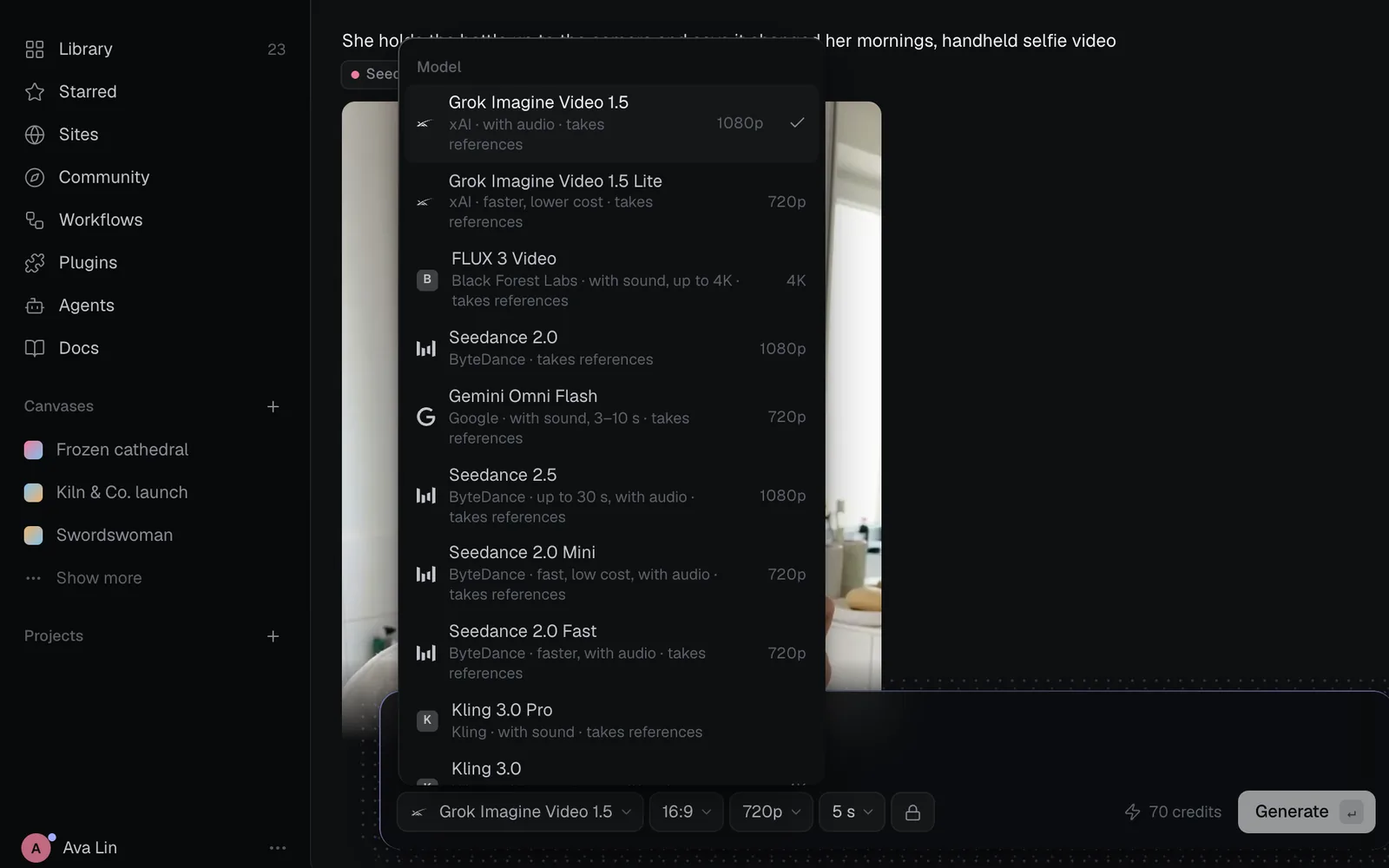
Which to pick:
- Quick, cheap drafts: Grok Imagine Video 1.5 Lite (18 credits for 5 s) or Seedance 2.0 Mini (39).
- The same character in every shot: Seedance 2.0 or 2.5, with up to nine reference pictures and three clips.
- Long takes: Seedance 2.5, Wan 3.0 or Wan 3.0 Prime, up to 30 seconds.
- The sharpest picture: FLUX 3 Video or Kling 3.0, up to 4K.
- A silent clip for your own voiceover or music: Kling 3.0 with Audio off.
| Model | Credits | Good at |
|---|---|---|
| Grok Imagine Video 1.5 | 70 | xAI: with audio, 7 references |
| Grok Imagine Video 1.5 Lite | 18 | Faster, lower cost |
| FLUX 3 Video | 85 | With sound, up to 4K |
| Seedance 2.0 | 77 | ByteDance: references and clips |
| Gemini Omni Flash | 104 | Google: with sound, 3–10 s |
| Seedance 2.5 | 117 | Up to 30 s, with audio |
| Seedance 2.0 Mini | 39 | Fast, low cost, with audio |
| Seedance 2.0 Fast | 61 | Faster, with audio |
| Kling 3.0 Pro | 84 | With sound |
| Kling 3.0 | 84 | With sound or silent, up to 4K |
| MiniMax H3 | 65 | Hailuo 03, at 2K |
| MiniMax H3 Max | 40 | Faster, at 768p |
| Wan 3.0 | 50 | Up to 30 s, with audio |
| Wan 3.0 Prime | 70 | Faster, up to 30 s |
| HappyHorse 1.1 | 70 | Up to 1080p and 15 s |
Credits are for a 5-second clip at the model's own default size: 720p for most, 1080p on Kling 3.0, 2K on MiniMax H3 and 768p on MiniMax H3 Max. Gemini Omni Flash has no length setting: the prompt steers it between 3 and 10 seconds, and it holds the price of 10 seconds.
Set the length, shape, resolution and sound
Each model shows a chip for every setting it has, in this order: aspect ratio, resolution, length and, on Kling 3.0, Audio. A chip with only one choice is greyed out. When you switch models, the settings the new model shares stay as they were, and the price beside Generate updates as you pick.
| Setting | Choices | What it changes |
|---|---|---|
| Aspect ratio | 16:9 (the default) and 9:16 on every model; 1:1, 4:3, 3:4, 21:9, 3:2 or 2:3 on most | The clip's shape |
| Resolution | 480p, 720p (the default), 1080p, and 768p, 2K or 4K where offered | Its size and the price: Seedance 2.0 costs 36, 77 or 189 for 5 s |
| Duration | 5 s (the default), 8, 10, 15, and 20 or 30 s where offered | Its length and the price, which grows with every second: Seedance 2.0 at 720p costs 77, 122, 152 or 228 |
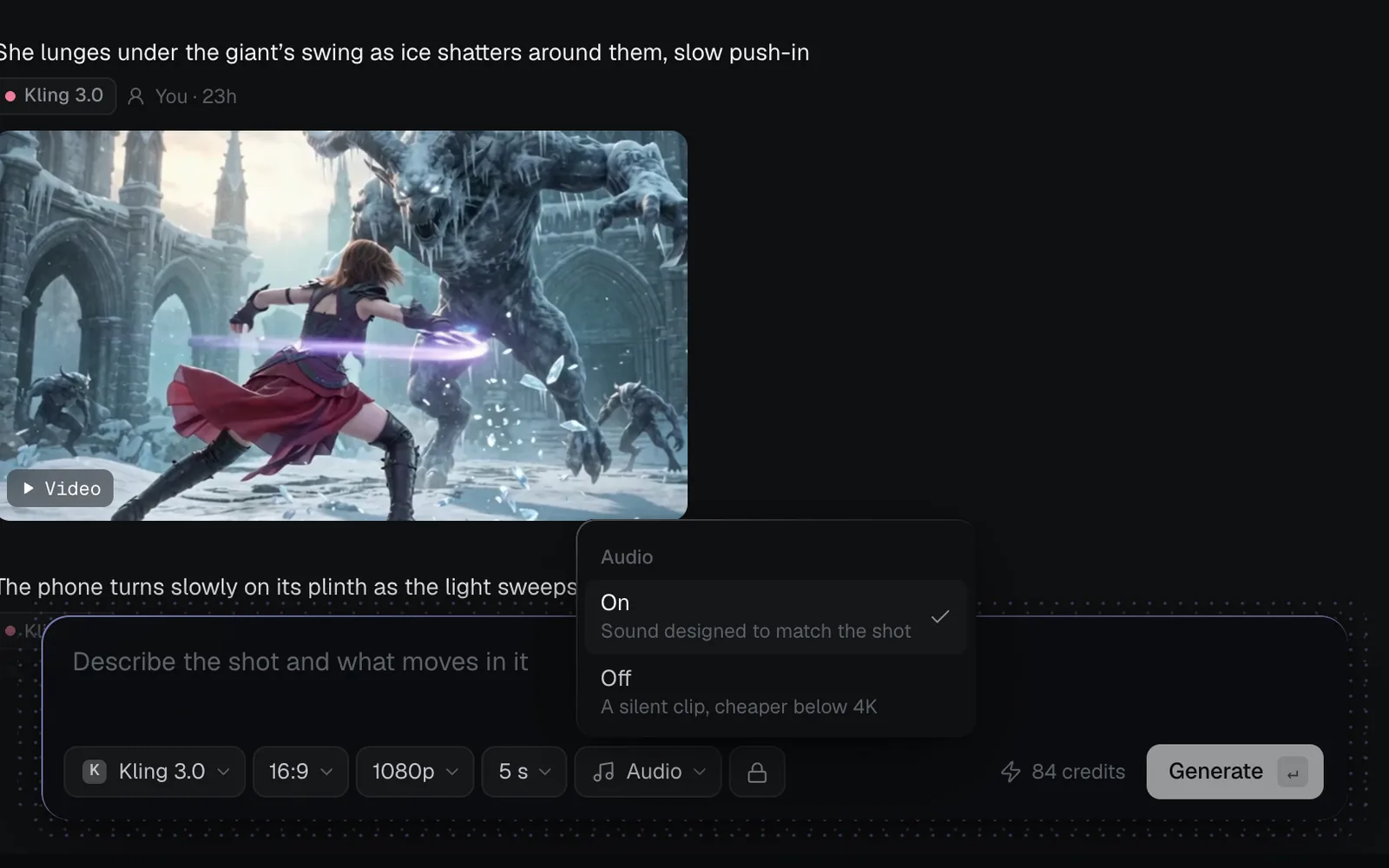
| Audio (Kling 3.0) | On or Off | Off makes a silent clip for less below 4K: 56 instead of 84 at 1080p |
Lengths and sizes differ by model:
| Model | Longest | Sizes |
|---|---|---|
| Seedance 2.5, Wan 3.0, Wan 3.0 Prime | 30 s | Up to 1080p |
| FLUX 3 Video | 20 s | 720p to 4K |
| Kling 3.0 | 15 s | 720p, 1080p, 4K |
| Kling 3.0 Pro | 15 s | Kling picks |
| Grok Imagine Video 1.5, Seedance 2.0 | 15 s | 480p to 1080p |
| Grok Imagine Video 1.5 Lite, Seedance 2.0 Mini and Fast | 15 s | 480p, 720p |
| MiniMax H3 / H3 Max | 15 s | 2K / 480p, 768p |
| HappyHorse 1.1 | 15 s | 720p, 1080p |
| Gemini Omni Flash | 3–10 s | 720p, in 16:9 or 9:16 |
Sound
Most models make the clip's sound with it. Seedance, Wan, FLUX 3 Video and Kling 3.0 Pro show a fixed Audio chip to say so, and Grok Imagine Video 1.5 and Gemini Omni Flash make sound too. Kling 3.0 is the one where you choose: its Audio chip opens a menu with On ("Sound designed to match the shot") and Off ("A silent clip, cheaper below 4K"). To add a voiceover or music of your own, make it on a canvas with an Audio node and put both in the video editor.
Turn a picture into a video (image to video)
Any picture in your library can be the first frame of a clip: a product shot, a character, a keyframe you drew in the Image view.
- Click a picture in the Image view to select it.
- In the panel on the right, click Turn to Video. (On any tile, in a Create view or the Library, hover it and use the wand button, Turn to…, then Turn to Video.)
- The Video view opens with the picture above the prompt, labelled Start frame. The aspect ratio switches to the one nearest the picture's shape, and the clip keeps that shape.
- Describe what moves and how the camera moves. Or leave the box empty ("Describe what moves, or press Enter to bring it to life") and press Enter: the picture comes to life with natural motion and a gentle camera move.
- Press Generate.
Every video model takes one picture as its start frame. To use your own photo, drop it on the feed first: it uploads to your library, and you can then use Turn to Video on it. Dropping a file only uploads it; it doesn't attach it.
Use reference pictures and clips
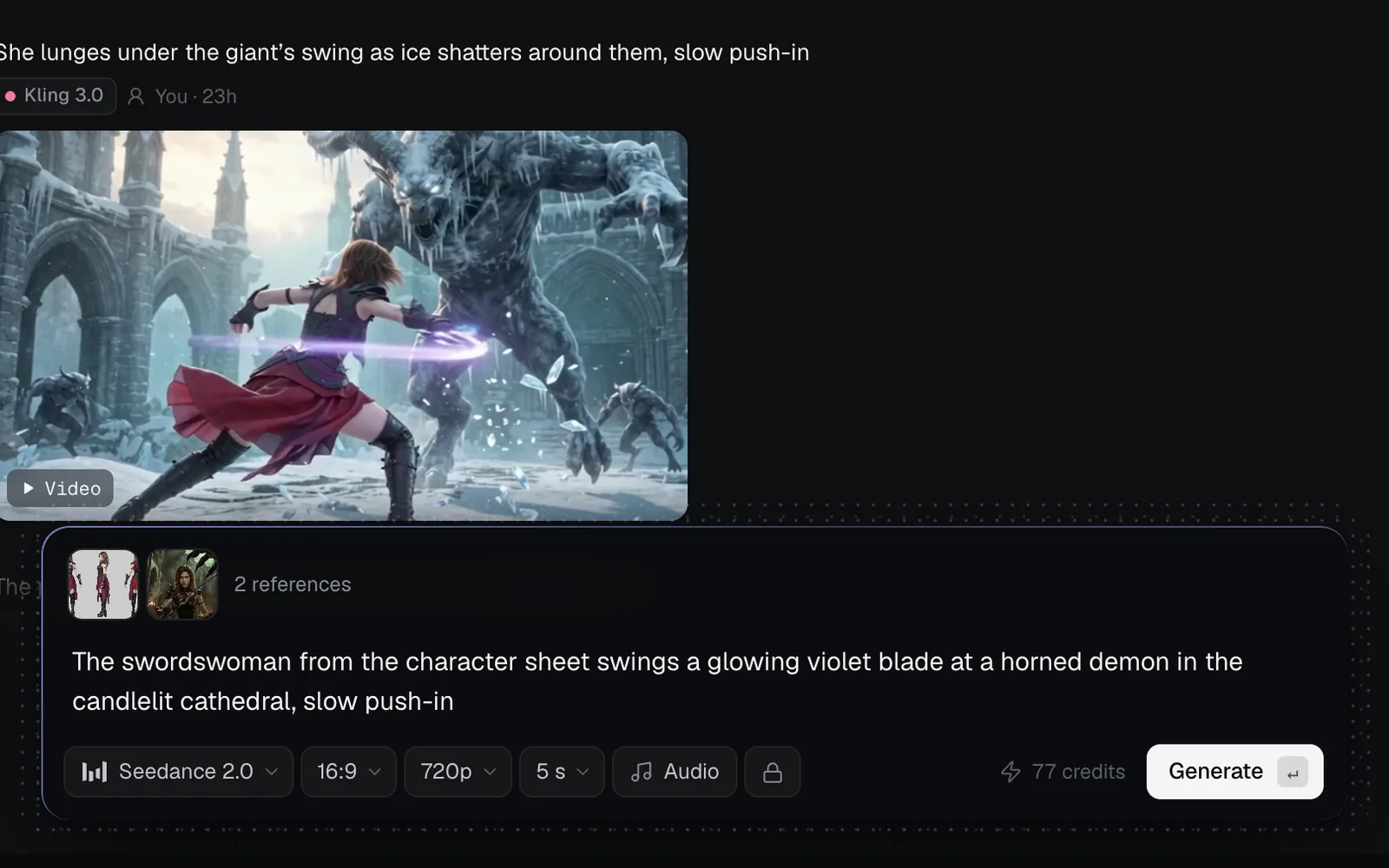
With two or more pictures attached, or a clip, they become references instead of a start frame: the model keeps the character, product or place they show and builds a new shot around them. This is how you keep the same face or outfit from one clip to the next.
- Select the first picture and click Turn to Video.
- Go back to the Image view or the Library, select the next one and click Turn to Video again. Each one joins the others above the prompt; the label counts them, such as 2 references.
- To use a clip as a reference, select it in the Video view and click Turn to Video: it's attached "As a reference video".
- Describe the shot, pick a model that takes references, and press Generate. Remove one with the ✕ on its thumbnail.
How many each model takes:
- Pictures and clips: Seedance 2.0, 2.5, Mini and Fast, MiniMax H3 and H3 Max (9 pictures, 3 clips); Wan 3.0 and Wan 3.0 Prime (10 pictures, 5 clips).
- Pictures only: Grok Imagine Video 1.5 (7, at 720p when there's more than one) and HappyHorse 1.1 (9).
- A start frame only: Grok Imagine Video 1.5 Lite, FLUX 3 Video, Gemini Omni Flash, Kling 3.0 Pro and Kling 3.0.
When the files arrive and the model you're on can't take them all, the view switches to one that can and says "Switched to …, which takes the attached files." Pick a model that takes fewer, and the label turns red until you remove some: "Grok Imagine Video 1.5 takes up to 7 reference images." A reference clip holds more credits while it runs, for the seconds it adds: Seedance 2.0 holds 187 instead of 77 for 5 s at 720p, and settles on what it used.
What you can do with a clip
Select a clip to open it in the panel. Its Recipe says which model made it, how long it took, what it cost, and its format, resolution, length and size. The panel also has Open in canvas, Star, Download (an MP4), Details (rename it or move it to a project), Reuse prompt and Share to Explore, which shows it in Community.
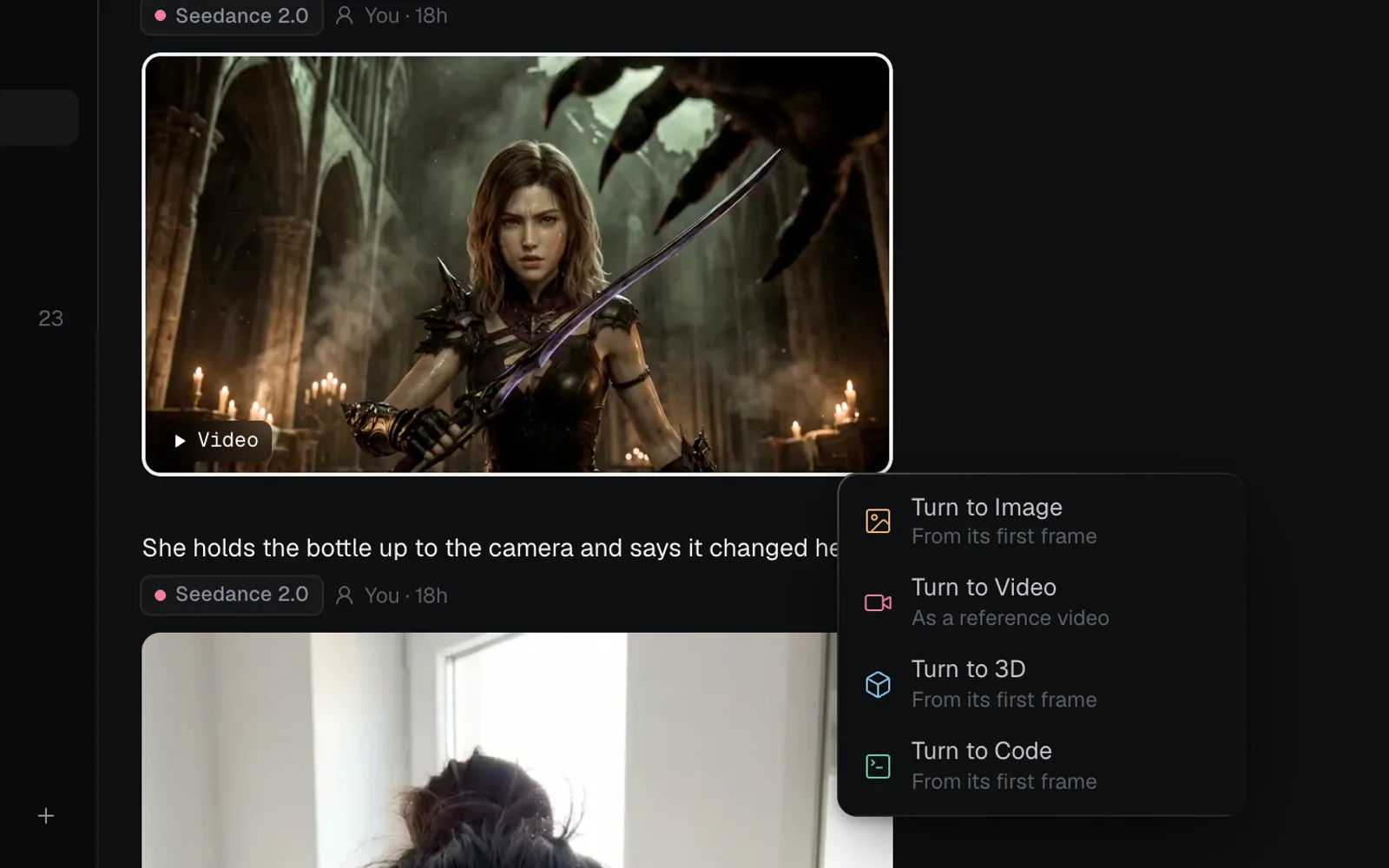
- Turn to Image makes a still of the clip and attaches it as a reference picture. In the panel or the full view it's the frame you're watching; from a tile, the first frame.
- Turn to Video attaches the clip as a reference video, for a new shot in the same style.
- Turn to 3D and Turn to Code start from a still of it, the same way.
Make videos on a canvas
On a canvas, a Video node does what the Video view does, wired to everything else. Add one with the video button in the toolbar at the bottom (or press 3 on the canvas), wire a prompt and a picture into it, and press Generate on the node. A single picture wired in reads Start frame; more read as references.
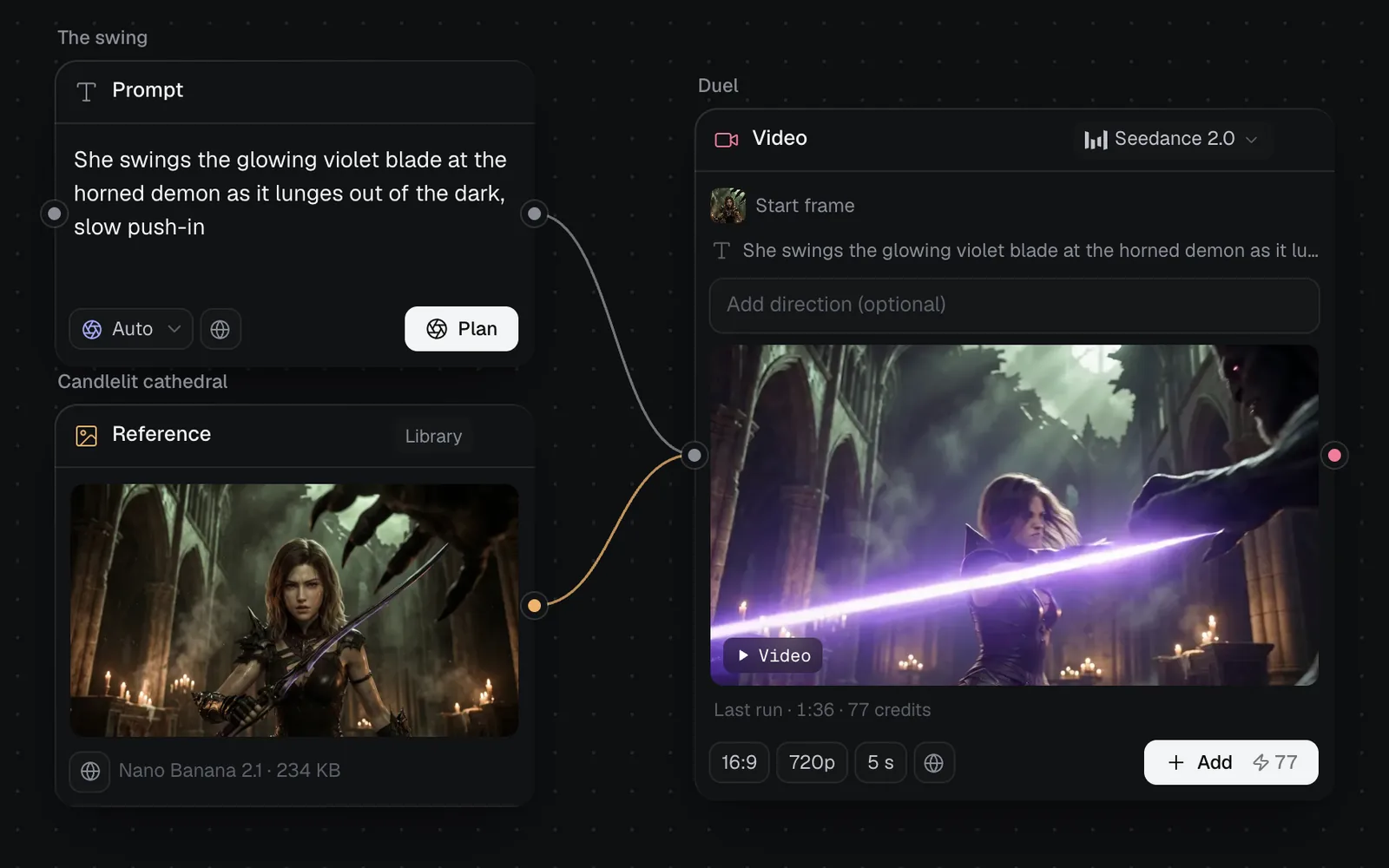
- Before a canvas run starts, Claude Sonnet 5.5 reviews it and may suggest a clearer prompt or a better shape. Pick a suggestion or press Generate as is.
- A finished node shows "Last run" with its time and cost, and Add makes another take beside it.
- Select a Video node and use Add to video editor in the panel to cut it together with other clips, words and sound: see The video editor.
- The Story video, UGC video ad and Product promo video workflows start you on a canvas already wired for clips.
Stop a run
While a clip is queued or generating, a stop button sits beside its prompt in the feed (its tooltip reads Cancel). It can stop runs on Kling 3.0 Pro, MiniMax H3, Wan 3.0, Wan 3.0 Prime and HappyHorse 1.1. A stopped run isn't refunded: it's settled like a finished one.
Every other video model finishes once it has started. Pressing the button there says "This provider cannot cancel a submitted run. It will finish and settle normally."
Costs, refunds and limits
- Length and resolution multiply the price, and references can add to it (Grok Imagine Video 1.5 adds 1 credit per picture).
- A run that shows Failed or Blocked by the provider is refunded in full.
- Without enough credits, Generate says so: "This run needs 77 credits; you have 40." On Free, a daily check-in may be waiting (see Credits and plans).
- A prompt can be up to 4,000 characters; Kling 3.0 takes up to 3,072.
- On the Free plan, what you make is public in Community; on Starter, Pro and Max it starts private, and the lock chip beside the settings switches it.
What's next
- The video editor: cut clips together with words, sound and transitions.
- Image generation: make the start frames and keyframes your clips begin from.
- 3D generation: turn a character or product into a model you can animate.
- Workflows: ready-made canvases for story videos, UGC ads and promo clips.