Add text and titles
Add titles, subtitles, captions and lower thirds to a video in Fil's video editor, then set their font, size, colour, background and how they animate in.
Words in a video edit sit on the Text lane, over your scenes: a title over the first shot, a name in a lower third, a caption under a line of dialogue. Add them from the editor's Text tab, type them on the frame, then choose the font, size, colour and how they come in. The MP4 draws them exactly as the stage shows them, and they cost nothing.
Add a title to a video
- On a canvas, click Edit video on the Video edit node to open the editor. No edit yet? See Make a video edit.
- Put the playhead where the words should start: click the ruler above the lanes.
- Click Text at the top of the left panel, beside Media.
- Click a style, such as Title. It goes on the Text lane at the playhead, for 3 seconds, with sample words ("The Journey"), and it's selected.
- Click in the Words box at the top of the inspector on the right, press ⌘A and type your own. You can also double-click the words on the frame, once they show: a Title rises in, so press ⇧→ first to move the playhead a second on.
- Press Esc to leave the box, Esc again to let go of the words, then Space to play.
You can also drag a style from the Text tab onto the timeline, to drop it at the time you choose. If there are already words at that time, the new ones go on a second lane, Text 2, above the first, and both show.
Text from a prompt
A Prompt node's words can become a title too. Select it on the canvas with your shots and click Add to video editor: its words go over the scene added with it, as a Title, for as long as that scene shows. See Make a video edit.
The words are copied into the edit. Change them in the editor: editing the prompt afterwards doesn't change the video, and the editor doesn't change the prompt.
Text styles: titles, captions and lower thirds
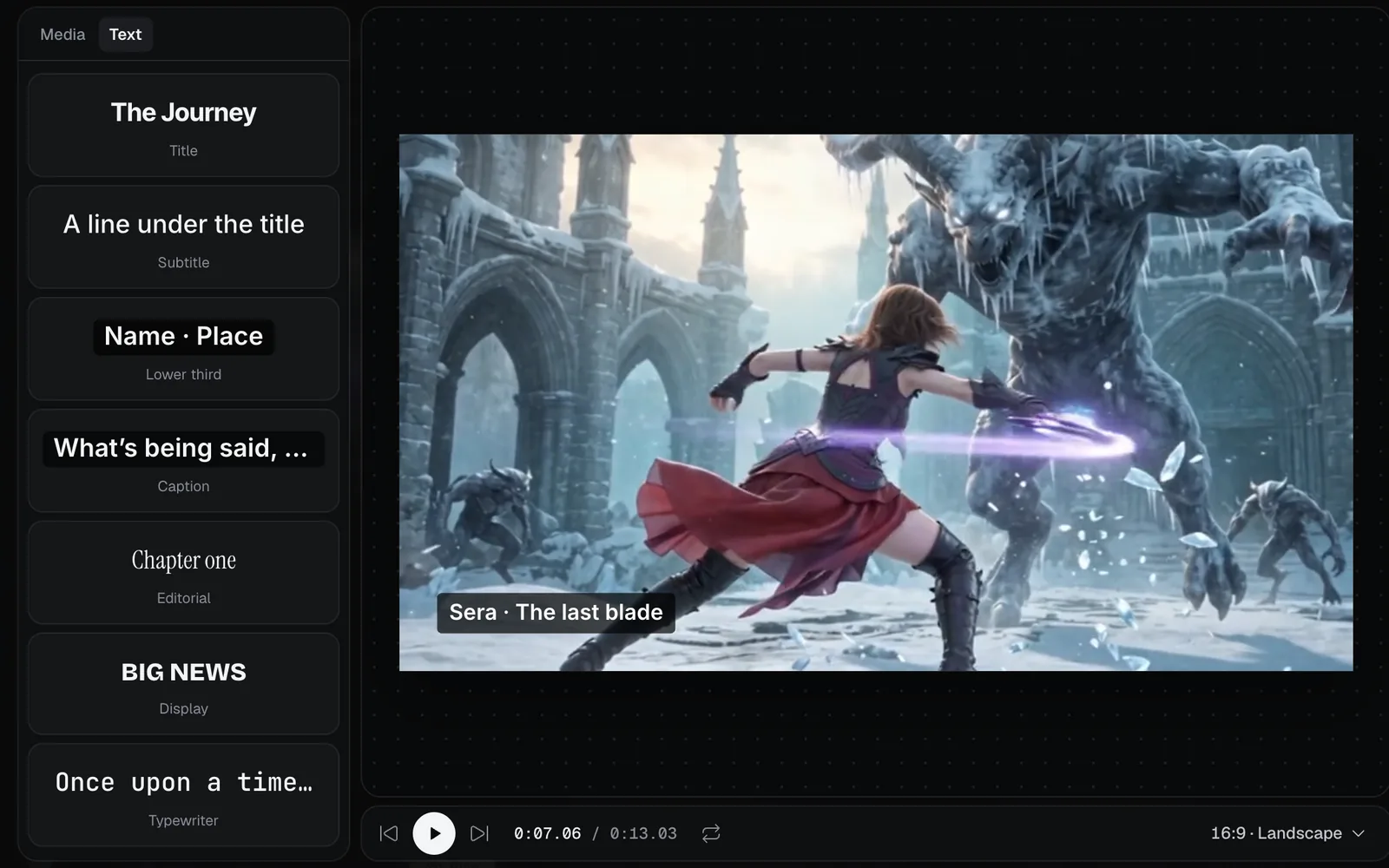
Each style is a starting point: everything about it can change afterwards.
| Style | Look | Comes in |
|---|---|---|
| Title | Inter Tight, 120, bold | Rises |
| Subtitle | Inter, 56, just under the middle | Fades |
| Lower third | Inter, 44, on a dark box, bottom left | From the left |
| Caption | Inter, 48, on a dark box, at the bottom | Fades |
| Editorial | Instrument Serif, 140 | Blurs in |
| Display | Bricolage Grotesque, 180, extra bold | Pops |
| Typewriter | JetBrains Mono, 64 | Types out |
All of them fade out at the end. Which to pick:
- The film's name or a chapter: Title, Editorial or Display.
- A person's name and role, or a place: Lower third.
- What someone says: Caption.
- A line under a title: Subtitle.
Edit the text
Click the words on the frame, or their clip on the Text lane, to select them. The inspector's header shows the words and how long they last (Words · 3 s), and the Words box under it holds what they say.
- Type in the box, and press Enter to start a new line. Words hold up to 280 characters.
- Long lines wrap on their own at about the frame's width, less a margin.
- The clip on the Text lane shows the words too, so you can find them on the timeline.
For words that came from a prompt, the canvas button at the top of the inspector (Show on canvas) closes the editor and shows you that node.
Style text: font, size, colour and background
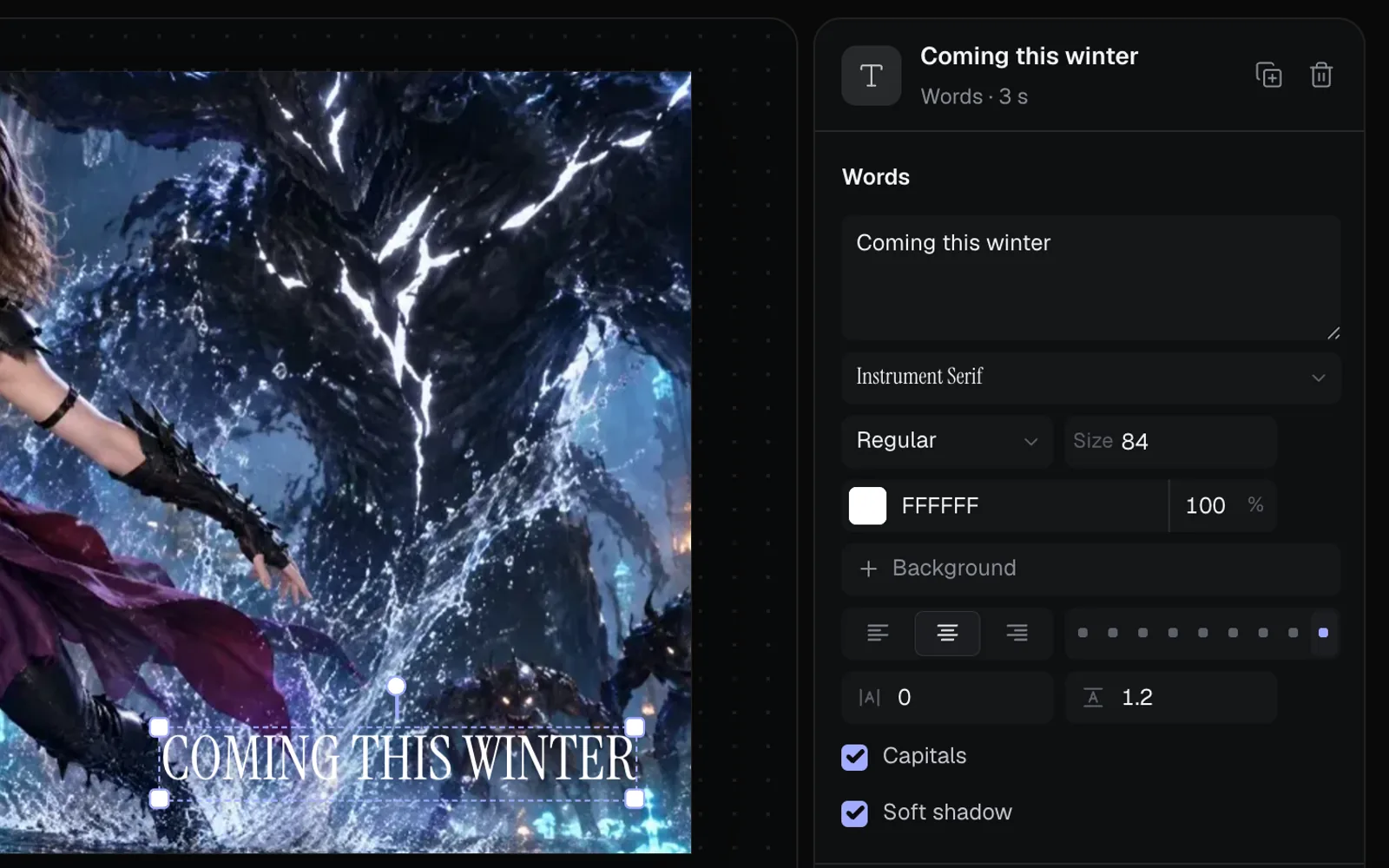
The Words section of the inspector sets how the selected words look:
| Setting | What it does |
|---|---|
| Font (the first menu) | Inter, Inter Tight, Geist, Instrument Sans, Instrument Serif, Bricolage Grotesque, Funnel Display, DM Sans or JetBrains Mono |
| Weight | Light to Extra bold |
| Size | 8 to 600, in pixels of the frame |
| Colour | The swatch and its hex code, with an opacity |
| Background | A dark box behind the words. Change its colour, or remove it with − |
| Align | Left, centre or right, for words on several lines |
| Where on the frame | The row of nine dots: Top left, Top, Top right and so on to Bottom right, a margin in from the edge |
| Letter spacing, line height | The two fields under it |
| Capitals | Shows the words in capitals without retyping them |
| Soft shadow | A shadow that keeps light words readable over bright shots. On to start with; it's there only without a background |
Move, resize and rotate text on the frame
With the words selected, the frame shows a box around them:
- Drag inside the box to move them. They snap to the frame's middle lines; hold ⌘ as you drag to place them freely.
- Drag a corner of the box to make them larger or smaller.
- Drag the round handle above the box to turn them, and hold ⇧ for steps of 15°.
These set the X, Y, Size and Turn under Layout in the inspector, where Opacity makes them see-through. That Size is a percentage that scales the words as a whole, on top of the font size under Words. Click one of the nine dots under Words to put them back on that spot. To animate the words across the frame, set keyframes: see Transitions, speed and keyframes.
Animate text in and out
Each style comes with its own entrance. Change it under Animate in the inspector: an In and an Out, each with how long it takes (0.5 seconds to start with). Words have two of their own: Typewriter types them out letter by letter, and Untype takes them back.
The others coming in are Fade, Rise, Drop in, From the left, From the right, Pop, Zoom, Blur and Wipe. Going out, they're Fade, Rise away, Fall away, To the left, To the right, Shrink, Zoom, Blur and Wipe. None, at the top of each menu, turns the entrance or exit off. See Animate in and out. On the timeline, a ramp at each end of the clip shows how long the words take to come in and go out.
Time your text on the timeline
- Drag either end of the clip on the Text lane to show the words for longer or shorter, or drag the clip to move it.
- For exact times, type Start and Length (in seconds) under Timing in the inspector.
- When you trim or move the scenes, words that start after the change move with them. See Edit the timeline.
Add captions or subtitles
Fil doesn't write captions from speech, and there's no subtitle file (SRT or VTT) import or export: you type each line. To caption a voiceover or a line of dialogue:
- Play the edit and pause where the line begins.
- Click Caption in the Text tab, then type the line in the Words box.
- Drag the caption's end to where the line stops.
- For the next line, press Esc to leave the box, then ⌘C with the caption still selected. Move the playhead and press ⌘V: a copy with the same style goes in at the playhead. Type the new words.
To place lines quickly, ← and → move the playhead a frame, and ⇧← and ⇧→ a second.
Add text with ⌘K, the chat or an agent
- In the editor, press ⌘K and type "words": Add words: Title, Add words: Caption and the rest add that style at the playhead.
- Ask the canvas chat, for example "Add Coming this winter over the last scene, in the editorial style", and confirm its card.
- Agents connected to Fil add and style words with their video tools.
See Edit videos with chat, ⌘K and agents.
Tips
- Size is in pixels of the frame, which is 1080 on its short side. A 16:9 frame is 1920 wide but a 9:16 one is 1080, so the same title takes up more of a vertical video. Check your words after changing the shape.
- The Text lane draws over the videos and pictures. Click the eye beside its name (its tooltip reads Hide) to see the shots without words. A hidden lane isn't exported either.
- Over a busy or bright shot, give the words a Background, or keep Soft shadow on.
- Text, its styles and animations are free, and the export draws them in the same fonts as the stage.
What's next
- Add music, voice and sound: put a score and a voiceover under the words.
- Transitions, speed and keyframes: animate words across the frame.
- Export and render videos: make the MP4.
- Edit the timeline: trim, split and move clips.