Simple HTML pages
Make one self-contained HTML page from a prompt in Fil, for an invitation, an event or a single landing page, then edit it, download it or publish it.
A Simple HTML page is one page in one file: its colours, fonts, words and layout are all written into it, with no design system or data beside it. It's the quickest kind of site to make and change, and the right one for a page with one job, such as an invitation, an event, a launch or an interactive demo.
Make a simple HTML page
- Open a canvas and add a Code node: click Code in the toolbar at the bottom, or press 5 on the canvas.
- Click the chip under its prompt that reads Website, and pick Simple HTML page in its menu, headed What it makes. The empty node now says "Your page will appear here".
- Describe the page in its prompt box: what it's for, the words it must show exactly (the date, the time, the address), its sections and the look. A brief you'll reuse can go in a Prompt node wired into the Code node.
- To show your own photo, put it on the canvas (drag it in from your computer or the library) and drag from its dot to the Code node. The node says "1 reference".
- Press Generate: about 5–50 credits on Claude Sonnet 5.5 at Medium effort, shown beside the button. Claude Sonnet 5.5 reviews the brief first and may suggest making pictures before the page, as for a Website (see Build a website).
- The page is written in the node as you watch ("Building page · 6 KB"). When it's done, the node is headed HTML and the page runs in it.
- To see it full size, hover the page and click View full size, or double-click it.
Simple HTML page or Website?
| Simple HTML page | Website | |
|---|---|---|
| Pages | One | As many as you add, in one navigation |
| Colours, type and components | Written into the page | A design system node every page shares |
| Content | Written into the page | A data node you edit as a CMS |
| Another take | ↵ in its prompt runs it again | Changed by edits, one version after another |
| Download | One HTML file | A page, or the whole site as a zip |
Pick a Simple HTML page when the page stands alone and you'll change it as a whole. Pick a Website when there are several pages, or content such as products and posts that you'll keep updating. The comparison of all three kinds includes React apps.
Edit a simple page
- Edit with agent, on the node, opens the page in the Design tab with its agent ready: say what to change ("make the RSVP button larger", "add a map section") and see the price before it runs. Each change is a new version. See Edit with the agent.
- Design, in the node's properties on the right, edits every layer by hand: words, pictures, colours, spacing. See The Design tab.
- For another take, type a direction in the node's prompt box and press ↵, or right-click the node and choose Generate. It runs the brief again for a new page, priced as before.
- The node's properties have a Pictures section, with Make a picture or Make again and Pick from the library for each picture on the page.
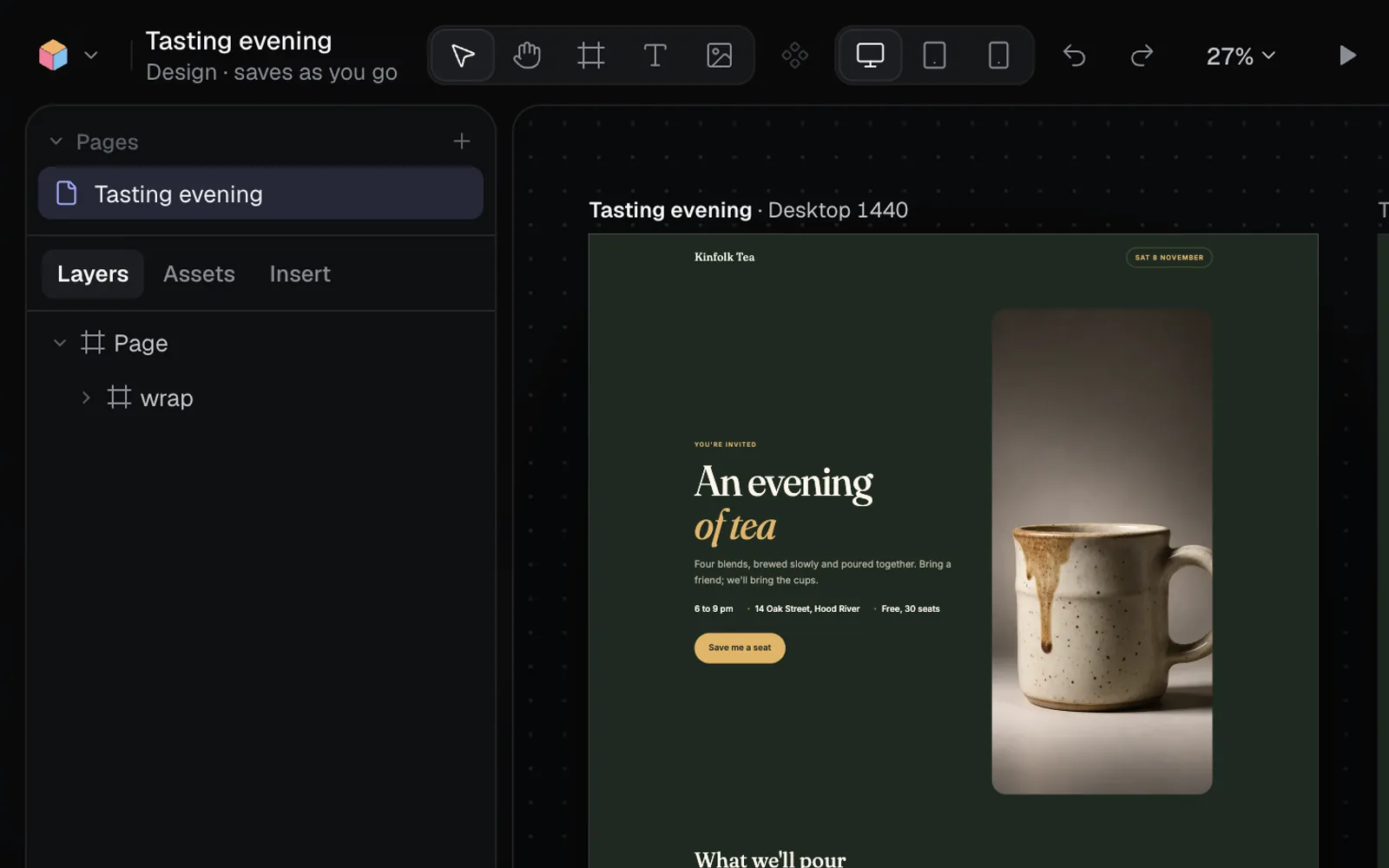
Preview, download and publish
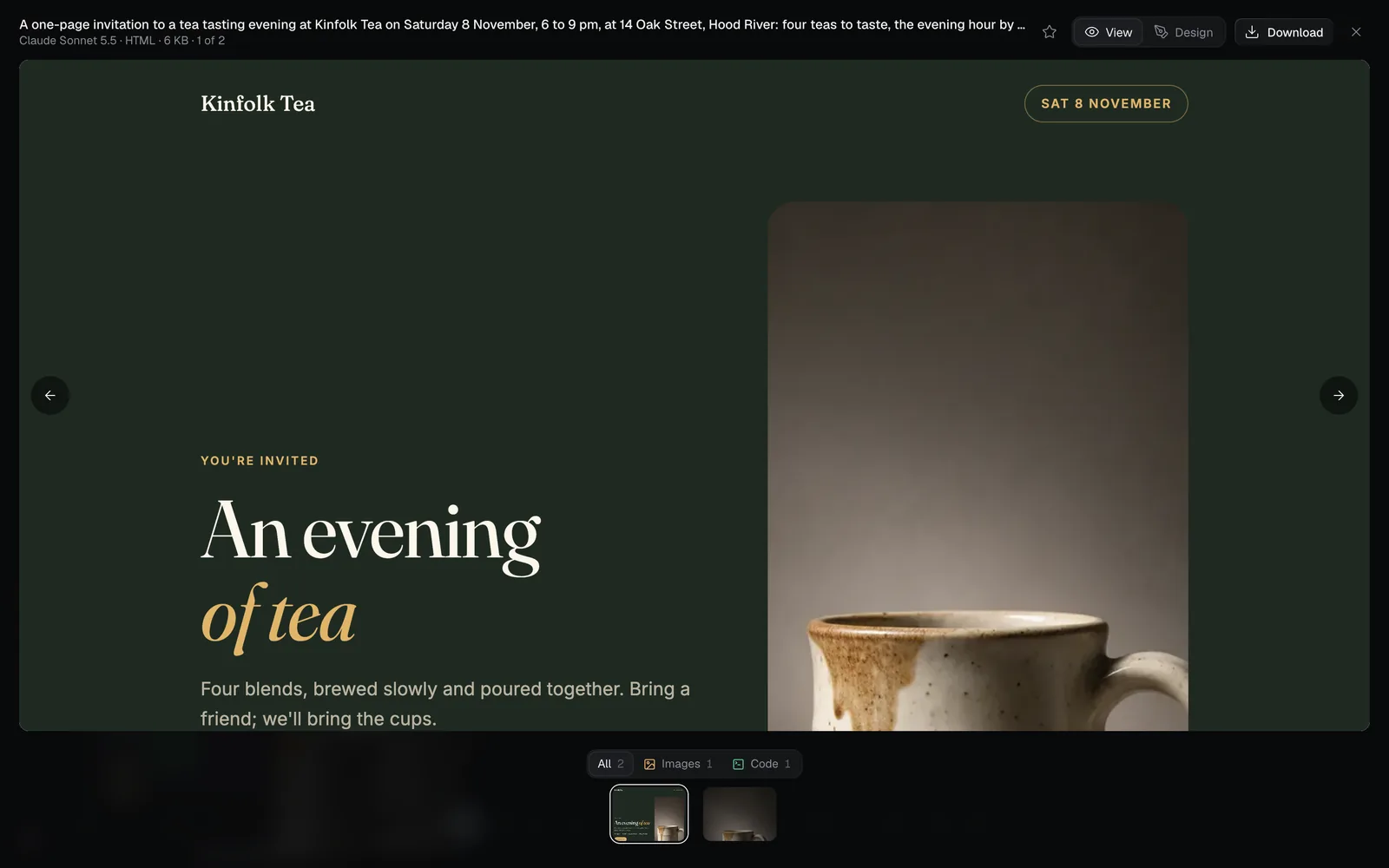
- View full size on the page (or a double-click) runs it across the window. Design at the top switches to editing, Download saves it, and Esc closes it.
- Download HTML in the node's properties, or Download in the full view, saves one
.htmlfile with its pictures inside, so it opens anywhere. Web fonts still load from the internet. - Publish site in the node's properties puts the page online at an address of its own, as a site of one page. See Publish a website.
Limits of a simple page
- It doesn't share anything. You can add pages beside it from Pages in the Design tab (Blank page, Duplicate this page or New page with AI…), but each keeps its own colours, type and words: change the footer and you change it on every page by hand.
- No collections. Products, posts or a team are written into the page, not kept as data, so there's no data node to edit them in and no page for each entry.
- No address of its own per page. Page settings has a title, a description and a social image, but only pages of a Website have an address.
When a simple page outgrows this, make a Website from a brief that describes it: see Build a website.
Other ways to get one
- A chat asked for "a web page", "one page", "a dashboard" or "a game" plans a Simple HTML page. See Chat and plans.
- The Visual explainer workflow makes one rich page on a topic, on Claude Opus 5.5.
- A site folder from your computer, dropped on a canvas, becomes a Simple HTML page that runs as it is, if it has an
index.html(or a built site indist). React projects become React apps instead; see React apps.
What's next
- Build a website: several pages sharing one design system and one set of content.
- Publish a website: put the page online and share its address.
- Edit with the agent: change a page by asking.