Extend an image (outpaint)
Outpaint with AI in Fil. Make a picture wider or taller, pick a new shape like 16:9 or 9:16, zoom out, place it, and GPT Image 2.5 fills the new space to match.
Outpaint makes a picture bigger than it was. Give it a new shape or more room around it, and GPT Image 2.5 fills the new space in the same setting, light and style, around your picture as it was. Use it to turn a square into a 16:9 banner or a 9:16 story, to zoom out from a close crop, or to add sky above a subject for a title.
Extend an image past its edges
- On a canvas, point at the picture and click the brush at its top right (Edit), then Outpaint. The picture opens full screen in a larger frame: the checkered space around it is what gets filled, and the bar at the top says the size it'll make, such as "Fill out to 2336 × 1568".
- Already in the full view? Click the Edit tab, then Outpaint in the rail on the left.
- Pick the new shape from the row under the frame, or keep Original, and set Zoom out for how much room to add. It starts at 1.5×.
- Drag the picture inside the frame to place it. It snaps to the edges and the middle.
- Say what should go in the new space, if you like, in "What should fill the new space? (optional)".
- Click Generate (9 credits for this map), or press Enter in the text box.
On a canvas, the full view closes and a new Image node named Outpaint 2 (or another number) appears beside the original, linked to it. It starts at once and usually lands in under a minute, and the original stays as it was. Outside a canvas, in the Image view or the Library, open the picture with View full size, click Edit, and the outpaint runs at the top of the Image view.
Change the aspect ratio or zoom out
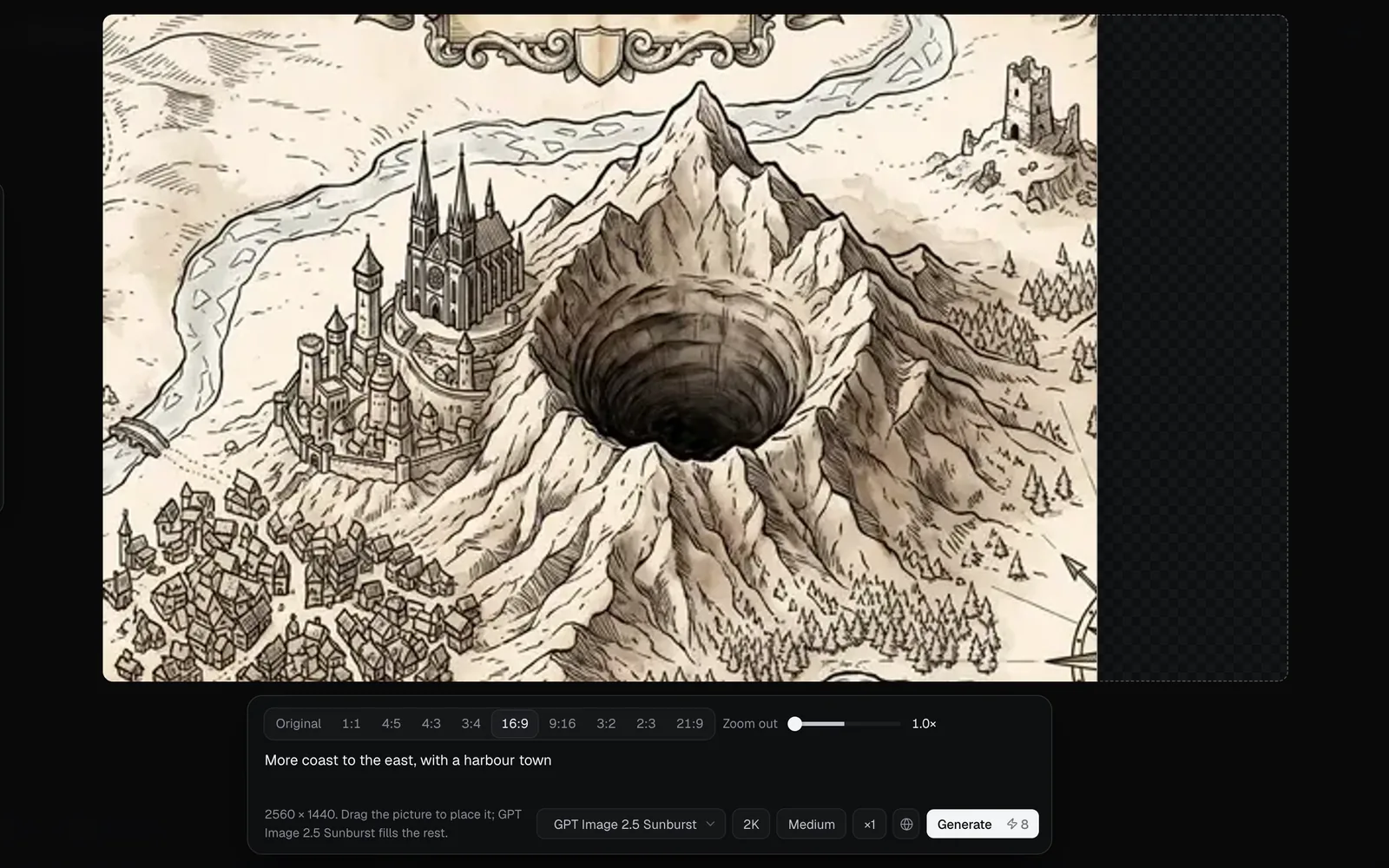
- The shape: Original, 1:1, 4:5, 4:3, 3:4, 16:9, 9:16, 3:2, 2:3 or 21:9. The frame is the smallest of that shape that holds the picture.
- Zoom out, from 1× to 2.5×: makes the frame larger all round, for more room on every side.
- Where the picture sits: drag it. At the left edge, all the new width goes to the right; zooming out still adds space above and below.
At Original and 1×, there's nothing to fill: the bar says "Pick a shape or zoom out", the line in the box says "Nothing to fill yet: pick another shape, or zoom out.", and Generate stays grey. A frame longer than 3:1 (Original on a long banner) says "That frame is too long and thin: pick a shape within 3:1."
Fil asks the model to continue the scene past the edges with the same setting, perspective, light, colour, grain and style, and to keep your picture as it is. What you type is added as what goes in the new space: name the things you want there, such as "a harbour town", "more sky for a title", or "the rest of the table".
Outpainting models and prices
Outpaint runs on the two models that fill a marked space, picked from the model chip (its menu is headed Fill with):
- GPT Image 2.5 Sunburst, made for precise edits. It's the one Outpaint starts on, unless your new pictures start on Flare.
- GPT Image 2.5 Flare.
Picking one here doesn't change the model your other pictures start on. The chips after it set Resolution (1K, 2K, 4K), Quality (Low, Medium, High) and Images (×1, ×2, ×4; it starts at ×1). The size it makes depends on the frame's shape and the resolution: 2560 × 1440 for 16:9 at 2K.
| Frame | Credits at 2K, Medium, ×1 |
|---|---|
| 21:9 | 6 |
| 16:9 or 9:16 | 8 |
| 3:2 or 2:3 | 9 |
| 4:3, 3:4 or 4:5 | 10 |
| 1:1 | 12 |
GPT Image 2.5 has no 4:5, so a 4:5 frame is made and priced as 3:4; Original is priced at the nearest shape it has. For a 16:9 frame, the other settings cost:
| Setting | Credits |
|---|---|
| Quality: Low, Medium, High | 3, 8, 24 |
| Resolution: 1K, 2K, 4K | 5, 8, 12 |
Low is 3 credits at 2K whatever the shape. A run holds the most it can cost and settles at what it used; a run that fails, or that's blocked, gives its credits back. The globe or lock beside Generate says whether the outpaint is public or private, as for any edit: see Image editing.
Tips
- Zoom out a little at a time. At 1.5× your picture fills two thirds of the frame's width; at 2.5×, the model invents most of it.
- To make room for a title, drag the picture down so the new space is above it, and ask for "plain sky".
- Want more than the frame allows? Outpaint the result again.
- The new node's panel shows Asked for: the words Fil sent, with yours at the end.
What's next
- Crop an image: trim the result to the exact shape you need, for free.
- Edit part of an image (inpaint): change something in the new space.
- Upscale and remove the background: double its size for print.
- Image editing: every tool, where it works and what it costs.