Canvas templates
Start from a canvas template, a prompt wired to the right node and shape, for YouTube covers, UGC ads, headshots, web design, sites, posts and 3D.
A canvas template is a prompt already written for a common job, wired into a node of the right kind and shape. Add one, replace the words in [brackets] with your own, and generate. There are 39, in 9 groups. An Image node also has its own image templates, which work differently: they're further down.
Add a template to a canvas
- Open the Templates tab of the left panel. On an empty canvas, click Templates in the middle; otherwise click Show layers at the top left, then Templates.
- Click a group to open it (YouTube cover starts open). Each template shows its kind's icon, and a picture or clip its shape; hovering one shows the start of its prompt.
- Click a template. A Prompt node named after it ("Character prompt") appears in the middle of the view, wired into a node named after the group and template ("3D generation · Character"). The canvas says "Added Character. Replace the [brackets], then generate."
- In the Prompt, select each word in [brackets], brackets included, and type your own: a name, a product, a colour.
- Click Generate on the Prompt (it runs the node it feeds) or on the node itself. For seven templates the node's button reads Plan instead: Claude suggests takes first (see the list below).
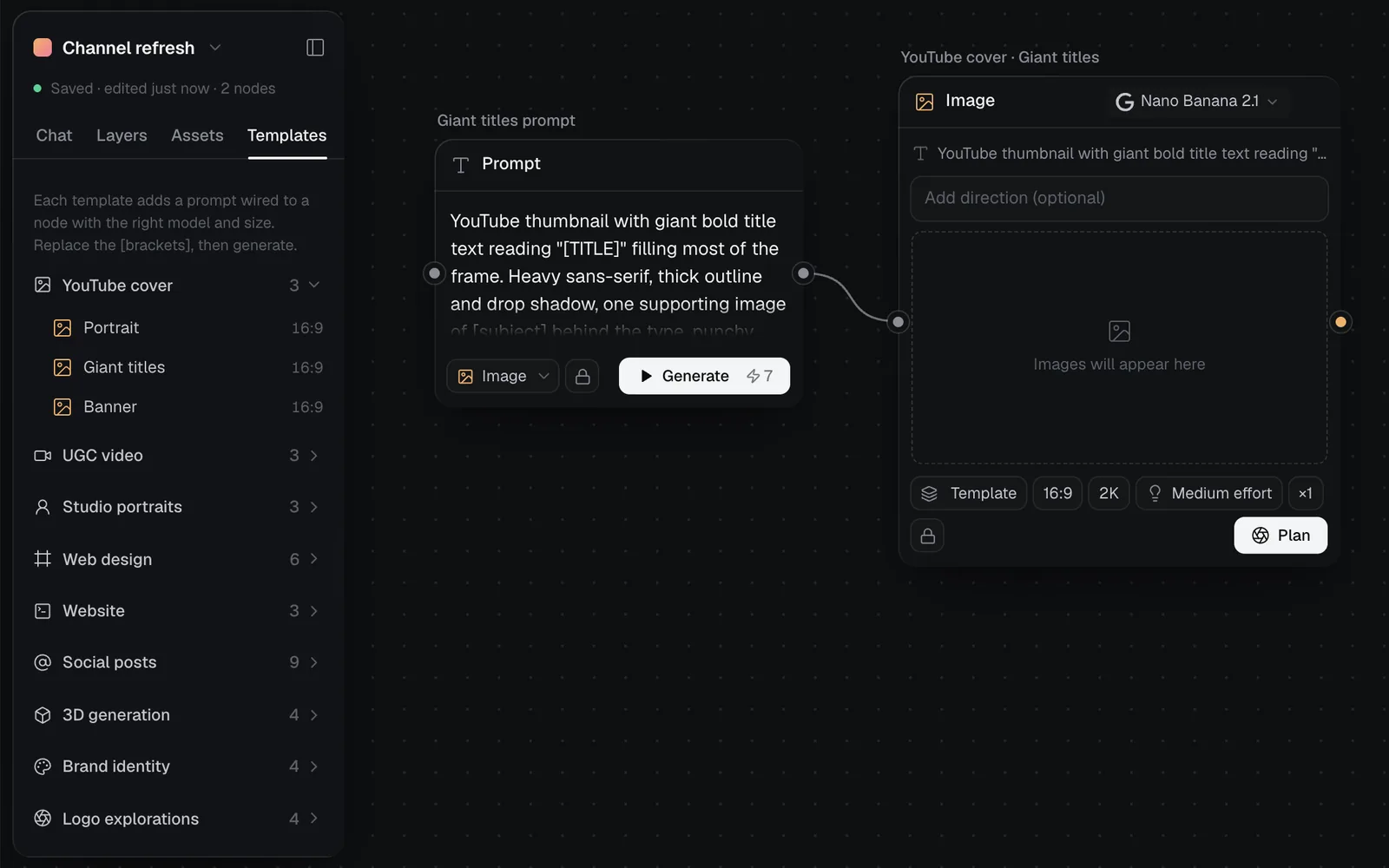
The node starts on the model you last used for its kind, at the template's shape; a Social posts template sets its Code node to Social post. Change any of them before you generate, as on any node. Adding a template is free and one step to undo; each click adds another pair, so you can try several side by side.
Insert a template with the slash (/) menu
You can also pour a template into a prompt you already have.
- In a Prompt node, or the prompt box of an Image, Video, 3D or Code node, type
/at the start of a line or after a space. - The menu lists Templates as "Group: Template", with its prompt under each. It shows ten at a time: type a word (logo, post, 3D) to find the rest.
- Pick one. Its prompt goes in where you typed
/, with the first [bracket] selected so you can type over it.
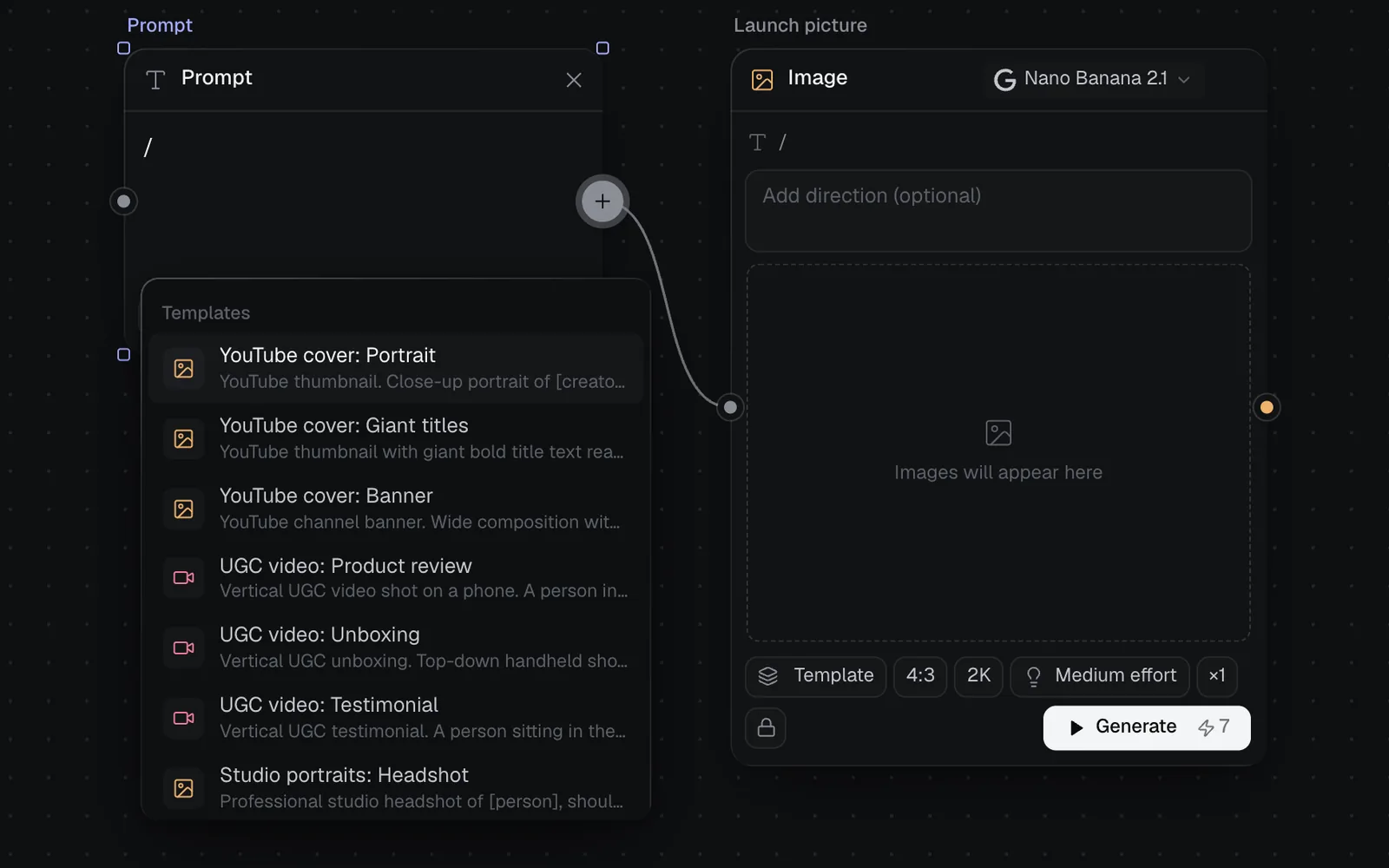
A Prompt node lists templates of every kind and switches to make what the one you pick is for. A generation node lists only templates of its own kind, and takes the template's shape, or a Code node its format. Skills on the canvas are listed in the same menu (see Prompts, documents and skills).
Every canvas template
YouTube cover
Three thumbnail layouts that stay readable at small sizes: a reaction portrait, giant titles and a channel banner.
- PortraitImage · 16:9
- Giant titlesImage · 16:9
- BannerImage · 16:9
UGC video
Vertical phone-shot clips for ads: a product review, an unboxing and a testimonial.
- Product reviewVideo · 9:16
- UnboxingVideo · 9:16
- TestimonialVideo · 9:16
Studio portraits
A professional headshot, an editorial portrait and a consistent team-page portrait.
- HeadshotImage · 3:4
- Editorial portraitImage · 3:4
- Team portraitImage · 1:1
Web design
Six UI concepts as images: a hero, a footer, testimonials, a dashboard, a game screen and a gallery.
- Hero sectionImage · 16:9
- FooterImage · 16:9
- TestimonialImage · 16:9
- DashboardImage · 16:9
- Game UIImage · 16:9
- GalleryImage · 16:9
Website
Working HTML pages written by Claude or GPT: a landing page, a portfolio and a pricing page to preview and download.
- Landing pageCode
- PortfolioCode
- Pricing pageCode
Social posts
Posts, threads and video captions written for X, Threads, LinkedIn, Instagram, TikTok and YouTube, shown exactly as each one shows them: links, threads, pictures and videos included.
- X postCode · Social post
- X threadCode · Social post
- Threads postCode · Social post
- LinkedIn postCode · Social post
- Instagram postCode · Social post
- TikTok captionCode · Social post
- YouTube videoCode · Social post
- YouTube ShortCode · Social post
- YouTube postCode · Social post
3D generation
Textured GLB models from a prompt: a character ready to rig, a hero prop, a product and a vehicle.
- Character3D
- Hero prop3D
- Product3D
- Vehicle3D
Brand identity
A brand board, packaging, a social post and merch, so a new identity can be judged in context.
- Brand boardImage · 16:9
- PackagingImage · 4:3
- Social postImage · 3:4
- MerchImage · 3:4
Logo explorations
Four directions for a mark side by side: a wordmark, a monogram, a symbol and a mascot.
- WordmarkImage · 1:1
- MonogramImage · 1:1
- SymbolImage · 1:1
- MascotImage · 1:1
Website templates start their Code node on the format you last used with its model: Website, unless you've picked another, which makes a site with its pages, design system and data (see Build a website). Check the node's format chip before you generate. Social posts templates make a post that shows as each platform shows it, ready to edit and publish (see Social posts).
Seven of these prompts name a kind of image, so on its first run their Image node follows the matching image template, and its button reads Plan:
- Portrait and Giant titles follow YouTube cover.
- Wordmark, Monogram, Symbol and Mascot follow Logo design.
- Headshot follows Headshot, and needs a photo connected.
To run one as written, set the node's Template chip to None first.
Start a new canvas from a template
- New canvas, then Templates in the middle of the empty canvas, opens the Templates tab ready to pick.
- On fil.design's Templates page (fil.design/#templates, while you're signed in), each group has See prompts, which shows every prompt with its [brackets] highlighted, and Use template, which opens a new canvas named after the group with a prompt and node for each of its templates. Nothing runs until you generate. Social posts from that page start as Website Code nodes: set each one's format chip to Social post.
Any canvas can be your own template: set one up the way you like, then duplicate it to start the next project from the same nodes. For a whole job with a brief, a guide and several steps in order, use a workflow.
Image templates: the Template chip
An Image node's Template chip is something else: a kind of image made well. Instead of a prompt, it's a set of rules Claude follows when it plans your picture, so you only give the idea. Pick one, write the idea, and Claude Sonnet 5.5 suggests takes to pick from.
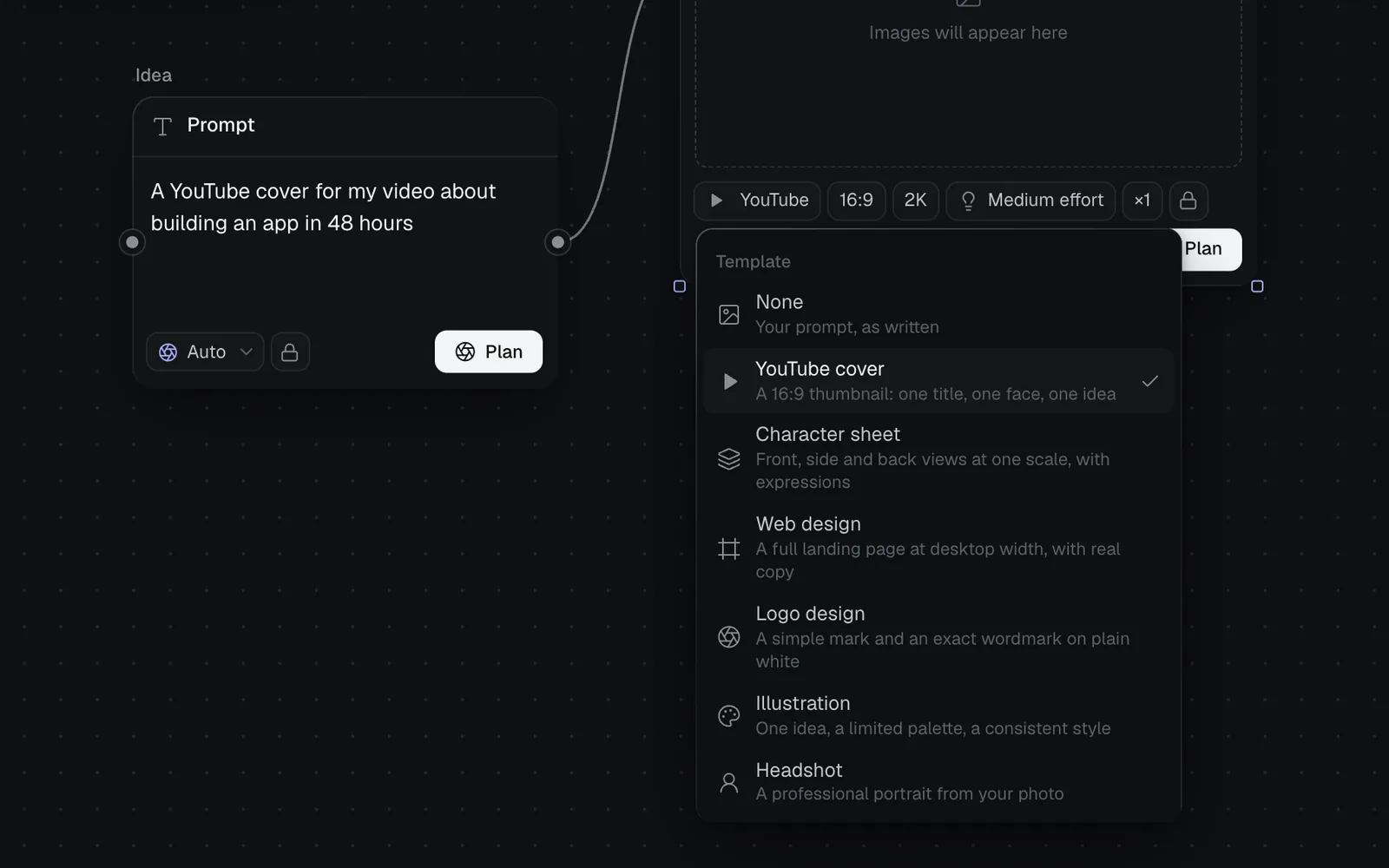
- Click the Template chip at the foot of an Image node and pick a template. The chip shows its short name, and the node takes its shape.
- Write your idea in the node, where it says "Your idea, title or topic (optional)", or wire in a Prompt. For a Headshot, wire in a photo of the person.
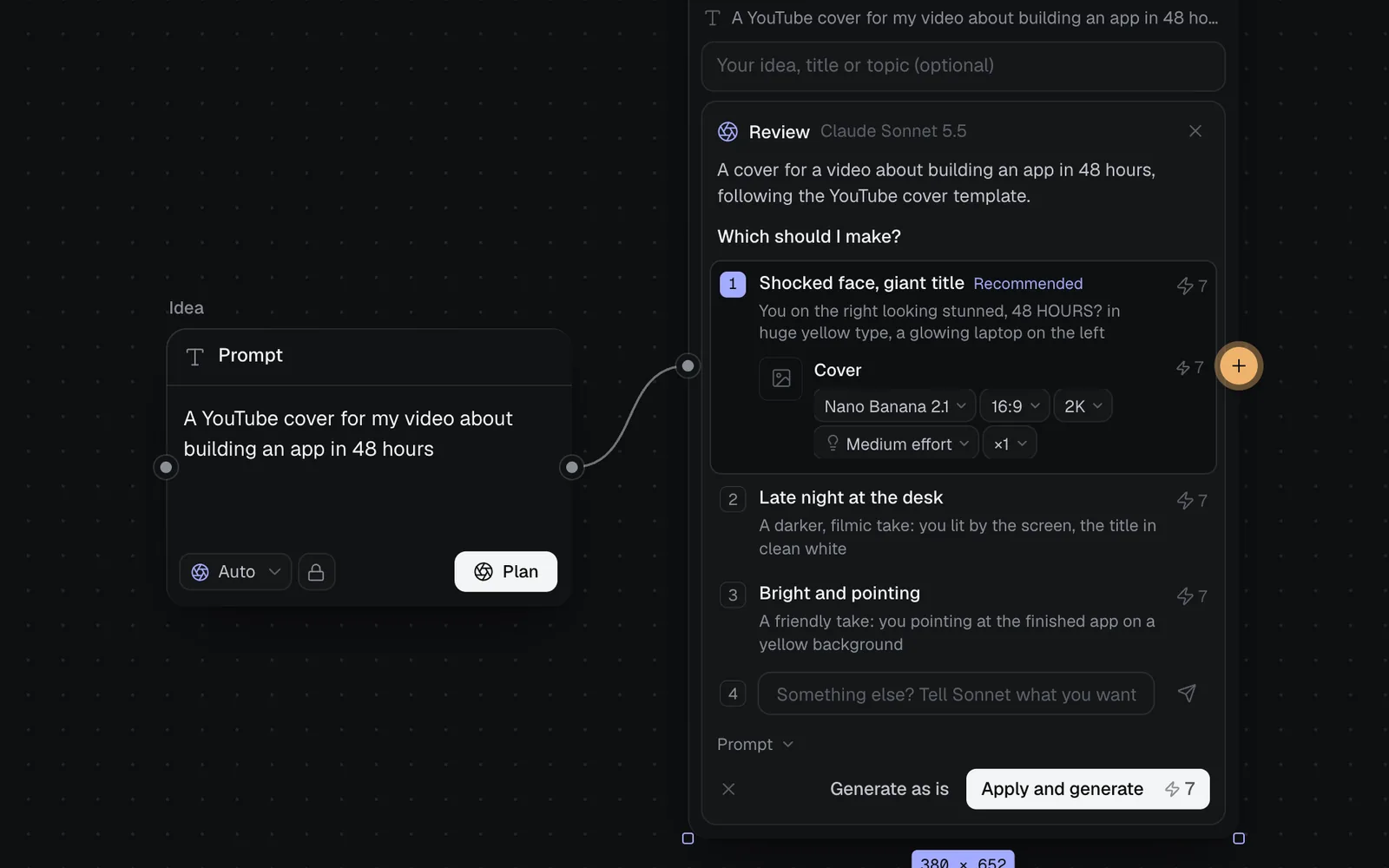
- Click Plan. Claude Sonnet 5.5 reads the template and your idea and asks "Which should I make?", with up to three takes and their prices. Nothing is spent until you pick one.
- Pick a take, and open Prompt under the takes to edit what it will send; or write your own direction in "Something else? Tell Sonnet what you want" to get new takes. Then click Apply and generate, or Generate as is to skip the suggestions.
| Template | Shape | What it makes |
|---|---|---|
| YouTube cover | 16:9 | One title, one face, one idea. Takes a portrait, or Claude suggests one |
| Character sheet | 16:9 | Front, side and back views at one scale, with expressions |
| Web design | 2:3 | A full landing page at desktop width, with real copy |
| Logo design | 1:1 | A simple mark and an exact wordmark on plain white |
| Illustration | 4:3 | One idea, a limited palette, a consistent style |
| Headshot | 3:4 | A professional portrait from your photo, which it needs |
You can also pick one by typing / in the node's prompt, or by naming it: on a node's first run, a prompt that asks for a "YouTube thumbnail", a "character sheet", a "website design" or "landing page mockup", a "logo design", or a "headshot" or "LinkedIn photo" follows that template. Illustration is only picked from the chip or the menu. None ("Your prompt, as written") turns templates off for the node.
Tips and costs
- Adding a template costs nothing. A run costs what its node's Generate says, as any run does; a take's price shows beside it.
- A template sets the node's kind and shape (and a post's format), not its model or quality: change those on the node if the job needs it.
- Leave no [brackets] in: the model reads them as they are.
What's next
- Canvas basics: add, wire and run nodes.
- Image generation: every image model and setting.
- How workflows work: whole jobs, with a brief and steps.
- Prompts, documents and skills: briefs and skills the / menu also lists.