Crop an image
Crop any image in Fil for free. Pick a shape like 1:1, 4:5, 9:16 or 16:9, or crop freely, drag the box into place, and keep the crop as a new picture.
Crop trims a picture to the part you want: a square avatar from a portrait, a 9:16 story from a wide shot, a 16:9 banner from a square. It runs in your browser, so it's free and instant, and the crop is kept as a new picture beside the original.
Crop an image to a shape
- On a canvas, point at the picture and click the brush at its top right (Edit), then Crop. In the full view, click the Edit tab, then Crop in the rail.
- A box covers the whole picture. Pick a shape from the row under it, such as 1:1. The box becomes the largest of that shape that fits.
- Drag inside the box to move it, or drag a corner or an edge to resize it. With a shape picked, the box keeps that shape.
- Crop and Reset stay grey until the box is smaller than the whole picture. Until then the line under the box says "Drag a corner or an edge, or draw a new box. Cropping is free."
- Check the size it keeps in the line under the box ("1649 × 1649. Saved as a new image beside this one; cropping is free.").
- Click Crop, or press Enter.
On a canvas, the full view closes and the crop appears beside the original as a picture node headed Reference and marked Uploaded, named after the original, such as "Daniel, outdoors (crop).jpg". It isn't linked to anything, so connect it to the node that should use it. Outside a canvas, in the Image view or the Library, open the picture with View full size, click Edit, then Crop: the crop is saved to your Library, and the Library opens.
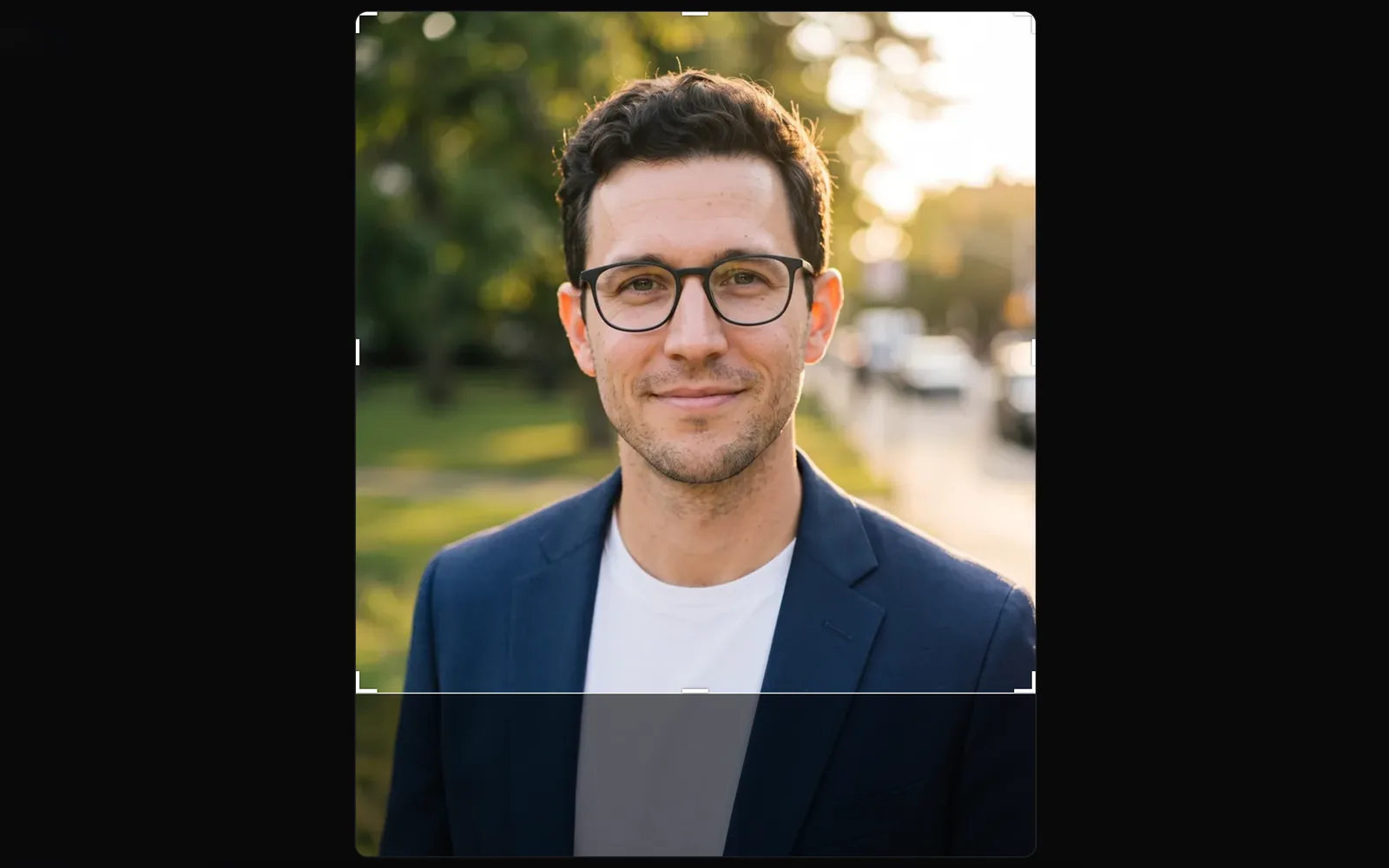
Crop to 1:1, 4:5, 9:16 or 16:9
| Shape | Good for |
|---|---|
| Free | Any box you draw, any shape |
| Original | The picture's own shape, smaller |
| 1:1 | Avatars, product tiles, Instagram posts |
| 4:5 | Instagram portrait posts |
| 9:16 | Stories, Reels, TikTok and Shorts |
| 16:9 | Video, YouTube thumbnails, website banners |
| 3:2, 2:3 | Photo prints |
| 4:3, 3:4 | Classic screens and tablets |
Free is where it starts, with the box over the whole picture. To crop freely, drag a corner or an edge in; once the box is smaller, drag outside it to draw a new one. Picking Original alone changes nothing until you make the box smaller. While you drag, lines split the box in thirds, to help you place the subject. Reset puts the box back over the whole picture, on Free.
What the crop keeps
- The crop is cut from the full-size picture, so a crop of a 2K picture keeps its pixels: the bar at the top says the size, such as "Crop to 1649 × 1649".
- It's saved as a JPEG, or as a PNG when the picture has see-through parts, as a cutout does (a WebP, if a PNG would be too large for your plan).
- A crop is a new file, so your original stays as it was. On Starter, Pro and Max it starts private; on Free it's public, like all Free work.
- Cropping is free, and the file counts toward your storage. See Storage and bandwidth.
File size limits
Each plan keeps files up to a size, and a crop is fitted to it:
| Plan | Largest file |
|---|---|
| Free | 1 MB |
| Starter | 10 MB |
| Pro | 50 MB |
| Max | 100 MB |
If the crop is larger than your plan keeps, Fil saves it a little lighter, then smaller, until it fits. If it still can't, Crop says "This picture is too large to keep on your plan." See Credits and plans.
Tips
- Cropping a picture to a new shape cuts parts off. To change the shape and keep everything, extend it with Outpaint instead.
- Need several pieces from one sheet of pictures? Split it into a grid: every piece in one go, also free.
- There's no rotate, flip or typed-in size: the line under the box shows the size in pixels as you drag.
- Esc closes the full view without cropping.
What's next
- Extend an image (outpaint): make a picture wider or taller instead.
- Upscale and remove the background: make a small crop large again.
- Image editing: every tool, where it works and what it costs.