Story video
Make a short AI film: write a three-shot scene and get a character sheet, keyframes, five-second shots that cut together and a 15-second score to edit.
The Story video workflow turns one scene into three five-second shots that cut together, with a score to put under them. It's for trailers, short films, animated scenes and story posts. Its skill holds what keeps a film consistent: one character sheet every frame matches, a keyframe that sets up each shot, light and screen direction that carry from shot to shot, and one camera move per shot.
- Makes
- 8 things in 4 steps: image, video, sound
- Takes
- About 10 minutes
- Files to drop in
- 2, all optional: Main character, Style frame
- To make it all
- About 250–280 credits
What you'll make
A character sheet, three keyframes, three five-second shots that each play from their keyframe, and a 15-second soundtrack. These were made in Fil with this workflow:
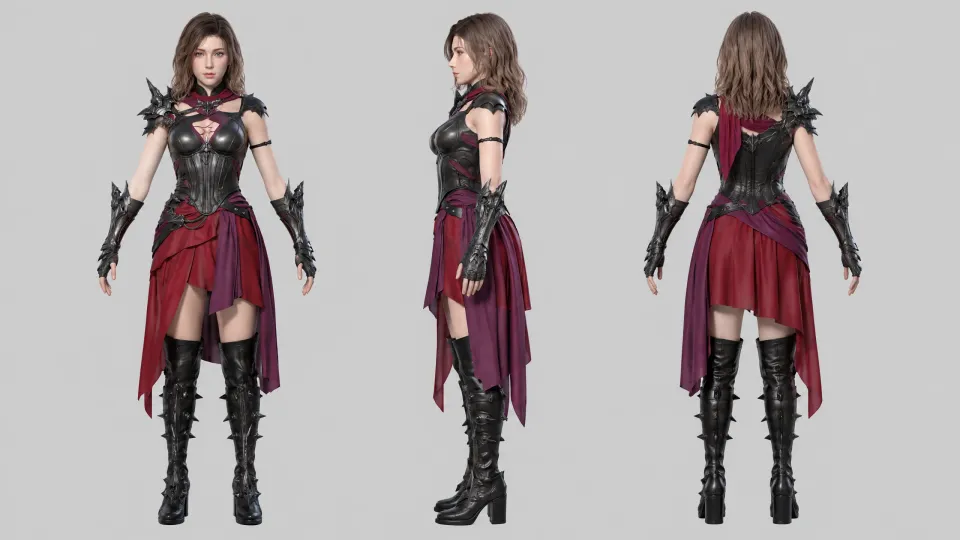
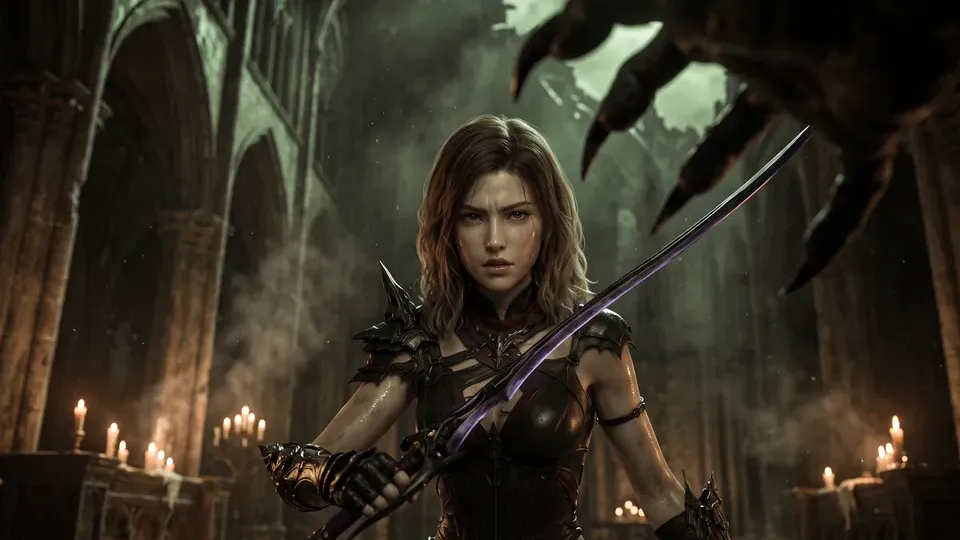
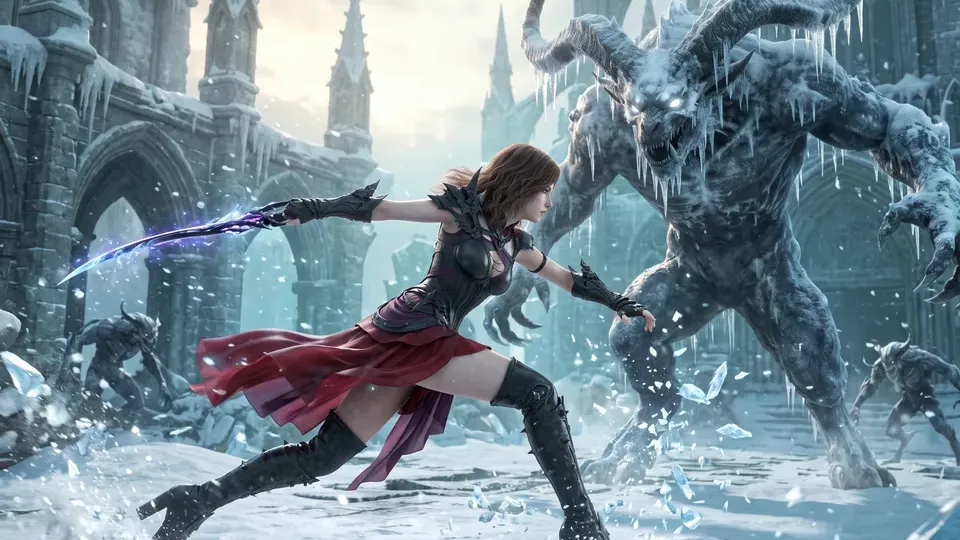
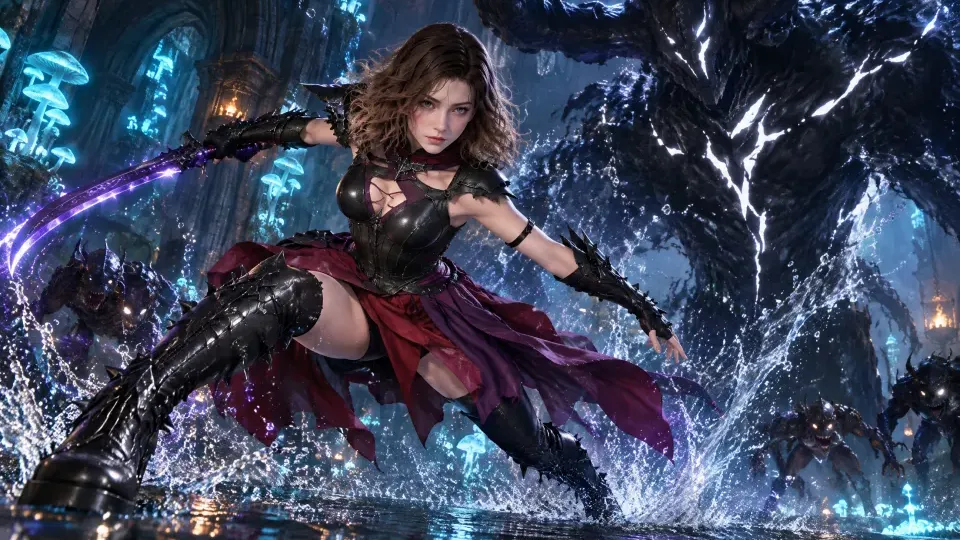
Also made when you run it: Shot 3, Soundtrack.
Before you start
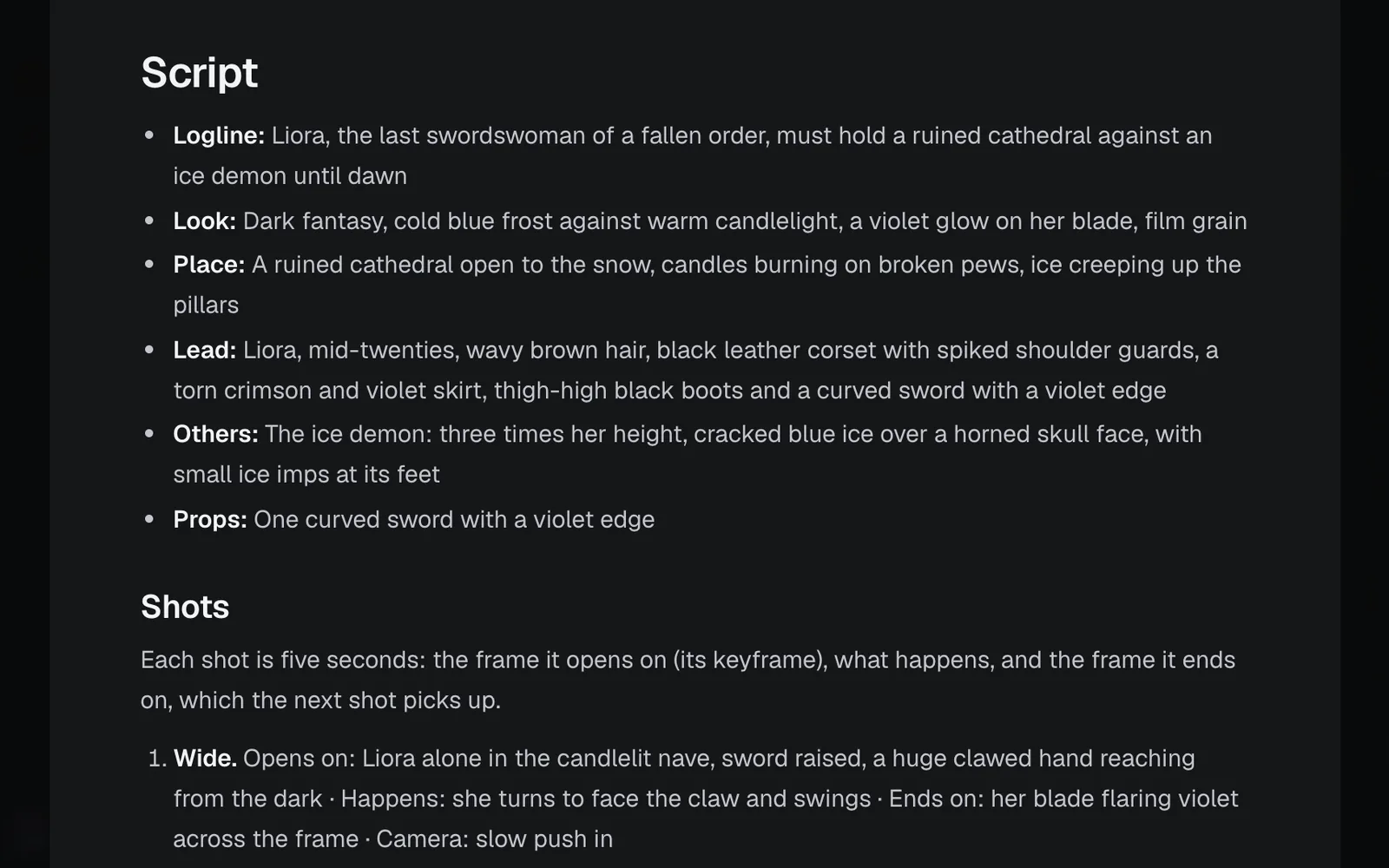
Script.md, the brief, holds the logline, the look, the place and its light, the lead, anyone else on screen, the props, and the three shots: the frame each opens on, what happens, the frame it ends on and its camera move. The friendly start writes all of it from your idea.
Two places for pictures help it, both optional:
- Main character: a drawing, render or photo of your lead. The character sheet draws them from it, and every keyframe follows the sheet.
- Style frame: a still whose light and colour you want. Or pick one of eight styles to start from: Sumi-e, Toon-shaded 3D, Stop motion, Painted animation, Film noir, Golden hour, Storybook or Anime.
Decide where the film will be seen: wide (16:9) for web and YouTube, or tall (9:16) for Reels and TikTok. The friendly start asks, unless your idea already says.
Make a story video, step by step
Start it from your idea
- Click Workflows in the sidebar, then the Video filter. Click Story video to open its page.
- To start from a look, pick it under Style frame on the page. Then click Start this workflow. A new canvas opens, blurred, with the start card glowing over it and asking "Describe the story video you want."
- Click the box and describe the scene in a sentence, such as "A swordswoman holds a ruined cathedral against an ice demon until dawn". As you type, the canvas builds itself beside the card and the examples come into focus. Add a picture of your lead if you have one, and press Continue.
- Claude asks about the look and how the camera moves, and Where will it be seen?: Wide, for web and YouTube or Tall, for Reels and TikTok (unless your idea already says, such as "for Reels"). Pick your answers and press Fill in my canvas.
Read the script Claude writes
Claude writes Script.md and sets every keyframe and shot to the shape you picked; the character sheet stays wide. Point at Script.md and click its expand icon (Edit full screen) to read it whole, and change anything before you generate.
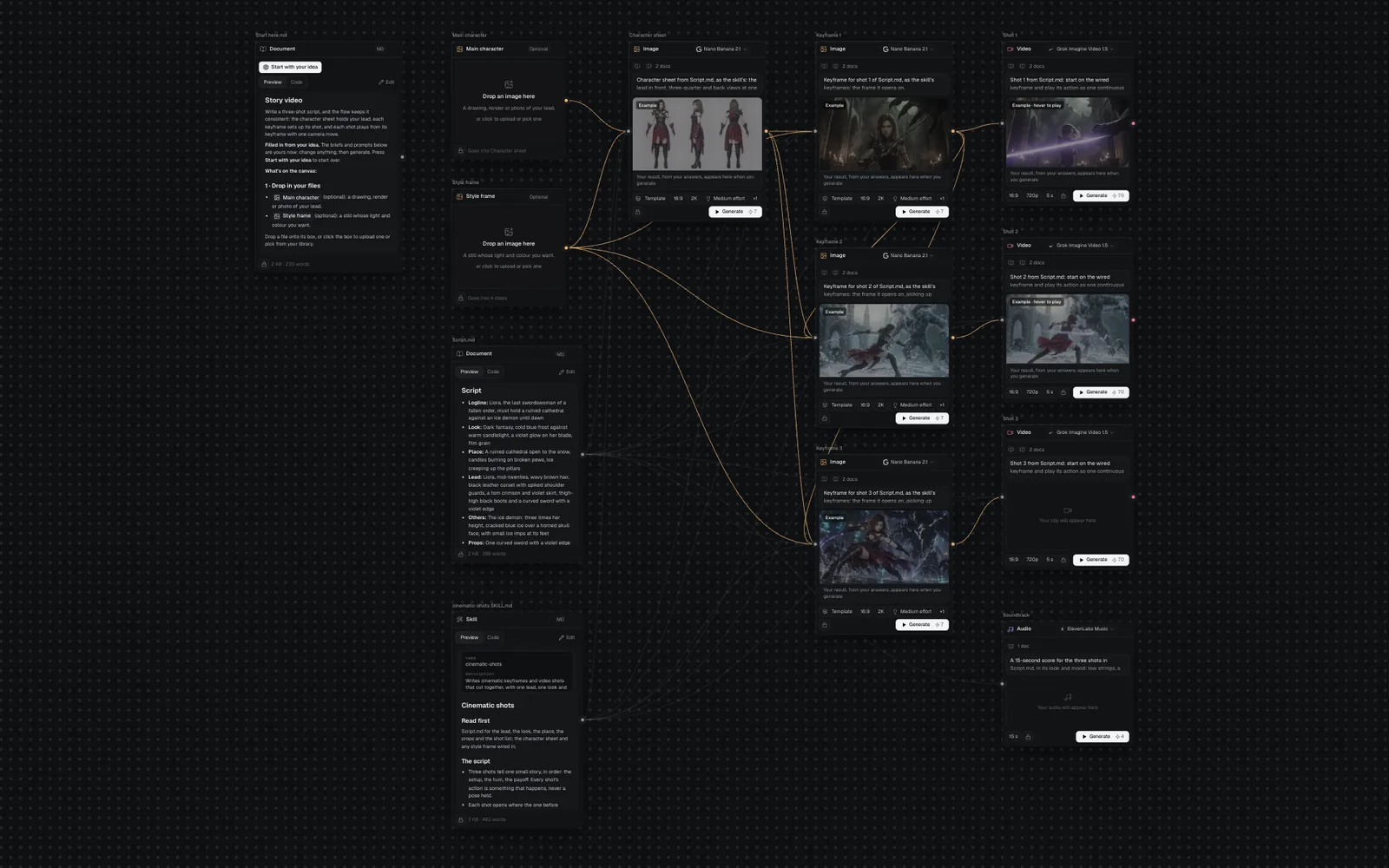
The canvas lays the film out left to right: your pictures, Script.md and the skill, the character sheet, the three keyframes, the three shots and the soundtrack.
Generate all and follow it in the chat
- The Ready to make it step lists eight steps in four rows. Its note says whether every picture and clip is wide (16:9) or tall (9:16): check it before you go on. Press Generate all 8.
- The canvas chat opens on the left and follows the run. The Character sheet and the Soundtrack start first.
- Keyframe 1 follows the sheet. Then Keyframe 2 and Keyframe 3 follow Keyframe 1's place and light, while Shot 1 plays from Keyframe 1.
- Claude checks the sheet and each keyframe as it's made against Script.md, the sheet and the frame before, and mends or remakes one that drifts. In the chat each step shows its picture and what the check said, such as "The same nave and light as Keyframe 1".
- Shot 2 and Shot 3 come last, and the chat ends with "Made 8 of 8", how long it took and what it cost. Click a step in the chat to show it on the canvas; hover a shot there to play it, or double-click it to watch it full size.
While it runs, write in the chat to steer it ("make the demon taller in Shot 3"): Claude rewrites Script.md or the prompts of the steps still to come, for free. Making a keyframe or a shot again shows its price and waits for you to press Make again. See Chat with Claude and the Manga chapter guide for an example.
Cut the shots into one film
The workflow makes the clips and the score; it doesn't make the film. Put them together in the video editor:
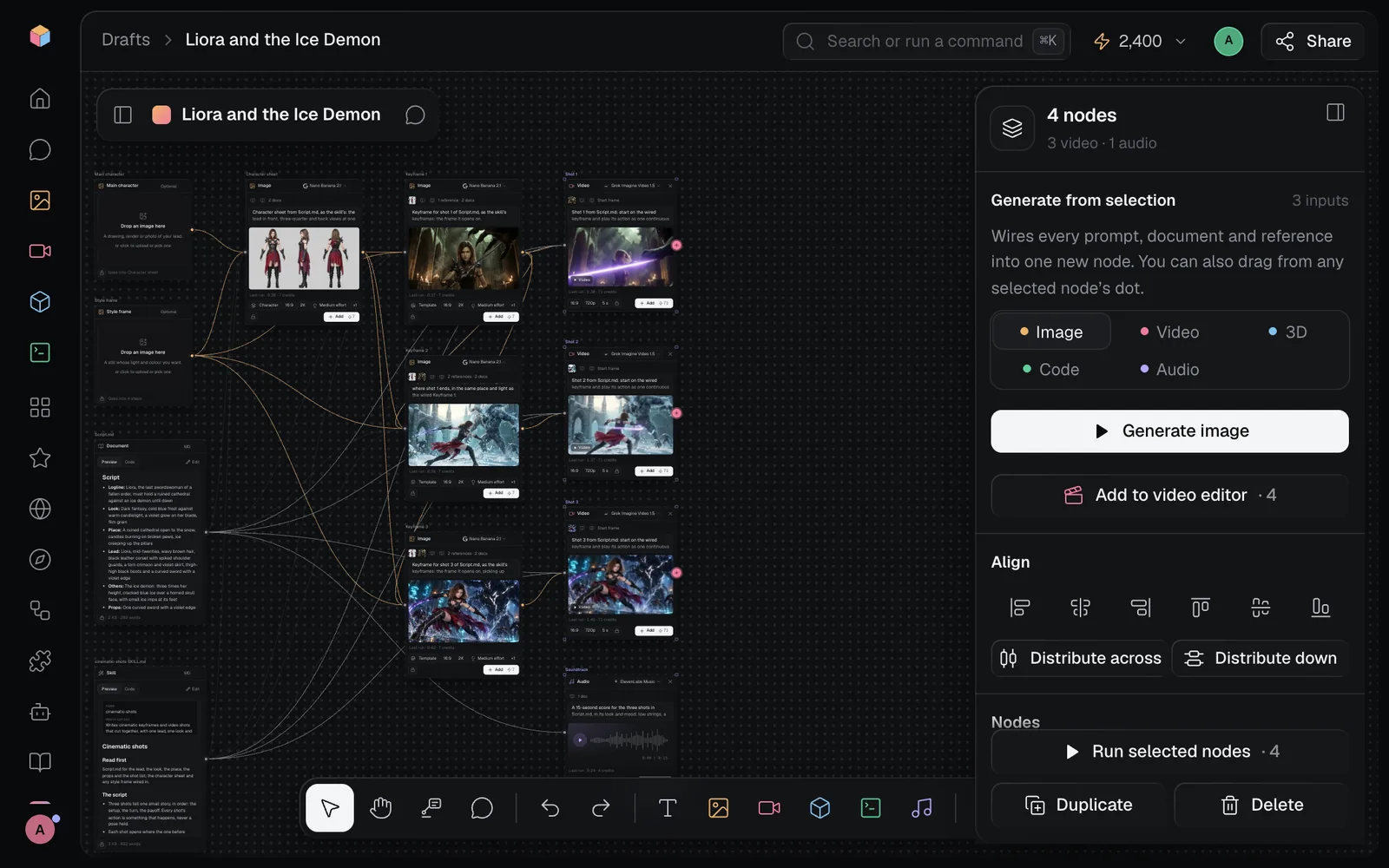
- Select Shot 1, Shot 2, Shot 3 and Soundtrack: click the first node's name, then hold ⇧ and click the others. The panel on the right reads "4 nodes".
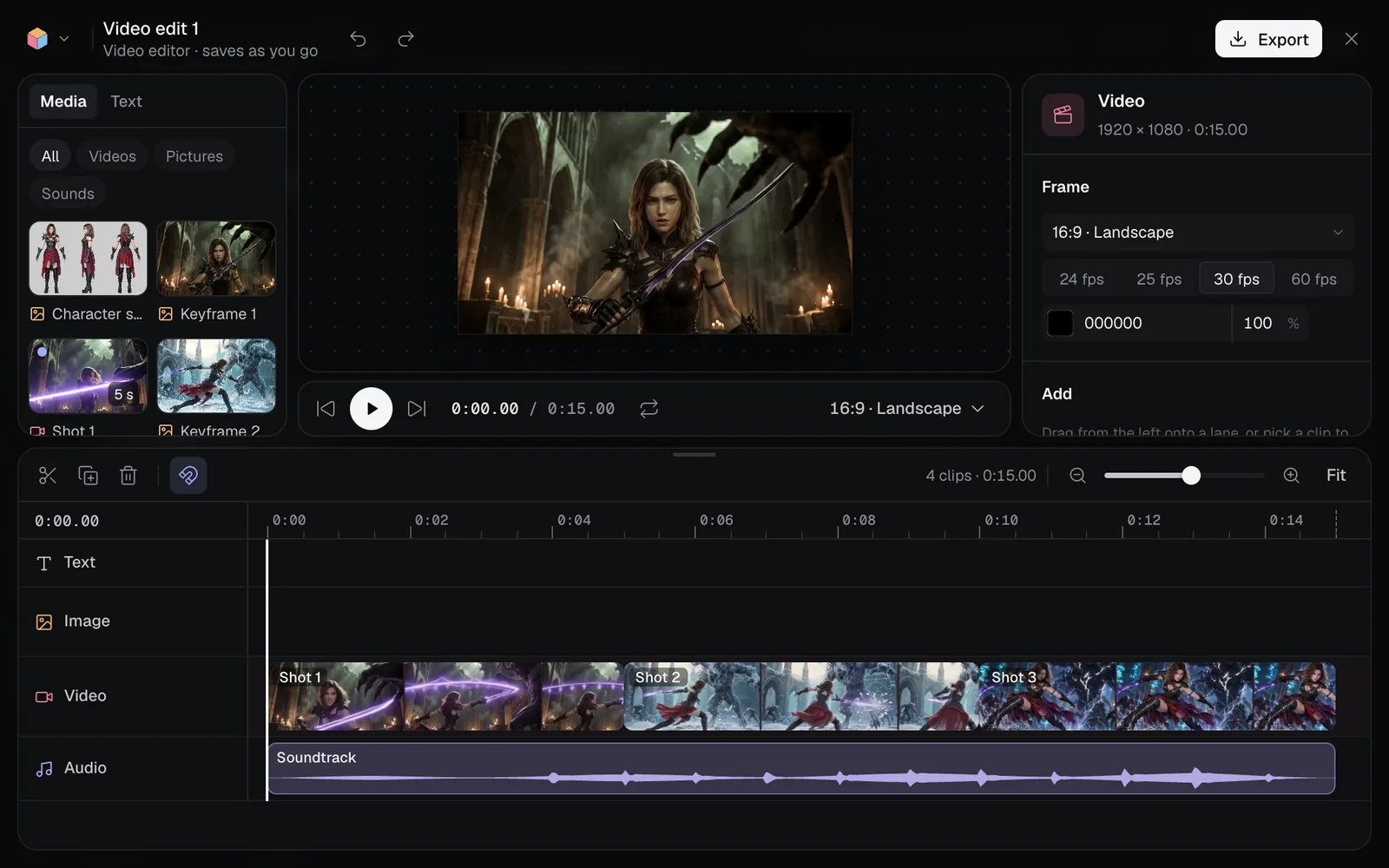
- Click Add to video editor in that panel. The editor opens with the shots one after another on the video lane and the score under them. On a canvas that already has a video edit, a menu asks where to add them: pick New video edit.
- Each shot comes with its own sound: Grok Imagine Video 1.5 makes clips with audio, and it plays under the score. To hear only the score, point at the video lane's name and click its speaker icon (Mute), or select one shot and tick Muted under Sound.
- Trim, reorder or add words over the shots, then press Export for an MP4. See Make a video edit and Export and render videos.
The steps it runs
| Step | What it makes | Model and settings | Reads |
|---|---|---|---|
| Character sheet | The lead from three sides with two close-ups, and anyone else at true size | Nano Banana 2.1, 16:9 | Script.md, skill, your pictures |
| Soundtrack | A 15-second score in the script's mood | ElevenLabs Music, 15 s | Script.md |
| Keyframe 1 | The first frame of Shot 1 | Nano Banana 2.1, 16:9 | Character sheet, Script.md, skill, Style frame |
| Keyframe 2, Keyframe 3 | The first frames of Shots 2 and 3, in Keyframe 1's place and light | Nano Banana 2.1, 16:9 | Keyframe 1, and what it reads |
| Shot 1, Shot 2, Shot 3 | Five seconds from each keyframe, one camera move, with sound | Grok Imagine Video 1.5, 720p, 5 s | Its keyframe, Script.md, skill |
Each shot uses its keyframe as its Start frame, so it opens exactly on it.
Make it yours
- Look: pick one of eight styles for Style frame, from Sumi-e to Anime, on the workflow's page or in the friendly start, or drop in any still whose light you like.
- Shape: tall 9:16 for Reels and TikTok, or wide 16:9. Choose it in the friendly start, or change any node's aspect ratio chip later.
- Camera moves: each shot's line in Script.md ends with its camera move (slow push in, handheld follow, orbit, pan or static). Change it there, then run the shot again.
- Music: the Soundtrack prompt names the instruments ("low strings, a distant choir and taiko drums"). Rewrite it and press Generate on the node; see Voiceovers, sound and music.
- Another video model: each shot's model menu switches it; see Video generation for the others and their prices.
- The skill: cinematic-shots SKILL.md holds the rules for the sheet, the keyframes and the shots. Edit it and every node wired to it follows.
Story video time and cost
From your idea to the finished shots takes about 10 minutes: Generate all runs for about 8 of them, most of it the shots. It costs 245–273 credits, the price the Ready step shows before anything runs:
| Step | Credits |
|---|---|
| Character sheet | 7–14 |
| Soundtrack | 4 |
| Keyframe 1, Keyframe 2, Keyframe 3 | 7–14 each |
| Shot 1, Shot 2, Shot 3 | 71 each |
A shot reads 70 on its node until its keyframe is made, then 71: a picture fed into it adds a credit, and the Ready step counts it from the start. A five-second shot on Grok Imagine Video 1.5 costs 71 credits at 720p and 41 at 480p. For test runs, switch the shots to Grok Imagine Video 1.5 Lite (18 at 720p, 10 at 480p) in each shot's model menu, and go back to 1.5 for the final take. The top of each picture's range allows for one mend or one more take, if Claude's check finds a frame that breaks the look or the character.
Tips
- Give your lead one thing that's easy to see in every frame: a red cloak, a curved sword. The character sheet and keyframes hold on to it.
- Put every person and creature in Script.md's Others with a look that can be drawn the same each time, or keyframes invent their own.
- Keep each shot to one action and one camera move. Two moves in five seconds reads as a jump.
- End each shot on a frame the next can pick up, so the cut feels continuous.
- Making it for Reels? Say "for Reels" in your idea; the shape question is skipped and Claude picks the shape. Check that the Ready step's note says tall (9:16) before you press Generate all, or change the chips on the canvas.
Related
- Product promo video: stills, clips and an end card from a product photo.
- Reel planner: a 30-second Reel planned scene by scene, with a voiceover.
- Manga chapter: the same kind of story as inked pages.
- Video editor: trim the shots, add words over them and export.
- How workflows work: the gallery, the friendly start and the run in the chat for every workflow.