The video editor
Cut the clips, pictures, words and music on a canvas into one video. Fil's video editor has a timeline, transitions, titles and keyframes, and exports MP4s.
The video editor turns what's on a canvas into one finished video. Its clips, pictures, sound and prompts' words go on a timeline, where you put the scenes in order, trim and split them, add titles, transitions and music, and export an MP4. It runs in your browser: editing and exporting cost no credits.
The Video edit node
Each edit lives on a canvas as a Video edit node. It shows the edit's last exported video, or until there is one, a strip of its first four scenes. Its footer says how many scenes it has, how long it runs and its shape (for example 3 scenes · 13.1 s · 16:9), or Empty.
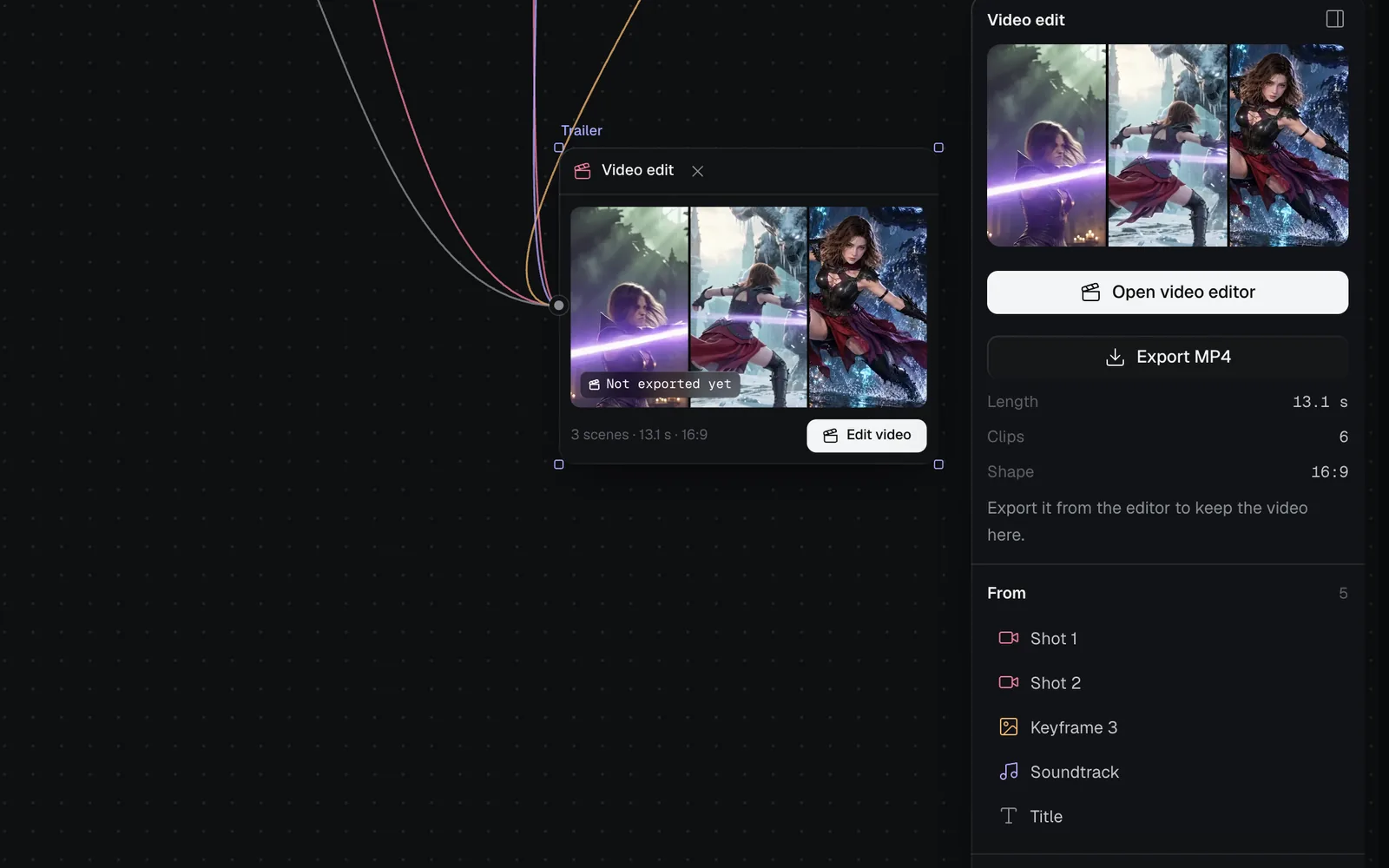
- A badge on the picture says where the MP4 stands: Not exported yet, Export queued, Exporting · 40%, Export failed, or the video's length once it's made.
- Every node the edit plays a file from is wired into it, and the panel lists them under From.
- The panel on the right has Open video editor, Export MP4 (made in your browser at 1080p and kept on the node), the edit's Length, Clips and Shape, and once there's a video, its file and a download link.
To make a Video edit node, select videos, pictures, sounds and prompts on a canvas and click Add to video editor: see Make a video edit.
Open the video editor
- On a canvas, find the Video edit node.
- Click Edit video in its footer, or double-click its picture.
- The editor opens over the canvas, with the whole edit in view on the timeline. Press Space to play it.
Other ways in: select the node and click Open video editor in the panel, right-click it and choose Open video editor, or press ⌘K and type the edit's name (Open “Trailer” in the video editor). Add to video editor opens it too, once it has added what you selected.
The video editor at a glance
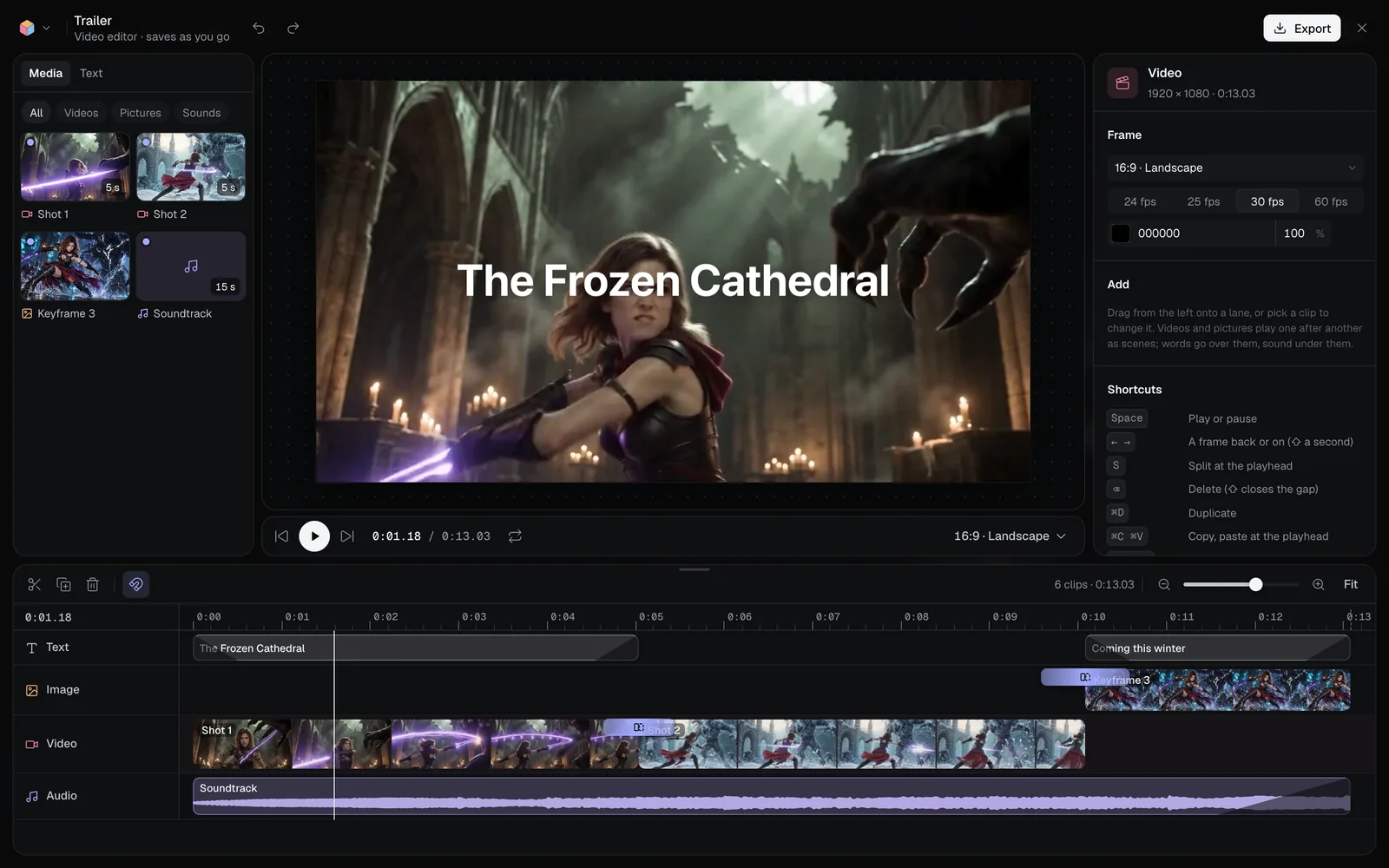
| Area | What it's for |
|---|---|
| Top bar | Fil's menu, the edit's name and save state, undo and redo, Export, and the close button (✕) |
| Media and Text (left) | The canvas's videos, pictures and sounds, and the styles of words to add |
| The stage (middle) | The frame as it plays, exactly as the export draws it. Pick a clip there to move, size or turn it |
| The inspector (right) | The selected clip's settings, or with nothing selected, the video's shape, frame rate and background |
| The timeline (bottom) | Lanes for words, pictures, videos and sound, with the playhead, the cuts and the zoom |
Double-click the edit's name in the top bar to rename it. Drag the top edge of the timeline to make it taller or shorter: the editor remembers its height for next time.
Play and preview your edit
The controls under the stage play the edit as it will export:
- Play (Space or K) plays and pauses. To the start (Home) and To the end (End) jump there.
- The time reads minutes, seconds and frames: 0:04.12 is 4 seconds and 12 frames. Beside it is the edit's length.
- Loop (L) plays it over and over.
- Click the ruler above the lanes, or drag along it, to move the playhead. ← and → step one frame, and ⇧← and ⇧→ a second.
While a file loads, the stage says Loading a file with how far it's got. Each file downloads once and stays in your browser for next time, so an edit opens faster the second time.
Shape, frame rate and background
Click an empty part of the timeline or press Esc so nothing is selected. The inspector then shows the Video, with its frame size and length:
- Shape: 16:9 · Landscape, 9:16 · Vertical, 1:1 · Square, 4:5 · Portrait, 4:3 · Classic or 21:9 · Cinema. The button at the right under the stage (16:9 · Landscape) changes it too.
- Frame rate: 24 fps, 25 fps, 30 fps or 60 fps.
- Background: the colour behind everything, black to start with.
The frame is 1080 pixels on its short side, so a 16:9 edit is 1920 × 1080 and a 9:16 one 1080 × 1920. Videos and pictures fill a new shape, cropping their edges, until you set Show it all on them (see Transitions, speed and keyframes).
Save, undo and close
The editor saves the edit to its node a moment after each change. Under the edit's name it says Video editor · saves as you go, then Saving…; if a save fails, Couldn’t save · will try again.
- ⌘Z undoes and ⇧⌘Z (or ⌘Y) redoes, up to 100 steps; the arrows in the top bar do the same. A drag or a stretch of typing is one step.
- Close the editor with ✕ at the top right, or Fil's menu at the top left and Back to canvas. Both save first. Esc never closes the editor: it lets go of the selected clips, or leaves a field.
- If an agent, the chat or someone else on the canvas changes the edit while it's open, their change comes in as a step you can undo, as long as you have nothing unsaved.
Fil's menu also has Search or run a command (⌘K), an Edit menu (Undo, Redo, Split at playhead, Duplicate, Select all) and Help and account. While the editor is open, ⌘K lists its commands too, such as Dissolve between every scene or Shape: 9:16 Vertical: see Edit videos with chat, ⌘K and agents.
Who can edit
Anyone who can edit the canvas can edit its video edits. People who can only view it see Open instead of Edit video: they can play the edit in the editor, but nothing they change is kept. To let someone edit, invite them to the canvas: see Sharing and teams.
Limits
- An edit runs up to 10 minutes, and the shortest clip is 0.1 seconds.
- An edit holds about 14 KB of clips and settings, room for about 80 clips. Past that the editor says Too long to keep (15.2 of 14 KB): remove some clips and stops saving until you remove some, or start a second edit.
- Words hold up to 280 characters each.
- The editor and its exports run in your browser and use no credits. An MP4 you save to the canvas counts toward your storage. Exporting needs a browser that can make video, such as Chrome, Edge or Safari.
Everything the video editor does
| Page | What it covers |
|---|---|
| Make a video edit | Add to video editor, how clips are laid out, adding more from the Media panel |
| Edit the timeline | Magnetic scenes, trimming, splitting, moving, deleting, lanes, zoom and every key |
| Add text and titles | Titles, captions and lower thirds, their fonts and how they come in |
| Add music, voice and sound | Music and voiceovers under the scenes, volume and fades |
| Transitions, speed and keyframes | Transitions between scenes, speed, motion, animations and keyframes |
| Export and render videos | MP4s at 720p, 1080p or 4K, downloaded or kept on the canvas |
| Edit videos with chat, ⌘K and agents | Ask the canvas chat for a cut, or let an agent edit and export |
What's next
- Make a video edit: put your shots, music and titles into a new edit.
- Edit the timeline: trim, split and reorder scenes.
- Video generation: make the clips to cut together.
- Export and render videos: turn the edit into an MP4.