Build a website
Build a multi-page website from a brief in Fil: pictures made first, a shared design system and editable content, then add pages, edit them and publish.
A Website is Fil's default kind of site: pages that share one design system and one set of content. You describe it in a Code node, Claude Sonnet 5.5 reviews the brief and can make the pictures first, and the home page is written live on the canvas. When it's done, the canvas keeps the site as linked parts, so every page you add later matches the first.
Make a website from a prompt
- Open a canvas and add a Code node: click Code in the toolbar at the bottom, or press 5 on the canvas. Its chip already reads Website, the default (see Websites in Fil for the other kinds).
- Write the brief in its prompt box: the name, what it sells or does, the pages ("Home, Shop, Journal and About"), the look (colours, type, mood) and what to show. To use your own photos, wire them into the node; to reuse a brief, write it in a Prompt node and wire that in.
- Check the model at the top of the node, Claude Sonnet 5.5, and the effort chip under the prompt, Medium effort: together they cost 5–49 credits a page, shown beside Generate. Other models and efforts are compared in Websites in Fil.
- Press Generate. Before anything runs, Claude Sonnet 5.5 reviews the brief in a Review card inside the node.
- When nothing is wired in for the pictures the page needs, the review offers to make them first (below). Pick an option and press its button, such as Make 5 images + page, or press Generate as is to make the page without them.
- The pictures appear as Image nodes beside the page, which waits for them ("Starts after the images"), then writes itself in the node as you watch.
- When it's done, its design system and its data come off it as nodes of their own, linked into the page, which is renamed Home. A message says so: "Kinfolk Tea’s design system and data are on the canvas, linked to it: change them and every page follows."
Make the pictures first
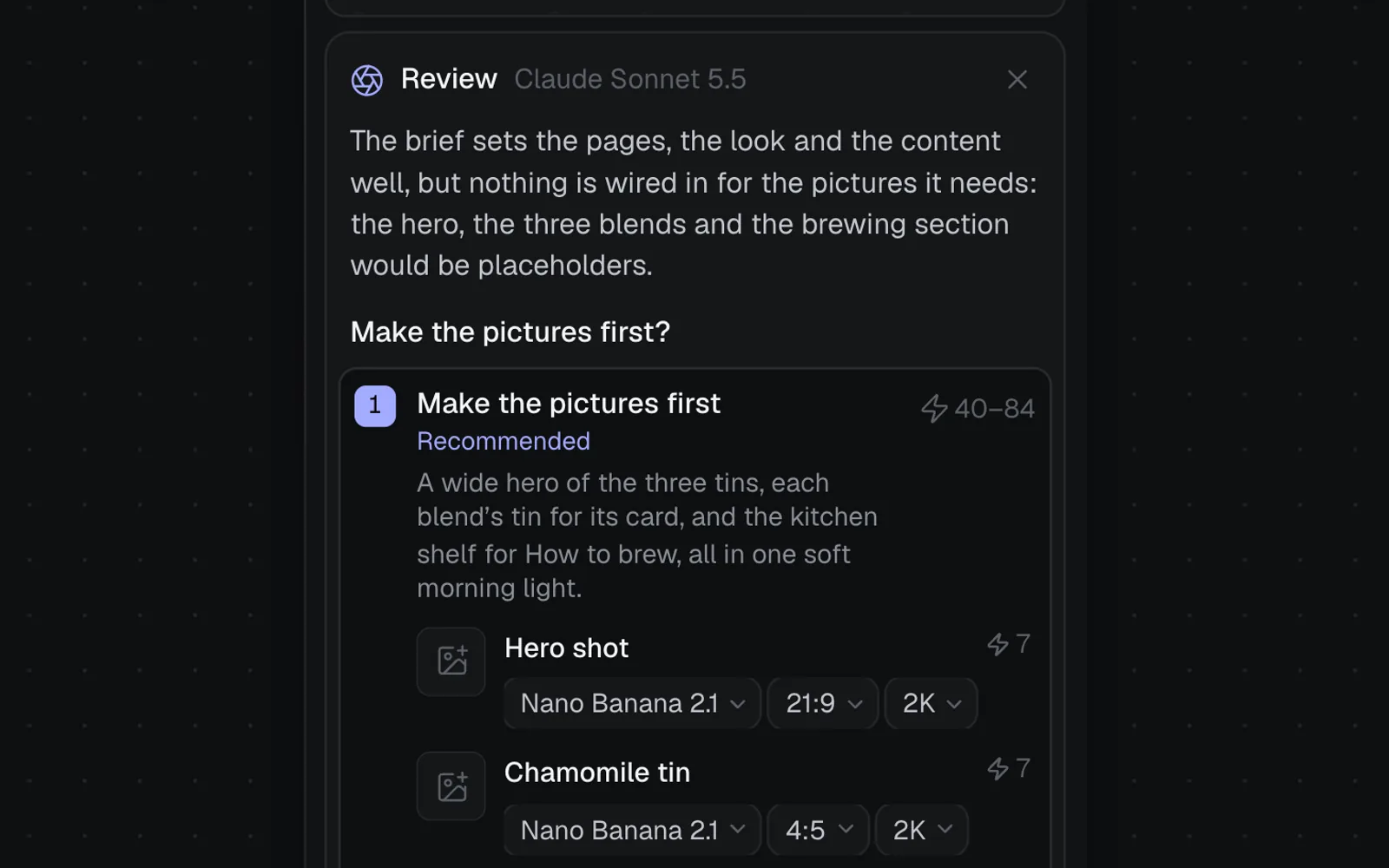
The review reads the brief and plans a picture for each section that needs one: a wide hero, a photo for each product card, a picture for a brewing section. Each comes with its model, shape and resolution, which you can change, and a slot to use your own image instead (free).
- The options are numbered, and the first is marked Recommended. Each says what it makes and adds up its price: five pictures at 7 credits each on Nano Banana 2.1, plus the page's 5–49, is 40–84.
- An option can add a Page design: a mockup of the whole page, made first, for the page to follow as its layout.
- Prompts for 5 images (the count follows the option) opens each picture's prompt to edit before it runs.
- To ask for something else, type it in "Something else? Tell Sonnet what you want" and send it: the review asks again.
- ✕ closes the review without running anything.
What the canvas keeps
A Website is three kinds of node, linked, each a file with its own versions:
- The pages. Each page node is headed Website and shows its page running. The first is Home; pages you add sit beside it.
- The design system, a node headed Design system and named after the site ("Kinfolk Tea system"). Its card shows the fonts, text styles and colours ("9 colours · 2 fonts · 5 text styles"), and chips name its components: the nav bar, buttons, cards and the footer the pages are built from.
- The data, a node headed Data ("Kinfolk Tea data"): the site's content as collections, such as its details, its products and its posts, shown as a table you can type in. See Dynamic websites with data.
Change any of them once and every page that uses it updates, each as a new version, at no cost. A page that's open in the Design tab with unsaved changes is left as it is, and you're told to open it to bring the change in.
Add pages to a website
Pages are added in the Design tab, where the Pages list shows the site's design system, its data, the home page and every other page.
- Select a page node and click Design in its properties on the right (or press Edit with agent on the node).
- Click + beside Pages at the top left.
- Pick the kind of page.
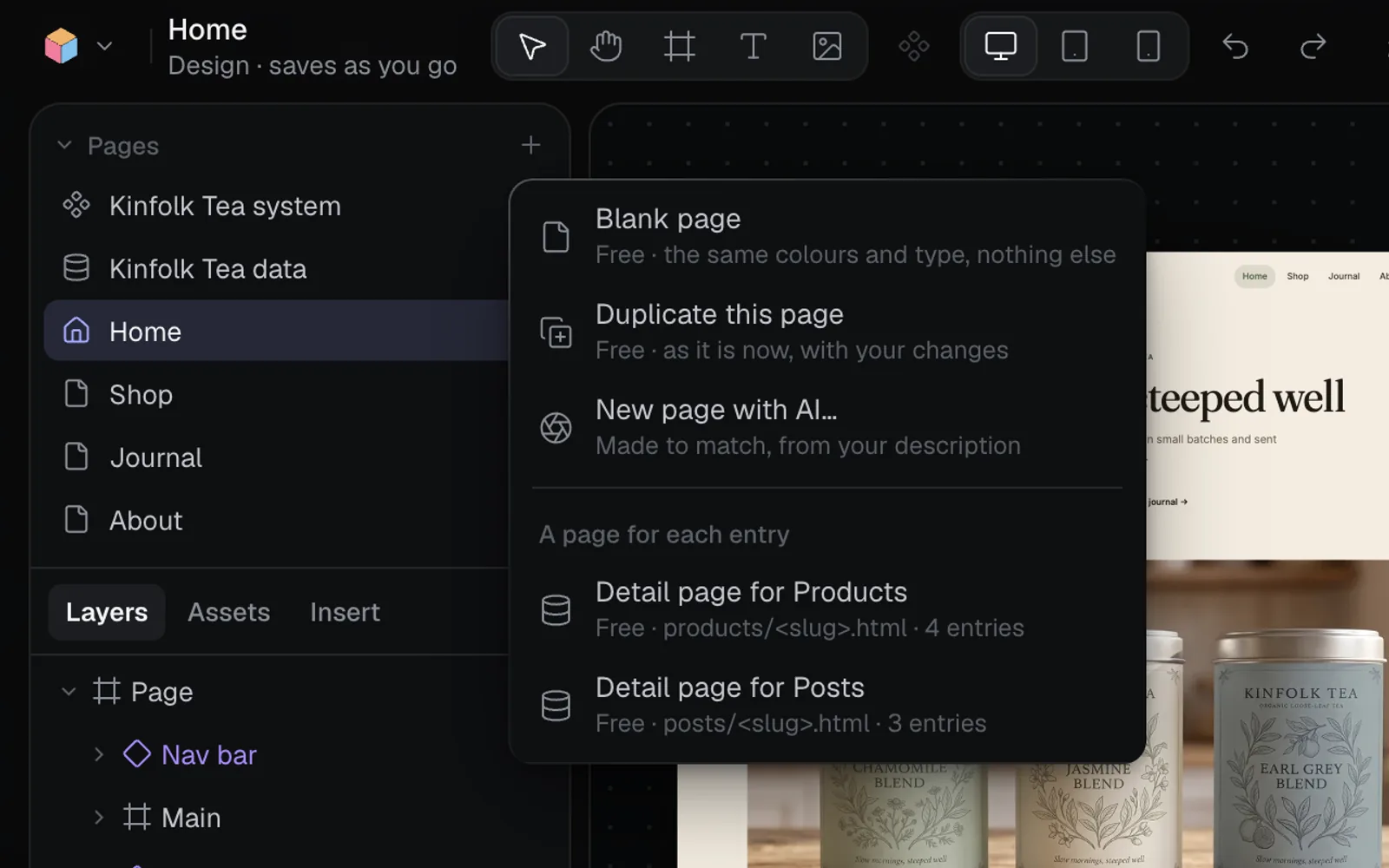
| Pick | What you get | Credits |
|---|---|---|
| Blank page | The site's nav bar, footer, colours and type, nothing else | Free |
| Duplicate this page | A copy of the page you're on, as it is now | Free |
| New page with AI… | A page made from your description, to match the site | Priced before it runs |
| Detail page for a collection | One page designed once, shown for every entry | Free |
Blank, duplicated and AI pages are added to the site's navigation, so every page's nav bar links to them. A page's address comes from its name: "Pricing page" is at /pricing. A detail page isn't in the navigation; its entries link to it (see Dynamic websites with data).
Make a page with AI
- Click + beside Pages, then New page with AI….
- Describe the page, like "a pricing page with three plans". Its name is your first words, up to a comma, a colon or "with": "Visit: our opening hours and address" makes a page called Visit.
- Press Make page. A dialog, New page: Visit, says Claude Sonnet 5.5 makes it to match the page you're on and its design system, showing the site's data, and what it costs.
- Press Make page to run it. The page shows in Pages with "Making" and on the canvas while it's written; "Visit is ready" says when it's done.
- Click it in Pages to open it.
Each row's ⋯ menu has Rename, Duplicate, Set as home page, Page settings… (its address, title, description and social image) and Delete page….
Edit the pages, the design and the content
- Edit with agent, on a page node, opens the page in the Design tab with its agent ready: say what to change and see the price before it runs. See Edit with the agent.
- Design, in a page's properties, edits every layer by hand, as in Figma. See The Design tab.
- The design system: change a colour, a font or a component once for every page; see Design systems and Components. Or type the change in the node's "What should change in the design system?" box and press Edit (2–50 credits on Claude Sonnet 5.5).
- The content: change products, posts and details in the data node, by hand or by asking; see Dynamic websites with data.
Make pictures for a page that has none
A page can show empty picture spots, from a run made with Generate as is or a picture you removed. Select the page and find Pictures in its properties. Its button, such as Fill 3 empty spots (or Make all 8 again on a page with none empty), shows an estimate, and each picture has its own Make a picture (or Make again) and Pick from the library. Claude Sonnet 5.5 writes the prompts from the words around each picture, the first picture sets the look for the rest, and the page takes them as one new version without running again.
Preview and publish
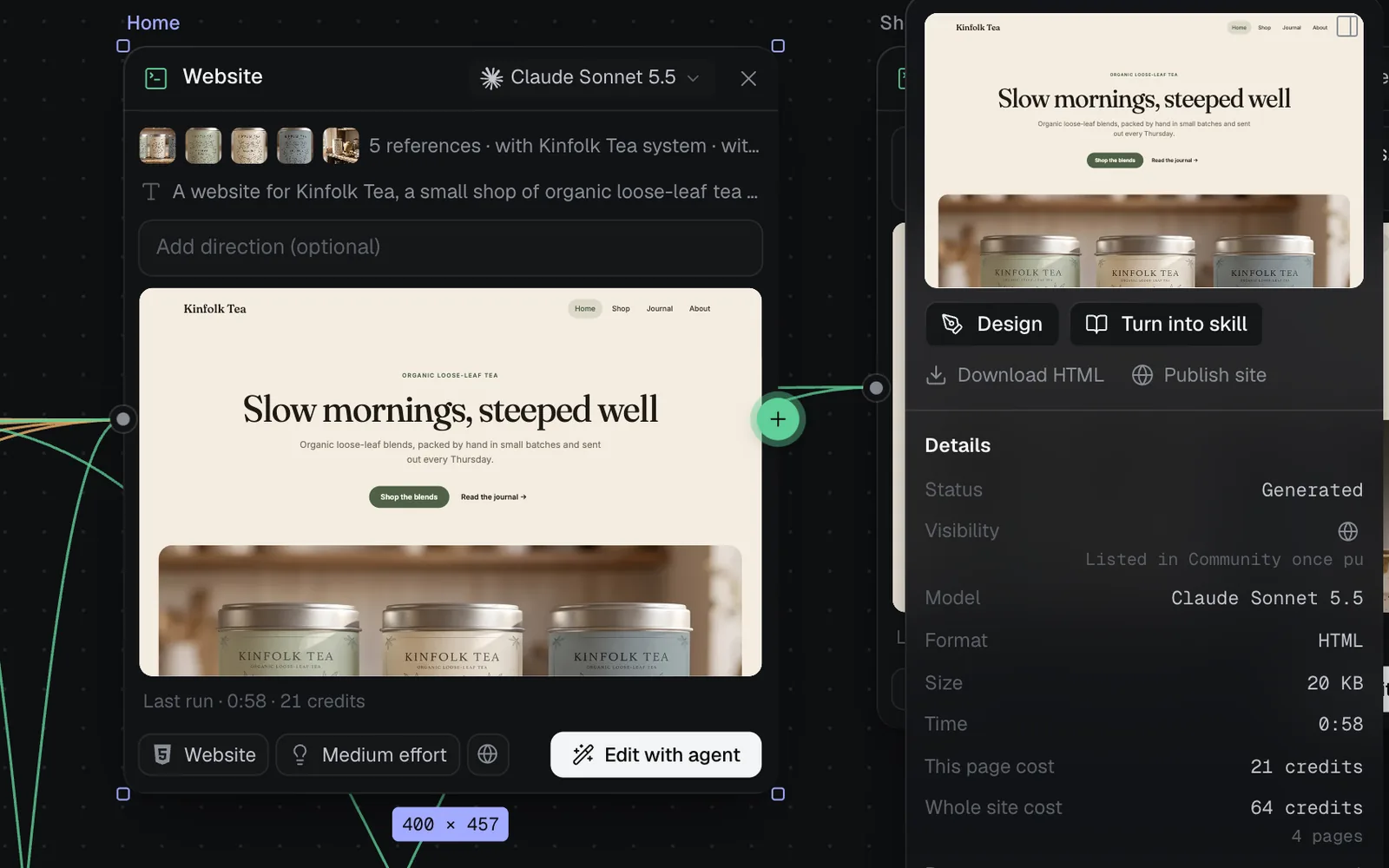
- To preview, hover a page and click View full size, or double-click it. The page runs at full size, and its links to the site's other pages open them.
- To publish, click Publish site in a page's properties, or Publish at the top right of the Design tab. Every page goes live at one address, with its pictures. See Publish a website.
- To download, Download HTML in a page's properties saves that page as one file with its pictures inside. The whole site, with its pictures, data and design system, downloads as a zip from the Design tab; see Export, download and GitHub.
Costs and limits
- A page's Details show what it cost and, under Whole site cost, every run of every page added up.
- New pages with AI and edits to the design system or data with AI are priced before they run. Blank, duplicated and detail pages, typing in the data, saving and every page update are free.
- A page can be up to 2 MB, a design system 400 KB and a site's data 2 MB.
- Make Websites on a canvas: the Code view in the sidebar makes a single page on its own, which isn't taken apart into a design system and data.
- On Starter, Pro and Max, new nodes start private (the lock chip); on Free, what you make is public. See Credits and plans.
What's next
- Dynamic websites with data: change products, posts and prices, and every page follows.
- The Design tab: edit every layer of a page.
- Publish a website: put the site online at its own address.
- Websites in Fil: when a Simple HTML page or a React app fits better.