The Design tab
Edit any page Fil makes as in Figma. Select and retype text, restyle layout, colour and type in the inspector, design for phones, and restore versions.
The Design tab edits a page that Fil made in code, the way you'd edit a design in Figma. Click anything on the page to select it, type into its text, and change its layout, colours and type in the inspector. What you change is the page's own HTML and CSS, and it saves as you go, each save a free version you can go back to.
Open a page in Design
- On a canvas, click the node of a finished page: a Website or Simple HTML node.
- In the inspector on the right, click Design.
- The page opens with the whole site on the stage, each page in a row of Desktop, Tablet and Phone frames. Click any part of the page to start.
Other ways in:
- Double-click a page's preview to open its full view, then click the Design tab beside View at the top.
- Edit with agent on a page's node opens Design on its Agent tab, ready for a request (see Edit with the agent).
- A site in Sites, in the sidebar, opens its home page in Design.
Only people who can edit the canvas get the Design tab; anyone who can only view it gets View. A React app opens in its own editor, with its code beside it: see React apps. A site's data opens as a table of entries instead (see Dynamic websites with data).
Find your way around
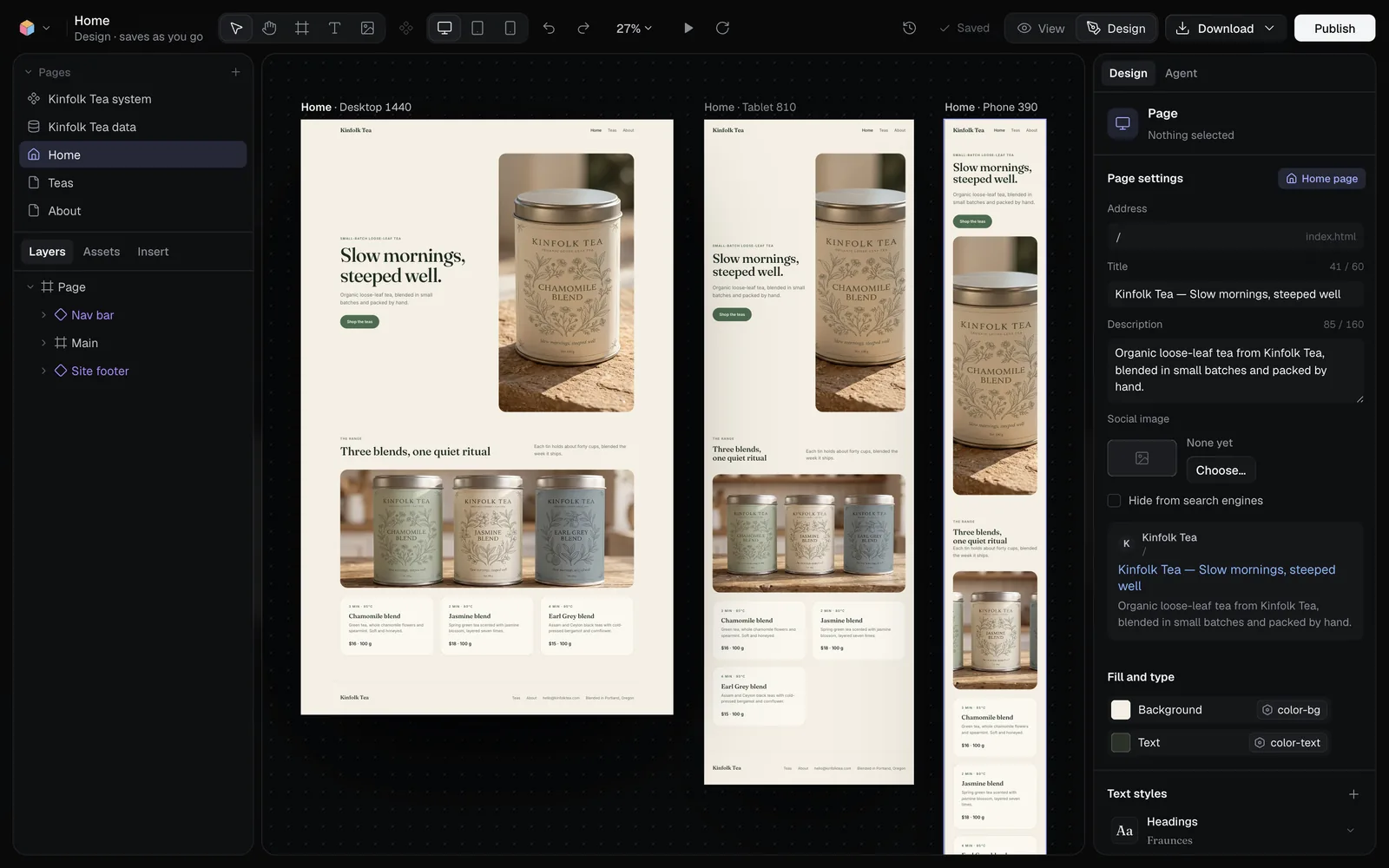
| Area | What it's for |
|---|---|
| Top bar | Tools, the Desktop, Tablet and Phone buttons, undo, zoom, Play, Version history, the save state, Download and Publish |
| Pages (top left) | The site's pages, its design system and its data. Click one to open it |
| Layers, Assets, Insert | The page's layers; its colours, type and components; things to add |
| The stage | Every page of the site, live, at each size. The frame you're editing is the one with handles |
| Design, Agent (right) | The inspector for what's selected, or the agent that edits the page for you |
To move around the stage, scroll or swipe to pan, and pinch or hold ⌘ and scroll to zoom. ⇧1 fits the whole site, ⇧2 zooms to what's selected, and the percentage in the top bar opens the zoom menu. Click another frame to edit that size, or another page's frame to open that page.
Select layers on the page
- Click a layer to select it. A component (a nav bar, a button, a card) is picked whole; click it again to pick a layer inside it.
- ⌘-click picks the layer under the pointer even inside a component, ⇧-click adds to the selection, and dragging across an empty part of the stage selects every layer it touches.
- Esc selects the parent of what's selected, and from a top-level layer it lets go. It never closes the Design tab.
- In Layers, click a row to select it, double-click its name to rename it, and drag it to move it or put it inside another frame. Hovering a row shows its eye (hide) and lock.
Right-click a layer, on the page or in Layers, for Copy, Duplicate, Delete, Wrap in a frame, Hide, Lock, Copy style and Paste style, Edit HTML… and more, each with its shortcut.
Edit text on the page
- Double-click the text, or select it and press Enter. All its text is selected.
- Type the new text. Enter adds a line break, and pasting adds plain text.
- Press Esc, or click outside it, to finish. The edit is one step to undo.
- To change how it looks, use the Text section of the inspector: its text style, font, weight, size, line height, letter spacing and alignment.
There's no bar for bold or links inside a line of text: a style applies to the whole layer. Text that comes from the site's data (a tea's name, a price) goes back into the data when the page saves, so every page that shows it follows.
Change layout, colour and type in the inspector
The inspector on the right shows the sections for what you've selected, as in Figma. With nothing selected, it shows the page: its settings, background, fonts and the colours, text styles and spacing it shares with the site.
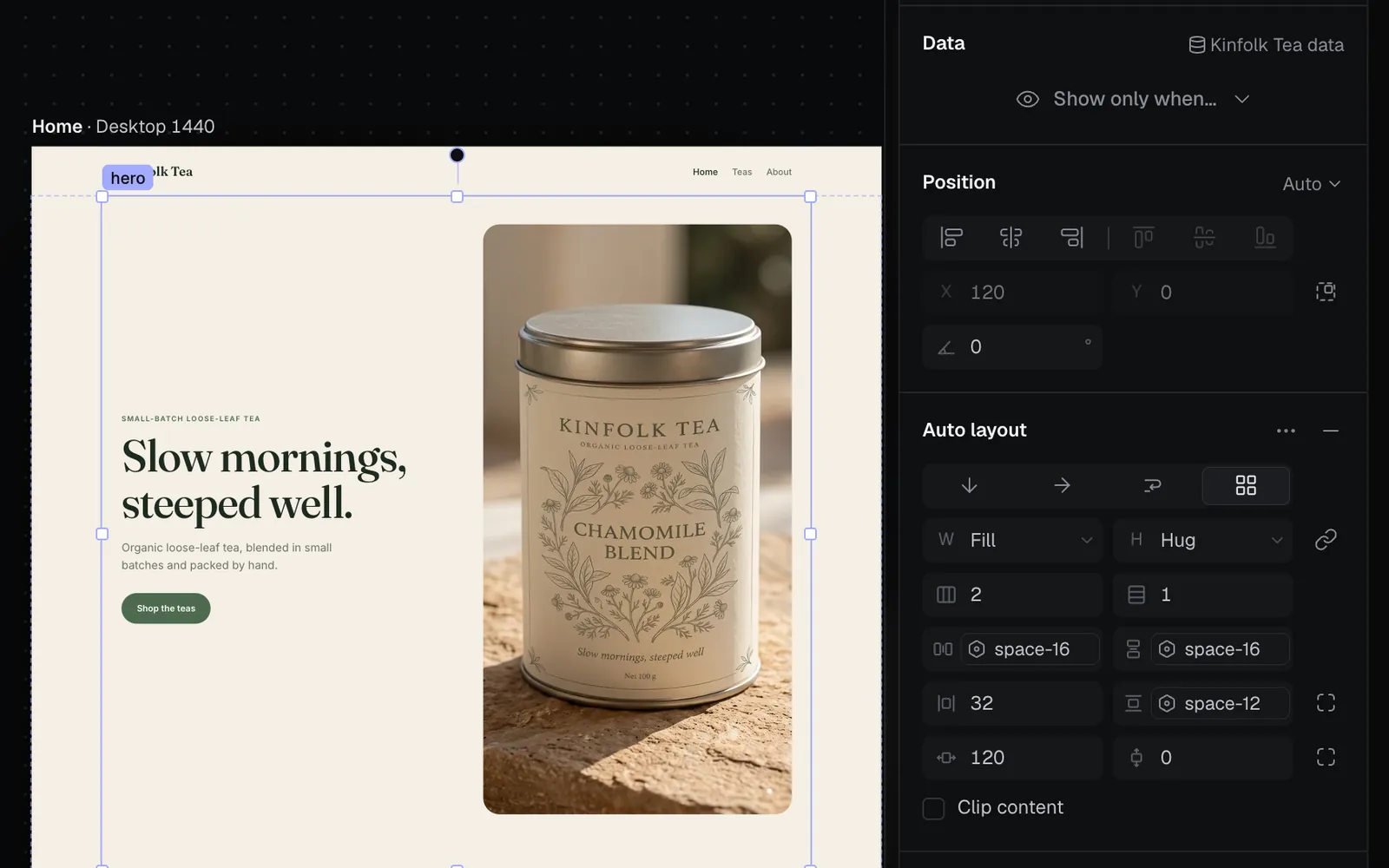
| Section | What it sets |
|---|---|
| Position | How it's placed (Auto (in the flow), Relative, Absolute, Fixed to the screen, Sticky), alignment, X and Y, rotation |
| Layout / Auto layout | Width and height (fixed, Hug contents, Fill container), stack or grid, gaps, padding, margins, Clip content |
| Appearance | Opacity, corner radius, blend mode |
| Text | Text style, font, weight, size, line height, letter spacing, alignment |
| Fill or Background | Solid colours, gradients and pictures |
| Stroke | Borders: colour, weight and style |
| Effects | Shadows and blurs |
| Code | Its CSS, classes and attributes, and Edit HTML… |
- Type a value and press Enter. A plain number is pixels; units you type (%, rem, vh) are kept, and sums like 120+24 work.
- ↑ and ↓ step a number by 1 (⇧ for 10), or drag the field's icon left and right.
- + beside Layout adds auto layout (a stack of what's inside); Stack (flex) and Grid are in its ⋯ menu.
- A value with a pill, like space-16, is one of the site's variables. Change the variable and every place that uses it follows: see Design systems.
Add layers
Open Insert on the left and click an item to add it inside the selected frame, or after the selected layer:
- Layout: Frame, Stack, Column, Grid, Section
- Text: Heading, Text, Link, List, Quote
- Elements: Button, Image, Divider, Input, Video, Icon
To draw one where you want it, pick Frame F, Text T or Image I in the top bar and drag on the page. ⌘D duplicates, ⌥-drag drags a copy, and ⌘V pastes layers you copied, or HTML from elsewhere.
Replace a picture
Double-click a picture on the page, or select it and click Replace… in its Image section. Choose an image shows the pictures in your library; click one, or use Upload…, or paste a link and press Use link.
The Image section also sets how it fills its box (Fill, Fit or Stretch) and its alt text. Regenerate… makes a new picture for the spot with AI: see Edit with the agent.
Design for desktop, tablet and phone
The buttons in the middle of the top bar pick the size you're editing. What you change at each size applies to that width and below:
| Breakpoint | Changes apply |
|---|---|
| Desktop, 1440 px | To the page itself, at every width |
| Tablet, 810 px | Up to 1199 px wide, phones too |
| Phone, 390 px | Up to 809 px wide |
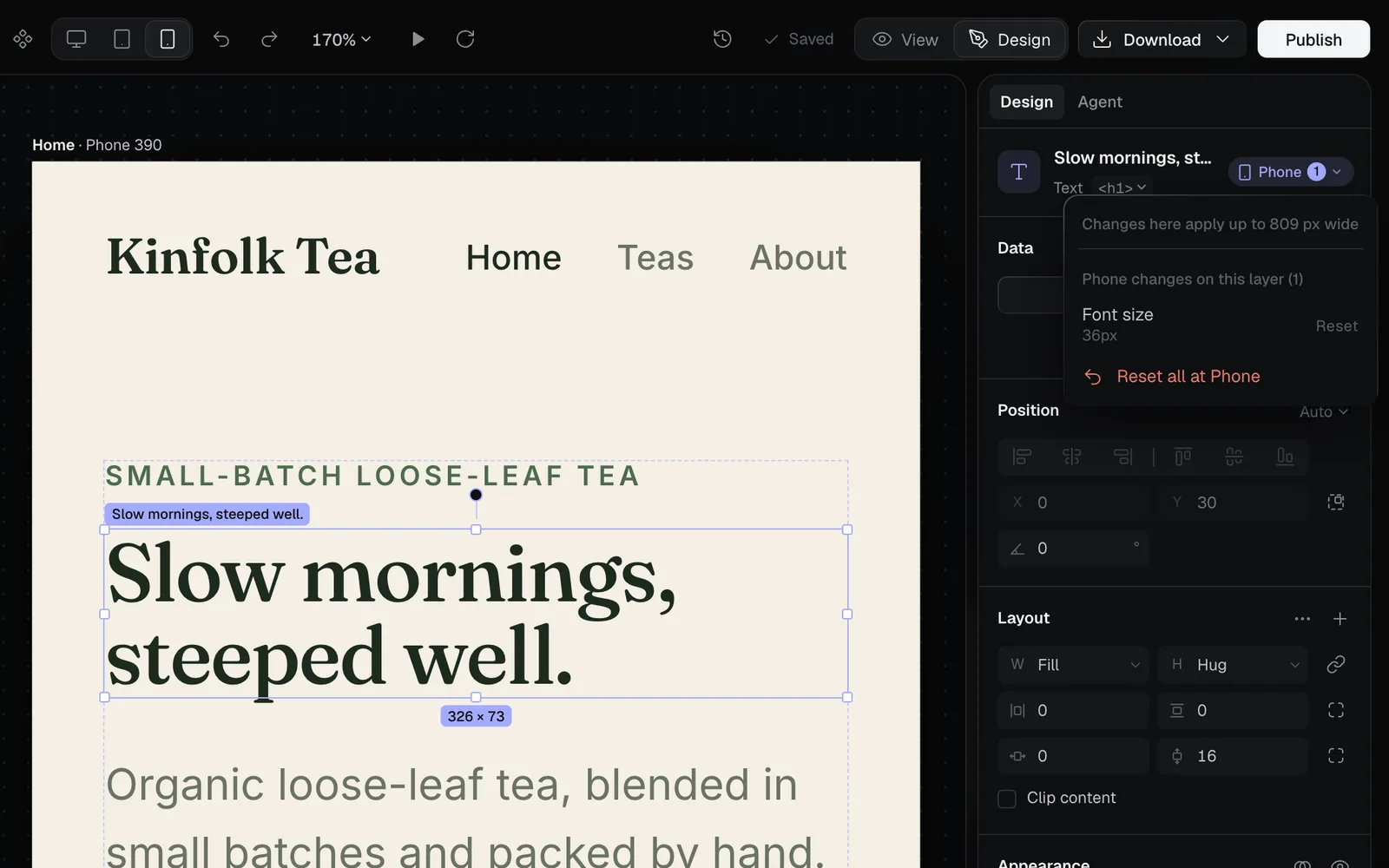
- Click Tablet or Phone in the top bar, or click that frame on the stage.
- Select a layer and change it as usual. Its other frames update as you go.
- The chip at the top of the inspector names the size you're at, with the number of changes the layer has at Tablet and Phone. Click it to see each change with its Reset, and Reset all at Phone.
Changed layers show a dot in Layers, and a field changed at another size shows one too. The eye that hides a layer hides it at every size: to hide something on phones only, switch to Phone and pick Hidden in the ⋯ menu of its Layout section.
Work with the site's pages
Pages, at the top left, lists the site's pages with its design system and data. Click a page to open it: each open page keeps its own unsaved changes and undo, and the Page Down and Page Up keys step through them.
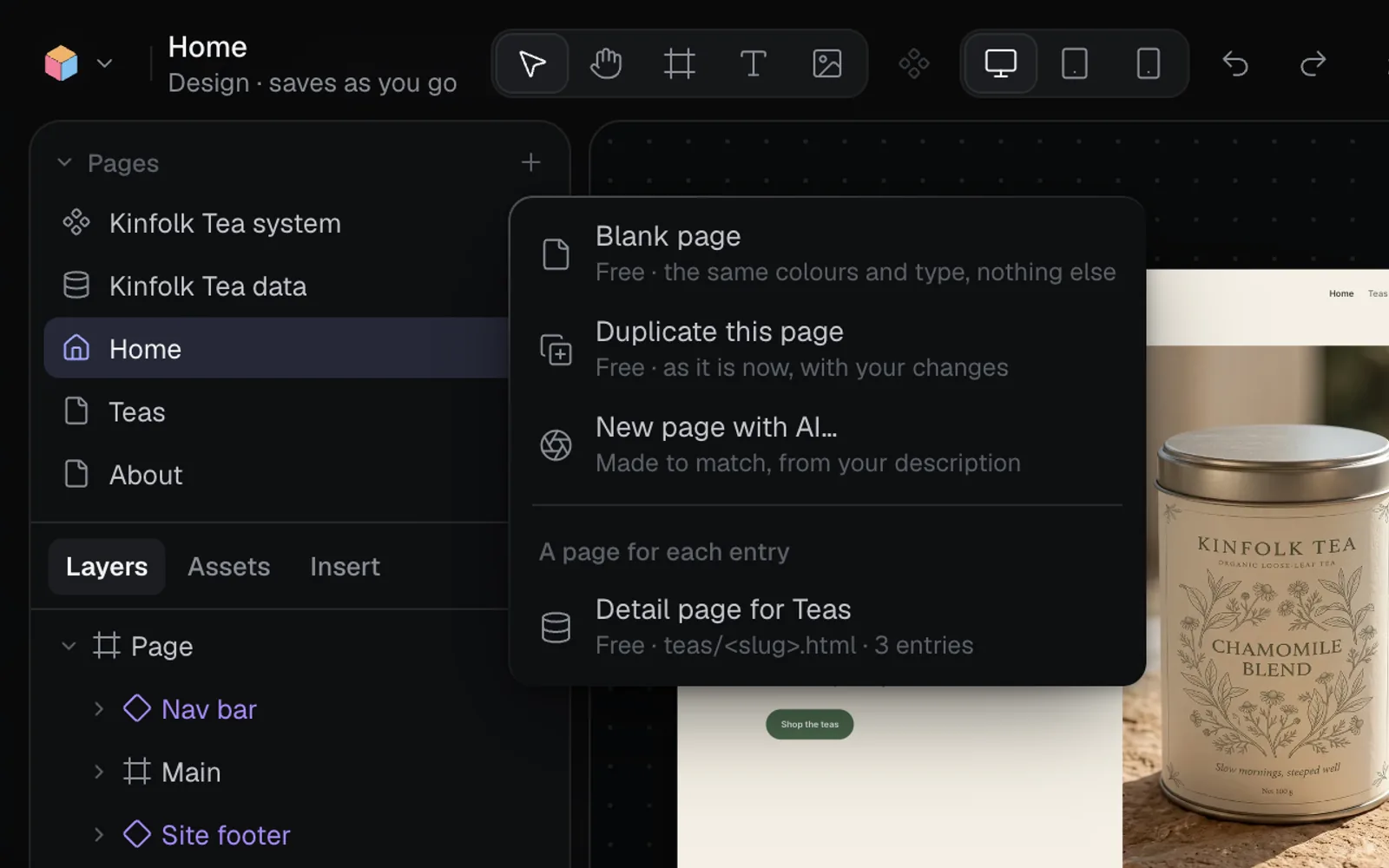
Click + beside Pages to add one:
| Choice | What you get |
|---|---|
| Blank page | Free. The site's colours and type, nothing else |
| Duplicate this page | Free. A copy of this page as it is now |
| New page with AI… | Describe it ("a pricing page with three plans") and press Make page. Claude Sonnet 5.5 makes it to match the site's header, footer, colours and type, after asking its price |
| Detail page for … | Free. One page designed once, for every entry of a collection in the site's data |
New pages are added to the site's navigation. Each row's ⋯ menu has Rename, Duplicate, Set as home page, Page settings… and Delete page….
With nothing selected, Page settings at the top of the inspector sets the page's Address, its Title and Description for search results (with counters to 60 and 160 characters), its Social image and Hide from search engines, with a preview of how it reads in search. It also lists links that lead nowhere, with Create page for a page the site doesn't have yet. See Publish a website to put the site online.
Save, undo and restore versions
The Design tab saves as you go: a moment after you stop, or every 30 seconds while you keep working. Each save is a new version of the page on its canvas node, and saving is free. The top bar says Saving…, Edited or Saved; if a save fails it says Not saved · Retry. ⌘S saves a version now.
⌘Z undoes and ⇧⌘Z redoes, up to 300 steps for each open page.
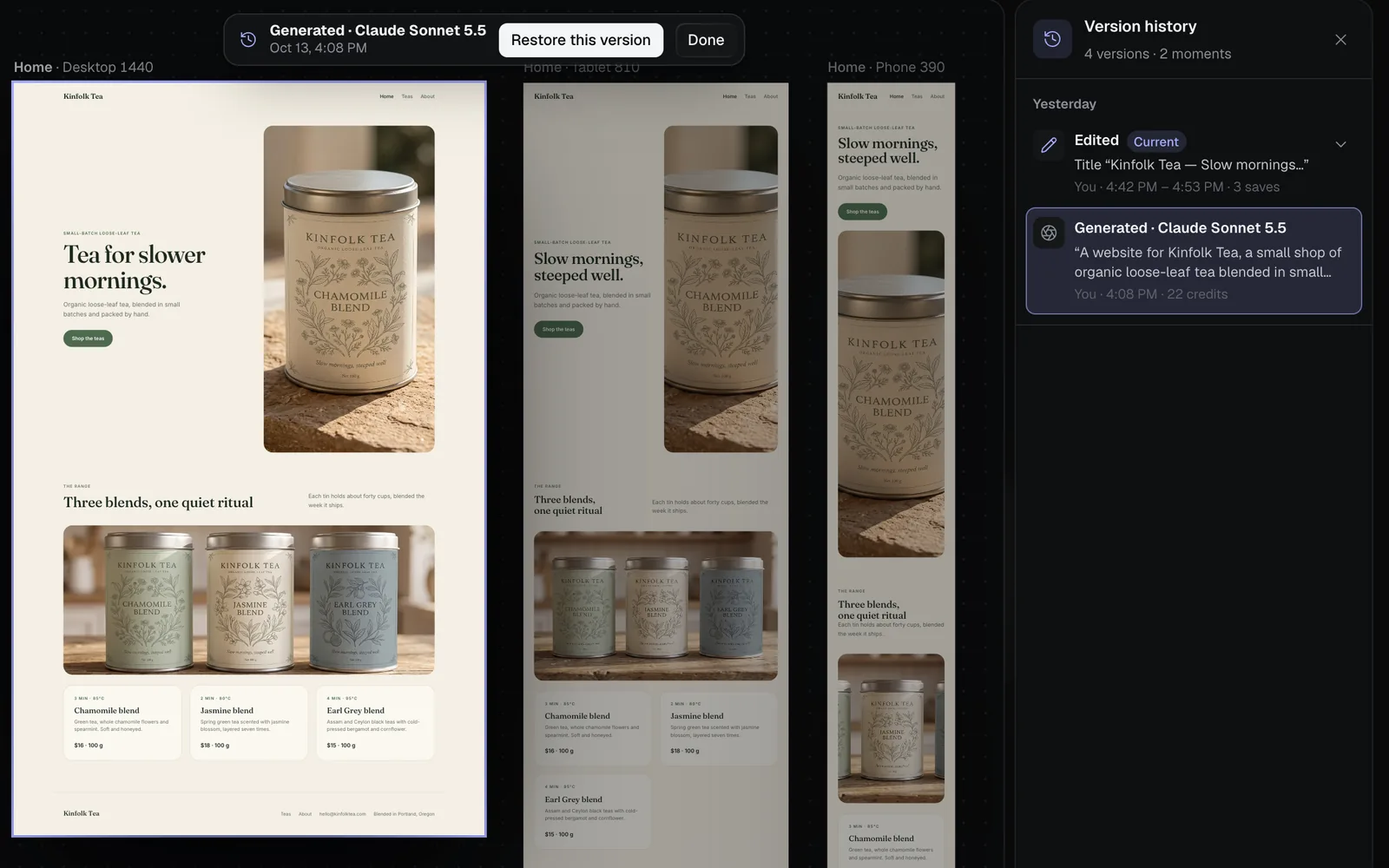
- Click Version history (the clock) in the top bar.
- Versions are grouped by day, newest first. A stretch of editing shows as one Edited row; its arrow shows each save. Runs show as Generated or AI edit with their model, and restores as Restored.
- Click a version to see it on the stage, with its layers in Layers.
- Click Restore this version to bring it back, or Done to return to the current one. A restore is saved as a new version, so nothing is lost.
Preview with Play
Press Play (▶) in the top bar, or P, to see the page full screen as visitors will: scrolling, with its scripts and animations running and its links between pages working. Pick Desktop, Tablet or Phone at the top, drag the sides of the device to try other widths, or Open in a new tab to browse the whole site. Close, or Esc, brings you back to Design.
Go back to the canvas
Click Fil's logo at the top left to open its menu, then Back to canvas (or Back to Sites to go to the site list). Anything unsaved saves first.
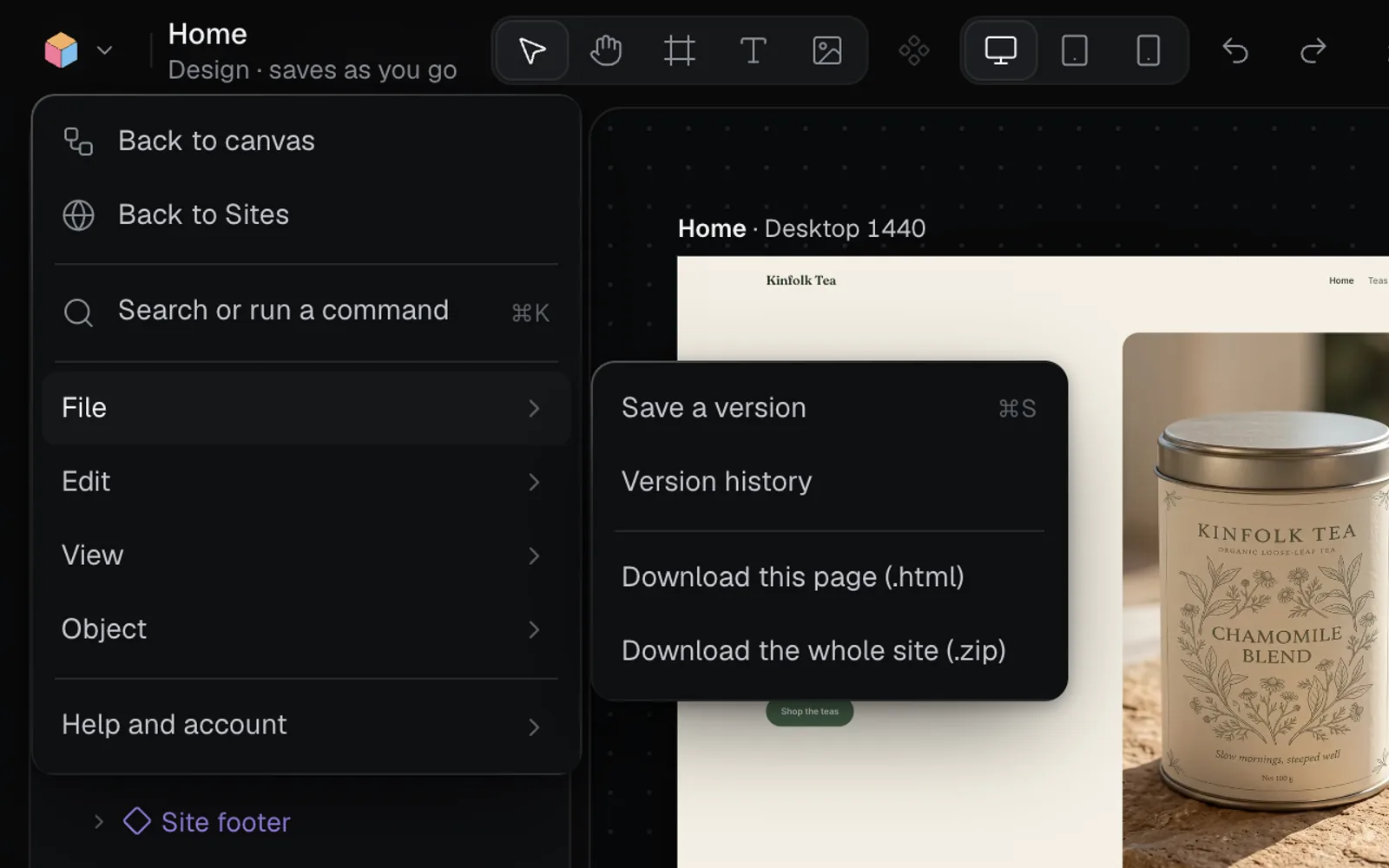
The same menu has File (Save a version, Version history, and downloads of the page or the whole site), Edit, View, Object, and Help and account. Download in the top bar offers This page (.html) or The whole site (.zip).
Keyboard shortcuts
These work when you're not typing in a field.
| Keys | What they do |
|---|---|
| V, H, F, T, I | Select, Hand, Frame, Text and Image tools |
| Space + drag | Pan the stage |
| ⇧1, ⇧2 | Zoom to fit the site, zoom to the selection |
| ⌘0, ⌘+, ⌘− | Zoom to 100%, zoom in, zoom out |
| Enter, ⇧Enter | Type into the text (or select inside), select the parent |
| Tab, ⇧Tab | Select the next or previous layer |
| Arrows | Nudge a positioned layer 1 px (⇧ for 10), or swap a layer with its neighbour |
| ⌘D, ⌫ | Duplicate, delete |
| ⌘G, ⇧⌘G | Wrap in a frame, ungroup |
| ⌥⌘C, ⌥⌘V | Copy style, paste style |
| ⇧⌘H, ⇧⌘L | Hide or show, lock or unlock |
| ⌥⌘K | Create component |
| ⌘Z, ⇧⌘Z, ⌘S | Undo, redo, save a version |
| P | Play |
Hold ⌥ and point at another layer to measure the distance to it. For the whole studio's keys, see Keyboard shortcuts.
Tips and limits
- Saving, restoring, blank pages, duplicates and detail pages are free. New page with AI…, Regenerate… and the agent use credits, and each asks first with its price.
- Locks only last while the page is open; hidden layers stay hidden when it saves.
- A page opened from the Library, rather than its canvas, has no Pages, Agent or components: open it from its canvas for those.
- An SVG opens in Design too, with Rectangle, Ellipse, Line and Text tools, but no sizes, Play or Assets.
- While the agent edits a page, the page and its version history wait until it's done.
What's next
- Design systems: change the colours, fonts and spacing every page shares.
- Components: edit a nav bar or a card once, and every copy follows.
- Edit with the agent: describe a change, or ask for new pictures, and review what it did.
- Publish a website: put the site online at its own address.