Add music, voice and sound
Add background music, a voiceover and sound effects to a video in Fil's video editor, set each sound's volume and fades, and mute a clip's own sound.
The sound in a video edit comes from the sounds on your canvas: music and voiceovers you make with an Audio node, sound effects, files you drop in, and the clips' own sound. They go on the Audio lanes under your scenes, where you set each one's volume and fades. The MP4 mixes them exactly as the editor plays them.
Add background music to a video
- Make the music on the canvas with an Audio node, or drop a sound file on the canvas. See Voiceovers, sound and music.
- Click Edit video on the Video edit node to open the editor.
- Put the playhead at the start: click To the start under the stage, or press Home (fn← on a Mac laptop).
- In the Media tab on the left, click Sounds. Each sound on the canvas is there, named after its node, with its length.
- Point at the music and click its + (its tooltip reads Add at the playhead). You can also double-click it, or drag it onto an Audio lane.
- It goes on the Audio lane from the playhead. Music that runs longer than the scenes stops where they end and fades out, over up to a second and a half.
To have more of the music, drag its end out again, as far as the file goes. You can also add music while you make the edit: select it on the canvas with your shots and click Add to video editor, and it starts at the beginning (see Make a video edit).
Add a voiceover
- Make the voiceover with an Audio node: type the lines and pick a voice. See Make a voiceover.
- In the editor, put the playhead where the voice should start: click the ruler above the lanes, or press ⇧→ to step a second at a time.
- Click Sounds in the Media tab and click the voiceover's +.
- Where it meets the music, it goes on a lane of its own, Audio 2, above the music. Every sound that overlaps another gets a lane, and they all play together.
- Drag it along its lane to fine-tune where it starts. It snaps to the playhead and to the ends of other clips; hold ⌘ once you're dragging to place it freely.
Sound effects work the same way: make one with an Audio node, then add it where it should play.
Set the volume and fades
Click a sound on the timeline to select it. The inspector on the right shows its Sound settings.
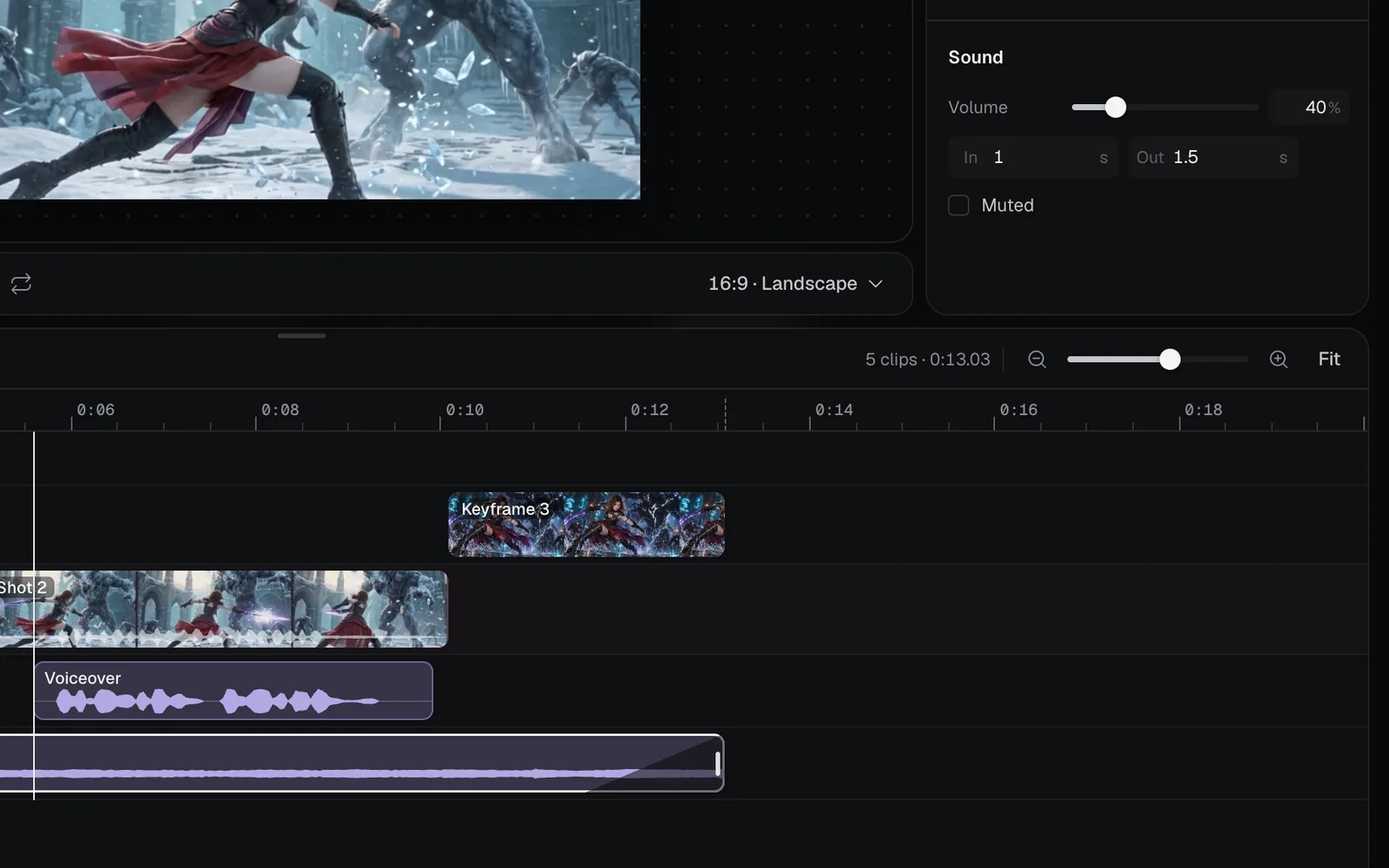
| Setting | What it does |
|---|---|
| Volume | From 0% to 200%; 100% is the sound as it was made. Drag the slider or type a number. Double-click the word Volume to put it back to 100% |
| In | Seconds of fading in from silence at the sound's start |
| Out | Seconds of fading out to silence at its end |
| Muted | Silences this sound only |
A fade can last up to half the clip. On the timeline, a ramp at each end of the clip shows how long it takes.
Turn the music down under a voice
A sound has one volume from start to end. To lower the music only while someone speaks, split it around the voice:
- Put the playhead where the voice starts, click the music, and press S to split it there.
- Put the playhead where the voice ends and press S again: the music's second piece is already selected.
- Click the middle piece and set its Volume to about 40%.
See Split a clip at the playhead for more on splitting.
Mute a video's own sound
Clips made with sound, as most video models make them, play it in the edit. A video clip has the same Sound settings as a sound: select it to lower its Volume, fade it, or tick Muted.
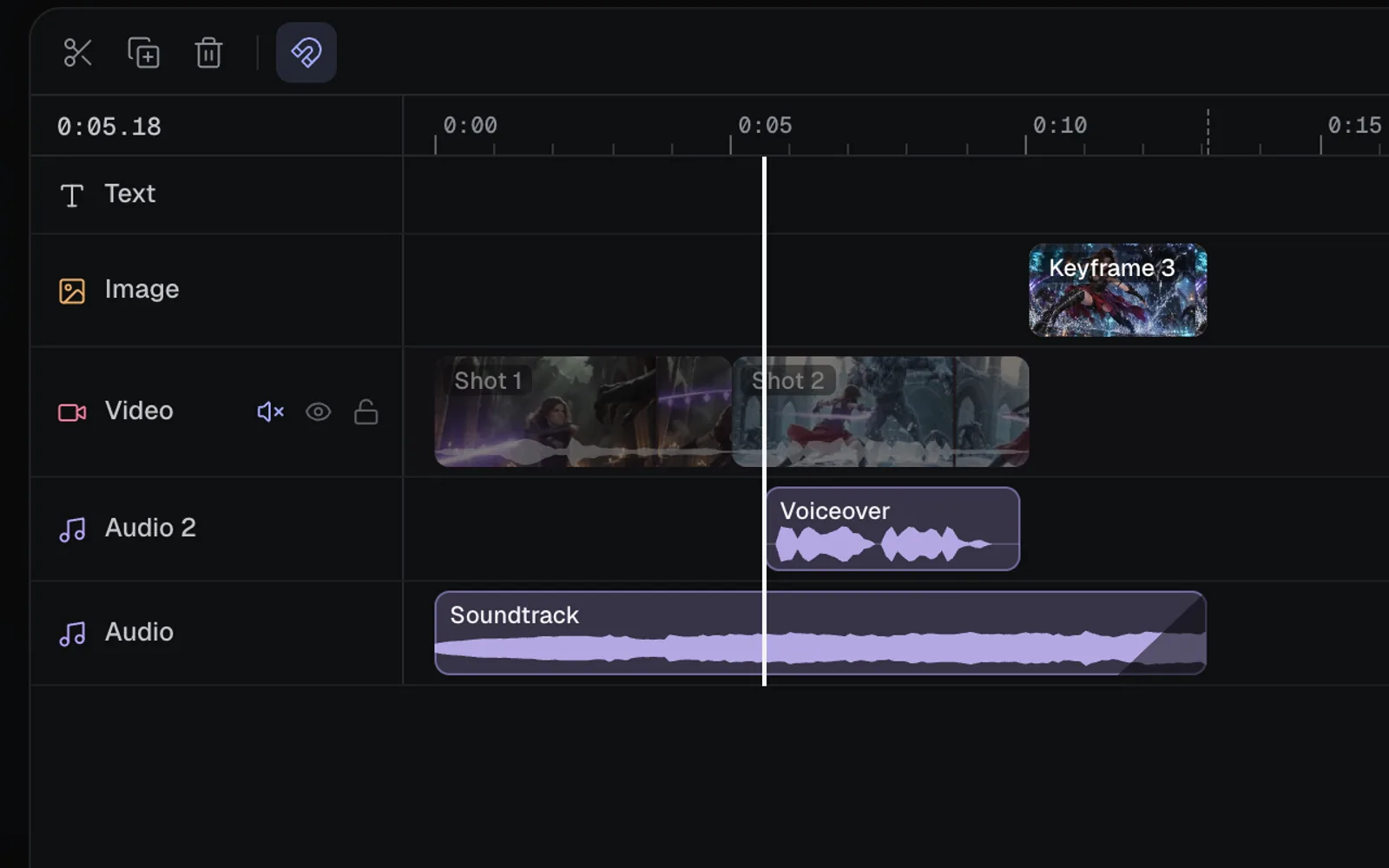
To silence a whole lane, click the speaker beside the lane's name (its tooltip reads Mute). Click it again to hear it (Unmute). Video and Audio lanes have one; words and pictures make no sound.
Trim and time sounds
- Drag either end of a sound to trim it. It can't run past the end of its file.
- Drag its start to skip the beginning of the file. From, under Timing in the inspector, says where in the file it starts, and Start and Length say where it sits on the timeline, in seconds.
- The speed menu under Timing plays a sound from 0.25× to 4× its speed. A faster sound also sounds higher, and a slower one lower.
- When you trim, move or delete scenes, sounds that start after the change move with it, and music that ran to the end of the scenes still does. See Edit the timeline.
How sound is exported
The MP4's sound is the mix you hear in the editor: every video and sound that isn't muted, on a lane that isn't muted, at its volume and with its fades. It's stereo, in AAC where your browser can make it (Opus where it can't). If nothing in the edit makes a sound, the MP4 has no sound at all. See Export and render videos.
Tips
- Press Space to play from the playhead and hear the mix.
- A sound's waveform shows on its clip, so you can line up a cut with a beat or a word.
- From the canvas, select a sound, press ⌘K and choose Add the selected node to “Trailer” (your edit's name): it goes in after the edit's last sound, and the editor opens. To add it without opening the editor, ask the canvas chat, for example "put the soundtrack under the scenes and fade it in over a second". See Edit videos with chat, ⌘K and agents.
- The editor can't record from a microphone. Record elsewhere and drop the file on the canvas: WAV, MP3, M4A, OGG, FLAC and more work.
- Placing and mixing sound is free. Making music, voices and sound effects with an Audio node costs credits: see Voiceovers, sound and music.
What's next
- Add text and titles: captions for the voiceover, and a title over the music.
- Export and render videos: make the MP4 with its sound.
- Voiceovers, sound and music: make the music and voices.
- Edit the timeline: trim, split and move clips.