Profile and settings
Change your photo, name, username, bio and links in Fil, switch to light, dark or a color theme, see what's new, send feedback and sign out.
Your account menu, at the foot of the sidebar, holds your profile and settings: your photo, name and username, the theme the studio wears, what's new in Fil, a note to the people who make it, and signing out. Your profile is how other people see you: on your work in Community, in chats and on canvases you share.
The account menu
Click your name at the foot of the sidebar. On a canvas, where the sidebar folds to icons, click your photo there; in a narrow window, open the menu button (☰) at the top left first.
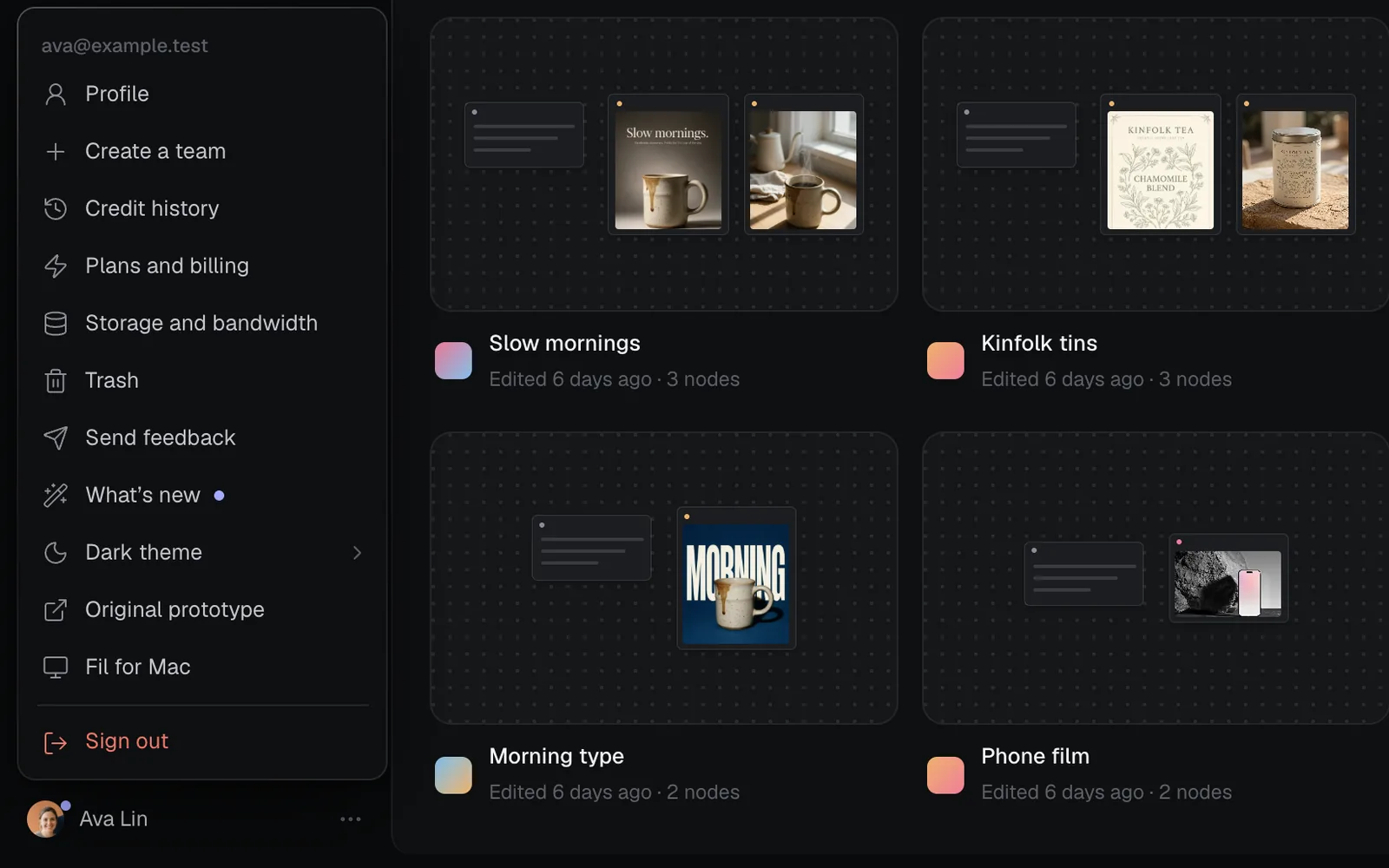
| Item | What it does |
|---|---|
| Profile | Your photo, name, username, bio and links |
| Check in | Today's free credits, on Free |
| Team settings | A team's members, roles and credits (in a team) |
| Create a team | A new team workspace |
| Credit history | Every run and top-up, with its credits |
| Plans and billing | Your plan, other plans and credit packs |
| Storage and bandwidth | What your files take and serve |
| Trash | Deleted canvases and files, to restore |
| Send feedback | A note to the Fil team |
| What's new | Every change to Fil, newest first |
| Dark theme | The theme picker; reads System theme or Light theme for the one you use |
| Original prototype | Fil's first design, in a new tab |
| Fil for Mac | The Mac app's download page, in a new tab |
| Sign out | Signs you out of this browser |
Your email heads the menu. A dot on your name, and beside What's new, means a change to Fil you haven't seen yet.
Edit your profile
- Click your name at the foot of the sidebar, then Profile.
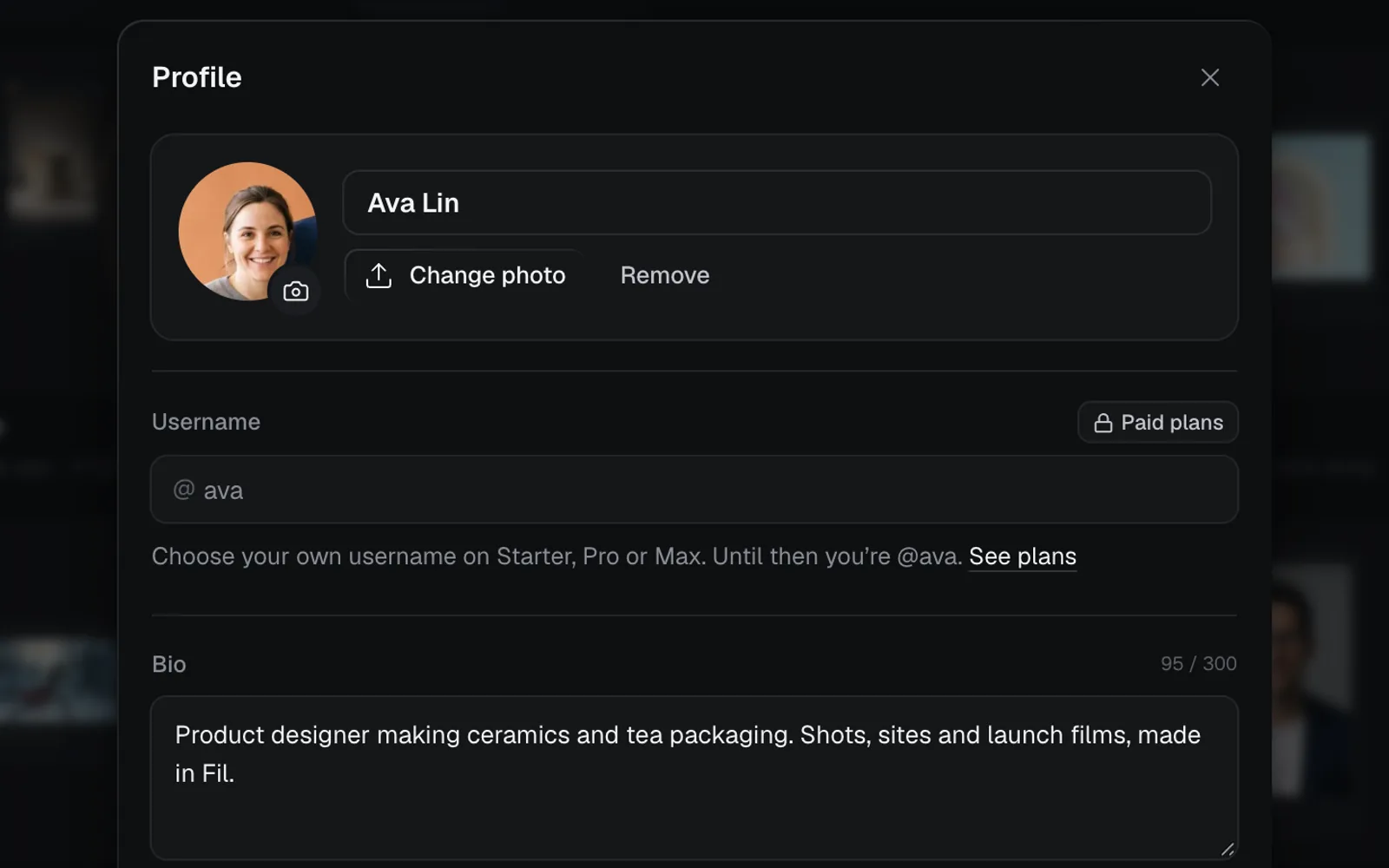
- Change what you like: your photo, name, username, bio and links (below).
- Click Save. "Profile saved" confirms it, and your new name and photo show everywhere at once.
View profile, at the dialog's bottom left, opens your public profile in Community; Edit profile there opens this dialog too. You can also search for Profile with ⌘K.
Profile photo
Your photo starts as your Google account's, if you signed in with Google. Click your photo or Change photo (Upload photo before you've added one) to pick another: JPG, PNG, WebP, GIF, AVIF or HEIC, under 20 MB. Fil keeps its centre square, so square pictures work best. Use Google photo goes back to your Google one; without one, Remove takes yours away.
Name
The name people see on your work, your messages and canvases, up to 80 characters.
Choose your username (Starter, Pro and Max)
Your username is your profile's address in Community, and how people find you there. Everyone gets one; on Starter, Pro and Max you choose it.
- Type it after the @: 3 to 30 lowercase letters, numbers or underscores. Fil checks it as you type: "@avalin is yours if you save.", or why not, such as "That username is reserved."
- Your profile then lives at your username, such as fil.design/#people/avalin.
On Free, the field is locked with Paid plans beside it, and the note says which username is yours until then. See plans opens Plans and billing (see Credits and plans).
Bio and links
- Bio: what you make and where to find it, up to 300 characters. Addresses in it become links on your profile.
- Links: your website, X, Threads, Instagram, TikTok, LinkedIn, YouTube and GitHub. Paste a profile's address or type the handle. A link that doesn't look right stops Save with "Check your Instagram link." (or whichever it is).
Social posts you make in Fil use your links' handles too; see Social posts.
Change the theme: light, dark or a color
Fil follows your computer's light or dark mode to start with. To choose:
- Click your name at the foot of the sidebar, then the theme item (System theme, Light theme or Dark theme, for the one in use). The theme picker opens beside it.
- Pick a mode at the top: System, Light or Dark.
- Pick a color under Color. The whole studio changes as you click.
A color theme tints the studio's greys toward one hue and gives it an accent of its own, in light and in dark. The colors that mark images, video and the other kinds of work stay the same.
| Color | Looks like |
|---|---|
| Fil | Fil's own greys, with a periwinkle accent |
| Midnight | Blue-tinted, with a blue accent |
| Lagoon | Teal-tinted, with a teal accent |
| Moss | Green-tinted, with a green accent |
| Sand | Sand-tinted, with an amber accent |
| Ember | Warm-tinted, with an orange accent |
| Rose | Pink-tinted, with a pink accent |
| Iris | Violet-tinted, with a violet accent |
| Ink | Pure greys: black and white |
- System switches between light and dark as your computer does, even while Fil is open.
- The account menu shows the color theme's name beside the mode when it isn't Fil.
- Your choice is kept in this browser and follows in its other tabs; another browser keeps its own.
- The picker also opens from ⌘K (search for Theme) and from the Fil menu in the editors, under Help and account. See The sidebar and menus.
See what's new in Fil
What's new opens every change to Fil, newest first: each version's title, date and number, what changed, and pictures of it. Click a picture to see it large; ← and → step through a version's pictures and Esc closes it.
A version you haven't seen yet carries a dot, and so do your name and What's new in the menu until you open it. Search for What's new (or "changelog") with ⌘K, or open it from the Fil menu in the editors.
Send feedback
Send feedback writes straight to the Fil team.
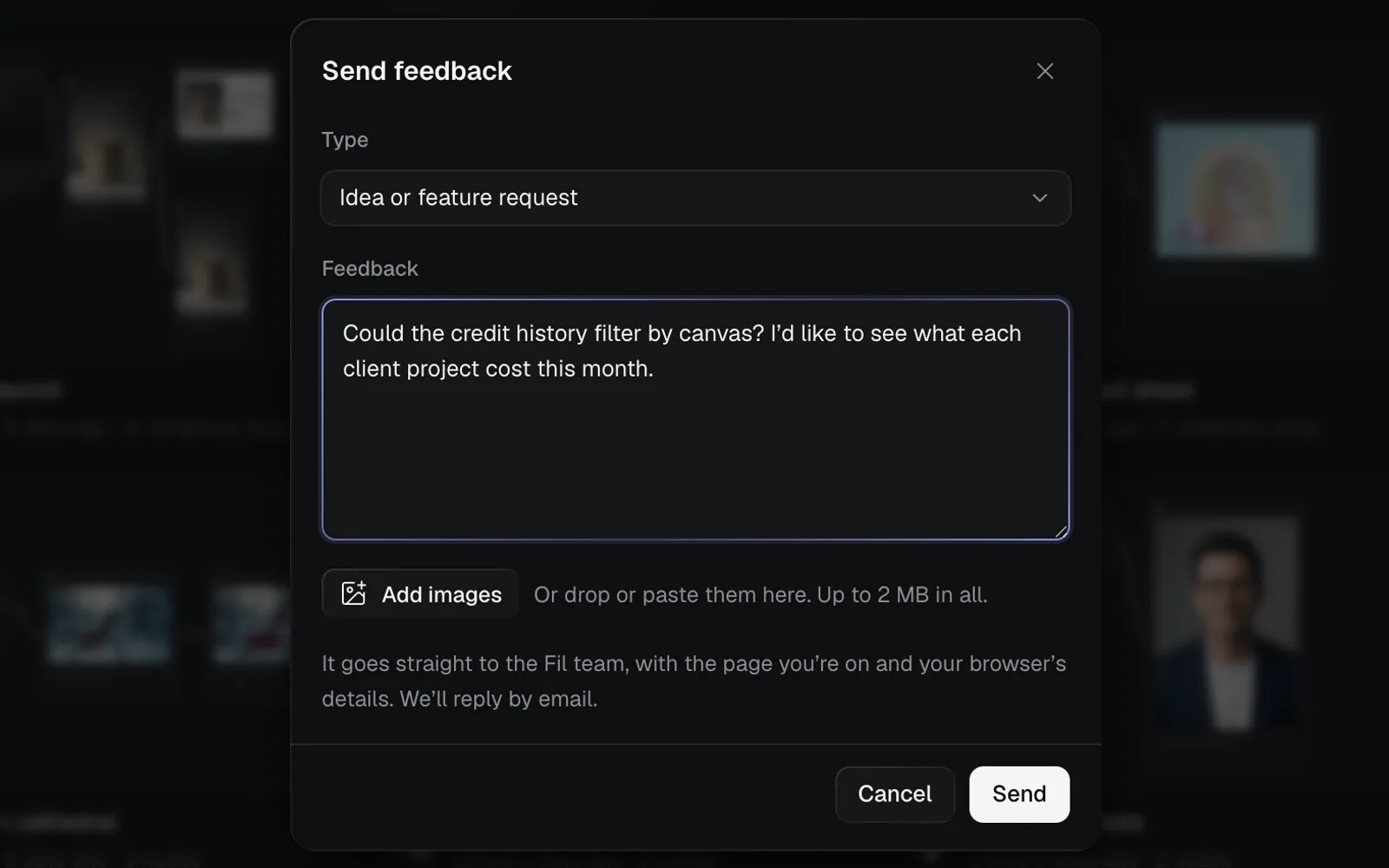
- Pick a Type: General, Bug, Idea or feature request, Billing and plans or Other.
- Write your note under Feedback, up to 5,000 characters.
- Add screenshots if they help: Add images, or drop or paste them on the dialog. PNG, JPEG, WebP or GIF, up to five and 2 MB in all.
- Click Send (or press ⌘Enter). "Thanks. Your feedback was sent."
It goes with the page you're on and your browser's details, and the reply comes to your email.
Fil for Mac
Fil for Mac opens fil.design/download in a new tab, where you can download Fil as a Mac app: every canvas in a tab of its own, Mac menus and keys, signing in through your browser, and new versions that download by themselves (Restart to update installs one). It runs on macOS 13 or later, on Apple Silicon and Intel. Inside Fil for Mac, the item isn't in the menu.
Sign out
Sign out, at the bottom of the menu, signs you out of this browser. Your work stays in your account; sign in again to pick up where you were. You can also search for Sign out with ⌘K.
Settings in the command menu
Press ⌘K (Ctrl K on Windows) and type, or scroll to Settings:
| Command | Opens |
|---|---|
| Credit history | Every run and top-up |
| What's new | Every change to Fil |
| Theme | The theme picker |
| Profile | Your photo, username, bio and links |
| Send feedback | A note to the Fil team |
| Sign out | Signs you out |
What's next
- Credits and plans: your plan, credits and check-ins.
- Storage and bandwidth: what your files take, and freeing space.
- Community: your public work and profile.
- The sidebar and menus: every other menu in Fil.