3D generation
Turn a picture or a prompt into a textured 3D model with Tripo and Meshy, then rig and animate it, view it, download the GLB or make a picture of it.
The 3D view turns a picture, or a description of one object, into a textured 3D model you can turn, light and download as a GLB. Characters can then be rigged with a skeleton and given motions such as idle, walk and run, and any model can become a picture again from the angle you choose.
Make a 3D model from a picture (image to 3D)
A picture gives the model the most to go on: the shape, the colours and every detail of the design.
- Click Image in the sidebar and find the picture: one you made or one you dropped on the feed to upload.
- Hover the picture and click the wand button, Turn to…, then Turn to 3D. (Or select it and click Turn to 3D in the panel on the right.)
- The 3D view opens with the picture above the prompt, labelled Source image. A prompt is optional: "Press Enter to make a 3D model of the image".
- Press Generate, or Enter. The run shows "Usually 1–2 minutes", and keeps going if you leave.
- The model lands at the top of the feed, turning slowly in its tile.
Make a 3D model from a prompt (text to 3D)
- Click 3D in the sidebar, or press M anywhere outside a text field or a canvas.
- Describe one object: its form, materials, colours and style. For a character, ask for a neutral A-pose ("Describe one object, like 'a brass desk lamp with a fabric shade'").
- Pick the model and its texture in the chips under the box, then press Generate.
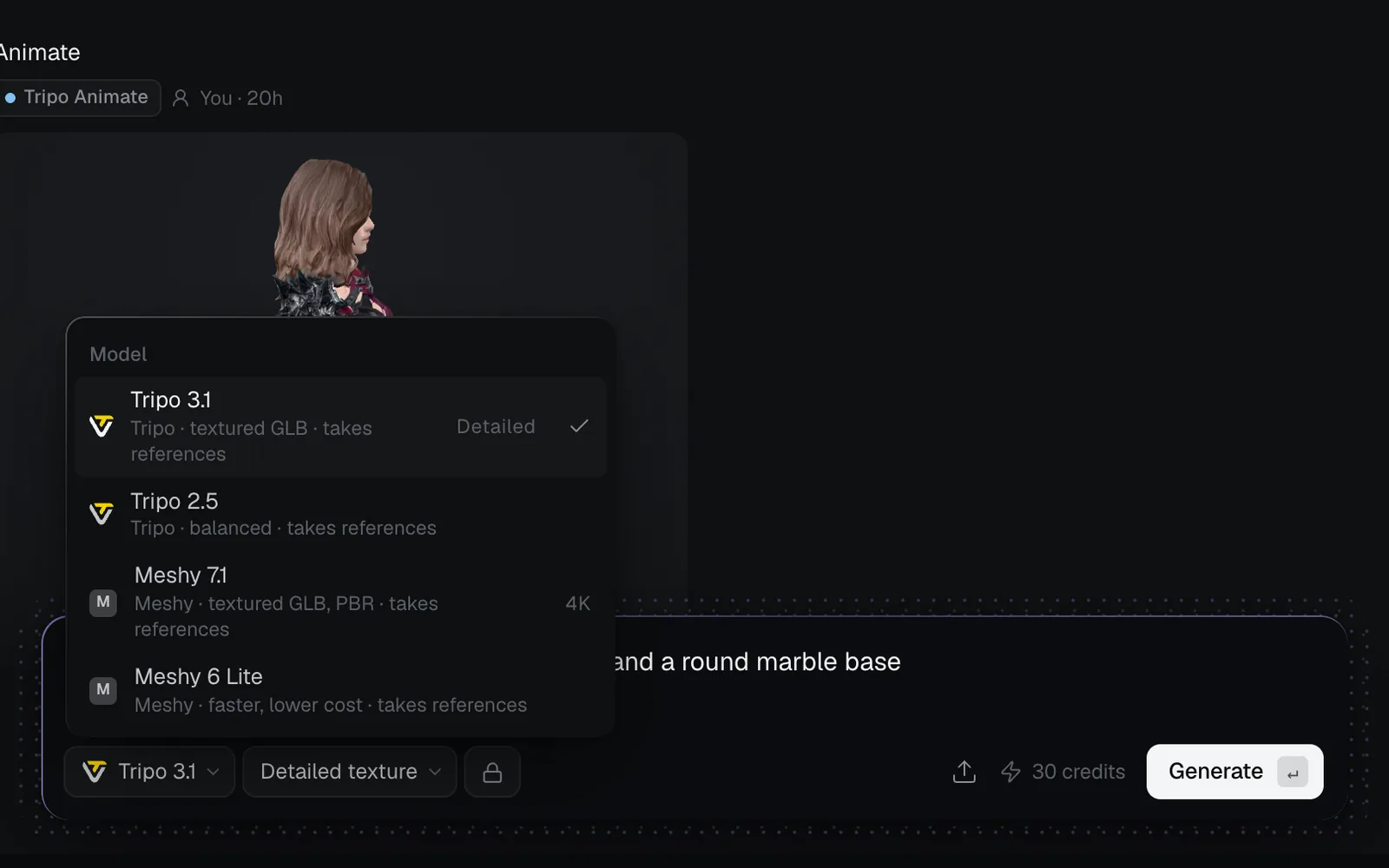
Choose a 3D model
The 3D view opens on the 3D model you used last, here or on a canvas; without one it starts on Tripo 3.1.
- Characters and most things: Tripo 3.1, at Detailed texture, which keeps faces sharp.
- Physically based materials, up to 4K textures, or up to four pictures of one object: Meshy 7.1.
- Lower cost: Tripo 2.5 or Meshy 6 Lite.
| Model | Credits | Good at |
|---|---|---|
| Tripo 3.1 | 30 from text, 57 from a picture | Textured GLB; Standard texture costs 20 / 47 |
| Tripo 2.5 | 20 from text, 47 from a picture | Balanced |
| Meshy 7.1 | 60 | Textured GLB with PBR materials; 2K or 4K texture |
| Meshy 6 Lite | 30 | Faster, lower cost |
Tripo takes one picture and prompts up to 1,024 characters. Meshy takes up to four pictures of the same object, and prompts up to 800 characters. The texture chip reads Detailed texture or 2K texture; a model without the choice has no chip.
Look at a model
Models in the feed turn slowly on their own. Select one to open it in the panel on the right, where you can drag it to turn it and scroll to zoom. Its Recipe shows the model that made it, the time it took, what it cost, its format (GLB) and its size.
For a closer look, hover the tile and click View full size. The full view shows the model large, with its triangles and texture maps in the bar at the top, such as "GLB · 29,995 triangles · 3 maps". A large model is shown as a lighter copy so it loads quickly; Download always gives you the file itself.
Rig and animate a character
A rig is the model's skeleton; animating bakes motions into the file. Both work on any 3D model in your library, made in Fil or uploaded.
- Select a model in the 3D view and click Turn to 3D in the panel (or Turn to… on its tile, then Turn to 3D).
- The model sits above the prompt, labelled "Animating" and its name, and the model chip switches to Tripo Animate. No prompt is needed.
- To pick another rigger, open the model chip: Tripo Rig adds only a skeleton, and Meshy Rig and Meshy Animate are Meshy's, for humanoid characters.
- Press Generate. The result is a new model in the feed. Open it full size: its Animations panel lists each motion with its length, and a click plays it.
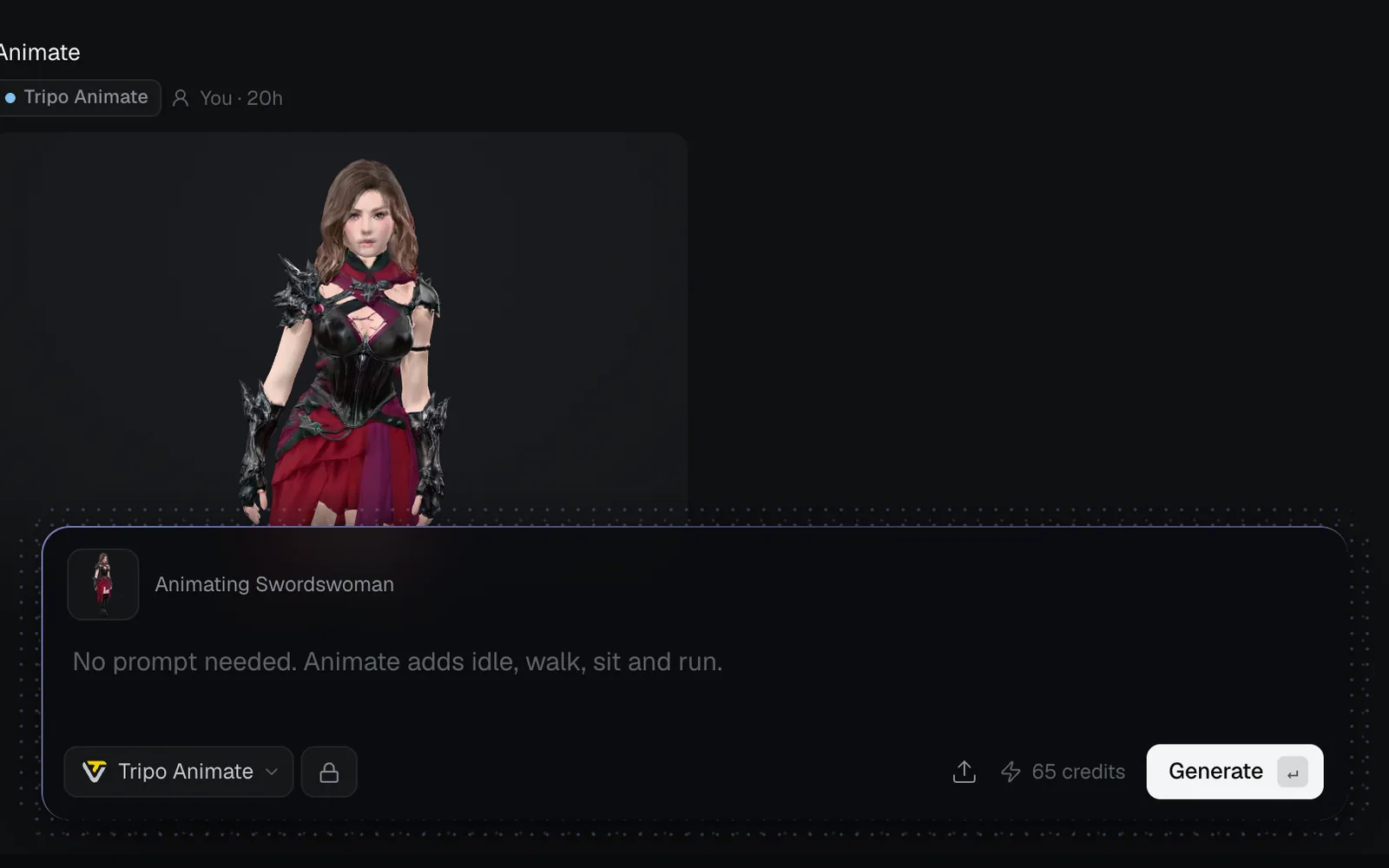
| Rigger | Credits | What it adds |
|---|---|---|
| Tripo Rig | 25 | A skeleton |
| Tripo Animate | 65 (40 on a Tripo rig) | A skeleton and idle, walk, sit and run |
| Meshy Rig | 10 | A skeleton with a walk and a run, humanoids only |
| Meshy Animate | 28, or 18 on a Meshy rig from the last 3 days | Idle, a walk and a run from Meshy's library, humanoids only |
In the 3D view, Animate always adds its default motions. To choose them, use a canvas (below): Tripo offers 12 motions and takes up to five; Meshy's library has more than 580 and takes up to ten.
Download a 3D model (GLB)
Select the model and click Download in the panel, or use Download in the full view's top bar. Models download as GLB (binary glTF), with their textures, skeleton and motions inside, ready for Blender, Unity, Unreal, three.js or a web page's model viewer. On a canvas, the panel's link reads Download GLB.
To bring a model of your own in, drop a GLB on the feed, or use the upload button beside the price (its tooltip reads Upload GLB). It joins your library, and you can rig, animate or picture it like any other.
Turn a 3D model into a picture
A model can become a picture from any angle: a product shot, a character on a poster, a keyframe for a video.
- Select the model in the 3D view and drag it in the panel to the angle you want.
- Click Turn to Image. Fil draws the model as you see it, on light grey, and attaches the picture to the Image view's prompt ("From the view showing"). From a tile's Turn to… menu, it's a picture of the model's front view instead.
- Describe the scene to put it in, pick a shape and press Generate. The picture of the model joins your library when the run starts.
Turn to Video works the same way: the picture becomes the start frame of a clip (see Video generation).
Make 3D models on a canvas
On a canvas, a 3D node does all of this in one place and lets you choose motions. Add one with the 3D button in the toolbar at the bottom (or press 4 on the canvas), wire a picture or a prompt into it, and press Generate.
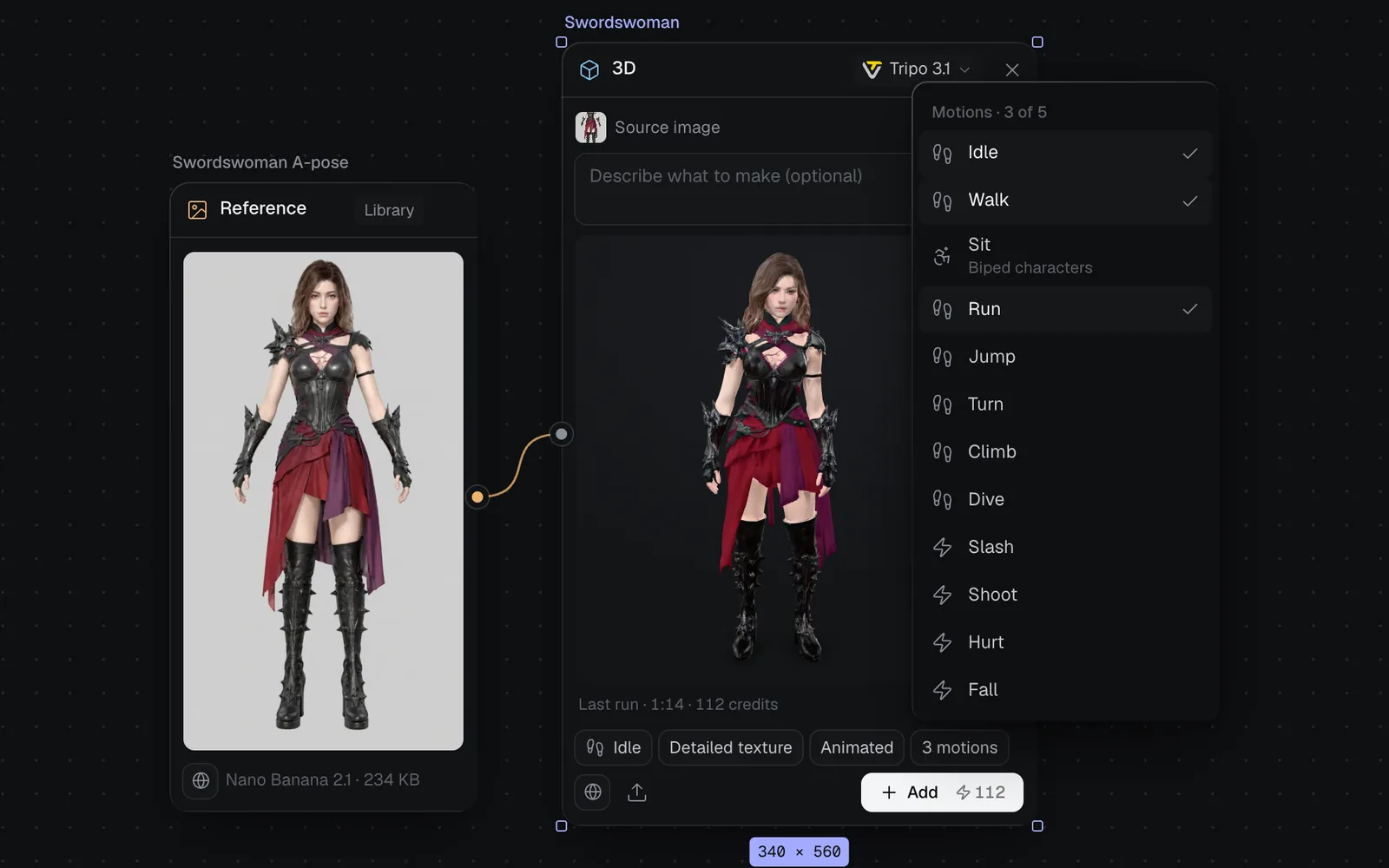
- On Tripo 3.1 and Tripo 2.5, a rigging chip reads No rig, Rigged or Animated. Its menu, Rigging, offers Off ("Just the model"), Rig ("Adds a skeleton") and Rig + animate ("Skeleton and preset motions"). A rig adds 25 credits and each motion 10: the swordswoman above is 57 + 25 + 30 = 112.
- The motions chip (such as 3 motions) opens Motions, where you tick up to five of Tripo's twelve. Sit is for biped characters.
- On a rigged model, the first chip (such as Idle) picks which motion plays on the node.
- To rig or animate a finished model, select its node and use Rig or Animate in the panel's Animation section, each with its price. A new node, wired from it, waits for you: choose its motions (for Animate), then press Generate.
- Before a canvas run starts, Claude Sonnet 5.5 reviews it, and for a picture that won't model well it may offer to redraw it first.
- The upload button on a 3D node (Upload a GLB, or Replace with a GLB file once it has a model) puts your own file in it.
The Game character and 3D asset workflows start you on a canvas already wired from concept art to a rigged model.
Costs, refunds and limits
- A run that shows Failed or Blocked by the provider is refunded in full.
- Tripo and Meshy runs can't be stopped once they've started; the stop button says "This provider cannot cancel a submitted run. It will finish and settle normally."
- Without enough credits, Generate says so: "This run needs 57 credits; you have 30."
- One model per run. For several objects, make each on its own and place them together in your 3D tool.
- On the Free plan, what you make is public in Community; on Starter, Pro and Max it starts private.
What's next
- Image generation: draw a character or product in an A-pose to model from.
- Video generation: bring a picture of your model to life.
- Canvas basics: nodes, links and runs, where models meet everything else.
- Code generation: Three.js scenes, built in code, that you can turn in the browser.