Websites in Fil
Fil makes three kinds of website from a prompt: a Website with pages, a design system and a CMS, a Simple HTML page, or a React app. Compare them and pick one.
Fil makes websites with a Code node on a canvas. Its setting "What it makes", a chip under its prompt, picks one of three kinds: a Website, with pages, the design system they share and the data they show (the default); a Simple HTML page, one self-contained page; or a React app. Every site you make, of any kind, is listed on the Sites page.
Compare the three kinds
| Kind | What you get | Pick it for |
|---|---|---|
| Website | Pages, a design system and data, each its own node, kept in step | A site of several pages, or content you'll keep changing |
| Simple HTML page | One page in one node, everything written into it | A one-off: an invitation, an event, a single landing page |
| React app | A React app in one node: pages, components and data | A site a developer takes on, as a Vite project |
All three are written by the same code models at the same prices, open in the Design tab to edit, and publish at an address of their own.
Website: pages, a design system and data
A Website starts as one page. When it's done, the canvas takes it apart into a page node, a Design system node (its colours, type and components) and a Data node (its content, a small CMS), all linked. Change a colour, a component or an entry once and every page that uses it follows, each as a new version.
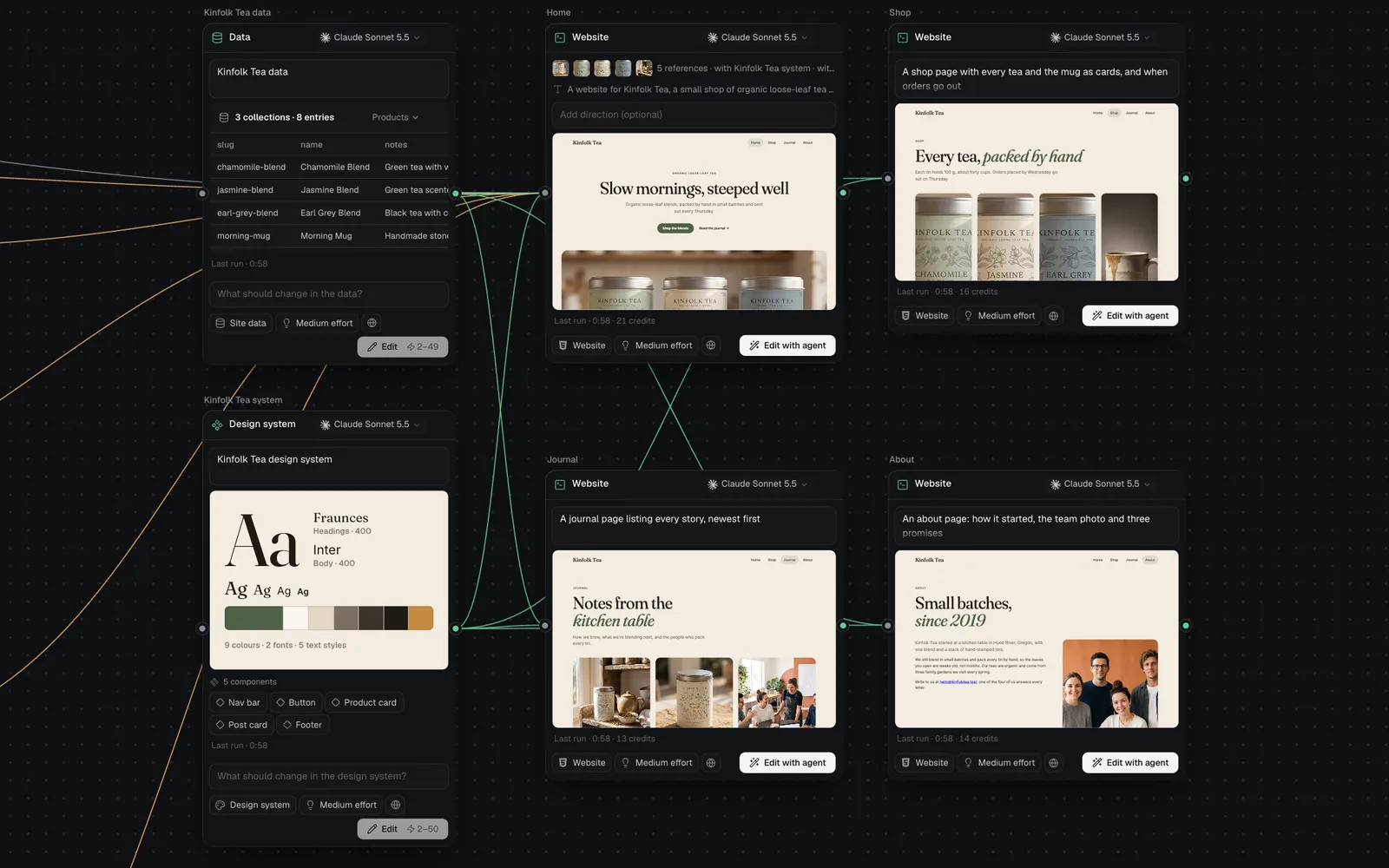
You add pages in the Design tab, and they arrive linked in the site's navigation. See Build a website and Dynamic websites with data.
Simple HTML page: one self-contained page
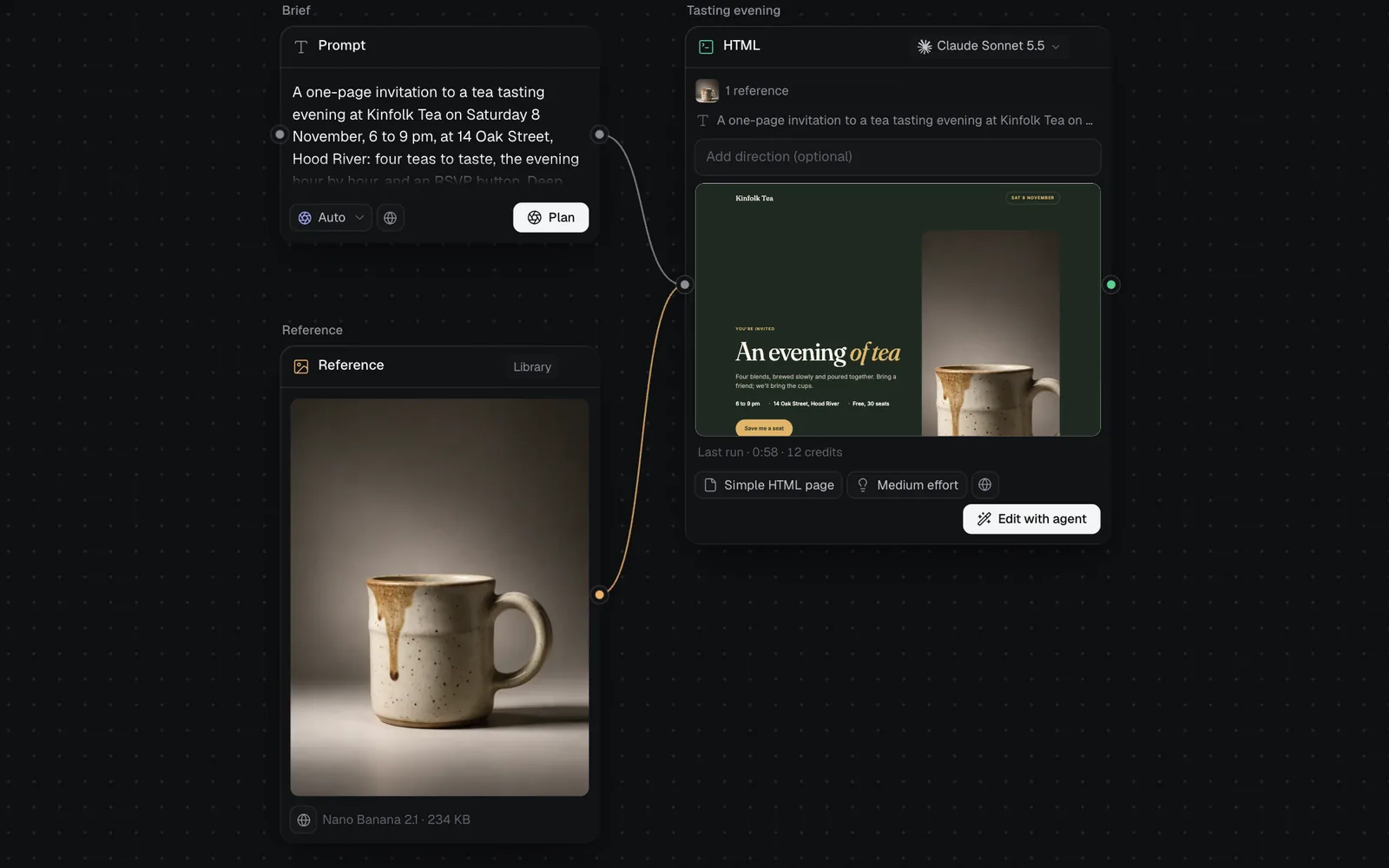
A Simple HTML page is one file: its colours, fonts and words are written into the page itself, with no design system or data beside it. It's the quickest kind, and each run can be another take of the same page. Its node is headed HTML.
See Simple HTML pages.
React app: pages, components and data as code
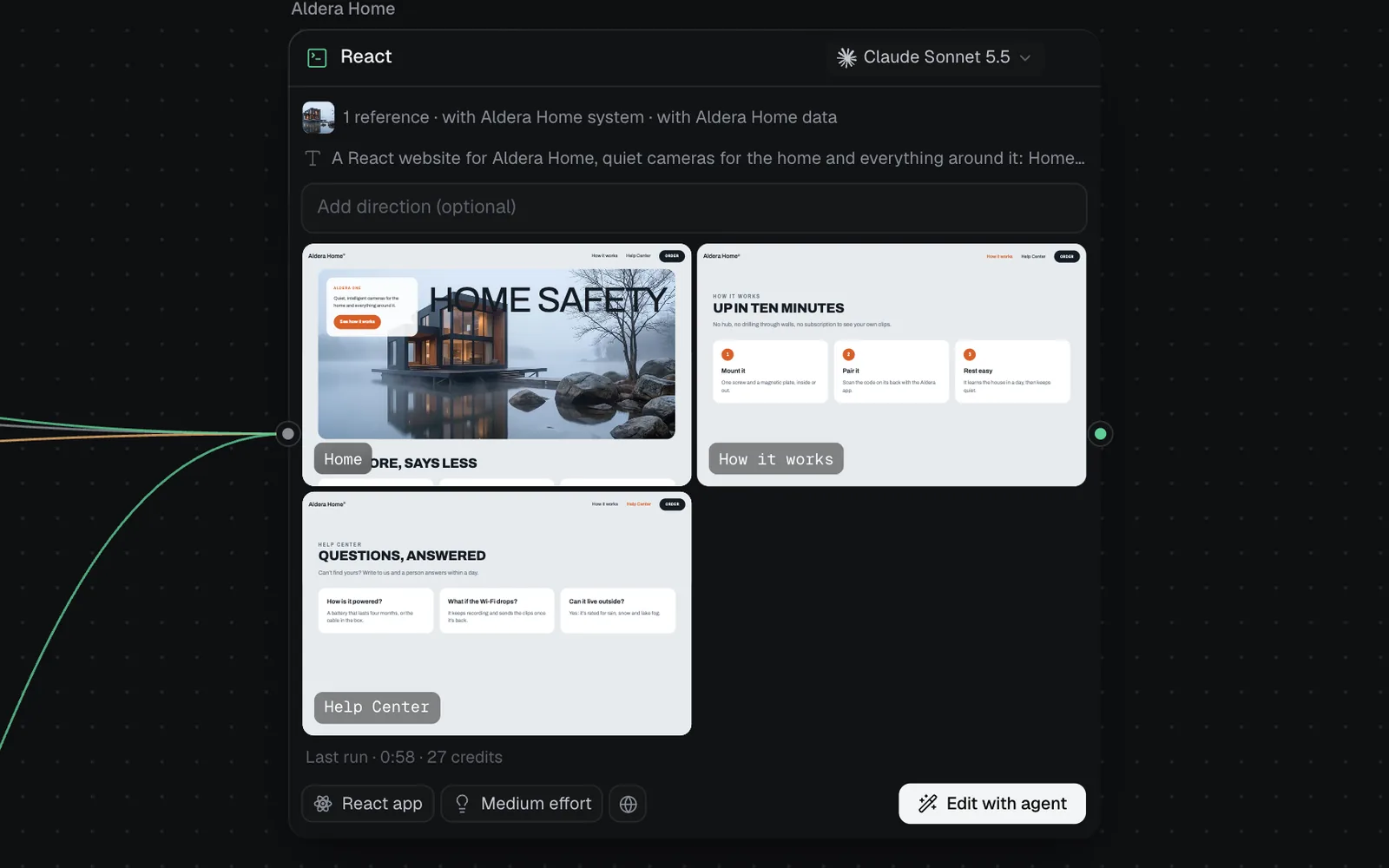
A React app keeps the whole site as React code in one node, headed React: its pages, components, styles and data. The node shows a tile for each page, up to four. Its colours and its content also come off as a design system and a data node, as a Website's do, and it downloads as a Vite project to run with npm install and npm run dev.
See React apps.
Choose the kind for a Code node
- Open a canvas from the sidebar, or click New canvas (the + beside Canvases).
- Add a Code node: click Code in the toolbar at the bottom of the canvas, right-click the canvas and choose Add code, or press 5 on the canvas, outside a text field.
- Click the chip under the node's prompt that reads Website. Its menu, headed What it makes, lists the three kinds first, each with a line on what it's for.
- Pick Website, Simple HTML page or React app. The chip shows your choice, and the empty node says "Your site will appear here", "Your page will appear here" or "Your app will appear here".
- Describe what to make in the prompt box and press Generate.
The same menu lists other formats too, such as HTML component, HTML slides and Brand guide. Those make other things, not websites; see Code generation.
Which one to pick
- Several pages, a shop, a blog or a portfolio: a Website. Its pages share one design system and one set of content, so they stay alike as you edit them.
- Content you'll update often (products, prices, posts, a team): a Website. You change the entries in its data node, not the pages.
- One page for one occasion (an invitation, an event, a single landing page, an interactive demo): a Simple HTML page.
- Code to hand to a developer, or to host yourself: a React app, downloaded as a Vite project.
- Not sure: a Website. It's the default, and a site of one page is still a Website.
Other ways to start a website
- Workflows set up a whole canvas for you: Website with a CMS makes a Website, React website a React app, and Visual explainer a Simple HTML page on Claude Opus 5.5. See How workflows work.
- Templates: the Website group adds a Landing page, Portfolio or Pricing page: a Code node set to Website, with a prompt whose [brackets] you fill in. See Canvas templates.
- In a chat, ask for "a website", "a landing page" or "a portfolio" and the plan makes a Website; "a web page", "one page", "a dashboard" or "a game" makes a Simple HTML page. A chat never plans a React app: pick that kind on a Code node yourself. See Chat and plans.
- A project folder dropped on a canvas: a React project becomes a React app, and any other site with an
index.htmlbecomes a Simple HTML page that runs as it is. See React apps. - Agents connected to Fil can make all three kinds; see MCP tools.
Find your sites
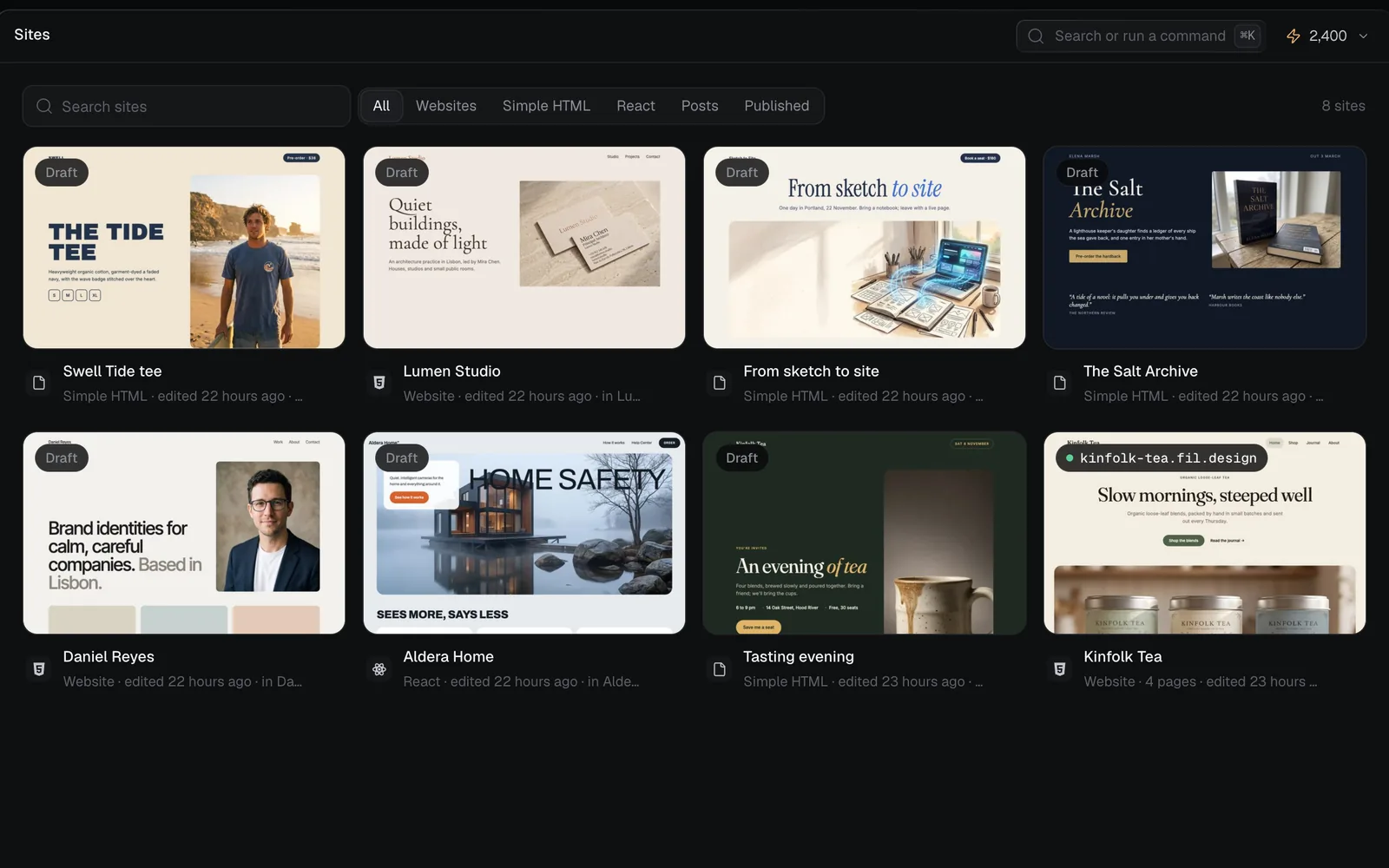
Click Sites in the sidebar. Its tabs, All, Websites, Simple HTML, React, Posts and Published, sort what's there, and Search sites finds one by its name, its canvas or its address. A site shows here once its first page is made; one that's live shows its address, and the others read "Draft" or "Not published".
Click a card to open its home page in the Design tab, or ⌘-click it to open its canvas in a new tab. There's no new-site button on this page: sites are made on canvases. To put one online, see Publish a website.
Costs
A page is priced as a range before it runs, shown beside Generate: the least it's likely to cost and the most. The most is held when it starts, and what the run doesn't use comes back. The model and the effort chip (it reads Medium effort at first) set the range; a long brief, or pages and pictures wired in, raise the most a little.
| Model | Credits a page, Medium effort |
|---|---|
| Claude Sonnet 5.5 (the default) | 5–49 |
| Claude Opus 5.5 | 9–98 |
| GPT-6.1 Sol | 5–49 |
| Gemini 3.8 Flash | 2–19 |
| Claude Haiku 5.5 | 1–3 |
On Claude Sonnet 5.5, Low effort is 5–33 credits, High 5–65 and Max 5–129. Pictures a page asks for are image runs, priced on their own (7 credits each on Nano Banana 2.1 at 2K). Editing a design system or data with AI is priced the same way; typing in the data, adding blank pages and downloading are free.
What's next
- Build a website: from a brief to a site of several pages, then publish it.
- Simple HTML pages: one page, made and edited quickly.
- Dynamic websites with data: change products, posts and prices without touching the design.
- Publish a website: put any of the three online at its own address.