Edit with the agent
Describe a change and the Design tab's agent edits the page's code with Claude or Gemini, makes new pictures for it, and saves a version you can undo.
The agent edits a page for you. Describe what should change, such as a new section, a different layout or new pictures, and it changes only the parts of the page's code that need it, in the page's own styles. It shows the price before it runs, and each edit is a new version you can undo or restore.
Ask the agent for a change
- Open the page in the Design tab and click Agent at the top of the right panel. (On the canvas, Edit with agent on a page's node opens it here.)
- To change one part, select it on the page first: its name shows as a chip above the box, and the agent works on it. Click the chip's ✕ to ask about the whole page instead.
- Describe the change in the box, such as "Add a How to brew section after the teas, with three short steps".
- Check the model and effort under the box, then click Edit or press ⌘Enter. Your unsaved changes save first.
- The agent works out whether it needs pictures, then asks in the thread: "Edit this page with Claude Sonnet 5.5?", with the price. Click Edit page (Enter) to run it, or Cancel (Esc); cancelling here spends nothing.
- While it works, the page is locked, and the thread shows each step as it goes with a timer.
- When it's done, the new version takes the page's place and the layers it changed flash for a moment.
Review what the agent changed
The finished request stays in the thread, with what the agent says it did:
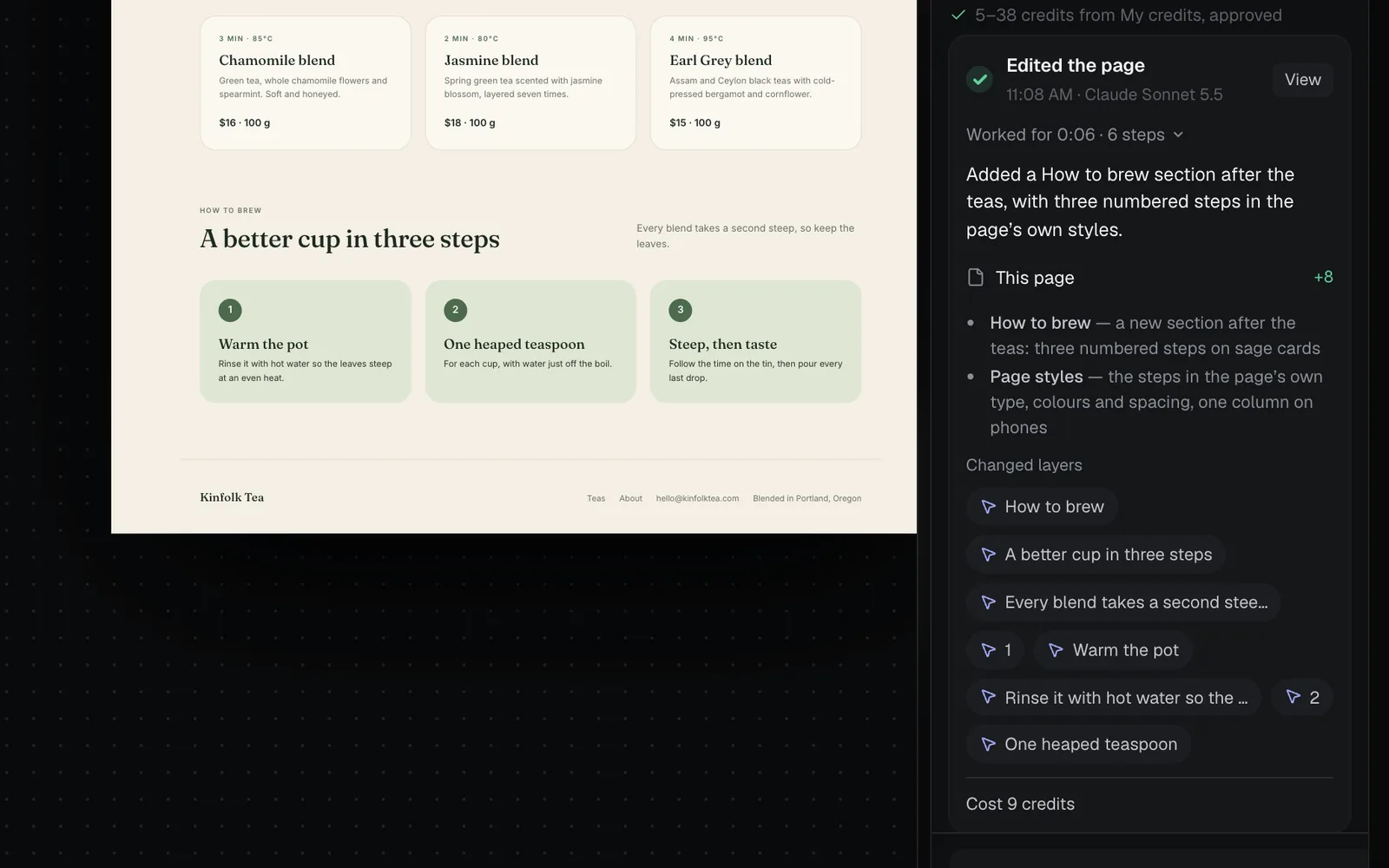
- Worked for and the number of steps; click it to see each step.
- A summary in the agent's words, and a note for each part it changed, with the lines added and removed.
- Changed layers: click one to select it on the page.
- What it cost, once it settles.
- View opens that version in the version history.
Undo or restore an edit
An edit is one step to undo: press ⌘Z (or Undo in the top bar) right after it, and the page is as it was. Later on, open Version history: each edit is a row reading AI edit with its model and your request, and you can look at any version and Restore this version. Restoring saves a new version, so nothing is lost. See The Design tab.
Make pictures and videos for the page
Ask for new pictures in the same box: "a new picture of the tin on a kitchen shelf", "new photos for the three cards", or "a short video for the hero". The agent plans each one, asks once for all of it, and puts each in its place when it's made.
- To replace a picture, select it on the page first. To add new spots, describe where they go.
- Ask, and click Edit. The thread asks once, listing The edit (when the page's code changes too) and each picture or video with its model, what it will show, and its price.
- Click Make picture, Make them or Edit page.
- Each picture shows "… is making it" in the thread and on the page, and goes in when it's made. A picture that only replaces one already there goes straight in, with no code edit to wait for.
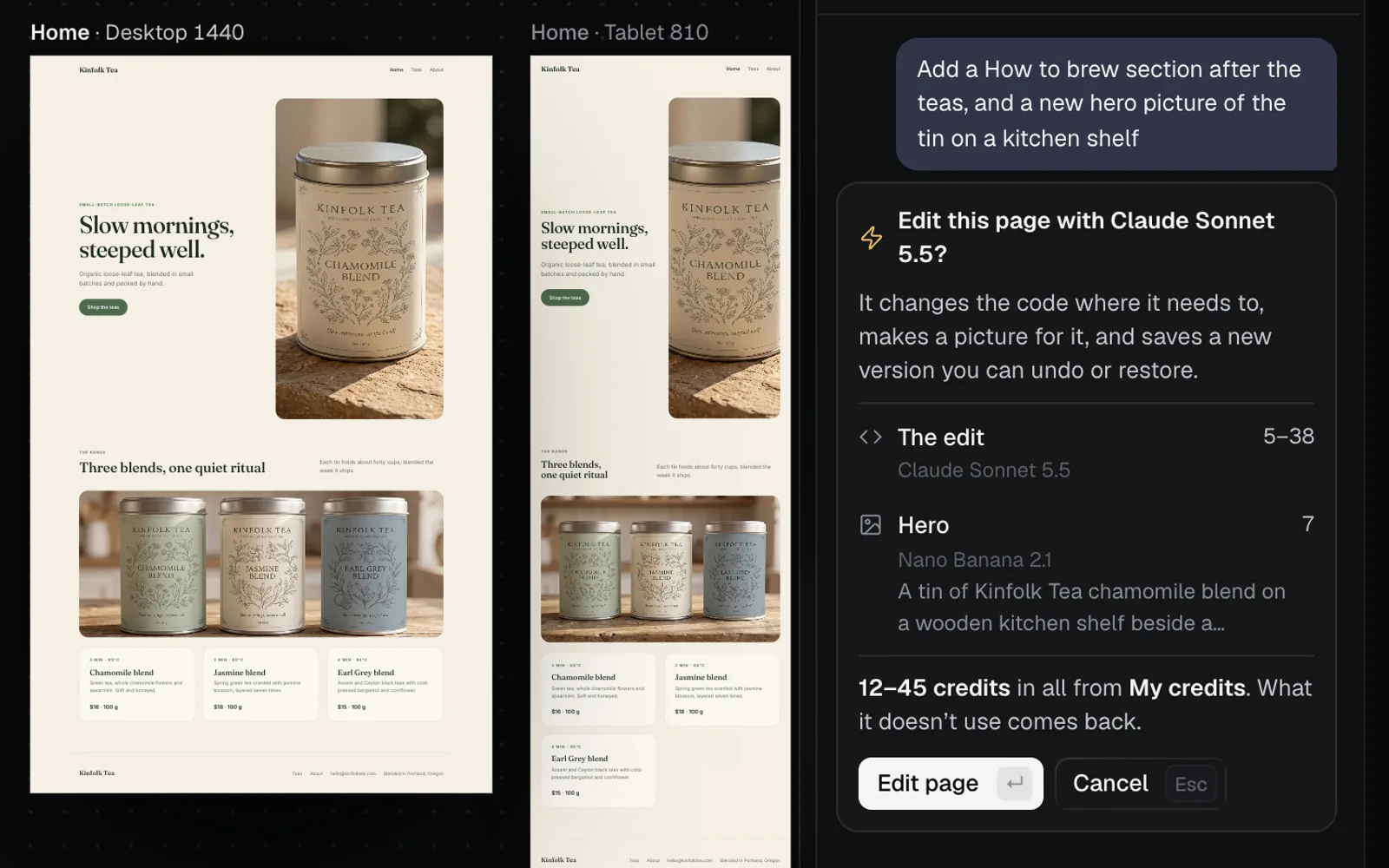
- Pictures use the image model you used last, anywhere in Fil (Nano Banana 2.1 if you haven't made one). A cutout stays transparent on GPT Image 2.5 Flare.
- Videos are made only when you ask for one, on the video model you used last.
- Each picture and video also lands on the canvas beside the page, as its own node.
- A picture still being made goes into the page only while the page is open in Design. If you close it first, it arrives on the canvas instead.
Remake one picture with Regenerate
To make a new version of one picture without the agent, select it and click Regenerate… in its Image section.
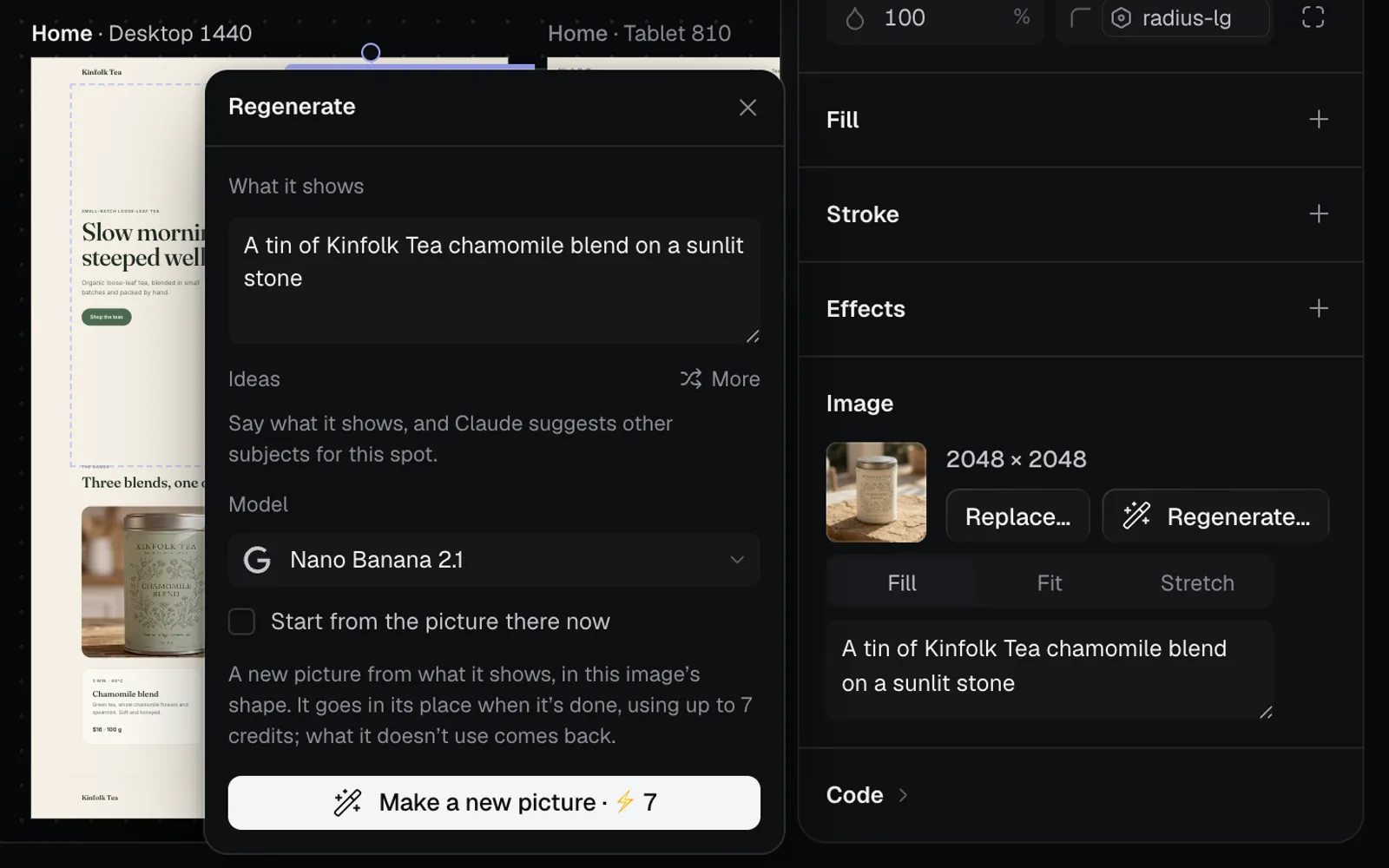
- What it shows starts with the picture's alt text. Change it, or click one of the Ideas Claude suggests for the spot (More for others; ideas are free).
- Pick a Model. Start from the picture there now redraws the current picture as described, on models that take one.
- Click Make a new picture. Its price is on the button, and the new picture goes in when it's made, in the same shape. ⌘Z brings the old one back.
Models and effort
The model menu under the box lists the models that can edit a page; it starts on Claude Sonnet 5.5 and remembers your pick. Effort sets how much it thinks: Quick for small, exact changes (the default), Balanced for a few connected changes, Thorough for bigger changes across the page.
Which to pick:
- Most requests: Claude Sonnet 5.5 at Quick.
- A new section or a rework of the layout: Balanced, or Claude Opus 5.5.
- The hardest pages: Claude Fable 5.1, Anthropic's most capable model; slower and the most expensive.
- Small fixes to text or colour, for a credit or two: Claude Haiku 5.5 or Gemini 3.8 Flash.
What an edit of the Kinfolk Tea home page costs, by model and effort:
| Model | Quick | Thorough |
|---|---|---|
| Claude Sonnet 5.5 | 5–38 | 5–70 |
| Claude Opus 5.5 | 9–75 | 9–139 |
| Claude Fable 5.1 | 23–188 | 23–348 |
| Claude Haiku 5.5 | 1–2 | 1–4 |
| Gemini 3.8 Flash | 2–15 | 2–27 |
Balanced sits between the two (5–54 on Claude Sonnet 5.5).
What an edit costs
- The range grows with the page's size and your request's length; effort and model raise the top of it.
- Working out which pictures a request needs, and Regenerate's ideas, are free.
- Pictures and videos cost their model's price, shown beside each: 7 credits for a Nano Banana 2.1 picture at 2K.
- An edit that fails, or a picture held back by the model's safety check, is refunded.
- The agent is on every plan. Credits come from My credits, or Team credits on a team's canvas. On Free, what it makes is public; on Starter, Pro and Max it follows the page's node (the lock or globe beside Edit). See Credits and plans.
Tips and limits
- The agent edits this page's own code. To change a colour or a font on every page, change the design system; to change a nav bar or card everywhere, edit its main component.
- It reads the page as last saved, which is why it saves your changes first. It also reads your last three requests, so "make it shorter" follows on from the one before.
- A request can be up to 4,000 characters.
- Once an edit has started it can't be stopped: Claude and Gemini runs finish and settle as usual (the Cancel over the page says so). Undo the edit afterwards if you don't want it.
- If the page changed some other way while the agent worked, its edit is kept as a separate version: open it from the version history.
- The agent is for pages opened from their canvas. A React app has its own agent beside its code: see React apps.
What's next
- The Design tab: fine-tune what the agent made, layer by layer.
- Image generation: the image models the agent's pictures use.
- Components: reusable parts the agent's sections can use.
- Publish a website: put the edited site online.