Product promo video
Make an AI product promo video from one photo: hero and detail stills, five-second clips that move around your product, an end card and a 15-second score.
The Product promo video workflow turns one photo of your product into the pieces of a short launch film, ad or social clip: three stills, two five-second clips, an end card and a score to cut together. Its skill holds the craft of a product film: every still copies your product onto one set from your brief, each clip makes one slow camera move with the light doing the moving, and the end card carries your line and nothing else.
- Makes
- 7 things in 3 steps: image, video, sound
- Takes
- About 8 minutes
- Files to drop in
- 2: Product photo (needed), Logo (optional)
- To make it all
- About 180–210 credits
What you'll make
A hero still, a detail still and an in-use still, a five-second clip from each of the first two, an end card and a 15-second soundtrack, all wide (16:9) or all tall (9:16). These were made in Fil with this workflow:
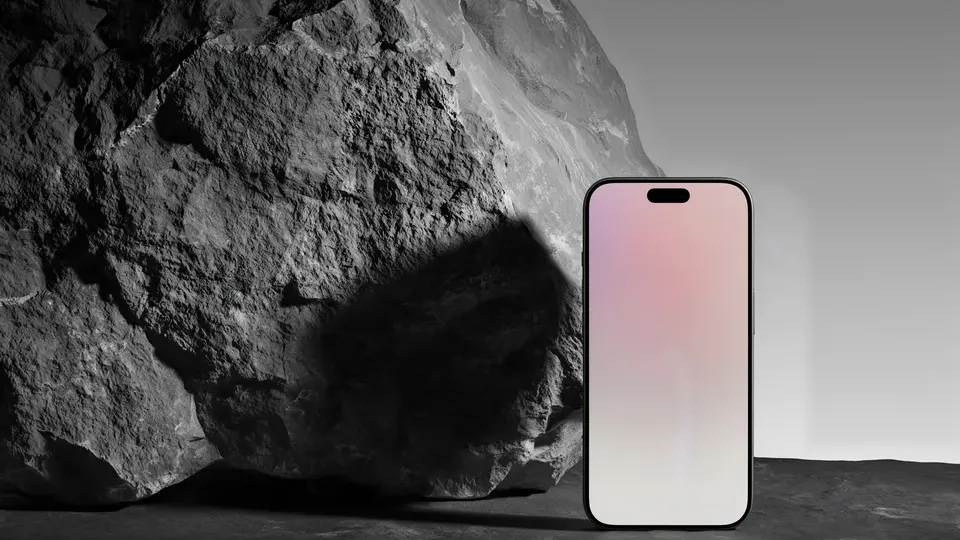
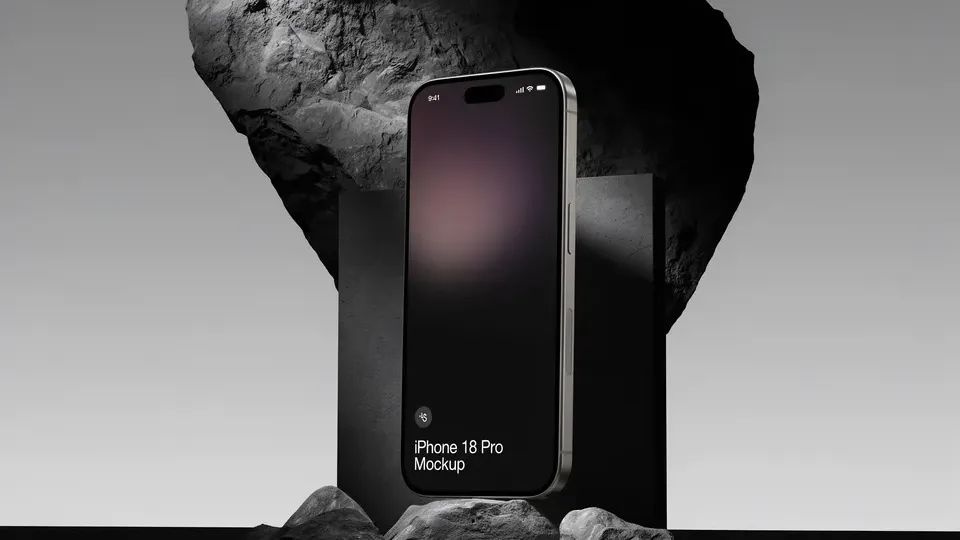
Also made when you run it: In use, Detail clip, End card, Soundtrack.
Before you start
- Product photo (needed): one clear photo of your product on a plain background. Every still copies the product from it: its shape, colours, logo and screen.
- Logo (optional): your logo for the end card, ideally a PNG or SVG. Without one, the end card sets the product's name in clean type; it never makes up a logo.
- Brief.md: the product, the one thing to show (the feature or feeling that sells it), who it's for, the look of the set, and the end card's line in five words or fewer. Claude writes it from your idea and answers.
Decide where the film will be seen: wide (16:9) for your site and YouTube, or tall (9:16) for Reels and TikTok. The start asks, unless your idea already says.
Make a product promo video, step by step
Start it from your idea
- Click Workflows in the sidebar, then the Video filter. Click Product promo video to open its page.
- Click Start this workflow. A new canvas opens at once, and the start card, "Let’s make your product promo video", glows over the canvas and asks what the product is, who it's for and what people should feel.
- Describe the film in a sentence, such as "A launch film for Aria, our new phone: calm and premium, on dark stone in soft light". As you type, the canvas builds itself beside the card.
- Click the Product photo tile under the box and pick your photo in "Your image for Product photo", or click Upload there. Add your logo on the Logo tile the same way if you have one. Press Continue.
- Claude asks a few quick choices, such as the one thing to show and who it's for, then Where will it be seen?: Wide, for web and YouTube or Tall, for Reels and TikTok. The first answer to each is tagged Suggested; pick Say it your way to write your own. Below them, Claude may offer to add your logo (Add logo?), which you can skip. Press Fill in my canvas.
- Claude writes Brief.md, the in-use still's scene, each clip's camera move and the score's instruments, and the Ready to make it step opens. If you skipped the photo, it says Product photo is still empty, with Add product photo and Generate without it: without a photo, the stills make a product up from the brief.
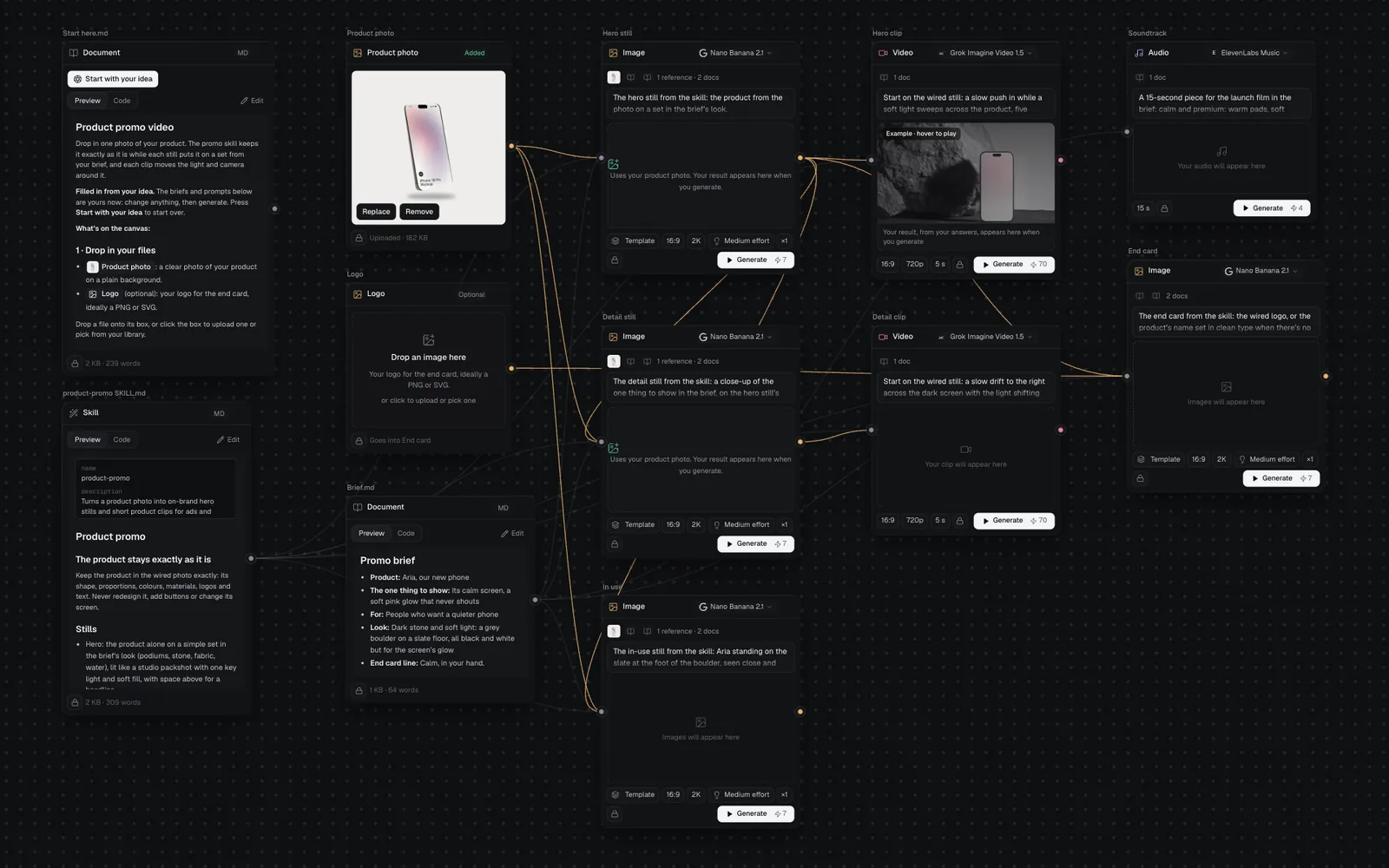
The canvas lays the film out left to right: your photo, the logo, the brief and the skill, then the three stills, then the two clips, the end card and the soundtrack. Each clip sits beside the still it starts from. Drag any node by its name to rearrange it.
Generate all and follow it in the chat
- The Ready to make it step lists the seven things it makes in three numbered steps, with a note that every picture and clip is wide (16:9) or tall (9:16): check it before you go on. Press Generate all 7.
- The canvas chat opens on the left and follows the run. Hero still and Soundtrack start first.
- Once the hero still is made, Detail still, In use, Hero clip and End card start from it. Detail clip comes last, from the detail still.
- Claude checks each still as it's made against the brief and your photo, and mends or remakes one where the product changed. In the chat each step shows its picture, and each still what the check said. Look them over yourself too: check each still's product, its colours and its screen against your photo.
- The run ends with "Made 7 of 7", how long it took and what it cost. Hover a clip on the canvas to play it. To watch it full size, double-click it, or point at it and click its expand icon (View full size).
While it runs, write in the chat to steer it ("make the light warmer in the clips"): Claude changes the prompts of the steps still to come, for free. Making a step again shows its price and waits for you to press Make again. See Chat with Claude.
Cut the film in the video editor
The workflow makes the pieces; you put them together in Fil's video editor:
- Select Hero clip, Detail clip, End card and Soundtrack: click the first node's name, then hold ⇧ and click the others. The panel on the right reads "4 nodes".
- Click Add to video editor in that panel. On a canvas that already has a video edit, a menu asks where to add them: pick New video edit.
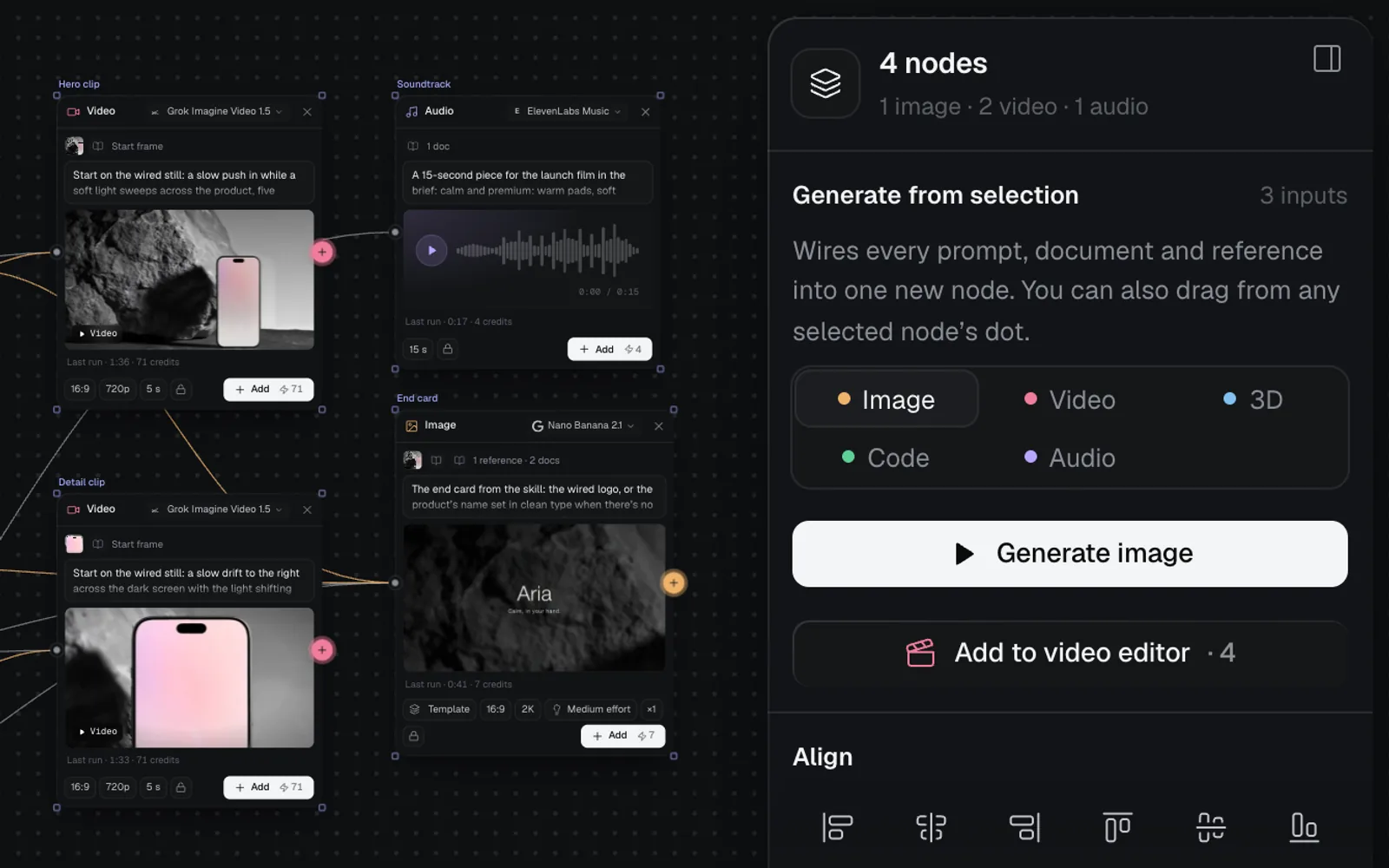
The editor opens with the two clips one after the other, the end card after them and the soundtrack under all three: a 13-second film.
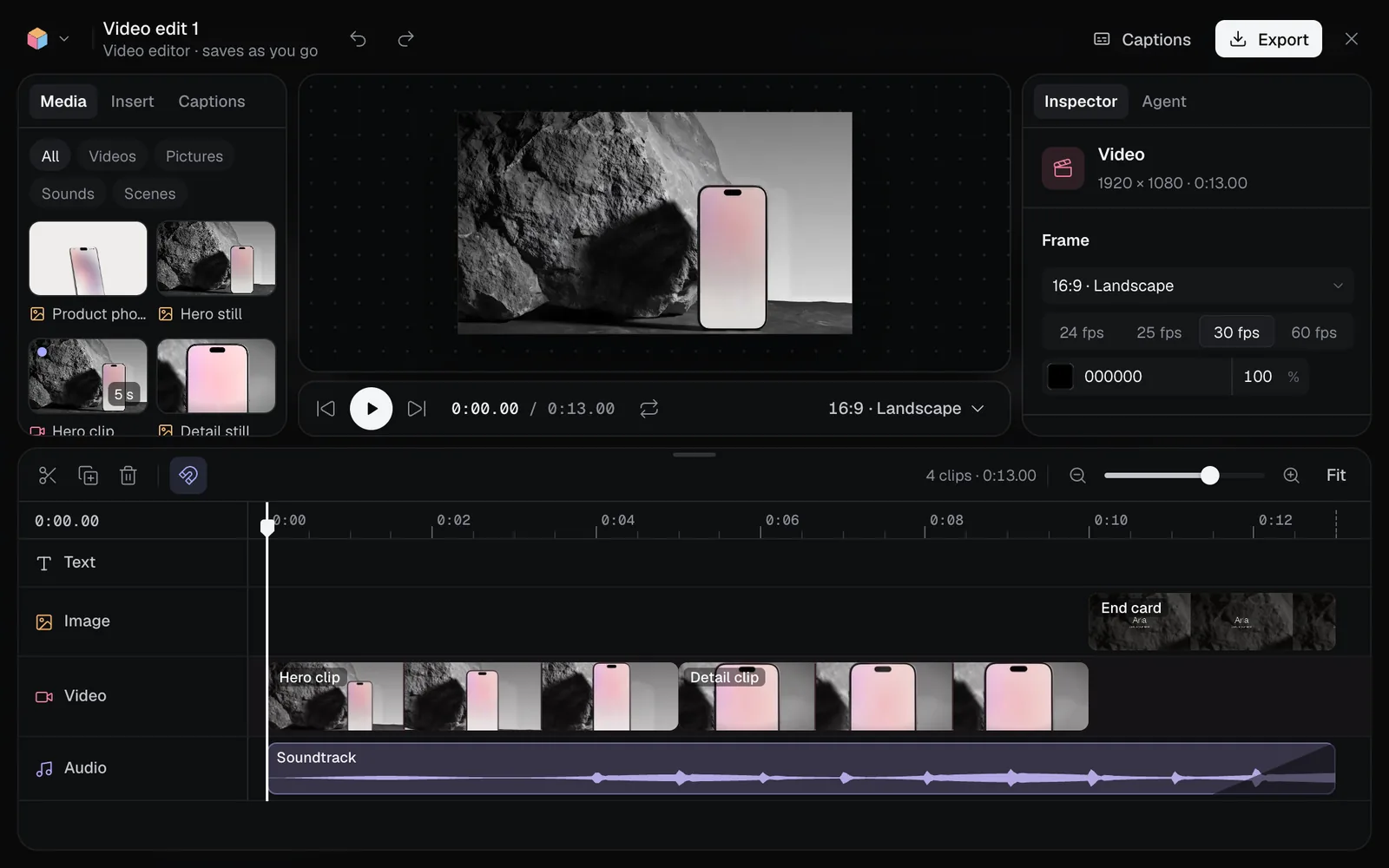
- Each clip comes with its own sound, since Grok Imagine Video 1.5 makes clips with audio, and it plays under the score. To hear only the score, point at the Video lane's name and click its speaker icon (Mute), or select a clip and tick Muted under Sound in the inspector.
- Trim, reorder or add words over the clips, then press Export for an MP4. See Make a video edit and Export and render videos.
- For posts and pages, download the stills one at a time: double-click one on the canvas to open it full size, then click Download.
The steps it runs
| Step | What it makes | Model and settings | Reads |
|---|---|---|---|
| Hero still | The product alone on the set, lit like a packshot, with room above for a headline | Nano Banana 2.1, 16:9, 2K | Product photo, Brief.md, skill |
| Detail still | A close-up of the one thing to show, on the hero set | Nano Banana 2.1, 16:9, 2K | Hero still, Product photo, Brief.md, skill |
| In use | The product in its world, in the hero still's light | Nano Banana 2.1, 16:9, 2K | Hero still, Product photo, Brief.md, skill |
| Hero clip | Five seconds from the hero still: one slow move, light sweeping across, with sound | Grok Imagine Video 1.5, 720p, 5 s | Hero still, skill |
| Detail clip | Five seconds from the detail still, one slow move | Grok Imagine Video 1.5, 720p, 5 s | Detail still, skill |
| End card | Your logo, or the name in clean type, and the end line on the hero set | Nano Banana 2.1, 16:9, 2K | Hero still, Logo, Brief.md, skill |
| Soundtrack | A 15-second piece: quiet at the start, a lift for the hero clip, a soft end | ElevenLabs Music, 15 seconds | Brief.md |
The table shows the wide shape; if you picked tall, every picture and clip is 9:16. Each clip uses its still as its Start frame, so it opens on it: in the editor above, the Detail clip opens on the detail still's close-up of the screen. The In use still is for posts and pages; it isn't in the film.
Make it yours
- The look: change Look in Brief.md (dark stone and hard light, pastel podiums, water and glass) and generate again. Every still follows it.
- Shape: wide 16:9 or tall 9:16, picked in the start, or change any node's aspect ratio chip on the canvas.
- Camera moves: each clip's prompt says its move, such as "a slow push in" or "a slow 20° orbit". Change it there, then press Generate on the clip.
- Music: the Soundtrack prompt names its instruments (the template suggests warm pads, soft piano and a slow pulse). Rewrite it and press Generate; see Voiceovers, sound and music.
- Another video model: each clip's model menu switches it; see Video generation for the others and their prices.
- The skill: product-promo SKILL.md holds the rules for the stills, the clips and the end card. Edit it and every node wired to it follows.
Product promo video time and cost
From your idea to the finished pieces takes about 8 minutes; Generate all runs for about four of them, most of it the two clips. It costs about 180–210 credits, as the workflow's page rounds it; the Ready step shows 174–202:
| Step | Credits |
|---|---|
| Hero clip, Detail clip | 71 each |
| Hero still, Detail still, In use, End card | 7–14 each |
| Soundtrack | 4 |
A five-second clip on Grok Imagine Video 1.5 costs 71 credits at 720p, 41 at 480p and 126 at 1080p; its node shows 70 until its still is made, since the still it starts from adds a credit. For test runs, switch the clips to Grok Imagine Video 1.5 Lite (18 at 720p, 10 at 480p) in each clip's model menu. A still costs 7, or up to 14 if Claude's check has it mended or made again.
Tips
- Use a photo of the product alone, sharp and evenly lit. The stills copy it, glare and stickers included.
- Name one thing to show, not three. The detail still and its clip are built around it.
- Keep each clip to one move. Two moves in five seconds reads as a jump.
- Keep words out of the stills and clips: add titles over them in the video editor, where you can change them. Only the end card carries your line.
- Look over every still and clip before you cut. The examples above show what to catch: the detail still is a different phone, titanium with a dark screen and words on it, and not a close-up, and the hero clip writes "Introducing" into the room left for a headline. Press Add on the node for another take (7 credits for a still, 71 for a clip).
Related
- Product photoshoot: the same photo as a studio shot, a second angle, a close-up and a colourway.
- UGC video ad: a creator talking to the camera with your product, like a real review.
- Social campaign: one product photo as three posters and a post for each platform.
- Video editor: trim the clips, add titles and export.
- How workflows work: the gallery, the quick choices and the run in the chat for every workflow.