Design systems
Keep a site's colours, fonts, text styles and spacing in one design system. Change a variable once and every page follows; import or export tokens.
A design system holds what a site's pages share: its colours, fonts, text styles, spacing, corner radii and shadows, as variables, and its components. Each page uses the variables instead of fixed values, so when you change one, every page that uses it changes too. A website Fil makes gets one on its own, as its own node on the canvas.
What a design system holds
When you make a website, Fil takes its first page apart into the page, the site's data and its design system, each its own node wired into the pages. In the Design tab, the system shows in three places: as a card beside the pages on the stage, in the Assets tab on the left, and in the inspector when nothing is selected.
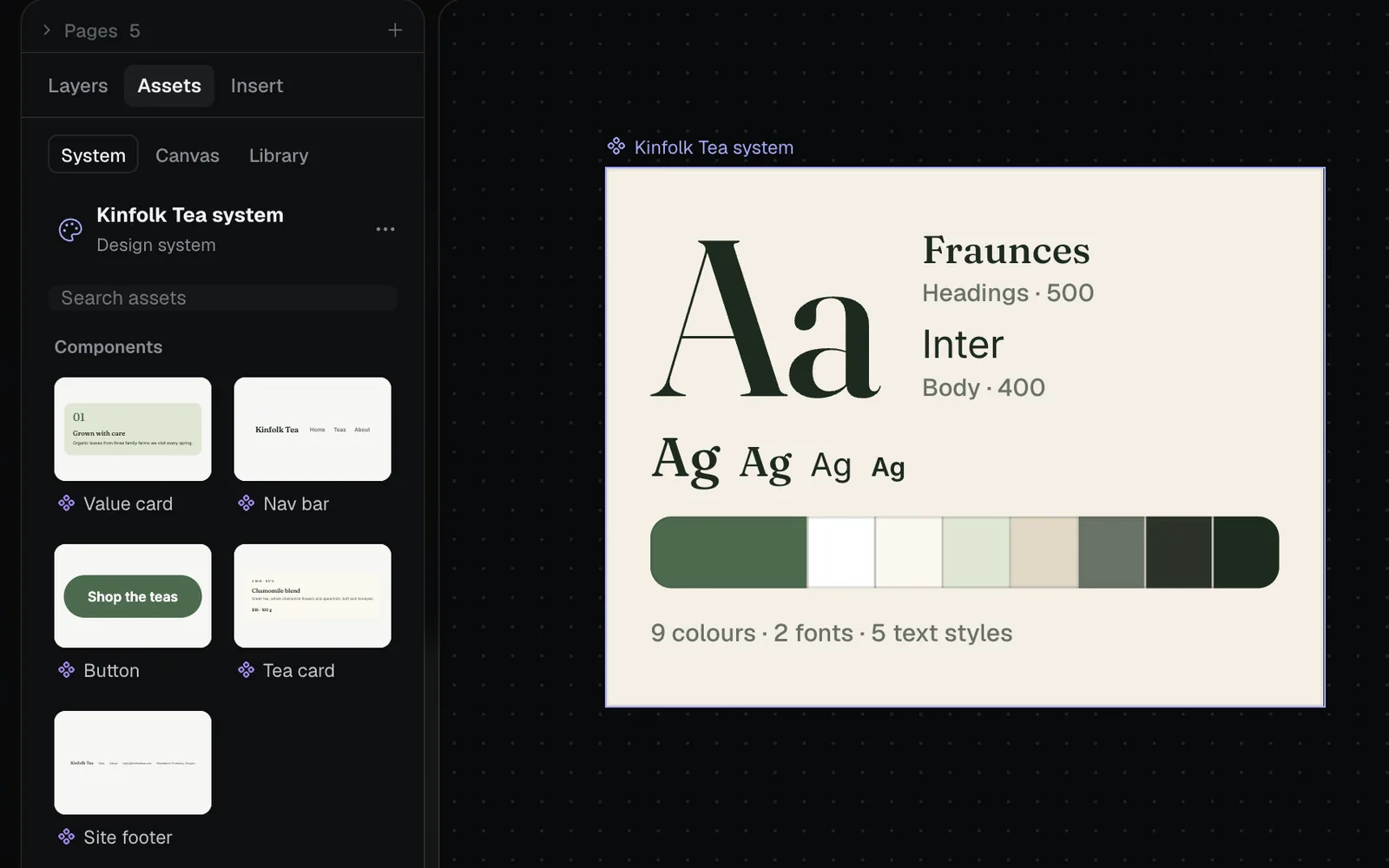
| Kind | What it is | Example |
|---|---|---|
| Colours | Named colours, each with a description | color-accent, "Buttons and links" |
| Fonts | The heading and body typefaces | Fraunces, Inter |
| Text styles | A font, weight, size, line height and letter spacing together | Display, H2, Body, Label |
| Spacing | Steps for padding and gaps | space-4 is 16px |
| Radius | Corner rounding | radius-lg is 28px |
| Shadows | Drop shadows for cards and buttons | shadow-card |
| Components | Parts used on many pages | Nav bar, Button, Tea card |
Components have a page of their own: Components.
Change a colour on every page
- Open any page of the site in the Design tab and click an empty part of the stage, so nothing is selected.
- In the inspector on the right, scroll to Colours. Its note says the colours come from the site's system and that its other pages follow.
- Click a colour's code, type a new one (here B4532A for the accent) and press Enter. Or click its swatch for the colour picker.
- Everything on this page that uses the colour changes at once: here the Shop the teas button and the labels on each tea card.
- When the page saves, a moment later or now with ⌘S, the new value goes into the design system, and the site's other pages update to it, each as a new version. The message says so: "Kinfolk Tea system has the new variable, and 2 other pages updated."
Spacing and radius values change the same way, in their sections below Colours.
Edit text styles and fonts
With nothing selected, Text styles in the inspector lists the site's fonts (Headings, Body) and its text styles, each with a sample. Click a style to edit it:
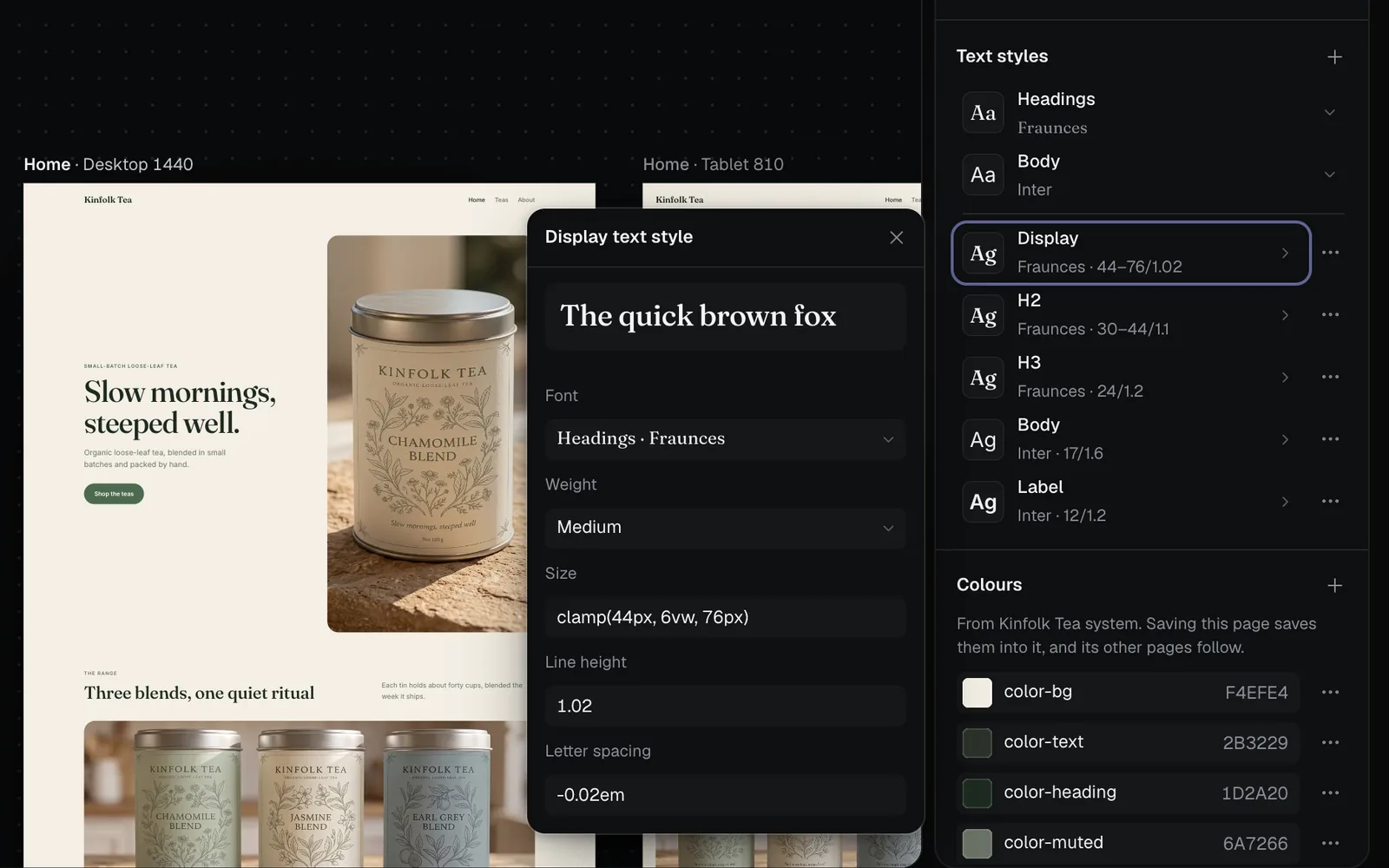
| Field | What it sets |
|---|---|
| Font | One of the page's fonts, or Another font… |
| Weight | Thin to Black |
| Size | A size in px or rem, or a range that grows with the window (clamp) |
| Line height | 1.2 is 1.2 times the size; 28 is 28 px |
| Letter spacing | Tighter or looser, in em or px |
Every text that uses the style changes with it, on every page. + adds a text style, and a style's ⋯ menu has Edit…, Rename and Delete.
Use a variable on a layer
Select a layer, then:
- Colours: in the colour picker, the swatches under Page colours are the site's colours. A colour set this way shows its variable's name on the field.
- Spacing, gaps, radius and font size: a field that takes a variable shows a small variable button when you point at it. Click it for the list, or click the variable's name on a field that has one.
- Text styles: the Text style menu at the top of the inspector's Text section, with Edit this text style… and Detach text style.
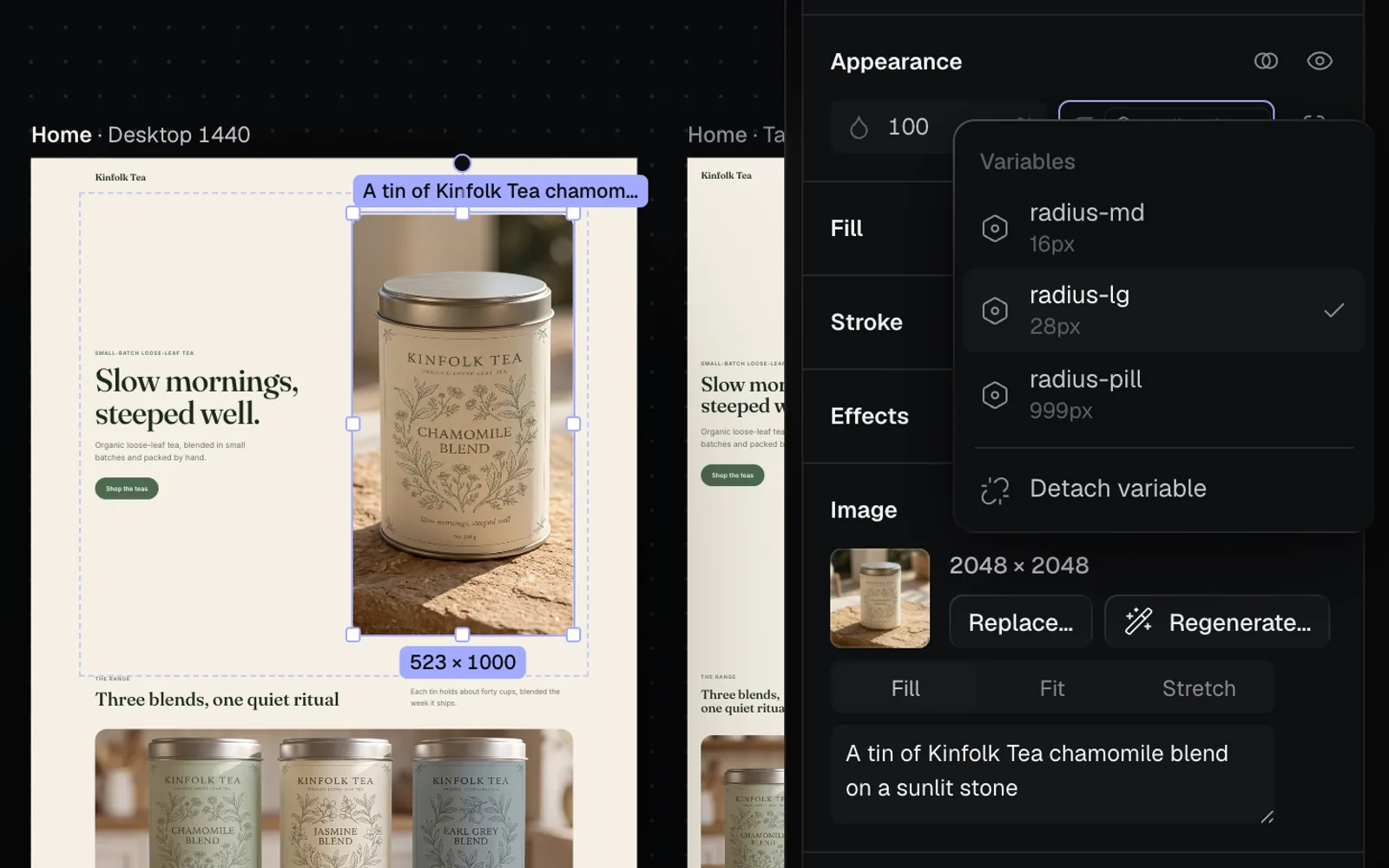
Detach variable turns the field back into a plain value of its own. A colour picked by hand in the colour picker is the layer's own too; Edit variable in the picker changes the variable instead, everywhere.
Add, rename and delete variables
- + beside Colours, Spacing, Radius or Text styles (in the inspector or in Assets) adds one and asks for its name. A name is letters, numbers and dashes.
- A variable's ⋯ menu has Rename (everything that uses it follows), Copy variable and Delete; in Assets, Add a description too.
- Deleting a variable that's in use asks first: the places that use it keep its value, and stop following a variable.
- A page with colours or fonts written as plain values shows Make variables, which turns them into variables in one step.
Add dark mode colours
Each colour can have a second value for screens set to dark mode. In Assets › Colours, click the moon (Add dark mode) to show a Dark column beside Light, then set each colour's dark value. In the inspector, a colour's ⋯ menu has Dark mode colour… for one at a time. The page switches by itself when a visitor's screen is dark.
Edit the design system itself
The system is a page of its own, laid out as a style guide: every colour, type style and token, and each component. Open it from Pages (its name, with the component icon), from the system's name at the top of Assets, by double-clicking its card on the stage, or with Open Kinfolk Tea system when the card is selected.
- Change its variables in the inspector or in Assets, and its components on the page (see Components).
- While it has unsaved changes, any page of the site you open shows them, with a bar saying Showing unsaved changes to … and a Save system button.
- Save and update all pages, in the ⋯ menu at the top of Assets, saves the system and brings every page it feeds up to date, each as a new version. On its own it saves at most once a minute while you keep working.
A page that's open in Design takes the change by itself as soon as you stop typing or dragging. If it can't, Assets shows Design system updated with Update this page's tokens.
Give a page a design system
Pages made as a Website get a system when they're made. A Simple HTML page, or a page brought in from elsewhere, starts with none, and Assets says what it has:
- This page · Its own variables: the page declares its own colours and fonts. Open the ⋯ menu and choose Share as a design system… to turn them into a design system node on the canvas, which other pages can use too.
- No design system yet: choose Make one from this page (free; it needs colours or fonts written as variables, so use Make variables first), Import…, or Make one with AI…, where Claude Sonnet 5.5 reads the page and writes its tokens and components after showing the price.
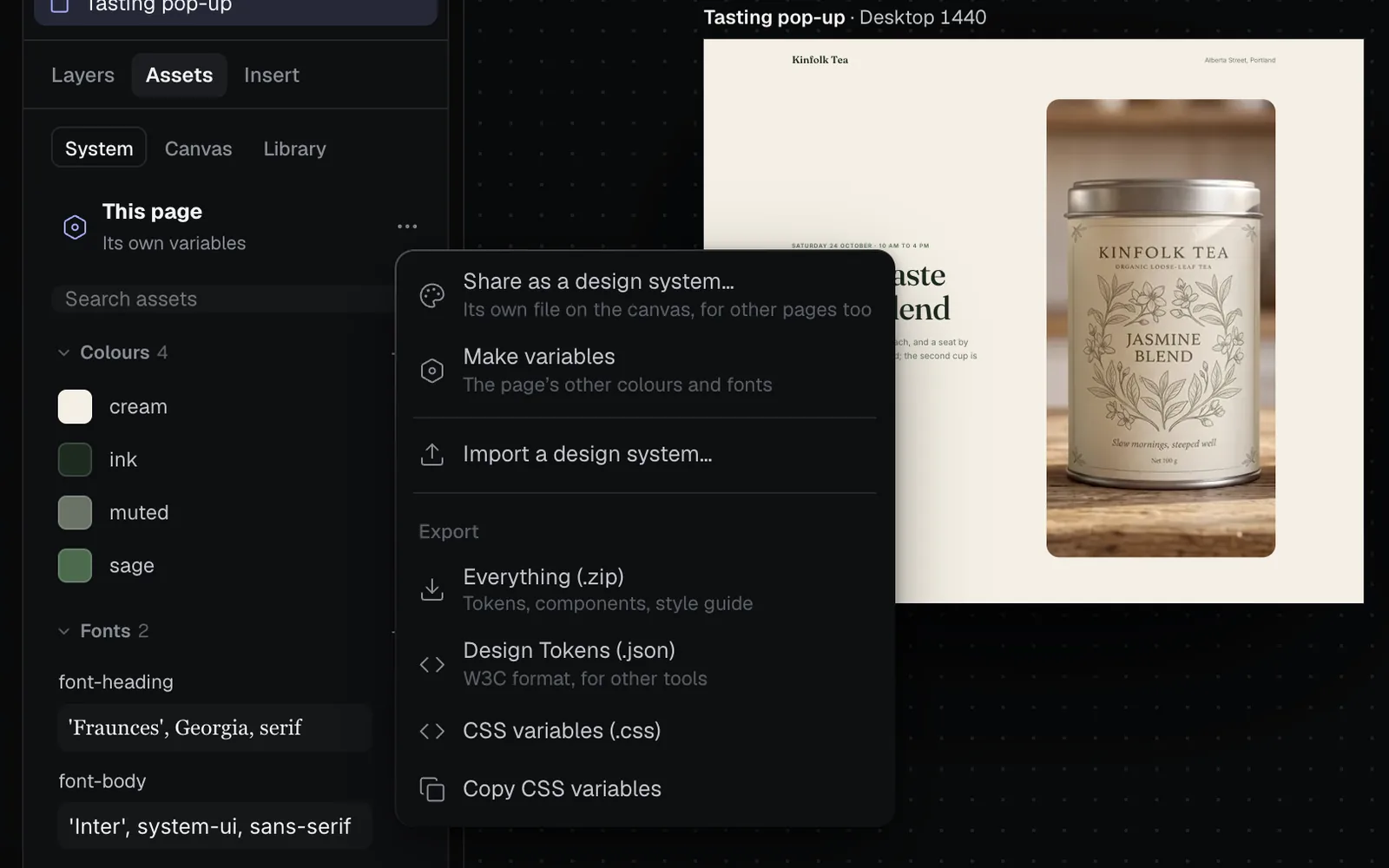
To switch a page to another site's system, wire that design system's node into the page on the canvas in place of the old one. In Design, Assets then offers Use … to bring its tokens into the page.
Import and export design tokens
The ⋯ menu at the top of Assets imports and exports:
| Choice | What you get |
|---|---|
| Everything (.zip) | Tokens, components and the style guide |
| Design Tokens (.json) | The W3C format, for Figma plugins and other tools |
| CSS variables (.css) | A stylesheet of the variables |
| Copy CSS variables | The same, on your clipboard |
Import into this system… (or Import a design system… on a page without one) takes Fil zips, W3C Design Tokens and Tokens Studio JSON, and CSS variables.
Costs and limits
- Changing, saving, sharing, importing and exporting a design system is free, and so is Make one from this page.
- Make one with AI… runs Claude Sonnet 5.5 at medium effort and asks first with its price (up to about 50 credits; what it doesn't use comes back). It reads the page as last saved.
- Pages that have unsaved changes of their own aren't updated by a save of the system; they take its changes when you next open them.
- Dark mode values, descriptions and new text styles need a design system (or a page's own variables block) to live in.
What's next
- Components: the nav bars, buttons and cards a design system shares.
- The Design tab: select, restyle and lay out anything on a page.
- Edit with the agent: ask for a change across the page, in its own styles.
- Build a website: make a site with pages, a design system and data.