The sidebar and menus
Find your way around Fil: every sidebar row and what it opens, the ⌘K command menu and its Docs search, the account and workspace menus, and canvas menus.
The sidebar on the left is how you get around Fil: the places at the top, your canvases and projects below them, and your account at the foot. This page goes through every row in order, then every menu: the ⌘K command menu, the workspace, account and credits menus, the Fil menu in the editors, and the menus on a canvas and on a file.
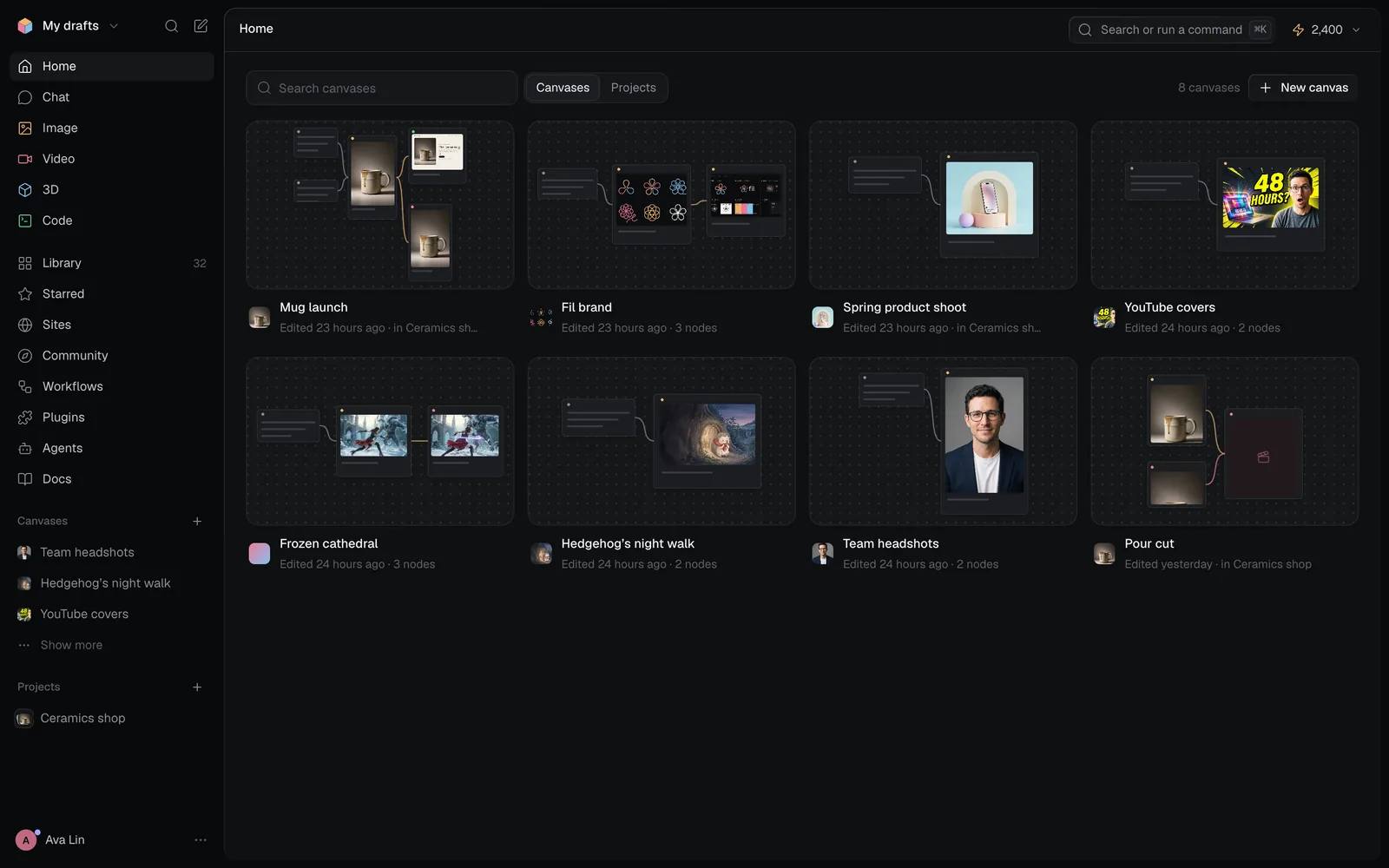
The sidebar, row by row
The top row
- The workspace's name (My drafts for your own) opens the workspace menu.
- Search (the magnifier) opens the command menu, as ⌘K does.
- New canvas (the pencil and square) makes a canvas called Untitled canvas and opens it, with an empty Prompt node ready to type in.
Places
Home to Code show their key at the right of the row. Press a key anywhere outside a text field or a canvas to go there; the Library has one too.
| Row | What it opens | Key |
|---|---|---|
| Home | Every canvas in the workspace, most recently edited first, and its projects | H |
| Chat | A new chat with Claude, and every chat so far | T |
| Image | The Image view: a prompt box and a feed of pictures | I |
| Video | The Video view, for clips | V |
| 3D | The 3D view, for models | M |
| Code | The Code view, for pages, apps and more | O |
| Library | Every file you've made or added, with how many | L |
| Starred | The files you've starred | |
| Sites | Every website, app and post you've made | |
| Community | Public work from everyone | |
| Workflows | Ready-made canvases for a whole job | |
| Plugins | Connect the places you publish to | |
| Agents | Connect Claude Code, Codex, Cursor and others | |
| Docs | These guides |
C goes back to the canvas you last had open. On the Image, Video, 3D and Code views, / puts the cursor in the prompt box. See Keyboard shortcuts for the rest.
Canvases, projects and what's shared with you
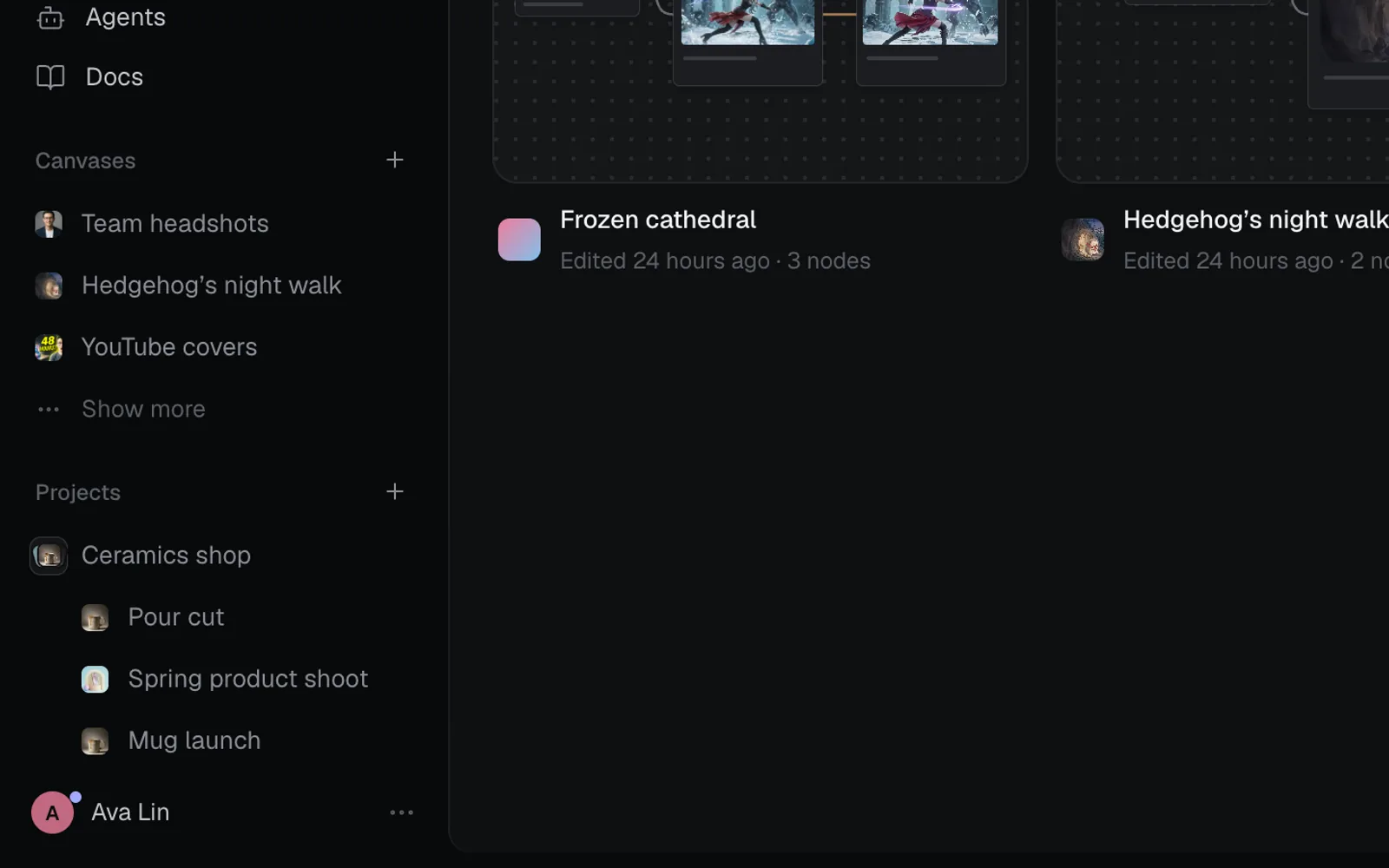
- Canvases lists the canvases that aren't in a project. The first three show; Show more lists the rest. The + beside the heading makes a new canvas.
- Projects lists your projects, each with how many files it holds. Click one to open it in the Library; click the arrow beside it to show its canvases. The + makes a new project.
- Shared with you appears once someone shares a canvas with you from another workspace.
- Right-click a canvas here, or click ··· on its card on Home, for its menu: Open, Copy link, Duplicate, Move to project, Remove from project, Restore default thumbnail and Delete…. You only see the items you can use: Delete… is for the canvas's maker and the workspace owner.
- Drag a canvas onto a project to file it there, or onto Canvases to take it out.
The account button at the foot shows your name and opens the account menu. A dot on it means something new in What's new (on a phone, also today's check-in); the credits at the top right show a dot when a check-in is waiting.
On a canvas, the sidebar folds to a strip of icons; hover one for its name. In a window 980 px wide or narrower, it hides behind the menu button (☰) at the top left.
The top bar
- At the left, where you are: the view's name, or on a canvas its project (or Drafts) and its name. Click a canvas's name to rename it.
- Search or run a command opens the command menu.
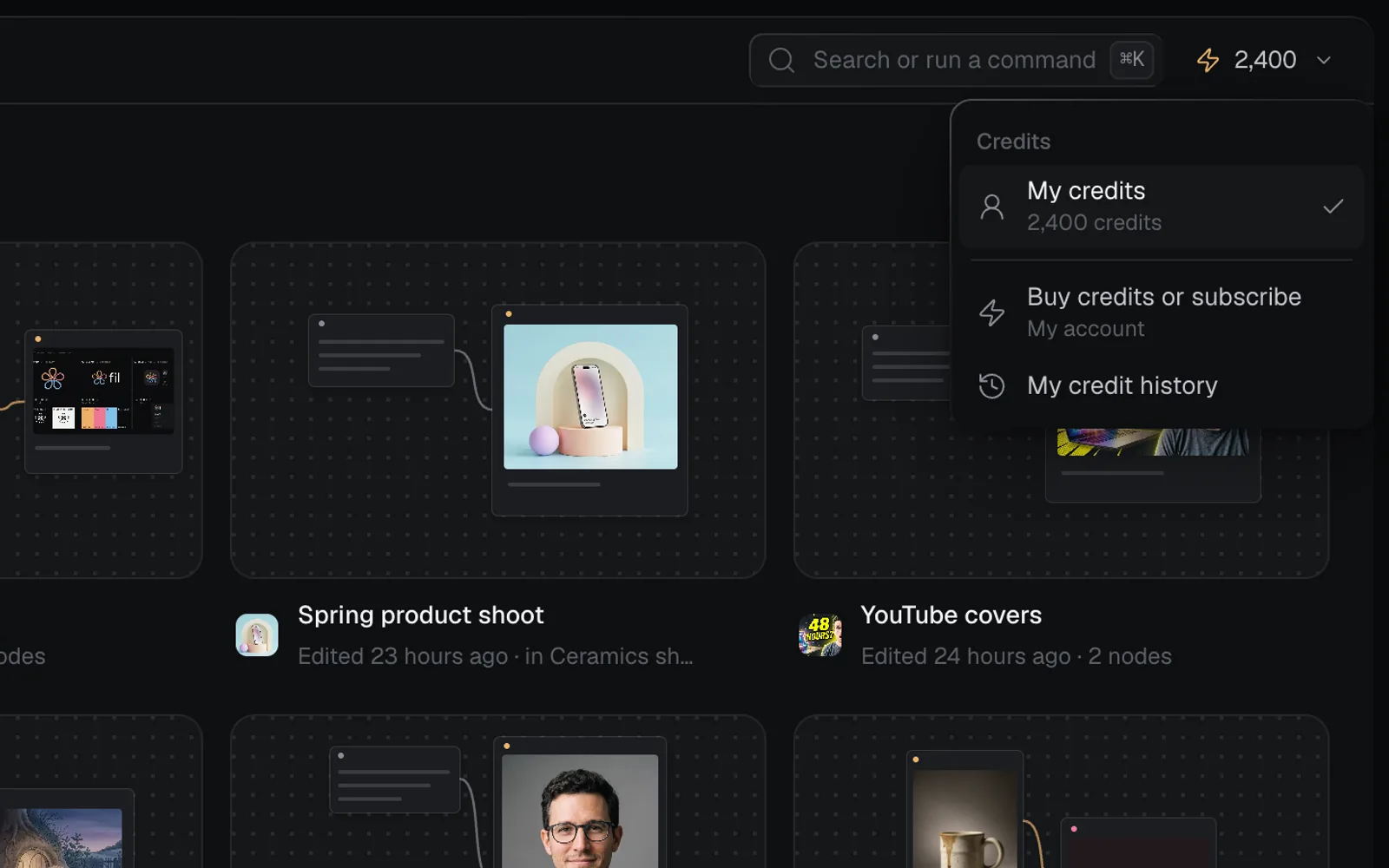
- Your credits open the credits menu, below. On a canvas, the people on it and Share sit at the right.
The credits menu lists My credits and, on the Free plan, today's check-in above them. In a team you can edit, its heading is Pay with and Team credits joins it, so you choose which pay for runs. Then Buy credits or subscribe and My credit history, and in a team Manage team credits (the owner) or Team credit activity (other editors).
Search and run commands (⌘K)
Press ⌘K (Ctrl K on Windows) anywhere, even on a canvas or in the Design tab, or click Search or run a command. Press it again, or Esc, to close it.
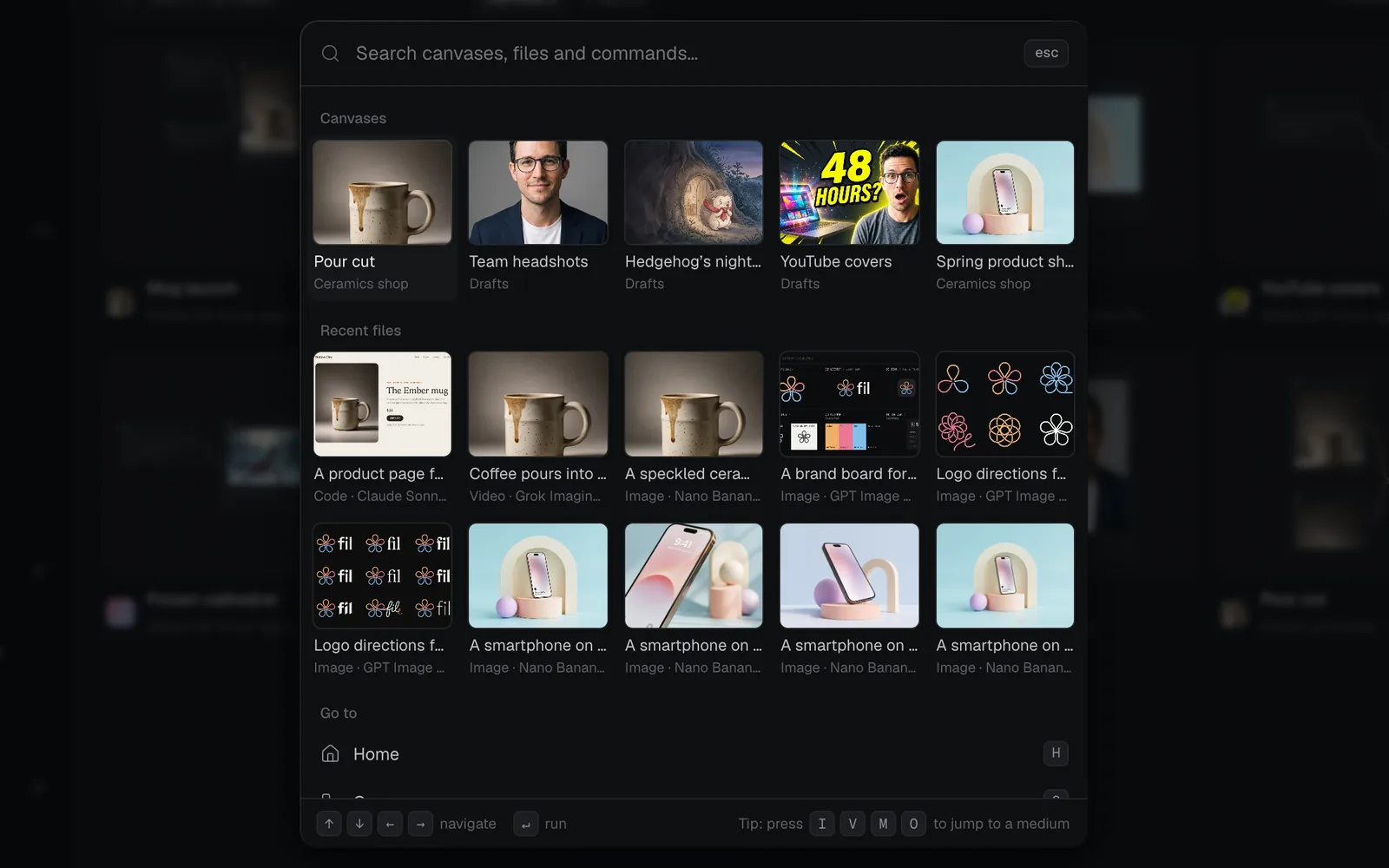
Before you type, it shows your five latest Canvases and ten Recent files. As you type, it finds:
- canvases by name or project, and files by name or prompt (up to 15 of each);
- Workflows by name or what they make;
- Docs pages by title, description and the words people search for, so you can look up how to do something without leaving the studio;
- every command whose name matches.
↑ ↓ ← → move through the results (← → step through the pictures), Enter runs the one picked.
| Group | Commands |
|---|---|
| Go to | Home, Canvas, Chat, Image, Video, 3D, Code, Library, Workflows, Docs, Starred, Trash, Community, Storage, Bandwidth |
| Create | New canvas, Upload files, New project, Create a team |
| Canvas | Make the selected nodes or everything on the canvas public or private |
| Video | On a canvas: add nodes to a video edit, open or export one |
| Settings | Credit history, What's new, the light or dark theme, Profile, Send feedback, Sign out |
The Video commands show on a canvas, and while the video editor is open its own commands (play, split, transitions, export) join them.
The workspace menu
Click the workspace's name at the top of the sidebar.
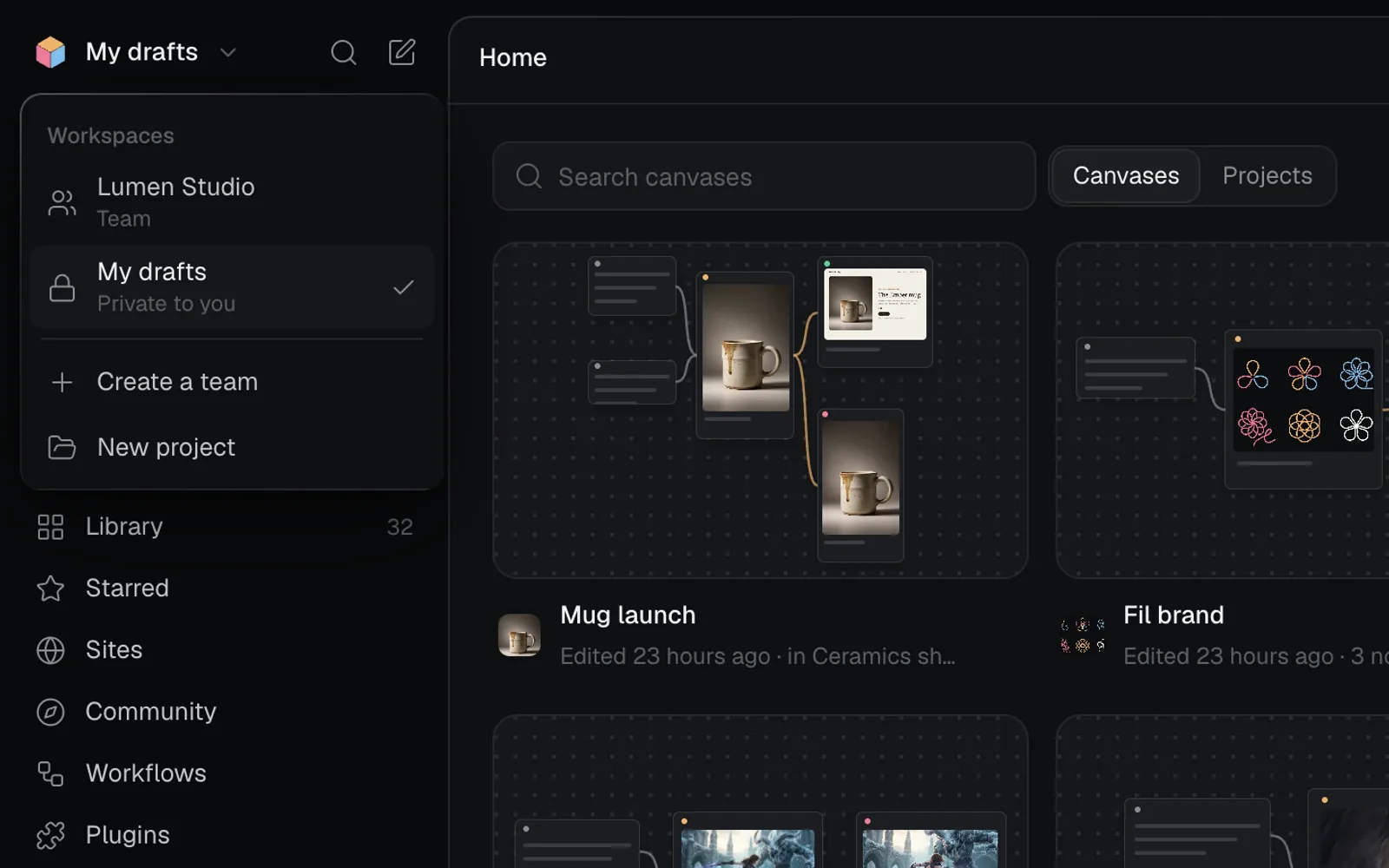
- Workspaces lists your own, My drafts (private to you), and each team you're in. Pick one to switch to it; the studio opens its Home.
- Create a team names a new team workspace.
- Team settings (in a team) opens its members and credits.
- New project groups canvases and files.
The account menu
Click your name at the foot of the sidebar.
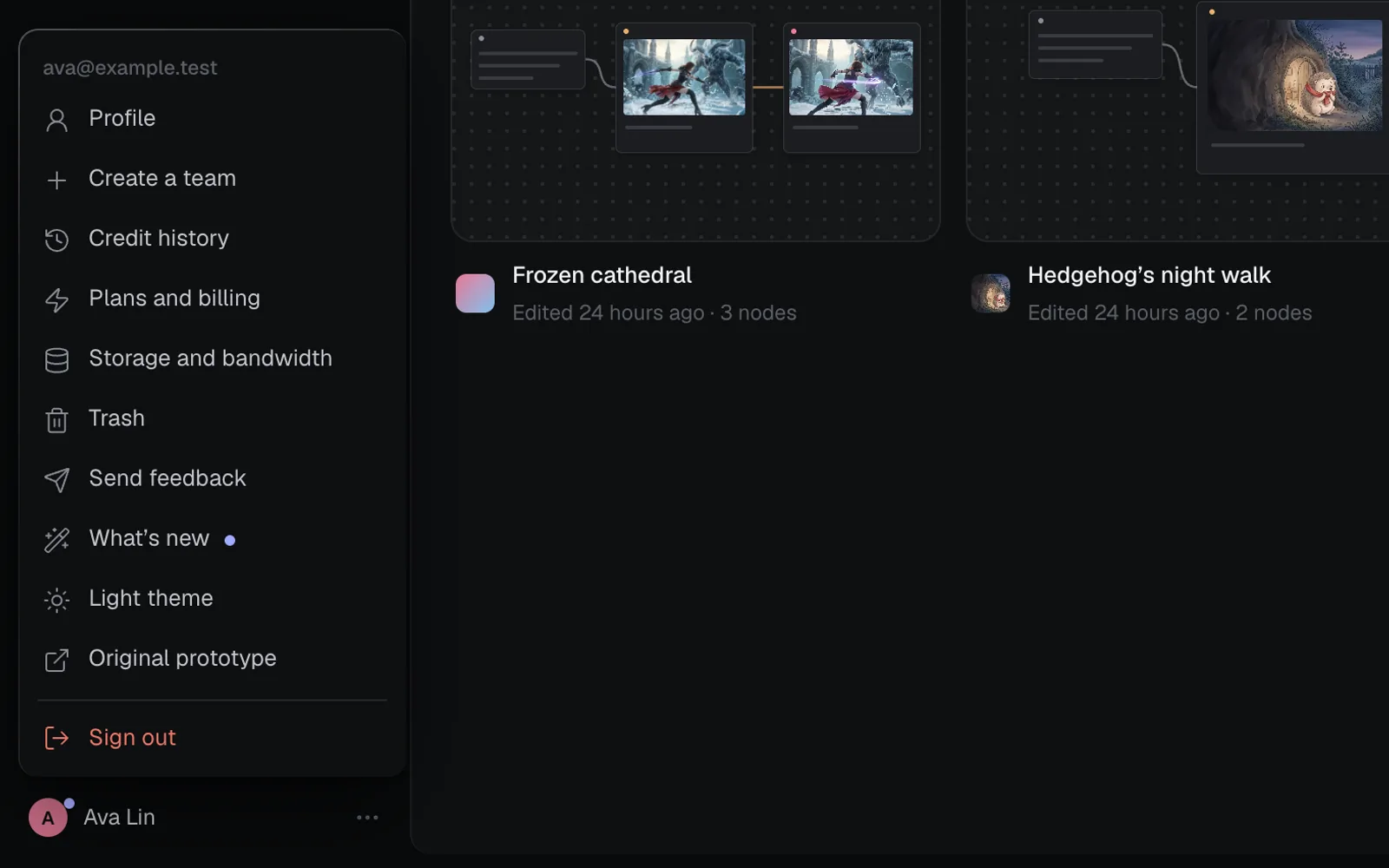
| Item | What it does |
|---|---|
| Profile | Your photo, name, username, bio and links |
| Team settings | A team's members and credits (in a team) |
| Create a team | A new team workspace |
| Credit history | Every run and top-up, with its credits |
| Plans and billing | Your plan, and buying credits |
| Storage and bandwidth | What your files use, by kind and canvas |
| Trash | Deleted canvases and files, to restore |
| Send feedback | A note to the people who make Fil |
| What's new | Every change to Fil, newest first |
| Light theme | Switches the studio's theme (Dark theme switches back) |
| Original prototype | Fil's first design, in a new tab |
| Sign out | Signs you out of this browser |
On the Free plan, today's check-in appears under Profile too.
The Fil menu in the editors
The Design tab (and its editors for React apps and site data) and the video editor fill the window. Their first button, Fil's mark, opens the Fil menu: the way back, and to everything else.
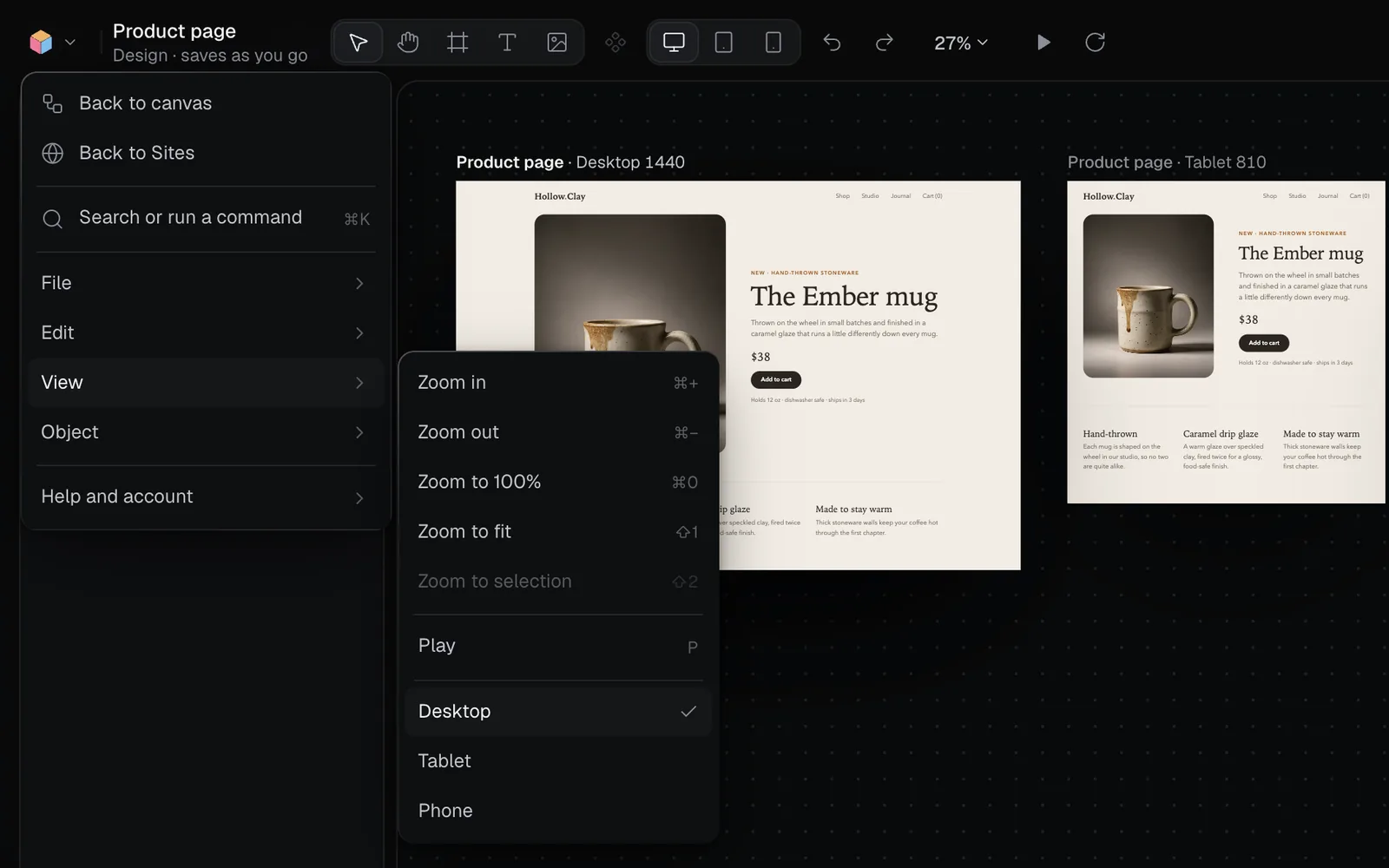
- Back to canvas (or to wherever you opened it from, such as Sites) closes the editor.
- Search or run a command opens the command menu.
- The editor's own menus: File, Edit, View and Object for pages in the Design tab; File and Edit for React apps and site data; Edit in the video editor. Each item shows its key.
- Help and account: What's new, Send feedback, Plans and billing, and the theme.
Menus on a canvas
Right-click the canvas
Right-click an empty spot. What you add lands where you clicked.
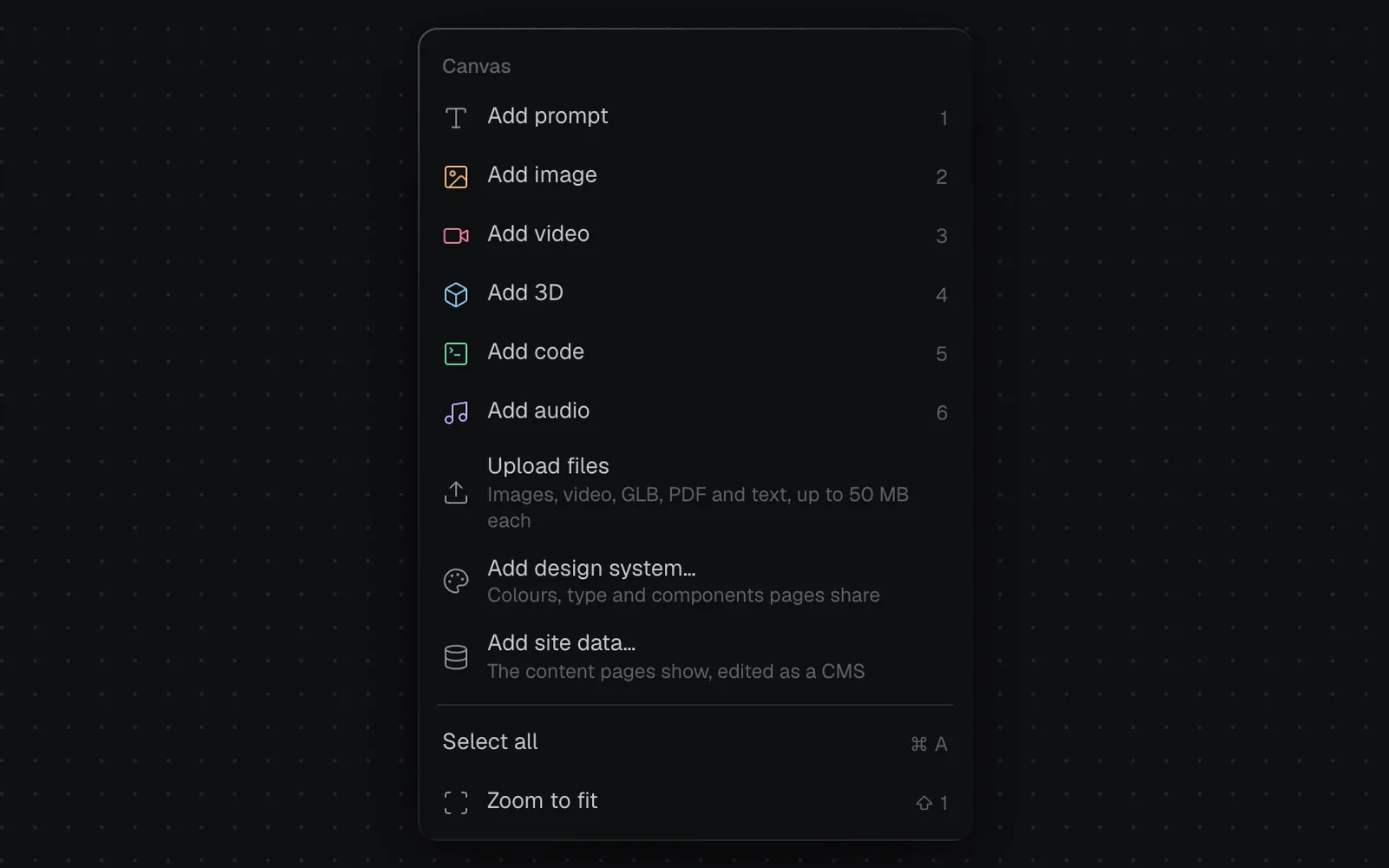
- Add prompt, Add image, Add video, Add 3D, Add code and Add audio, with their keys, 1 to 6.
- Upload files: pictures, video, 3D models, PDFs and text files.
- Add design system… and Add site data…, the parts a website shares: make one with AI, import a file, or start from a blank one.
- Select all and Zoom to fit.
Right-click a node
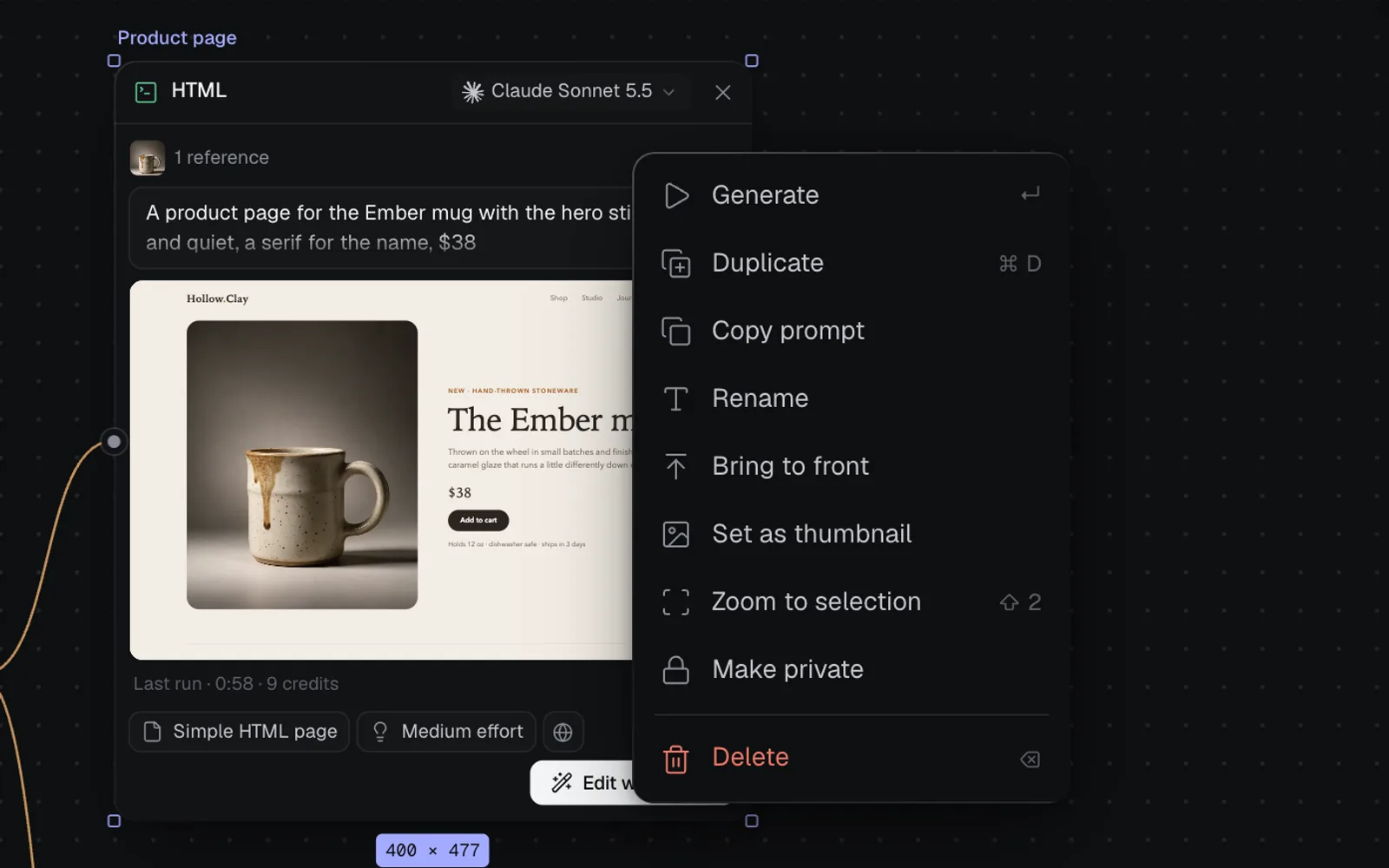
Generate runs it, or every selected generation node. Then Duplicate, Copy prompt, Rename, Bring to front, Set as thumbnail (its result becomes the canvas's picture on Home, and Restore default thumbnail undoes it), Zoom to selection, Make public or Make private, and Delete. Pictures, clips, sounds and words also offer Add to video editor, and a video edit node Open video editor.
More menus on a canvas
| Where | What's in it |
|---|---|
| Drag from a node's + to an empty spot | Connect … to a new node: Image, Video, 3D, Code or Audio |
| The canvas's name, top of the left panel | New canvas, Duplicate canvas, Share, Delete canvas…, then every canvas |
| The percentage, bottom left | Zoom in, Zoom out, Zoom to fit, Zoom to selection, 50%, 100%, 200% |
| Right-click a link | Delete link |
| Right-click a section's title | Rename, Select what's inside, Zoom to section, Delete section |
Deleting a section keeps what it holds.
Menus on a file
Hover a file's tile in the Library or in the Image, Video, 3D and Code views and its buttons appear: Open in canvas (when it's on one), Remove background and Upscale ×2 for pictures, and View full size. The wand at its corner, Turn to…, starts the next run from it.
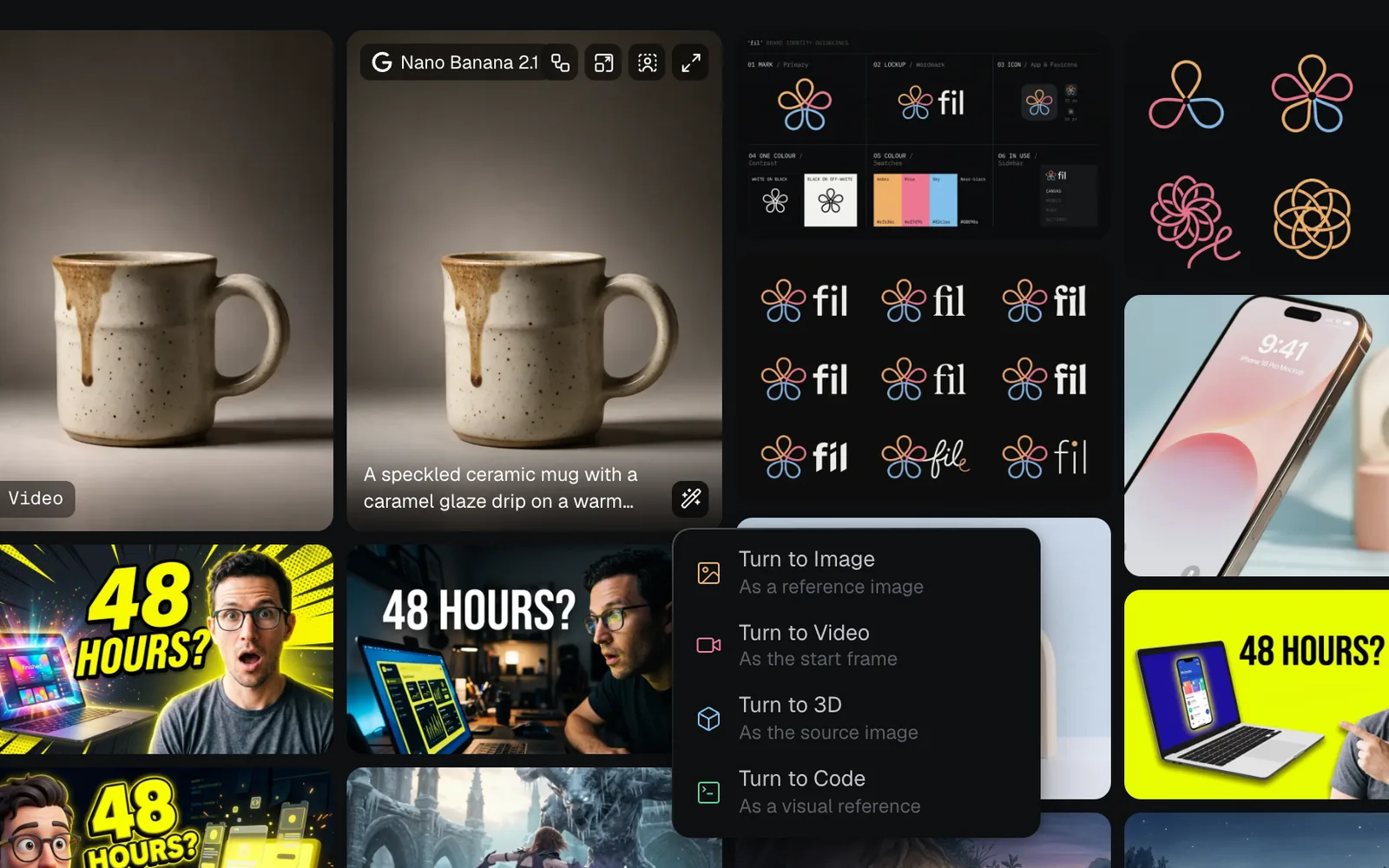
For a picture:
| Item | Opens | The picture goes in |
|---|---|---|
| Turn to Image | The Image view | As a reference image |
| Turn to Video | The Video view | As the start frame |
| Turn to 3D | The 3D view | As the source image |
| Turn to Code | The Code view | As a visual reference |
Other files go where they fit: a clip goes to Video As a reference video, and to the other views as a still of the frame showing; a 3D model goes to 3D To rig or animate it; a page goes to Code To revise the page.
On a canvas, a picture in a node has an Edit button instead (the brush): Inpaint, Outpaint, Crop, Change camera angle, Split into layers and Split into grid, then Remove background and Upscale ×2. See Image editing.
What's next
- Keyboard shortcuts: every key, wherever it works.
- Canvas basics: nodes, links, the panels and the toolbar.
- Files and the library: searching, starring, projects and the Trash.
- Profile and settings: what's behind the account menu.