Keyboard shortcuts
Every keyboard shortcut in Fil, by where it works: the whole studio, the canvas, the full view, image tools, Layers, documents, the video editor and Design.
Every key Fil answers to, grouped by where it works. Keys only act where they're listed: a letter that opens a view from the sidebar does something else on a canvas, and nothing while you're typing in a field. On a canvas, click Show properties at the top right with nothing selected: the panel's last section, Shortcuts, shows a keyboard with the keys in use. Click Show list for the list, and hover a row or a key to light it up.
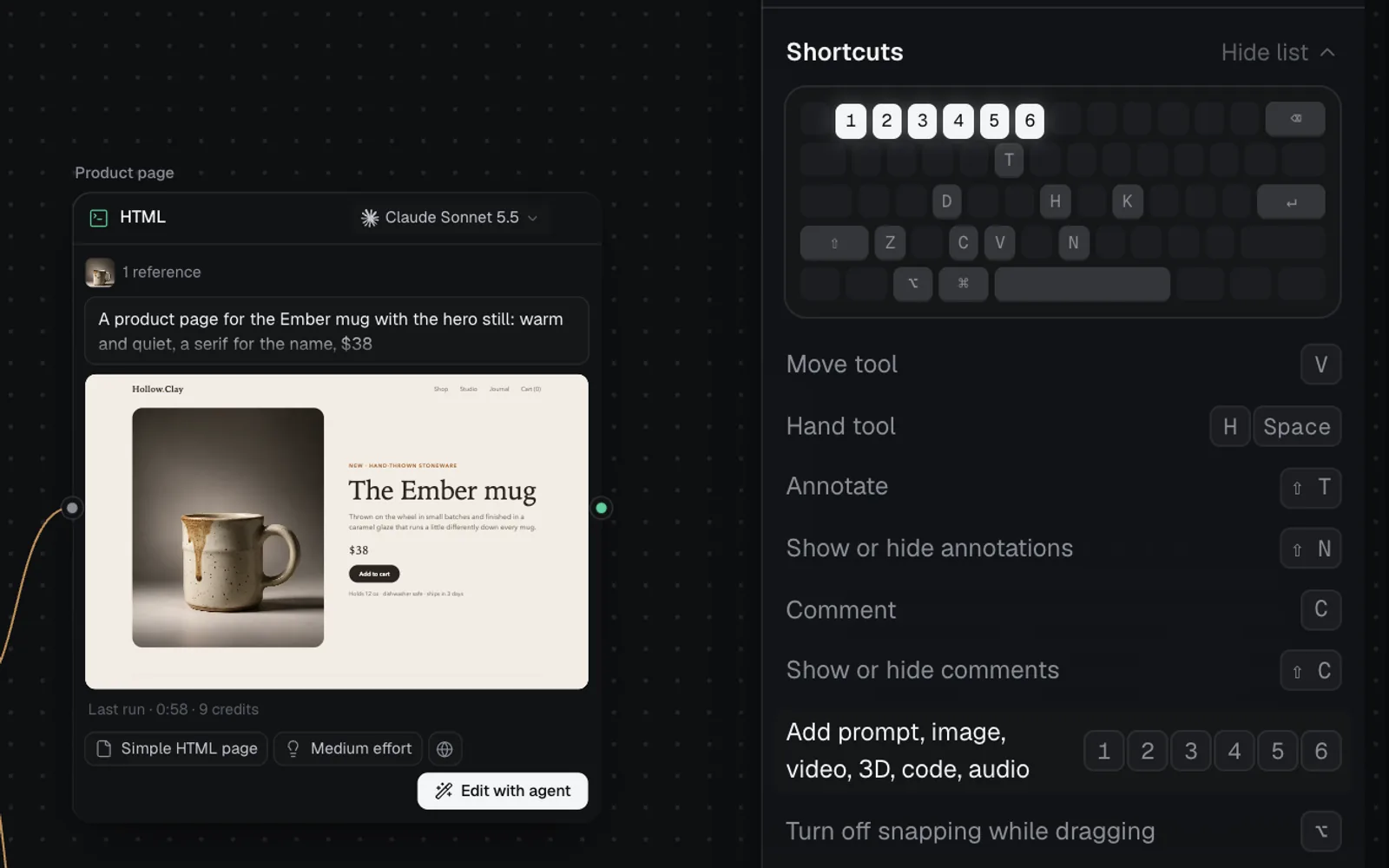
Shortcuts anywhere in the studio
| Key | Does |
|---|---|
| ⌘K | Open or close the command menu, even on a canvas or in an editor |
| Esc | Close a menu or dialog |
| → / ← | In a menu: open a submenu, or go back |
In a document you're writing, ⌘K makes a link instead.
Go to a place
These work outside a text field and outside a canvas, with no dialog open. They're the letters shown in the sidebar.
| Key | Goes to |
|---|---|
| H | Home |
| T | Chat |
| I | Image |
| V | Video |
| M | 3D |
| O | Code |
| L | Library |
| C | The canvas you last had open |
| / | The prompt box, on Image, Video, 3D or Code |
The command menu
| Key | Does |
|---|---|
| ↑ ↓ | Move through the results |
| ← → | Move through the pictures of canvases and files |
| Enter | Run or open the one picked |
| Esc | Close |
Typing in prompts, chats and comments
⇧Enter adds a line wherever Enter sends or generates.
| Where | Enter |
|---|---|
| A view's prompt box | Generates |
| Chat | Sends |
| A node's direction box | Saves and generates |
| A Prompt node | Adds a line |
| A comment | Sends |
| A name you're editing | Saves |
| Where | Esc |
|---|---|
| A field on a canvas | Leaves it |
| A comment | Closes it |
| A name you're editing | Cancels |
An annotation's note finishes with ⌘Enter or Esc. A view's prompt box is the one on Image, Video, 3D or Code; a name is a canvas's, a node's, a section's or a chat's.
In a node's prompt or direction box, type / at the start of a line (or after a space) for skills and templates, or @ for files on the canvas and in your library. In that menu, ↑ ↓ move, Enter or Tab picks, and Esc closes it.
Canvas shortcuts
These work when you're not typing in a field, with no menu, dialog or popover open. The letters that open views elsewhere (H, I, V, C, T) do canvas things here. See Canvas basics.
Tools and adding nodes
| Key | Does |
|---|---|
| V | Move tool: select, drag, box-select |
| H, or hold Space | Hand tool: drag to pan |
| C | Comment tool (again to leave it) |
| ⇧T | Annotate tool (again to leave it) |
| ⇧C | Show or hide comments |
| ⇧N | Show or hide annotations |
| ⇧S | Add a section around the selection |
| 1 to 6 | Add a Prompt, Image, Video, 3D, Code or Audio node |
| T / I | Add a Prompt / an Image node |
With one node selected, a node you add with 1 to 6 goes to its right, already wired to it, when it can take what that node makes.
Selecting and editing
| Key | Does |
|---|---|
| Enter | Generate the selection (several: asks first) |
| ⌘D | Duplicate the selected nodes |
| ⌘A | Select every node |
| ⌫ or Delete | Delete the selection |
| ← ↑ → ↓ | Nudge the selection 1 px |
| ⇧ + arrows | Nudge it 10 px |
| ⌘Z | Undo |
| ⇧⌘Z or ⌘Y | Redo |
| ⌘V | Paste files, pictures, SVG, links or text as nodes |
| ⌘U | Upload files |
| Esc | Close a comment, or clear the selection and go back to the Move tool |
Enter on a selected Prompt node presses its button: Plan, on Auto. On a picked section it renames it; on a picked annotation it edits the note. ⌫ with a picture clicked inside a node of several deletes only that picture. There's no copy and paste of nodes: use ⌘D.
The view
| Key | Does |
|---|---|
| F or ⇧1 | Zoom to fit |
| ⇧2 | Zoom to the selection |
| ⇧0 | Zoom to 100% |
| ⌘+ / ⌘− | Zoom in / out |
| ⌘\ | Show or hide the side panels |
Mouse and trackpad
| Do | Does |
|---|---|
| Scroll, or two-finger drag | Pan |
| ⌘ + scroll, or pinch | Zoom at the pointer |
| Drag with the middle button | Pan |
| ⇧-click a node | Add it to or remove it from the selection |
| ⇧-drag a box | Add what it touches |
| Hold ⌥ while dragging | Turn snapping off |
| Double-click the canvas | Add a Prompt node there |
| Double-click a name | Rename the node or section |
Full view and image editing shortcuts
Double-click a file, or press its View full size button.
| Key | Does |
|---|---|
| ← → | The previous or next file |
| Esc | Close (from a field: leave the field first) |
Image editing tools
In the full view's Edit tab. See Image editing.
| Key | Does |
|---|---|
| B L M E | Inpaint: Brush, Lasso, Box, Eraser |
[ / ] | Inpaint: a smaller / bigger brush |
| ⌘Z / ⇧⌘Z | Inpaint: undo or redo a mark |
| Enter | Generate, from the prompt box |
| Enter | Crop, or Split into grid: apply |
| ← → | Camera angle: go round, 15° a step |
| ↑ ↓ | Camera angle: higher or lower |
| Scroll | Camera angle: nearer or further |
| Esc | Close the full view |
Click the camera stage before using its arrow keys.
Layers
In a picture's Layers editor, on a canvas.
| Key | Does |
|---|---|
| V H T B E | Move, Hand, Text, Brush, Eraser |
| Hold Space | Pan |
[ / ] | A smaller / bigger brush or eraser |
| ⌘G / ⇧⌘G | Group / ungroup |
| ⌘J or ⌘D | Duplicate |
⌘ + [ / ] | Send backward / bring forward |
⇧⌘ + [ / ] | Send to back / bring to front |
| ⇧⌘H / ⇧⌘L | Hide / lock |
| ⇧H / ⇧V | Flip horizontal / vertical |
| ⌘A | Pick every visible, unlocked layer |
| ⌫ | Delete |
| Arrows | Nudge (with ⇧, 10 px) |
| ⌘0 / ⌘1 | Fit / 100% |
| ⌘+ / ⌘− | Zoom in / out |
| ⌘Z / ⇧⌘Z | Undo / redo |
| Esc | Step back: leave a tool, a group, the selection, then close |
Drag with ⌥ for a copy, with ⇧ to move in a straight line, and with ⌘ to turn snapping off.
Document editor shortcuts
When you edit a Markdown or text document, on a canvas or full screen. See Prompts, documents and skills.
| Key | Does |
|---|---|
| ⌘B / ⌘I | Bold / italic |
| ⇧⌘X | Strikethrough |
| ⌘E | Inline code |
| ⌘K | Link |
| ⌥⌘0 to ⌥⌘3 | Text, title, heading, subheading |
| Tab / ⇧Tab | Indent a list item / outdent it |
| / | The blocks menu |
| ⌘Enter | Save and stop editing |
| Esc | Save and stop (full screen: back to View) |
| ⌘Z / ⇧⌘Z | Undo / redo |
At the start of a line, type #, ## or ### and a space for headings, - and a space for a list, 1. and a space for a numbered list, > and a space for a quote, three backticks and a space for code, and --- for a divider. In the Ask Claude box, ⌘Enter adds to the document.
Video editor shortcuts
The video editor lists its main keys at the end of its panel when nothing is selected. See The video editor.
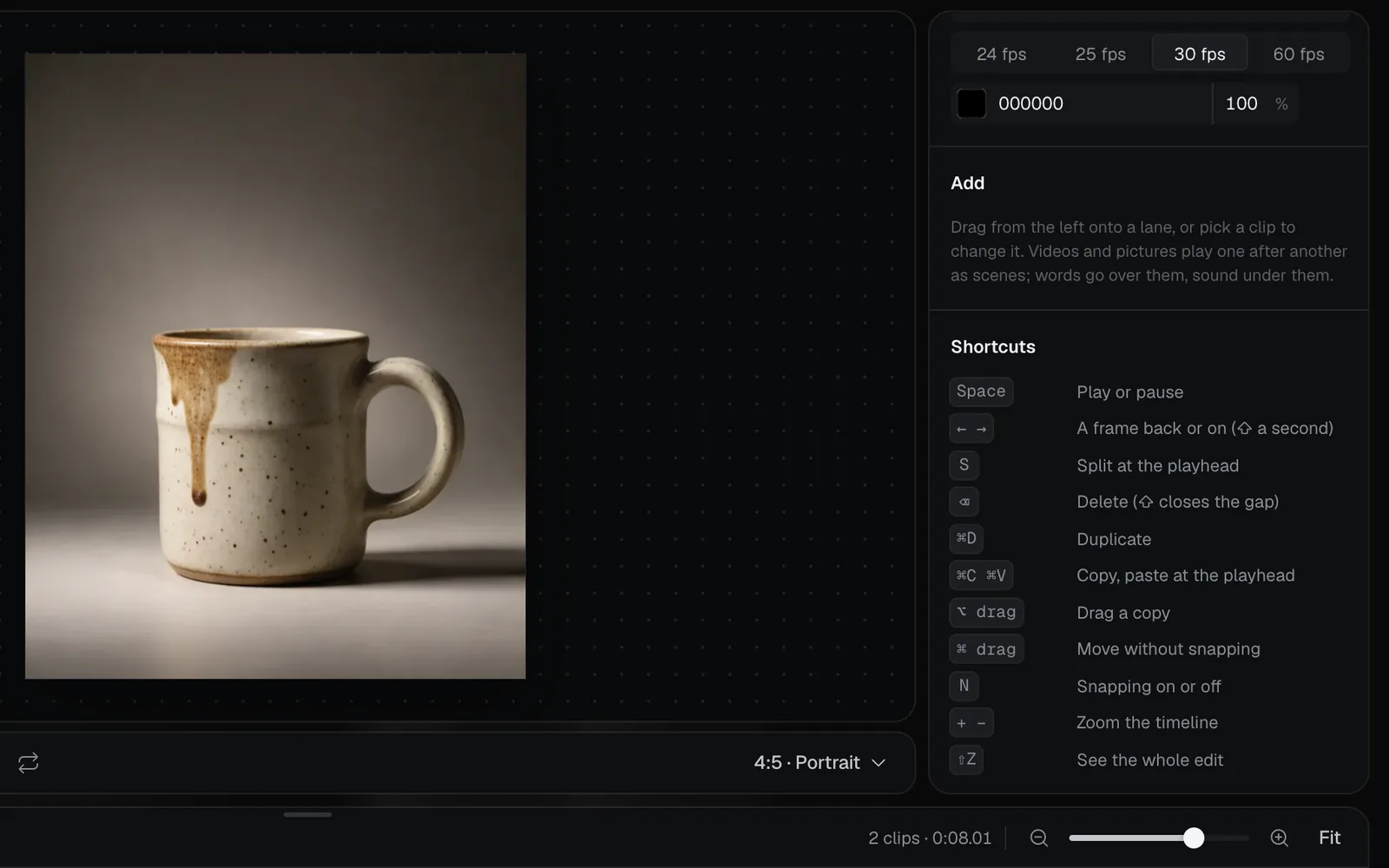
| Key | Does |
|---|---|
| Space or K | Play or pause |
| ← → | A frame back or on (⇧: a second) |
| Home / End | To the start / the end |
| S or ⌘B | Split at the playhead |
| ⌫ | Delete (scenes in the story close up) |
| ⇧⌫ | Delete and close the gap on its lane |
| ⌘D | Duplicate |
| ⌘A | Select every clip |
| ⌘C ⌘X ⌘V | Copy, cut, paste at the playhead |
| ⌘Z / ⇧⌘Z | Undo / redo |
| N | Snapping on or off |
| L | Loop on or off |
| + / − | Zoom the timeline in / out |
| ⇧Z | See the whole edit |
| Esc | Deselect (it never closes the editor) |
Drag a clip with ⌥ for a copy, or with ⌘ to place it without snapping.
Design tab shortcuts
See The Design tab.
Tools and view
| Key | Does |
|---|---|
| V / H | Select / Hand |
| F T I | Frame, Text, Image (pages) |
| R O L T | Rectangle, Ellipse, Line, Text (SVG) |
| P | Play the page (Esc stops) |
| Hold Space | Pan |
| ⌘+ / ⌘− | Zoom in / out |
| ⌘0 | Zoom to 100% |
| ⇧1 / ⇧2 | Zoom to fit / to the selection |
| PageDown / PageUp | The next / previous page of a site |
Selecting
| Key | Does |
|---|---|
| ⇧-click | Add a layer to the selection, or take it out |
| ⌘-click | The deepest layer under the pointer |
| Enter | Type into text, or select the first layer inside |
| ⇧Enter | Select the parent |
| Tab / ⇧Tab | The next / previous layer beside it |
| ⌘A | Select the layers beside the selected one |
| Esc | Back to Select, then up to the parent |
| Arrows | Move 1 px (⇧: 10), or swap places in the flow |
Editing
| Key | Does |
|---|---|
| ⌫ | Delete |
| ⌘C ⌘X ⌘V | Copy, cut, paste |
| ⌘D | Duplicate |
| ⌥⌘C / ⌥⌘V | Copy / paste style |
| ⌘G / ⇧⌘G | Wrap in a frame / ungroup |
⌘ + [ / ] | Move back / forward |
| ⇧⌘H / ⇧⌘L | Hide / lock |
| ⌥⌘K | Create component |
| ⌥⌘B | Detach instance |
| ⌘Z / ⇧⌘Z | Undo / redo |
| ⌘S | Save a version |
| Hold ⌥ | Measure to the layer under the pointer |
While dragging, ⇧ keeps a layer on one line, keeps its shape as you resize, or turns in 15° steps; ⌘ turns snapping off. Typing into text, Esc or ⌘Enter finishes. In the agent's box, ⌘Enter sends. See Edit with the agent.
Shortcuts elsewhere
| Where | Keys |
|---|---|
| Community's full view | ← → step, Esc closes |
| What's new pictures | ← → step, Esc closes |
| A workflow's example pictures | ← → step, Esc closes |
| Storage, the file list | ⇧-click a range, ⌘-click one more |
| Storage, the file list | ↑ ↓ move, Enter opens, Esc clears |
| Storage, the file list | ⌘⌫ moves the picks to the Trash, or deletes them forever if they're all in it |
| Send feedback | ⌘Enter sends |
| The big chat's edge | ← → resize, Home resets |
| The daily check-in card | Esc puts it away until tomorrow |
What's next
- The sidebar and menus: every place and menu, and what's in ⌘K.
- Canvas basics: nodes, links, selection and the toolbar.
- The video editor: cutting clips, words and music on a timeline.
- The Design tab: editing pages by hand.