Chat with Claude
Chat with Claude to plan and make images, video, pages and sound on a canvas, or turn a prompt into a priced plan with Auto. Nothing runs until you confirm.
Chat is a conversation with Claude Sonnet 5.5 that can see your canvas. Ask about what's there, or describe what you want to make: Claude answers, or plans the nodes for it (pictures, clips, pages, sound) and shows you the plan with its price. Nothing runs until you press Generate, and everything it makes lands on the canvas as nodes you keep working on.
Start a chat
- Click Chat in the sidebar, or press T anywhere outside a text field or a canvas.
- Describe what to make, or ask anything, in the box under "What do you want to make?". One of the starters under it fills the box for you.
- Press Start chat or Enter (⇧Enter starts a new line). A chat started here gets a canvas of its own (the box says "Starts a new canvas").
- The new canvas opens with the chat beside it. Claude's reply streams in, and its first reply names the canvas.
- If Claude planned something, a card asks Make 2 images · 1 video? (or Which should I make? when it offers several takes). Check it, then press Generate with its price, or Add to canvas to add the nodes without running them.
- Each planned node is reviewed by Claude before it runs: its tile reads "Reviewing", then "Generating". If the review has a question, it waits in the chat as "Waiting for your answer", and you answer it right there.
The results arrive in the chat under "On the canvas from …", and on the canvas as nodes wired from your message. Keep going in the same chat: "make the bold one square", "now a voiceover for the clip".
Chat on a canvas
Every canvas has its own chats, and Claude sees what's on it: the nodes, their prompts, models and settings, and what's done and what failed. It looks at pictures only when you attach or mention them, up to four a message.
- To open the chat, click the speech bubble on the canvas's name chip at the top left (its tooltip reads Chat), or the Chat tab in the panel on the left. The panel can show the canvas's Layers, Assets and Templates too.
- The big chat: the expand icon at the chat's top right (its tooltip reads Open the big chat) docks it full height beside the canvas, with what it made shown large. The same button, Back to the canvas, returns. Drag the big chat's edge to make it wider ("Drag to resize · double-click to reset"). Chats from Chat home open here.
- In the big chat, click a node a message made to see it large, with Edit, Upscale ×2 and Remove background (each adds a node that waits for Generate), Download, Full screen and Show on the canvas.
- Several chats: click the chat's title to see "Chats on this canvas", Rename one or Delete chat. The compose icon beside it (New chat) starts another. Deleting a chat keeps what it made on the canvas.
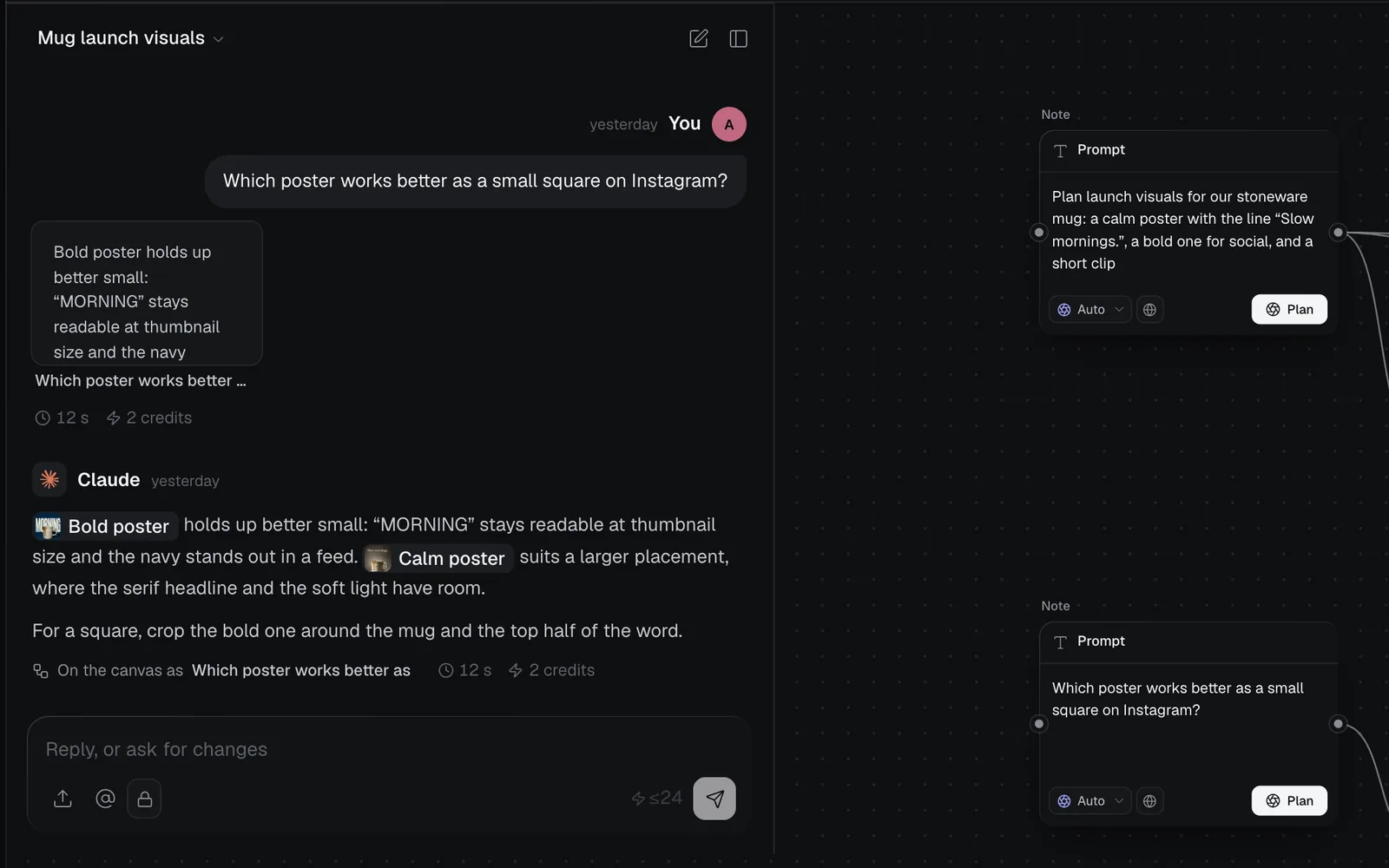
Everything said in a chat is on the canvas too: each message becomes a Prompt node, and an answer becomes a Markdown article it feeds. In the chat, that article's node shows as a card above the answer, and "On the canvas as …" under it names the node. Nodes Claude names are links you can click to see them.
What you can ask for
| Ask for | What happens |
|---|---|
| An answer | "Which poster works better small?" gets an answer, kept as an article node |
| Something new | "Three logo ideas for a cycling club" gets a plan of nodes: images, videos, 3D models, pages and code or sound |
| A change | A change to a clip or a page you mention gets a plan that edits it as a new version |
| Who sees it | "Make these public" or "keep this private" gets a card to confirm |
| A video edit | "Cut these clips into a video" gets an edit to confirm, in the video editor |
Claude never runs anything itself: every plan and change waits for you.
Attach files and mention nodes
The box under the chat ("Ask about this canvas, or describe what to make", then "Reply, or ask for changes") takes up to 4,000 characters, and more than words:
- Attach files (the upload button): images, video or a page (PNG, JPEG, WebP, GIF, SVG, MP4, WebM or HTML), up to 8 a message. You can also paste or drop them on the chat.
- Mention a node (the @ button): pick up to 8 nodes from the canvas, so Claude works from them. To have Claude look at a picture on the canvas, mention its node.
- + 3 selected: when nodes are selected on the canvas, this chip mentions them.
- The lock or globe: whether what this message makes is private or public in Community.
Check a plan before it runs
A plan card lists every node it would make, each with its prompt, model and shape.
- When there's more than one reading, pick one: each option shows what it makes and its price.
- Untick a node to leave it out, and change its Model or Aspect ratio chip before anything runs.
- If the plan needs something only you have, such as your face or your product, it asks for it: Upload one, pick a recent upload, or Use a placeholder.
- Press Generate with the total price to make them, or Add to canvas to place the nodes and run them later.
Older plans fold away ("Proposed … · not made"), so you can come back and make one.
Turn a prompt into a plan (Auto)
On a canvas, a Prompt node can plan its own nodes. Its chip reads Auto; its menu, Generate as, describes Auto as "Claude Sonnet 5.5 plans the nodes" and lists Image, Video, 3D, Code and Audio to make one node instead.
- Write the prompt in a Prompt node, and leave its chip on Auto.
- Press Plan. Claude reads the prompt and anything wired into it.
- A card asks Which should I make?, with up to three readings of up to eight nodes each, or Make …? when there's one.
- Pick a reading, untick or adjust nodes, then press Generate with its price, or Add nodes to place them without running.
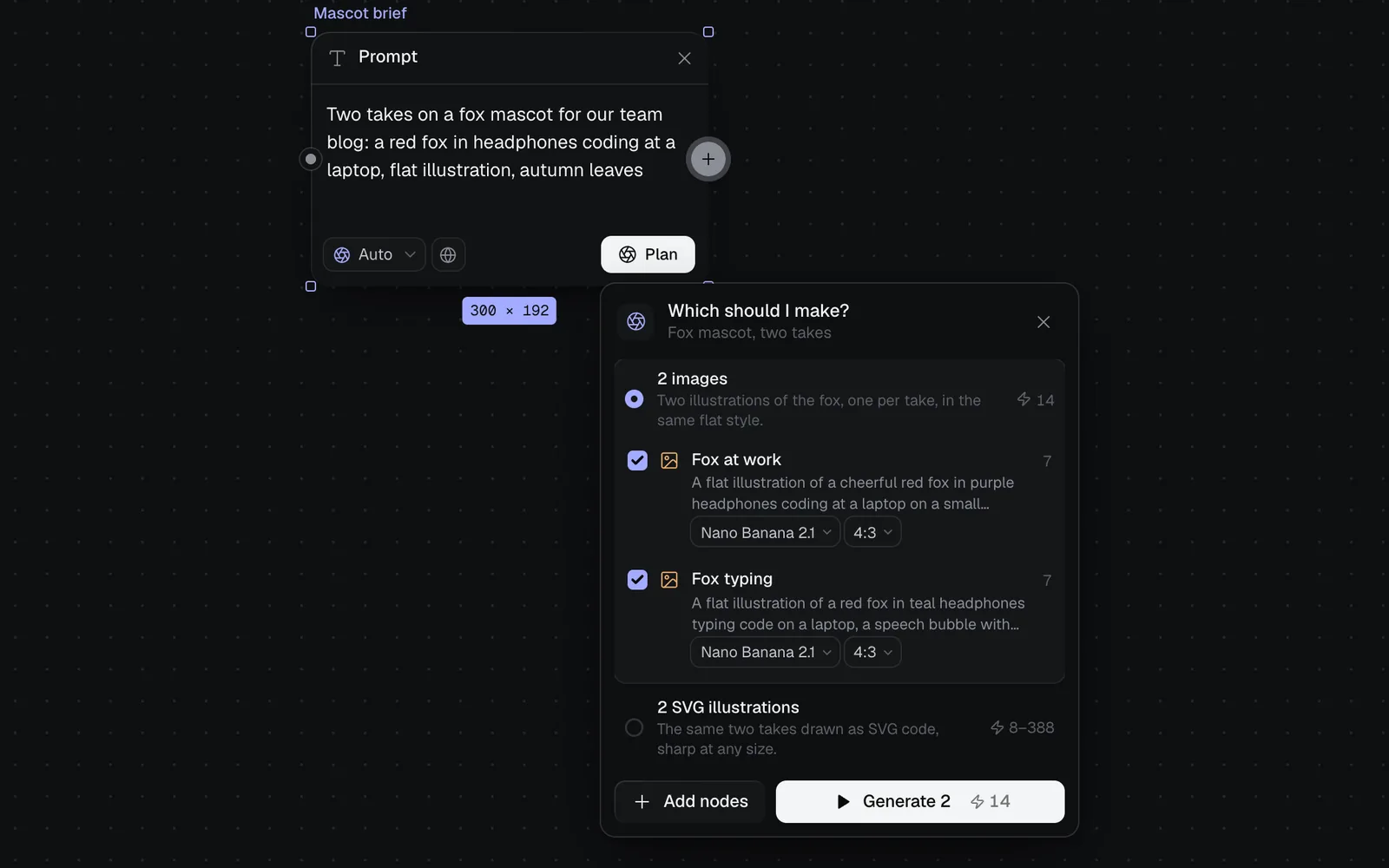
The planned nodes are wired from the prompt and say "Planned from" it. The same prompt reopens its last plan at once, and every plan is kept in the canvas's Canvas history chat, so you can find it later. If planning fails, it says why: pick a medium on the chip to generate it directly.
Chat home and your recent chats
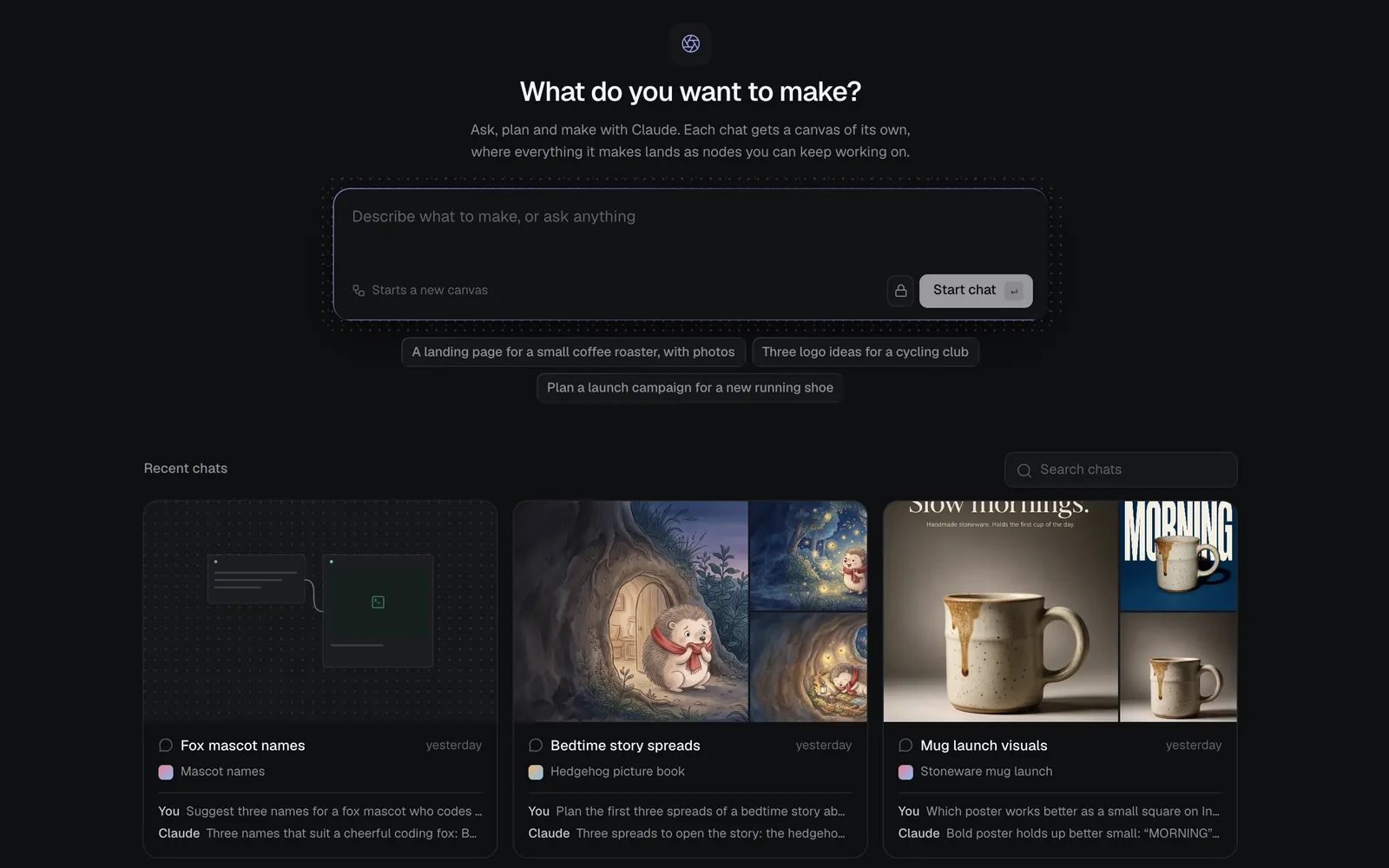
Chat in the sidebar lists every chat in the workspace under Recent chats, most recently active first. Each card shows a few pictures the chat made (or its canvas), its title, its canvas and the last two messages. Search them with Search chats, and click one to open it beside its canvas. Plans made with Auto show as each canvas's Canvas history.
Costs
- What a plan makes costs what those runs cost: the Generate button shows the total before you press it.
- A reply that fails says "The reply couldn't be finished." with Try again, and its credits come back.
- Replies keep going if you close the tab, and they're paid from the credits you've chosen to pay with (see Credits and plans).
- People with view access can read a canvas's chats, but only editors can write in them. A duplicated canvas starts without the original's chats.
What's next
- Canvas basics: nodes, links and runs, where a chat's plans land.
- Workflows: ready-made canvases for a brand identity, a picture book or a launch.
- Image generation: make pictures yourself, model by model.
- Social posts: posts for X, LinkedIn and Instagram, which a chat can plan too.