Quickstart
Sign in to Fil, start a canvas, generate your first picture with Nano Banana 2.1 and turn it into a five-second video, step by step, in about five minutes.
The quickest way into Fil: sign in, start a canvas, write one prompt, and turn the picture it makes into a short clip. It takes about five minutes and 78 credits, which a Free account's first check-in covers. The recordings on this page follow a new Free account from its first check-in.
Sign in to Fil
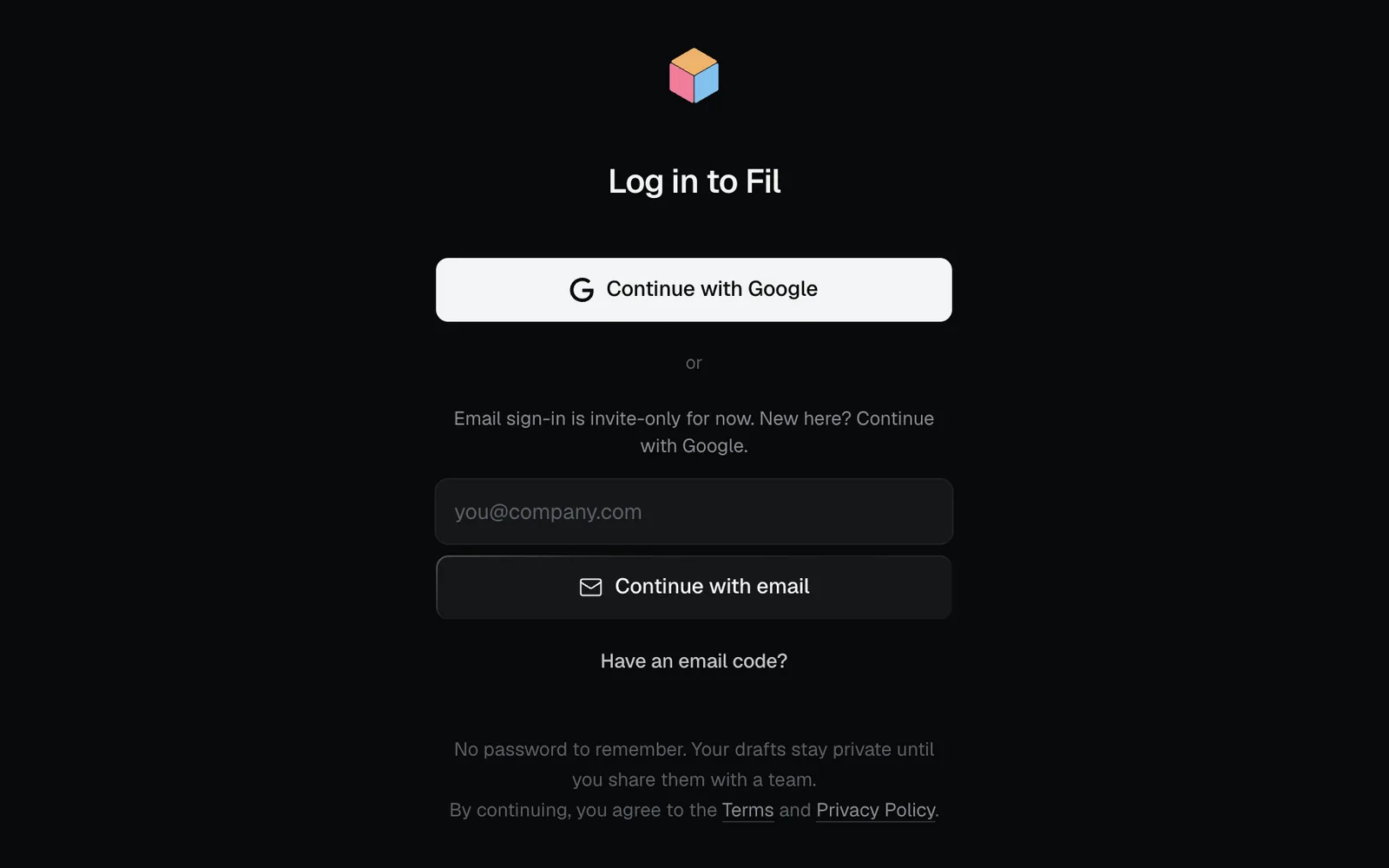
- Go to fil.design and click Log in at the top right.
- Click Continue with Google, or type your email and click Continue with email.
- Fil emails you a sign-in link and an eight-digit code. Open the link, or click Have an email code?, type the code and click Verify code. There's no password.
- The studio opens on Home, in your own workspace, My drafts. Only you and the people you share a canvas with can open it; on the Free plan, what you make also shows in Community with its prompt.
Get free credits with the daily check-in
Every run costs credits, and the price shows on its button before you start. On the Free plan you get them from a daily check-in: a card pops up under the credits at the top right. Click Check in · +100.
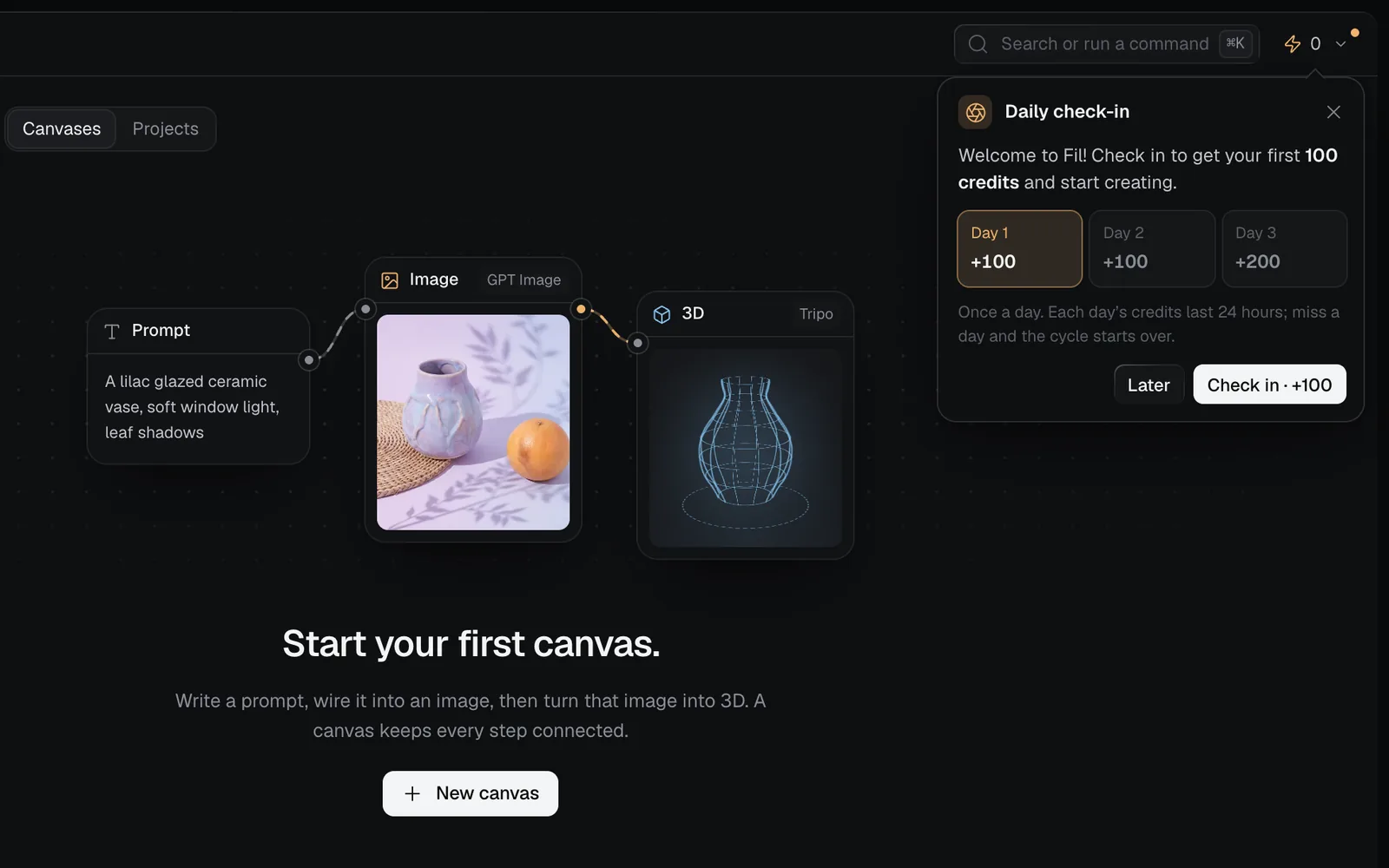
- You can check in once a day: 100 credits, then 100, then 200 on the third day in a row, up to 1,000 a month.
- Each day's credits last 24 hours. Miss a day and the cycle starts again at day 1.
- Later puts the card away until tomorrow. You can also check in from the menu on the credits at the top right.
Starter, Pro and Max come with credits every month instead. See Credits and plans.
Generate your first image on a canvas
A canvas is where Fil keeps your work: each prompt, picture and clip is a node, and links carry one into the next.
- On Home, click New canvas (or the compose button at the top of the sidebar). A canvas called Untitled canvas opens with an empty Prompt node, ready for you to type.
- Describe the picture: the subject, where it is, the light and the style.
- For example: "A speckled ceramic mug with a caramel glaze drip on a warm grey studio backdrop, soft side light".
- Click the + on the right edge of the Prompt node (its tip reads "Click to add a node · drag to connect"). An Image node appears beside it, already wired to your prompt, on Nano Banana 2.1.
- Check the chips along the Image node's foot: Template, then the aspect ratio, the resolution (2K), the effort and how many pictures to make (×1). Here, click 4:3 and pick 3:4 for a portrait.
- The node grows taller. If it runs off the screen, press F to fit everything in view.
- Click Generate. The button shows the price: 7 credits.
- The node says Generating with a timer, and the panel on the right opens with the run's details. When the picture lands, usually in under a minute, it shows there too, and the canvas takes a name from your prompt.
Runs carry on if you close the tab. Generate again to get another take: the button now reads Add, and each new picture joins the node.
Turn the picture into a video (image to video)
- Drag from the + on the right edge of the Image node to an empty spot on the canvas, and let go.
- A menu asks what to make, headed Connect Image 1 to a new node. Click Video.
- A Video node appears with your picture as its Start frame, on Grok Imagine Video 1.5, at 3:4, 720p and 5 s. Its text box has the cursor.
- Describe what moves and what the camera does, such as "Coffee pours into the mug and steam rises, the camera holds still".
- Press Esc or click the canvas to leave the box, then click Generate on the Video node (71 credits).
- A clip usually takes one to three minutes. When it's done, double-click it in the node to open it full size, and click it to play.
Clicking the + instead of dragging it adds a node of the same kind: an Image node from a picture. Dragging lets you choose.
How many credits it costs
| Run | Settings | Credits |
|---|---|---|
| Picture, Nano Banana 2.1 | 3:4, 2K, ×1, medium effort | 7 |
| Clip, Grok Imagine Video 1.5 | 720p, 5 s, from a start frame | 71 |
Settings change the price: four pictures at once cost 25 instead of 7, and a 10 s clip costs 141. Without enough credits, a run says so before it starts: "This run needs 71 credits; you have 40."
Where your pictures and videos are saved
- The canvas saves as you go. It's on Home and in the sidebar under Canvases; click its name at the top to rename it.
- Every picture and clip is also in the Library, where you can search, star and download them.
- On the Free plan, what you make is public in Community, with its prompt, and you can have up to 3 canvases. On Starter, Pro and Max, new work starts private.
What's next
- What is Fil: everything else the studio does, and where to find it.
- Canvas basics: nodes, links, panels and running several nodes at once.
- Video generation: every video model, its lengths and sizes, and what each costs.
- Workflows: ready-made canvases that do a whole job, from a logo to a product shoot.
- Keyboard shortcuts: the keys that make a canvas quick.