Publish a website
Publish a Fil website or React app at its own name.fil.design address, choose the address, add a password, update it, and see its visitors without cookies.
Publishing puts a site online at an address of its own, like kinfolk-tea.fil.design, for anyone with the link or behind a password. Every kind of site publishes the same way: a Website with all its pages, a Simple HTML page or a React app. When you change it later, Update sends the changes live.
Publish a website
- Open the site in its editor: select one of its pages on the canvas and click Design in its properties (for a React app, its editor opens the same way).
- Click Publish at the top right. A popover opens with the site's name, "Not published", and the address it will get, made from its name.
- Change the address or who can see it now, if you like (both below). You can also do it later.
- Click Publish at the bottom of the popover. It reads "Publishing…", then a message says "Your site is live." with Open.
The popover now says "Live · published just now", and the address is a link to the live site. The button at the top reads Published, with a green dot.
You can also publish from the canvas: select a page and click Publish site in its properties (Update site or Published once it's live). It opens the same popover, without its GitHub row.
What goes online
- Every page of the site, each at its address: the home page at /, the others at their own, such as /shop. Links between them work.
- A page for each entry of a collection with a detail page, such as /products/jasmine-blend (see Dynamic websites with data).
- The pictures and videos the pages show, pictures as lighter copies (below).
- Each page's title, description and social image, with the site's settings filling in what a page leaves out, and a sitemap.xml and robots.txt.
- A "Page not found" page for addresses the site doesn't have, or your own page at /404.
Pictures are made lighter for the web
A published site serves its pictures as copies made for the web: WebP, at most 2000 px on their long side. A page with four 2K pictures went from 5.1 MB to 510 KB. Link previews get a 1200 px JPEG, and the tab icon a small PNG. GIFs, videos, SVGs and pictures already small enough go as they are.
Your canvas, library, downloads and GitHub keep the originals. Each picture is made lighter once, and a site published before Fil did this gets its lighter pictures on its next Update.
The Publish popover
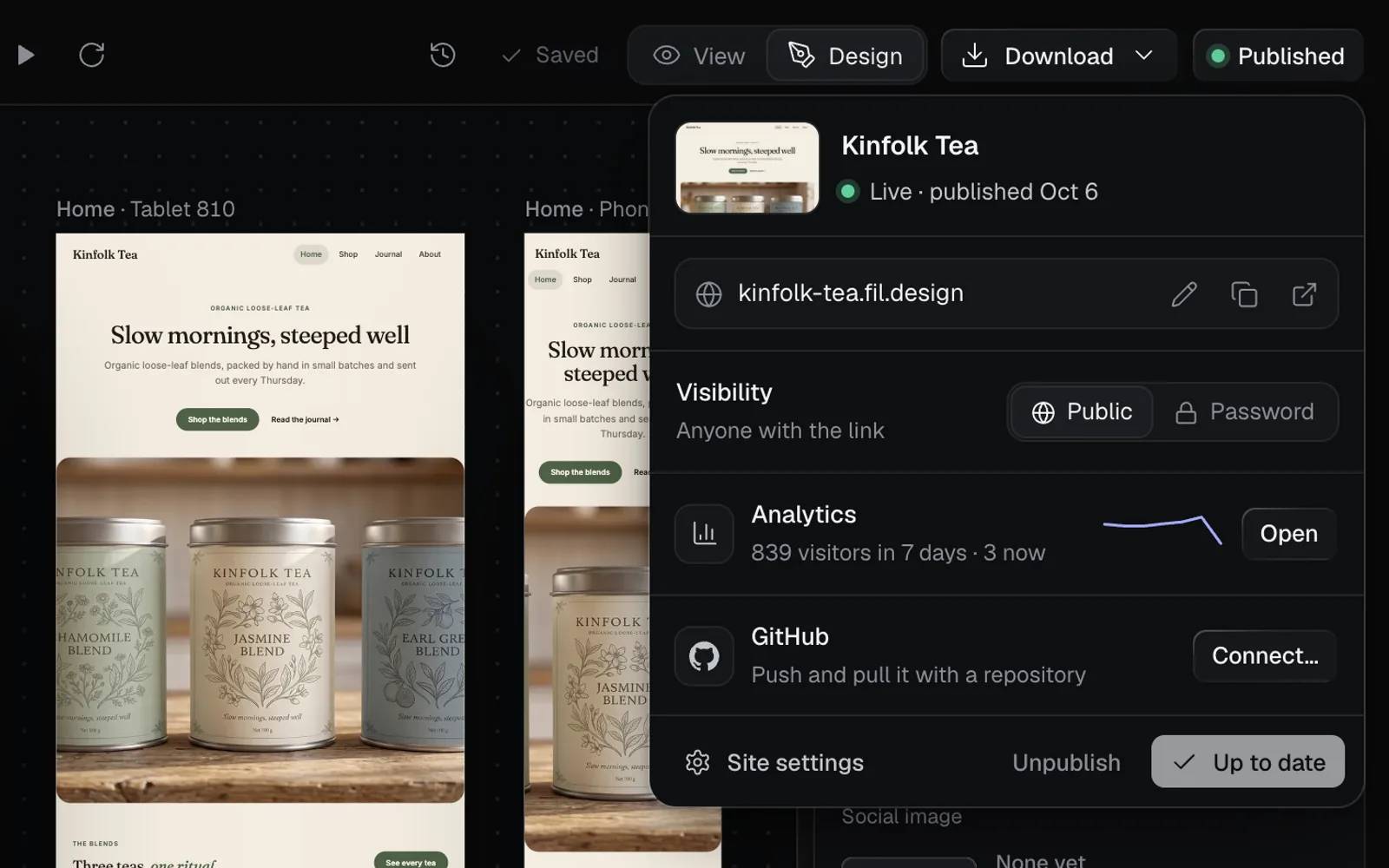
| Row | What it does |
|---|---|
| Address | The pencil (Edit address), Copy link, and the arrow to open the live site |
| Visibility | Public (anyone with the link) or Password |
| Analytics | Visitors in the last 7 days and right now. Open shows all of it |
| GitHub | Keeps the site in a repository: Connect…, or Open once it has one |
| Footer | Site settings, Unpublish, and Publish, Update or Up to date |
Analytics show once the site is live. The GitHub row is in the Design tab and a React app's editor, not when the popover opens from the canvas; see Export and GitHub. Esc closes the popover.
Choose your site's address
Every site lives at name.fil.design. On Starter, Pro and Max you choose the name; a site starts with one made from its own name ("Kinfolk Tea" gets kinfolk-tea).
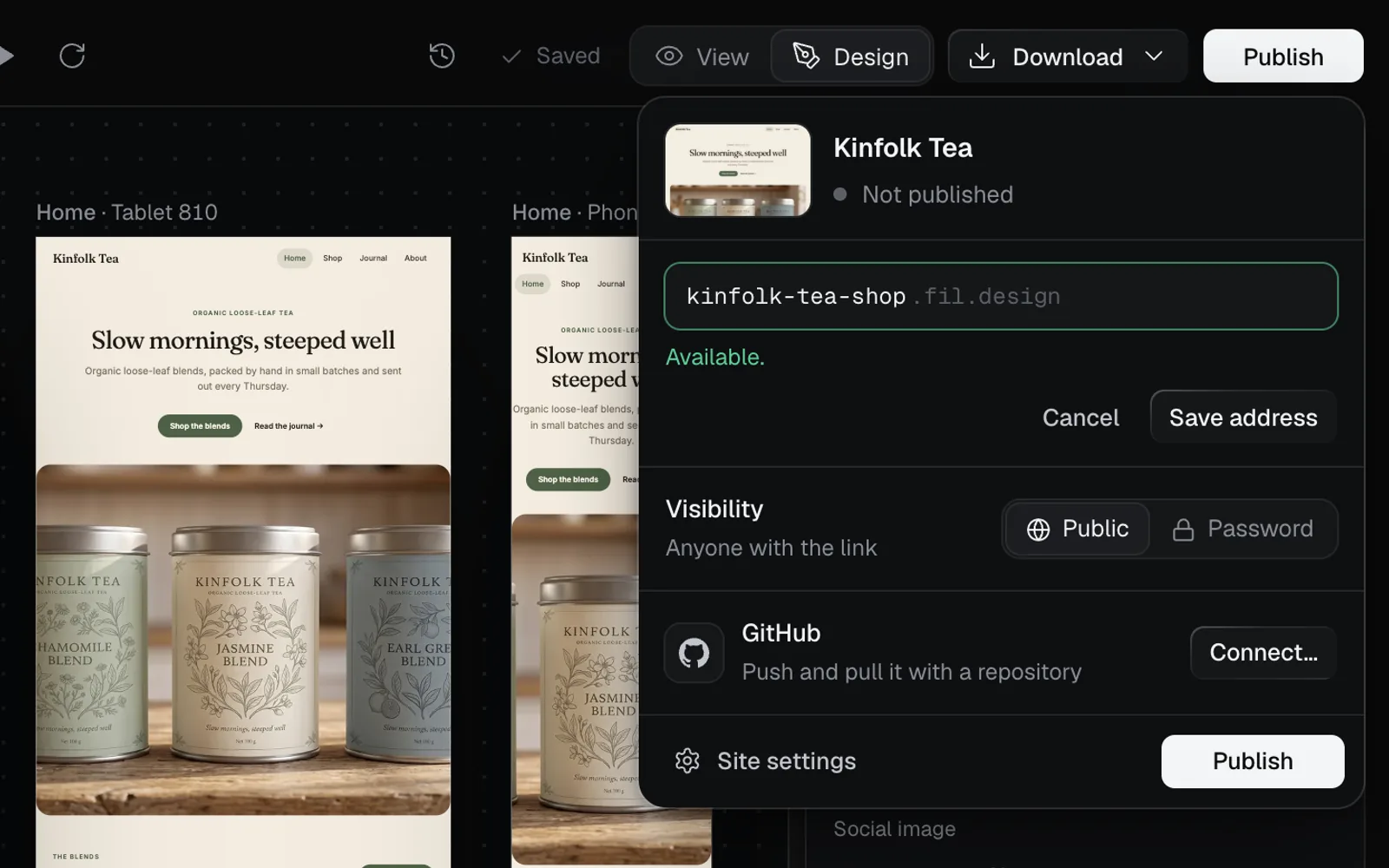
- Click the pencil (Edit address) in the popover, or open Site settings.
- Type the name. Capitals become lowercase and other characters become hyphens, and it's checked as you type: "Checking…", then "Available." or why not.
- Click Save address (in Site settings, Save). It's saved at once.
- A name has 3 to 48 characters: lowercase letters, numbers and single hyphens, starting and ending with a letter or number.
- Names Fil keeps for itself (www, docs, blog, help and others), words a sign-in page would use (login, password, verify) and names someone else has can't be taken.
- If the site was published before, the new address works at once, and its old address sends visitors to the new one for 30 days; no one else can take it meanwhile. Click Update so the site's links, link previews and sitemap use the new address too.
- Sites keep their address if your plan changes. Domains of your own aren't available yet.
On the Free plan
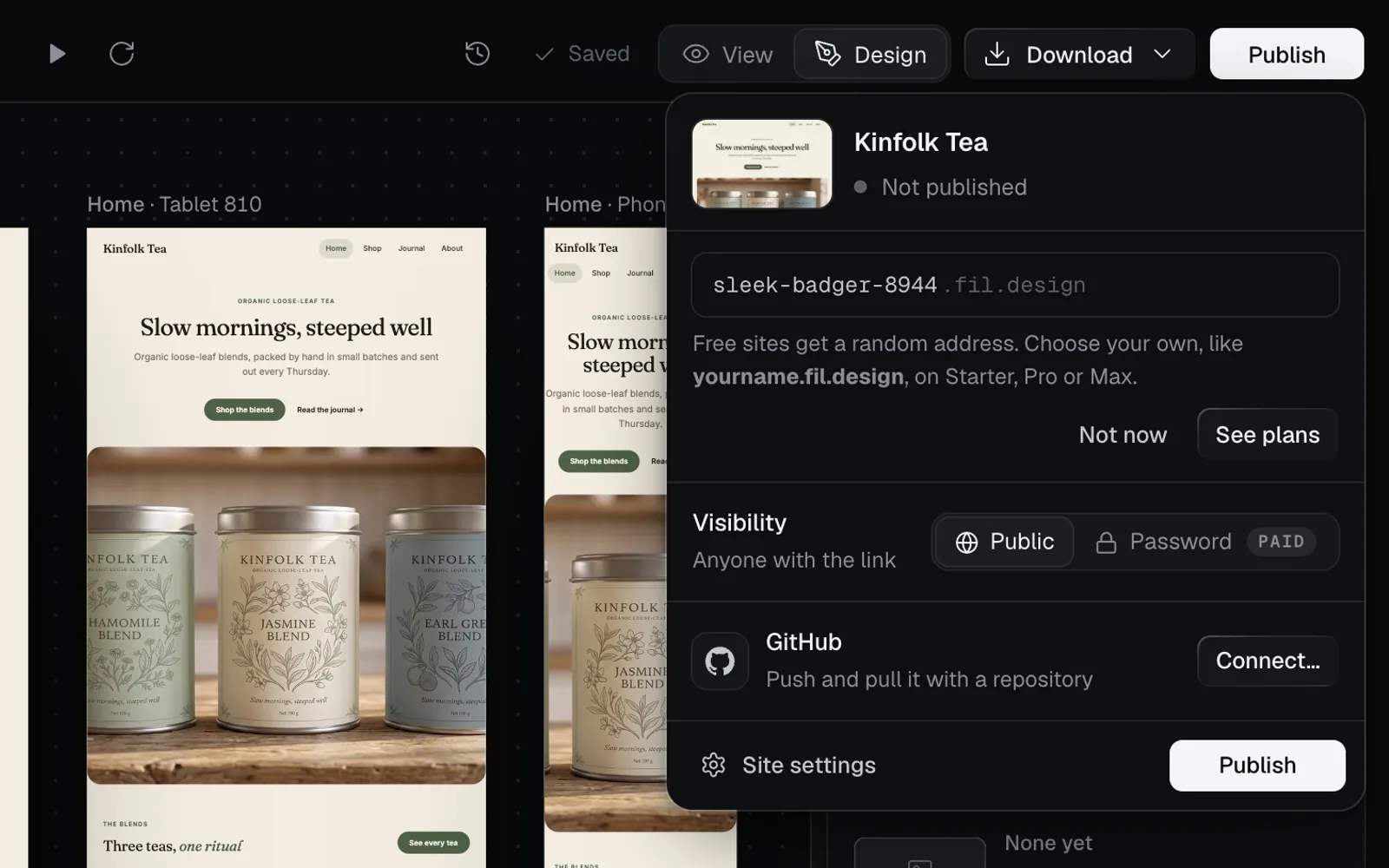
Free sites get a random address, such as sleek-badger-8944.fil.design, and are always public. The pencil explains this and offers See plans.
| Free | Starter, Pro and Max | |
|---|---|---|
| Address | Random | Your choice |
| Password | No | Yes |
| Site size | 2 MB | 20, 50 and 100 MB |
The site size counts its pages and the files it serves, with each picture counted as its lighter web copy, so big generated pictures are already shrunk. A bigger site isn't published: Fil says how big it is and what your plan allows. Take some pictures or videos off its pages, or move to a larger plan.
Password-protect a website
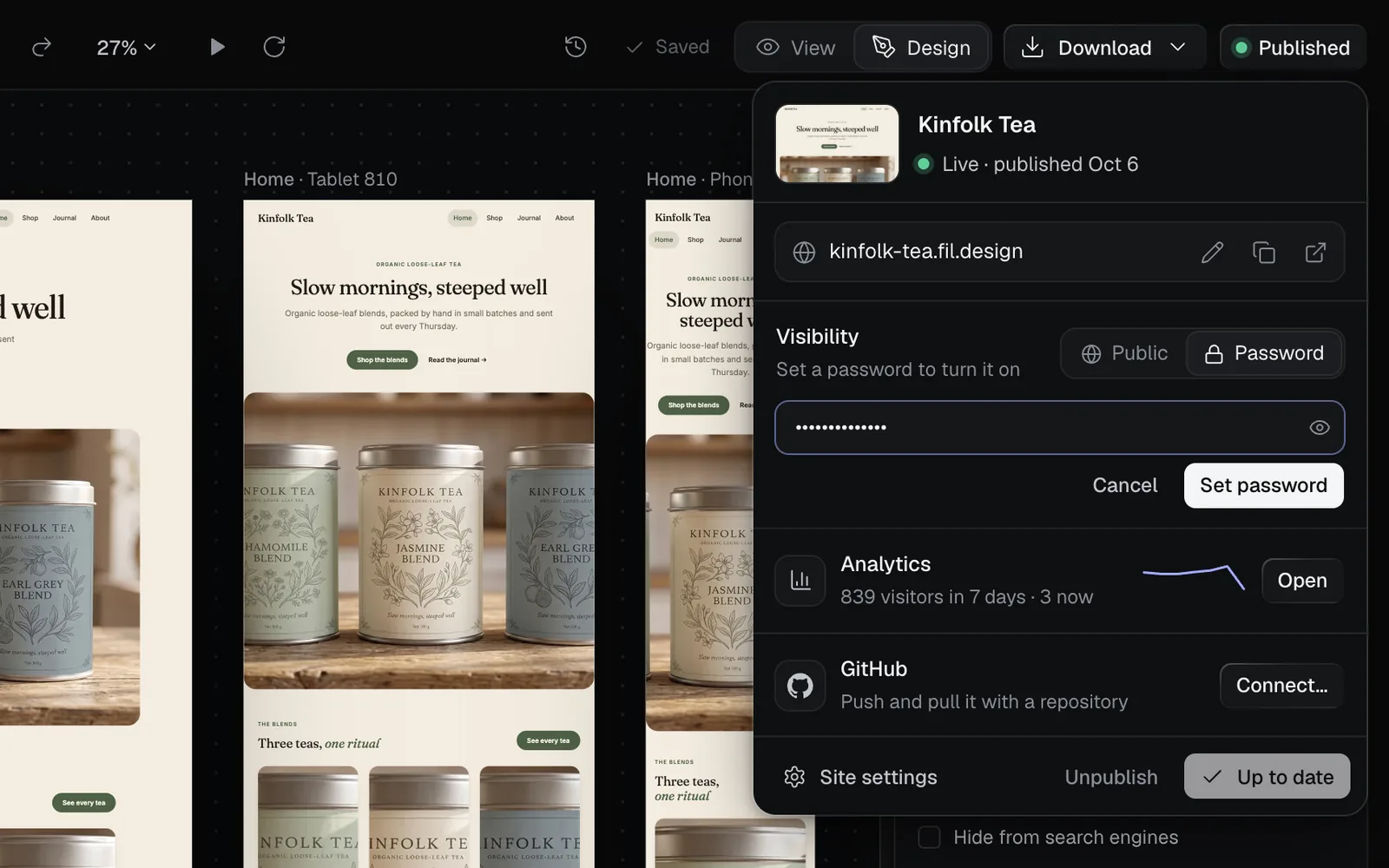
- In the popover, click Password beside Visibility.
- Type a password of at least 6 characters (the eye shows it).
- Click Set password. "Password on. Visitors are asked for it."
- Visitors see "Kinfolk Tea is private" and a password field. Once they're in, they aren't asked again for 7 days.
- It works at once, with no Update, and you can set it before the site's first publish.
- Change password asks everyone for the new one. Public turns it off; turning it back on reuses the old password.
- Password sites are never listed in search engines.
Update a published website
When you change a page, its data, its design system or its settings, the button at the top reads Update with an amber dot.
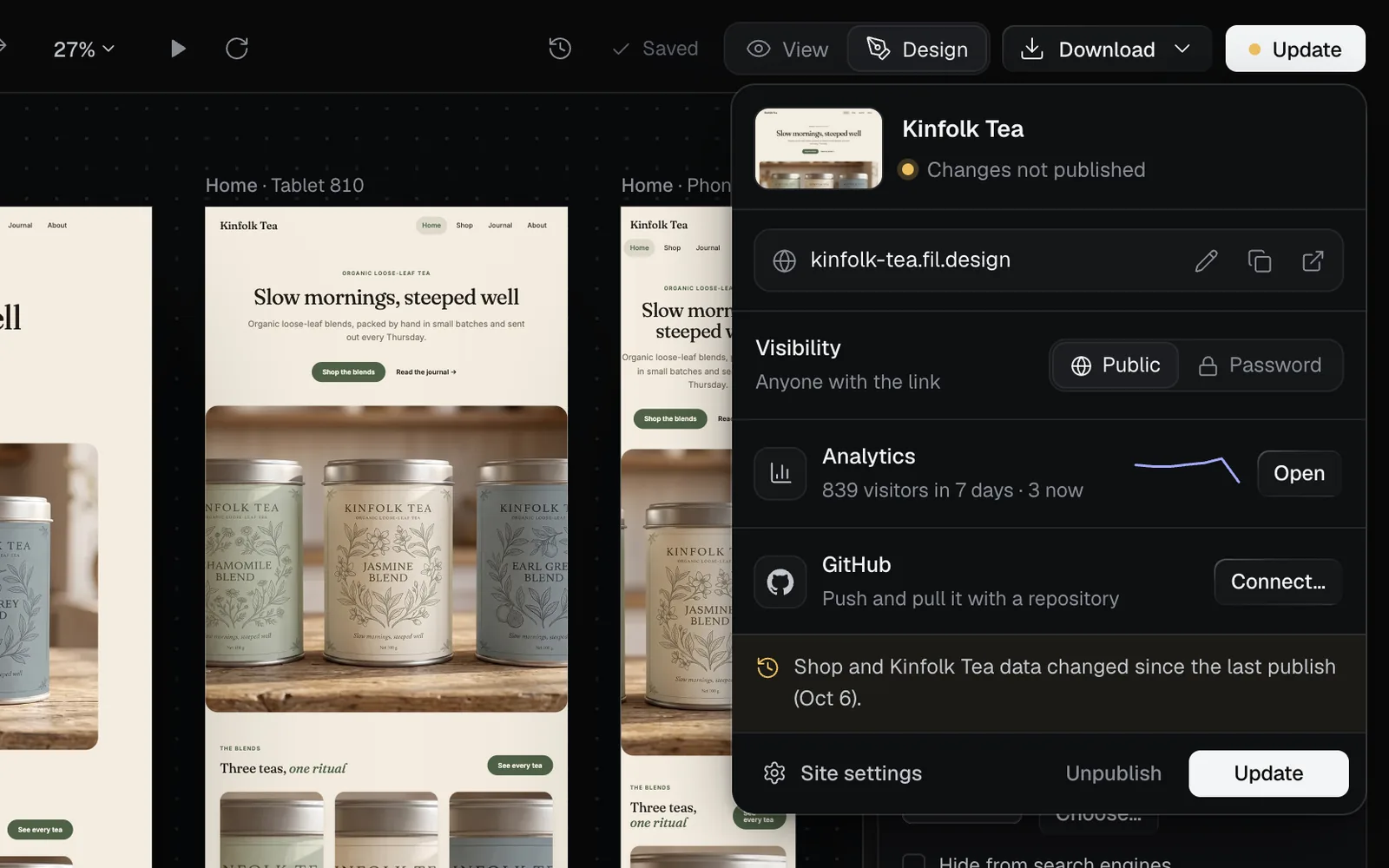
- Click Update at the top right. The popover says "Changes not published" and names what changed.
- Click Update at the bottom. "Site updated."
The new version goes live in one switch, so visitors never see half of it, and shows within seconds. Visibility is the exception: it changes the live site at once.
Roll back a published website
To put an earlier version back online, restore it, then update:
- Open a page, the design system or the data in its editor and click the clock (Version history) at the top.
- Pick the version from the moment you want and click Restore this version. The whole site goes back to that moment, in step: its design system, its data and every page. Pages made since stay, following the restored design system and data.
- Click Update at the top right, then Update in the popover. The restored site is live.
Restoring saves new versions, so you can go forward again from the history. See The Design tab.
Site settings: name, SEO, analytics and code
Click Site settings at the bottom of the popover.
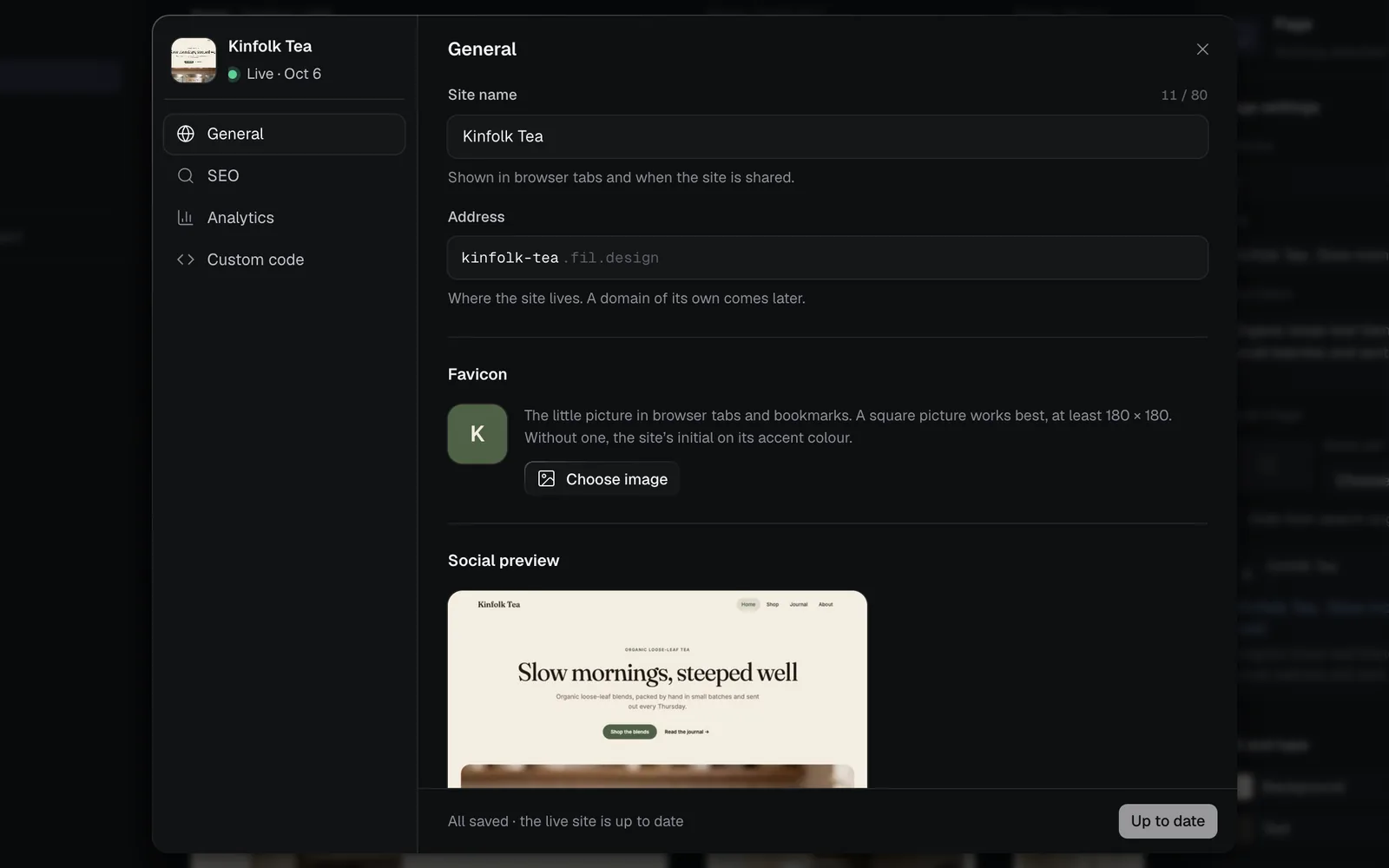
| Section | What's in it |
|---|---|
| General | Site name, Address, Favicon, social preview image, Description and Access |
| SEO | Site title, Title template, each page's title and description, Show in search engines, Language and Canonical domain |
| Analytics | Count visitors (Fil Analytics), Google Analytics 4 and Plausible |
| Custom code | Your own HTML at the End of <head> and End of <body> of every page |
- Each page's own title, description and social image are set on the page, in the Design tab's Page settings; the site's settings fill in what a page leaves out. See The Design tab.
- Click Save to keep changes, or Save and update to send them live at once. Saved settings reach the live site on its next Update.
- Custom code and other analytics run on the published site only, never in Fil.
See your site's visitors (analytics)
Every published site counts its visitors, without cookies, so there's no banner to show. In the popover, click Open in the Analytics row.
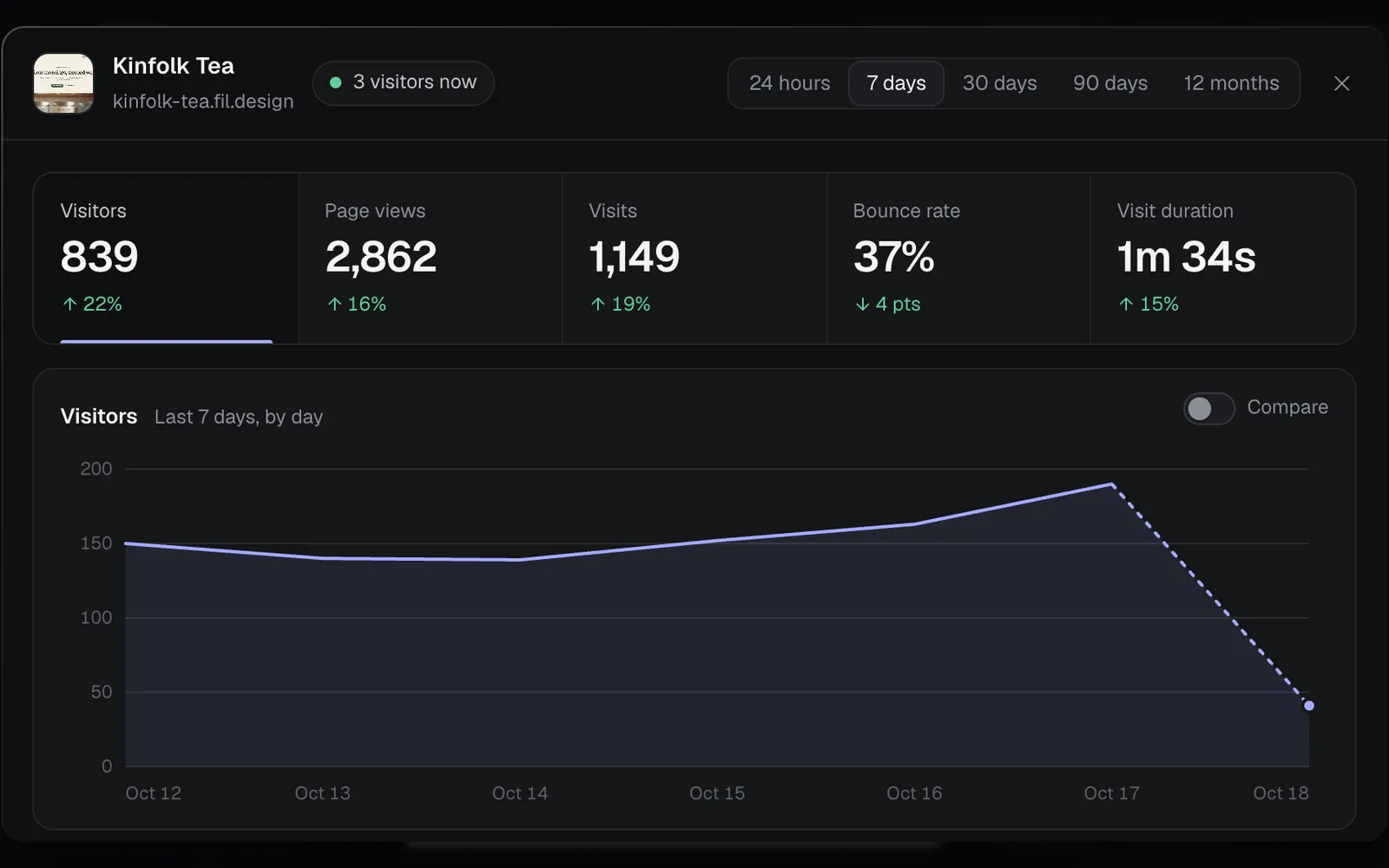
- Pick a range: 24 hours, 7 days, 30 days, 90 days or 12 months. Each measure says how it changed from the period before; Compare draws that period on the chart too.
- Click Visitors, Page views, Visits, Bounce rate or Visit duration to chart it.
- Below the chart, Pages, Sources (Direct, Google, Instagram…), Countries and Devices, Browsers or Systems. Click a row to see only it; Show all (with how many, such as Show all 10) lists the rest.
- A visitor is a daily anonymous number, no address is kept, and bots aren't counted. On a password site, visitors count once they're in.
- To stop counting, turn off Count visitors in Site settings › Analytics, then Update. What was counted stays.
Find your published sites
Click Sites in the sidebar, then Published. Each live site shows its address; a lock means it has a password. Click the address to open the live site, or the card to open the site in the Design tab.
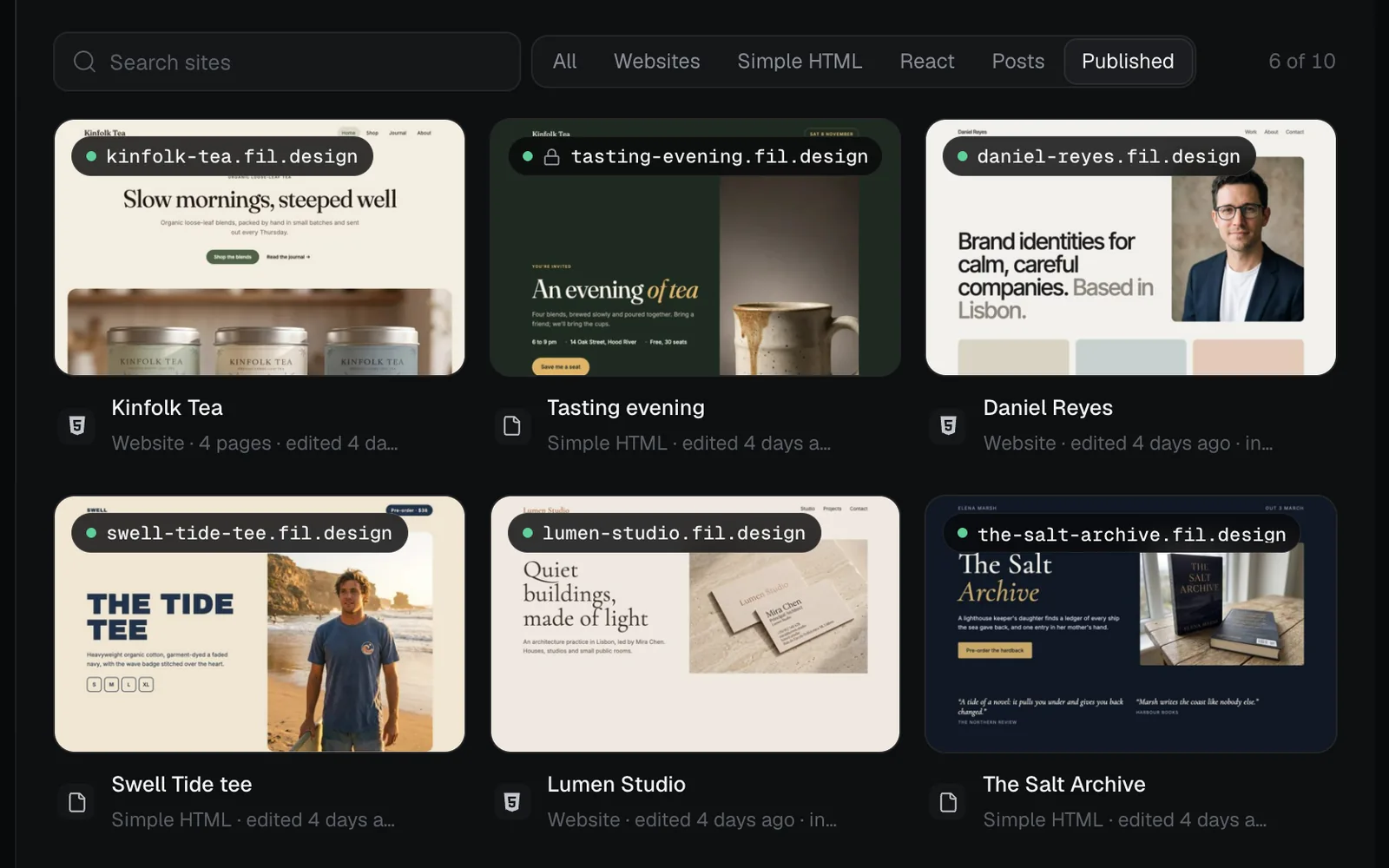
See Websites in Fil for the rest of the Sites page.
Unpublish a website
- In the popover, click Unpublish.
- It asks: "Take it offline? Its address stays yours." Click Unpublish.
- "Unpublished. The site is offline." Its address and settings stay, so Publish puts it back at the same address.
Costs and limits
- Anyone who can edit the canvas can publish, including guests invited as editors. Someone who can only view it sees "Only editors can publish."
- A site whose canvas is in the Trash goes offline until you restore it.
- Forms on a published page don't send anything yet.
- Publishing doesn't put a site in Community. Its pages show in Community's Code when their nodes are public (the globe) and a model made them, whether the site is published or not; on Free every page is public. A site's Password doesn't change that: a lock on the page's node does. See The inspector panel.
- Agents connected to Fil can build and edit sites, but not publish them.
What's next
- Export and GitHub: download the site, or keep it in a GitHub repository.
- Dynamic websites with data: change products and posts, then Update.
- Build a website: add pages to the site before you publish.
- React apps: publish an app the same way.