Tables
Make a table on a Fil canvas: type in cells, size columns and rows as you like, colour them, paste a spreadsheet, or have Claude read a screenshot into one.
A table is a node of rows and columns you type straight into, as in FigJam. Use one for a run sheet, a shot list, a comparison or a budget, right beside the work it's about. Drag any border to make a column or a row the size you want, colour headers and cells, paste a spreadsheet in, or have Claude read a screenshot into one. Tables are free.
Add a table
- Open a canvas from the sidebar (see Canvas basics).
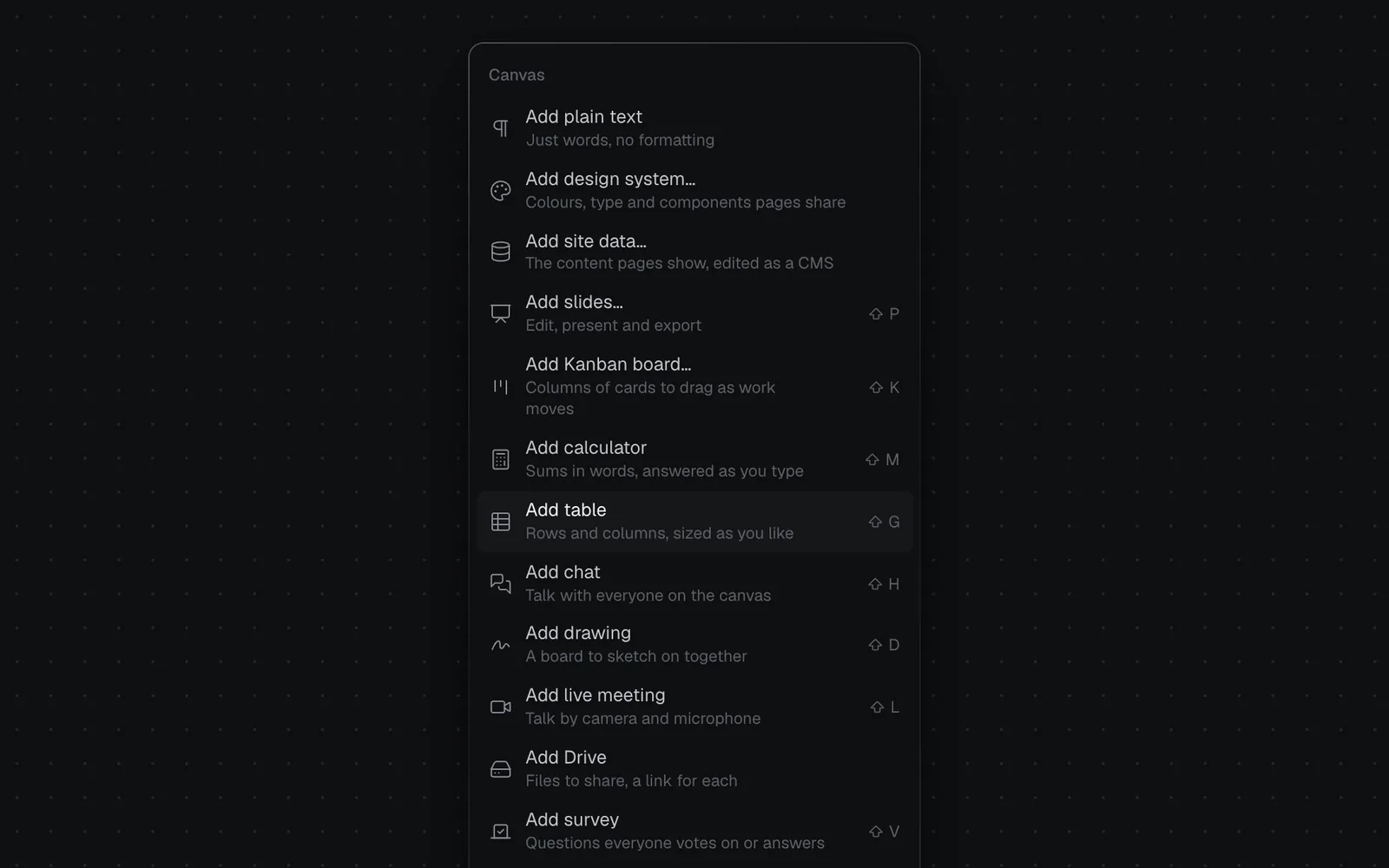
- Click + in the toolbar at the bottom (More nodes) and pick Table, or press ⇧G. A new table appears in the middle of the view: a header row and three rows under it, three columns wide, with the cursor in its first cell.
- Type, and press Tab for the next cell.
- Press Esc when you're done.
You can also right-click an empty spot on the canvas and choose Add table to put one where you clicked.
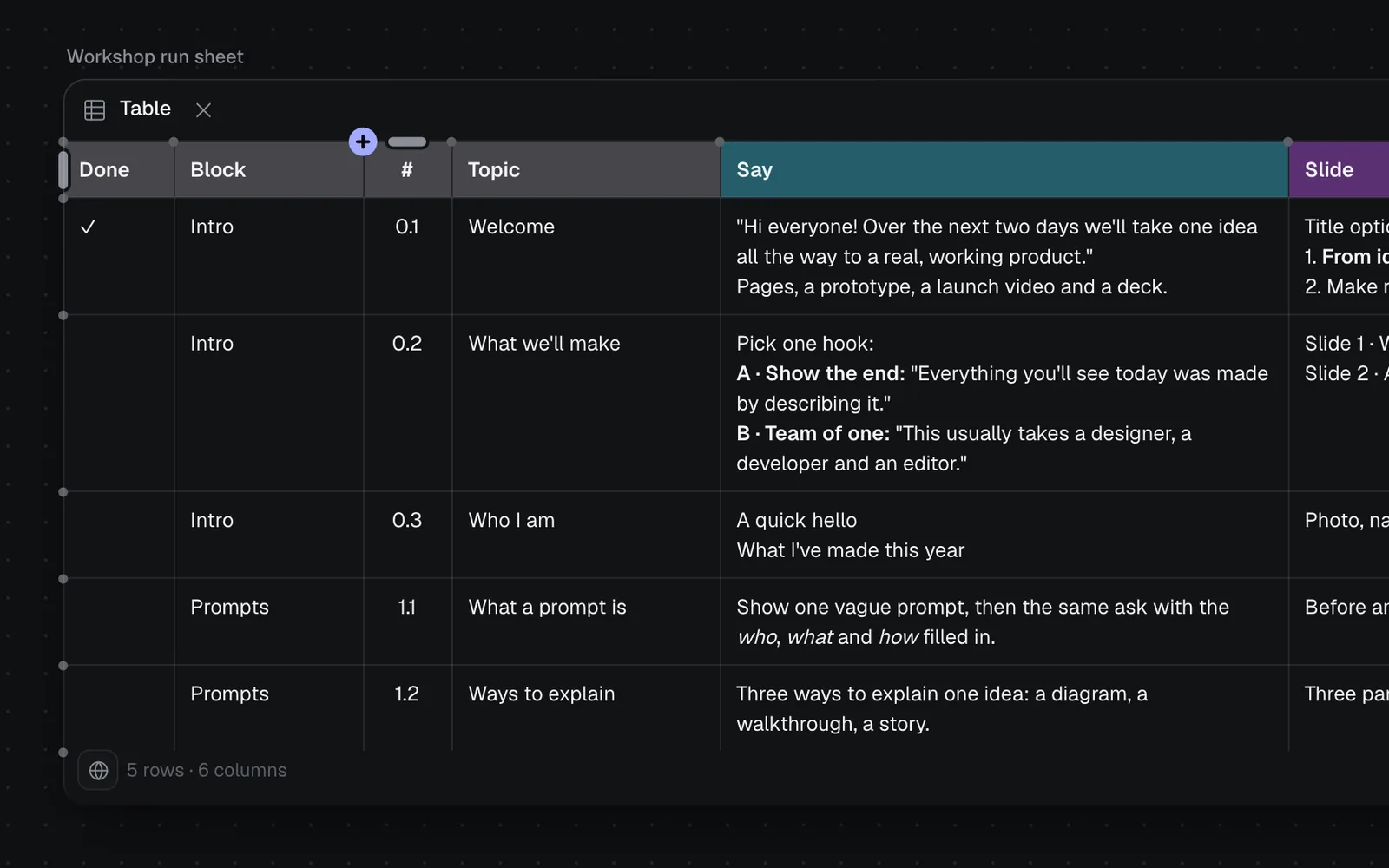
- A new table is named "Table". Double-click the name above it to rename it.
- Selected, it has a × in its Table bar at the top that deletes it, as any node does.
- Its footer counts its rows (not the header row) and columns. The globe or lock at its left is its visibility, as on any node (see The inspector panel).
- ⌘Z on the canvas undoes your last change to a table: typing in a cell, a new row, a colour, a size.
Type in a table
Click a cell to type in it: the cursor goes where you clicked. The cell's border lights up while you type, and what you type is saved a moment after you stop.
| Key | What it does |
|---|---|
| Tab | The next cell. After the last cell, a new row |
| ⇧Tab | The cell before |
| ↑ ↓ | The cell above or below, from the first or last line of a cell |
| Enter | A new line in the cell |
| ⌘B ⌘I | Bold or italic for the words you picked |
| Esc or ⌘Enter | Stop typing |
A cell holds as many lines as you like, and its row grows to fit them. Bold and italic show as you'd expect once you stop typing; while you type, they show as **bold** and *italic*.
Resize columns, rows and the whole table
Every border can be dragged.
- A column: point at its right border and drag. The table grows or shrinks with it. The table's right edge is its last column's border.
- A row: drag its bottom border to make it taller than its words. Double-click the border to fit the row to its words again.
- The whole table: click its Table bar at the top to select it, then drag its bottom-right corner. Every column keeps its share of the width, and the rows share the height. Drag its bottom edge to make it only taller.
A table can be up to 16,000 px wide, and a column no narrower than 48 px.
Add, move and delete rows and columns
- Between two rows or columns: point at the table and dots show on its top edge between columns and on its left edge between rows. Point at one for a +, and click it for a new column or row there. The last dot on each edge adds one at the end.
- At the end: + Row and + Column in the footer.
- A row's or a column's menu: point at a cell, and a short bar shows above its column and beside its row. Click it to pick the column or row and open its menu.
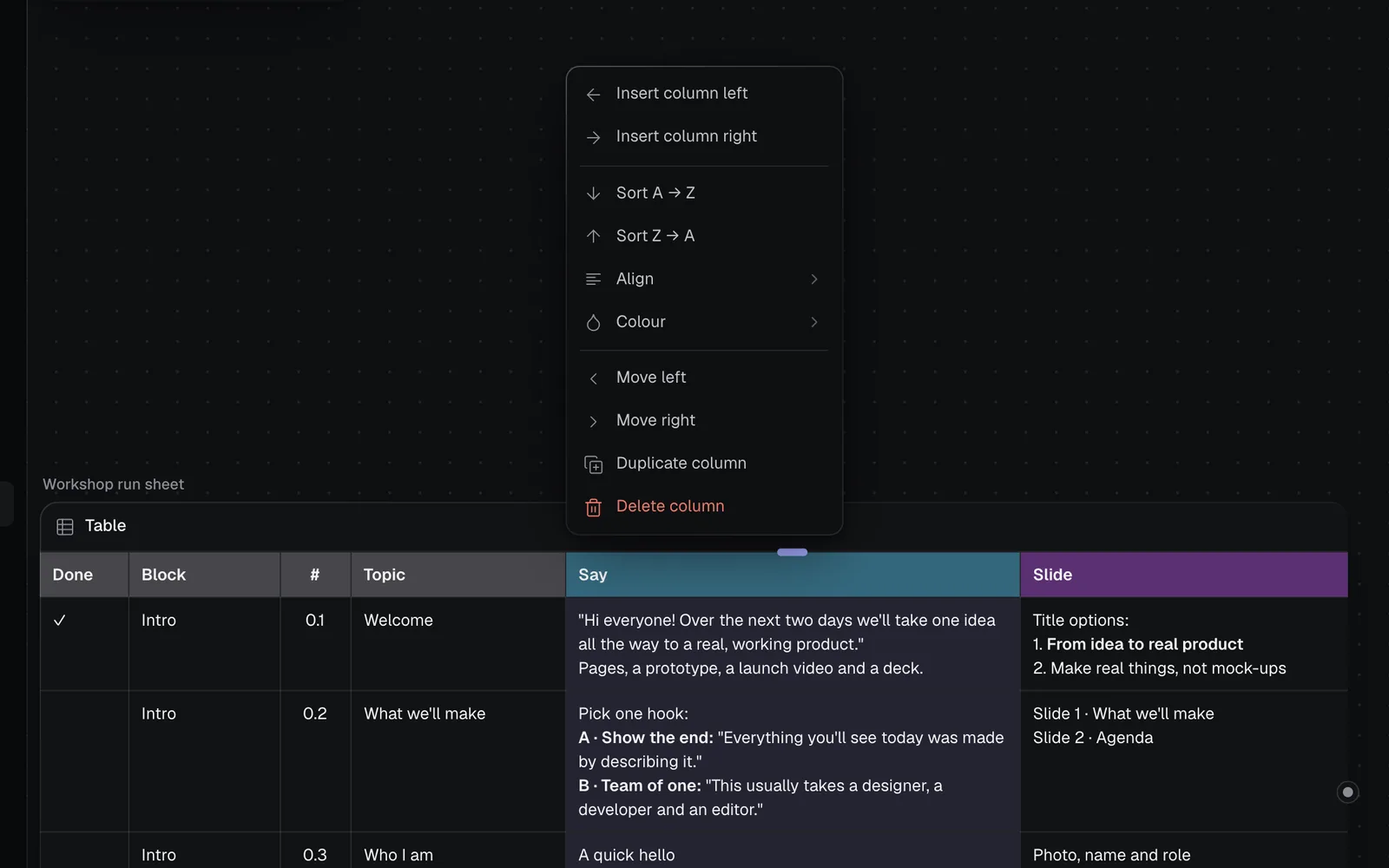
| Menu item | What it does |
|---|---|
| Insert column left / right, Insert row above / below | A new one beside it, as wide as it and in its colours |
| Sort A → Z, Sort Z → A | The rows by that column: numbers as numbers, empty cells last. The header row stays at the top |
| Align | Left, Centre or Right for the column |
| Colour | The column's or row's cells, in one of nine colours, or None |
| Move left / right, Move up / down | One place over |
| Duplicate column / row | A copy beside it |
| Header row | The first row's menu only: when on, the first row is bold on a shaded background |
| Fit to its words | A row you made taller, back to fit its words |
| Delete column / row | Takes it away. A table keeps one row and one column |
With a row or column picked, Delete takes it away and Enter types in its first cell. Esc lets it go.
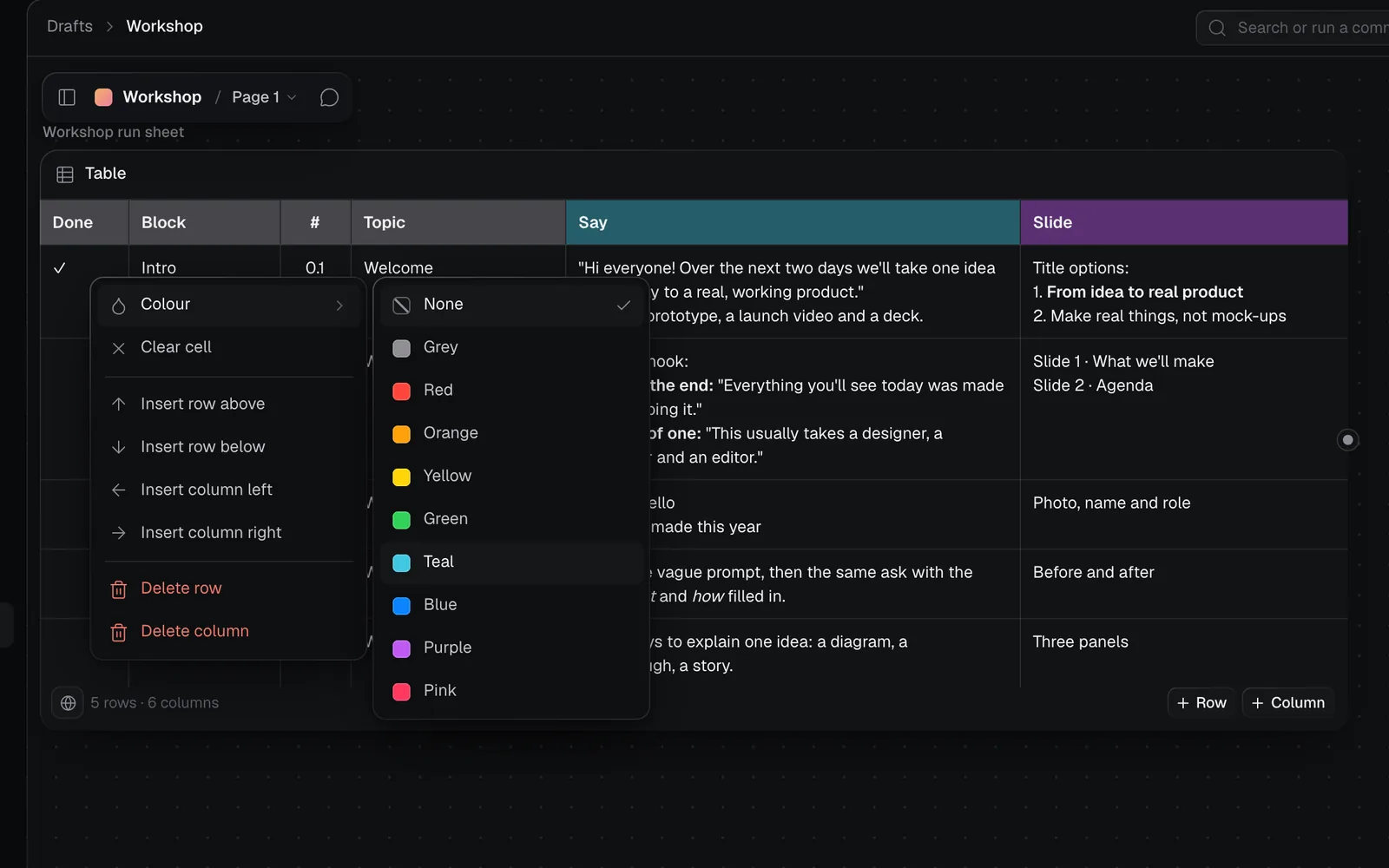
Right-click a cell for its own menu: its Colour, Clear cell, and the same inserts and deletes for its row and column.
Colour headers and cells
Pick Colour from a column's, a row's or a cell's menu: Grey, Red, Orange, Yellow, Green, Teal, Blue, Purple or Pink. A colour in the header row is stronger than the same colour in the rows below it. None takes the colour off.
Paste from a spreadsheet
Copy cells in Google Sheets, Excel or Numbers.
- Into a cell: click the cell and press ⌘V. The cells fill in from there, to the right and down, writing over what's in them, and the table grows to hold the rest. A table copied from a web page, a Google Doc or Notion pastes into a cell the same way. One copied cell pastes as its words.
- Onto the canvas: click an empty spot and press ⌘V for a new table of them where the pointer is, each column as wide as its words. A Markdown table pasted onto the canvas on its own, such as one an AI wrote, becomes a table too.
Make a table from a screenshot or a document
Claude can read a picture of a table, such as a screenshot, a photo of a printed sheet or a slide, and make it a table you can type in. It reads documents and pages the same way.
- Drop or paste the screenshot onto the canvas. It arrives as a Reference node.
- Point at it and drag from the dot on its right edge (a + when you point at it) onto an empty spot (see Connect nodes).
- In the menu, under Make from it, pick Table.
- The new table reads "Reading “Run sheet screenshot”…" while Claude reads it, for everyone on the canvas. In a few seconds (longer for a long table), every row and column is in, each column as wide as its words, and Claude names it from the picture, such as Workshop Run Sheet.
Have a table already? Drag the connection onto it instead: it lights up as you reach it.
- An empty table fills straight away.
- A table with words in it asks first. Fill it from what's connected puts what Claude reads in place of its rows and columns; Keep what's in it only connects them.
- Drop a connection on it again to read it again, from everything wired into it.
- Its note says what it was made from, such as Made from “Run sheet screenshot”.
- The words come as written, bold where the picture is bold, a cell's lines as lines. Check them against the picture, as you would anything read from one.
- A tall screenshot, such as a whole page, is read in parts, so small text in a long table comes through.
- Drag from several nodes at once (select them, then drag from one's dot) to make one table from all of them. With no table in them, Claude makes the most useful one it can: a row for each thing and a column for what they share.
- Colours in the picture aren't copied: colour the headers afterwards.
- The table stays wired to the screenshot.
- When it can't, the table says why under it, with × to dismiss it.
The same menu makes a Calculator, a Markdown or Plain text document or a Survey from what you drag out of in the same way, free, and a connection dropped on an empty one fills it. Kanban board, Task list, Calendar and Slides become a Code node wired to it, made when you click Generate, its price shown first (see Kanban boards). Drive keeps a copy of each file, a link for each.
Copy, download or connect a table
Wire a table into a node as you would a document (see Connect nodes): its run reads the table as a Markdown table, every row and column. A shot list wired into a Code node can become a call sheet; a run sheet wired into Slides, the workshop's deck.
Click a table's Table bar to select it, then the panel button at the top right (Show properties) for its Table section: its row and column count, Header row to turn the header's look on or off, and copies to take elsewhere.
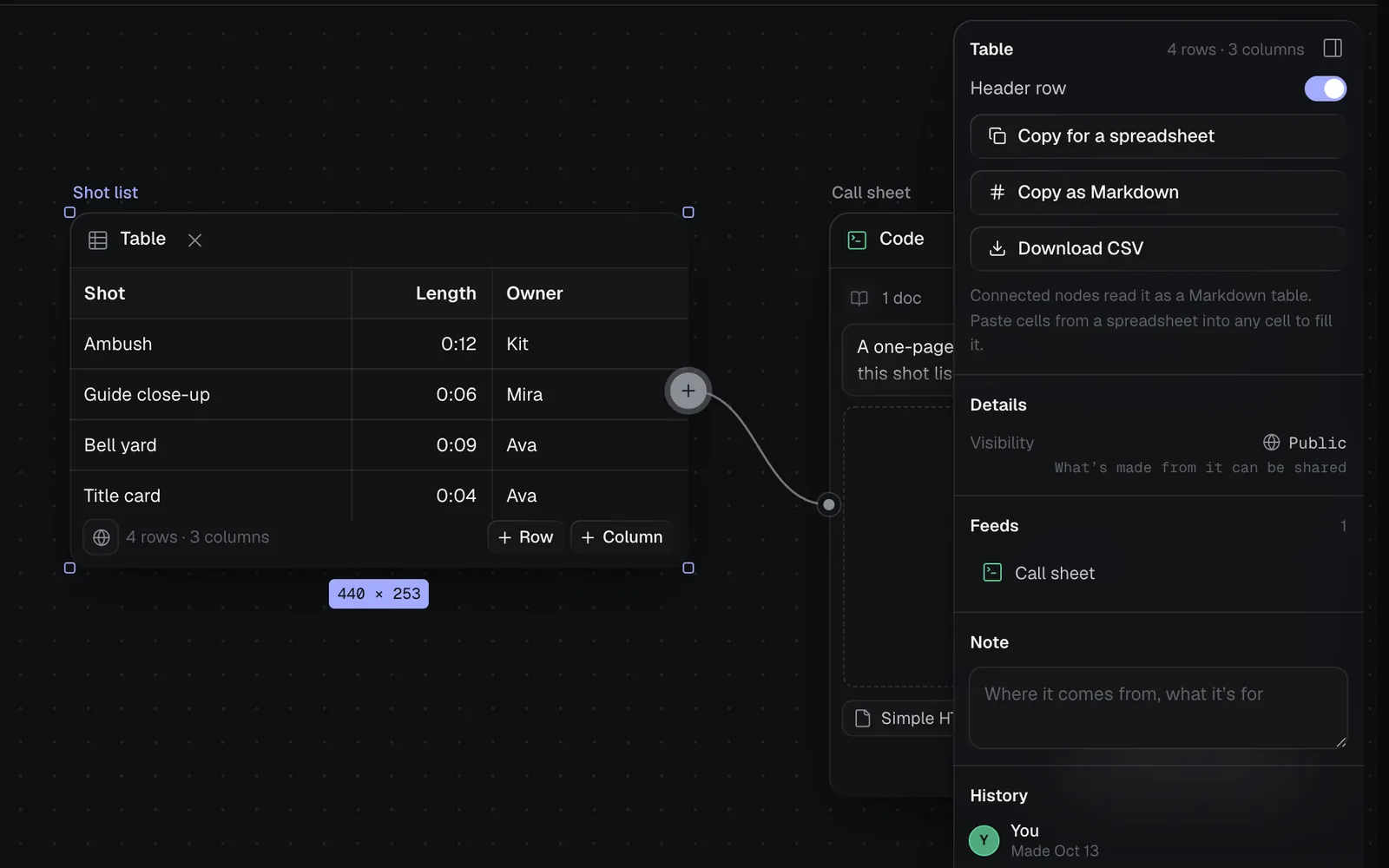
- Copy for a spreadsheet copies the cells to paste into Google Sheets, Excel or Numbers, each in its own cell.
- Copy as Markdown copies it as a Markdown table, for a document or a chat.
- Download CSV saves it as a CSV file.
Make a table with the chat or an agent
Ask the canvas chat for a table in your own words, such as "make a table of the shots with their length and owner", or mention a screenshot and ask for it as a table. It replies with a card: click Add on it to put the table on the canvas (see Chat). It can also rewrite a table you mention. Claude Code, Codex and other agents connected to Fil can add tables as well (see MCP tools).
Tips and limits
- Everything about a table is free: typing, sizing, colours, pasting, and making one from what's connected.
- To move a table, drag it by its Table bar, or press on any cell and drag. A click on a cell types in it.
- A table doesn't work out sums: for those, put a calculator beside it.
- A table holds up to 1,000 rows and 60 columns, and up to 2 MB of words. In a large table (over about 9,000 characters), what you type is saved as you leave each cell rather than as you type.
- People on the canvas see what you type in a small table as you type it, and everything else as it's saved.
- People who can only view a canvas see its tables but can't change them.
What's next
- Canvas basics: add, connect and arrange nodes.
- Calculators: sums in plain words beside your tables.
- Kanban boards: cards to drag between columns, for work that moves.
- Keyboard shortcuts: ⇧G and the canvas's other keys.