Calculators
Work out sums in plain words on a Fil canvas, with money, percentages, units, dates, and currencies at the day's rates, each answer shown as you type.
A calculator is a node for calculations written the way you'd say them. Type a line such as "Hotel 4 nights at $140" or "20% off $80", and its answer shows on the right as you type. Use one for a trip budget, a client's quote or a quick conversion, right beside the briefs and work it belongs to. Calculators are free: nothing you type in one costs credits.
Add a calculator
- Open a canvas from the sidebar (see Canvas basics).
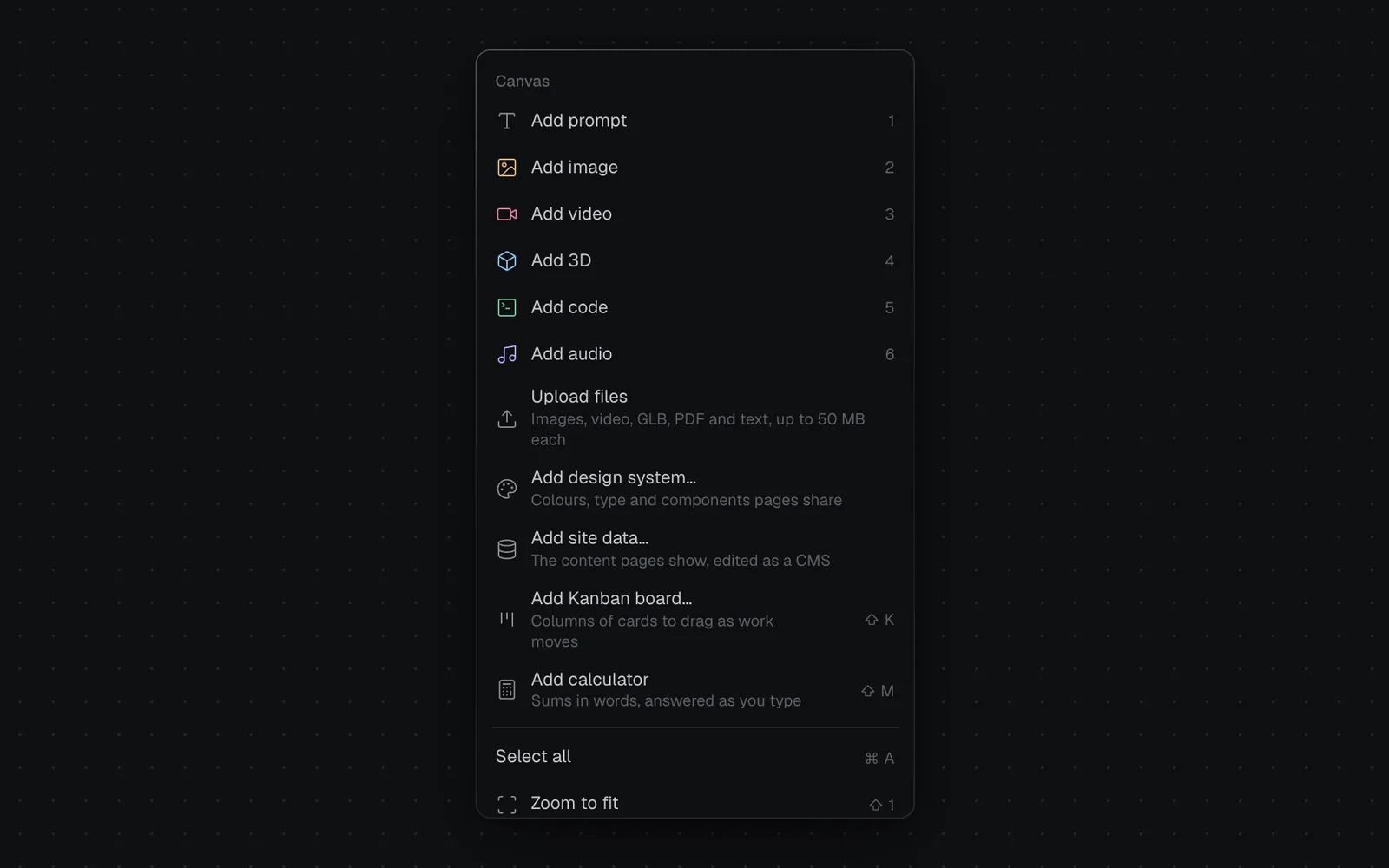
- Click + in the toolbar at the bottom (More nodes) and pick Calculator, or press ⇧M. A new calculator appears in the middle of the view, ready to type in. Until you type, it shows faded examples with their answers.
- Type a calculation and press Enter for the next line. Each line's answer shows beside it, and the calculator saves itself a moment after you stop typing.
- Press Esc or click the canvas when you're done.
You can also right-click an empty spot on the canvas and choose Add calculator to put one where you clicked.
- To type in a calculator again, click its lines. Or select it and press Enter: the cursor goes after its last line.
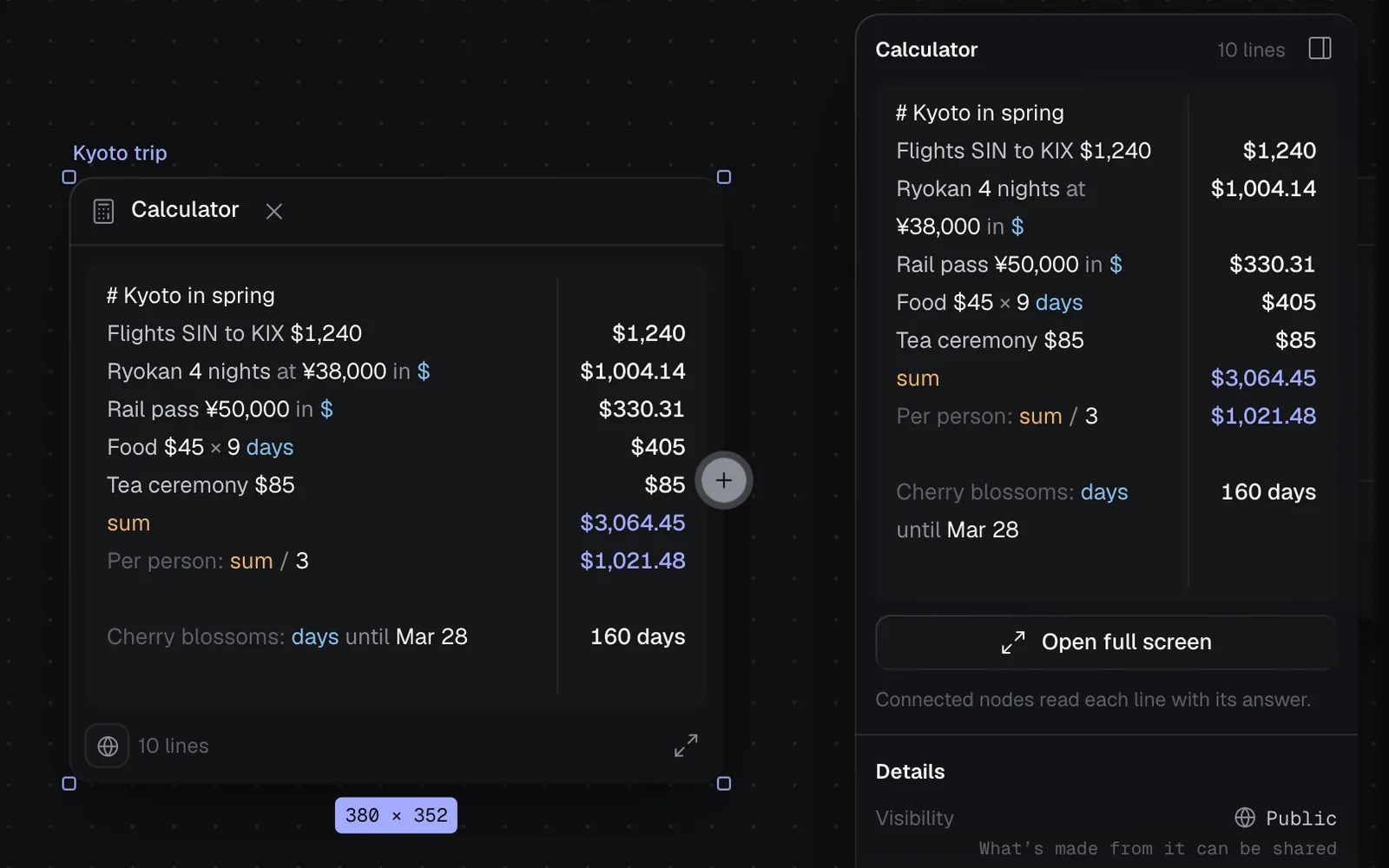
- A new one is named "Calculator". Double-click the name above it to rename it, such as "Kyoto trip".
- Selected, it has a × in its header that deletes it, as any node does.
- Its footer counts its lines. The arrows at the footer's right open it full screen. The globe or lock at its left is its visibility, as on any node: click it to make the calculator public or private (see The inspector panel).
- ⌘Z on the canvas undoes your last typing in a calculator, as it undoes any change on the canvas.
- A long calculator scrolls inside its node; full screen shows all of it.
What you can write on a line
Each line is one calculation. Words around the numbers are ignored, so a line can read like a note: "Flights SIN to KIX $1,240" is $1,240. A line with nothing to work out, or one that doesn't add up (such as 4 / 0), has no answer.
Two amounts side by side add up when they're the same kind: "1 h 30 min" is 1.5 h. Otherwise the one with a unit or currency counts ("Room 3 costs $40" is $40), and between two plain numbers, the larger.
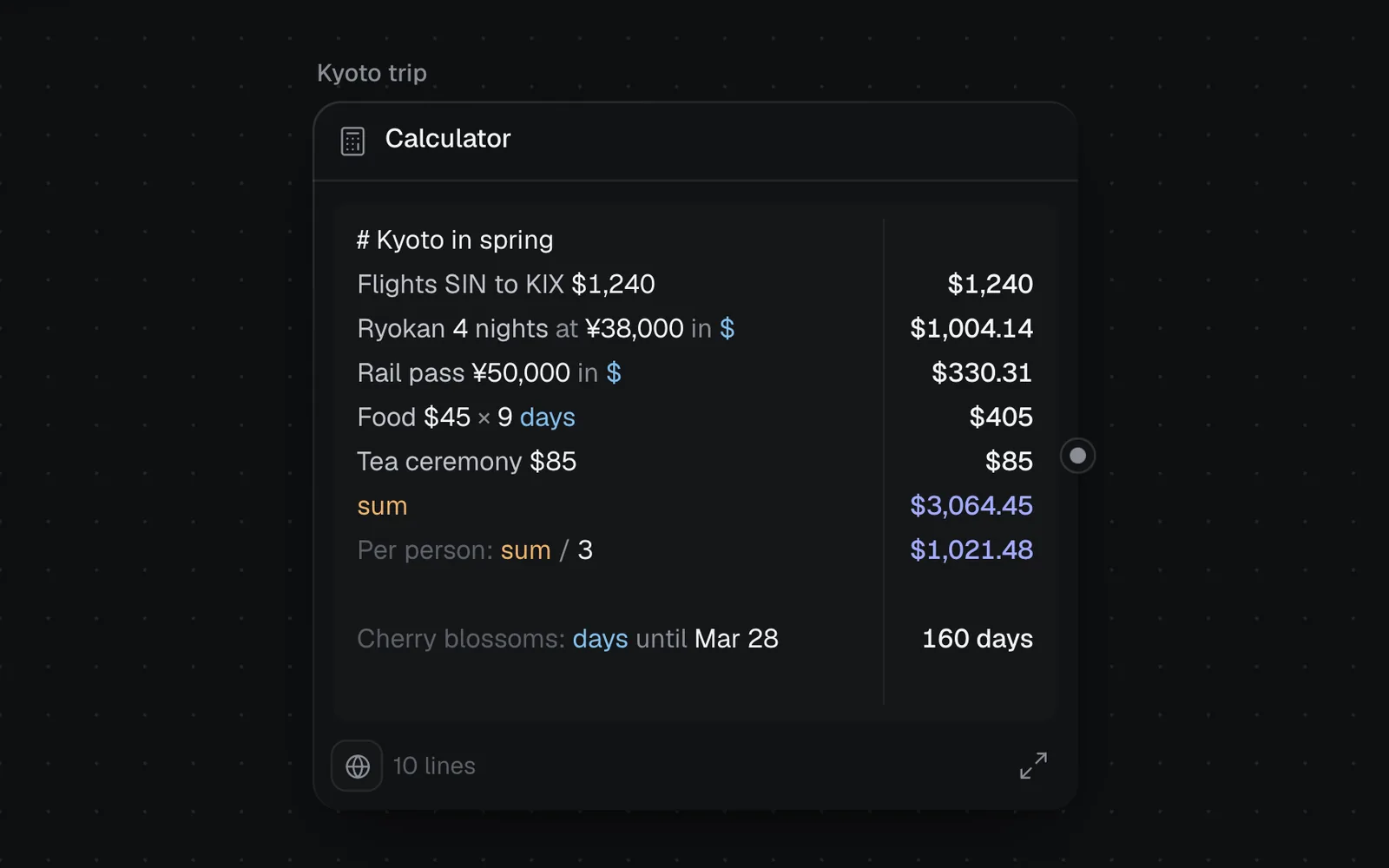
The colours show how each line was read, so they're the first thing to check when an answer looks wrong. Amounts, units, names, and references such as sum and prev each take their own colour. Operators, labels, comments and ignored words are dimmed.
The answers of lines that use sum, average or grand total take the accent colour.
Numbers and arithmetic
| Line | Answer |
|---|---|
| Flights to Tokyo $1,240 | $1,240 |
| Hotel 4 nights at $180 | $720 |
| 2 coffees @ $4.50 each | $9 |
| (1 + 2) × 3 | 9 |
| 10 divided by 4 | 2.5 |
| 2^10 | 1,024 |
| half of $100 | $50 |
| $5k + $1.2M | $1,205,000 |
| sqrt 16 + 9 | 13 (the square root of 16, plus 9) |
- Type
*for × and/for ÷, or the words plus, minus, times, divided by and mod. "at", "@" and "x" between two amounts multiply them. - Write large numbers as 1,200, 1.2k, 5M, $2B or 2 million, with a comma between thousands and a point before decimals: "1.200,50" isn't read as twelve hundred.
Percentages
| Line | Answer |
|---|---|
| 20% of $80 | $16 |
| $80 + 20% | $96 |
| 20% off $80 | $64 |
| 5% on $200 | $210 |
| Lunch $24 + 18% tip | $28.32 |
| 30 as a % of 120 | 25% |
| $30 is 20% of what | $150 |
| $80 is 20% off what | $100 |
Units and conversions
"in" or "to" converts one unit into another.
| Line | Answer |
|---|---|
| 5 km in miles | 3.11 mi |
| 72 °F to °C | 22.22 °C |
| 1 h 30 min in min | 90 min |
| 5 ft 3 in in cm | 160.02 cm |
| 6 pounds in kg | 2.72 kg |
| 500 GB in TB | 0.5 TB |
| 3 cups in ml | 709.76 ml |
| $25/h × 40 h | $1,000 |
| Food $45 × 5 days | $225 |
| 60 km/h × 2.5 h | 150 km |
A calculator knows lengths, weights, times, data (bits to petabytes), areas (m², sq ft, acres, hectares), volumes (ml, litres, cups, gallons, tbsp, tsp), temperatures and speeds (km/h, mph, knots). A price per hour times hours is money, and so is a price times a number of days.
Currencies and exchange rates
Write an amount with its sign, before or after the number (€50, 50€, S$20, RM 50 or 50 RM), with its three-letter code before or after it (USD 100, 1,500 CHF), or with its name after it (50 euros, 3,000 yen). Use "in" to change an amount into another currency.
| Line | Answer |
|---|---|
| $100 in EUR | €92.18 |
| ¥50,000 in SGD | S$429.69 |
| £20 in $ | $25.92 |
| €80 + $20 | €98.44 |
| CHF 1,500 in EUR | €1,594.90 |
| Write | For |
|---|---|
| $ or USD, € or EUR, £ or GBP, ¥ or JPY | US dollars, euros, pounds sterling, yen |
| S$, A$, C$, HK$, NZ$, MX$, R$ | Singapore, Australian, Canadian, Hong Kong and New Zealand dollars, Mexican pesos, Brazilian reais |
| CN¥, ₹, ₩, ฿, ₱, ₺, ₪, RM, Rp | yuan, rupees, won, baht, Philippine pesos, lira, shekels, ringgit, rupiah |
| CHF, SEK, NOK, DKK, PLN, CZK, HUF, RON, ISK, ZAR | Swiss francs, Swedish, Norwegian and Danish kronor, zloty, koruna, forint, lei, Icelandic krónur, rand |
- Money is changed at the European Central Bank's rates, set once every working day. The calculator fetches them the first time it changes money, and the full view's title says which day's rates it used ("exchange rates of Oct 16 (ECB)").
- When two currencies meet on one line, the answer is in the first one's: €80 + $20 is in euros.
- While the rates load, a line that changes money shows "…" for its answer. If they can't be fetched, it shows "—" instead (point at it to see why), and the calculator tries again a minute later. Amounts in one currency never wait.
- A code the calculator doesn't know is ignored like any other word: "100 VND in $" reads as $100.
Dates and times
| Line | Answer on Monday, October 19, 2026 |
|---|---|
| today + 3 weeks | Mon, Nov 9 |
| days until Dec 25 | 67 days |
| Jan 1 2027 − today | 74 days |
| next friday | Fri, Oct 23 |
| 2 days ago | Sat, Oct 17 |
| 3pm + 90 min | 4:30 pm |
| 5:30pm − 9am | 8.5 h |
- Write dates as Dec 25, Dec 25 2026 or 2026-12-25. "25/12" is a division.
- A date without a year is this year's, except after "until", where a date that has already gone means the next one: in October, "days until Mar 28" counts to next March. After "since" it means the last one: "days since Dec 25" counts from last Christmas.
- Answers about today move on as the days do.
Names, line references and totals
Give a value a name with =, and use the name on any line below it. A name can be more than one word, in any capitals. Lines are numbered from the top, headings and blank lines included.
| Line | Answer |
|---|---|
| rent = $1,500 | $1,500 |
| rent × 12 | $18,000 |
| line1 + line2 | the answers of lines 1 and 2, added ("line 1" works too) |
| prev × 2 | the answer of the line above, doubled |
| sum | the lines above, added up, as far as a blank line or a heading |
| average | the average of those lines |
| grand total | every line above, leaving out the sum lines |
- sum (or total) never counts the sum lines above it. Put a blank line or a heading between sections, sum each one, and end with a grand total: it adds every line once, never a section and its sum.
- A sum adds amounts of one kind, money with money (in the first amount's currency) or hours with hours. Lines of another kind, and plain numbers among money, are left out.
- Words the calculator already uses, such as sum, prev, today and line, can't be names.
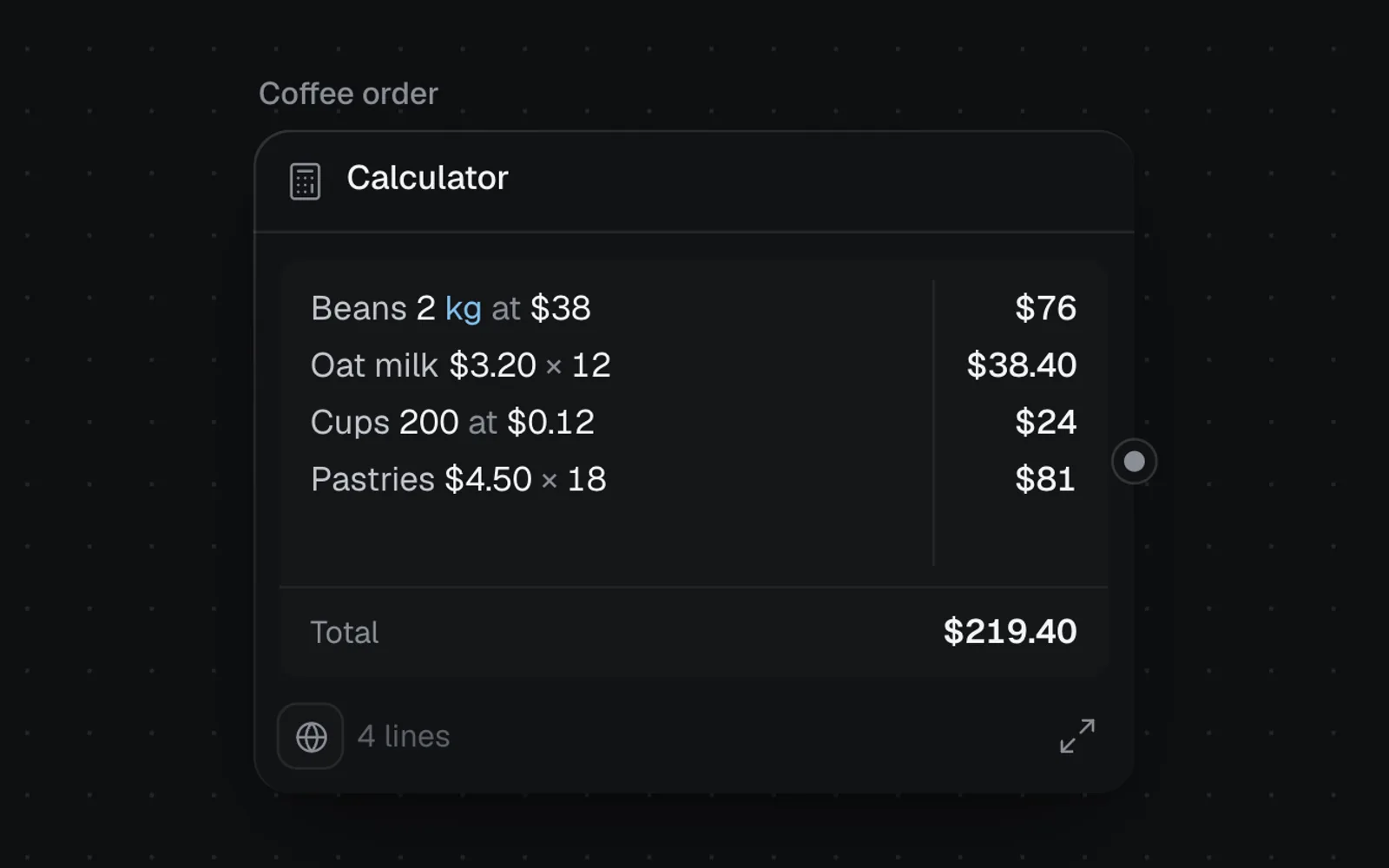
A plain list of two or more amounts of one kind gets a Total at its foot. It goes away once a line uses sum, prev, a line number or a name, or starts with an operator, as in the recording at the top.
Running totals: carry on from the line above
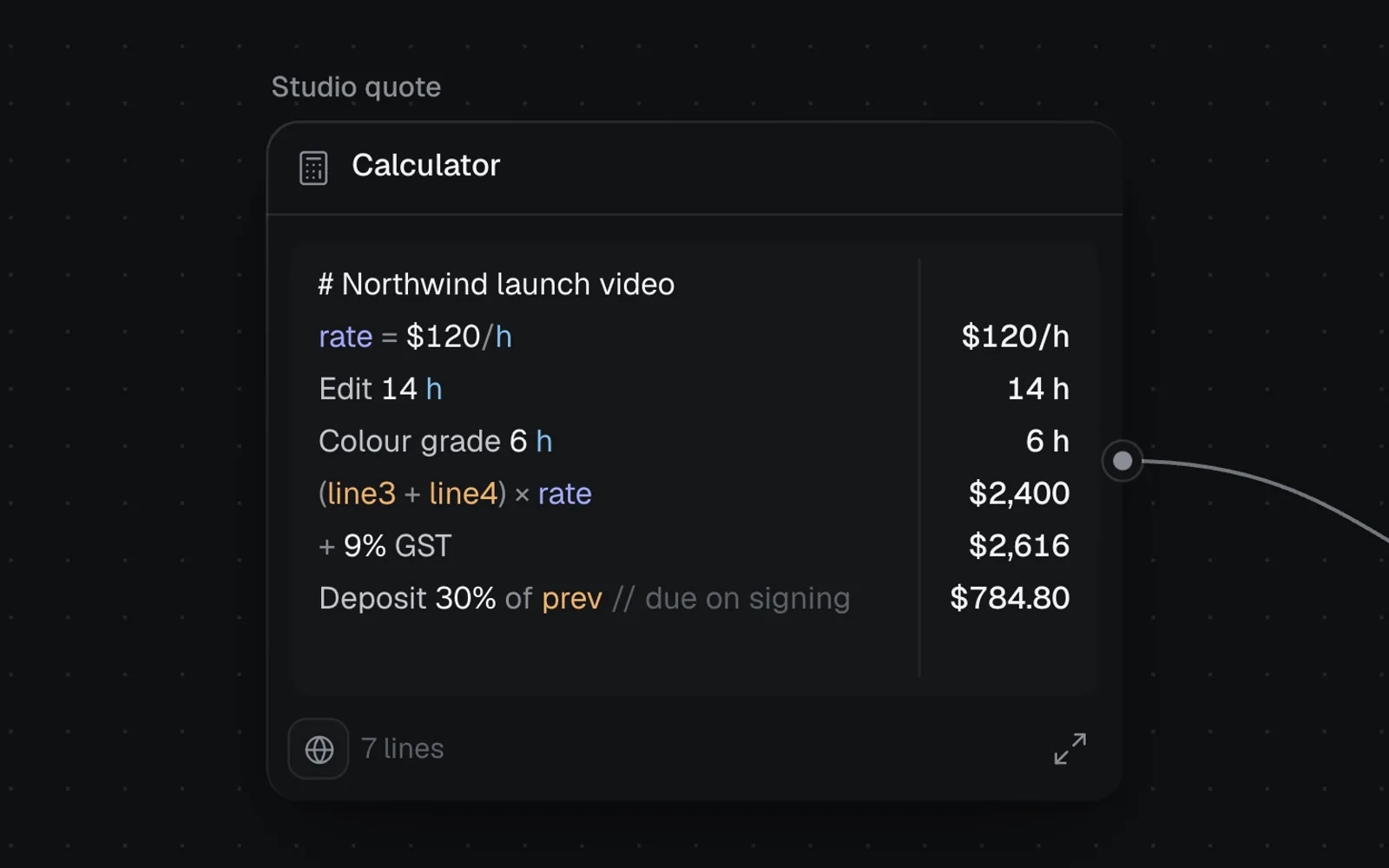
Start a line with an operator to carry on from the answer above it, as a running total: "+ 9% GST" adds 9% to the line before, "× 2" doubles it and "- $40" takes $40 off. The words plus, minus, times and divided by work the same way. A minus needs a space after it: "-5" is a negative number.
Headings, comments and labels
| Line | What it does |
|---|---|
| # Kyoto in spring | A heading: no answer, and sum starts again below it |
| Food $45 × 9 days // street stalls | // starts a comment: the rest of the line is ignored |
| Per person: sum / 3 | Words before a colon are a label |
| "Room 101" 5 + 5 | Words in quotes are ignored: the answer is 10 |
Copy an answer
Click an answer to copy it; a message such as "Copied $1,465" confirms it. The Total at the foot copies the same way.
To copy the whole calculator, open it full screen and click Copy with answers, the copy button at the top right. Each line comes with its answer after a tab, so it pastes into a spreadsheet as two columns.
Open a calculator full screen
Click Open full screen, the arrows at the bottom right of a calculator, or the button of the same name in the inspector. The lines show large, with room to work, and the title shows how many lines there are.
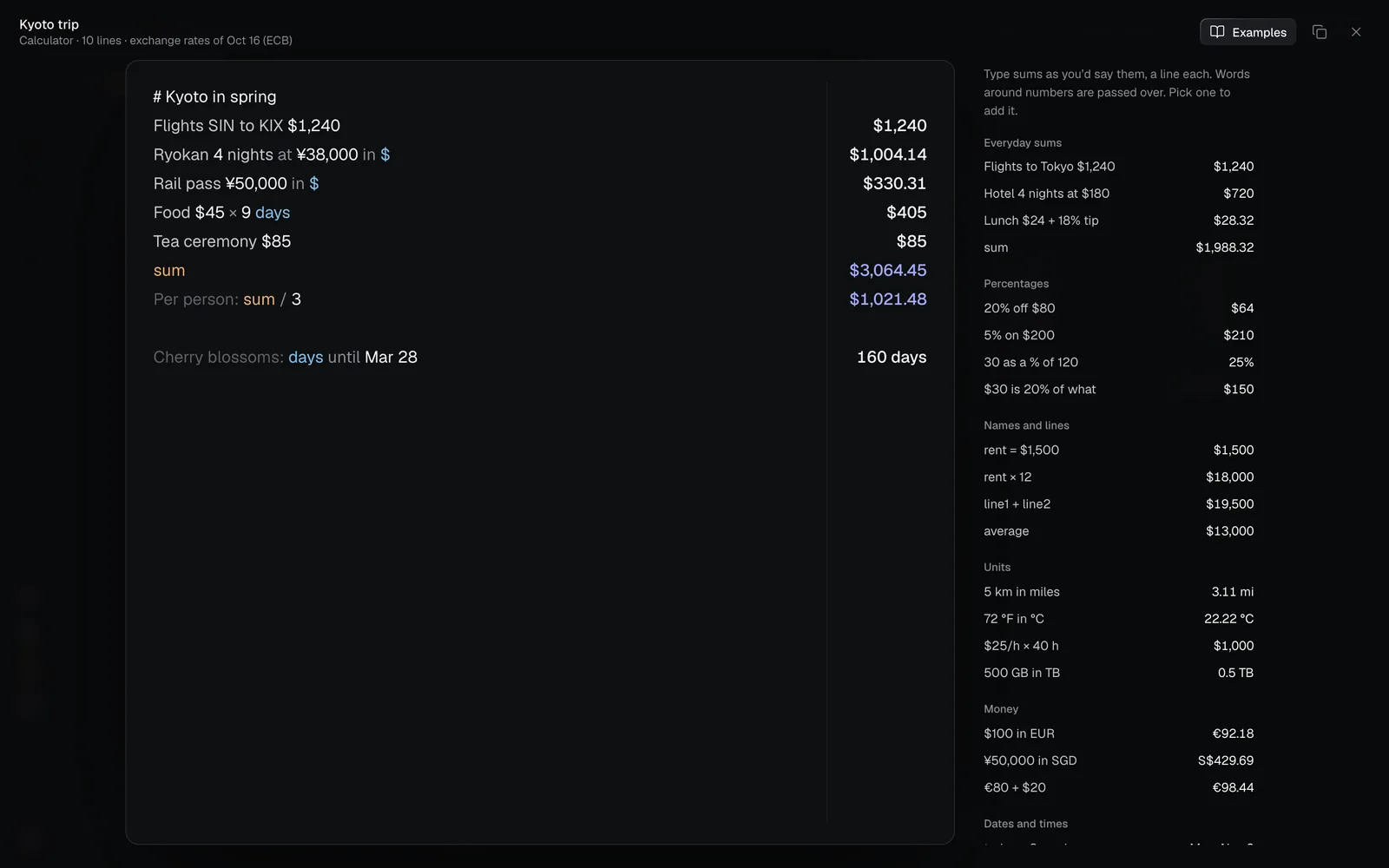
- Examples, beside the lines, lists what you can write, by kind: everyday sums, percentages, names and lines, units, money, dates and times, and notes, each with its answer. Click one to add it as the last line. The Examples button at the top hides or shows them; in a narrow window they start hidden unless the calculator is empty.
- Click anywhere below the last line to keep typing there.
- Copy with answers copies every line with its answer.
- Esc or the × closes it. What you typed is saved.
The calculator in the inspector
Select a calculator and click Show properties at the top right (see The inspector panel). Its Calculator section holds the same lines to type in, the line count and Open full screen. Below it, as for other nodes: its visibility, the nodes it feeds, a Note, Duplicate and Delete.
Use a calculator's answers in other nodes
Wire a calculator into a node as you would a document, so its run works from your numbers.
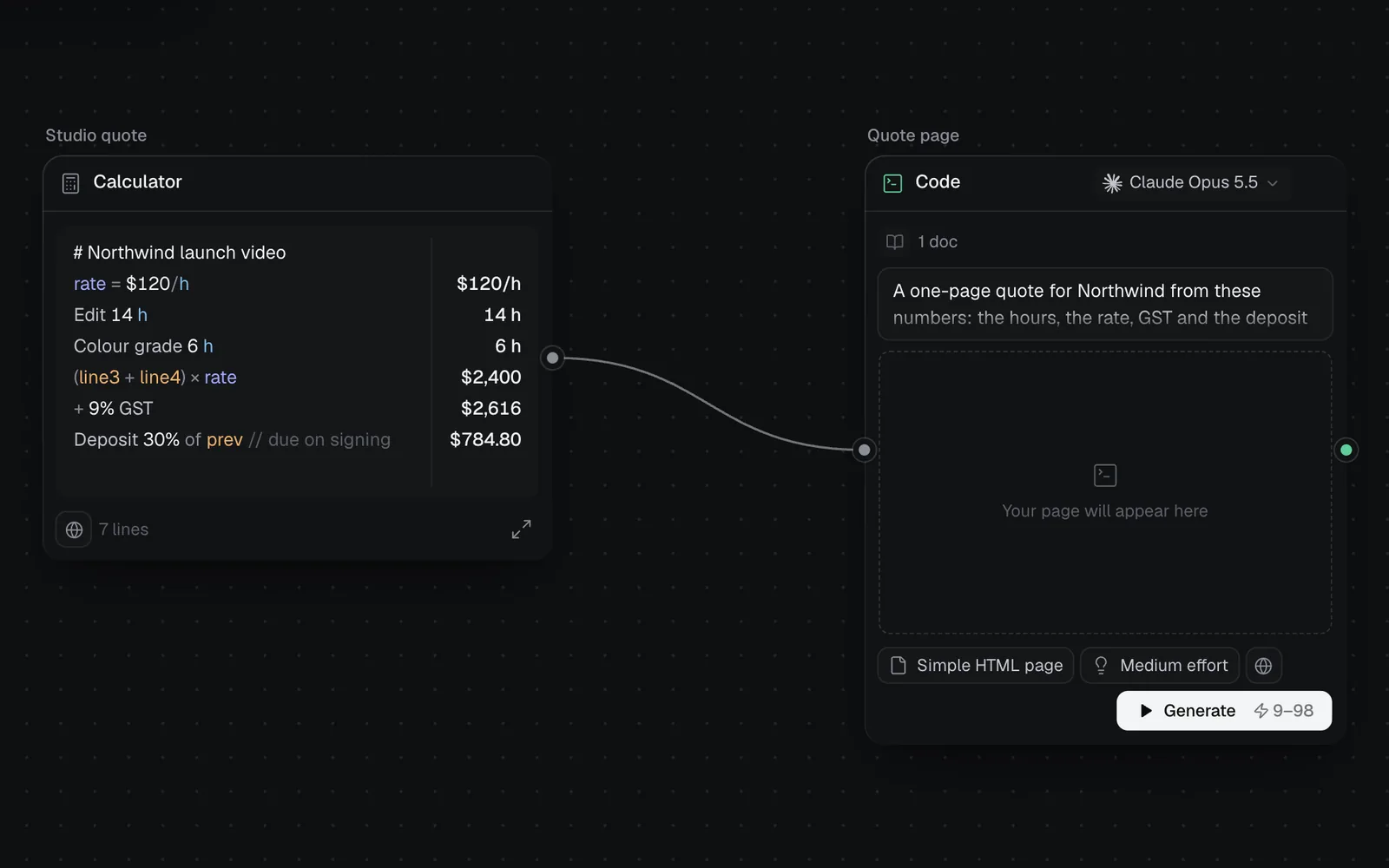
- Drag from the dot on the calculator's right edge onto an Image, Video, 3D, Code or Audio node (see Connect nodes).
- The node's inputs row counts it as a doc ("1 doc").
- Write what to make in the node's prompt and click Generate. The run reads each line with its answer, worked out. For the Studio quote below, after its heading, that's:
rate = $120/h  → $120/h
Edit 14 h  → 14 h
Colour grade 6 h  → 6 h
(line3 + line4) × rate  → $2,400
+ 9% GST  → $2,616
Deposit 30% of prev // due on signing → $784.80A plain list ends with its total, such as "Total: $219.40".
So a Code node can write a client's quote page from the hours, rate and tax you worked out, with the numbers right.
Make a calculator with an agent
Claude Code, Codex and other agents connected to Fil can add a calculator for you. Ask in your own words, for example "add a calculator to my Kyoto trip canvas with the flights, the ryokan in yen and food for nine days". The agent writes the lines, and Fil works out the answers as it does for yours. An agent can also change a calculator's lines, each change a new version, and when it reads a calculator's file it gets each line with its answer at the day's rates. The tools it uses are in MCP tools.
Tips and limits
- Everything about a calculator is free, the day's exchange rates included.
- "pounds" is a weight (6 pounds in kg). For money, write £ or GBP.
- A calculator holds up to 9,000 bytes of text: about 9,000 characters, though symbols such as €, ¥ and × take two or three. A counter shows near the limit.
- People on the canvas see what you type as you type it. If two people change the same calculator at once, one of them sees "Someone else edited this. Your lines are kept." with Keep mine and Use theirs.
- People who can only view a canvas see its calculators and answers, but can't type in them or add examples; full screen only shows the lines.
What's next
- Canvas basics: add, connect and arrange nodes.
- Prompts, documents and skills: the briefs a calculator can sit beside and feed with them.
- Code generation: pages and documents made from what you wire in.
- Keyboard shortcuts: ⇧M and the canvas's other keys.
- Kanban boards: another free node for planning work on a canvas.