Kanban boards
Plan work on a Kanban board in Fil. Drag cards between columns on the canvas, edit them full screen, and make or change a board with AI from your documents.
A Kanban board is a node of columns and cards: each card is a piece of work, and you drag it from column to column as the work moves on. Use one for a launch, a content pipeline or a client's deliverables, right beside the briefs and results on the same canvas. Every move is saved as a new version of the board, for free.
Add a Kanban board
- Open a canvas from the sidebar (see Canvas basics).
- Click + in the toolbar at the bottom and pick Kanban board, or press ⇧K. A new board appears in the middle of the view with three empty columns: To do, In progress and Done.
- Click Add card in a column, type what the card is for and press Enter. The box stays open for the next card.
- Press Esc when you're done.
- To add to a column that already has cards, point at the column and click the + by its name.
The board sits in a Code node, so its header reads Code. Above and below the board are AI controls: a prompt, a model, What should change on the board? and Edit. They cost credits only if you run them (see Make a Kanban board with AI from your documents). Adding, moving and editing cards yourself is always free.
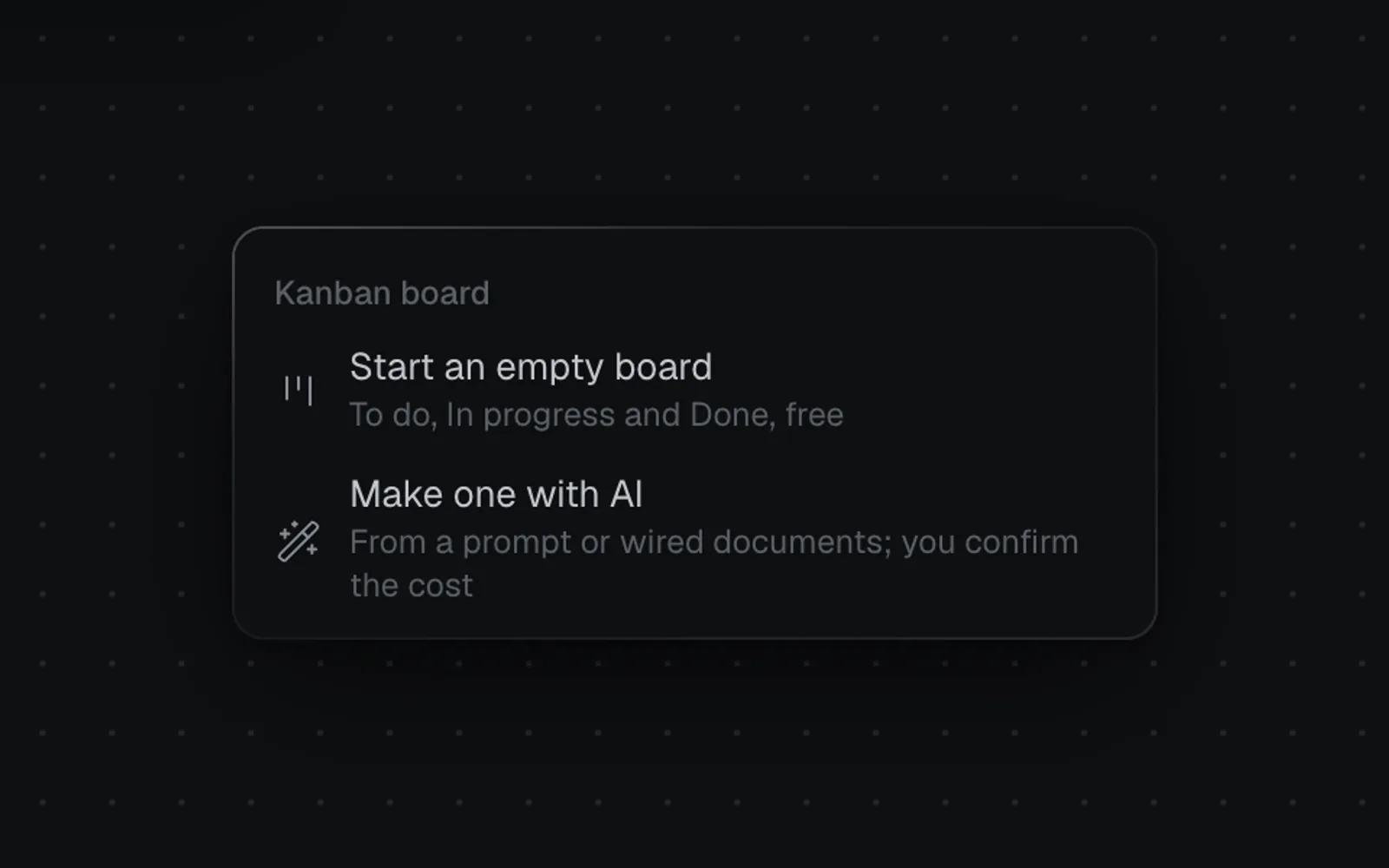
You can also right-click an empty spot on the canvas and choose Add Kanban board…. Start an empty board puts the same empty board where you clicked; Make one with AI adds a board for AI to fill.
Move cards between columns
Drag a card on the board itself: there's no need to open it first.
- Press on a card and move it. Its place opens up where it will land, and the card follows your pointer.
- Let go over another column to move it there, or higher or lower in its own column to change its order.
- To change your mind, press Esc while you're holding the card, or let go outside the columns: it goes back where it was.
The board on the canvas shows as many cards in each column as fit. + 3 more at the foot of a column, or the count at the right (such as +2) when the columns don't all fit, opens the full view with every card. To fit more on the canvas, drag the node's side edge to make it wider (up to 560 px); a board made from a Code node starts narrower than one from the toolbar.
Open the board full screen
Point at the board on the canvas and click View full size, the arrows at its top right. Clicking a card opens the full view too, with that card open.
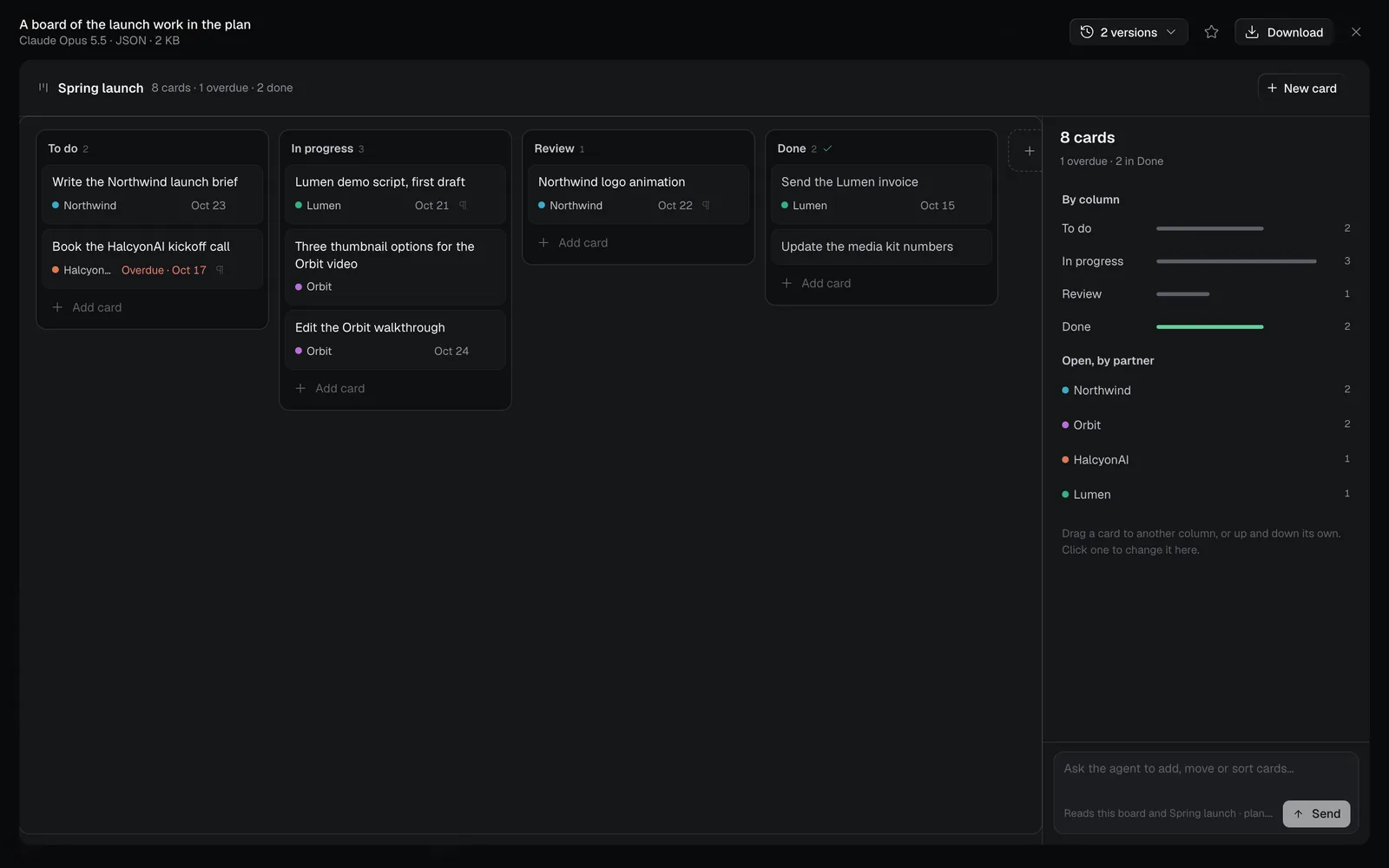
- The columns sit side by side; scroll sideways when there are more than fit.
- Drag cards here as on the canvas. Hold a card near the board's edge and it scrolls.
- With no card open, the side panel shows the board at a glance: how many cards each column holds, how many are overdue, and how many open cards each partner has.
- Double-click the board's name at the top to rename it. The node's name above it on the canvas stays as it is; double-click that one to rename it.
- Esc closes the full view. On a phone, the side panel moves under the board, without the summary: the card you open, and the agent.
Edit a card: due date, partner and notes
In the full view, click a card to open it in the side panel on the right.
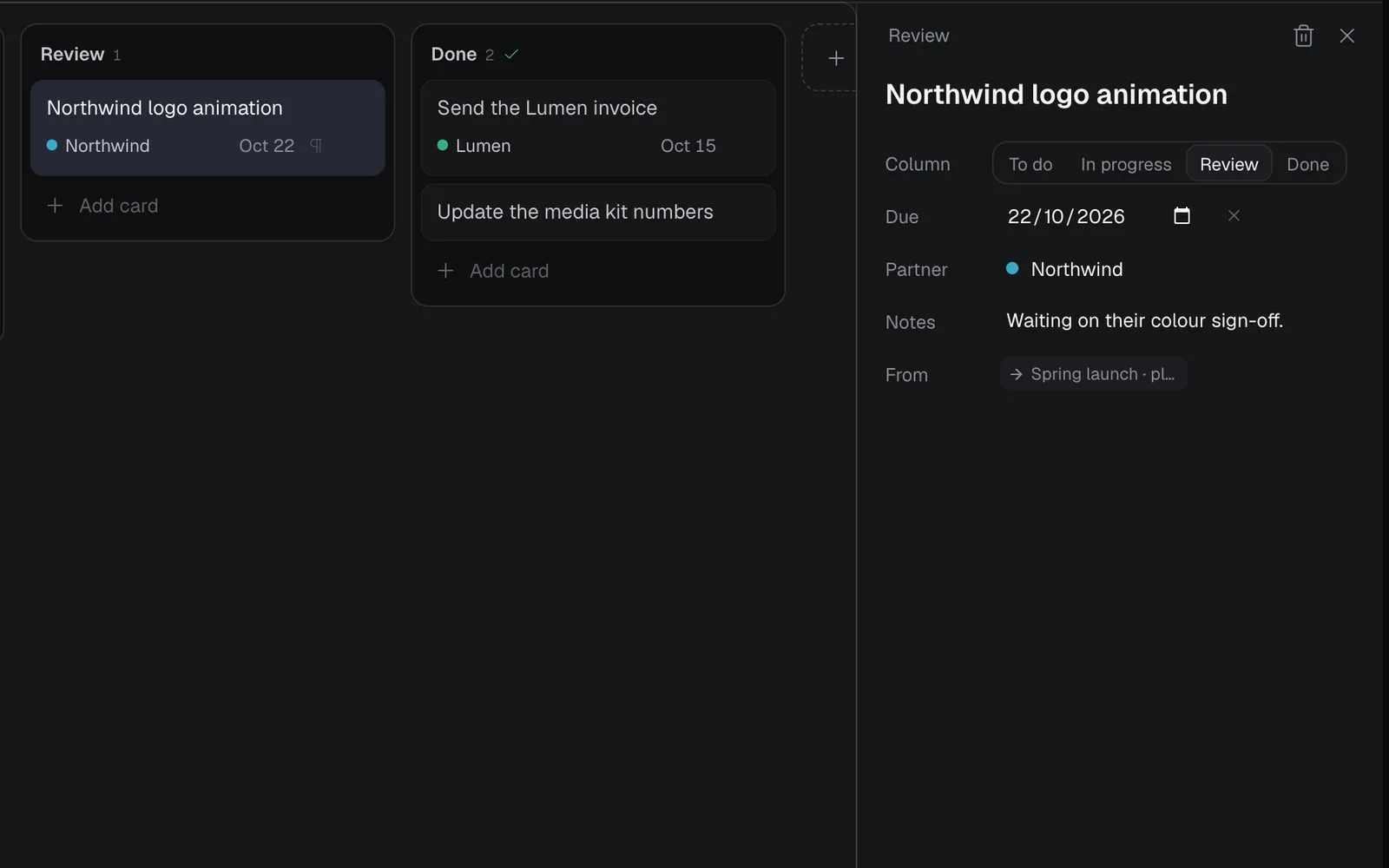
| Field | What it does |
|---|---|
| Title | What the card is for. Press Enter to finish |
| Column | Moves the card to the end of the column you pick |
| Due | The day it's due. Past it, the card's date turns red (full screen it reads Overdue), unless the card is in the column finished cards go to. The × beside it clears it |
| Partner | The brand, client or project it's for. Each partner has its own colour, shown as a dot on the card; names you've used are suggested |
| Notes | What to know. In the full view, a card with notes shows a ¶ |
| From | The document the card came from, when AI took it from one. Click it to go to that document on the canvas |
The bin (Delete card, or ⌫) deletes the card, with Undo in the message that follows. Esc closes the card.
To add cards here, click Add card at the foot of a column, or New card at the top for the first column. To undo a move or an edit, drag the card back or change it again, or restore an earlier version (see Versions and download).
Add, rename and order columns
In the full view, Add column, the dashed + box after the last column, adds one (scroll the board sideways to reach it): type a name and press Enter, and the box stays open for another. Point at a column and click the ··· by its name for the rest.
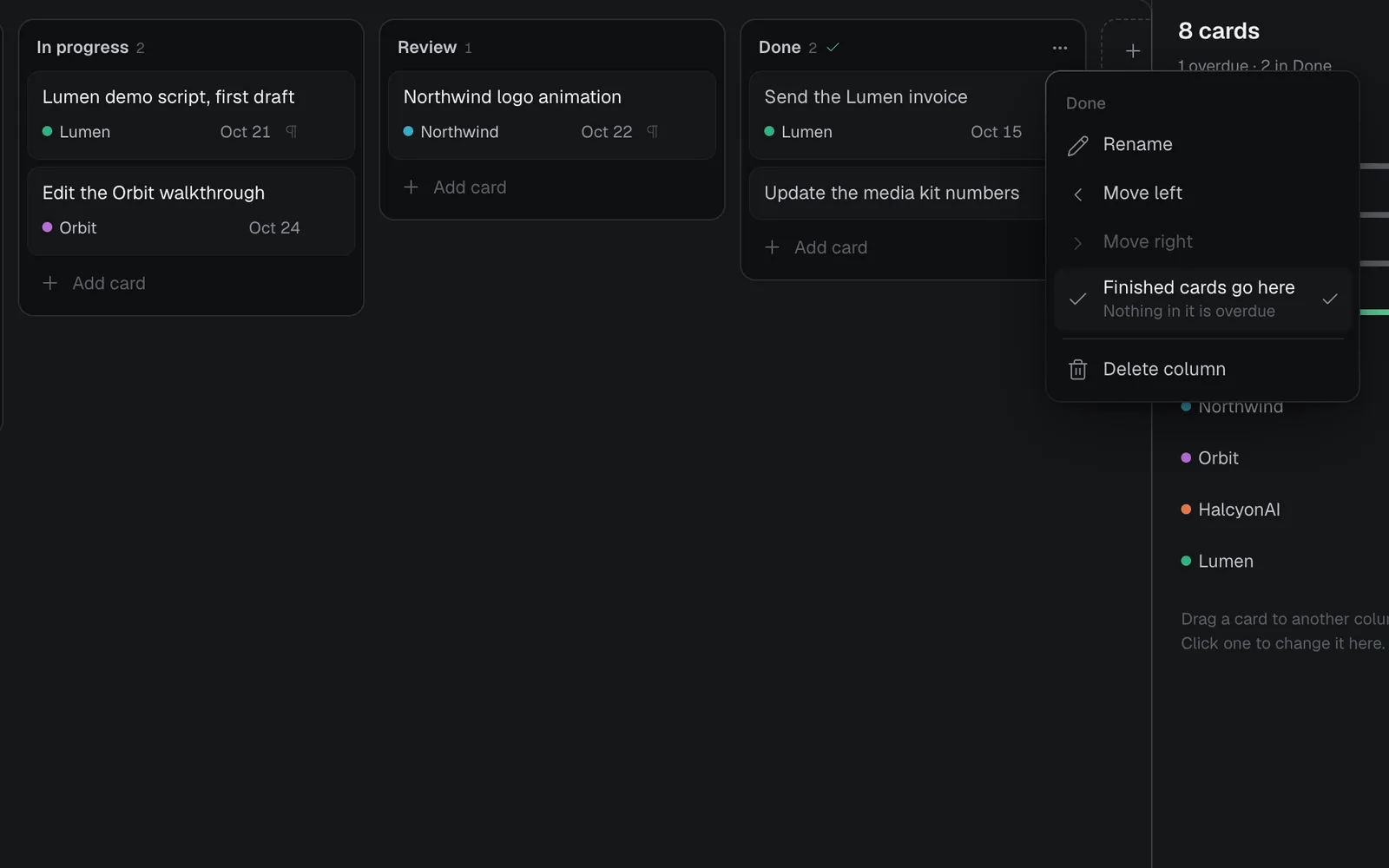
- Rename, or double-click the column's name.
- Move left and Move right change the order of the columns.
- Finished cards go here marks the column work ends up in, with a check by its name. Choose it again to unmark it.
- Nothing in that column shows as overdue, and the count beside the board's name reads "2 done" (or "2 in Shipped", for a column of another name).
- A new board's Done column has it already. A board has one such column at most.
- Delete column deletes the column and its cards, with Undo. A board keeps one column at least.
Change a board with AI (free)
The board's agent changes cards and columns from what you say, reading the board and the documents wired into it. It's free.
- Open the board full screen.
- Type what to change in Ask the agent to add, move or sort cards… at the bottom of the side panel: "the Northwind logo is signed off", "add the Lumen review call for Thursday", "sort To do by due date", "add a Blocked column".
- Press Enter or click Send. Claude Opus 5.5 makes the changes at once.
Its answer says what it did, with Undo, and the cards it changed light up for a moment.
Make a Kanban board with AI from your documents
A board can also be made for you from a brief, a launch plan or a client's notes.
- Right-click the canvas, choose Add Kanban board…, then Make one with AI. Or add a Code node and pick Kanban board in What it makes.
- Wire your documents into it: drag from the dot on a document's right edge to the dot on the board's left edge (see Connect nodes). Or type what the board is for in its prompt.
- Check the price on Generate, then click it: that's your go-ahead, and the board is made straight away.
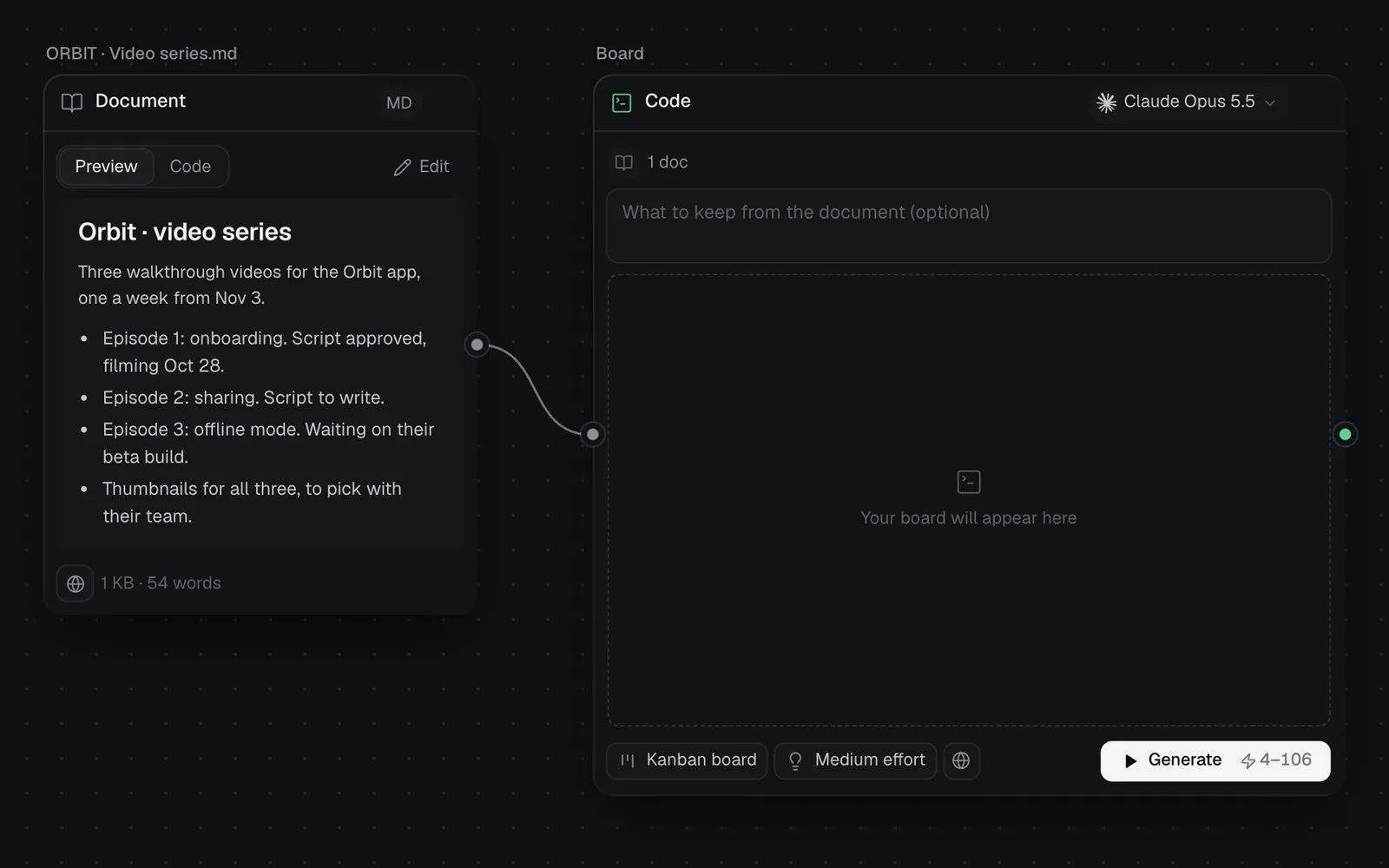
When the work has stages of its own, the board gets columns for them, such as Ideas, Scripting, Filming, Editing and Published for a video; otherwise To do, In progress and Done. You can also name the columns you want in the prompt. A card taken from a document links back to it in From.
To change the board with AI later, type in What should change on the board? under it and click Edit, priced the same way; the agent in the full view is free. See Code generation for the models and effort.
Versions and download
- Every change (a drag, a new card, the agent's) is saved as a new version of the board, free. Changes a moment apart are saved as one version.
- To go back, click 2 versions (it shows how many) at the top of the full view, pick one to look at, and click Restore: it comes back as a new version, so nothing is lost.
- Download in the full view saves the board as a JSON file.
- People who can only view a canvas see its boards but can't move or change cards.
- Claude Code, Codex and other agents connected to Fil can read and change a board too: see MCP tools.
What's next
- Canvas basics: add, connect and arrange nodes.
- Prompts, documents and skills: the briefs and documents a board can be made from.
- Organize a canvas: put a board in a section beside the work it tracks.
- Code generation: everything else a Code node makes, calendars and task lists included.