Live meetings
Talk by camera on a Fil canvas. Share your screen, react and play sounds, take out background noise, and record the meeting with AI notes.
A Live meeting is a video call in a node, as in Zoom or Google Meet, right beside the work you're talking about. Everyone who can open the canvas can join it by camera and microphone, share their screen, react, play a sound and chat, and the call stays with you as you move to other canvases and apps. Meetings are free; only the notes of a recorded meeting, and a teleprompter that follows your voice, cost credits.
Add a live meeting
- Open a canvas from the sidebar (see Canvas basics).
- Click + in the toolbar at the bottom (More nodes) and pick Live meeting, or press ⇧L. Or right-click an empty spot and choose Add live meeting to put it where you clicked. A node named "Live meeting 1" appears, picked.
- To rename it, double-click its name above it, or right-click it and choose Rename, then type a name, such as "Launch standup".
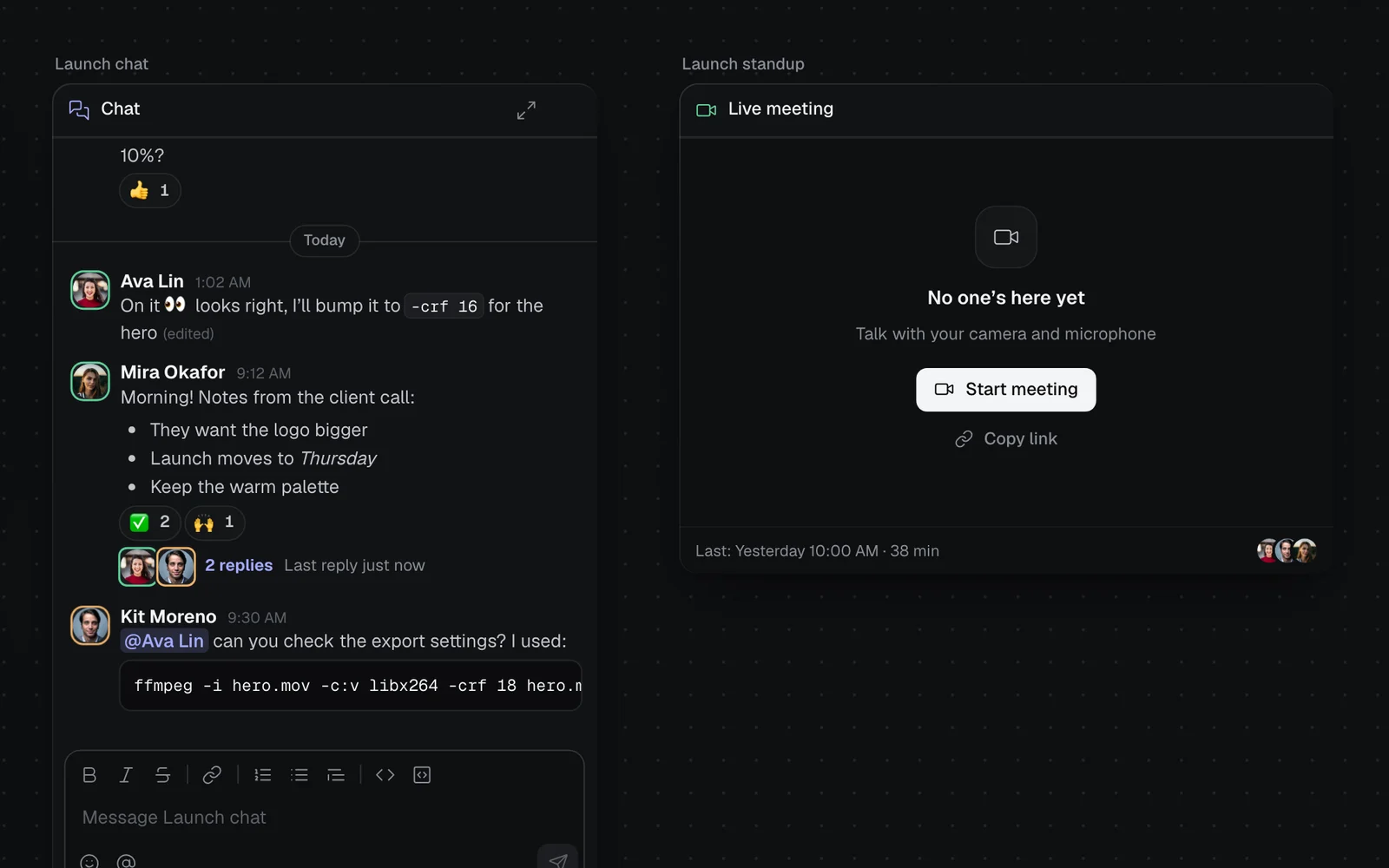
Before you're in, the node says who's in now ("Kit is here", "Ava, Kit and 2 more are here") and when the call started, with Join, or Start meeting when no one's in. Copy link under it copies a link that opens straight to joining (see Invite people with a link). At its foot, Last says when the last meeting was, how long it ran and who was in it.
- You need to be able to edit the canvas to add a meeting. Anyone who can open the canvas can join it, people who can only view it too.
- Drag the node's right edge, bottom edge or corner to make it bigger: it shows more people as it grows, up to 1,920 px wide.
- Select it and click Show properties at the top right: its Live meeting section says who's in, with Open full size while you are, and lists Earlier meetings with when each was, how long and who came.
Join a meeting
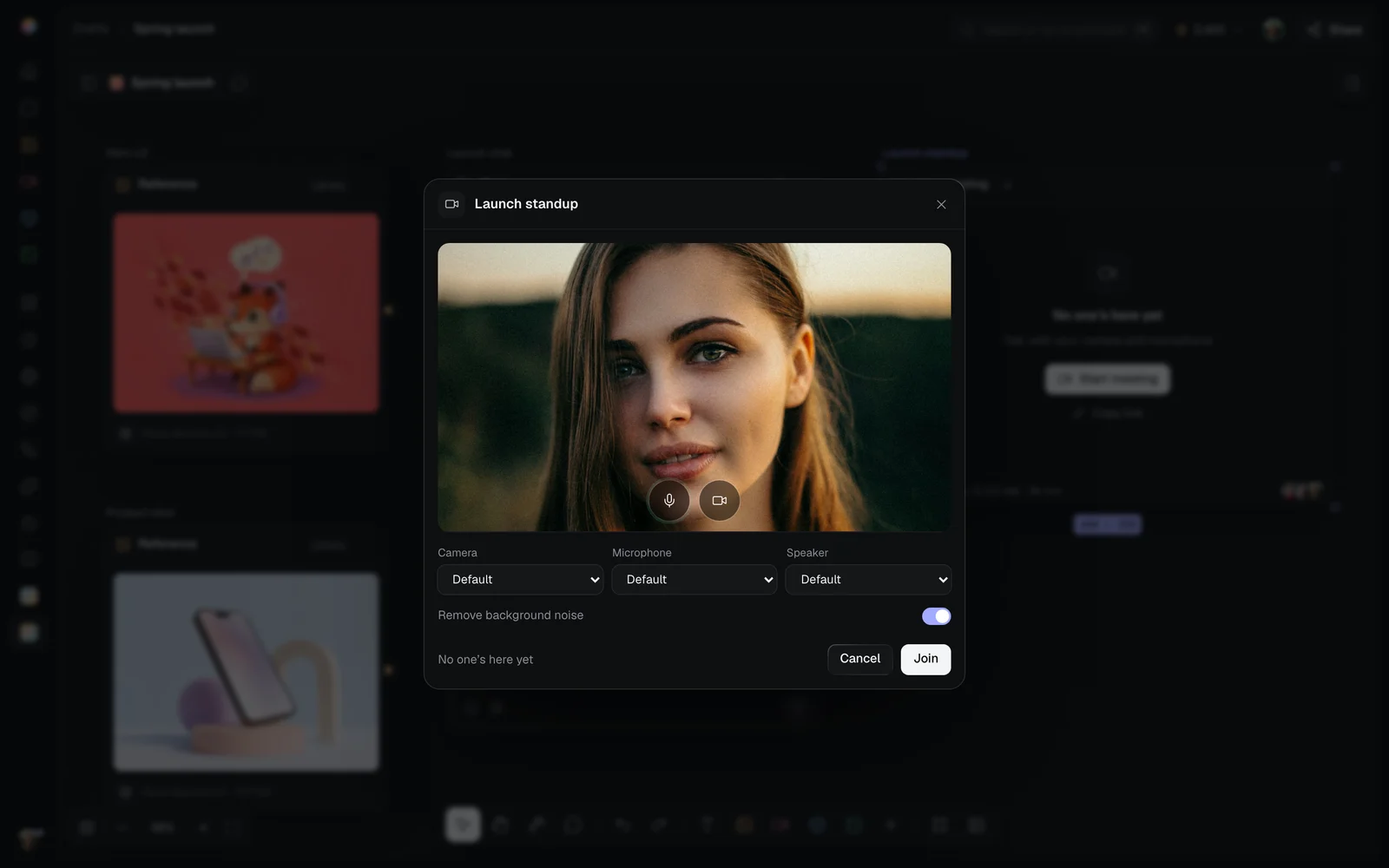
- Click Start meeting or Join on the node. The join screen opens, and you see yourself as the others will.
- Turn your microphone or camera off with the round buttons on your picture if you'd rather come in with either off. A ring round the microphone moves as it hears you.
- Pick your Camera, Microphone and Speaker in the menus under the picture (each shows when you have more than one).
- Leave Remove background noise on to take out fans, typing and street noise (see Remove background noise).
- Click Join. The node shows everyone in the call, with the call's buttons under them, and its header counts the time you've been in.
- The first time, your browser asks whether Fil may use your camera and microphone: choose Allow. If one won't open, the join screen says why, and where to allow it.
- The choices you make here are kept for next time.
- Cancel, Esc or a click outside closes the join screen without joining.
- You're in one meeting at a time. Joining another leaves the one you're in, and its node says so: "You'll leave “Launch standup”".
- A meeting holds up to 16 people.
The call's buttons
The buttons sit under the people, on the node, full size and in the call window. Point at one to see its name.
| Button | What it does |
|---|---|
| Mute / Unmute | Your microphone. Its arrow, Microphone and speaker, picks which ones and holds the sound settings |
| Stop camera / Start camera | Your camera. Its arrow, Camera, picks which one |
| Share your screen | Shows a tab, a window or your screen to everyone (see Share your screen) |
| Reactions and sounds | Reactions, the soundboard and their volumes (see Reactions and sounds) |
| Raise your hand | Puts a ✋ on your picture (see Raise your hand) |
| Record | Records the meeting, with notes if you like (see Record a meeting) |
| Teleprompter | Your script by the camera, only you see it (see Read from a teleprompter) |
| Chat and People | The meeting's chat, and who's in it, beside the picture: full size and in the call window |
| Copy link | The meeting's link: full size and in the call window |
| Open full size | The meeting over the canvas, on the node |
| Leave | Leaves the meeting. It goes on for the others |
- A muted microphone shows on its person's picture, and whoever speaks has a green edge round theirs.
- On a node narrower than 400 px, the buttons are the microphone, the camera, Open full size and Leave. In a small call window, what doesn't fit waits under More.
- If your browser held the sound back, Click to hear everyone shows over the call: click it once.
Full size, Gallery and Speaker
Click Open full size (the arrows) to see the meeting over the canvas.
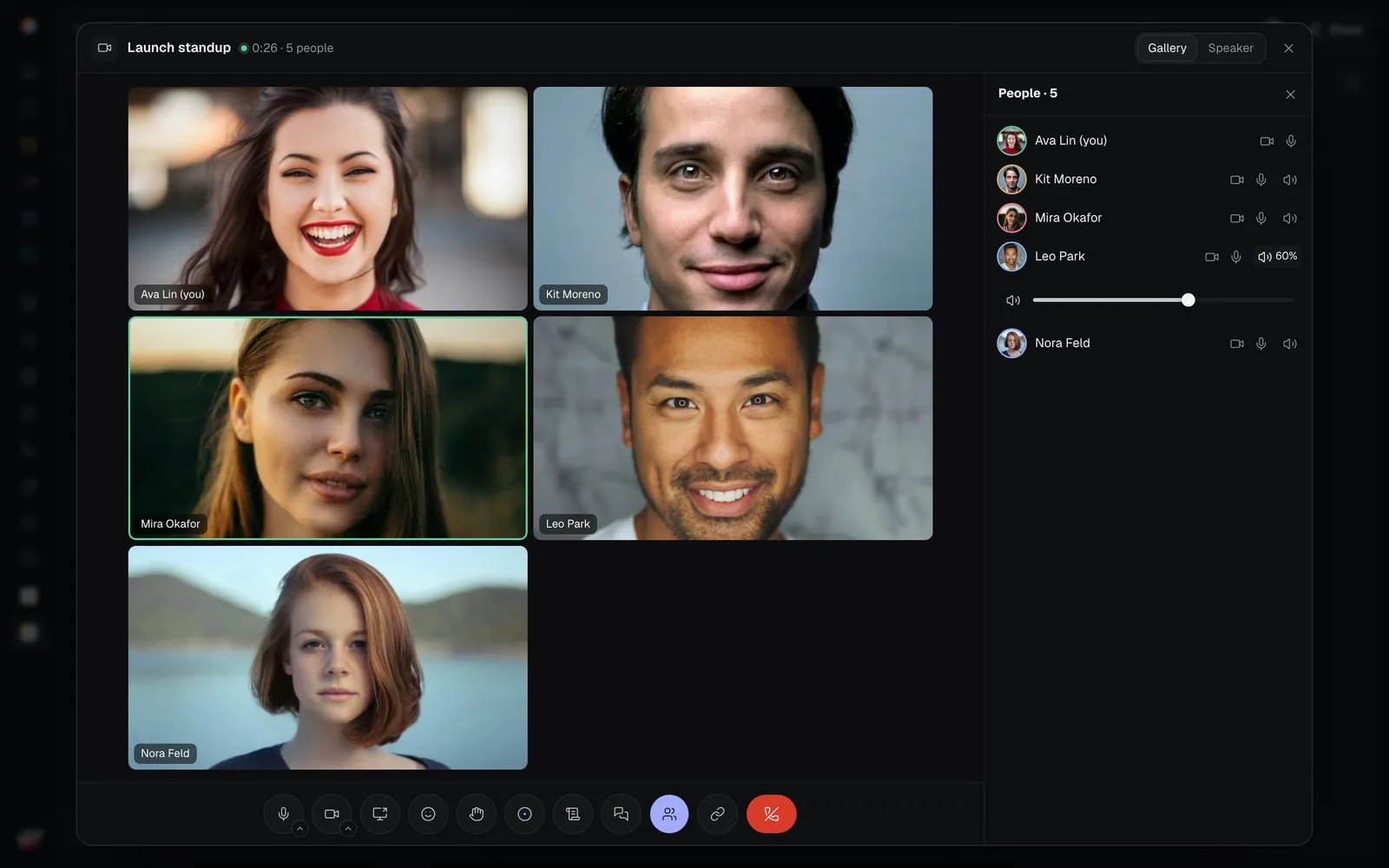
- Gallery and Speaker at the top switch how people are laid out. Gallery fits as many people as are big enough to see; Speaker shows whoever spoke last big, with the others beside or under them.
- While someone shares their screen, the screen is big and everyone else sits beside it or under it, wherever leaves the screen bigger. Those who don't fit show as "+3".
- Chat, People and Reactions and sounds open in a panel on the right; the same button closes it.
- Close it with the ×, Esc or a click outside. You stay in the meeting.
The node on the canvas lays people out the same way. Make it wider or taller to fit more of them.
Chat and people
- Chat is the meeting's own chat. Everyone on the canvas can read it and post in it, and its messages stay with the meeting for next time.
- People lists who's in, raised hands first, each with their camera and microphone. The speaker button beside someone sets how loud they play for you (see Set the volumes).
Remove background noise
Remove background noise takes fans, typing and street noise out of your microphone, so between your words the others hear quiet. It's on to start with. It's worked out on your own computer: nothing goes anywhere for it, and it's free.
To turn it off or on again:
- before you join, on the join screen;
- in the call, click the arrow beside the microphone (Microphone and speaker): it's under Sound, beside Voices.
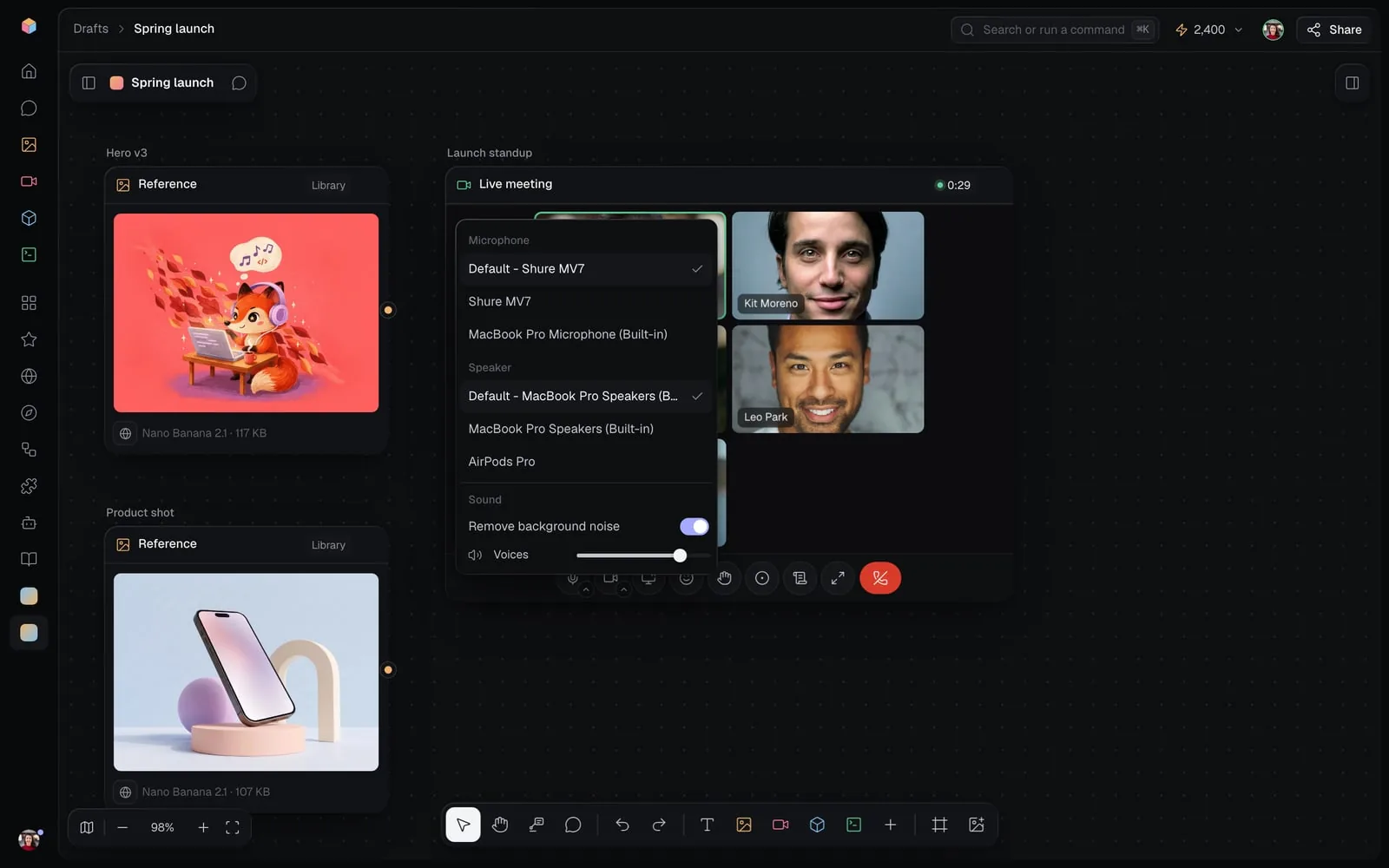
It's kept in this browser for your next meetings, and the recording of a meeting takes your voice as the others hear it. Where a browser can't do it, the menu says "This browser can't, so your microphone goes as it is."
Set the volumes
Every volume is yours alone: it changes what you hear, never what the others hear. Each is kept in this browser.
| Volume | Where | To start |
|---|---|---|
| Voices: everyone's | The arrow beside the microphone, under Sound | 100% |
| One person's voice | People: the speaker button beside their name | 100% |
| Soundboard, Reactions and Chimes | Reactions and sounds, under Volume | 70% each |
- The speaker button at the left of a volume turns it off, and on again at the volume it had.
- Someone's own volume shows beside their name when it's under 100%, such as 60%, and is kept for the next meetings you're both in.
- Chimes are the soft sounds when someone joins, leaves, raises a hand or asks to join.
Share your screen
- In the call, click Share your screen.
- Pick what to share:
- In a browser: a tab, a window or your whole screen, in your browser's list.
- In Fil for Mac: Fil's own list, Screens first, then Windows, each with a picture. Click one.
- Everyone sees your screen big in the meeting, and you see "Your screen".
To stop, click the button again (Stop sharing), or stop it in your browser. To show something else instead, click the arrow beside the button and choose Share something else: the others see the new one in the same spot.
- In Fil for Mac, the first time, macOS has to let Fil record the screen. The list says so, with Open System Settings: allow Fil in Privacy & Security › Screen & System Audio Recording, then come back.
- In Fil for Mac, the call window floating at the corner of your screen stays out of what you share, so the others see your screen without the call over it.
- If the button says Update Fil for Mac to share your screen, install the latest Fil for Mac.
Reactions and sounds
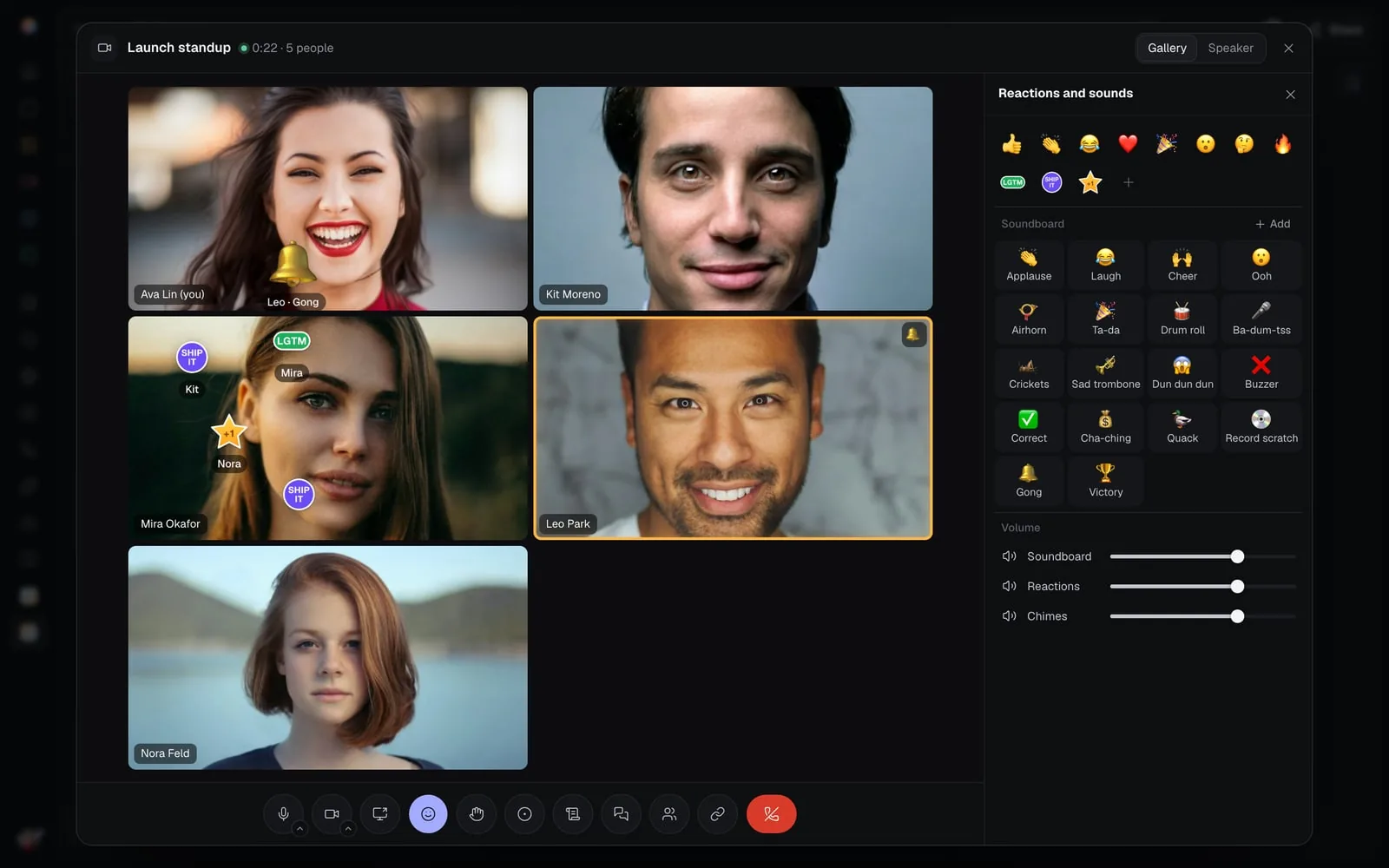
Click Reactions and sounds (the smiley). On the canvas it opens beside the meeting, leaving every picture clear; full size and in the call window, it opens in the side panel. It stays open, so you can send a stream of them.
- Reactions: 👍 Thumbs up, 👏 Clap, 😂 Laugh, ❤️ Love, 🎉 Party, 😮 Wow, 🤔 Hmm and 🔥 Fire. Each floats up the call with your first name and a move of its own (a heart beats, a laugh rocks, the party one throws confetti) and bursts over your picture.
- Soundboard: Applause, Laugh, Cheer, Ooh, Airhorn, Ta-da, Drum roll, Ba-dum-tss, Crickets, Sad trombone, Dun dun dun, Buzzer, Correct, Cha-ching, Quack and Record scratch. Click one and everyone in the call hears it, with your name and the sound's name floating up and its emoji on your picture while it plays.
- The play button beside a sound plays it for you alone, to hear it first.
- Volume at the bottom sets how loud the soundboard, reactions and chimes play for you (see Set the volumes).
Add your team's own reactions and sounds
Your team's owner and editors can add pictures to react with and sounds for the soundboard. They come after Fil's own, for everyone in your team's meetings, guests on a shared canvas too.
- In Reactions and sounds, click + after the reactions (Add a reaction), or Add beside Soundboard (Add a sound).
- Choose a file:
- a picture: PNG, GIF, WebP or JPEG, up to 2 MB;
- a sound: MP3, WAV, OGG or M4A, up to 10 seconds and 1 MB.
- Give it a name (up to 32 characters), such as "Ship it". A sound also gets an emoji for its button, and a play button to hear it first.
- Click Add. It's on everyone's board at once, without reopening it.
- To take one away, point at it and click its × (Remove), then Remove. Whoever added it can, and so can the team's owner.
- A team keeps up to 50 reactions and 50 sounds.
Raise your hand
Click Raise your hand. A ✋ shows on your picture, you move to the top of People, and the others hear a soft chime. Click Lower your hand when you've had your turn.
The call window when you leave the canvas
The call goes on while you work elsewhere in Fil. When the meeting's node is out of sight, a call window shows the meeting: the shared screen or whoever speaks, the others as it has room for them, the meeting's name, how long and how many, and the call's buttons.
- Panned away on the meeting's canvas, it sits in the corner of the page.
- On another canvas or page, in another tab or another app, it floats over your other windows, as Zoom's does:
- in Fil for Mac, at the bottom right of your screen, over full-screen apps too;
- in Chrome and Edge, as picture-in-picture when you click your way to another canvas, and Chrome can float it as you switch tabs;
- in other browsers, it stays in the corner of the page.
- Back to the meeting (the arrow at its top) takes you to the meeting's node, as does a double-click on its picture. Back at the meeting, the window goes away until you leave again.
- Hide (the line beside it) makes it a small bar with the time, the meeting's name and your microphone; click the bar to show the call again. Hidden, it doesn't float over other apps.
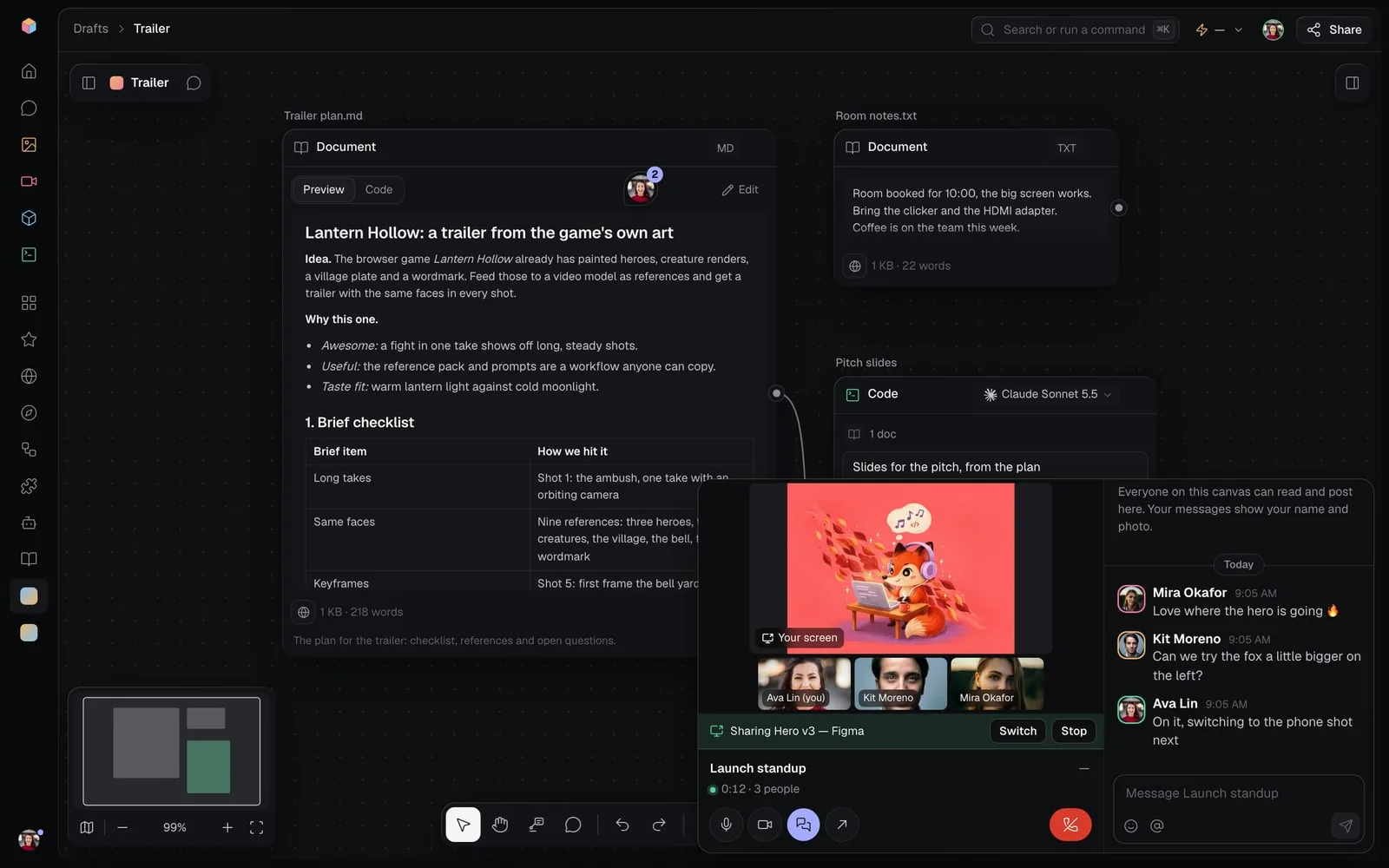
- Drag its top or left edge, or its corner, to make it bigger: it shows more people as it grows, and keeps its size for next time. Double-click the corner for its first size.
- Chat, People and Reactions and sounds open beside the picture. The chat button makes the window big enough for it; in a small floating window the panel takes the picture's place until you close it.
- While you share your screen, it says what you share, with Switch to share something else and Stop.
Read from a teleprompter
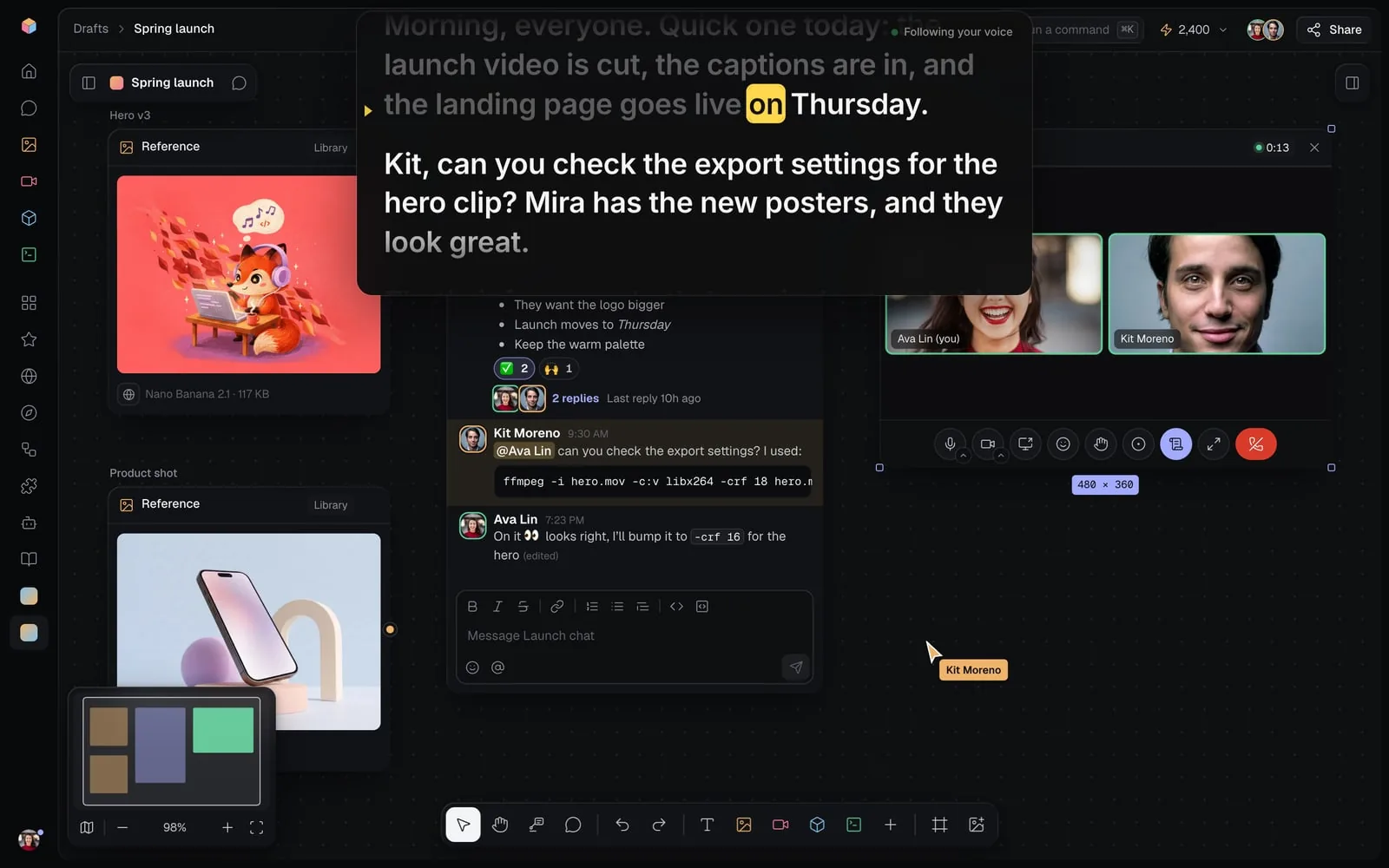
A teleprompter at the top of your screen, by the camera, scrolls your script as you talk. Only you see it: nothing of it goes to the call.
- In the call, click Teleprompter.
- Click Add your script, then write or paste it, or pick a document from the canvas under From the canvas. Markdown works: # headings and [directions] show but aren't read.
- Click Start. It scrolls at your speed or, with Follow my voice on, keeps your place as you read. Pause stops it, and a click on a word starts it from there.
- Size, Width and Speed (60 to 240 words a minute) set how it reads; Mirror flips it for a teleprompter's glass. Back to the start, the round arrow at its right, takes it back to the top.
- Follow my voice listens to your microphone in the call: ⚡1 for each 1.5 minutes it follows. Nothing is sent while it's paused, and muted it hears nothing: unmute to follow your voice. Off, it scrolls at your speed, free.
- In a browser it hides while you share your screen. Fil for Mac gives it a window of its own that stays out of every share and recording.
- It closes as you leave the call.
Invite people with a link
A meeting's link opens straight to its join screen. Copy it from:
- Copy link under Start meeting or Join on the node;
- Copy link among the call's buttons, full size or in the call window;
- the meeting's right-click menu, Copy link;
- Share at the top right with the meeting picked on the canvas: switch on Link to the meeting.
Someone already in the meeting who opens the link gets it full size. On a Mac, a link opened in a browser can open in Fil for Mac instead (see Open links in Fil for Mac).
Ask to join
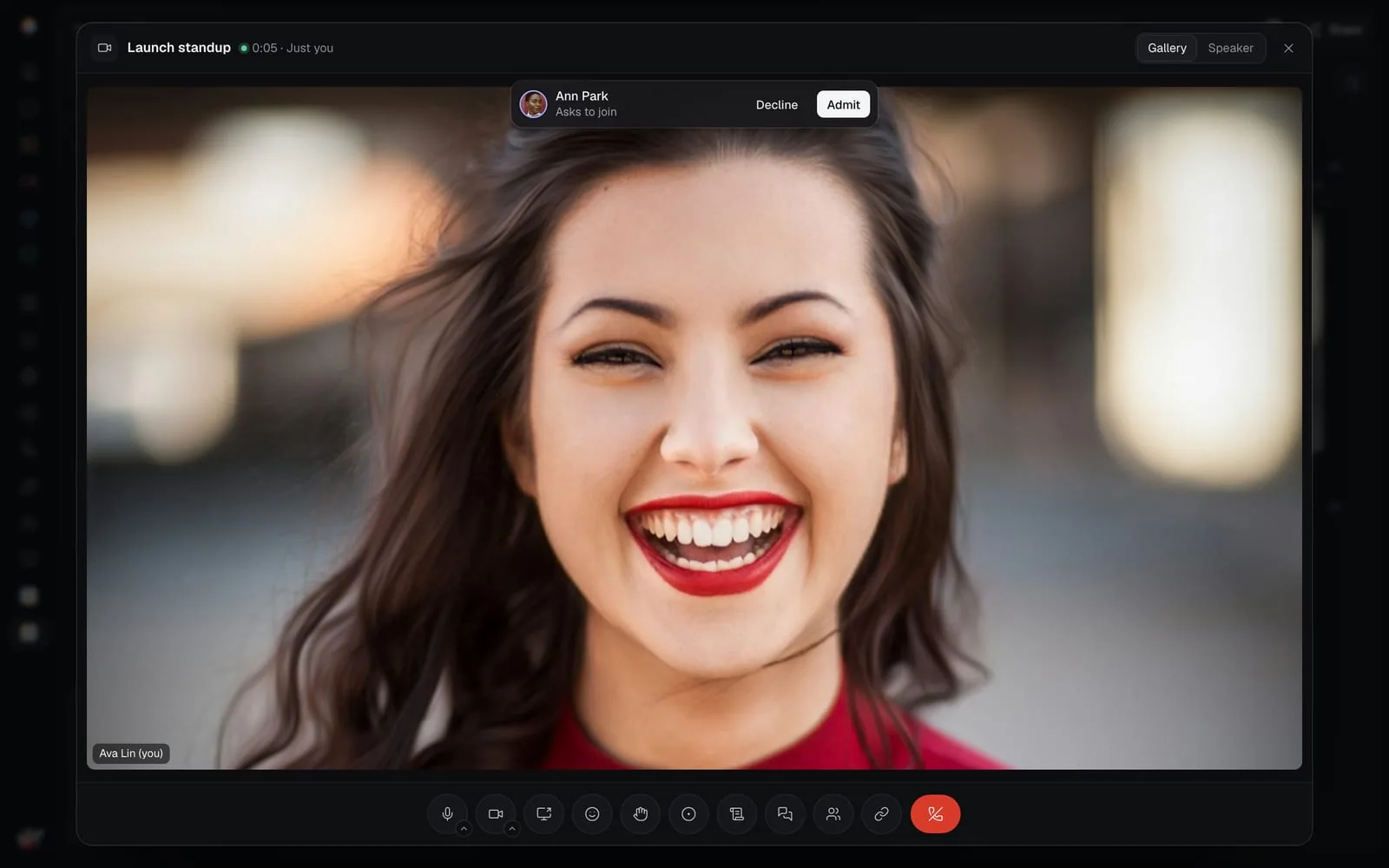
Someone without access to the canvas who opens the link sees Ask to join the meeting.
- They click Ask to join, and wait: "You're in as soon as someone lets you in."
- Everyone in the call who can edit the canvas sees them over the call, "Asks to join", with Decline and Admit, and hears a chime. The ask shows at the top of the canvas, in Share and under the bell too.
- Admit lets them in: they can view the canvas, and land on the meeting's join screen. Decline tells them no one let them in, and they can ask again.
Record a meeting
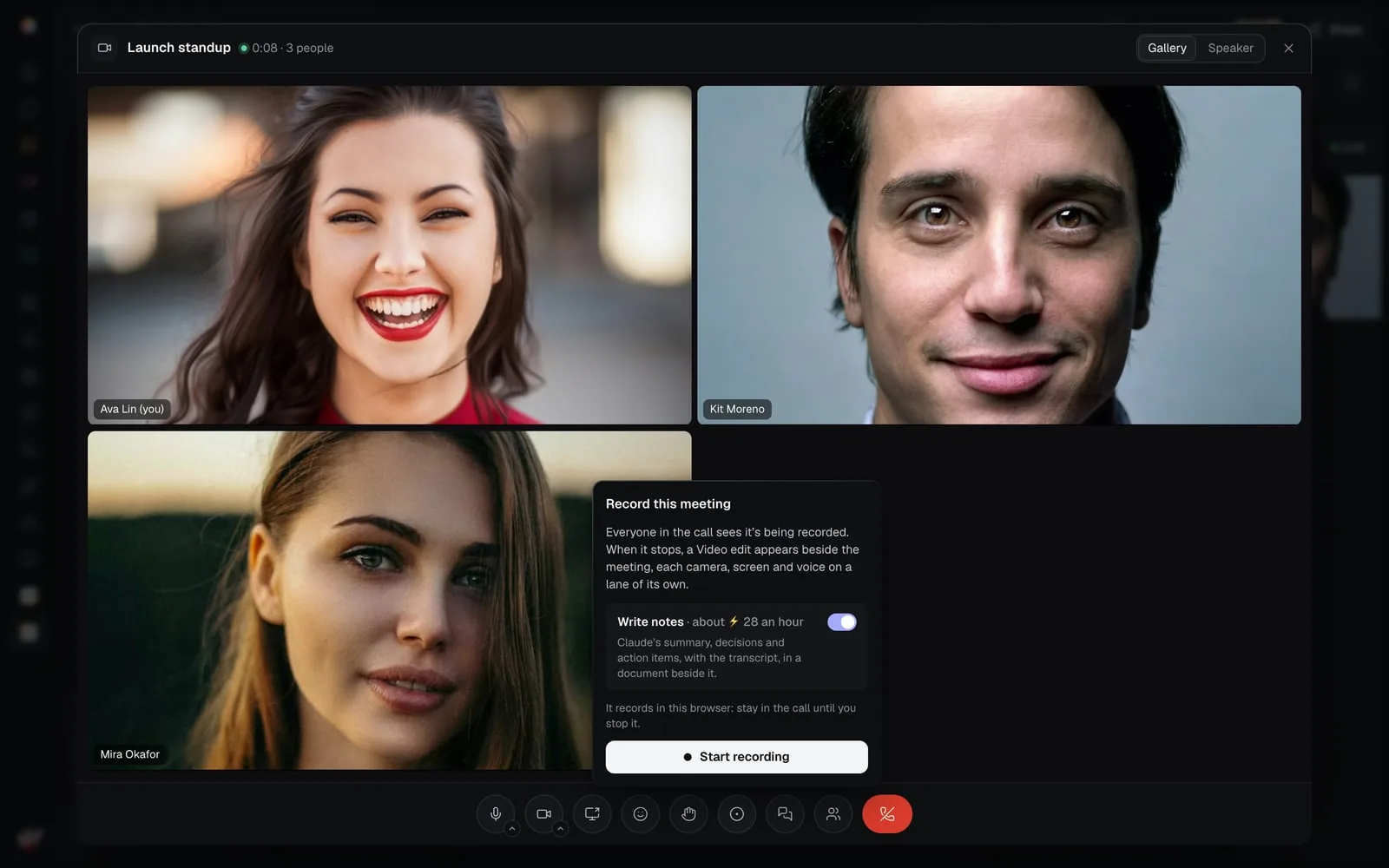
- In the call, click Record. Record this meeting opens.
- Leave Write notes on for Claude's summary, decisions and action items, with the transcript, in a document beside the meeting, or turn it off to record without notes.
- Click Start recording. Everyone in the call sees Recording and how long it's run, at the top left of the meeting.
- Click Stop recording (or the Recording mark) when you're done.
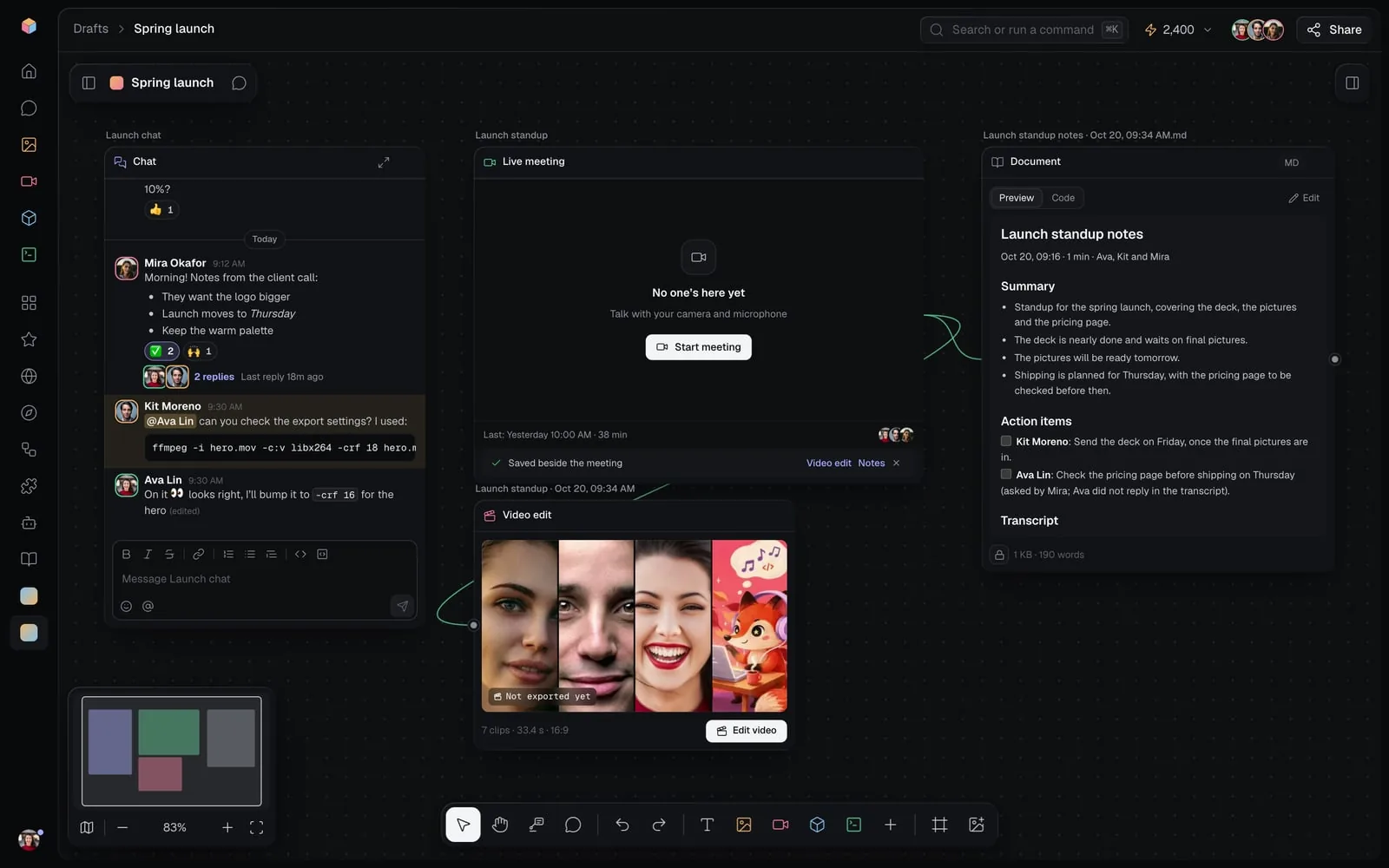
- The node says "Saving the recording" and how far, then Saved beside the meeting, with Video edit and Notes to open them.
- The Video edit has each person's camera, each screen shared and each voice on a lane of its own, named for their person ("Mira's camera", "Kit's screen") and lined up in time. It opens already cut: whoever speaks fills the frame, it goes wide when several people talk at once, and a shared screen shows with the speaker in a bubble. Gallery, everyone together, is in the editor's Meeting section. What was said is in it as captions, off until you turn them on. See Video editor.
- The Notes document has a summary, the decisions, action items with who will do them, and the transcript, each line with who said it. A long transcript goes on in documents of its own beside it.
- To take the long pauses and ums out, use Tighten in the editor: in a meeting it cuts only where everyone is quiet (see In a meeting, or with several voices).
- It records in the browser of whoever pressed Record: it stops when they stop it, leave the call, or reach an hour. Press Record again to go on.
- One person records at a time; the others see who is ("Kit is recording").
- Recording needs Starter or above, edit access to the canvas, and a browser that can record, such as Chrome, or Fil for Mac. When you can't, Record this meeting says why.
Tips and limits
- Meetings are free, for up to 16 people at once.
- Each camera is sent at the size it's drawn, so a meeting on a zoomed-out canvas uses little bandwidth.
- Your devices, sound settings, volumes and the call window's size are kept in this browser.
- Being in a meeting keeps you online for your team, even while Fil is out of sight.
- If the connection drops for a moment, the meeting says "Reconnecting…" while it gets back.
What's next
- Video editor: cut a recorded meeting, switch its layout and tighten it.
- Screen and voice recordings: record your screen or your voice on your own.
- Profile and settings: Fil for Mac, where the call floats over every app.
- Canvas basics: add, connect and arrange nodes.