Screen and voice recordings
Record your screen or your voice on a Fil canvas. Zooms follow your cursor; pick its style and the look, then make an MP4 video node or a sound.
A recording node holds something you record on a canvas. A Screen recording records a tab, a window, your whole screen or the canvas itself, with your microphone and, if you like, your camera in a corner. Fil follows your cursor, zooms in where you click and can draw a bigger, smoother cursor, as the video editor does, and Make video turns the take into an MP4 on the node. A Voice recording records your microphone into a sound, which Cleanvoice can clean up. Recording is free; only cleaning up a voice recording costs credits.
Record your screen
- Open a canvas from the sidebar (see Canvas basics).
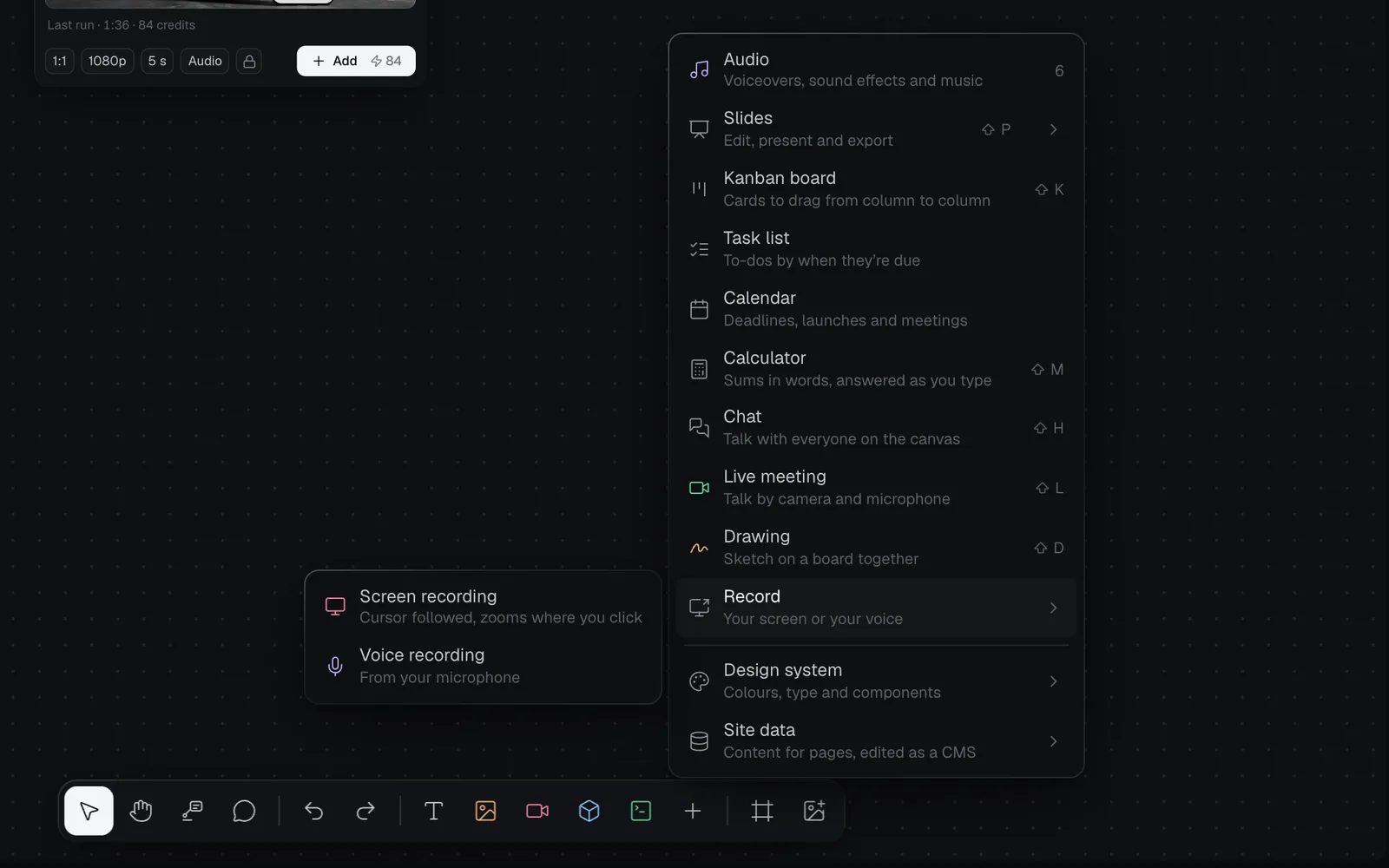
- Click + in the toolbar at the bottom (More nodes), point at Record and pick Screen recording. Or right-click an empty spot and choose Add screen recording to put it where you clicked. A node named "Screen recording 1" appears and the recorder opens over the canvas.
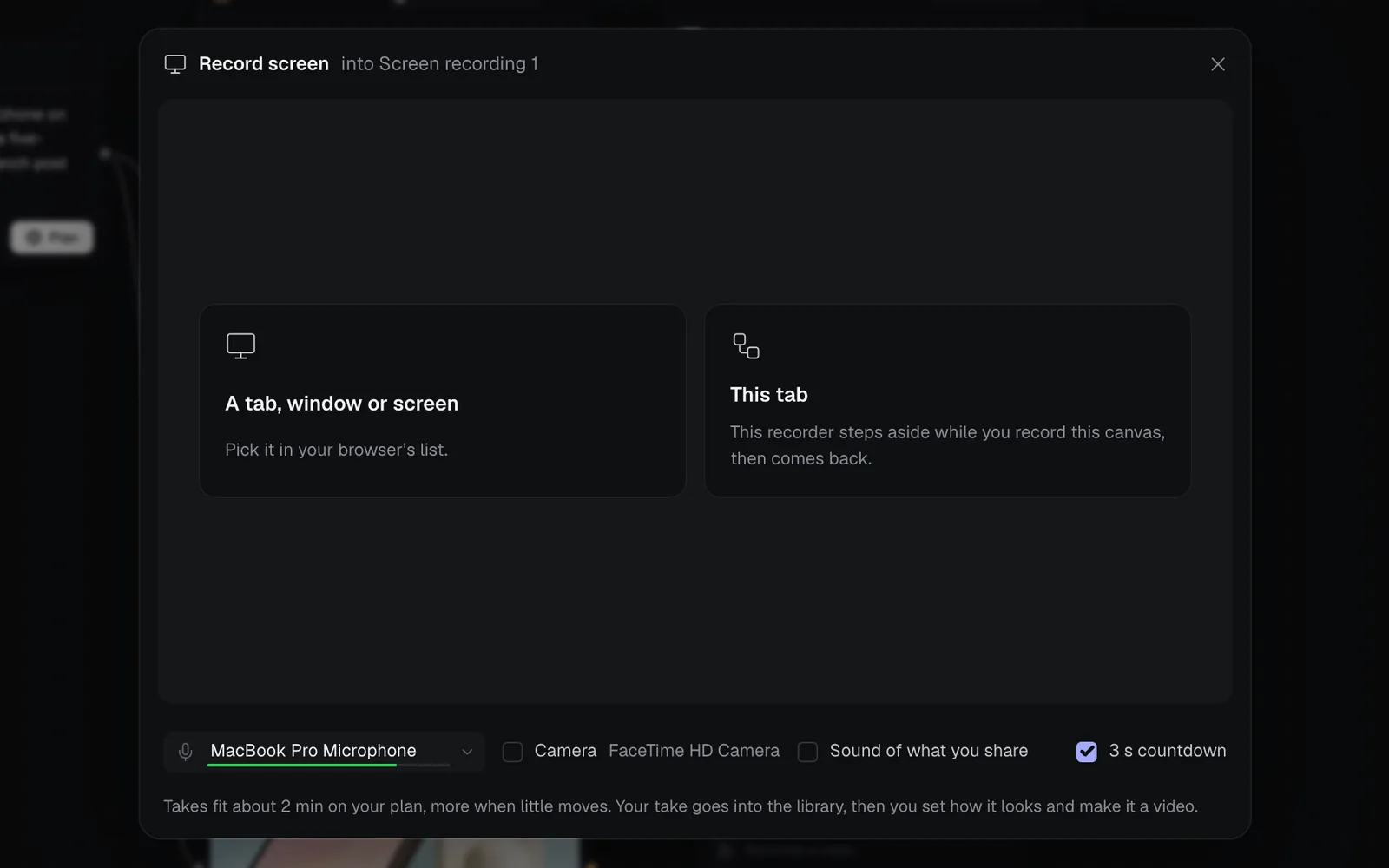
- Check what's recorded with it, along the recorder's foot:
- The microphone, in the menu at the left, with a bar that moves as it hears you. Pick No sound to record without it.
- Camera: your camera at the same time, in a corner of the video.
- Sound of what you share: the sound of the tab or screen you record, with your voice (in a browser).
- 3 s countdown: counts down before it starts. It's on until you turn it off.
- Choose what to record:
- A tab, window or screen: pick it in your browser's list. Recording starts once you've picked it.
- This tab: records this canvas. The recorder steps aside and a bar at the foot of the window shows the time and Stop, so you can work on the canvas as you talk.
- Show what you want to show. Click where the video should zoom in: Fil zooms in a little before each click and back out after it.
- Click Stop, in the bar or the recorder, or Stop sharing in your browser. Your take plays back.
- Click Use take (Enter) to keep it, or Retake (R) to record again. The take goes into your library, and its settings open.
- Close the recorder without recording, and the node waits for you, with Record screen on it.
- The recorder says about how long a take can be on your plan (longer when little moves on screen). A take that reaches your plan's largest file stops by itself.
- Your browser asks once whether Fil may use your microphone and camera: choose Allow. On a Mac, your browser also needs Screen & System Audio Recording in System Settings › Privacy & Security.
In Fil for Mac
Fil for Mac lists your screens and windows under What to record: click one to start. Stop is in the bar at the foot of the screen or in the menu bar. The first time, macOS asks you to allow Fil in Screen & System Audio Recording.
Where Fil follows your cursor
Fil follows the cursor, makes zooms from your clicks and draws its own cursor when it records the cursor as you move it: in This tab, and on any screen or window in Fil for Mac. Recording another Fil tab, the cursor is in the picture itself, so zooms follow it but Fil can't restyle it. Other tabs, windows and screens recorded in a browser have no cursor for Fil to follow: their zooms hold on a point, and you add them yourself.
Set its zooms, cursor and look
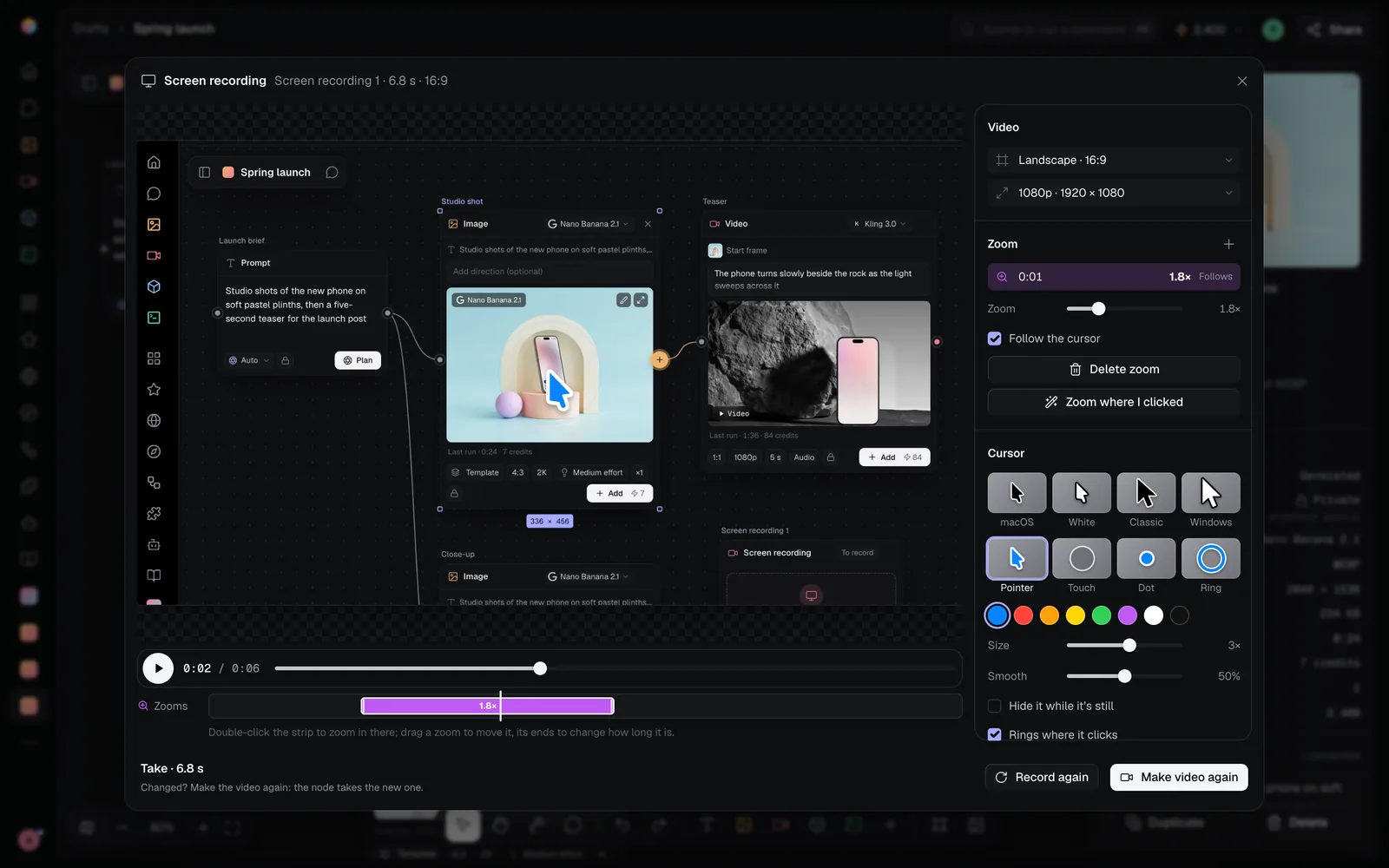
The settings show the take as the video will look, with a play button and a Zooms strip under it, and Video, Zoom, Cursor and Look beside it. Every change shows at once. Press Space to play.
Zooms
Each zoom eases in to 1.8×, follows the cursor as it nears the edge, and eases back out.
- On the strip: double-click to add a zoom there, drag a zoom to move it, and drag its ends to change how long it is. Click a zoom to pick it; ⌫ deletes it and Esc lets go.
- Under Zoom, each zoom shows when it starts, how far in it goes, and Follows or Held. Click one to pick it and move the take to it.
- With a zoom picked: Zoom sets how far in (1.1× to 4×), Follow the cursor off holds it on where the cursor was in its middle, and Delete zoom takes it away.
- + beside Zoom adds one at the playhead. Zoom where I clicked makes them again from your clicks, in place of the ones there.
Cursor
| Setting | Choices |
|---|---|
| Style | macOS (to start), White, Classic, Windows, Pointer, Touch, Dot and Ring. Pointer, Dot and Ring come in Blue, Red, Orange, Yellow, Green, Purple, White or Black |
| Size | 0.6× to 5× its size; it starts at 3× |
| Smooth | 0% to 100% (50% to start): calms a shaky hand |
| Hide it while it's still | Fades the cursor out once it's been still for a moment |
| Rings where it clicks | A ring at each click (on to start) |
When the cursor is in the picture itself (another Fil tab), only Rings where it clicks applies.
Look
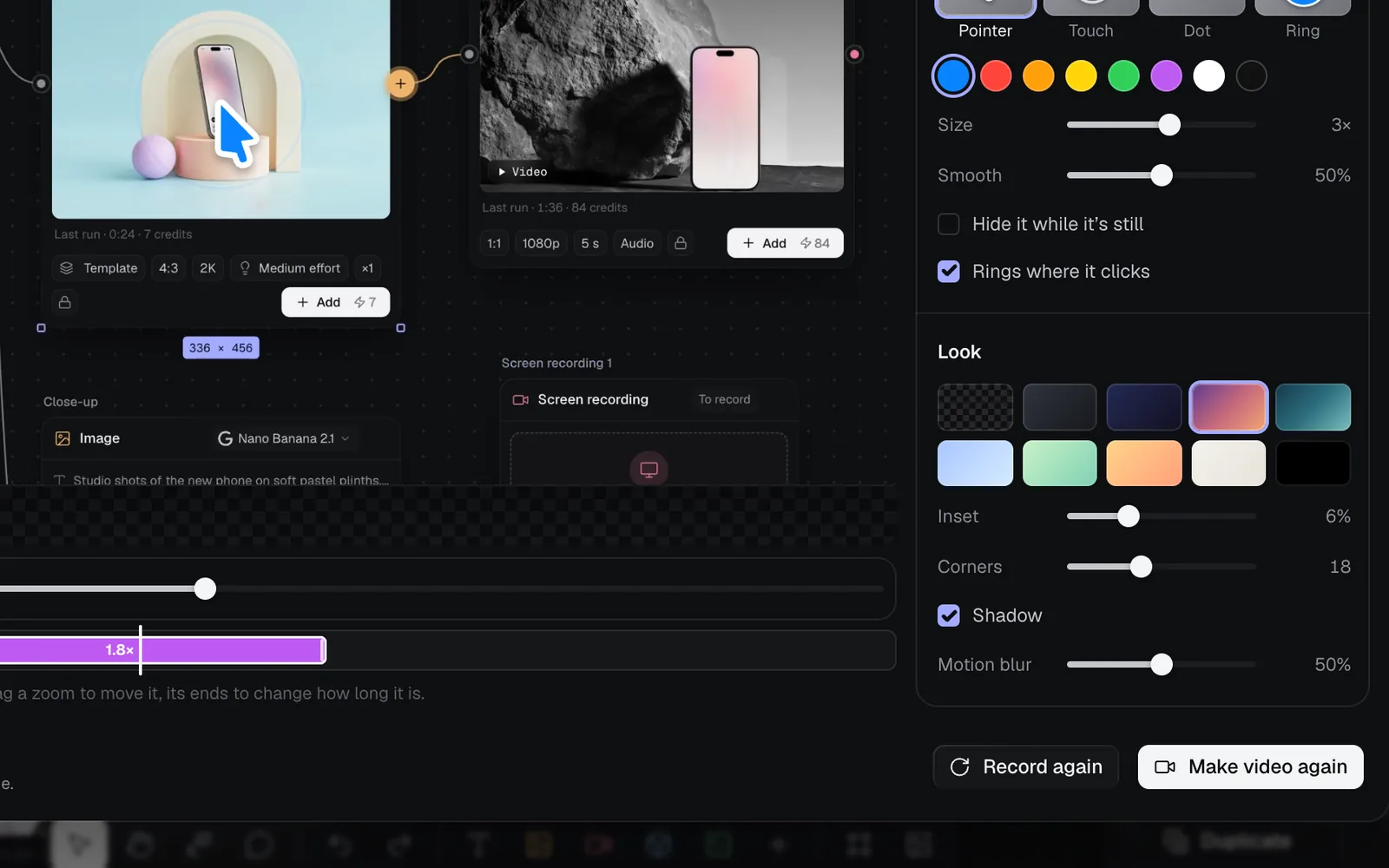
- Background: None, Graphite (to start), Midnight, Dusk, Ocean, Sky, Mint, Sunset, Paper or Black. With a background, Inset sets the margin round the take (0% to 20%) and Shadow puts one under it.
- Corners rounds the take's corners (0 to 48).
- Motion blur blurs fast zooms and moves (0% to 100%).
Video
- Shape: Landscape 16:9, Vertical 9:16, Square 1:1, Portrait 4:5 or Classic 4:3.
- Size: 720p, 1080p, 1440p or 4K. Each shows its pixels, such as 1920 × 1080 for 1080p at 16:9.
- Camera, when you recorded it: Circle, Rounded or No camera.
Make the video
- Click Make video (⌘Enter). The bar counts up as it's made, in this tab: keep it open until it's done. Stop (Esc) stops it, and nothing changes.
- The settings close and the node is a video. Point at it to play it.
- The video is an MP4 in your library, named after the node. It's made to fit your plan's largest file: a long take may come out at a smaller size.
- Close the settings without making it, and the node keeps your take and settings. It says "Your take is in", with Make video and Record again.
Change a recording, or record it again
- To change the zooms, cursor or look: point at the video and click the sliders button on it (Edit recording). Change what you like, then click Make video again: the node takes the new video.
- Record again, in the settings or the inspector, records a new take. The node shows its old video until you make the new one: its sliders button lights up ("New take: make its video").
- Select the node and click Show properties at the top right: its Screen recording section says how long the video is, its shape and whether your camera is in it, with Edit recording and Record again.
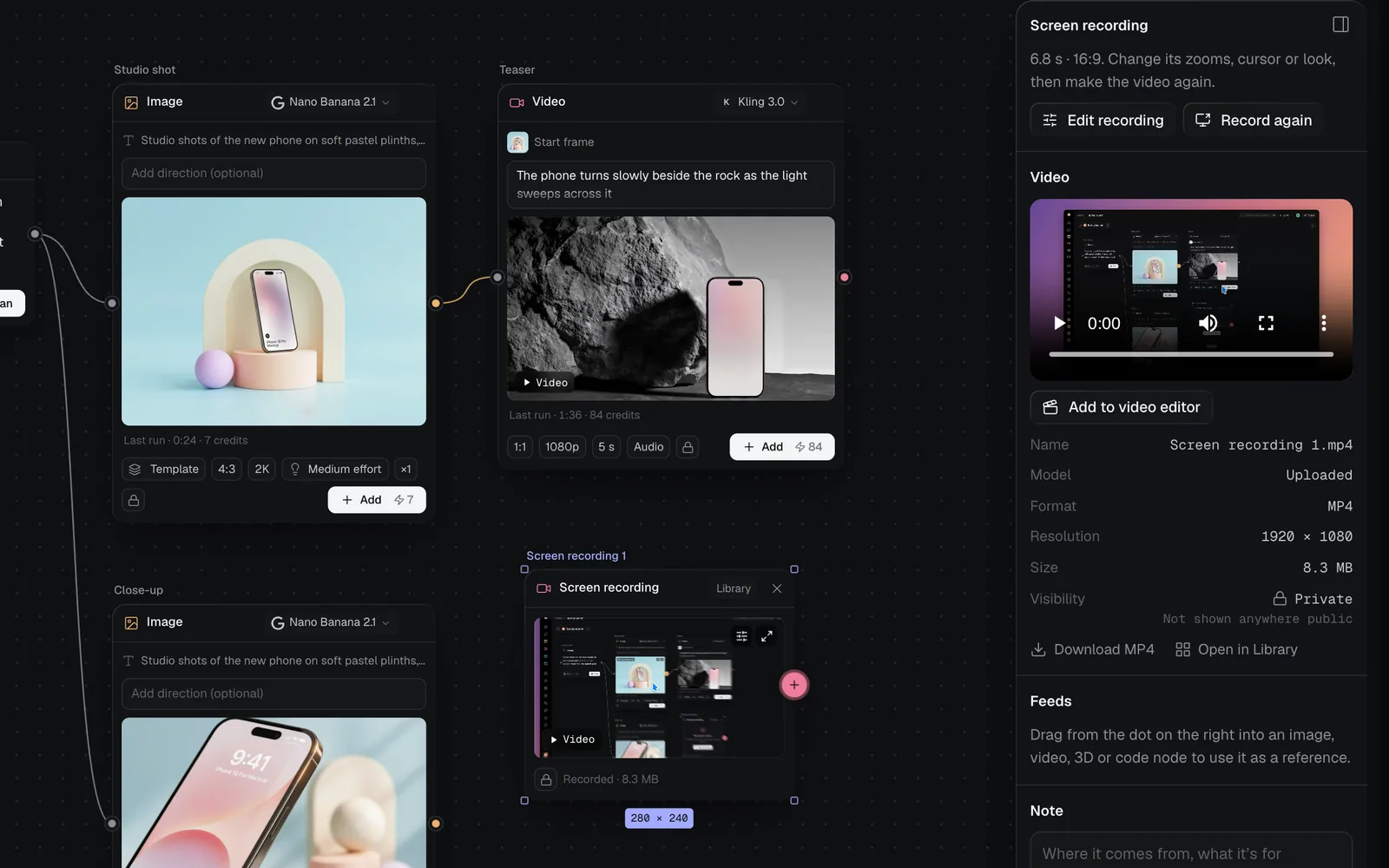
Earlier videos and takes stay in your library (see Files and the library).
Record your voice
- Click + in the toolbar, point at Record and pick Voice recording, or right-click an empty spot and choose Add voice recording. A node named "Voice recording 1" appears, and Record your voice opens.
- Pick your microphone in the menu at the left. The bar beside it moves as it hears you.
- Click the red button, or press Space, and speak. With 3 s countdown ticked, it counts down first: press Space to start at once. What you say is drawn as you say it.
- Click the button again, or press Space, to stop. Your take plays back.
- Click Use take (Enter), or Retake (R) to record it again. The node becomes a sound you can play on the canvas. To clean it up as you keep it, tick Clean up first (see Clean up a voice recording).
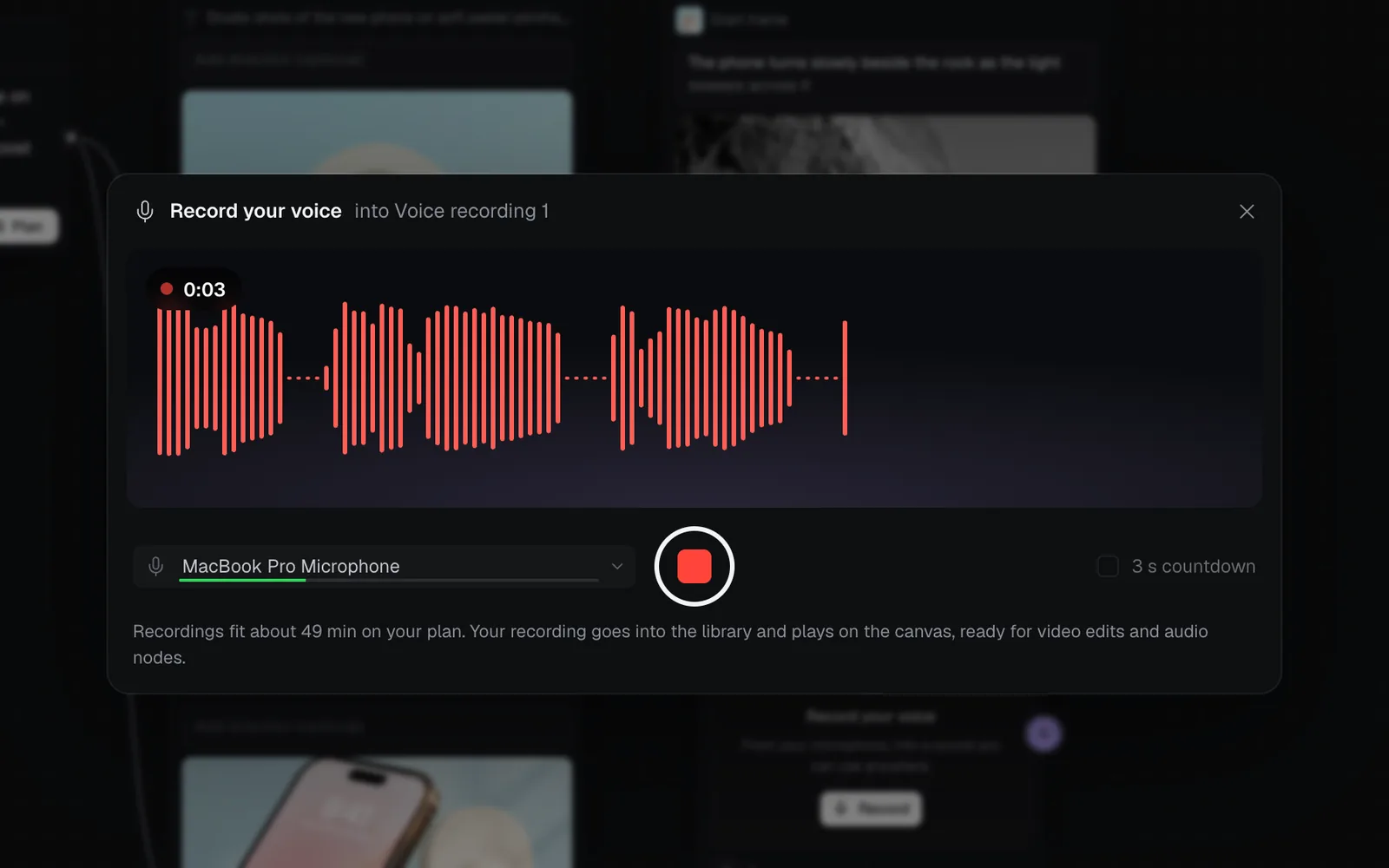
- It's saved as an M4A (a WebM in browsers that can't make one), in your library.
- To record it again, click the microphone on its tile (Record again), or Record again in its properties. The new take replaces the node's sound, with nothing cleaned yet; the earlier one stays in your library.
- The recorder says about how many minutes fit on your plan.
Clean up a voice recording
Cleanvoice can clean up a voice recording: take out background noise, make the voice fuller and even out its volume, and, if you like, cut ums, stutters, long pauses and mouth sounds. The clean sound takes the recording's place on the node, and the original stays in your library to switch back to.
As you keep a take
- Record your voice (see Record your voice). When your take plays back, tick Clean up.
- Pick what to clean. Background noise, Studio sound and Even volume are on to start; click Ums and uhs, Stutters, Long pauses or Mouth sounds to add them. One at least stays on.
- Click Use and clean up, its price on it. The node gets your take at once and says Cleaning up…; in about a minute the clean sound takes its place.
Later, from its properties
Select the voice recording and click Show properties at the top right. Its Clean up section has the same choices and Clean up with its price. Once it's cleaned:
- Cleaned and Original switch which sound the node plays, at any time.
- It says what was cleaned, such as "background noise, studio sound, even volume, ums and uhs".
- Clean up again cleans the original another way.
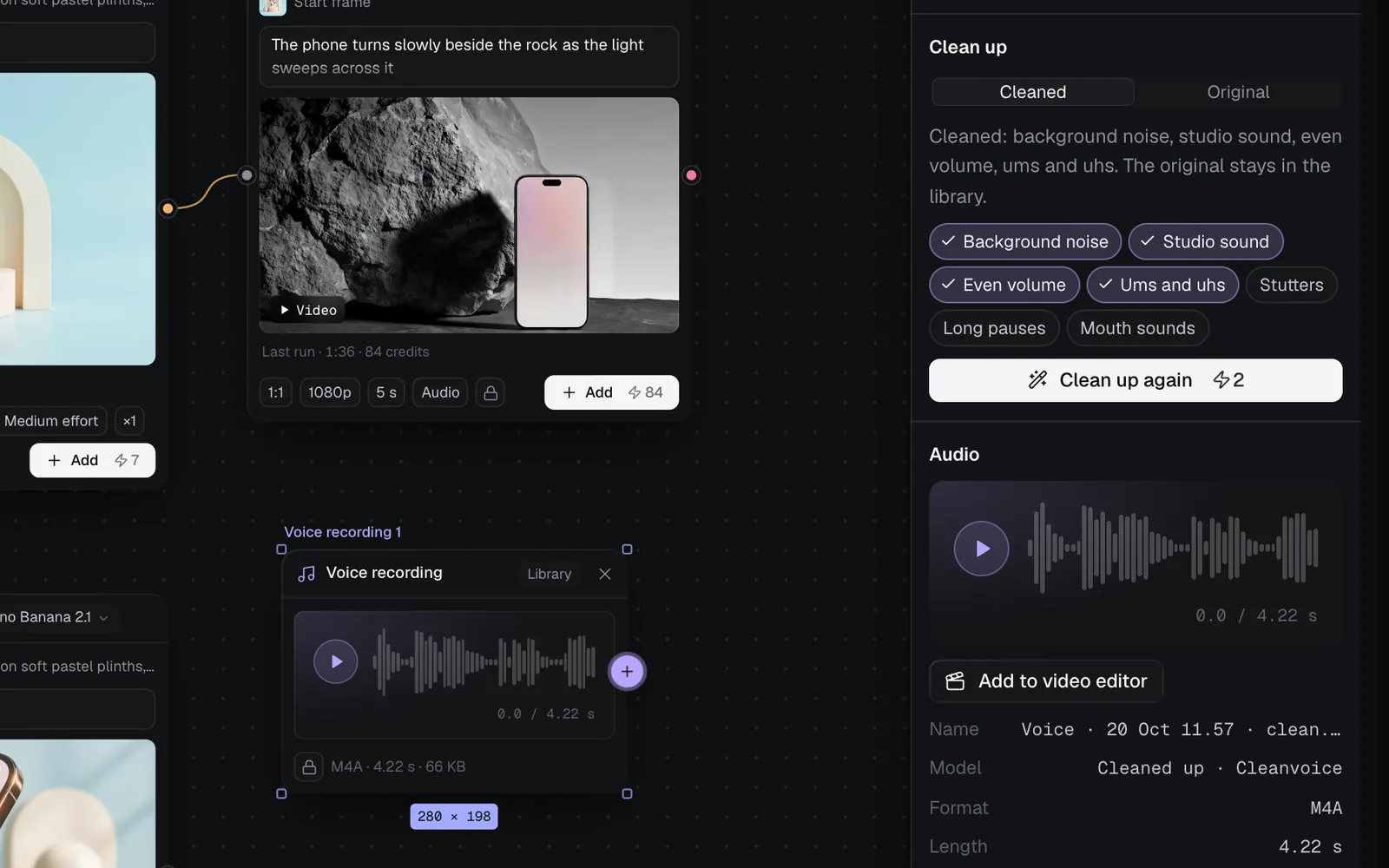
What each choice does
| Choice | What it does |
|---|---|
| Background noise | Takes out hum, hiss, fans and the room |
| Studio sound | Makes the voice fuller, as if in a studio |
| Even volume | Evens the level out |
| Ums and uhs | Cuts filler sounds |
| Stutters | Cuts repeated word starts |
| Long pauses | Shortens long silences |
| Mouth sounds | Cuts clicks, lip smacks and breaths |
Your choices are remembered in this browser for next time.
- If a clean up doesn't work, the tile says Clean up didn't work, your credits come back, and its properties say why. Try it again from there.
- Recording it again (Record again) gives the node a new sound with nothing cleaned.
Use your recordings
A recording, once made, is a video or sound file node like any other:
- Put it in a video: Add to video editor in its properties, or pick it in the editor's Media tab (see Make a video edit and Add music, voice and sound).
- Wire it into other nodes as a reference, or a sound into an Audio node to keep it beside the versions you make (see Audio).
- Download it from its properties, and find it in your library.
- Agents connected to Fil read it as a file node (see MCP tools).
Tips and limits
- Recording is free, and the video is made in your browser. What you keep counts toward your storage. Cleaning up a voice recording costs credits (see Clean up a voice recording).
- One file can be up to 1 MB on Free, 10 MB on Starter, 50 MB on Pro and 100 MB on Max, so a take on Free lasts seconds. See Credits and plans.
- Screen recording needs Chrome, Edge or Safari on a computer, or Fil for Mac. Voice recording works wherever your browser has a microphone.
- You need to be able to edit the canvas to add or record one. New recordings start private on Starter, Pro and Max, like other new nodes: the lock at the node's foot.
- If your camera or microphone is in use in another app, the recorder says so: close it there and try again.
What's next
- Video editor: cut recordings together with clips, pictures and sound.
- Add music, voice and sound: put a voice recording under a video.
- Files and the library: where takes and videos are kept.
- Canvas basics: add, connect and arrange nodes.