Slides
Make presentations on a Fil canvas from nine designs or with AI, edit them like Keynote, present full screen, and export to PowerPoint, Keynote or PDF.
A Slides deck is a presentation on your canvas: 16:9 slides (1920 × 1080) of text, shapes and pictures in a designed theme. Each slide arrives with a transition, and the things on it can come in one after another (builds), by themselves or on a click. You edit it full screen the way you would in Keynote, present it from the canvas, and export it to PowerPoint, Keynote or PDF. Adding and editing slides is free; only writing them with AI costs credits.
Create a presentation on a canvas
- Open a canvas from the sidebar (see Canvas basics).
- Click + in the toolbar at the bottom, point at Slides, and pick one of the nine designs.
- Clicking Slides itself, or pressing ⇧P, adds a deck in Thread.
- The editor's Theme tab switches to another design later.
- Write with AI, at the foot of the designs, adds an empty Slides node for AI to write from your prompt (see Make a presentation with AI).
- A deck lands in the middle of the view: seven example slides that tell a short launch story, each in a different layout, with the design's transitions and builds. Make it yours by changing the words, or delete the slides you don't need.
The deck sits in a Code node set to Slides: its header reads Code, and the node takes the deck's name when it's made. The prompt box above the slides, and What should change in the slides? with Edit below them, are for AI. They cost credits only if you run them (see Make a presentation with AI).
You can also right-click an empty spot on the canvas and choose Add slides…: the same nine designs and Write with AI put the deck where you clicked.
| Design | What it looks like |
|---|---|
| Thread | Near-black with a dot grid, Geist and mono labels |
| Paper | Cream paper and ink, one orange accent on plates |
| Ruled | Thin ruled lines and a baseline grid, notes in the margin |
| Showcase | A sun on the horizon, label plates, catalogue captions |
| Kinetic | Huge heavy type, black and white with one signal red |
| Explainer | Deep navy and warm yellow, flat shapes on rounded plates |
| Volt | Graphite with an electric lime accent on a fine grid |
| Cinematic | A dark studio under a soft spotlight, small precise type |
| Editorial | Serif headlines on sage paper with wide margins |
Step through and present from the canvas
Point at a deck on the canvas and its controls appear over the slide:
- ‹ and › step through the slides, with the count between them (1 / 7).
- Play presents the deck full screen from the slide showing (see Present your slides).
- View full size, the arrows at the top right, opens the editor.
Edit slides full screen
Open the deck with View full size. The editor fills the full view:
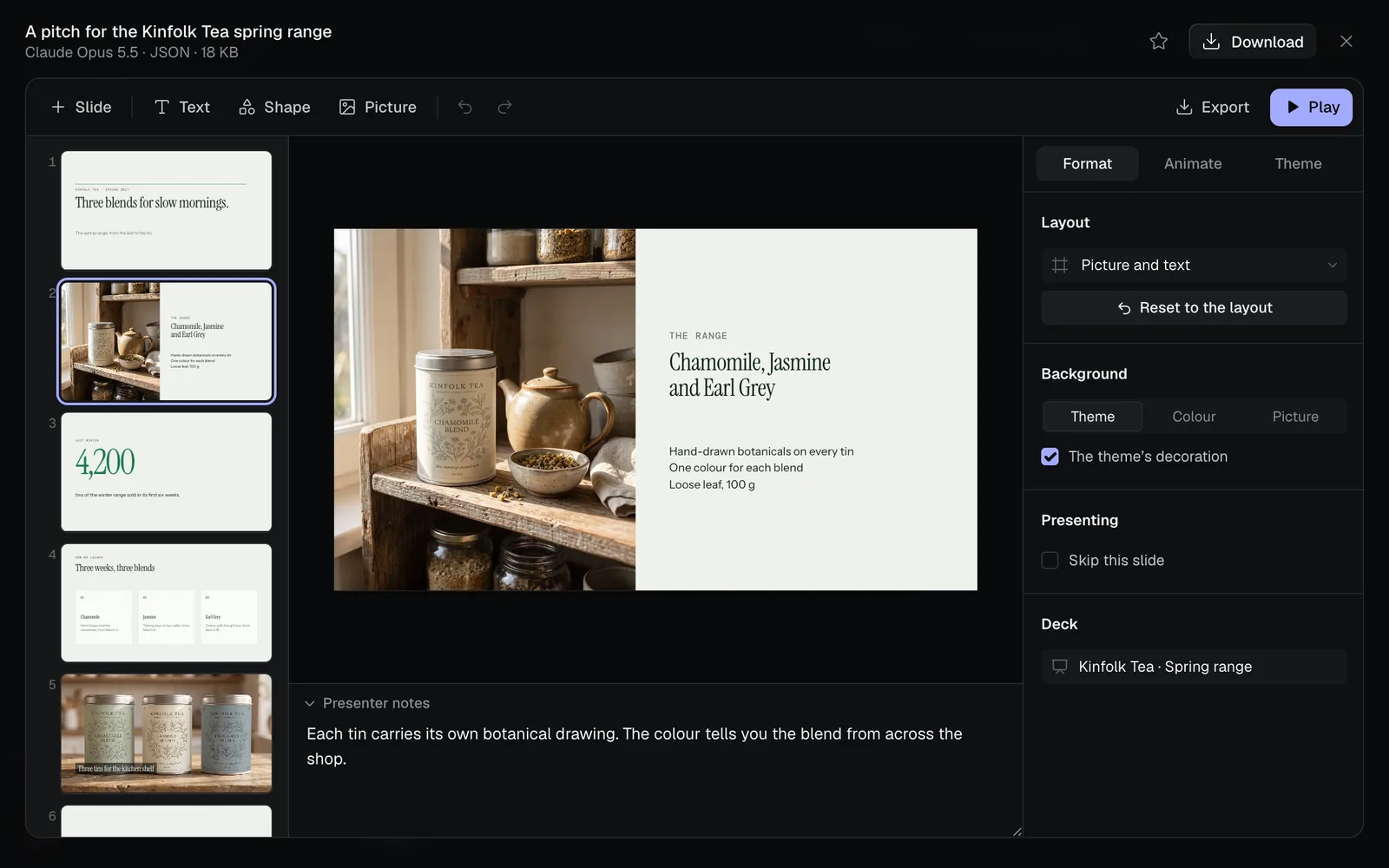
- The toolbar: Slide adds a slide, Text, Shape and Picture add to the slide showing, then the Undo and Redo arrows. On the right, Export and Play.
- The slide list on the left: click a slide to show it on the stage.
- The stage in the middle, where you pick, move and type.
- Presenter notes under the stage, for what you'll say over this slide.
- The inspector on the right: Format (the slide, or what's picked on it), Animate (transitions and builds) and Theme.
Every change saves by itself as a new version of the deck, and ⌘Z undoes it (⇧⌘Z redoes). Esc closes an open menu, then lets go of what's picked; with nothing picked it closes the full view.
Add, reorder and skip slides
- Click Slide in the toolbar to add a slide after the one showing, or New slide at the foot of the list to add one at the end.
- Pick a layout. Each is drawn in your deck's design.
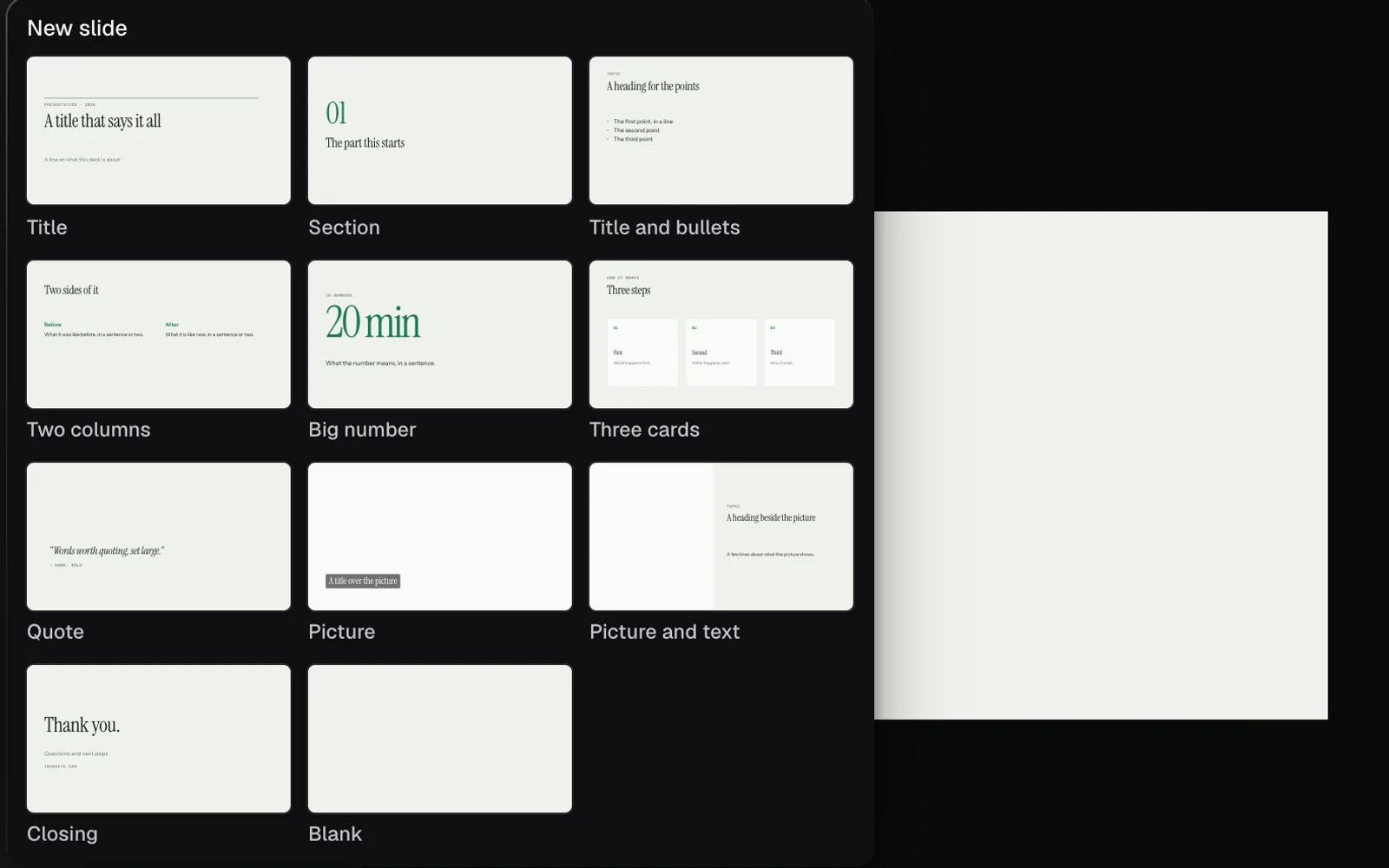
| Layout | What it holds |
|---|---|
| Title | A big title, its label and a line under it |
| Section | A number and the part it starts |
| Title and bullets | A heading over a list of points |
| Two columns | A heading over two columns side by side |
| Big number | One number and what it means |
| Three cards | A heading over three cards |
| Quote | Someone's words and who said them |
| Picture | A picture filling the slide, a title over it |
| Picture and text | A picture beside a heading and text |
| Closing | Thanks, and where to find you |
| Blank | Nothing on it |
- Picture and Picture and text start with an empty frame: double-click it to add a picture.
- Drag a slide up or down the list to move it.
- Right-click a slide for Play from this slide, New slide, Duplicate, Skip when presenting and Delete.
- A skipped slide is dimmed in the list, and it's left out when you present and from the PDF. To bring it back, right-click it and pick Don’t skip. You can also skip a slide with Skip this slide, under Presenting in Format, when nothing on it is picked.
After you click in the slide list:
| To | Press |
|---|---|
| Add a slide in the same layout (Title and bullets after a title slide) | Enter |
| Duplicate the slide | ⌘D |
| Delete the slide (a deck keeps one at least) | ⌫ |
| Go to the slide before or after | The arrow keys (on the stage too, with nothing picked) |
Edit text in place
- Double-click a text box on the stage to type where you clicked, or pick it and press Enter to select all its words.
- Type. The box grows to hold what you write.
- Select a word or two (double-click a word) and click Bold, Italic or Accent under Selected words in the Format tab. The accent is the design's accent colour. Or press ⌘B, ⌘I or ⇧⌘H.
- Press Esc or click outside the box when you're done.
Text in the toolbar adds a box in the middle of the slide, ready to type. Pasted words come in as plain text, in the box's own style.
With a text box picked, Format styles all of it:
| Setting | What it does |
|---|---|
| Apply a text style… | Sets the box as a Title, Heading, Subtitle, Body, Label, Caption, Big number or Quote in your design |
| Font | The design's Headlines, Text or Labels font, which change with the theme, or another of the fonts listed |
| Weight and size | From Thin to Black, and the size as it is on the 1920 × 1080 slide |
| Colour | The design's colours (they follow the theme), or the rainbow swatch for any other (Another colour) |
| Alignment and lists | Left, centre, right or justified; top, middle or bottom; and the list buttons, Bullets or Numbers (point at a button for its name) |
| Italic and Capitals | The whole box in italics, or in capitals (the I at the end of the alignment row, the H at the end of the list row) |
| Line height and letter spacing | Tighter or looser lines and letters |
| Plate behind the words | A block of colour behind the text, as a label |
| Dot before the first line | A coloured dot ahead of it, as a marker |
Move, resize and rotate text, shapes and pictures
Click a thing to pick it, and drag it to move it: guides show and snap at the slide's middle, its edges and margins, and the edges and middles of other things. Drag a handle to resize it, or the round handle above it to rotate it. With one thing picked and Format open, its size shows under it (unless it's turned).
| To | Do |
|---|---|
| Pick more, or take one out | ⇧-click or ⌘-click it |
| Pick everything a box touches | Drag from an empty spot |
| Pick everything on the slide, or the next thing | ⌘A, or Tab (⇧Tab goes back) |
| Move in a straight line, or without snapping | Hold ⇧, or ⌘, as you drag |
| Nudge | The arrow keys: 1 px, 10 px with ⇧ |
| Resize a picture | Drag a corner: it keeps its shape; hold ⇧ to stretch it |
| Resize a text box or shape | Drag a corner; hold ⇧ to keep its shape, and a text box's words grow with it |
| Resize from the middle | Hold ⌥ as you drag |
| Resize several at once | Drag a handle of the box around them |
| Rotate in 15° steps | Hold ⇧ on the round handle |
| Bring forward or send backward | ⌘] or ⌘[, with ⇧ all the way to the front or back |
| Duplicate, or delete | ⌘D, or ⌫ |
| Copy, cut and paste, between slides and decks | ⌘C, ⌘X, ⌘V |
The Arrange section of Format has the same: align (one thing to the slide, several to each other), its exact place, size, rotation and opacity, the order in front and behind, Duplicate and Delete. Keyboard shortcuts lists every key in the editor and when you present.
Add shapes and pictures to a slide
- Shape in the toolbar adds a shape in the design's colours: a Rectangle, Rounded rectangle, Circle, Triangle, Half circle, Line, Arrow, Row of dots or Ruled lines.
- With a shape picked, Format changes its kind, fill, border (or a line's colour) and width, corners (a rounded rectangle is a Rectangle with a corner radius), and a row's dots or lines.
- Picture in the toolbar offers Upload from your computer… and From this canvas…, the pictures on the canvas the deck is on (put a Library picture on the canvas first, or upload it).
- Or drop picture files on the slide, or paste one. Dropped on a picture, it takes that picture's place; double-click a picture to replace it.
- With a picture picked, Format has Replace picture… (Choose a picture… on an empty frame), Fill or Fit (cropped to its box, or whole inside it) and its corner radius.
Layouts and backgrounds
Click an empty part of the stage, so nothing is picked, and Format shows the slide itself:
- Layout lays the slide out as another layout, keeping its words. Reset to the layout puts the layout's own boxes back in their place and style. Either way, moves, sizes and styles you gave those boxes are reset (⌘Z brings them back); boxes you added stay as they are.
- Background: Theme (the design's own), Colour, or Picture (from your computer or the canvas). A picture gets a % field to darken it so the words stay readable; its tip reads Darken the picture.
- The checkbox under it shows or hides the design's decoration, such as The theme’s dot grid.
- Deck: the deck's name, which its exported files take. The node keeps its own name.
Presenter notes
Type what you'll say over a slide in Presenter notes, under the stage; click the heading to fold it away. Each slide has its own. Press S while you present to show them, and they go into PowerPoint's notes when you export.
Animate: transitions and builds
Open the Animate tab. A slide's transition is how it arrives; a build is how one thing on it comes in.
Transitions
Under Transition into slide 2 (the number is the slide's own), pick one of twelve:
| Transition | What it does |
|---|---|
| None | Cuts straight to it |
| Magic Move | What's on both slides moves into place |
| Dissolve | Fades from one slide to the next |
| Push | Pushes the slide before off |
| Move In | Slides in over the slide before |
| Reveal | The slide before moves away |
| Wipe | Wipes across with a soft edge |
| Zoom | Grows out of the middle |
| Blur | Blurs out and back into focus |
| Flip | Turns over like a card |
| Cube | Turns like the face of a cube |
| Fade through black | Fades out to black, then in |
Push, Move In, Reveal, Wipe, Flip and Cube take a direction: one of the four arrows under the transitions. Set how long it takes in seconds, and click Preview (the ▶ by the heading) to watch the slide arrive, builds and all, on the stage.
Magic Move
Anything on both slides glides to its new place, growing or shrinking, and words change colour as they go. What's only on the slide before fades out; what's new fades in. The surest way to use it is from a copy:
- Pick the slide in the list and press ⌘D to duplicate it (or right-click it and pick Duplicate). Everything on the copy is matched to the original, so Magic Move can carry it.
- On the copy, move or resize things, or recolour words: make a number bigger, slide a picture across.
- In Animate, pick Magic Move for the copy, and click Preview.
It also works between slides that aren't copies, for anything each has only one of: the title, label, big number, section number, quote or picture. So a title glides from slide to slide. That's why Thread decks start with Magic Move between their slides.
Builds: animate text and pictures on a slide
A build brings one thing in after the slide arrives. Each design's slides start with builds that play by themselves, one after another; change them, or have them wait for a click.
- With the Animate tab open, click a thing on the slide.
- Under Build in, pick how it comes in: Appear, Dissolve, Rise, Drop, Reveal, Wipe, Pop, Focus or Scale. None keeps it there from the start.
- For text, pick All at once, By line or By word: a list comes in a point at a time.
- Pick when it starts: On click, After the one before or With the one before, then its duration and its delay (+) in seconds. The ▶ by Build in (its tip reads Preview the slide) plays the slide on the stage.
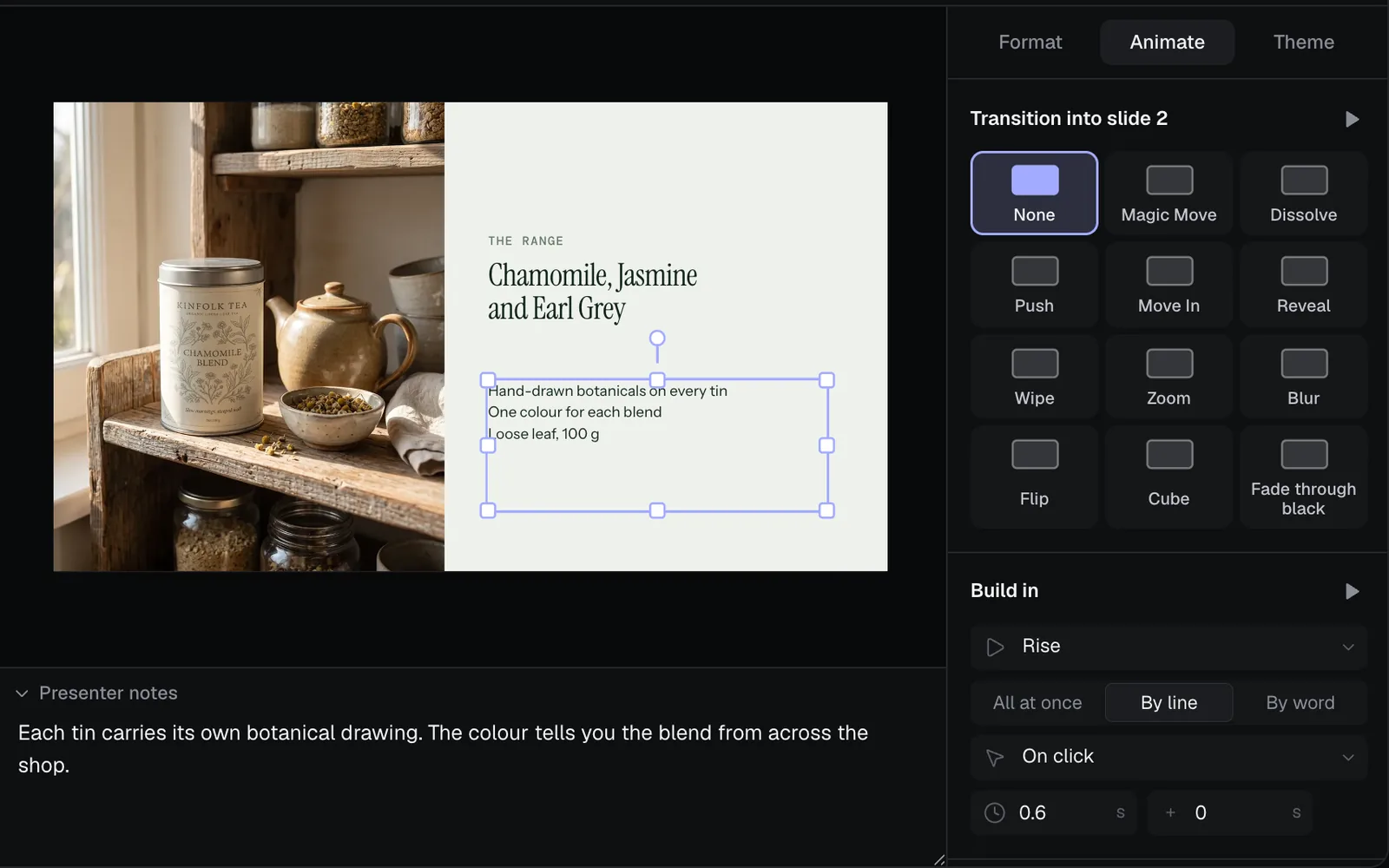
Build order lists everything on the slide that builds, in the order it comes in. Click one to pick it on the stage, and move it Earlier or Later with its arrows. Take away every build shows the whole slide at once as it arrives.
Change the theme, colours and fonts
The Theme tab changes the whole deck at once:
- Theme: pick another of the nine designs, and every slide is laid out again in it, keeping its words, in the design's colours and fonts and with its transitions. ⌘Z takes it back.
- Colours: Dark or Light, and a set of colours: Fil, Volt, Cobalt, Rose, Sage, Mono, Paper or Studio. Everything coloured from the design follows; a colour you picked yourself with the rainbow swatch (Another colour) stays.
- Fonts: a pairing (Geist, Inter Tight, Instrument, Bricolage, Funnel, Fraunces, Space Grotesk or Syne), or pick the font for Headlines, Text and Labels one by one. Text set in one of those roles follows.
Present your slides
Click Play in the editor (⌘Enter) to present from the slide showing, Play on the canvas tile, or right-click a slide in the list and pick Play from this slide. The deck fills the screen, each slide arriving with its transition and its builds coming in by themselves or on your clicks.
| To | Press |
|---|---|
| Go on: the next build, or the next slide | A click, →, ↓, Space, Enter, Page Down or N (a presentation clicker works too) |
| Go back a slide (it comes back with everything built in) | ←, ↑, ⌫, Page Up, P or a right-click |
| Go to the first or last slide, everything built in | Home or End |
| Show or hide your notes | S |
| Black out the screen, and back | B or . |
| Stop | Esc |
Move the pointer and a bar shows at the foot of the screen, with the arrows, the slide count, Notes and End; it hides again after a moment. A click while something is moving finishes it at once, and going on from the last slide ends the show.
Export to PowerPoint, Keynote or PDF
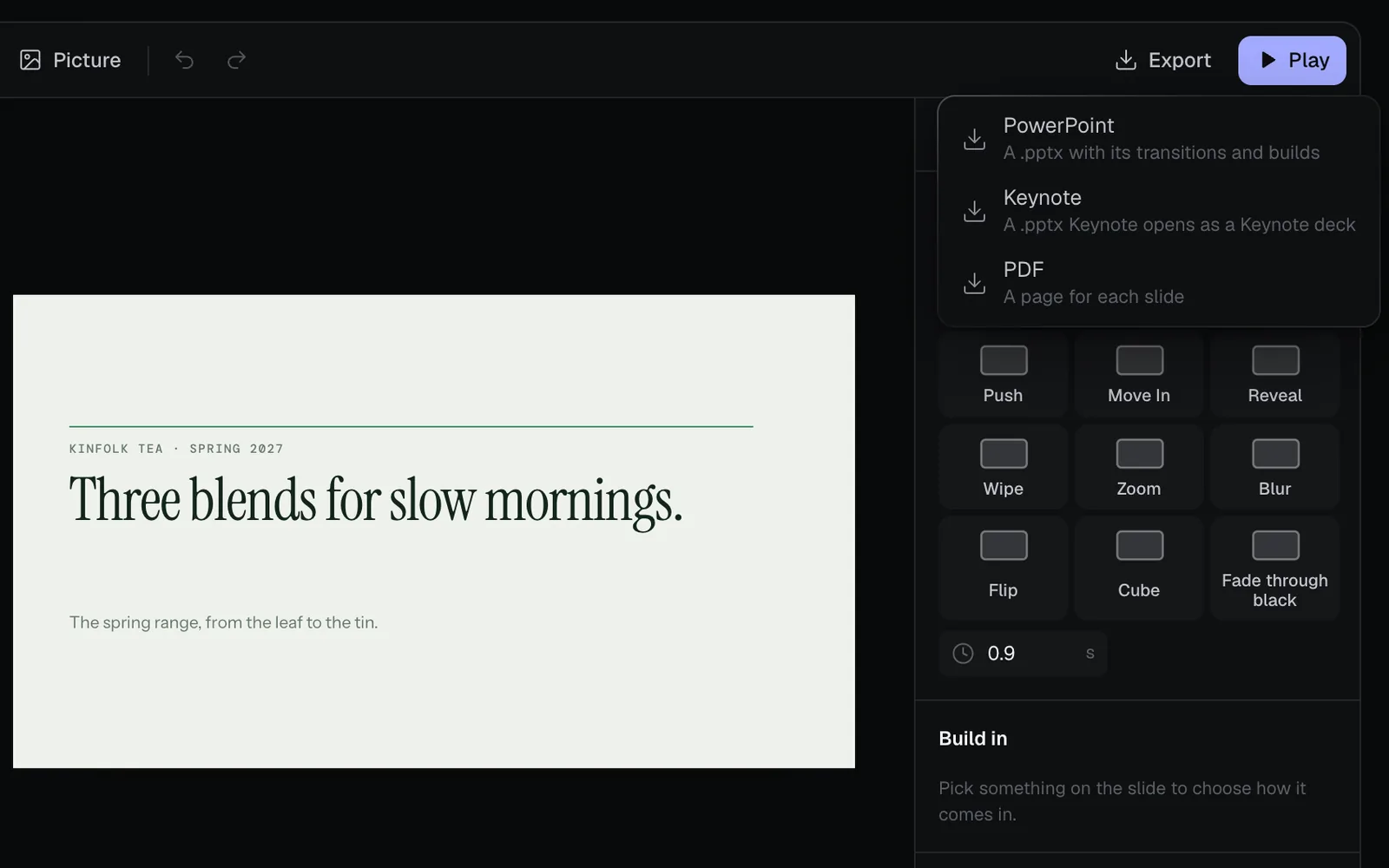
Click Export in the editor's toolbar and pick a format. The file downloads, named after the deck.
| Format | What you get |
|---|---|
| PowerPoint | A .pptx with real text boxes you can edit, in the deck's fonts, its shapes and pictures, presenter notes, transitions (Magic Move becomes Morph) and builds as animations. Skipped slides are hidden slides |
| Keynote | The same .pptx, with “(for Keynote)” at the end of its name: open it in Keynote and it becomes a Keynote deck |
| A page for each slide, a picture of it as it shows with everything built in. Skipped slides are left out |
Fonts in PowerPoint and Keynote
The designs use free Google fonts, which PowerPoint and Keynote draw only if they're installed on your computer; otherwise they swap in fonts of their own and the text can run longer.
- After a PowerPoint or Keynote export, a note at the top of the screen names the file and the fonts the deck uses.
- Click Get the fonts on the note. It shows for about six seconds.
- On the Google Fonts page that opens, download them, then open each font file and install it (on a Mac, Install Font).
- Open the .pptx in PowerPoint or Keynote.

PowerPoint and Keynote don't do everything the editor does:
| In the editor | In PowerPoint and Keynote |
|---|---|
| The design's decoration or a picture background | The background picture of the slide (a plain colour, with no decoration, stays a colour) |
| A Row of dots or Ruled lines | A picture |
| The Blur transition, the Focus build | A fade |
| The Cube transition | A push |
| A build By word | Comes in line by line |
| Magic Move | Morph, or a fade in a PowerPoint without Morph |
Make a presentation with AI
AI can write a deck for you from a prompt, a brief or your notes.
- Click + in the toolbar, point at Slides and pick Write with AI. Or add a Code node and pick Slides on its format chip (it reads Website on a new node).
- Type what the deck is for in the node's prompt: the talk, who it's for, how long. Or wire your documents into it: drag from the dot on a document's right edge to the dot on the node's left edge (see Connect nodes). With a document wired in, the box asks what to keep from it, and you can leave it empty. Wire in pictures for it to put on slides: it uses only the pictures you wire in, and without any it makes no Picture or Picture and text slides.
- Check the price on Generate, then click it.
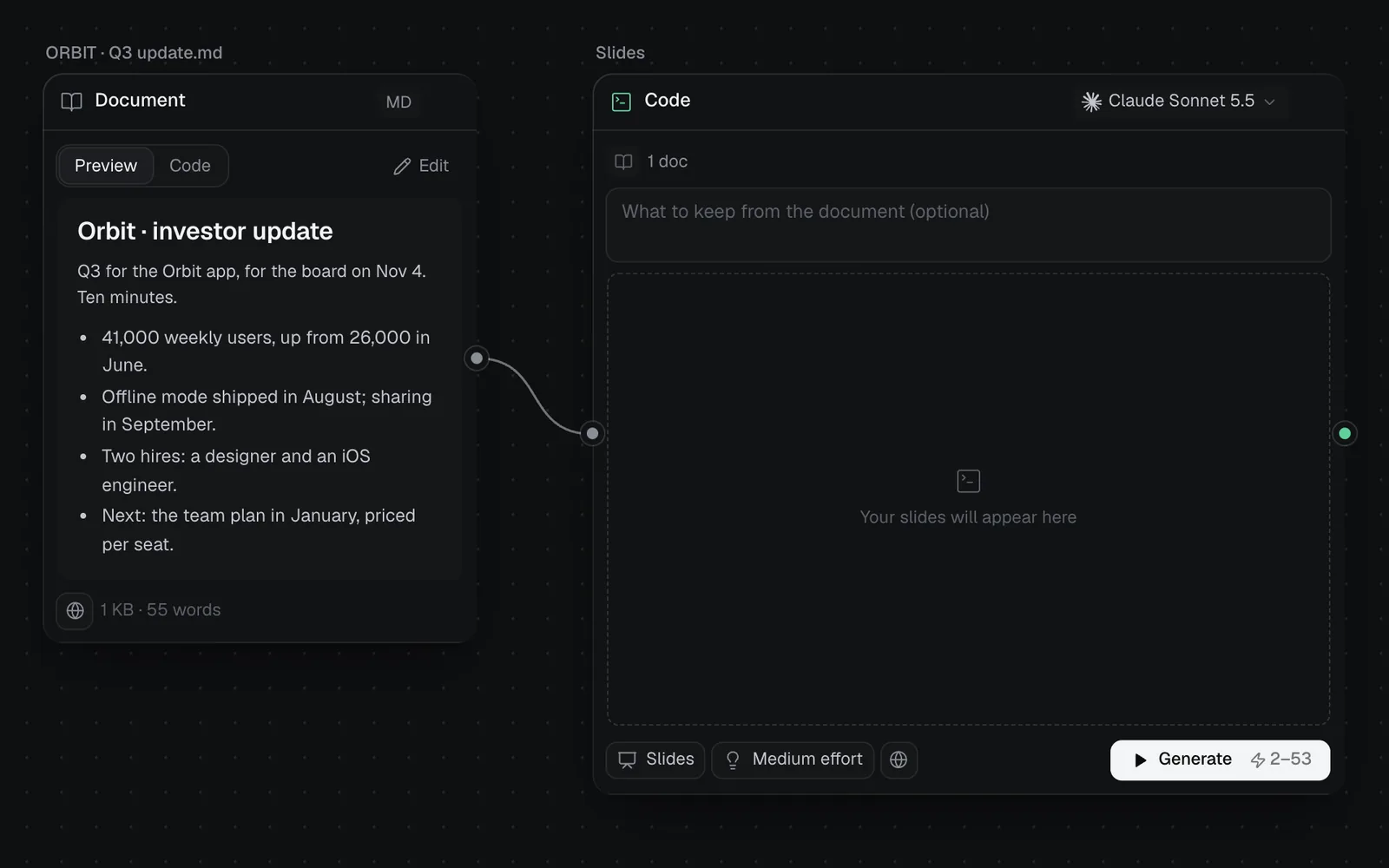
AI picks the design that suits the subject, unless your prompt names one, and writes six to fourteen slides unless you ask for a number: a title slide first, a section before each part of a longer deck, one idea a slide and a closing slide last, with presenter notes on each. It's asked to keep your names and numbers exactly as you wrote them and to make up no facts or figures. Then the deck is yours to edit like any other.

To change a deck with AI later, type in What should change in the slides? under it and click Edit, priced the same way. It's asked to change what you ask for and keep every other slide as it is. See Code generation for the models and effort.
Import a PowerPoint or Keynote deck
Fil doesn't open .pptx or Keynote files. To bring a talk in, take its words out as text: in PowerPoint, File › Export as an Outline/RTF; in Keynote, View › Outline, then copy them. Paste them into a document on the canvas, or straight into a Slides node's prompt, and make a presentation with AI.
Versions, limits and sharing
- Every change is saved as a new version, free; changes a moment apart are saved together. Click 2 versions (it shows how many) at the top of the full view to look at an earlier one and Restore it.
- Download in the full view saves the deck as a JSON file.
- A slide holds text, shapes and pictures: no tables, charts, video or sound. A deck holds up to 300 slides, 200 things on a slide and 6,000 characters in a text box.
- A deck is public or private, as any node is: click the globe or lock at the foot of its node to switch (see The inspector panel).
- People who can only view the canvas can step through a deck, present it and export it, but not change it.
- If someone else changes the deck while you have changes waiting to save, yours are saved as the newest version; theirs stays in the list of versions.
- Claude Code, Codex and other agents connected to Fil can read and write a deck too: see MCP tools.
What's next
- Canvas basics: add, connect and arrange nodes.
- Prompts, documents and skills: the briefs and notes a deck can be written from.
- Files and the library: the pictures that go on your slides.
- Code generation: everything else a Code node makes, HTML slides included.