Edit a 3D model
Edit a 3D model part by part: move, recolour and paint parts, ask an agent for changes, make a part again with Tripo, and keep every save as a version.
The 3D editor opens a model from your canvas as a scene of parts. Move, turn and size each part, change its colour and finish, paint over an area to make it a part of its own, and add shapes and other models. Ask the agent for a change in words and it makes it, or proposes a Tripo run that makes a part again. Every save is a new version of the model that you can go back to.
Open the 3D editor
- On a canvas, hover a 3D model's node and click the cube at its top right, Edit in 3D.
- Or open the model full size (double-click its node, or View full size) and click Edit in the bar at the top ("Edit its parts, by hand or with the agent").
- The model opens with Layers on the left, the view in the middle, and Part, Agent and Versions on the right.
The editor is on a canvas only, for people who can edit it, since each save is a version of the model's node. A model too large to edit smoothly (over 40 MB) opens as its lighter copy, up to 150,000 triangles, and says so in the view.
Pick, move, turn and size parts
Click a part in the view or in Layers to pick it; ⇧-click to pick more than one. Drag empty space to orbit, scroll to zoom and right-drag to pan.
- Pick Move W, Rotate E or Scale R in the bar.
- Drag the gizmo on the part: an arrow or ring along one axis, a square in a plane. The gizmo sits at the middle of the part, so a part turns and grows about itself.
- Or type exact numbers under Transform in the Part panel; ↑ and ↓ step a field, ⇧ by ten.
Focus F frames the part, Duplicate ⌘D copies it, Delete ⌫ takes it out, and the eye in Layers (or H) hides it. Double-click a name in Layers to rename it.
Change a part's colour and finish
Under Material in the Part panel:
- Colour tints the part. On a textured part the colour mixes with its texture; the eraser beside it takes the texture off so the colour shows as it is.
- Metal and Rough set how metallic and how glossy it is.
- Opacity lets you see through it.
- Glow makes it give off light.
A part that shares a material with others gets its own copy as you change it, so the rest stay as they are.
Paint a part
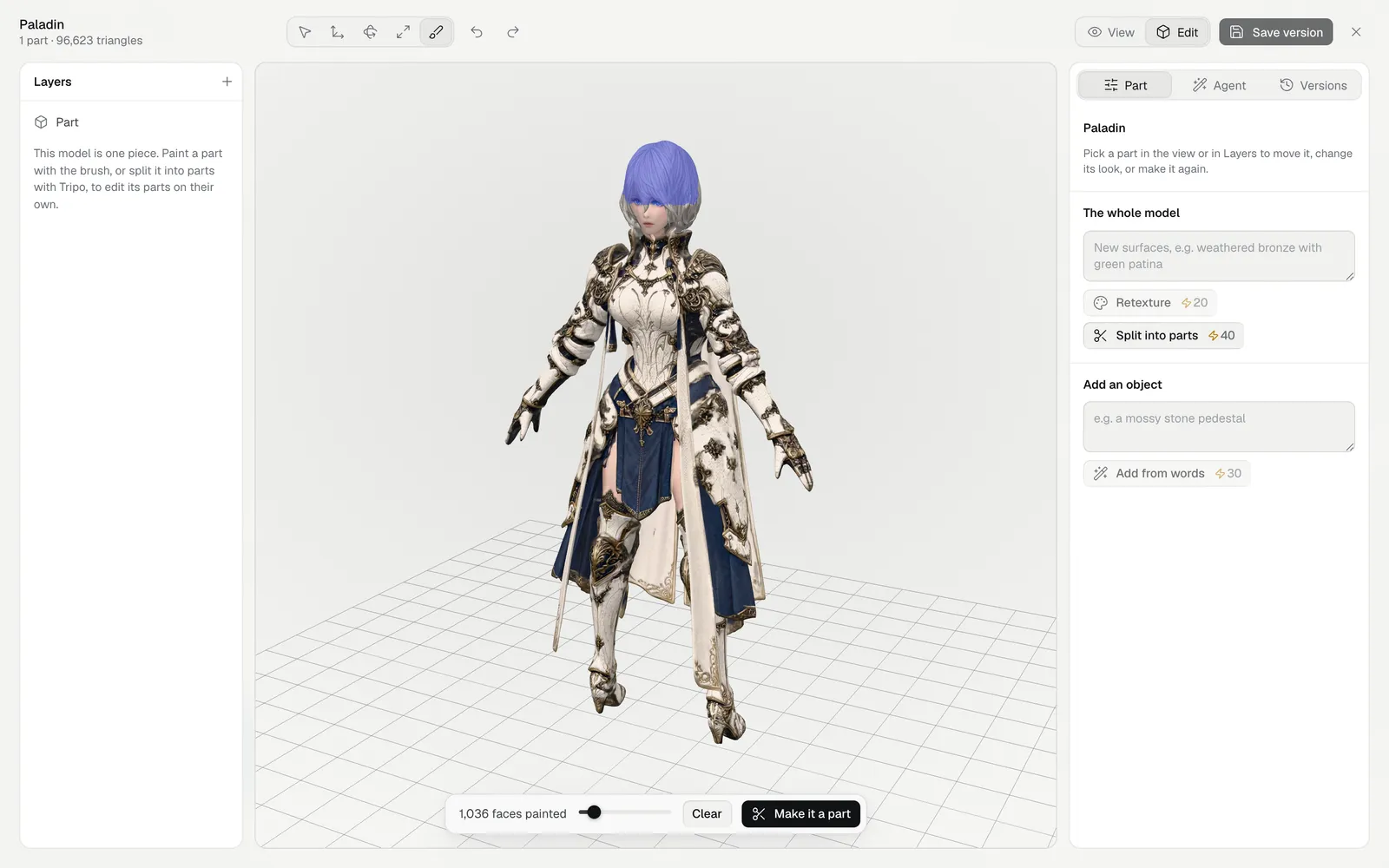
Models made by Tripo and most other generators are one piece. To edit one area on its own, paint it:
- Pick Paint a part B.
- Paint over the area, such as the hair or a shield. Alt while painting erases; [ and ] size the brush, or use the slider.
- Click Make it a part. The painted faces become a part of their own, named Painted part, ready to rename.
A part made of separate pieces (a pair of boots in one mesh) splits into them with Pieces in the Part panel.
Make a part again with Tripo
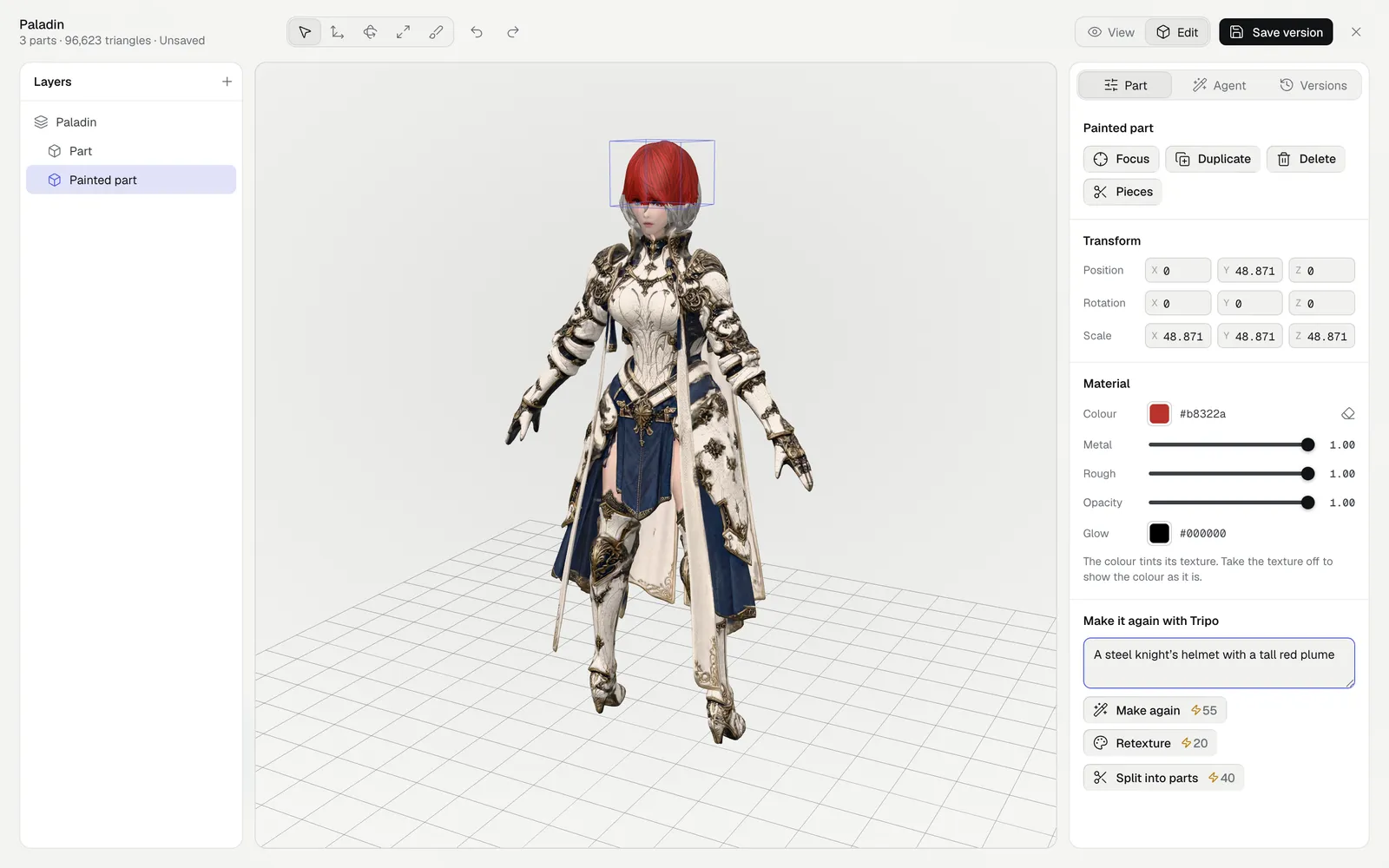
Under Make it again with Tripo in the Part panel, describe what the part should be, then:
| Button | Credits | What it does |
|---|---|---|
| Make again | 55 | Draws the part as you describe it, models that drawing, and puts the new model in the part's place, at its size |
| Retexture | 20 | Paints the part's surfaces anew from your words, keeping its shape |
| Split into parts | 40 | Tripo finds the parts in it (head, arms, armour plates) and splits them apart |
With nothing picked, the panel offers the same for the whole model, and Add from words (30 credits) models a new object and puts it beside the scene. The price on each button is what the run holds; it runs once you click it, shows its progress at the bottom left of the view, and goes into the scene when it's done, usually in one to three minutes. Each run's model is kept in your library too.
Edit with the agent
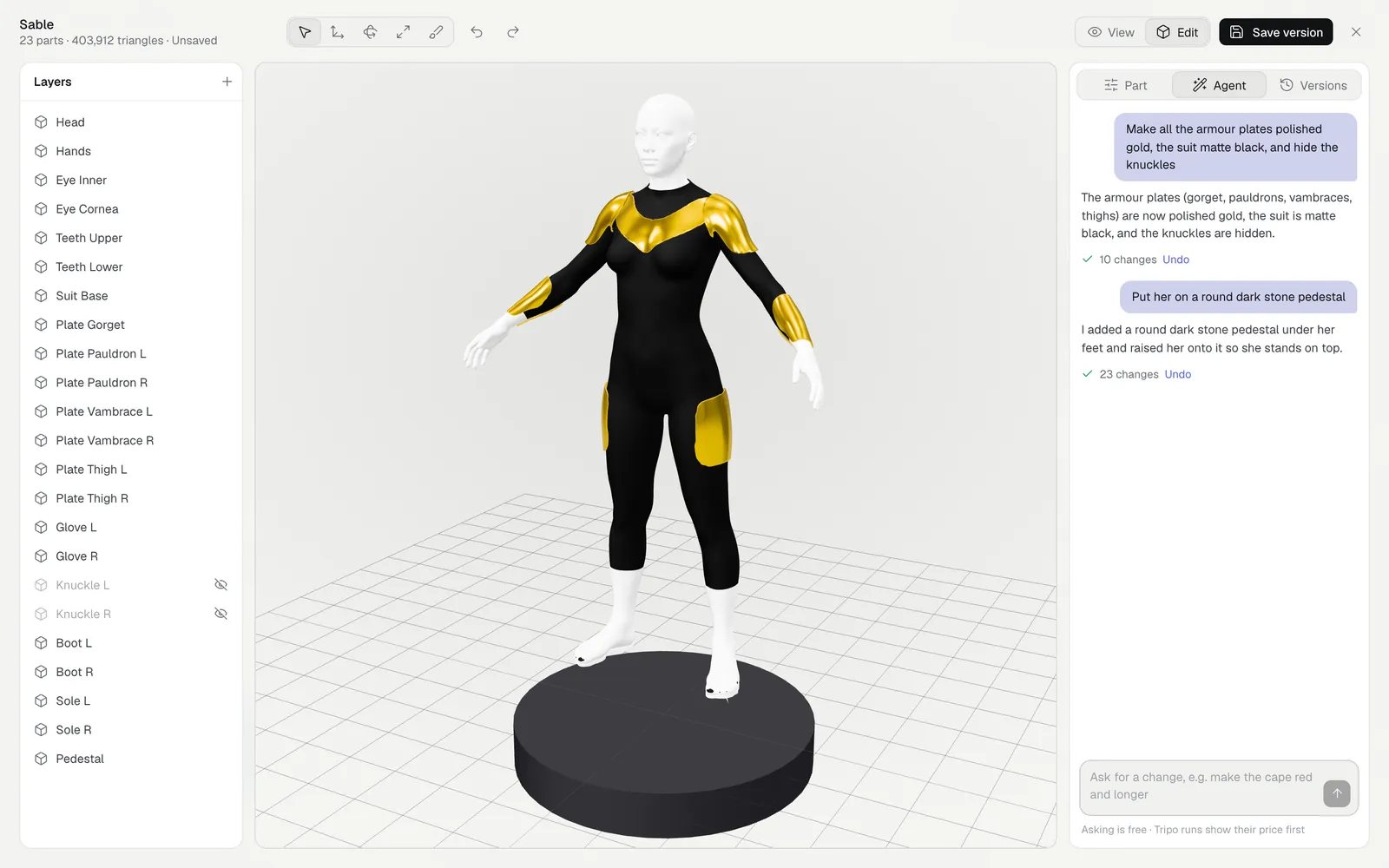
Click Agent on the right and say what to change, the way you'd ask a 3D artist:
- "Make the armour plates polished gold and the suit matte black"
- "Hide the knuckles and move the shield up a little"
- "Put her on a round dark stone pedestal"
- "Replace her hair with a steel helmet with a plume"
The agent looks at the view and at every part's name, place and material, and makes the change at once: it moves, turns, recolours, hides, renames, duplicates and deletes parts, and builds simple things from shapes (a pedestal, a table, a lamp). Asking is free, and ⌘Z or Undo under its reply takes a whole change back.
When a change needs a new model, such as a part with a different shape, new surfaces or the model split into parts, the agent proposes a Tripo run with its price instead. Nothing runs until you click its button; Skip leaves it. Pick a part first to say which one you mean.
Add shapes and models
Click + at the top of Layers:
- Shapes: a box, sphere, cylinder, cone, capsule, ring or plane, put beside the model.
- Models: any other 3D model in your library, added to the scene. One made at another scale (centimetres beside metres) comes in at the scene's size.
Save and go back to a version
Click Save version ⌘S to keep the scene as a new version of the model. The canvas node shows it at once, and View shows the saved model. Hidden parts are left out of the saved model.
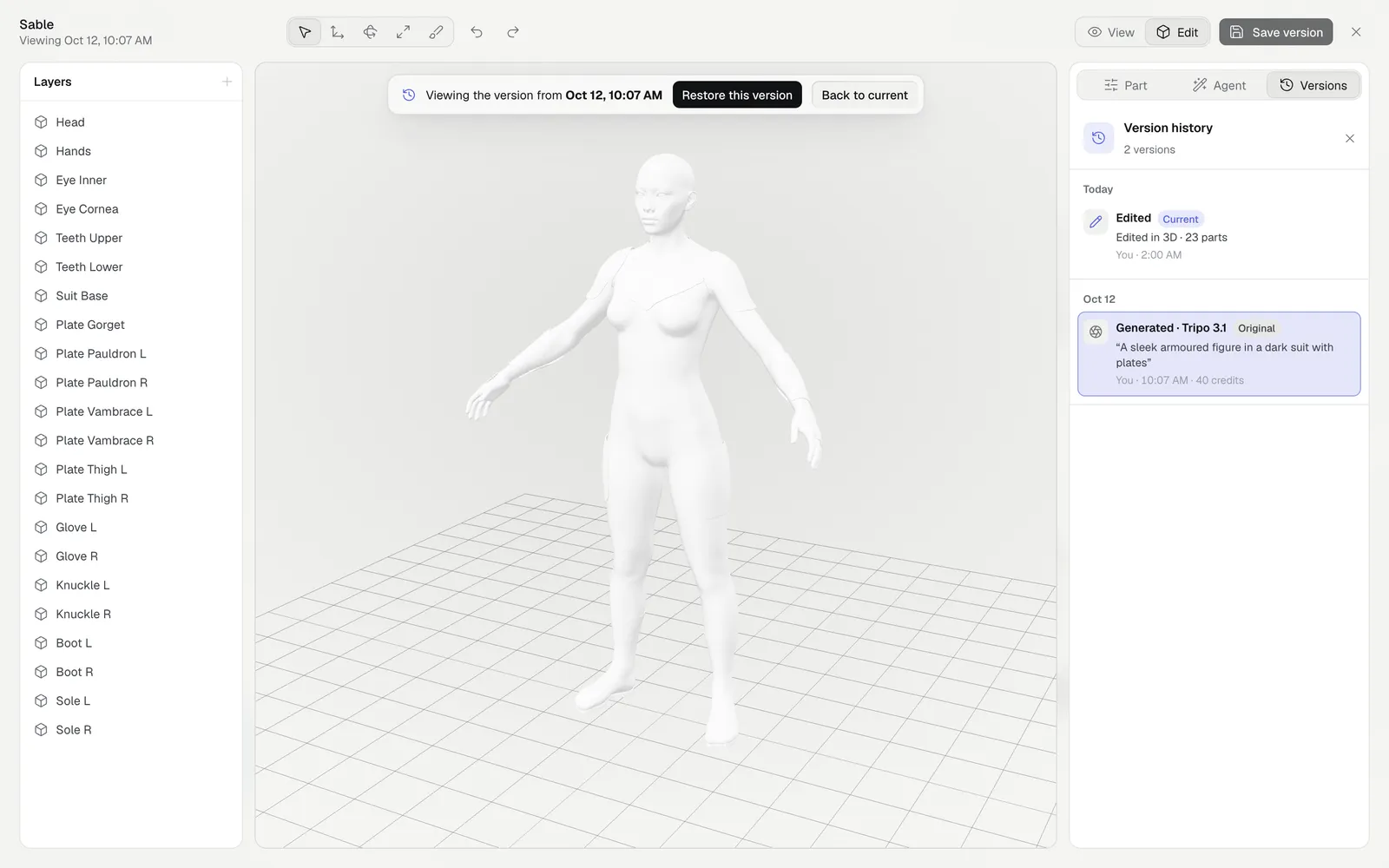
- Click Versions on the right: every version, newest first, with who made it and when.
- Click one to look at it in the view.
- Click Restore this version to make it the newest version, or Back to current.
Leaving with unsaved changes asks whether to save them first.
Keyboard shortcuts
These work in the 3D editor when you're not typing in a field.
| Keys | What they do |
|---|---|
| V, W, E, R, B | Select, Move, Rotate, Scale, Paint a part |
| F | Frame the picked part, or the whole scene |
| H | Hide or show the picked parts |
| ⌘D, ⌫ | Duplicate, delete |
| [, ] | Brush smaller, larger |
| ⌘Z, ⇧⌘Z | Undo, redo |
| ⌘S | Save version |
| Esc | Step back: out of a version, the selection, then close |
Tips and limits
- Changes in the editor are free. Only Tripo runs use credits, each with its price on its button.
- Painting picks faces near the brush in 3D, so paint a little inside the edge of what you want and erase with Alt where it spills over.
- The agent works best with named parts. On a model of one piece, paint the part or split it first.
- Saved models are GLB files, ready for any 3D tool, a game engine or a page made with Three.js.
What's next
- 3D generation: make a model from a picture or words, rig it and animate it.
- Canvas basics: nodes, runs and versions on a canvas.
- Files and the library: upload a GLB of your own to edit.