Credits and plans
How credits work in Fil, what a run costs, refunds, the Free, Starter, Pro and Max plans, team seats, credit packs, daily check-ins and your credit history.
Every run in Fil is paid for in credits: a picture, a clip, a 3D model, a page or a voiceover. A credit is about a cent: monthly plans and today's packs give you 100 credits for a dollar, and a yearly plan gives the same credits for 20% less. Free gives you credits on the days you check in; Starter, Pro and Max give you credits every month, and you can buy more at any time.
See how many credits you have
Your credits sit at the top right of every view, after a bolt (on a phone, open the menu ☰). Click them for the credits menu.
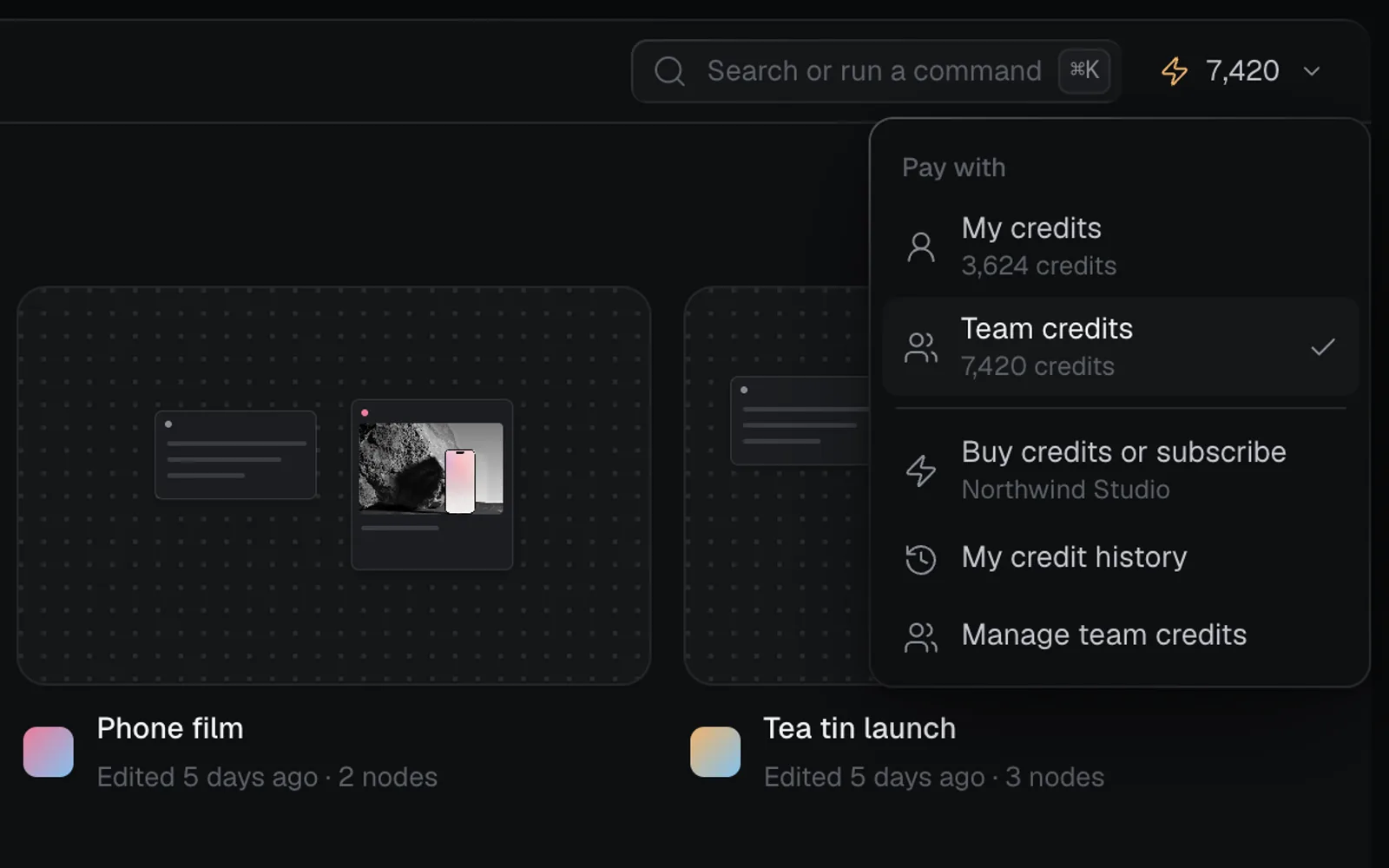
| Item | What it does |
|---|---|
| Check in | Today's free credits, on Free |
| My credits | Your own balance pays for your runs |
| Team credits | The team's balance pays instead, in a team you can edit |
| Buy credits or subscribe | Opens Plans and billing |
| My credit history | Every run and top-up, with its credits |
| Manage team credits | Opens Team settings: the team's members and credits (team owner) |
| Team credit activity | What the team has spent (other team editors) |
Choose whose credits pay in a team
In a team workspace you can edit, the menu's heading reads Pay with, and the ticked balance pays for your runs. The Create views show the same choice beside the price. Fil remembers your pick for each workspace in this browser, and starts on Team credits when the team has some and its spending isn't paused. Otherwise nothing is picked: the Create views read Choose credits, and a run asks you to "Choose Team credits or My credits before generating." The team's owner can pause the team's spending in Team settings; members can still use their own credits.
In your own workspace, and on a canvas someone shared with you from theirs, runs always use My credits. See Sharing and teams.
What a run costs
Before you run anything, its price shows beside Generate: the most that run can use, with the model and settings you've picked. It changes as you change them.
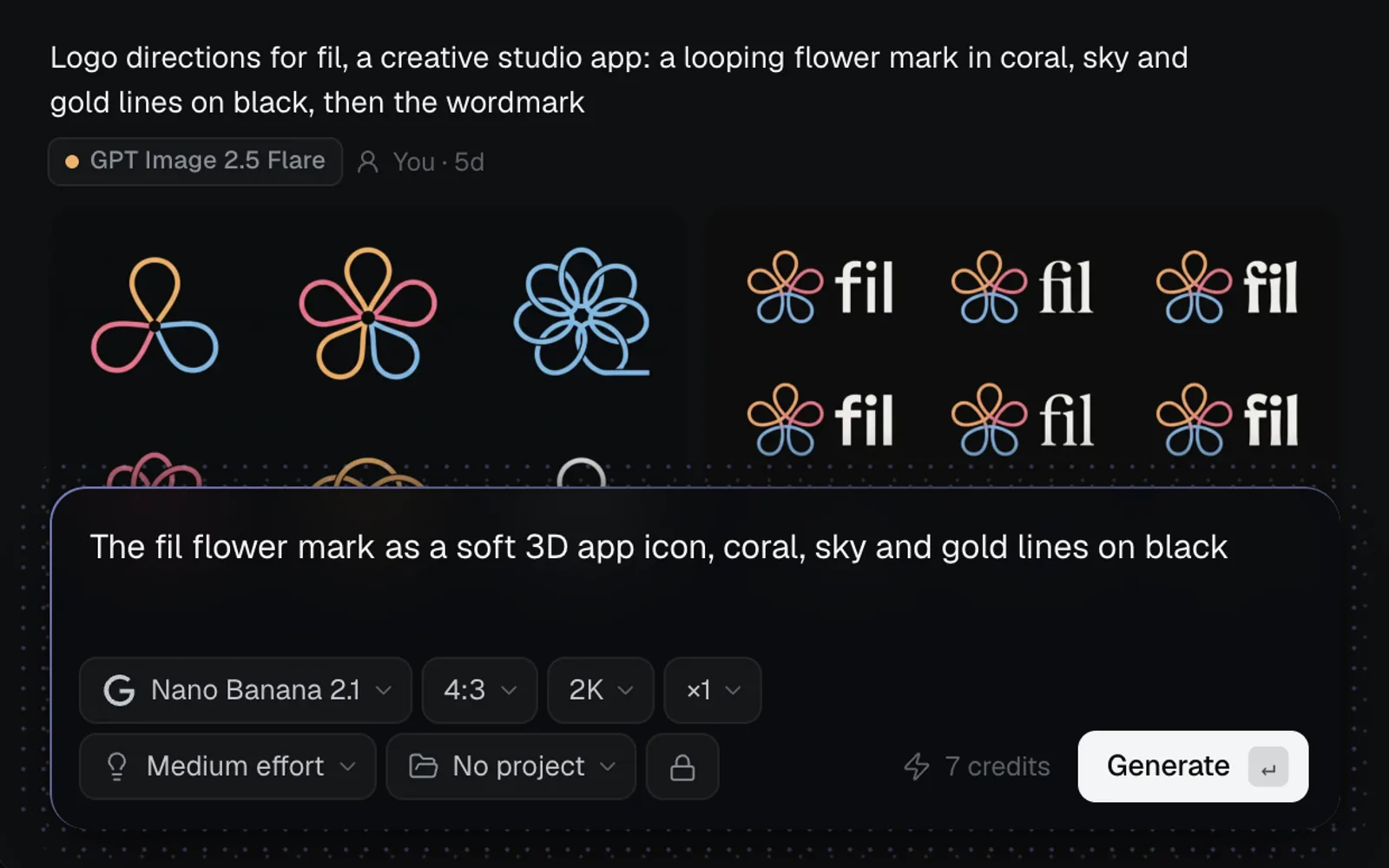
- More pictures per run cost more: with the ×1 chip set to ×4, four Nano Banana 2.1 pictures cost 25 credits; one costs 7.
- Resolution, length and effort change it: the same picture at 4K costs 13. Videos are priced by their length and size.
- Pages and other code show a range, such as "5–49 credits", because they're charged for the words they write.
- On a canvas, the button that runs a node shows its price, and the node says what its last run cost ("Last run · 0:24 · 7 credits").
Prices for some common runs (pictures at 2K, the default):
| Run | Credits |
|---|---|
| One picture, Ideogram 4.5 | 6 |
| One picture, Nano Banana 2.1 | 7 |
| Four pictures in one run, Nano Banana 2.1 | 25 |
| One picture (×1), GPT Image 2.5 Flare | 8 |
| Four pictures, GPT Image 2.5 Flare (it starts at ×4) | 30 |
| A 5 s clip, Grok Imagine Video 1.5 Lite at 720p | 18 |
| A 5 s clip with sound, Kling 3.0 at 1080p (56 without) | 84 |
| A 3D model from a prompt, Tripo 3.1 | 30 |
| A 3D model from a picture, Tripo 3.1 (Claude checks the picture first) | 57 |
| A web page, Claude Sonnet 5.5 | 5–49 |
| A 600-character voiceover, ElevenLabs v3 | 5 |
Every model's price is on its page: Image generation, Video generation, 3D generation, Code generation and Voiceovers, sound and music.
When Fil asks before a run
If a run could cost more than the price you saw, or you start it from somewhere that shows no price, Fil asks first in Confirm generation cost: "This run can use up to 84 credits from My credits. Unused credits return to that balance." For a page or other code, it gives the range: "This run costs 5–49 credits from My credits, for the tokens it uses. What it doesn’t use comes back." Click Generate to run it, or Cancel, and nothing is spent.
Not enough credits
Hover the price, or click Generate, and Fil says how many the run needs: "This run needs 84 credits; you have 40." On Free, when today's check-in is waiting, it adds "Check in for today’s 100 free credits." Check in, buy a pack, or pick cheaper settings.
Holds, refunds and stopped runs
- Starting a run holds its price from the balance that pays, so the same credits can't pay for two runs.
- When the run finishes, it's charged what it used, never more than it held, and the rest goes back. Many runs use exactly their price; pages, and models that report what a run really cost, often use less. A result's Cost, in its Recipe, shows what it was charged.
- A run that fails, or that the model's provider blocks, gives back all it held. Your credit history marks it "Refunded".
- A run Fil couldn't confirm says "This run couldn’t be confirmed. Its credits come back within an hour."
- Some models let you stop a run that's started (the stop button, Cancel). A stopped run is charged for what it used, not refunded. Image generation and Video generation say which models can stop.
Plans: Free, Starter, Pro and Max
Starter is for one person. Pro and Max are for teams and priced per seat, from 1 to 50 seats: each seat adds its credits and room to one pool the team shares. Seats don't limit who can join or edit.
| Plan | Price a month | Credits |
|---|---|---|
| Free | $0 | Up to 1,000 a month from check-ins |
| Starter | $18 | 1,800 a month |
| Pro | $30 a seat | 3,000 a month a seat |
| Max | $100 a seat | 10,000 a month a seat |
Paying yearly is 20% off: Starter is $172.80 a year ($14.40 a month), Pro $288 a seat ($24 a month) and Max $960 a seat ($80 a month). A yearly plan still gives its credits month by month.
Storage, bandwidth and file sizes
| Plan | Storage | Bandwidth a month | One upload | One site |
|---|---|---|---|---|
| Free | 1 GB | 1 GB | 1 MB | 2 MB |
| Starter | 20 GB | 50 GB | 10 MB | 20 MB |
| Pro | 50 GB a seat | 100 GB a seat | 50 MB | 50 MB |
| Max | 200 GB a seat | 250 GB a seat | 100 MB | 100 MB |
Past its storage or bandwidth, a paid plan pays 3 credits a GB a month for what's stored and 40 credits a GB for what's served; Free stops at its limits. See Storage and bandwidth.
What every paid plan adds
Starter, Pro and Max have the same perks. They differ in credits, room, and teams.
- A commercial licence for what you make. Free work isn't licensed for commercial use.
- Private work: what you make starts private, and you choose what goes to Community. On Free, what a model makes is public in Community with its prompt; your uploads can still be private.
- Unlimited canvases and projects. Free has 3 canvases and 1 project: past them, Fil asks you to delete one or upgrade before you make another.
- Your own username, for your profile's address (see Profile and settings), and sites at an address you choose, with a password if you like (see Publish a website).
- Monthly credits that roll over for a month: what you don't use carries into the next month, then expires.
- On Pro and Max, the team gets its own pool: each seat's monthly credits, storage and bandwidth, shared by its editors. (Any plan can make a team and invite editors and viewers; without Pro or Max, a team uses its owner's room, and its members' own credits or team credits its owner buys or moves in.)
Every plan, Free included, has every model and resolution, and agents over MCP (Connect an agent). Paying for a team's Pro or Max also gives your own workspace Starter's room and private work.
Upgrade or change your plan
- Click your credits at the top right, then Buy credits or subscribe. (Plans and billing in the account menu opens the same dialog.)
- Pick Monthly or Yearly beside Subscription. You see your plan and the next one up: Free beside Starter, Starter beside Pro.
- Click Upgrade on the plan you want (for Pro or Max, see the next section). A secure checkout page opens to pay.
- Back in Fil, Plans and billing says Confirming your payment: the plan and its credits appear once the payment is verified (bank payments can take longer).
- See all plans opens the Pricing page with every plan side by side.
- A plan that says "Checkout opens soon" shows its planned prices and can't be bought yet.
Cancel or switch your plan
- Open Plans and billing and scroll to Invoices and payment method.
- Click Manage. Your billing page opens: change your card, download invoices, or cancel.
- Cancel there. The plan runs to the end of the period you've paid for, and Plans and billing says when it ends ("Cancels Nov 1, 2026.").
To switch to another plan, cancel at the end of the paid period, then subscribe to the new one. Credits you bought stay yours.
Subscribe a team to Pro or Max
Pro and Max are paid for by a team, for its seats, so you need a team first. Any plan can make one. On Free, Plans and billing shows only Free and Starter; the way to Pro is the row under them.
- Open Plans and billing (your credits, then Buy credits or subscribe) and scroll below the plans.
- In Pro and Max are for teams, click Create a team. On Starter, Upgrade on the Pro card does the same.
- Name the team and click Create team. "Created Lin Ceramics" (with your team's name) confirms it, and Plans and billing opens again with a tab for the team beside My account.
- Click the team's tab. It shows the team's credits, then Pro beside Max.
- Set the seats with − and + (each card shows the total, such as "Billed $90 monthly for 3 seats"), pick Monthly or Yearly, and click Subscribe to Pro or Subscribe to Max.
- Your own plan carries on. If you were on Starter and want only the team's plan, cancel Starter from Manage (see Cancel or switch your plan); the team's plan already gives your own workspace Starter's room and private work.
- In a team you own, that row's button opens the team's plans straight away (it reads "Lin Ceramics’s plans", with the team's name).
- Only the team's owner buys for it. To change seats, cancel the plan from Manage, then subscribe again with the new number of seats when the period ends.
- The team's credits are shared by its editors. See Sharing and teams to invite them.
Buy more credits
Buy extra credits, in Plans and billing below Subscription, has two packs, one-time purchases at half price while Fil launches. Click one to pay.
| Pack | Price now | After launch |
|---|---|---|
| 2,000 credits | $20 | $40 |
| 10,000 credits | $100 | $200 |
- Credits you buy never expire.
- They can move to a team you own: in Team settings, under Add from your credits, enter an amount, click Move credits, then Confirm. Monthly and free credits stay with you.
- Packs bought on a team's tab go straight to the team.
- Runs spend the credits that expire soonest first:
- today's check-in credits;
- last month's left-over monthly credits, then this month's;
- the credits you bought, and any welcome credits, last.
- A reply in Chat costs credits too, up to 24 a reply, charged what it used. Agents you connect over MCP spend your credits (or the team's), each app or key within its own daily cap: see Connect an agent.
Get free credits every day (Free plan)
On Free, you get credits each day you check in, with a verified email:
- 100 credits on the first day, 100 on the second and 200 on the third day in a row; then the cycle starts again. Miss a day and it starts over. Days follow UTC.
- Each day's credits last 24 hours.
- Up to 1,000 credits a month. After that the menu says "This month’s free credits are used" until the 1st.
- Open Fil. A moment later the Daily check-in card opens under your credits, showing the three days and which one is today.
- Click Check in · +100 (or Check in · +200 on the third day). "+100 credits added" says how long they last and when the next ones come. The card closes after a few seconds, or with its ×.
- Later, or Esc, puts the card away until tomorrow. A dot on your credits means a check-in is still waiting (on a phone, on the menu button); Check in is in the credits menu and the account menu too.
- Once you've checked in, the credits menu says how many are left, for how long, and when the next check-in opens.
- Check-in credits always go to My credits, even in a team. Check-ins stop while you pay for a plan.
See your credit history
Click My credit history in the credits menu, Credit history in the account menu, or search for it with ⌘K.
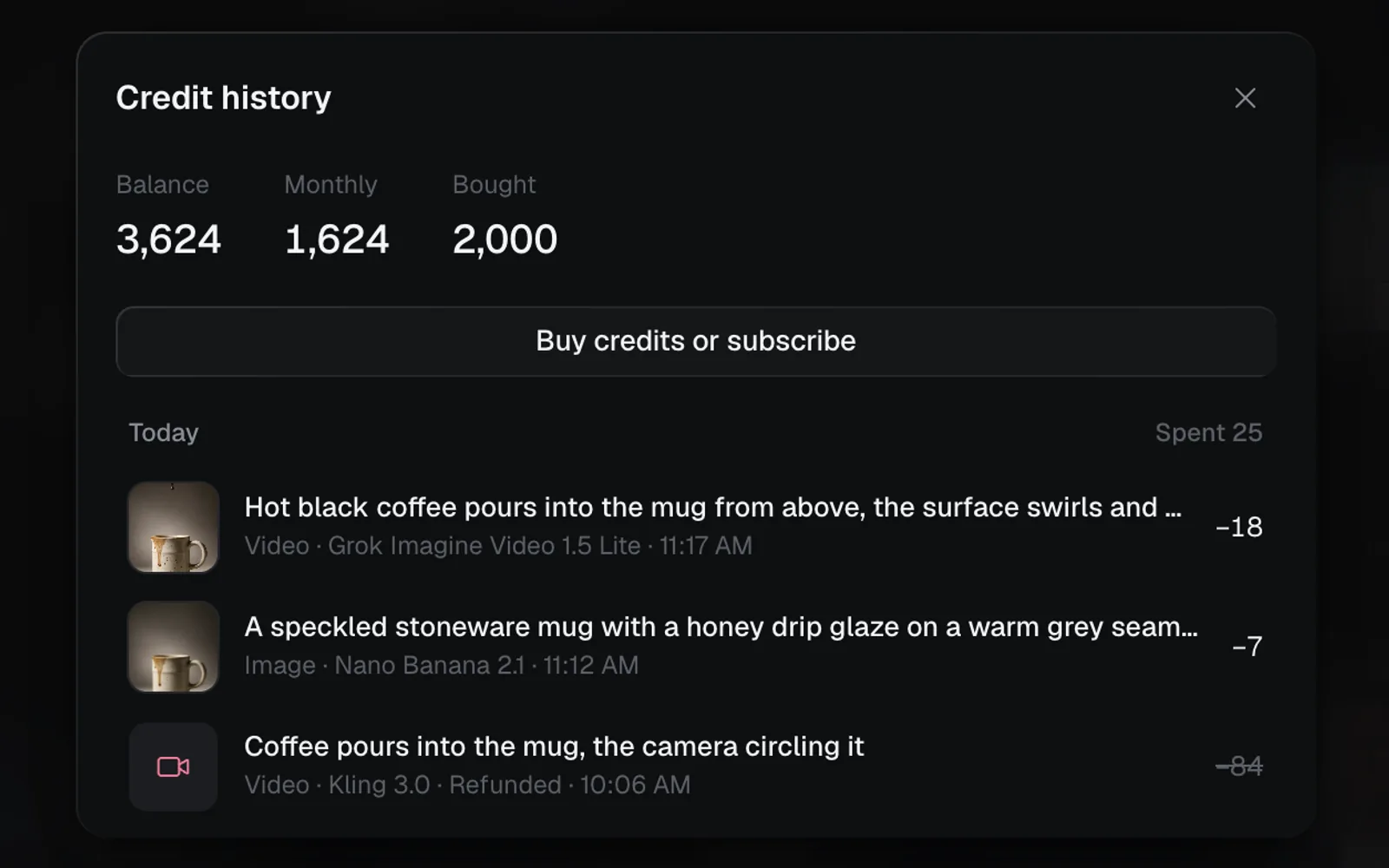
- At the top, your Balance, and how much of it is Monthly, Bought, Daily (check-ins) or Free (welcome or granted credits). Plans and billing calls the bought ones Purchased.
- Each day lists its runs, newest first, with what the day spent: each run's prompt, kind, model, time and credits. A refunded run's credits are struck through.
- Credits coming in show too, such as "Credits purchased", "Monthly credits renewed" and "Daily check-in", as do credits that go: "Monthly credits expired", "Storage over the allowance" and "Bandwidth over the allowance".
- Click a run to open what it made. Load older goes further back.
What's next
- Storage and bandwidth: what your files take and serve, and how to free space.
- Profile and settings: your photo, your username and the theme.
- Image generation: every image model, with its price.
- Sharing and teams: invite people to a team and share its credits.