Drawings
Sketch and brainstorm on a Fil canvas with a pen, shapes, arrows and sticky notes, draw together live, and turn a sketch into an image, a video or a page.
A drawing is a whiteboard in a node. Sketch with a pen, draw shapes with words in them, join them with arrows that stay attached, and add sticky notes and stamps, right beside the briefs and work on the same canvas. Everyone who can edit the canvas can draw on it at once and sees the others' strokes as they're drawn. Wire a drawing into an Image, Video, 3D or Code node, and a sketch becomes a finished picture, a video or a page. Drawings themselves are free: nothing on one costs credits.
Add a drawing
- Open a canvas from the sidebar (see Canvas basics).
- Click + in the toolbar at the bottom (More nodes) and pick Drawing, or press ⇧D. A new drawing named "Drawing 1" appears in the middle of the view, already open, with the pen picked.
- Drag on the board to draw with the pen, or pick another tool at the bottom of the window: while the drawing is open, its tools take the place of the canvas's toolbar (see The tools and their keys).
- Click Done when you've finished. The canvas's own toolbar comes back.
You can also right-click an empty spot on the canvas and choose Add drawing, near the end of the menu (scroll it if it's cut off), to put one where you clicked.
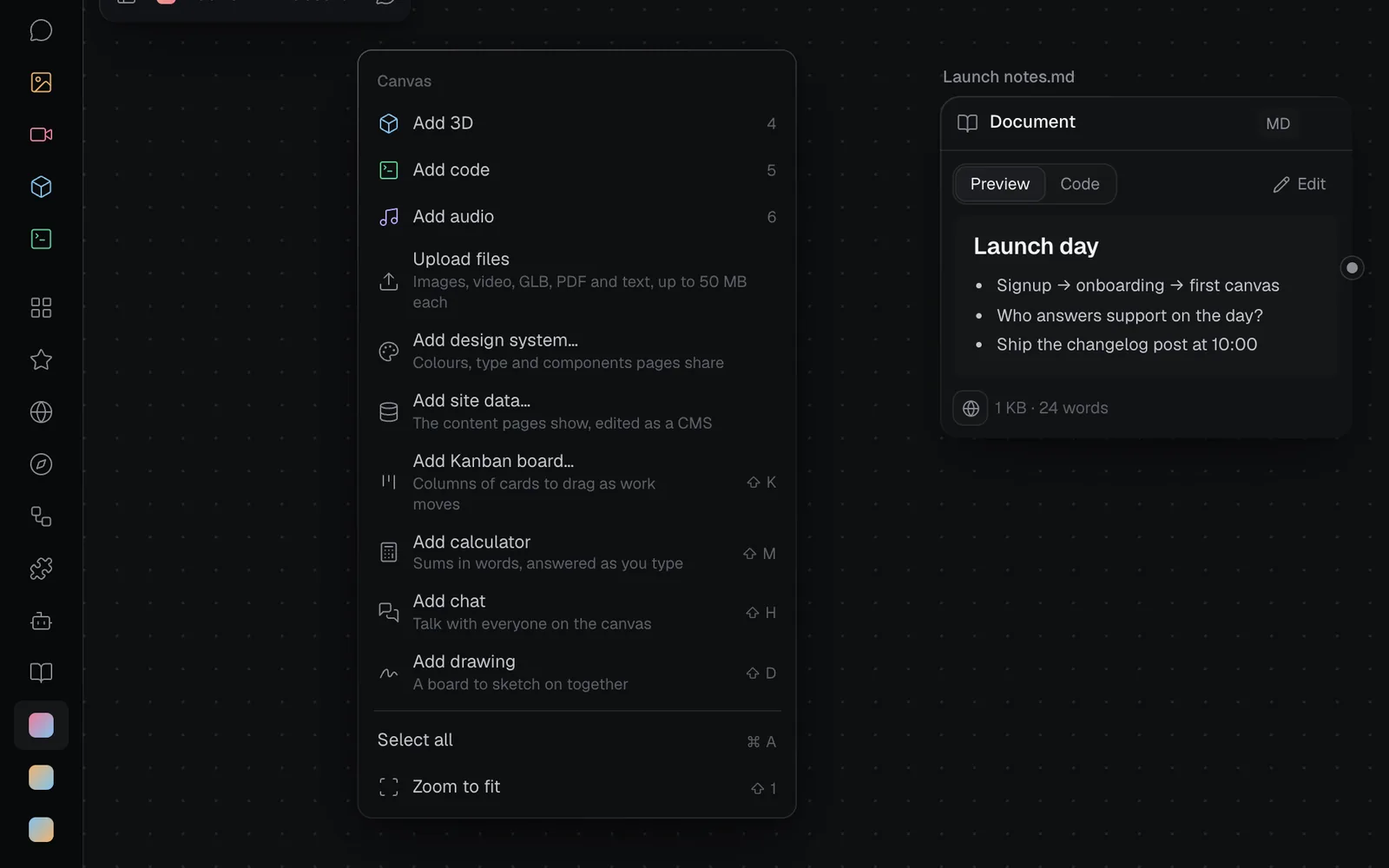
- To rename a drawing, double-click its name above it, or right-click it and choose Rename, then type a name, such as "Launch flow".
- A new board is 800 × 520. To make it bigger or smaller, see Resize the board.
- Its footer counts its marks: every pen or highlighter stroke, shape, arrow, line, text, sticky note and stamp is one. An empty drawing says "Empty: double-click to draw". The lock or globe at the footer's left says whether it's private or public (see Generate from a drawing).
- What you draw saves itself as you go.
Open a drawing and close it
A drawing on the canvas always shows what's on it, but you draw on it only while it's open. To open one, double-click its board, or click Draw at its bottom right (or Draw in the inspector). An empty drawing opens with the pen picked, and one with marks on it with Select. If it's small on screen or partly out of view, the canvas zooms to it first.
While a drawing is open, its tools replace the canvas's toolbar, and the letter keys pick its tools instead of adding nodes. To close it:
- click Done in the tools, or at the drawing's bottom right;
- press Esc: the first press lets go of what's picked, the next goes back to Select (if it isn't already), and the next closes the drawing;
- or click anywhere off the drawing, or pick another node.
To look around while you draw, hold Space and drag, or press H for the Hand; scroll and pinch as anywhere on the canvas (see Zoom, pan and use the minimap).
The tools and their keys
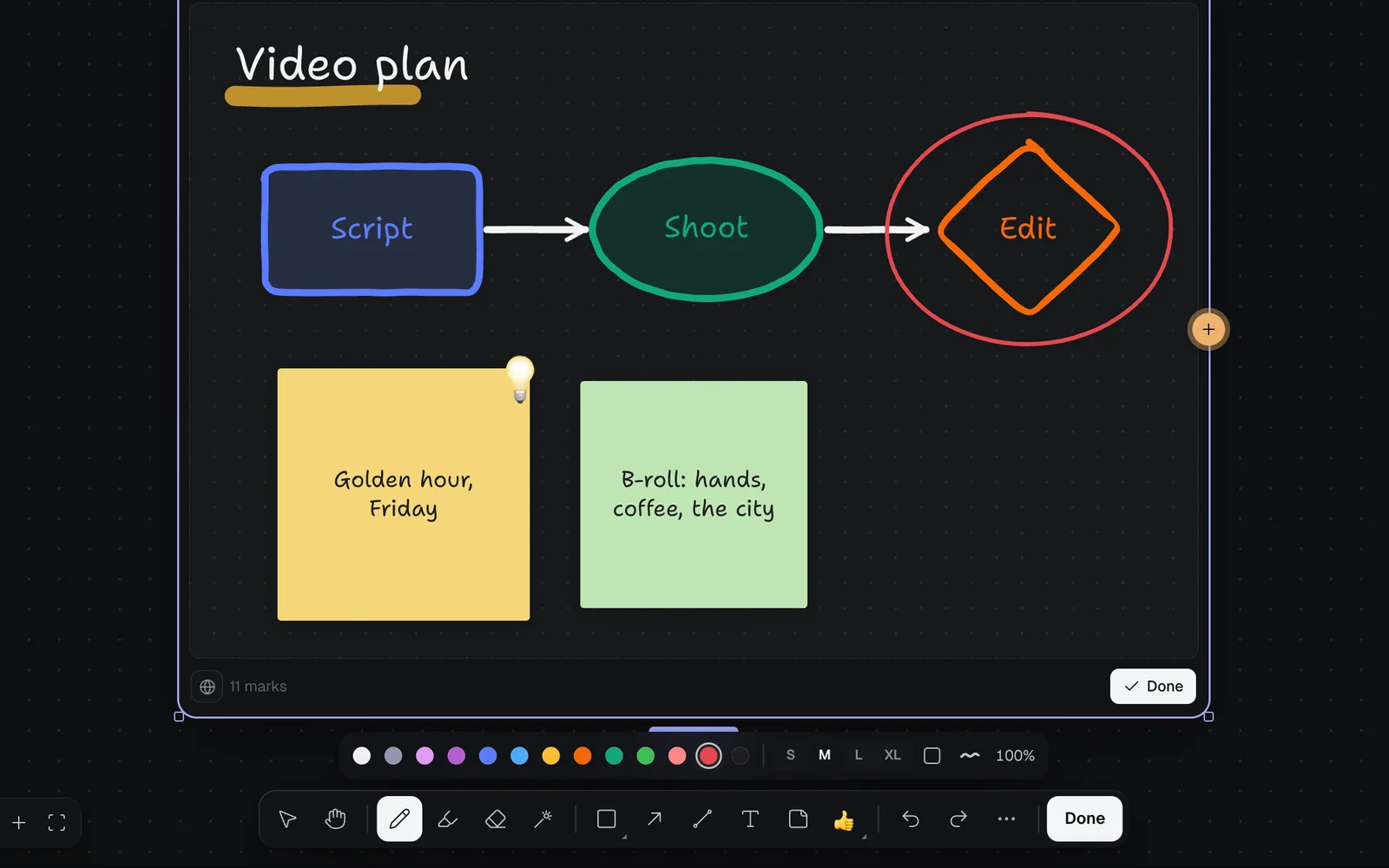
From left to right:
| Tool | Key | What it does |
|---|---|---|
| Select | V | Picks, moves and resizes marks, and types words into them (see Select, move and edit your drawing) |
| Hand | H | Drags the canvas around. Click it again, or pick another tool, to draw again |
| Pen | D or P | Draws freehand. With a stylus, the harder you press, the bolder the line |
| Highlighter | ⇧D | A wide, see-through marker, always under everything else |
| Eraser | E | Drag it across marks: each one it touches fades, and goes when you let go. It takes away whole marks |
| Laser pointer | K | Points without drawing: a bright trail that fades after about a second, seen by everyone on the canvas and never saved |
| Shape (shows the shape it draws, such as Rectangle) | R rectangle, O ellipse | Draws the shape picked in its menu (see Shapes) |
| Arrow | A | Draws an arrow that holds on to the shapes at its ends |
| Line | L | Draws a straight line, which holds on to shapes too |
| Text | T | Click to type words on the board, or drag to set how wide they wrap |
| Sticky note | N | Click for a square note and type in it |
| Stamps | S | Click to put a stamp, or drag to size it |
After them come Undo and Redo, More (the ⋯, with Select all and the downloads) and Done. Point at a tool to see its name and key. The keys follow tldraw's, so if you know tldraw, you know most of them already.
The pen, highlighter, eraser, laser and stamps stay picked, so you can keep going. The other tools go back to Select after one mark, with the new mark picked.
Shapes
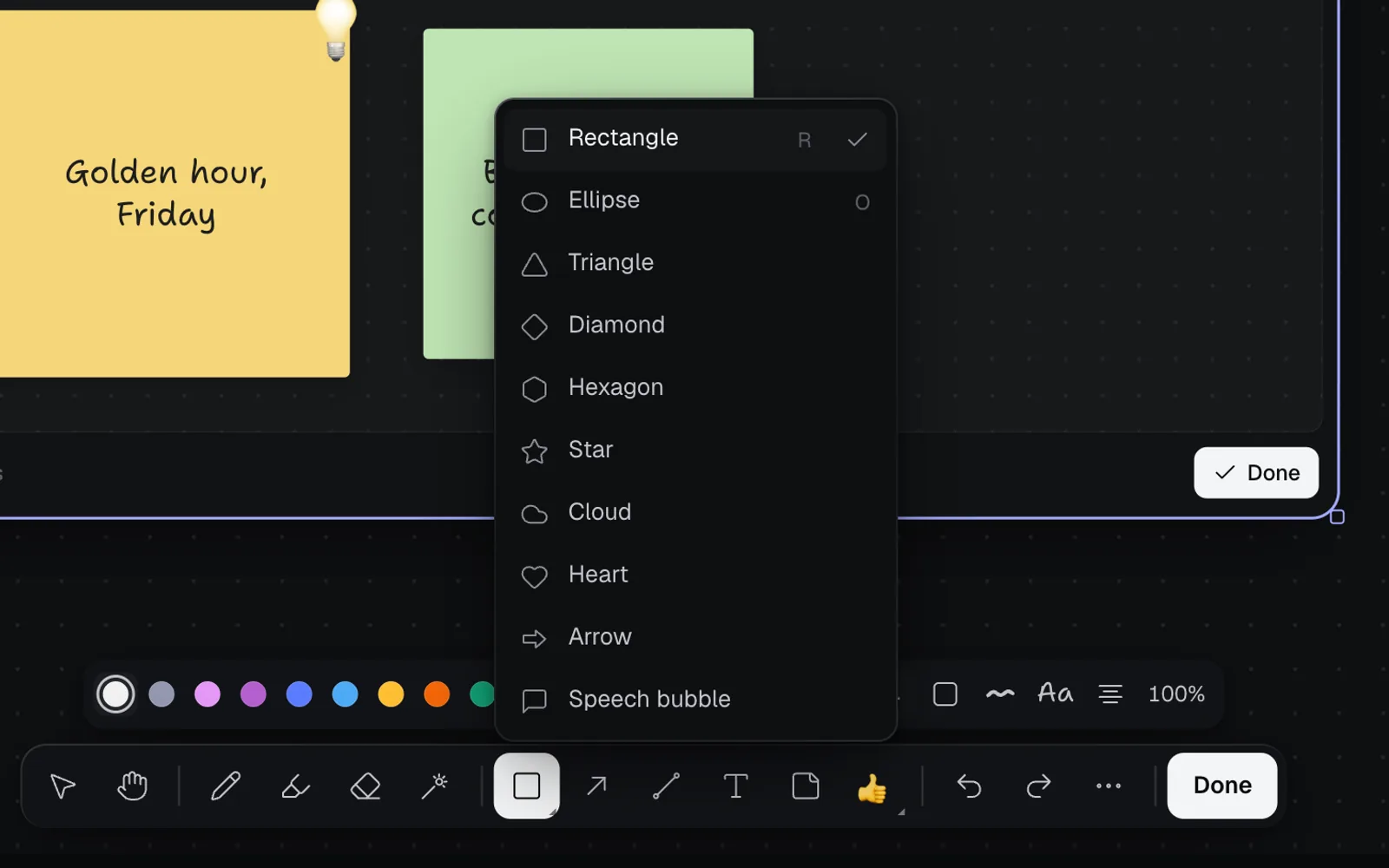
- Click the shape tool, or press R for a rectangle or O for an ellipse. For another shape, click the tool again (or the small corner at its bottom right) and pick one of the ten: Rectangle, Ellipse, Triangle, Diamond, Hexagon, Star, Cloud, Heart, Arrow and Speech bubble.
- Drag on the board to draw it. Hold ⇧ for equal sides, such as a square or a circle, or ⌥ to draw it out from its middle. A click without a drag puts one of a standard size.
- The new shape is picked: press Enter, or double-click inside it, and type its words. Press Esc or click off it when you're done.
The tool keeps the shape you picked last.
Arrows and lines
- Drag from where the arrow starts to where it ends. Start or end it on a shape, a sticky note, text, a stamp or a pen stroke, and it holds on: move that mark and the arrow follows, stopping at its edge.
- Hold ⇧ while you drag to keep the arrow to steps of 15°.
- Pick an arrow to see three dots. Drag an end dot to move that end (drop it on a shape to hold on, or on the empty board to let go), and drag the middle dot to bend the arrow into a curve.
- Double-click an arrow, or pick it and press Enter, to write a label on it, such as "day 3".
- Delete or erase a shape an arrow holds on to, and the arrow stays, its end left where it was.
- A line is an arrow without heads. To give a line or an arrow a head at its start, its end or both, pick it and use Start and End (see Colour, size and style).
Text, sticky notes and stamps
- Text: click and type, and the text grows as you type. Drag instead to set a width, and the words wrap inside it. With Select, double-click an empty spot on the board to type there too. Text left empty goes away.
- Sticky notes: click for a 200 × 200 note, or drag to set its size (it's never shorter than it is wide), and type straight away. A note grows taller to fit its words. Notes in Black come out yellow.
- Stamps: 👍 ❤️ 🔥 ✅ ⭐ 😂 🎉 👀 ❓ 💡 ➕ 🚀. Click the stamp tool again (or its corner) to choose one, then click the board to put it, or drag out from where it goes to set its size.
To change the words in a shape, sticky note, text or arrow later, double-click it. Press Esc or ⌘Enter, or click somewhere else, to finish typing.
Colour, size and style
A strip of styles shows above the tools when a tool that draws is picked, and when marks are picked. It sets the style of the next mark you make, and changes the marks you've picked. It shows only the styles that apply: a sticky note has no line style, and a stamp has none at all. Point at a button in the strip to see its name: Fill is the square, Line the wavy line, Font the Aa, Align the stacked lines and Opacity the percentage.
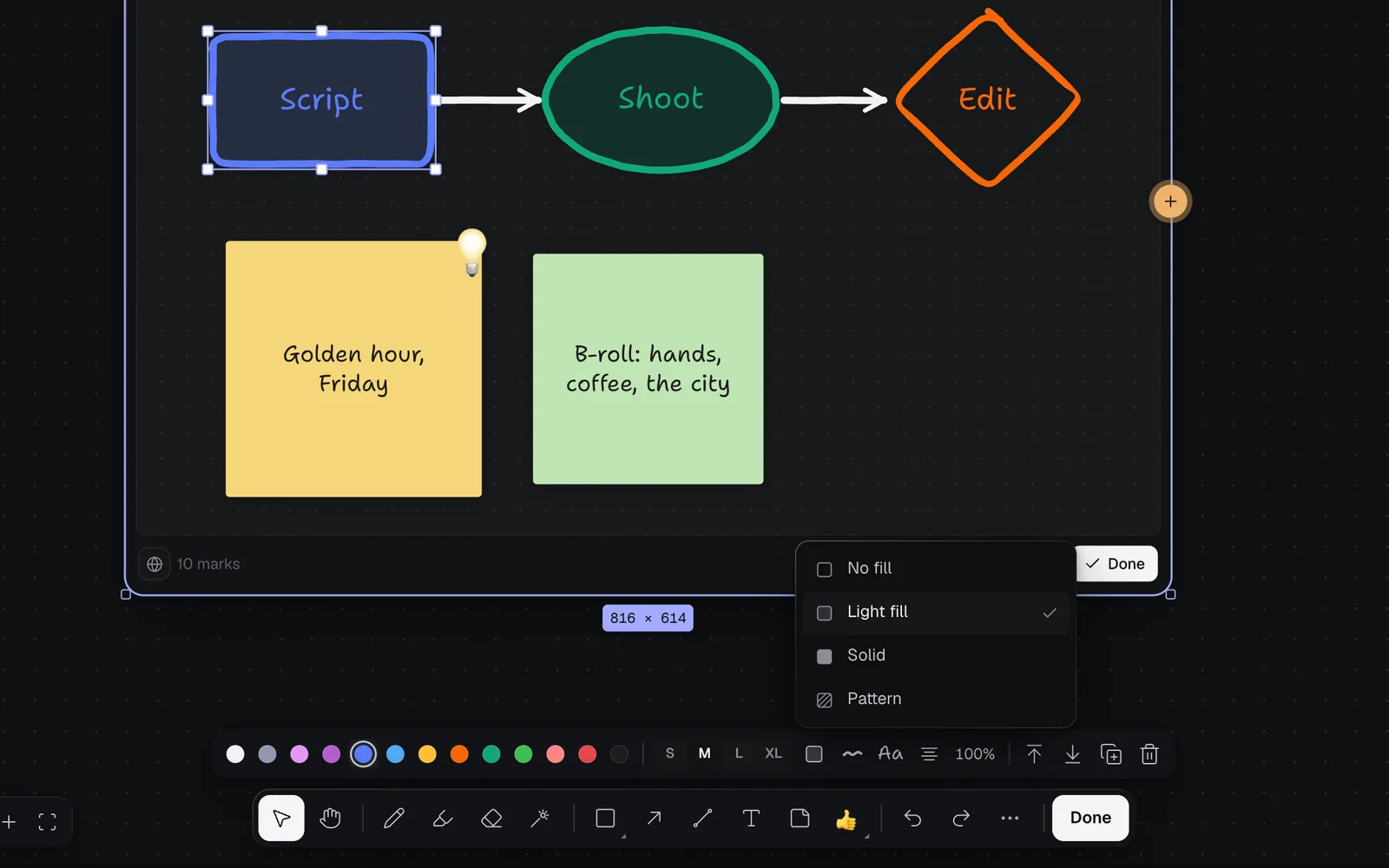
| Style | Choices | For |
|---|---|---|
| Colour | Black, Grey, Light violet, Violet, Blue, Light blue, Yellow, Orange, Green, Light green, Light red, Red, White | Everything but stamps |
| Size | S, M, L, XL | How thick lines are and how big words are |
| Fill | No fill, Light fill, Solid, Pattern | Shapes, and pen loops that end where they began |
| Line | Hand-drawn, Solid, Dashed, Dotted | Pen strokes, shapes, arrows and lines |
| Start and End | None, Arrow, Triangle, Dot, Bar | The ends of arrows and lines (pick a line to give it heads) |
| Font (Aa) | Hand, Sans, Serif, Mono | Words in shapes, on arrows and lines, text and sticky notes |
| Align | Left, Centre, Right | Words in shapes, text and sticky notes |
| Opacity | 100%, 75%, 50%, 25% | Everything but stamps |
- Black and White swap in the dark theme, so both always show against the board: Black draws light on a dark board, and White dark.
- When the picked marks differ in a style, nothing is ticked for it until you choose.
- Your styles, your last shape and stamp, and the arrowheads you last picked are remembered in this browser for next time.
Select, move and edit your drawing
With Select (V):
- Click a mark to pick it, and ⇧-click to add or take one away. Drag across the empty board to pick everything the box touches, or press ⌘A (or More › Select all) to pick every mark.
- Drag picked marks to move them; hold ⇧ to keep them level or upright. The arrow keys nudge them 1 px, or 10 px with ⇧.
- Hold ⌥ while you drag to leave the marks where they are and drop copies.
- Drag a handle round the picked marks to resize them; hold ⇧ to keep their proportions. Sticky notes and stamps always keep theirs.
- With marks picked, the style strip ends with Bring to front (]), Send to back ([), Duplicate (⌘D) and Delete (⌫). With only stamps picked there's no strip: use the keys.
- ⌘C, ⌘X and ⌘V copy, cut and paste marks, into the same drawing or another one, on any canvas you open in the same tab. A paste lands just below and to the right of the original when that spot is on the board, or else in the board's middle.
- ⌘Z undoes and ⇧⌘Z redoes, or use the arrows in the tools. Each drawing has its own undo, up to 200 steps, back to when you opened the canvas this time. If someone else has changed a mark since, Undo leaves their change as it is and says so.
A big shape with no fill and no words is picked by its outline, so you can still pick what's drawn inside it. Double-click inside it to type its words.
Draw together
Everyone who can edit the canvas can draw on its drawings at the same time. Each mark is saved on its own, so two people drawing at once never undo each other's work.
- You see the others' strokes and shapes as they draw them, and marks as they move them, with the arrows that hold on to them following along.
- What someone has picked has a dashed outline in their colour.
- Their laser pointer shows to everyone: use it to walk people through a drawing while you talk.
- Their cursors show with their names, as everywhere on a canvas, and a drawing's footer names up to three people drawing on it right now.
- People who can only view the canvas see drawings change live, but can't draw on them. See Sharing and teams.
Generate from a drawing
A drawing feeds other nodes the way a picture does. Wire it into an Image, Video, 3D or Code node, and its run gets a picture of the drawing as a reference: sketch a layout, and get back a product shot, a video that starts from it, a 3D model or a page.
- Point at the drawing: a dot shows on its right edge. Click its + to add an Image node the drawing feeds. Or drag from it onto a Video, 3D or Code node, or a prompt, or onto an empty spot to choose what it feeds (see Connect nodes).
- The node shows the drawing among its references ("1 reference"), as it is now.
- Write what to make in the node's prompt, such as "A product shot of this phone on a peach plinth, soft studio light".
- Click the node's run button. It reads Generate with its price once your own words are in the prompt, and the picture lands on the node in a few seconds. It reads Plan while the prompt has none of your words, or when Claude's quick look at your prompt and the drawing finds it unclear: then Claude suggests takes to choose from first, and nothing is spent until you pick one (see Run a node and keep every take).
- The picture is drawn light, on white, at twice the board's size (up to 2,048 px a side), whatever theme you draw in. It's saved to your Library when a run starts, and again only once the drawing has changed.
- Draw some more and run again: the node always shows, and sends, the drawing as it is now. An empty drawing sends nothing until something is drawn on it.
- The drawing stays free; the node it feeds charges for its run as usual, its price on its Generate button.
- A drawing is public or private, like a prompt or a picture: the lock or globe at its footer's left, or Visibility in the inspector's Details. New drawings start private on Starter, Pro and Max, and what's made from a private drawing stays private (see Who can see your pictures).
Resize the board
- Drag a drawing's right edge for a wider board, its bottom edge for a taller one, or its bottom-right corner for both.
- A board can be as small as about 300 × 200 and as large as about 4,000 × 4,000. The inspector shows its size. The size shown under a picked drawing (816 × 614 for a new one) is the whole node's, header and footer included.
- Marks past the board's edge are hidden until you make it bigger again: nothing is lost, but they're left out of the picture a run is sent and of PNG and SVG downloads.
Duplicate a drawing
Duplicate a drawing (select it on the canvas and press ⌘D, or click Duplicate in the inspector), or the whole canvas it's on, and the copy gets its own copy of every mark. Drawing on one never changes the other.
Download a drawing as PNG or SVG
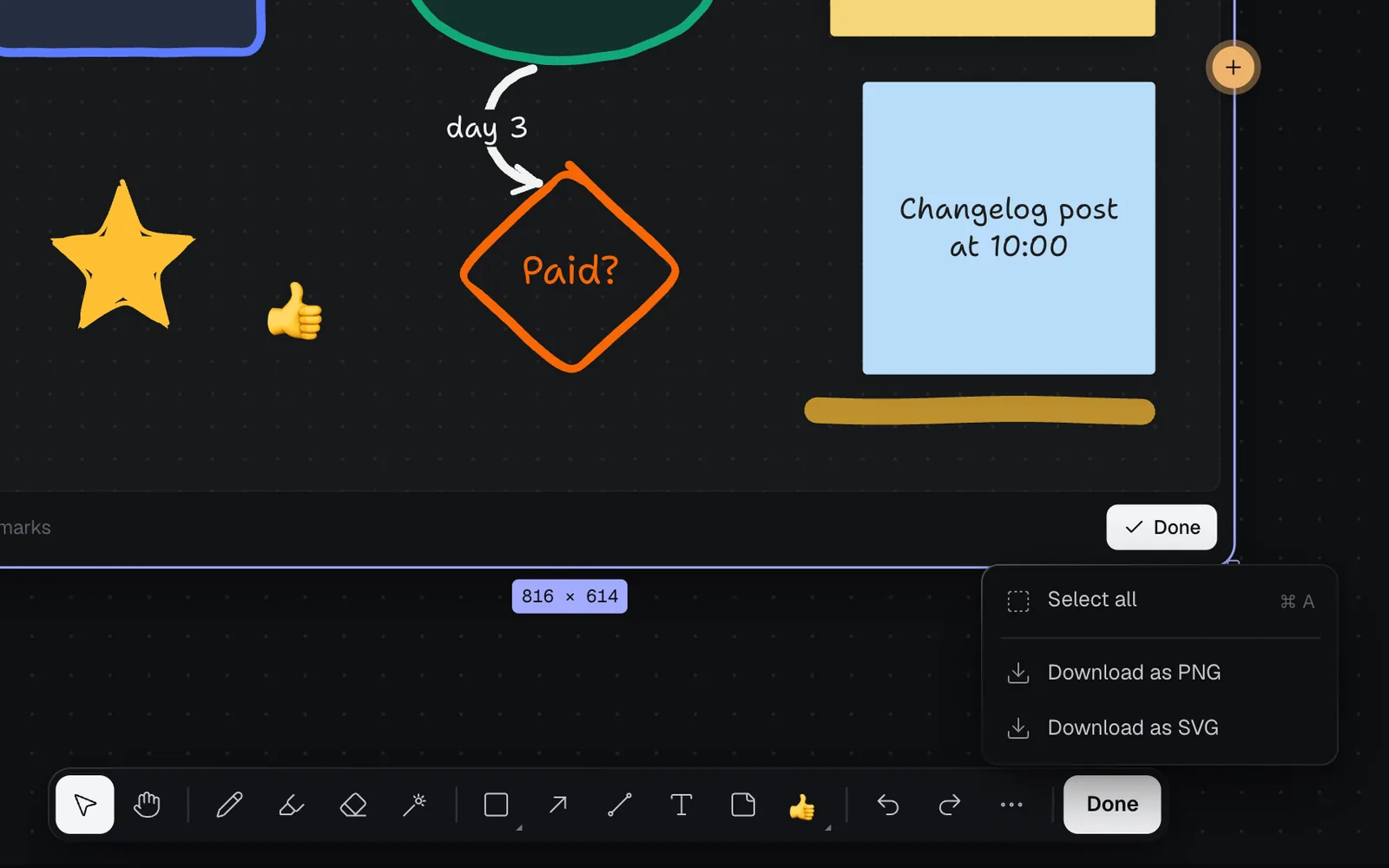
- While you draw: More (⋯) › Download as PNG or Download as SVG.
- Or select the drawing and click PNG or SVG in the inspector.
The PNG is twice the board's size, for a sharp picture. Both are drawn on the board's own paper, in the theme you're using (dark or light), and named after the drawing, such as "Launch flow.png".
The drawing in the inspector
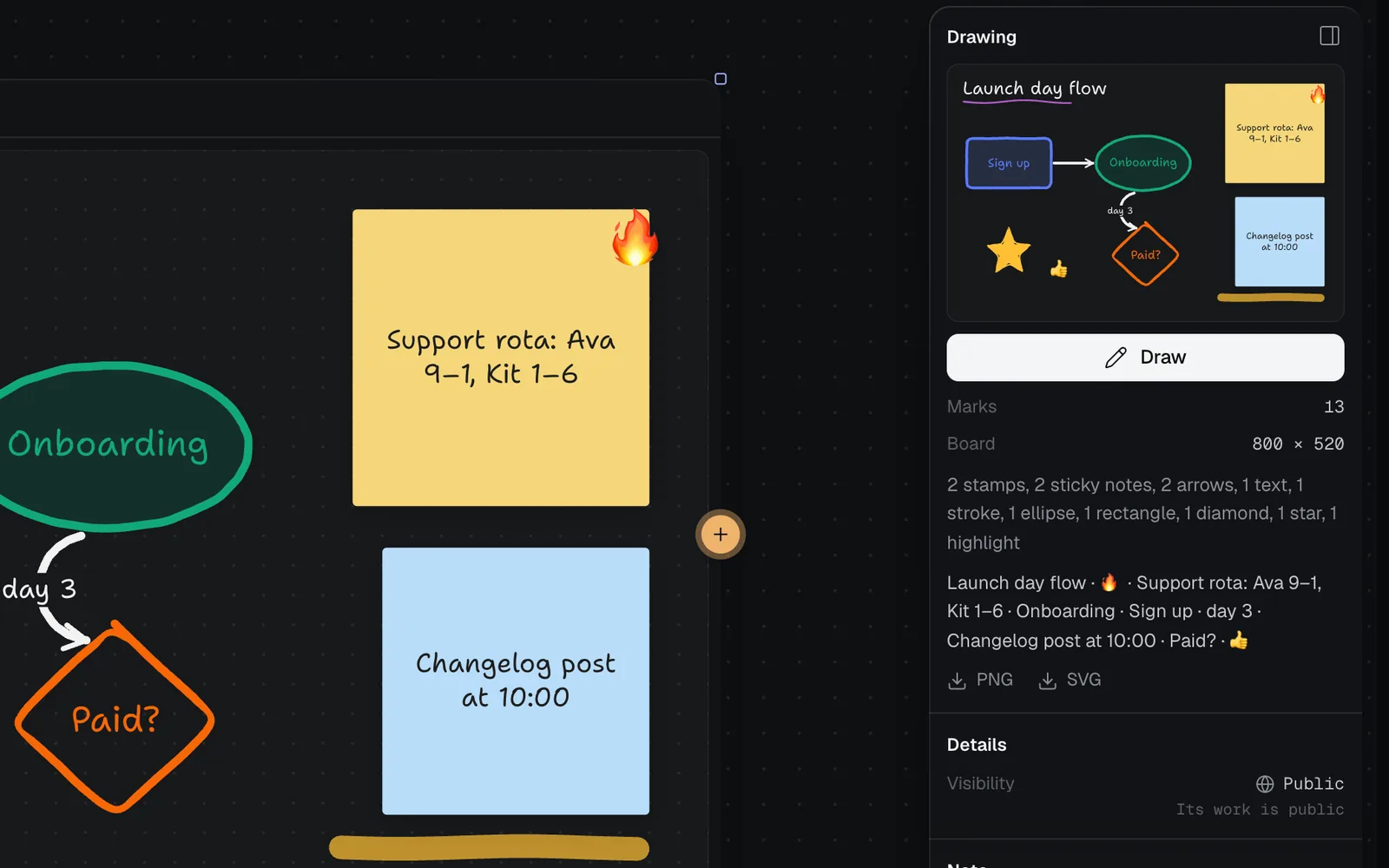
Select a drawing and click Show properties at the top right (see The inspector panel). Its Drawing section shows a picture of it, Draw, how many marks it has and its board's size, what's on it by kind (such as "2 sticky notes, 2 arrows"), its words, and PNG and SVG. Below it, as for other nodes: Details with its Visibility, a Note, Duplicate and Delete.
What agents see
When Claude Code, Codex or another agent connected to Fil reads a canvas, it reads each drawing too: its board's size, how many marks of each kind it holds, its words from top to bottom, and which nodes it feeds. Chat with Claude reads them the same way. So you can sketch a plan with your team, then ask "turn the launch flow drawing into a task list", and the agent works from what's written there. When an agent runs a node a drawing feeds, it sends the same picture you would. Agents read drawings but don't draw on them. The tools they use are in MCP tools.
Tips and limits
- A drawing holds up to 10,000 marks. A full one says "This drawing is full. Start another drawing for more." when you add more.
- ⇧D adds a drawing on the canvas, and picks the highlighter inside an open one.
- While a drawing is open, the letter keys pick its tools, and ⌘D, ⌘A, ⌫ and the arrow keys work on its marks. Close it to use the canvas's keys on nodes again.
- On a phone, the tools take two rows.
- The hand-drawn font, Shantell Sans (tldraw's), loads the first time a drawing shows, so words may show in a plain font for a moment.
What's next
- Canvas basics: add, connect and arrange nodes.
- Image generation: models, settings and references for what a drawing feeds.
- Organize a canvas: sections, notes and comments around your drawings.
- Kanban boards and Calculators: more free nodes for planning work on a canvas.
- Keyboard shortcuts: every key a drawing answers to.