Survey
Make a survey with AI: say what you want to learn, get questions in an order people finish, in one of ten styles, then publish it and read every answer in Fil.
The Survey workflow makes a short survey for anyone you want to hear from: customers, clients, a waitlist, people at an event. You say what you want to learn, from whom, and what the answers will decide. Claude writes the questions in the order that gets them finished, a picture is made for each choice of the question best answered with pictures, and the survey is built in one of ten styles. Publish it, and every answer is kept in Fil, counted by question.
- Makes
- 1 thing in 1 step: web
- Takes
- About 3 minutes
- Files to drop in
- 2, all optional: Logo, Survey style
- To make it all
- About 5–95 credits
What you'll make
One survey page, ten to twelve questions at most, in the style you pick, with a picture for each choice of its picture question. This one was made in Fil with this workflow, for a bakery that wanted to know which bake to add next:
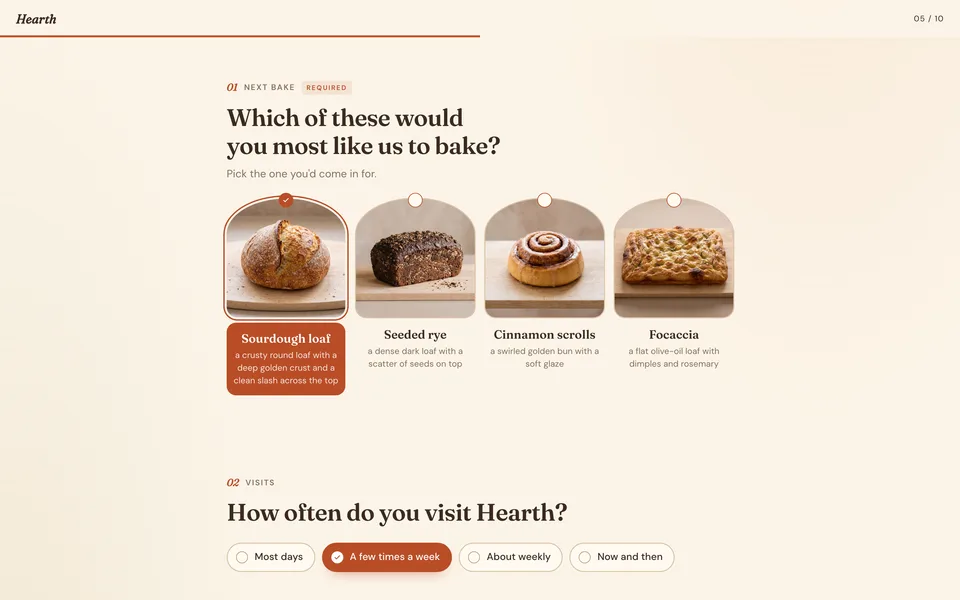
To answer it yourself, open the workflow's page and click Try the example under What it makes. It's an example, so nothing you send is kept.
Before you start
Nothing has to be uploaded. The canvas has two places for pictures, both optional:
- Logo: your logo, for the top of the survey.
- Survey style: one of the ten survey styles, or a screenshot of a form whose look you like. It only sets the look; the picture itself never shows on the survey.
Have three things clear in your head, as Claude builds everything from them:
- What you want to learn, in one sentence: "which bake to add next, and whether regulars would pay for a weekly bread subscription".
- Who answers, and how they reach it: a QR code on the counter, an email to your list, a link in a post.
- What the answers will decide: which service to add, what to charge, whether to run the event again. A question whose answer wouldn't change a decision is left out.
The ten survey styles
Every style is a look of Fil's survey kit, the part that draws the survey on the page, so each works the same way and only looks different. Pick one on the workflow's page, under What you put in, or on the start card.
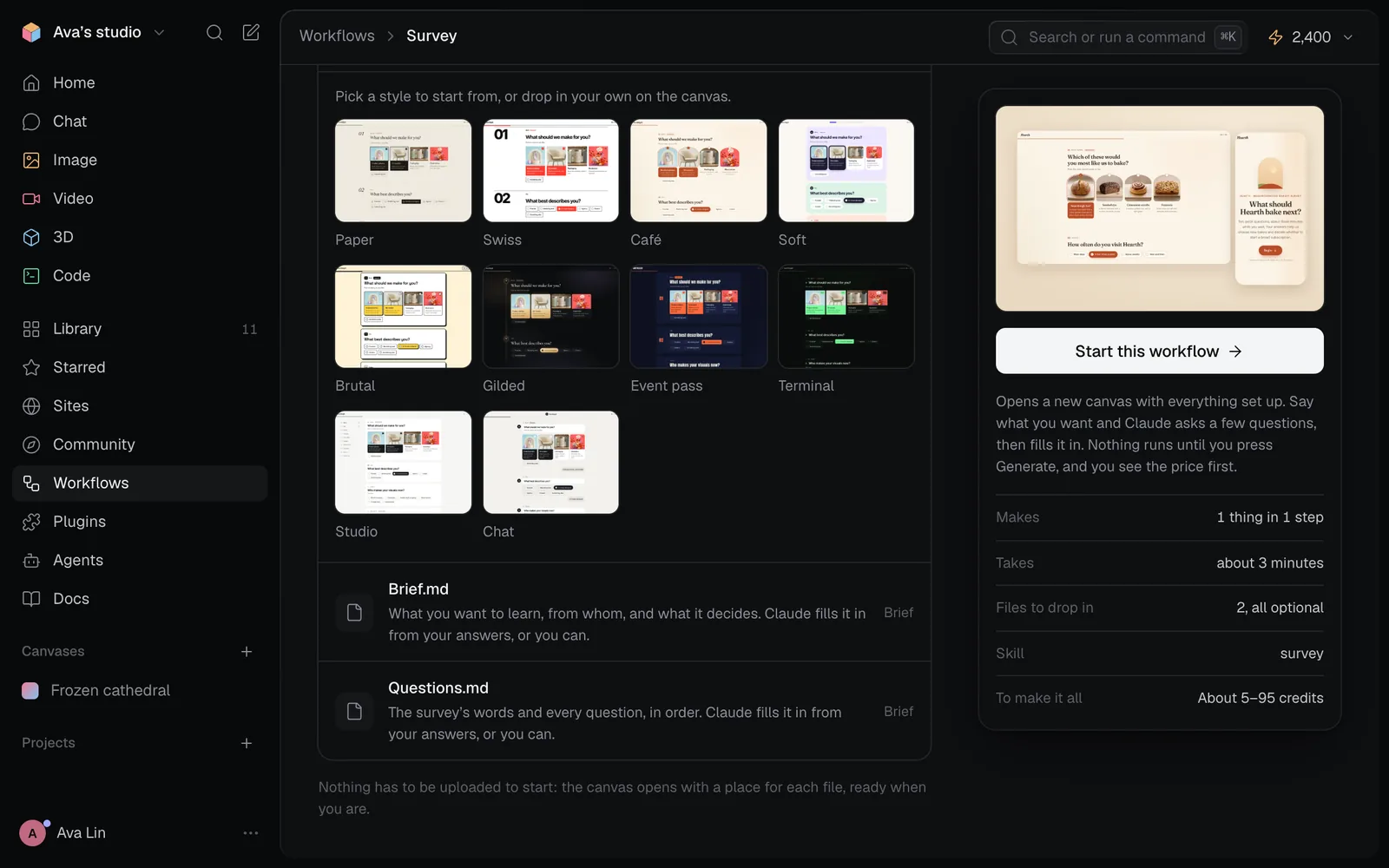
| Style | Its look |
|---|---|
| Paper | A printed questionnaire in a book face, ink on paper |
| Swiss | A strict grid, big numbers and one red |
| Café | Warm cream, terracotta, a soft serif and arches |
| Soft | Pastel blocks, a colour a question, rounded type |
| Brutal | Thick black lines, hard shadows, one yellow |
| Gilded | Gold light on dark, an invitation card, glowing picks |
| Event pass | Each question a ticket, condensed type, one coral |
| Terminal | A prompt on black, typed ticks and one green |
| Studio | Quiet greys, a list of the questions beside them |
| Chat | Each question a message, quick replies in ink |
Hover a style to read its look. Click it again to leave it out; without a style, Claude picks the one that suits your idea and writes it into the brief.
Make a survey, step by step
Start it from your idea
- Click Workflows in the sidebar, then the Web filter. Click Survey to open its page.
- Click Start this workflow. A new canvas opens, and the start card, "Let's make your survey", asks: "Describe the survey you want. What do you want to learn, from whom, and what will the answers decide?"
- Type your idea in a sentence or two, such as "A survey for the regulars of Hearth, our neighbourhood bakery: which bake to add next and whether they'd pay for a weekly bread subscription". The canvas builds itself beside the card as you type.
- Under Or start from a style, click a style. Its picture goes into Survey style, which reads Added. Drop your logo on the Logo tile if you have one. Press Continue.
- Claude asks up to three quick choices, such as how people will reach the survey, which choices the picture question shows and what range the price question covers. The first answer to each is tagged Suggested; pick Say it your way to write your own. Press Fill in my canvas.
- Claude plans the survey in two parts. "Planning the whole survey…" writes Brief.md; "Writing Questions.md…" then writes every question from it. A picture step is added for each choice of the picture question, up to six. The Ready to make it step opens.
Check the brief and the questions
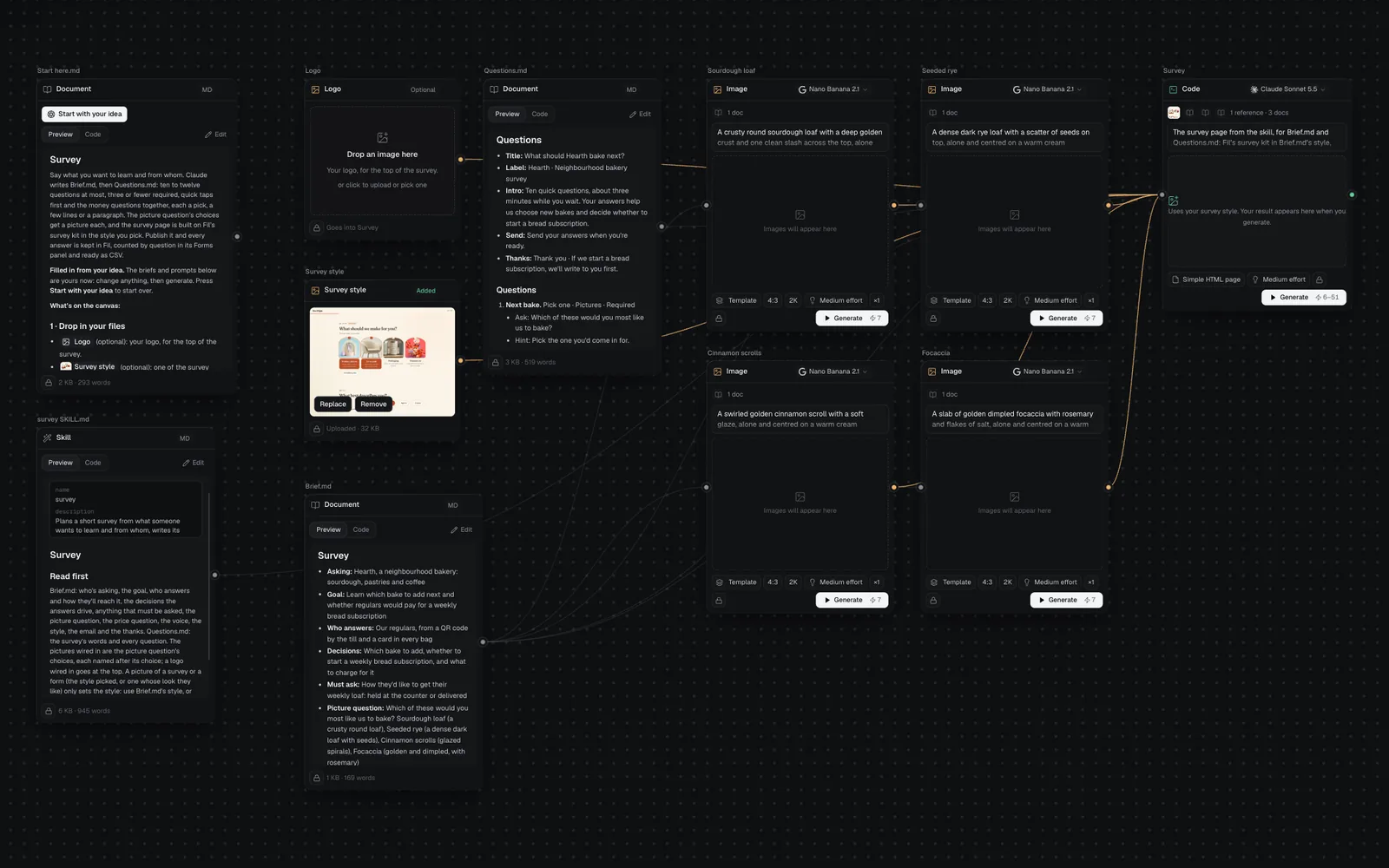
Brief.md holds the plan in a line each: who's asking, the goal, who answers and how they reach it, the decisions, anything that must be asked, the picture question and its choices, the price question and its steps, the voice, the style, whether to ask for an email at the end, and the thank-you.
Questions.md is the survey itself: its title, the small line above it, the intro, the line above Send and the thank-you, then every question in order. Each question says its kind, its look and whether it's required, then the question, a hint and its choices.
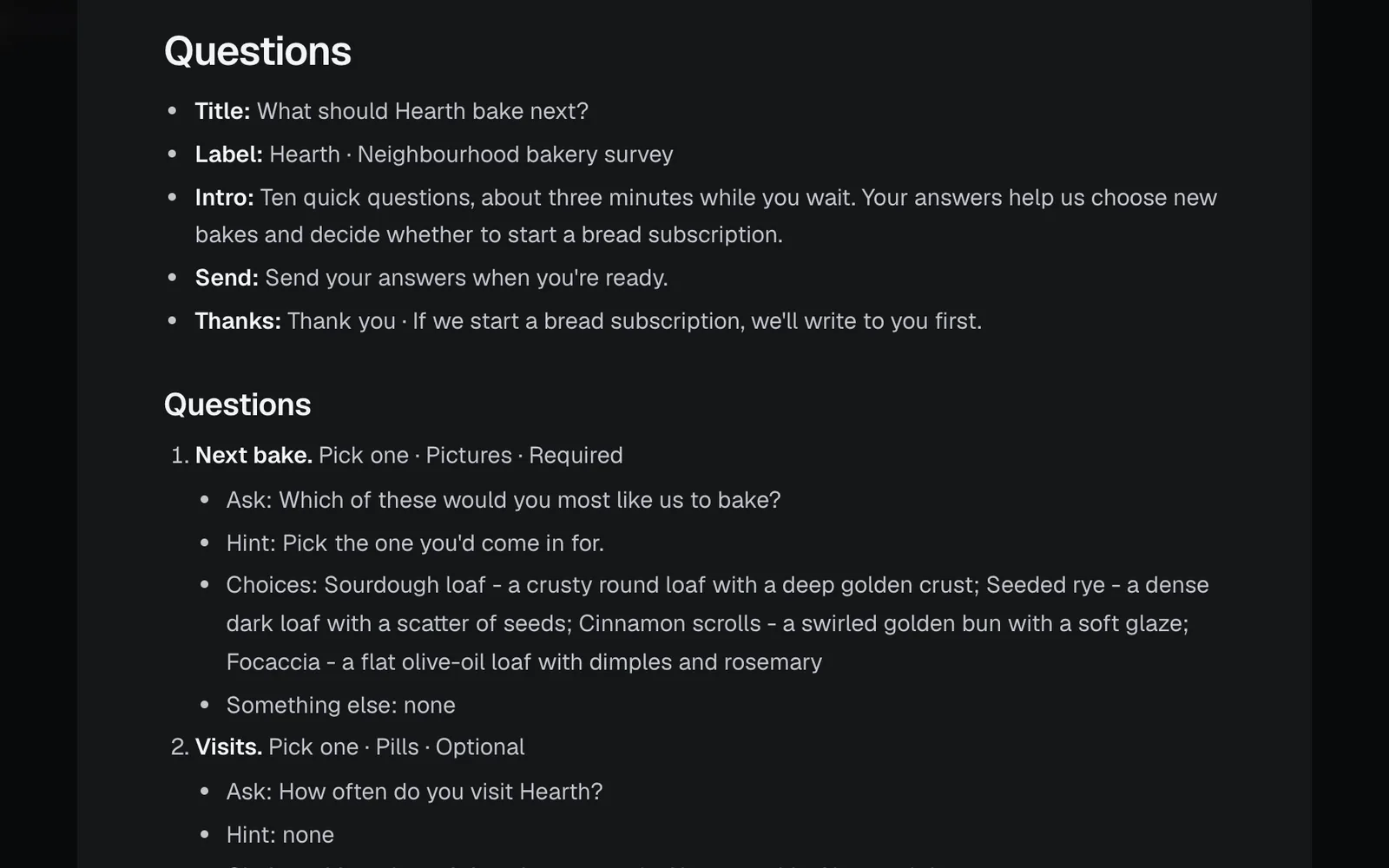
To read either one whole, point at it and click its expand icon (Edit full screen). Change a word, a choice or the order there before you generate; the Survey is built from these words exactly.
The questions follow the rules in the workflow's skill, survey SKILL.md:
- Ten to twelve at most, about three minutes to answer. Each earns its place by a decision in the brief.
- Three or fewer required: only the ones the decisions can't be made without. Everything else can be skipped.
- Four kinds: Pick many, Pick one, A few lines and A paragraph. A pick can end with "Something else", which opens a line for the person's own words.
- Quick taps first: what interests them (with pictures when the choices are things people can see), who they are, what they use now. The one required typed question comes once they're invested, never first.
- The money questions together: how often, the price, what they'd pay more for, then the open "what would make it a must-have".
- The price question's steps each about double the last, such as $10, $20, $40 and $80, with "Less than $10" and "More than $80" beside them.
- Quick taps last, right before Send: how they heard about you, and whether you may follow up.
Generate all and follow it in the chat
- The Ready to make it step lists the pictures, 7 credits each, then the Survey. Press Generate all 5 (or however many steps there are); the button shows the price as a range.
- The canvas chat opens on the left. The pictures are made first, side by side. Claude checks each one against the brief as it's made, and mends it or makes it once more if it breaks the look the others share.
- Once the pictures are made, the Survey is built on Fil's survey kit in your style, with each picture placed on its choice by name.
- The run ends with "Made 5 of 5", how long it took and what it cost. Click a step in the chat to show it on the canvas.
A survey without a picture question has no pictures to make: Generate all builds the Survey alone.
Try the survey
Point at the Survey on the canvas and click its expand icon (View full size). The survey works as it will once it's published:
- Begin starts it; a counter at the top right says which question you're on, such as 01 / 10.
- Required questions are marked Required. Send takes you to one still unanswered instead of sending, and the survey keeps count, such as "7 of 10 answered · 1 required left".
- A choice with Something else opens a line for your own words.
- Answers are kept in the browser until they're sent, so someone who leaves halfway finds them there when they come back.
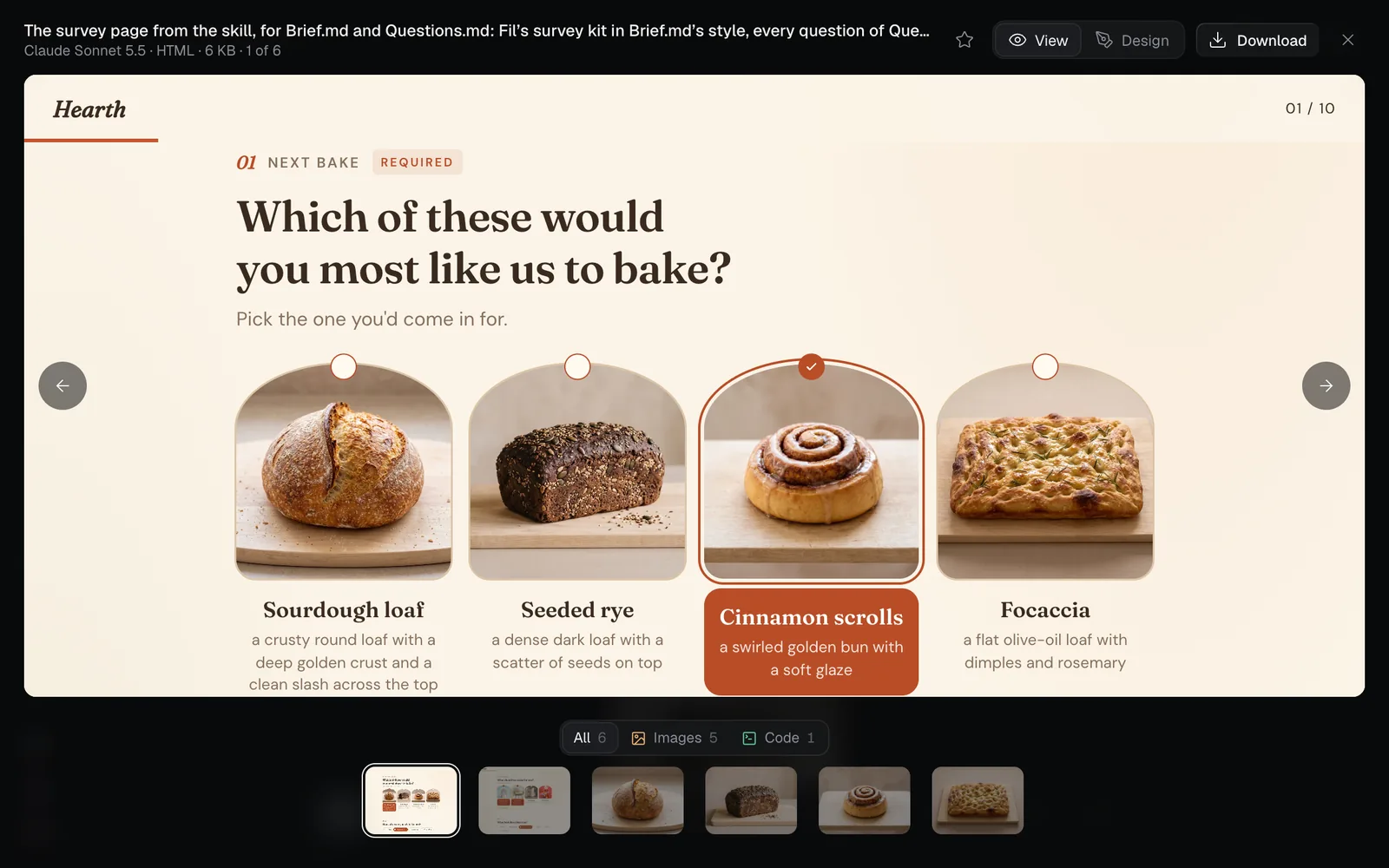
On the canvas it's a preview: Send shows the thank-you and "This is a preview: nothing was sent. Once the page is published, answers are kept in Fil."
Publish it and read the answers
- Select the Survey on the canvas and click Publish site in its properties, or open it in the Design tab and click Publish at the top right.
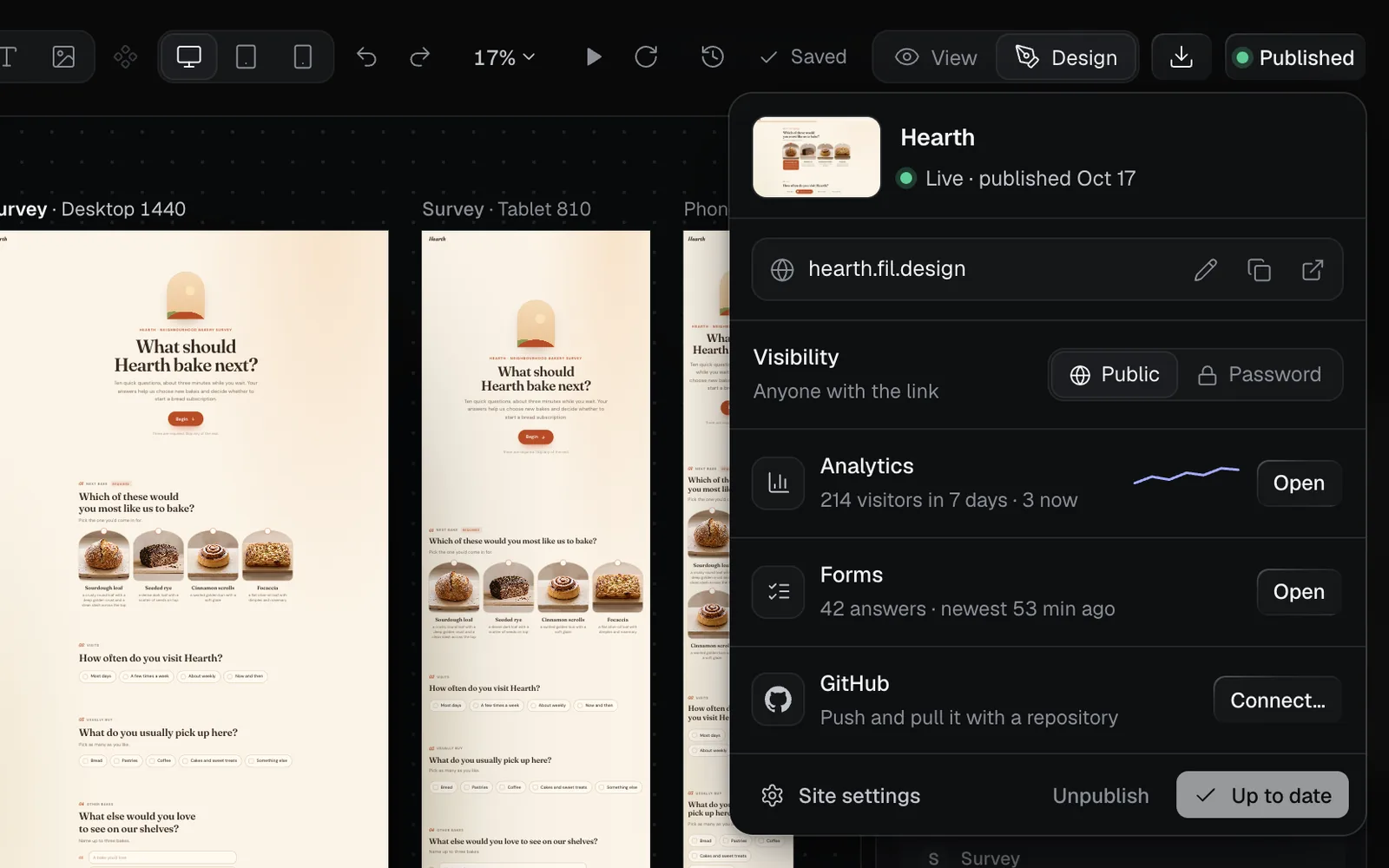
- Click Publish in the popover. The survey is live at its own address, such as hearth.fil.design. Share that link, or put it in a QR code.
- As people send it, the popover's Forms row counts the answers. Click Open to read them.
The Forms panel shows each question with every choice counted, the words people wrote, and every answer in a table, with a CSV of them all. Turn on Email me each answer there to get each one by email. See Forms on published sites for all of it, and Publish a website for the address, a password and visitors.
The steps it runs
| Step | What it makes | Model and settings | Reads |
|---|---|---|---|
| A picture for each choice, such as Sourdough loaf | That choice alone, centred, every picture in the same look and light, no words | Nano Banana 2.1, 4:3, 2K | Brief.md |
| Survey | The survey page: every question of Questions.md in order, drawn by Fil's survey kit in your style | Claude Sonnet 5.5, Simple HTML page | Brief.md, Questions.md, the skill, the pictures, Survey style and Logo |
The picture steps are named after the choices, and only the picture question gets pictures. Brief.md names the picture question and its choices; with none, there are no picture steps.
Change the survey
- A question, its words or its order: change Questions.md and press Generate on the Survey again. Or open the Survey in the Design tab: under Layers, a note says it's "Drawn by Fil's survey kit", since the questions come from the page's code. Click Ask the agent there and say what to change, such as "make the price question optional".
- The style: change Style in Brief.md, and the picture in Survey style so the two agree, then generate the Survey again. The agent can switch it too ("use the Paper style").
- A picture: press Add on its node for another take, then generate the Survey again so the page uses it.
- The model: the Survey's model menu switches it to another code model, and each picture's to another image model. See Code generation and Image generation.
Once it's published, a change goes live when you click Update in the Publish popover.
Survey time and cost
From your idea to a survey ready to publish takes about 3 minutes. The workflow's page puts making it all at about 5–95 credits: 7 credits for each picture on Nano Banana 2.1 at 2K, and the Survey, which is charged for what Claude uses. The Ready step shows the range for your survey: 35–82 for four pictures and the page.
The example run cost 33 credits: 28 for the four pictures and 5 for the page.
Tips
- Name what you'll do with the answers. "Decide whether to start a subscription and what to charge" gives sharper questions than "get feedback".
- Pick a picture question whose choices people can see: bakes, colours, rooms, products. Pictures make the first question quick and inviting.
- Settle the questions before you share the link. Answers are counted by question, so a question changed after people have answered it splits its answers.
- Ask for an email only when you'll write back. It's optional unless the brief says otherwise, and a form that asks for one lets you reply from the answer's email.
- Use a password on the survey (in the Publish popover) to keep it to people you send the password to.
Related
- Forms on published sites: the Forms panel, answer emails, CSV and limits.
- Publish a website: the survey's address, a password, updates and visitors.
- The Design tab: change the survey's page by hand, or with the agent.
- How workflows work: the gallery, the quick choices and the run in the chat for every workflow.