Effects
Effects on video clips, picture layers and whole pictures, as in Figma and Photoshop: exposure, contrast, warmth, grain, blur, a vignette, shadows and more.
Effects change how a layer looks without changing its file, as Figma's and Photoshop's do: its light, its colour, its detail, a vignette, and shadows and glows around it. They're in three places, and they work the same way in each:
- The video editor: on a picked clip, in the inspector, under Layout. They show as the video plays and are in the MP4 you export, the same.
- Layers: on a picked layer, in the inspector (see Split an image into layers).
- The Edit tab's Effects tool: on a whole picture, kept as a new picture beside it.
Effects are free, and nothing is generated: everything runs in your browser (or, for an agent, on Fil's server).
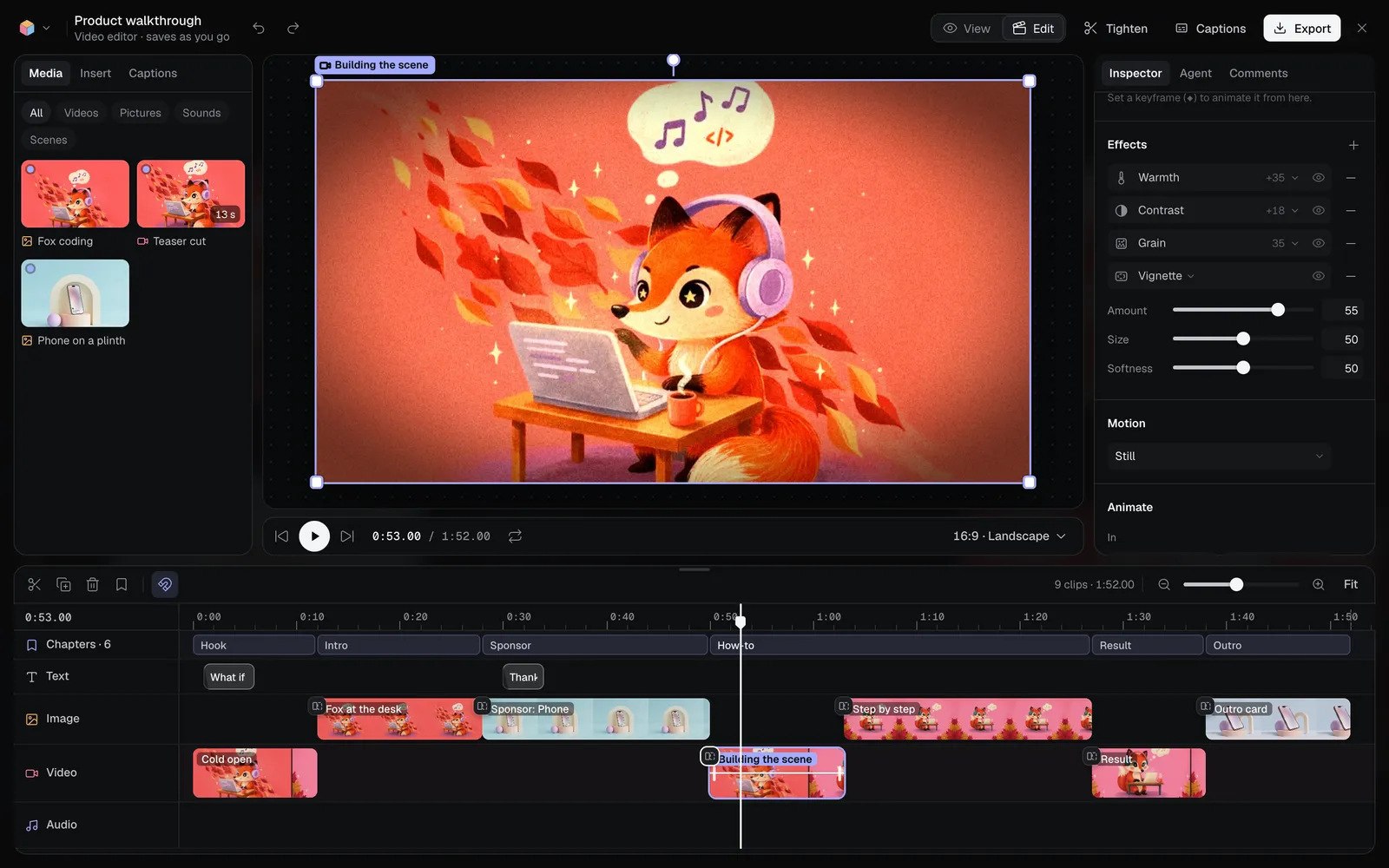
Add an effect
- Pick a clip in the video editor, or a layer in Layers. In the Edit tab, click Effects in the rail on the left.
- Click + (Add an effect) beside Effects and pick one. For a picture or a video, they're grouped under Light, Colour, Detail, Vignette and Shadow and glow.
- Its sliders open under it. Drag one, or type a number in the box beside it and press Enter. Double-click a slider's name to put it back.
Each effect is a row:
- Click its icon to show or fold its sliders. Folded, the row shows its main value, such as +35.
- Click its name to make it another effect in the same place.
- The eye hides it and shows it again, keeping its settings.
- − takes it off.
Change their order
Effects apply from the top of the list down, so their order can matter: a vignette before Invert gives light corners, after it dark ones. Drag a row by its icon to move it up or down, or press ⌥↑ and ⌥↓ with its icon focused.
Every effect
| Group | Effect | What it does |
|---|---|---|
| Light | Exposure | Brighter or darker, as a camera's exposure, in stops |
| Light | Brightness, Contrast | As they say, from -100 to 100 |
| Light | Highlights, Shadows | Lifts or deepens only the bright or the dark parts |
| Colour | Saturation, Vibrance | More or less colour; Vibrance leaves colours that are strong already |
| Colour | Warmth, Tint | Warmer or cooler; greener or pinker |
| Colour | Hue | Turns every colour round the colour wheel |
| Colour | Black and white, Sepia, Invert | How much of each, 0% to 100% |
| Colour | Colour overlay | A colour over it, as much as you like |
| Detail | Sharpen, Blur | Crisper edges, or softer all over |
| Detail | Grain, Pixelate | Film grain, a new pattern every frame in a video; square blocks |
| Lens | Vignette | Darker (or, below 0, lighter) toward the edges: its size and softness too |
| Shadow and glow | Drop shadow | A shadow under the layer's shape: its offset, blur, colour and opacity |
| Shadow and glow | Glow | A soft light around its shape |
| Shadow and glow | Outline | A line around its shape, as a sticker has |
Words and shapes in a video take Blur, Drop shadow, Glow and Outline. A picture in the Effects tool takes everything but the shadows and glows, which would reach past its edges.
Shadows, glows, outlines and blur are measured in the layer's own pixels (a video's frame is 1080 pixels on its short side), and they grow, shrink and turn with the layer, as it's sized, keyframed or animated.
In the video editor
Pick a clip and scroll the inspector to Effects, under Layout. Every change is one step to ⌘Z (a slider's drag is one step), and the effects are kept with the edit: in its versions, and for everyone on the canvas.
- A clip's effects stay with it when it's trimmed, split, moved or duplicated.
- A screen recording's effects change the recording itself, not its background.
- A vignette darkens the edges of what shows on the frame, so a picture that's cropped by the frame still gets dark corners.
The exported MP4 is drawn the same way as the preview, effects included: see Export a video.
On a layer in Layers
Effects sits in the inspector under Layer. A picture layer takes every effect; a text layer takes blur, a drop shadow, a glow and an outline. They show on the picture as you change them, and in Save image, Make picture, Download and the layers' video.
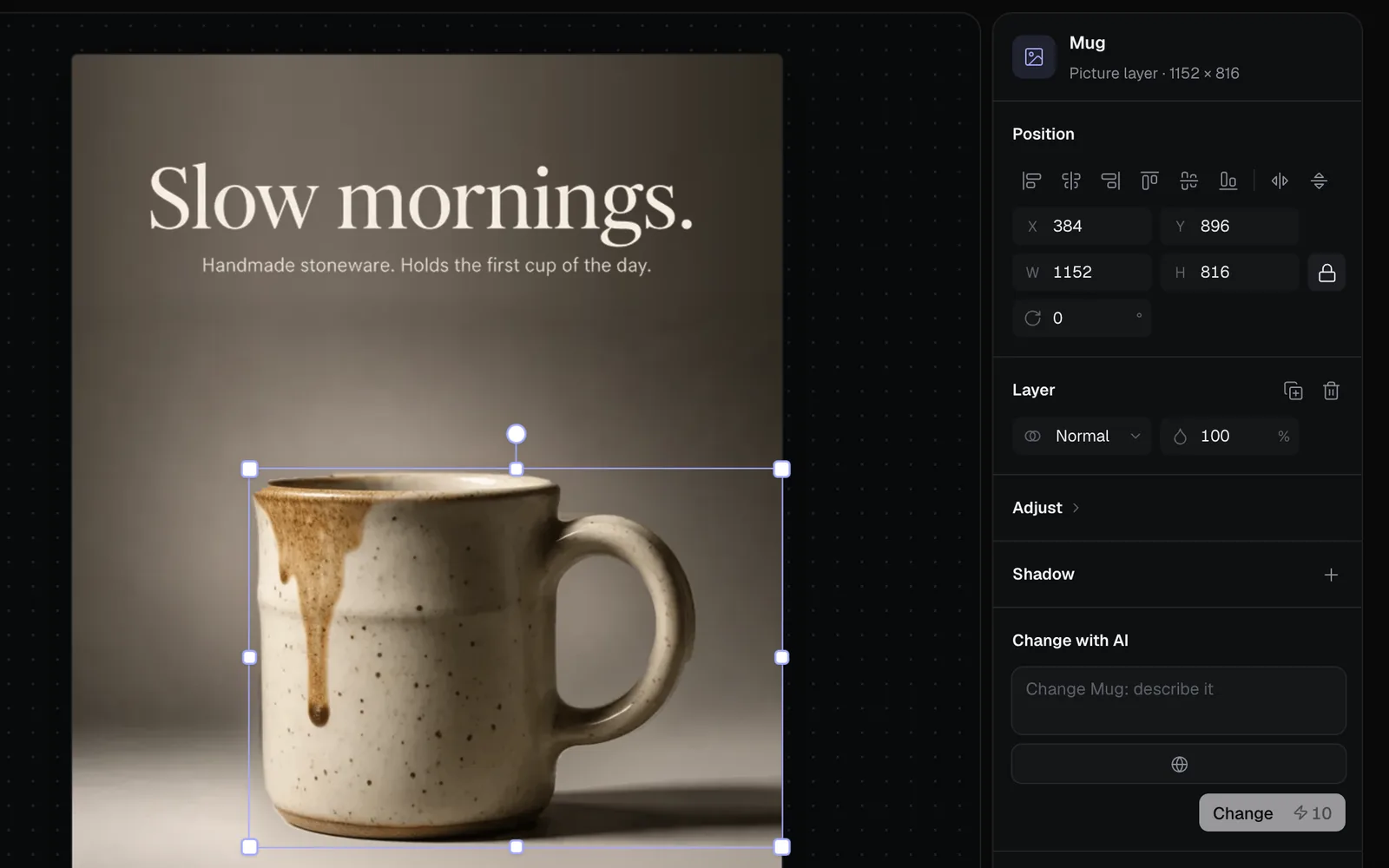
A layer split before Effects keeps its adjustments and its shadow: they show as Brightness, Contrast, Saturation, Hue, Blur and Drop shadow in its list.
On a whole picture
- Open a picture full size and click Edit, then Effects in the rail (or pick Effects from a picture's Edit menu on a canvas).
- Add effects in the list on the right. Hold Before to see the picture as it was.
- Click Save image. It's kept as a new picture beside the original, at its full size; outside a canvas, in your Library. Download saves it with the effects, without keeping it.
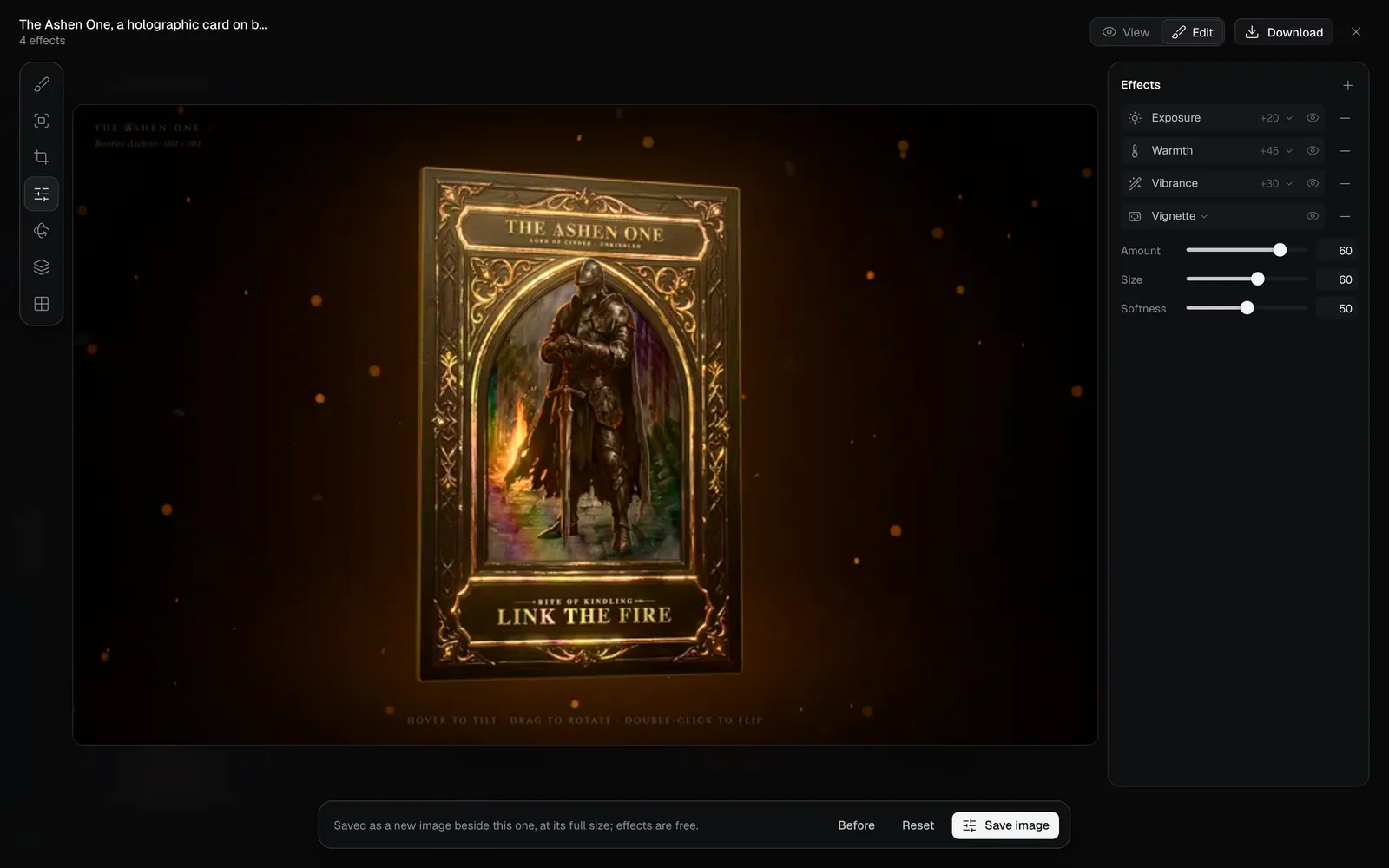
⌘Z undoes a change, and Reset takes every effect off.
For agents
Agents connected to Fil set a clip's effects with edit_video: {"op":"set","clip":"<id>","set":{"effects":[{"type":"warmth","amount":30},{"type":"vignette","amount":40}]}}. The list replaces the clip's, top to bottom, and null takes them off; get_video lists each clip's. See Edit a video with AI.
On a whole picture they use apply_effects, as the Effects tool does: ask "make this photo warmer with a soft vignette", and the agent calls it with the picture's node and "effects":[{"type":"warmth","amount":30},{"type":"vignette","amount":40}]. The picture with its effects lands as a new picture beside it, at its full size, and the original stays.
- It's free and done at once: no model runs, so there's no price to agree first.
- A picture takes the same effects as in the Effects tool: everything but Drop shadow, Glow and Outline.
- A setting left out starts where it does in the tool, and lengths are the picture's own pixels.
- Fil's server makes it with the same sums your browser draws them with, so it looks as it would in the tool. Grain is as strong and as fine, though its pattern can differ, as it does from one graphics card to another.
- Pictures over 12.6 million pixels (larger than 4096 × 3072) are made at 12.6 million.
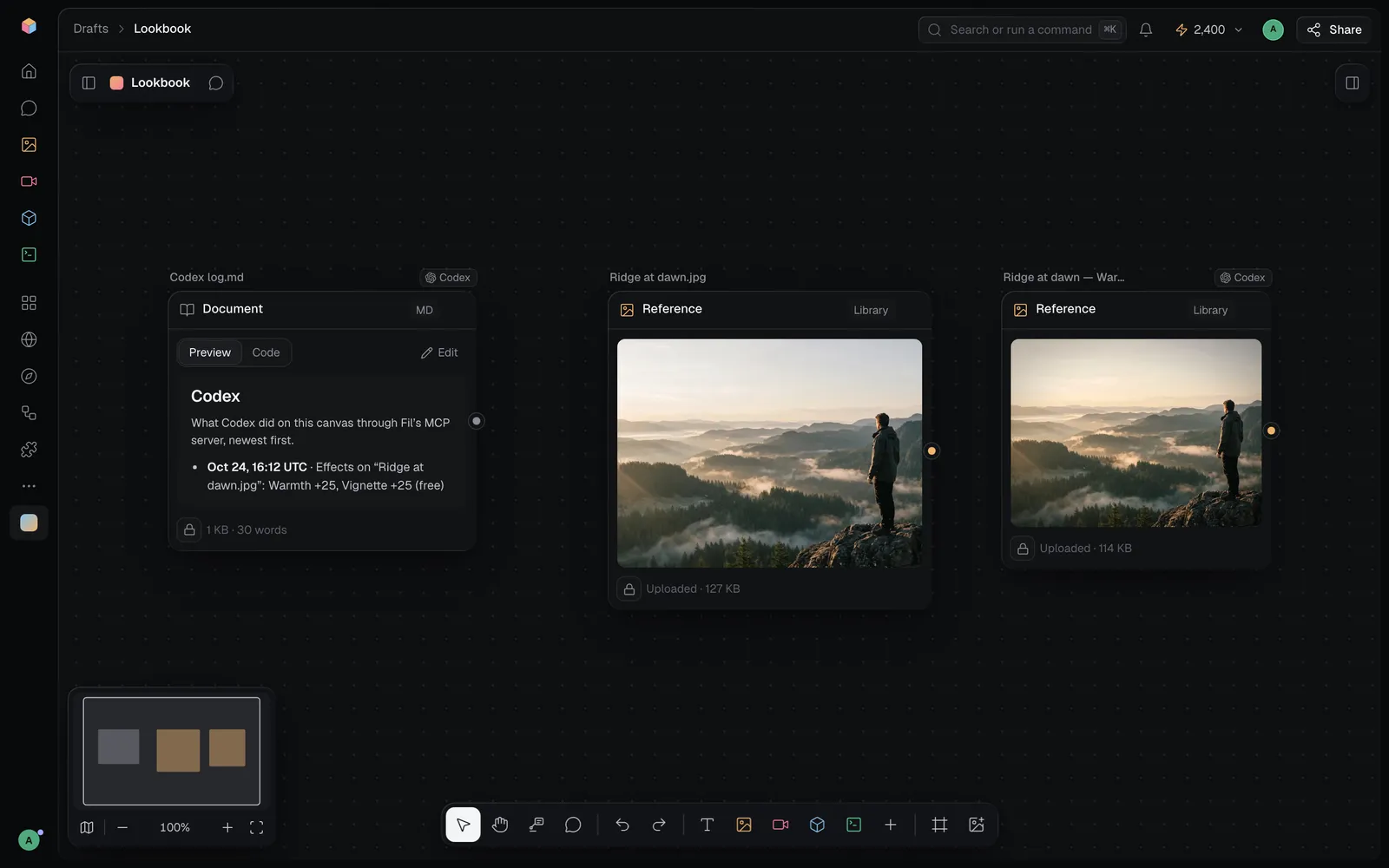
See MCP tools for every tool an agent can use.
What's next
- Transitions, speed and keyframes: place, size and animate a clip.
- Split an image into layers: move and restyle each part of a picture.
- Image editing: every tool in the Edit tab.